MIB Compiler
The MIB Compiler page allows you to convert the MIB file into a format that can be used by the SNMP Plug-in's built-in MIB Browser.
By obtaining and compiling the MIB file, you are able to browse not only standard MIBs but also private MIBs.
NoteYou can upload, compile, unregister, and delete MIB files only with an administrator account.
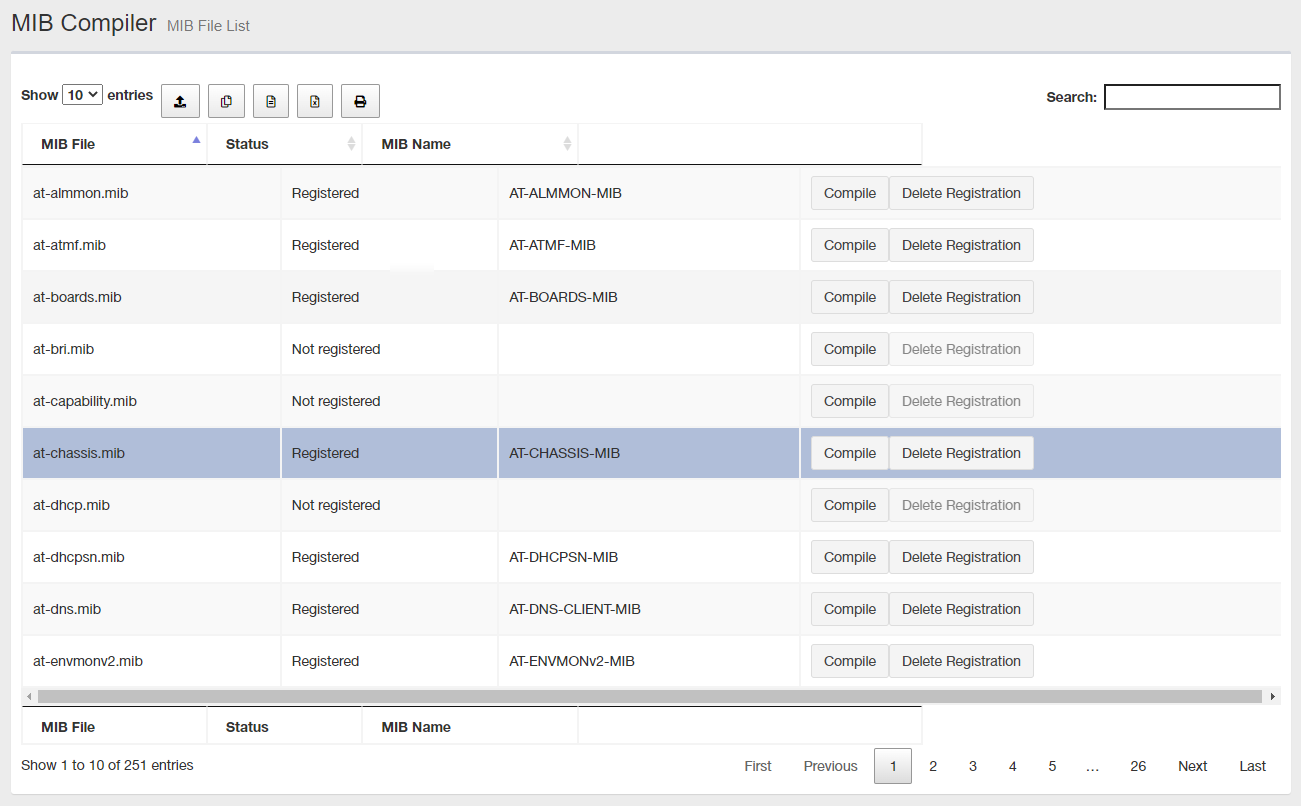
| Item Name | Description |
|---|---|
| Number of items displayed on the page | Select the number of MIB files to display on the list page from 10, 25, 50, or all. |
 Upload |
Upload the MIB file. You can select multiple MIB files. |
 Copy to Clipboard |
Copy the MIB file to the clipboard. You can filter target subnets with "Search" box. "Number of items on the page" and the current page do not affect an output. |
 Export to CSV file |
Download the registered MIB file as a CSV (comma-separated values) file. You can filter target subnets with "Search" box. "Number of items on the page" and the current page do not affect an output. |
 Export to Excel |
Download the registered MIB file as an Excel workbook file (extension: xlsx, Microsoft Excel 2007 or later). You can filter target subnets with "Search" box. "Number of items on the page" and the current page do not affect an output. |
 |
List the registered MIB files in the pop-up window or new tab of the web browser and display the print dialog. You can filter target subnets with "Search" box. "Number of items on the page" and the current page do not affect an output. |
| Search field |
Lets you filter target subnets by keywords. The search ignores case. "." and "/" in the search keywords do not match them in the network address ("." and "/" in "192.168.1.0/24"). |
| MIB File | Displays the MIB file name. |
| Status |
Shows the status of the MIB file. "Registered" indicates that it has already been compiled and is ready for use from the MIB Browser. "Not registered" indicates that it has not been compiled yet and cannot be used from the MIB Browser. |
| MIB Name | If it has been compiled, the module name of the MIB is displayed. |
| "Compile" button |
The MIB Compiler dialog that compiles the selected MIB file is displayed and compilation begins. After compiling, click the "Close" button at the bottom right to close the dialog. The MIB Compiler dialog also displays a log of the compilation process. |
| "Delete Registration" button |
Keep the MIB file and hide it from the MIB Browser. The list shows "Not registered" and does not appear in the MIB Browser. |
| "Delete" button |
Deletes the MIB file to remove all information from the SNMP Plug-in. To use it again, start over from upload. NoteOnly uploaded MIB files can be deleted. The "Delete" button is not displayed for the MIB files prepared at the time of installation. |
| Displayed Range | Currently displayed range of the list is shown as "From Xth to Yth out of Z items". |
| Page Navigation |
Lets you view a specific page of the list.
|
03 Nov 2022 14:15