Wireless Concierge
The wireless concierge will suggest optimizing the channel and transmit power of wireless APs that are under the management of the AWC-CB.
There are two optimization suggestions. For each selected floor map or wireless APs, you can request and apply one or both suggestions.
- Interference Reduction
- Overlap Reduction
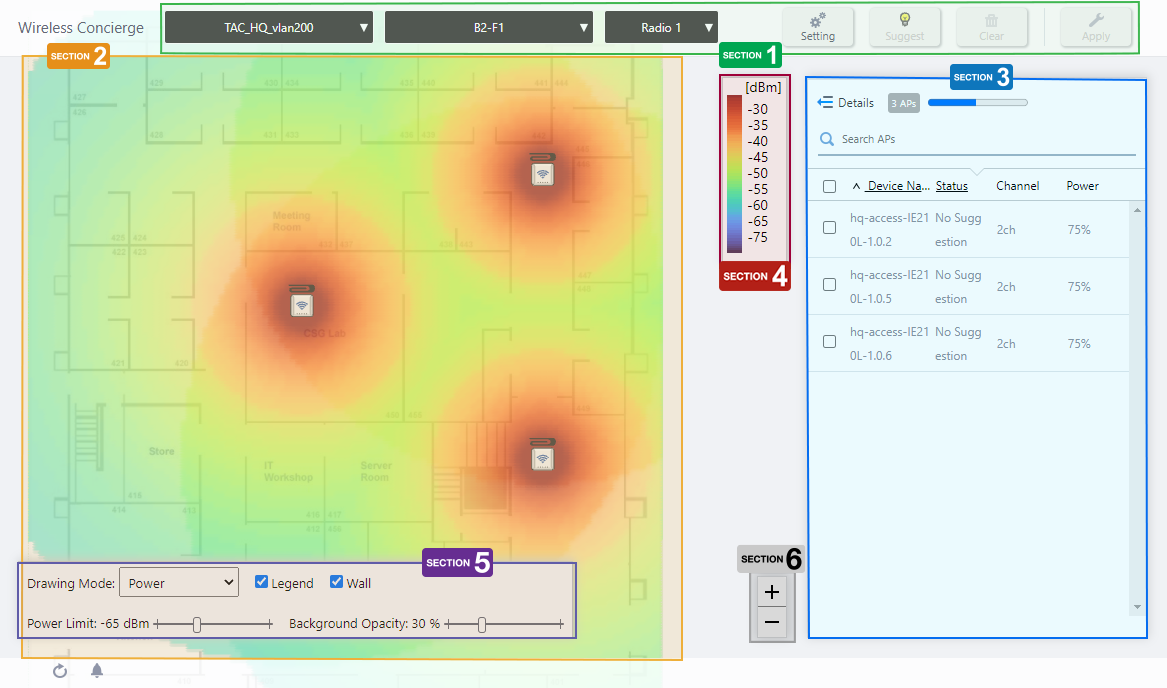
Wireless Concierge
Section 1
You can select a target management group and floor map, set the type of suggestion, request, delete, or apply the suggestion.
| Item Name | Description |
|---|---|
| Management Group drop-down menu | Narrow down the floor map to be displayed. The default is "All Management Groups". |
| Floor Map drop-down menu |
Select the floor map to be configured. The default is "All Floor Maps". When you select one of the floor maps, the management group drop-down menu will be set to its corresponding floor map. The panel view of the floor map will also switch to the floor map detail view. It also selects all floor maps that have wireless APs with the same CB VAP applied to them. To return to the floor map panel view again, select "All Floor Map". |
| Radio dropdown menu | Lets you select a radio band to show on the map, from Radio 1, 2 or 3. |
| "Setting" button |
Displays the Suggest - Setting dialog box. In this dialog box, choose the type of optimization suggestion for each channel blanket under your control. |
| "Suggest" button |
Displays the Suggest - Execution dialog box. In this dialog box, request optimization suggestions for the target selected in the floor map list or wireless AP list, for each radio band (2.4GHz, 5GHz). |
| "Clear" button |
Clears the status of current suggestions for the selected floor maps or wireless APs and returns it to the "No suggestion" status. Changes made by applied suggestions will not be reverted. |
| "Apply" button |
Displays the Apply - Execution dialog box. This dialog box applies the optimization suggestions to the wireless APs on the floor map selected in the floor map list or in the wireless AP list. |
Section 2
Floor map panel view, floor map layered view, and floor map detailed view will be displayed depending on the selection of the suggestion target.
- Panel View
The panel display of the floor map will appear in the following cases:
- If you have not selected a specific management group in the drop-down menu at the top of the screen.
- When a specific management group is selected in the drop-down menu at the top of the screen, and a specific floor map is not selected in either the drop-down menu or the floor map list on the right side of the screen.
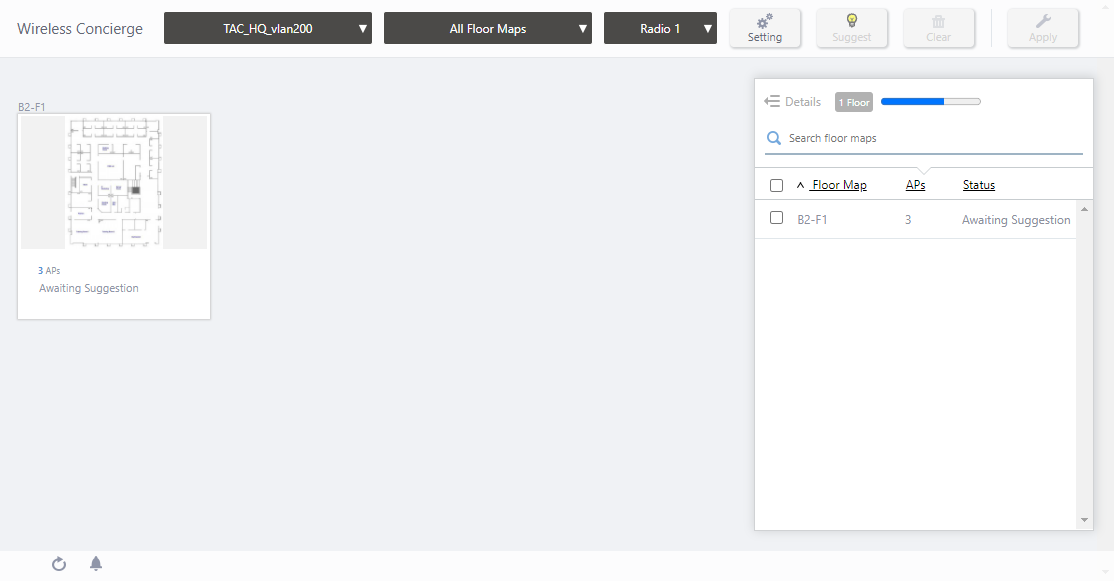
- If you have not selected a specific management group in the drop-down menu at the top of the screen.
- Layered View
A layered view of the floor map will be displayed in the following case:
- When a specific management group is selected in the drop-down menu at the top of the screen, no specific floor map is selected in the floor map drop-down menu, and any floor map is selected in the floor map list on the right side of the screen.
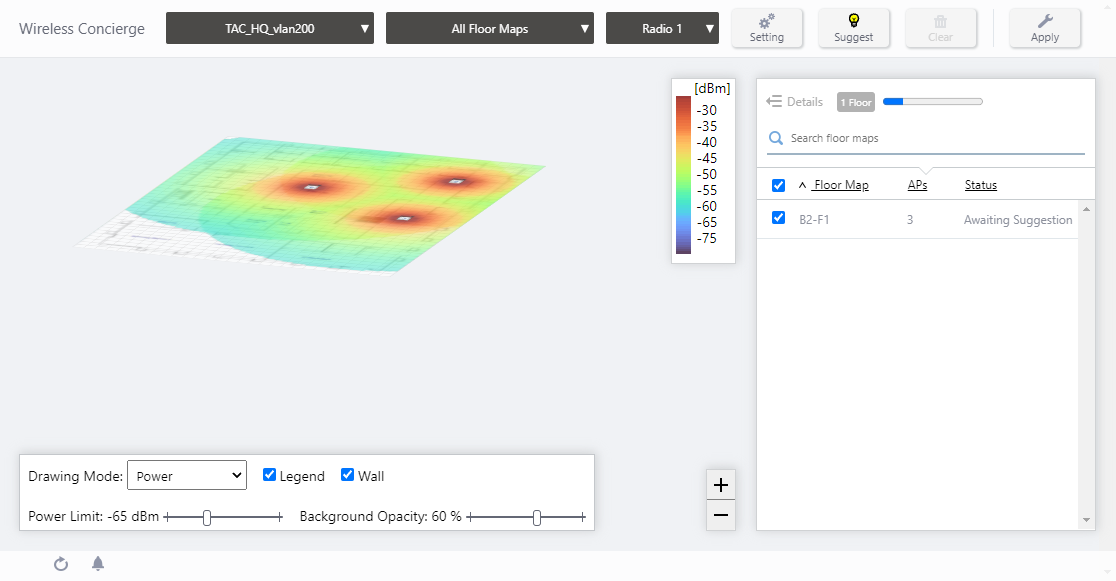
- When a specific management group is selected in the drop-down menu at the top of the screen, no specific floor map is selected in the floor map drop-down menu, and any floor map is selected in the floor map list on the right side of the screen.
- Detailed View
A detailed view of the floor map will be displayed in the following case:
- If you have selected a specific floor map in the floor map drop-down menu at the top of the screen.
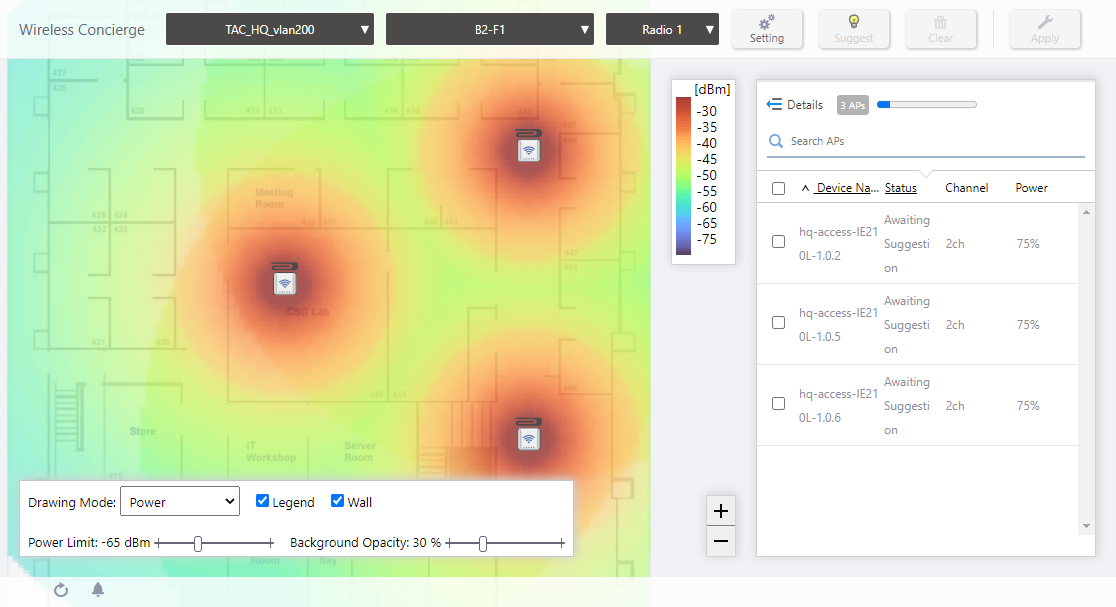
- If you have selected a specific floor map in the floor map drop-down menu at the top of the screen.
Section 3
Depending on the selection of the suggestion target, the floor map list or the wireless AP list will be displayed.
- Floor Map List
If you have not selected a specific floor map in the floor map drop-down menu at the top of the screen, the floor map list will be displayed.
- AP List
If you have selected a specific floor map in the floor map drop-down menu at the top of the screen, a list of wireless APs will be displayed.
Section 4
This is a legend of the heat map display in the floor map layered view or the floor map detailed view.
It shows the relationship between colors and signal strength or channels.
The legend can be made invisible or visible by using a checkbox in the floor map control section at the bottom of the page.
Color conventions depend on the floor map drawing mode.
- Power

- Channel

Section 5
In Wireless Status View, the "Healthiness Icon" is disabled.

| Item Name | Description |
|---|---|
| Drawing Mode | Lets you select what to show on the heatmap. Options are power (signal strength) and channel. |
| Legend | Lets you enable or disable the legend. Check to display. |
| Wall |
If walls have been created on the floor map (using the Edit Wall page), this lets you choose whether to display the walls. Check to display.NoteIf walls have been defined, attenuation by the walls takes effect on the heat map even when this control is left unchecked. |
| Power Limit | Specify the minimum signal strength to show in colors on the heatmap. |
| Opacity | Specify the opacity of the floor map background image. |
Section 6
Zoom In/Out buttons.
You can zoom in (+) or zoom out (-) of the floor map display. You can also use the mouse wheel scroll to zoom in or out.

Floor Map List
Displays the status of the suggestions for floor maps that belong to the selected management group.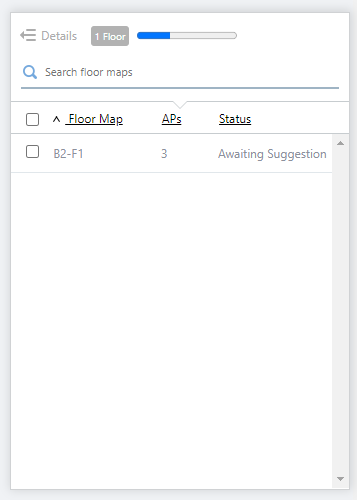
| Item Name | Description |
|---|---|
| Details | This is not available in the floor map list view. |
| X Floors |
Displays the current number of floor maps to be shown. If you have narrowed down the search in "Search floor maps", the number of matching floor maps will be displayed. If you have not narrowed down the search, the total number of floor maps belonging to the management group selected in the drop-down menu at the top of the screen will be displayed. |
| Refresh Timer | Shows the status of the timer that automatically refreshes the page. The blue portion of the bar shows the elapsed time since the last refresh; the grey or white portion shows the time to the next refresh. The list is automatically refreshed at the interval configured on "Refresh Rates" > "Floor MAP (Wireless Status)" in the User Management menu. (The default is 1 minute.) |
| Search Floor Map |
You can search for floor maps that belong to a management group. Displays the items among the current display targets that contain the string entered in this field in the floor map name. To remove the filter, delete the string from the Search field and press Enter. NoteThe search is case-sensitive. |
| Floor Map |
Displays the name of the floor map that belongs to the management group. To execute, apply, or clear a suggestion, check the checkbox to the left of the floor map name. |
| APs | Displays the number of wireless APs deployed on the corresponding floor map. |
| Status |
Displays the status of the optimization suggestion for the corresponding floor map.
|
AP List
Displays the state of suggestions for wireless APs deployed in the selected floor map.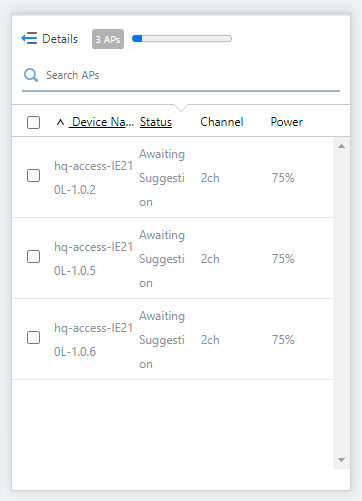
| Item Name | Description |
|---|---|
| Details |
Clicking on it displays the default floor map name and status, radio information such as country code, channel specification, bandwidth, transmit power specification applied to the wireless AP, system information such as model name, MAC address, IP address, AP profile, CB profile/CB name, and SC profile. Clicking Details again returns you to the default non-detailed view. |
| X APs | Displays the total number of wireless APs deployed on the floor map. |
| Refresh Timer | Shows the status of the timer that automatically refreshes the page. The blue portion of the bar shows the elapsed time since the last refresh; the grey or white portion shows the time to the next refresh. The list is automatically refreshed at the interval configured on "Refresh Rates" > "Floor MAP (Wireless Status)" in the User Management menu. (The default is 1 minute.) |
| Search APs |
You can search for wireless APs located on the floor map. Of the current display targets, "Device Name", "Bandwidth", "Model", "MAC Address", "IP Address", or "AP Profile" will display items that contain the string entered in this field. To remove the filter, delete the string from the Search field and press Enter. NoteThe search is case-sensitive. |
| Device Name |
Displays the names of wireless APs placed on the floor map. When executing, applying, or clearing a suggestion, check the box to the left of the device name. |
| Status |
Displays the status of the optimization suggestion for the corresponding APs.
|
| Channel | Displays the channel for the selected radio band. |
| Tx Power | Displays the transmit power of the selected radio band. |
AP List (Detail)
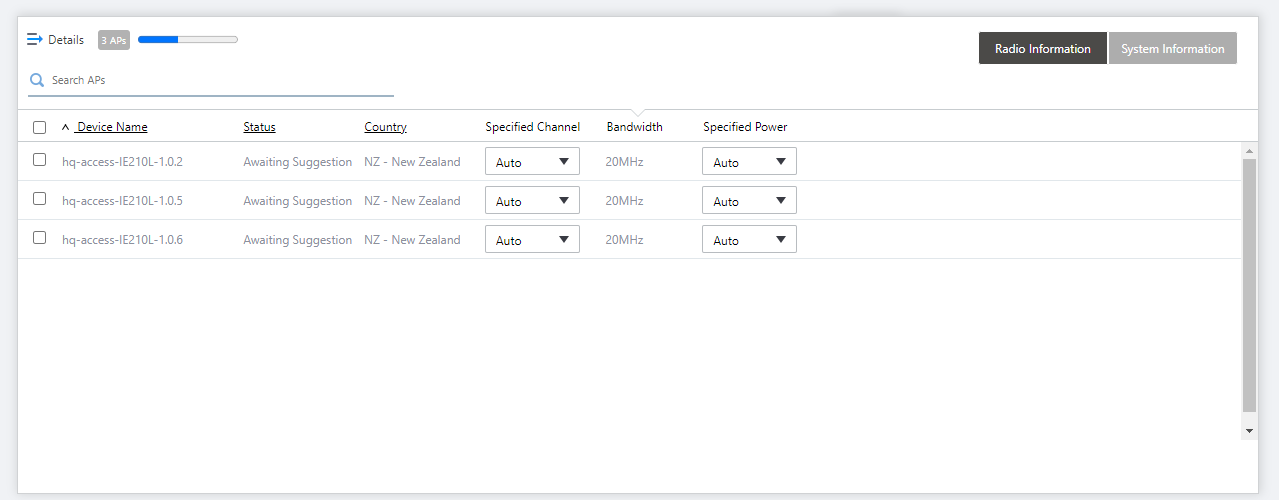
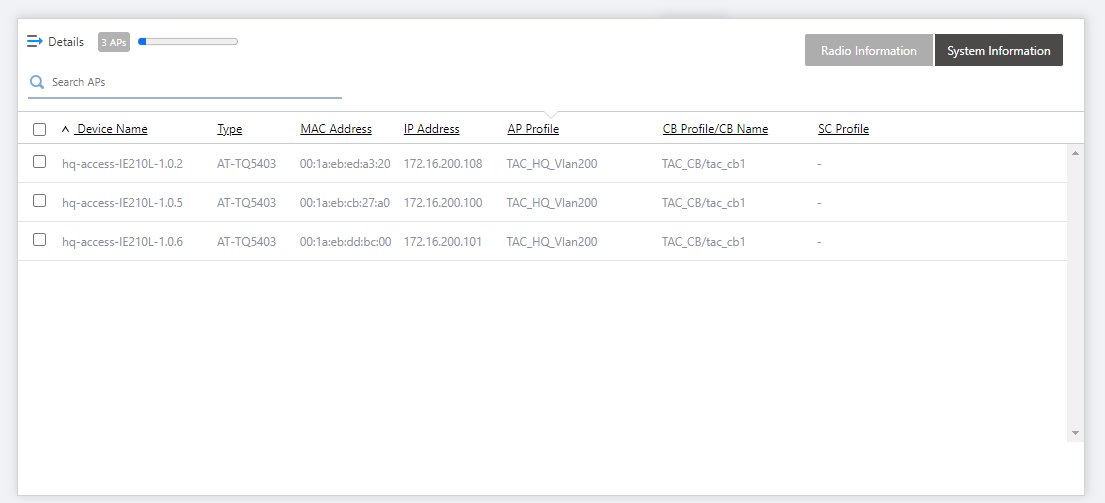
Click "Details" at the top of the AP list to expand the list and display information such as models, AP profiles, etc.The list can be switched between radio information and system information of the wireless APs. In the initial state, wireless information of the wireless APs is displayed.

| Item Name | Description |
|---|---|
| Details | Clicking "Details" again on the extended list shrinks the list to its default size. |
| X APs | Displays the total number of wireless APs deployed on the floor map. |
| Refresh Timer | Shows the status of the timer that automatically refreshes the page. The blue portion of the bar shows the elapsed time since the last refresh; the grey or white portion shows the time to the next refresh. The list is automatically refreshed at the interval configured on "Refresh Rates" > "Floor MAP (Wireless Status)" in the User Management menu. (The default is 1 minute.) |
| "Wireless Information" button | Switches the list content to the wireless configuration of the APs placed on the floor map. |
| "System Information" button | Switches the list content to system information for the APs placed on the floor map. |
| Search APs |
You can search for wireless APs located on the floor map. Of the current display targets, "Device Name", "Bandwidth", "Model", "MAC Address", "IP Address", or "AP Profile" will display items that contain the string entered in this field. To remove the filter, delete the string from the Search field and press Enter. NoteThe search is case-sensitive. |
| Radio info | |
 |
|
| Device Name |
Displays the names of wireless APs placed on the floor map. When executing, applying, or clearing a suggestion, check the box to the left of the device name. |
| Status |
Displays the status of the optimization suggestion for the corresponding APs.
|
| Country | Displays the country code (regulated area of the radio frequency band) set for the wireless AP. |
| Specified Channel |
You can specify the radio channel for the selected radio band from the drop-down list. The drop-down list shows the channel candidate or automatic selected in the AP profile Auto Channel Selection. Among the channel candidates, the currently applied channel will be shown in blue. The default is "Auto". |
| Bandwidth | Displays the bandwidth for the selected radio band. |
| Specified Power |
You can select the transmit power of the selected radio band from the drop-down list. From the drop-down list, you can choose Auto, 1%, 5%, 10%, 20%, 30%, 40%, 50%, 60%, 70%, 80%, 90%, or 100%. The default is "Auto". |
| System Info | |
 |
|
| Device Name |
Displays the names of wireless APs placed on the floor map. When executing, applying, or clearing a suggestion, check the box to the left of the device name. |
| Type | Displays the model name of the AP. |
| MAC Address | Shows the MAC address of the AP. |
| IP Address | Shows the IP address of the AP. |
| AP Profile | Shows the AP Profile assigned to the AP. |
| CB Profile/CB Name | Shows the CB Profile assigned to the AP, and the Channel Blanket name to which the AP belongs. |
| SC Profile | Shows the SC Profile assigned to the AP. |
Suggest - Setting
In this dialog box, choose the type of optimization suggestion for each channel blanket under your control.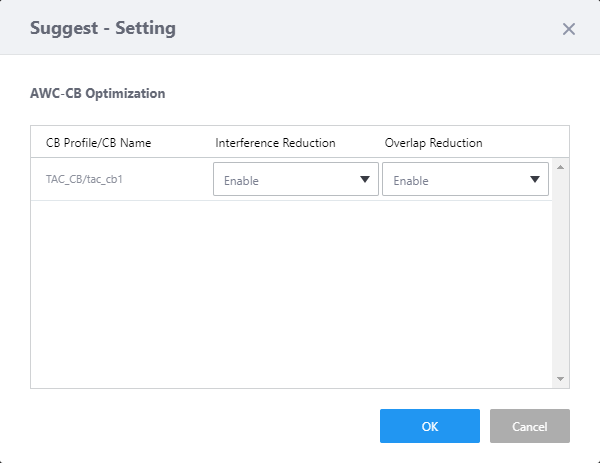
| Item Name | Description |
|---|---|
| CB Profile/CB Name | Shows the target Channel Blanket name and its CB Profile. |
| Interference Reduction |
Enables or disables channel optimization.
|
| Overlap Reduction |
Enables or disables the transmit output optimization.
|
| "OK" button | Saves the changes to the type of optimization for the suggestion that you want to execute and closes the dialog. |
| "Cancel" button | Discards the changes to the type of optimization for the suggestion that you want to execute and closes the dialog. |
Suggest - Execution
In this dialog box, request optimization suggestions for the target selected in the floor map list or wireless AP list, for each radio band (2.4GHz, 5GHz).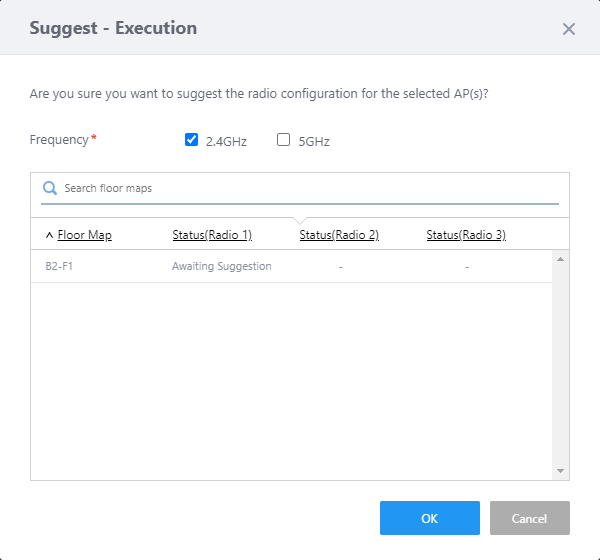
| Item Name | Description |
|---|---|
| Frequency | Select a frequency band from one or both of 2.4GHz and 5GHz to execute the suggestion. |
| Search floor maps/Search APs | You can enter part of the name to narrow down the floor maps or APs to be listed. |
| Floor Map/AP | The name of the floor map selected in the floor map list of the Wireless Concierge screen or the name of the wireless AP selected in the AP list of the floor map detail view of the Wireless Concierge screen will be displayed. |
| Status (Radio 1 / Radio 2 / Radio 3) |
Displays the suggestions status for the floor map or wireless APs.
|
| "OK" button |
Executes the request for suggestion. Optimization suggestions are displayed in the Suggestion - Result dialog box. |
| "Cancel" button | Aborts the execution for suggestion and closes the dialog box. |
Suggest - Result
The "Suggestion - Result" dialog box shows the results of the suggestions by frequency (2.4GHz, 5GHz) selected for the floor maps or APs.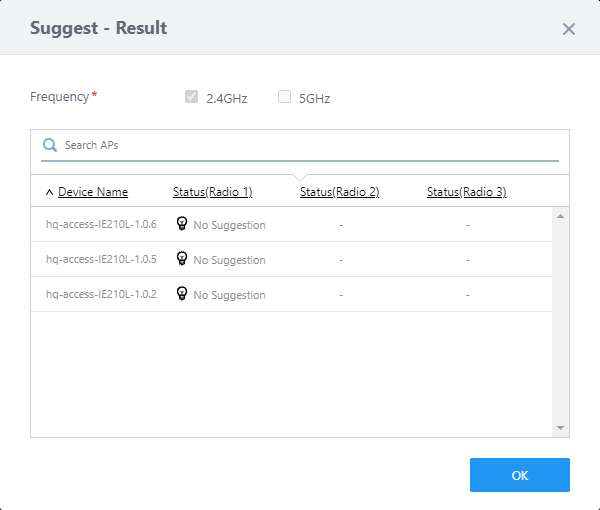
| Item Name | Description |
|---|---|
| Frequency | Displays the frequency band of the radio that requested the suggestion. |
| Search floor maps/Search APs | You can enter part of the name to narrow down the floor maps or APs to be listed. |
| Floor Map/AP | The name of the floor map selected in the floor map list of the Wireless Concierge screen or the name of the wireless AP selected in the AP list of the floor map detail view of the Wireless Concierge screen will be displayed. |
| Status |
Displays the suggestions status for the floor map or wireless APs.
|
| "OK" button |
Finishes reviewing the suggestion and closes the "Suggestion - Result" dialog box. Click the "Apply" button at the top of the Wireless Concierge screen to apply the suggestion. Then use the Apply - Execution dialog. |
Apply - Execution
This dialog box applies the optimization suggestions to the wireless APs on the floor map selected in the floor map list or in the wireless AP list.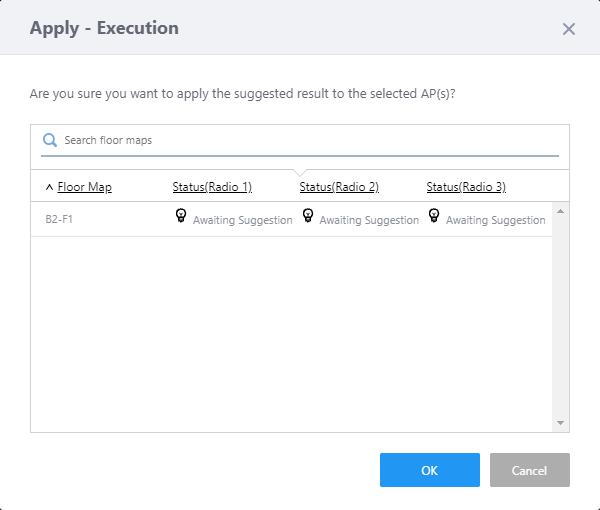
| Item Name | Description |
|---|---|
| Search floor maps/Search APs | You can enter part of the name to narrow down the floor maps or APs to be listed. |
| Floor Map/AP | The name of the floor map selected in the floor map list of the Wireless Concierge screen or the name of the wireless AP selected in the AP list of the floor map detail view of the Wireless Concierge screen will be displayed. |
| Status (Radio 1 / Radio 2 / Radio 3) |
Displays the suggestions status for the floor map or wireless APs.
|
| "OK" button |
Executes the application of suggestion. The "Apply - Execution" dialog box will close and the "Applying configuration to wireless AP(s). " screen will display. When the application is complete, click "Close" to return to the Wireless Concierge screen. |
| "Cancel" button |
Aborts the application of suggestion and closes the dialog box. If there are any suggestions in Awaiting Application status at this point, they will be currently put on hold. |
02 Nov 2021 15:42