Adding Devices from List
This section explains how to select a device that is physically connected to an AMF Member managed by AMF Security mini and register it in AMF Security mini.
Searching a Device by IP Address
You can see the list of devices detected by AMF Security mini on the Device > Active Device List page. AMF Security mini detects them by examining MAC Addresses of the packets received by the AMF Members it manages.However, some types of network devices (e.g. multifunction printers) may not be listed on the Device > Active Device List page because those devices are quite passive and do not transmit packets by themselves.
For those devices, you can use the Device Search feature to make AMF Security mini instructs AMF Members to send out Probe ARP or ARP packets.
When the AMF Members receive response to the Probe ARP or ARP packets, they ask AMF Security mini to authenticate the devices.
The AMF Security mini refers to the MAC Address recorded in the inquiry from the AMF Member to connect the device to the Device > Active Device List page.
- Open the Device > Active Device List page.
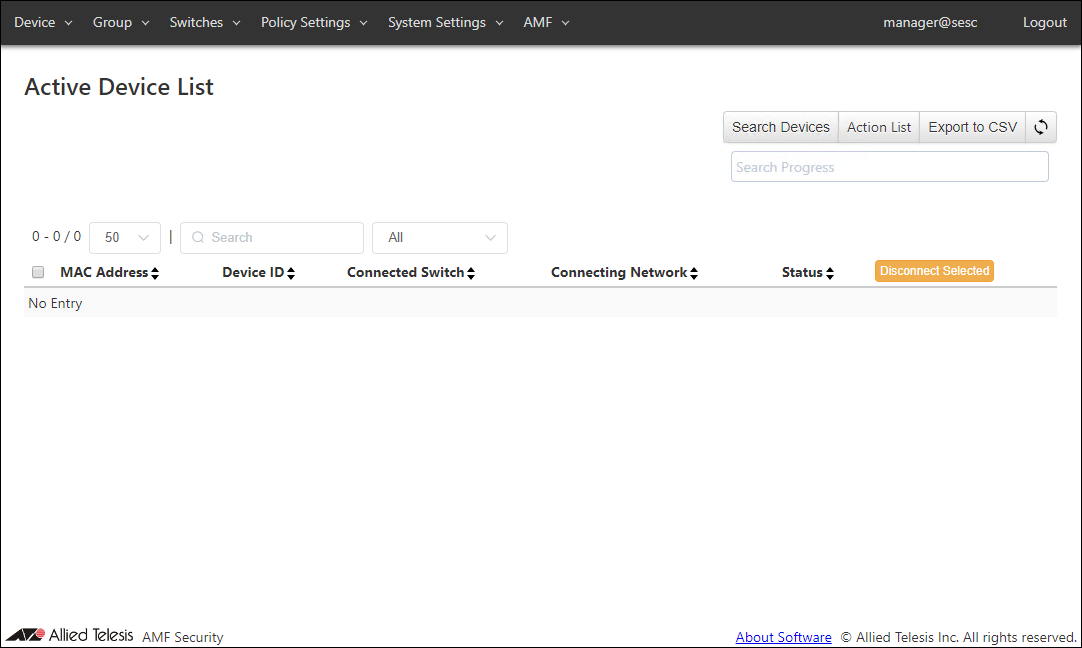
- Click the "Search Devices" button at the top right corner to open the Device > Search Devices dialog.
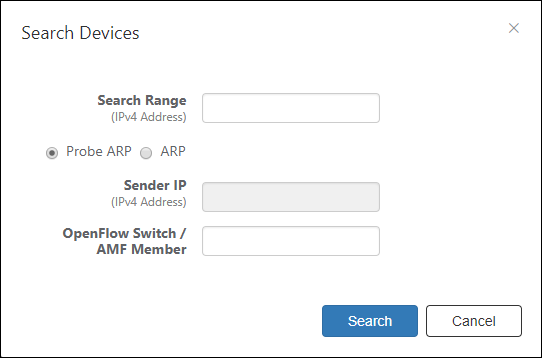
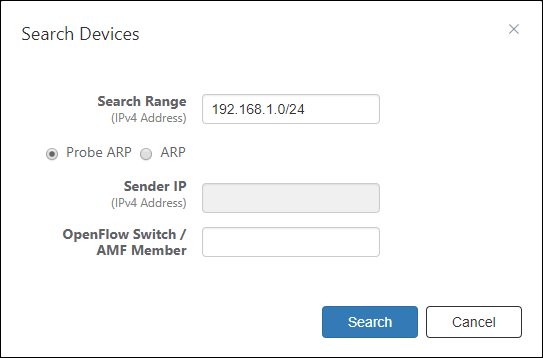
- Enter an IPv4 Address or an IPv4 Address range to search for devices.
A range can be specified either in "xxx.xxx.xxx.xxx-xxx.xxx.xxx.xxx" (The first to the last address) or "xxx.xxx.xxx.xxx/xx" (a base address and a mask length).
Note
If you select "ARP", specify the Sender IP. Make sure to specify a Sender IP which is not used in the target address range.
When specifying the first and the last address, make sure that the number of IP Addresses is 4,094 or less.
Specify the subnet mask length in the range of 20 to 32 bit mask.
- Click "Search" to go back to the Device > Active Device List page.
Search packets are sent to the address or address range once.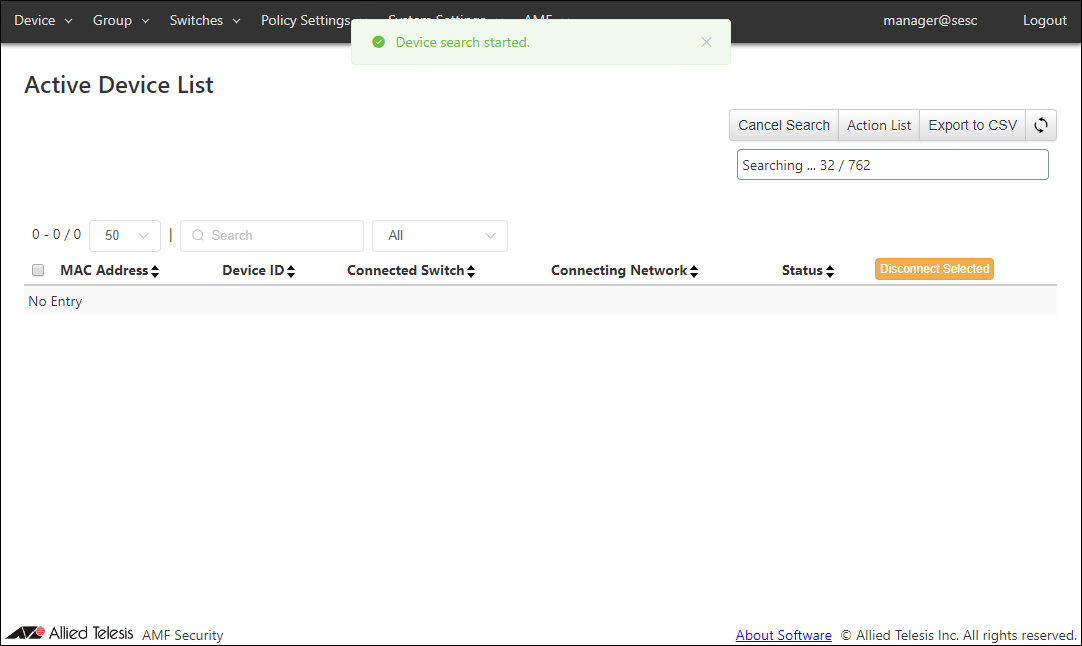
Progress of the search operation is being displayed in the "Search Progress" field at the top right of the page.
When you click the "Update" button at the top right corner of the Device > Active Device List page, MAC Address of the devices newly found by the search is added to the list. The devices found by the Device Search are processed by existing security policies such as actions, devices and the UnAuth Group. If they do not match any policies, they are treated as unauthenticated.
In this case, you can detect those devices by properly configuring Detect-Only the UnAuth Group security policies following the steps described in the Adding Devices from List > Detecting Devices Using UnAuth Group.
Registering Device from Active Device List
The Device > Active Device List page lists the MAC Addresses of the devices which are connected to the AMF Members managed by AMF Security mini.Unregistered MAC Addresses on the Device > Active Device List page can be added either as a new device or a new interface of the existing device.
Registering MAC Address as a New Device
- Open the Device > Active Device List page.
When AMF Security mini learns the unregistered MAC Address of a device that is connected to and transmits packets to the AMF Member, the page shows its status as "Authentication Failed".
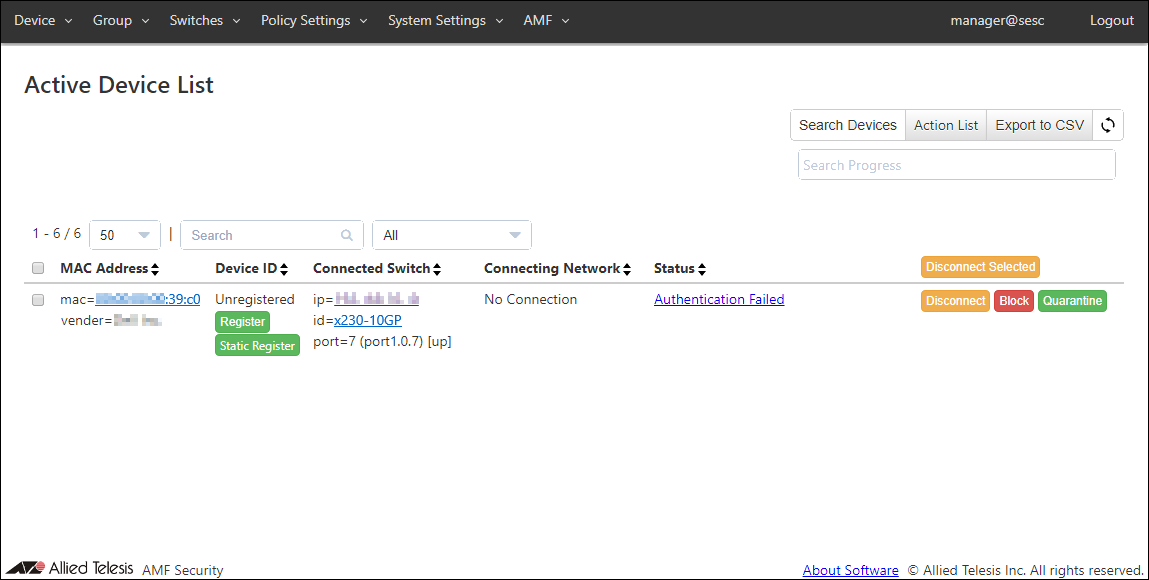
- Click "Register" in the "Device ID" column of the unregistered MAC Address to open the Device > Add Device dialog.
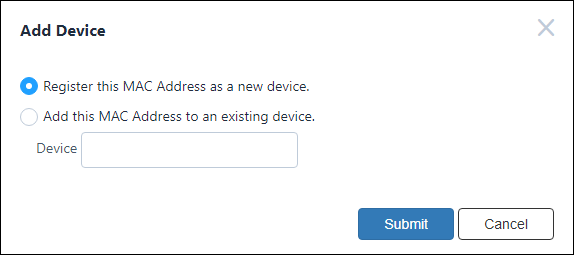
- Select "Register this MAC Address as a new device" on the Device > Add Device dialog and click "Submit".
- The Device > Add Device page is displayed.
"Interfaces" section shows the MAC Address you selected on the Device > Active Device List page.
Enter a Device ID (Mandatory), a Tag and a Note for the device.
Here you can configure a security policy depending on your needs. You can also add more interfaces here if the device has more than one interface and you know MAC Addresses of those additional interfaces.
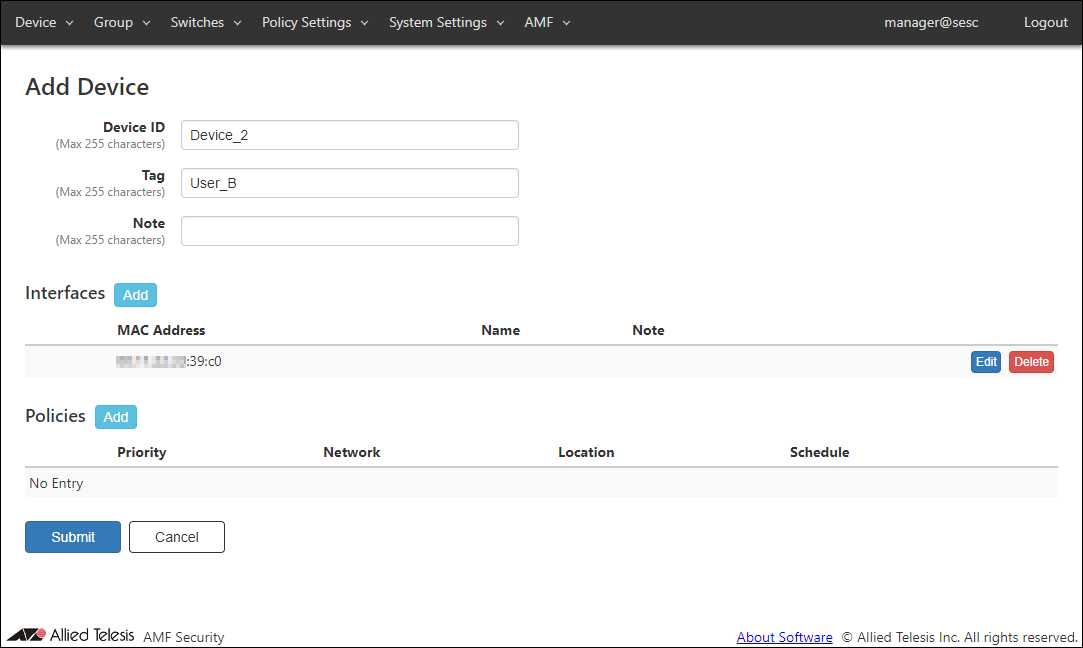
- Click "Submit".
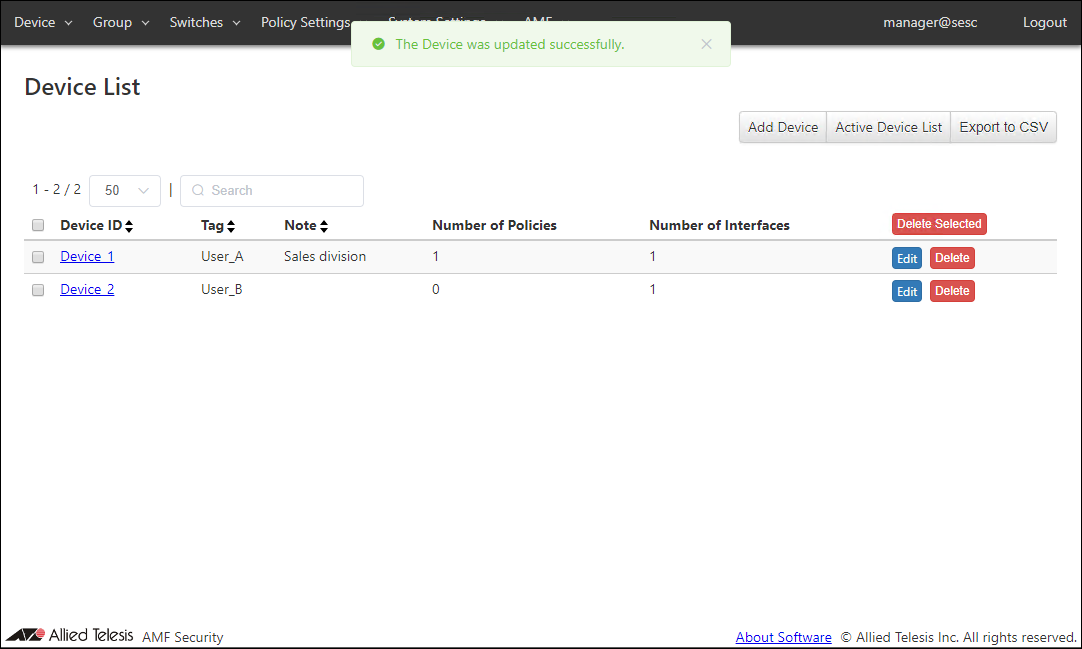
- The Device > Device List page is displayed.
You can see the newly added device on the list.
Associating a MAC Address to the Existing Device
If you know that an unregistered MAC Address is the address of an existing device's another interface, you can associate the address to the existing device's interfaces on the Device > Active Device List page.- Open the Device > Active Device List page.
When AMF Security mini learns the unregistered MAC Address of a device that is connected to and transmits packets to the AMF Member, the page shows its status as "Authentication Failed".
- Click "Register" in the "Device ID" column of the unregistered MAC Address to open the Device > Add Device dialog.
- Select "Add this MAC Address to an existing device" on Device > Add Device dialog.
- Select a device ID for the device to which you want to associate the MAC Address.
Maximum 100 device IDs are shown in the dropdown list. If you enter text in the field, device IDs in the dropdown list are dynamically filtered to the ones which contain the input text in Device ID, Tag or Note (it shows maximum 100 elements). From the dropdown list, select a Device ID for the device.
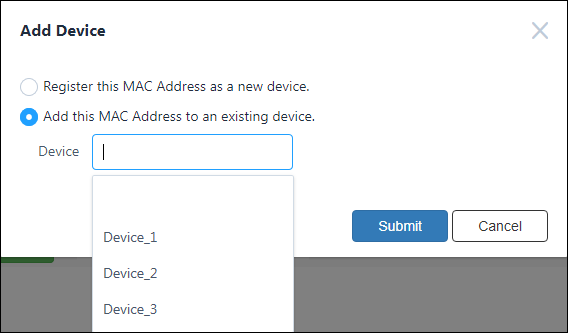
- Click "Submit".
- The Device > Update Device page is displayed.
"Interfaces" section shows the MAC Address you selected on the Device > Active Device List page.
Here you can configure a Device ID, tag, Note and security policy depending on your needs. You can also add more interfaces here if the device has more than one interface and you know MAC Addresses of those additional interfaces.
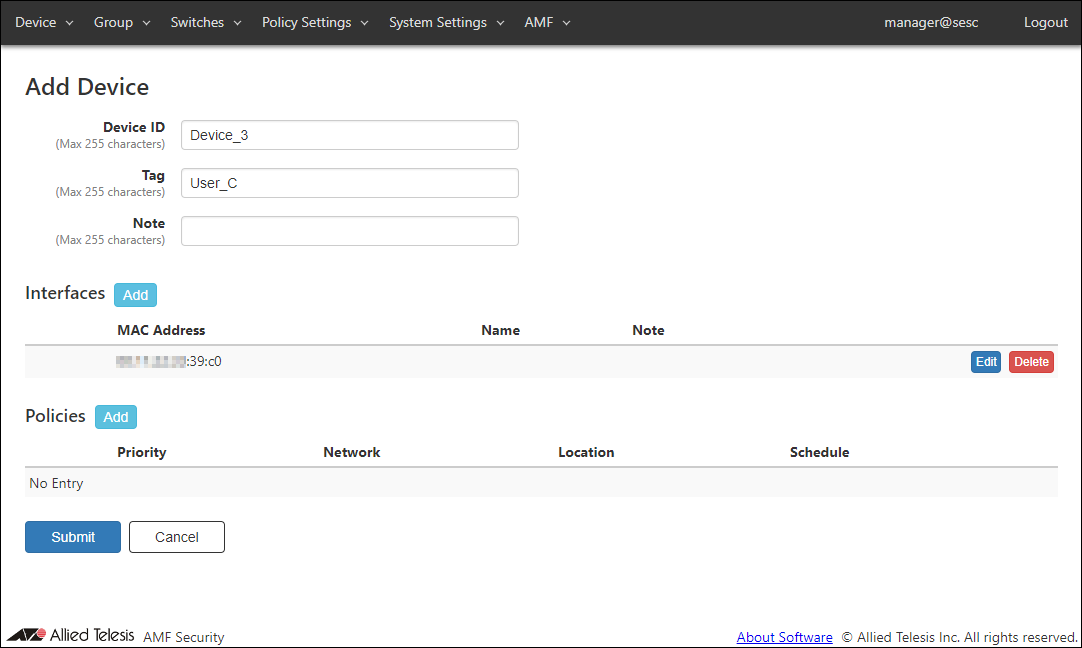
- Click "Submit".
- The Device > Device List page is displayed.
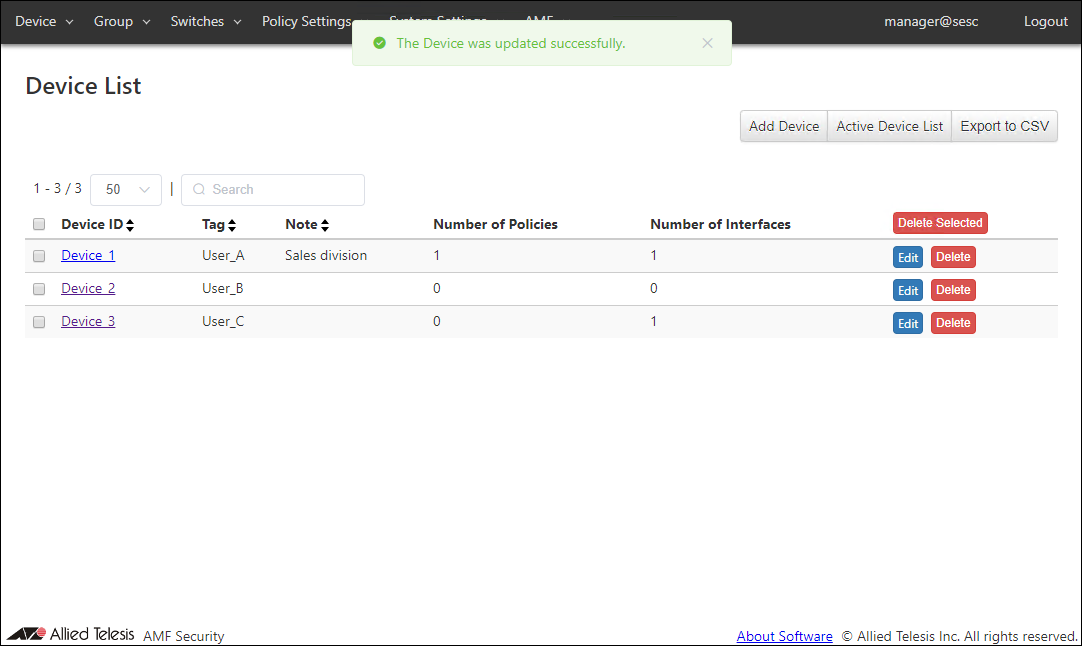
Detecting Devices Using the UnAuth Group
With the UnAuth Group feature, you can categorize and identify new devices by its location and schedule.If you checked the "Only detecting the device" when creating the UnAuth Group, the MAC Addresses matching its policy are listed on the Device > Active Device List page, with the status "Detected" and the UnAuth Group ID in the Device ID column.
In this case, devices in the UnAuth Group cannot immediately access the network.
- Open the Group > UnAuth Group List page.
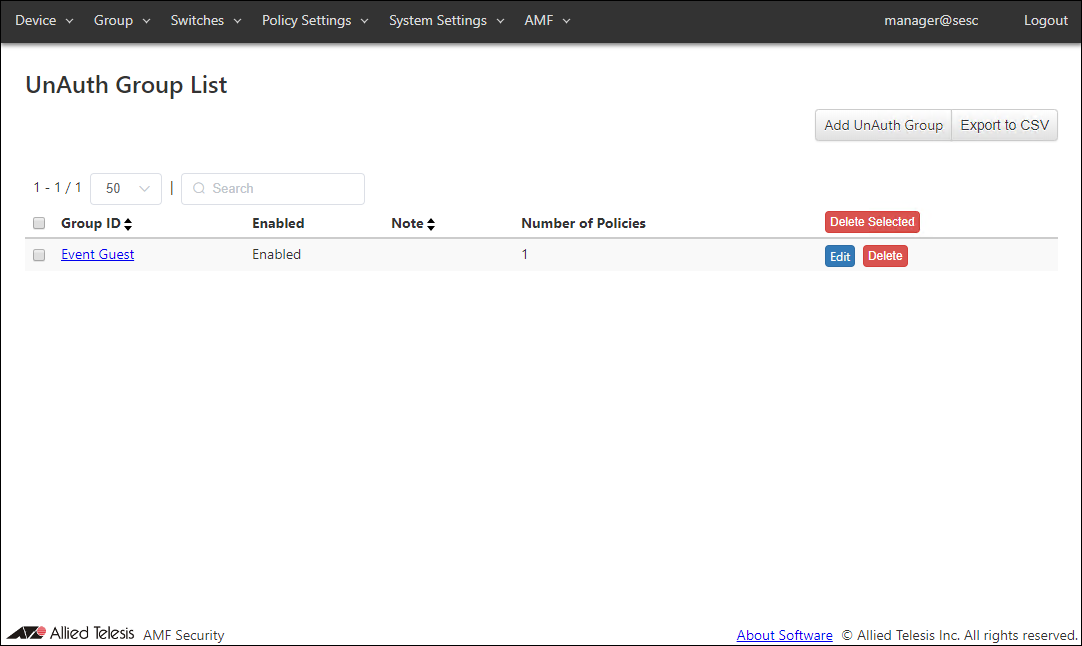
- Click the "Add UnAuth Group" button at the top right corner to move to the Group > Add UnAuth Group page.
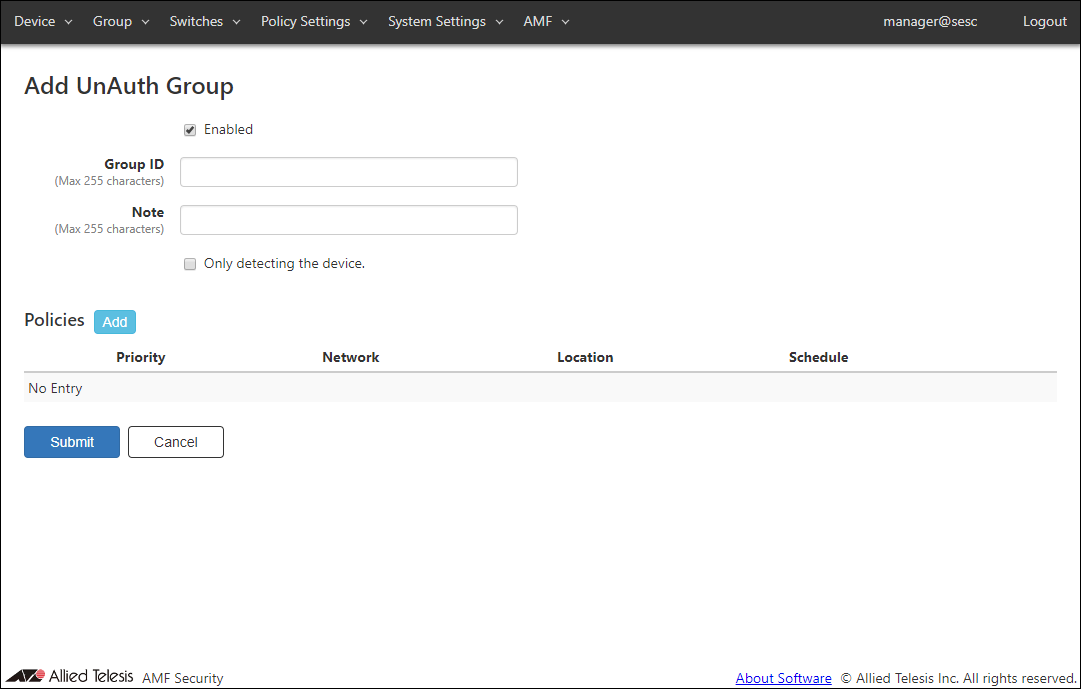
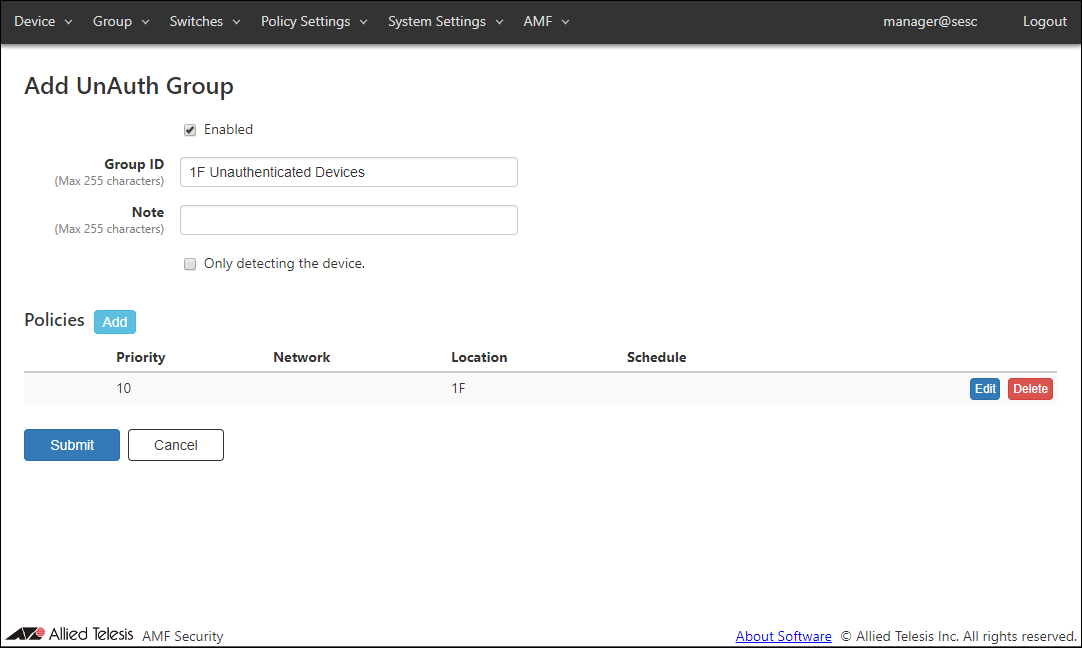
- Make sure that "Enabled" is checked.
- Enter a Group ID and a Note for the group.
In this example, set the Group ID to "1F Unauthenticated Devices" and set the Note to blank.
- Check the "Only detecting the device." checkbox.
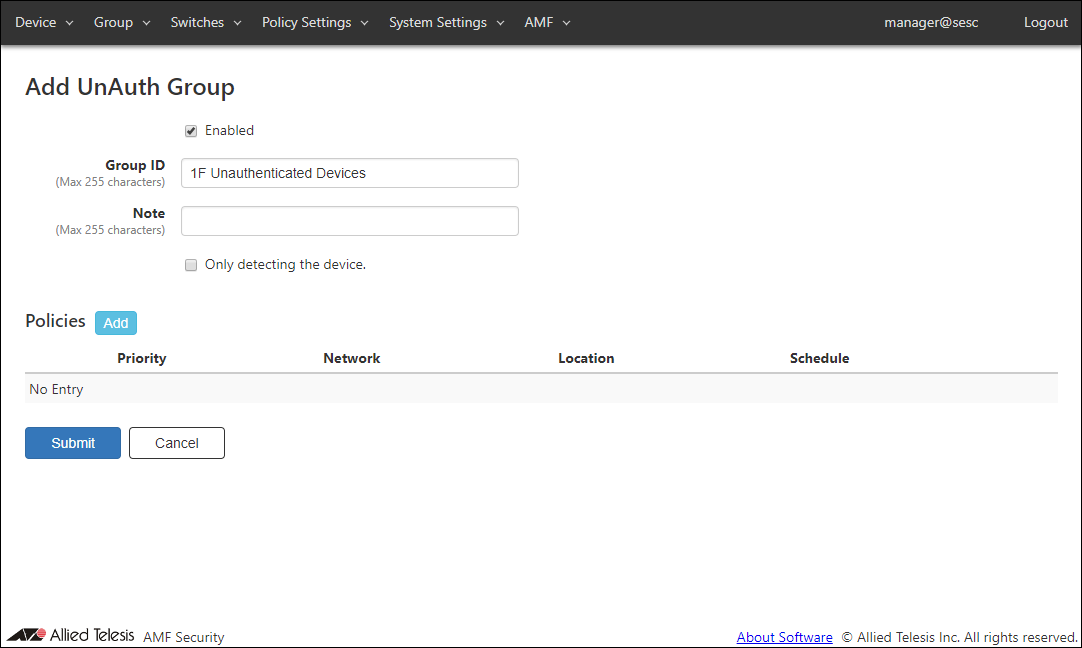
- Click the "Add" button next to "Policies" to open the Group > Edit Policy dialog.
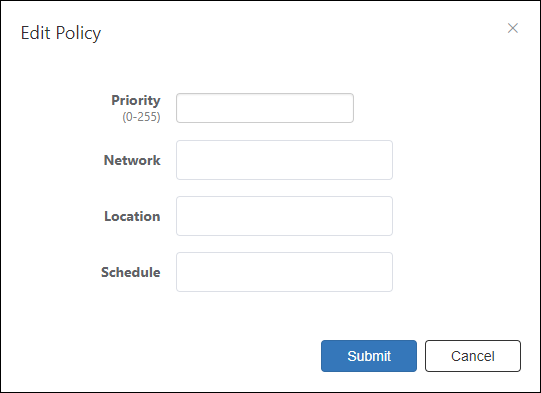
- Now let's specify a priority for the security policy.
In this example, set the priority to "10".
- This group only performs detection, leave Network blank.
Note
If "Only detecting the device." is not checked and "Network" is blank, the device is connected to the VLAN configured on the AMF member. If you can access the VLAN set for AMF Members, depending on the switch settings, the device may be able to connect to devices on the control plane.
- Then specify conditions for devices to be in the UnAuth Group.
In this example, set the location to "1F".
With those settings, unknown devices which are connected to one of the AMF Member in the location "1F" are detected as members of the UnAuth Group "1F Unauthenticated Devices".
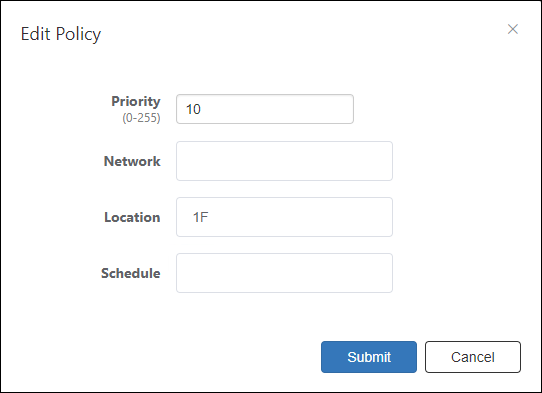
- Click "Submit" to go back to the Group > Add UnAuth Group page.
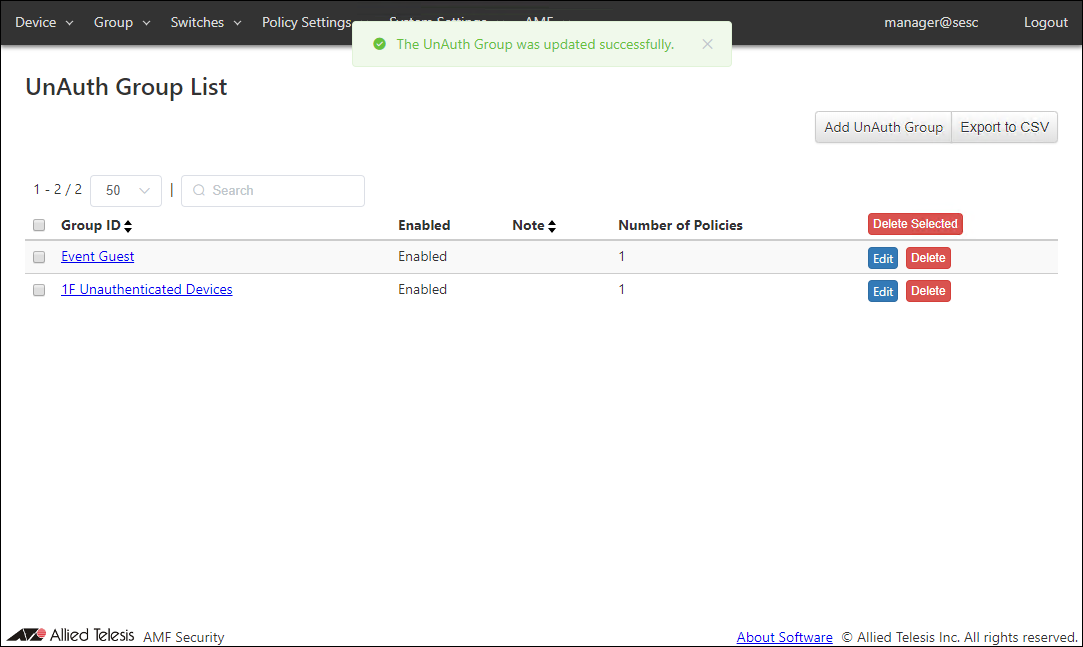
- Click "Submit" to go back to the Group > UnAuth Group List page.
- Open the Device > Active Device List page.
The MAC Addresses of devices connected to AMF Members managed by AMF Security mini are listed.
Now you can see unauthenticated MAC Address which is connected to any of the AMF Member in the location "1F" is marked with the status "Detected".
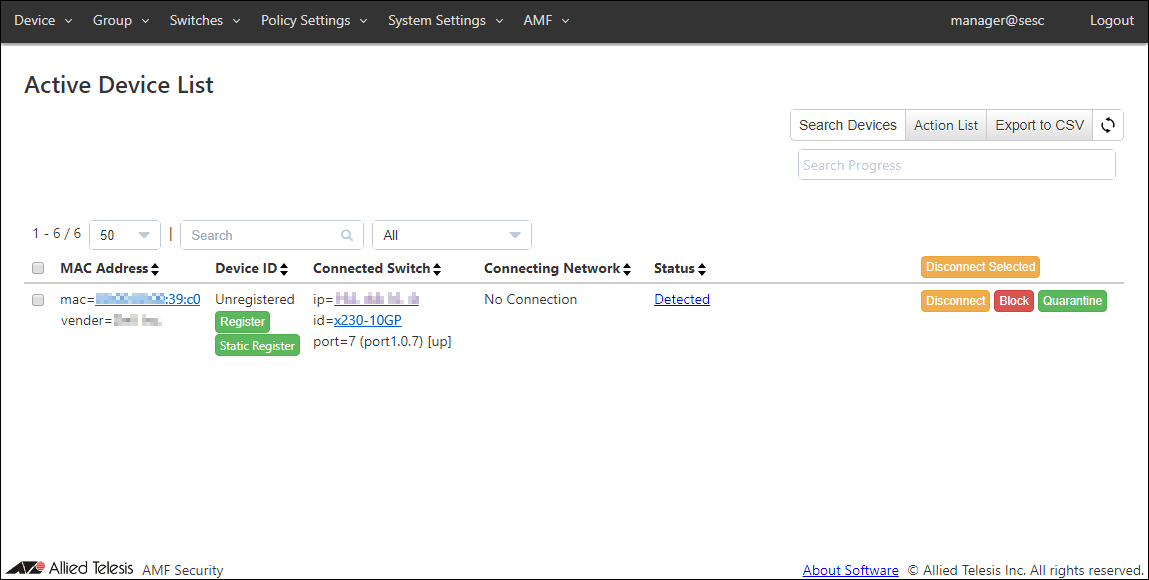
- You can filter the device list to detected devices only by selecting "Detected" on the "Status" dropdown list on the Device > Active Device List page.
Now you can see only devices in the "Detected" status, which are the devices connecting to the AMF Member in the location "1F".
- Now you can add those devices using the steps described in Quick Tour's Adding Devices from List > Registering Device from Active Device List.
Adding Detected or Found Devices
Following the steps in Quick Tour's Adding Devices from List > Registering Device from Active Device List, you can add unregistered devices detected on the Device > Active Device List page by the UnAuth Group or Device Search.In case the large number of devices are found to be added, please consider exporting devices listed the Device > Active Device List page and importing an edited CSV file.
Refer to Appendix > Creating Authentication Data from CSV for details.
12 Jul 2022 15:30