User Guide: AMF Security version 2.6.1 for VST-VRT
Controlling Devices with TQ's AMF Application Proxy
Configuration Examples > Controlling Devices with TQ's AMF Application Proxy
Configuring TQ's AMF Application Proxy
In this section, this is an example of setting TQ's AMF Application Proxy Whitelist and AMF Application Proxy Blacklist. Applications linked with AMF Application Proxy Blacklist use the UTM (Unified Threat Management) related functions of the AT-AR3050S/AR4050S of the AR router, and the action is set to quarantine (assign to the specified VLAN).
Note
The TQ used in this configuration example is not a TQR.
Note
AWC Plug-in configuration is common when using Drop Packets, quarantine, and log actions. Each action setting and VLAN ID setting for quarantine (when using quarantine action) are done in AMF Security. When using Redirect-URL Action is different from when using the above action, but the information to be set is described. The site for Redirect-URL Action uses the site of AMF Security. When using Redirect-URL Action, also refer to Settings when using Redirect-URL Action.
Note
Required licenses differ depending on the product, so check our website.
In order to keep the recording date and time of logs etc. accurate and to operate various functions properly, it is recommended to set the system time of each product accurately. AMF Security obtains and uses the AT-VST-VRT system time. The AMF Security timezone is set in AMF Security, but the NTP synchronization destination is set in AT-VST-VRT.
This setting example assumes that TQ's dynamic VLAN is disabled. The differences in the settings when dynamic VLAN is enabled are explained in Note. In addition, enable critical mode so that wireless terminals newly connected to AMF Security belongs to the VLAN ID set in the VAP when a failure such as a power failure occurs.
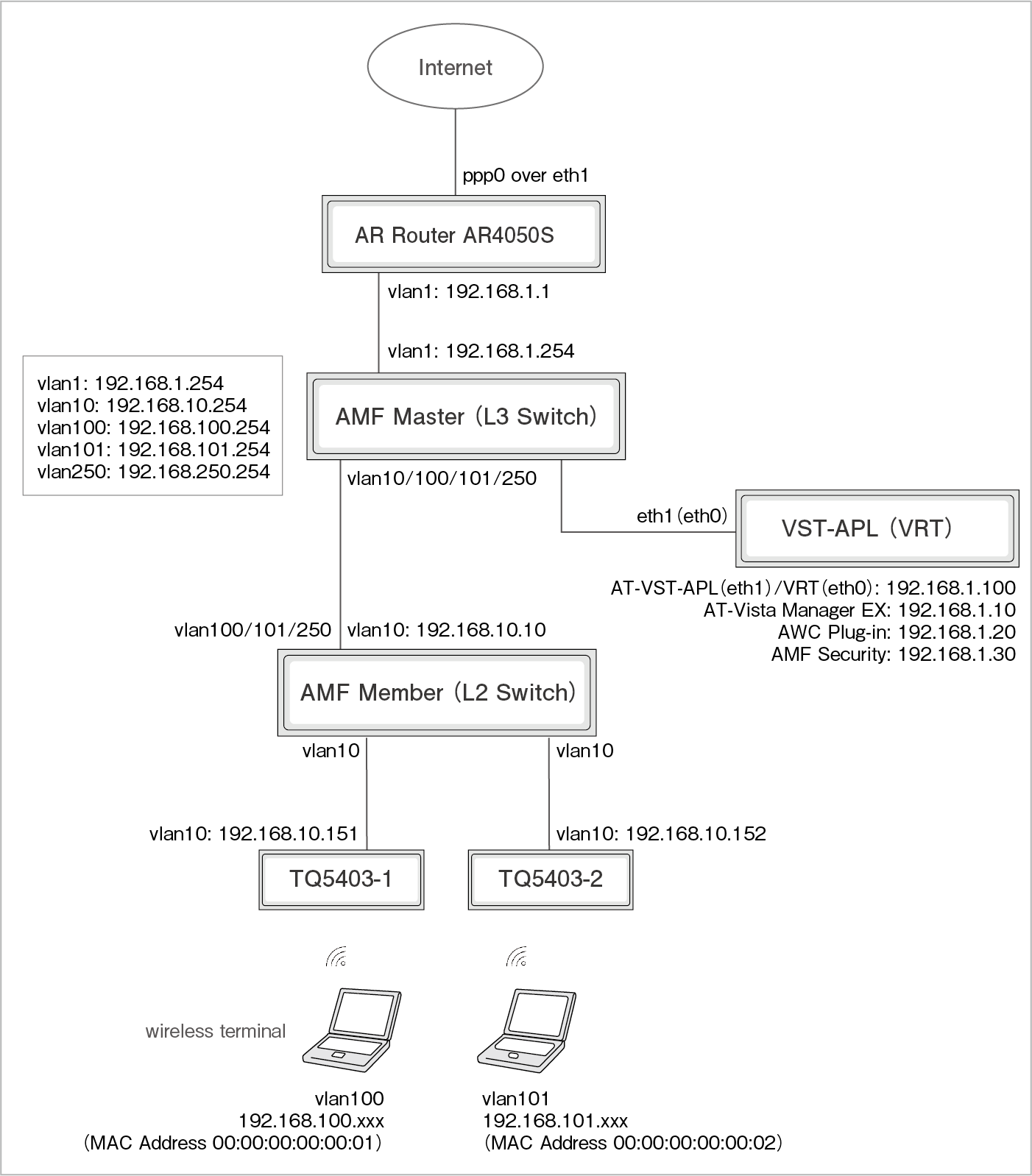
Switches AMF Master (L3 Switch), AMF Member (L2 Switch), VLAN for wireless terminal communication
AMF Security and Vista Manager EX/TQ/AR Router enable IPv4 communication regardless of whether they are on the same segment or another segment.
Note
For details on the settings of each product, refer to the document for each product.
Note
The AMF Master in this configuration uses a separate device instead of the AMF Cloud on AT-VST-VRT, but you can also use the AMF Cloud on AT-VST-VRT.
Note
For details on AT-VST-VRT basic settings (IP Address, static route settings, etc.), refer to the AT-VST-VRT document posted on our website.
Note
For details on AMF Security basic settings (application settings) performed with AT-VST-VRT, refer to the AT-VST-VRT document posted on our website.
Information on each product
Information for each product is listed below.
Table 1: AT-Vista Manager EX Information
Item Name
Information
IP Address
192.168.1.10
User ID
manager
Password
TopSecret0!
Table 2: AWC Plug-in information
Item Name
Information
IP Address
192.168.1.20
AWC Plug-in port number
5443
Table 3: AMF Security Information
Item Name
Information
IP Address
192.168.1.30
Table 4: AR Router information
Item Name
Information
Source IPv4 Address when sending syslog messages
IP Address of vlan1 interface (192.168.1.1)
Setting information for each product
The information to be set for each product is shown below.
Note
The information to be set in the AWC plug-in and the information to be set in AMF Security are described when Drop Packets, Quarantine, and Log-Only actions are used, and when Redirect-URL Action is used. Refer to it according to the action to be used.
Table 5: Information to be set in the AWC Plug-in: When using Drop Packets, Quarantine, and Log-Only actions
Item Name
Value
System Settings/Access Permission Settings/AMF Security WebAPI
AMF Security IP Address
192.168.1.30
Wireless settings/AP common settings/VAP (multi-SSID) settings/Detailed settings
MAC access control
AMF Application Proxy
AMF Application Proxy Server Primary IP Address
192.168.1.30
AMF Application Proxy Server Primary Secret
password
AMF Application Proxy Server port number
1812
Critical mode
Enabled
Note
Only 1812 is supported for AMF Application Proxy Server port number.
Table 6: Information to be set in the AWC Plug-in: When using Redirect-URL Action
Item Name
Value
System Settings/Access Permission Settings/AMF Security WebAPI
AMF Security IP Address
192.168.1.30
Wireless settings/AP common settings/VAP (multi-SSID) settings/Detailed settings
MAC access control
AMF Application Proxy
Redirect-URL
Enabled
External page URL
http://192.168.1.30:8000/index.html
AMF Application Proxy Server Primary IP Address
192.168.1.30
AMF Application Proxy Server Primary Secret
password
AMF Application Proxy Server port number
1812
Critical mode
Enabled
Note
Only 1812 is supported for AMF Application Proxy Server port number.
Table 7: Information to be set in AMF Security: When Quarantine action is used
Item Name
Value
AMF / TQ Settings
Common Settings
Quarantine/Redirect-URL VLAN ID
250
VistaManagerEX
IPv4 Address of Vista Manager EX
192.168.1.20
AWC Plug-in port number
5443
Vista Manager EX Username
manager
Vista Manager EX Password
TopSecret0!
TQ
IPv4 Address of TQ5403-1
192.168.10.151
Pre-Shared Key
password
IPv4 Address of TQ5403-2
192.168.10.152
Pre-Shared Key
password
System Settings / Trap Monitor Settings / Rules
Host Addresses
192.168.1.1
OpenFlow/TQ Action
Quarantine
Trap Action Target List
Check all
Note
Since AT-Vista Manager EX of AT-VST-VRT is used, specify the IPv4 Address of AWC Plug-in for "IPv4 Address of Vista Manager EX".
Table 8: Information to be set in AMF Security: Discard packet, when using log action
Item Name
Value
AMF / TQ Settings
VistaManagerEX
IPv4 Address of Vista Manager EX
192.168.1.20
AWC Plug-in port number
5443
Vista Manager EX Username
manager
Vista Manager EX Password
TopSecret0!
TQ
IPv4 Address of TQ5403-1
192.168.10.151
Pre-Shared Key
password
IPv4 Address of TQ5403-2
192.168.10.152
Pre-Shared Key
password
System Settings / Trap Monitor Settings / Rules
Host Addresses
192.168.1.1
OpenFlow/TQ Action
Drop Packets or Log-Only
Trap Action Target List
Check all
Note
"Quarantine/Redirect URL VLAN ID" in "Common Settings" is not used for Drop Packets and Log-Only actions, so leave it as default.
Note
Specify the action to be used for "OpenFlow/TQ Action".
Note
Since AT-Vista Manager EX of AT-VST-VRT is used, specify the IPv4 Address of AWC Plug-in for "IPv4 Address of Vista Manager EX".
Table 9: Information to set in AMF Security: When using Redirect-URL Action
Item Name
Value
AMF / TQ Settings
Common Settings
Quarantine/Redirect-URL VLAN ID
250
VistaManagerEX
IPv4 Address of Vista Manager EX
192.168.1.20
AWC Plug-in port number
5443
Vista Manager EX Username
manager
Vista Manager EX Password
TopSecret0!
TQ
IPv4 Address of TQ5403-1
192.168.10.151
Pre-Shared Key
password
IPv4 Address of TQ5403-2
192.168.10.152
Pre-Shared Key
password
System Settings / Trap Monitor Settings / Rules
Host Addresses
192.168.1.1
OpenFlow/TQ Action
Redirect-URL
Trap Action Target List
Check all
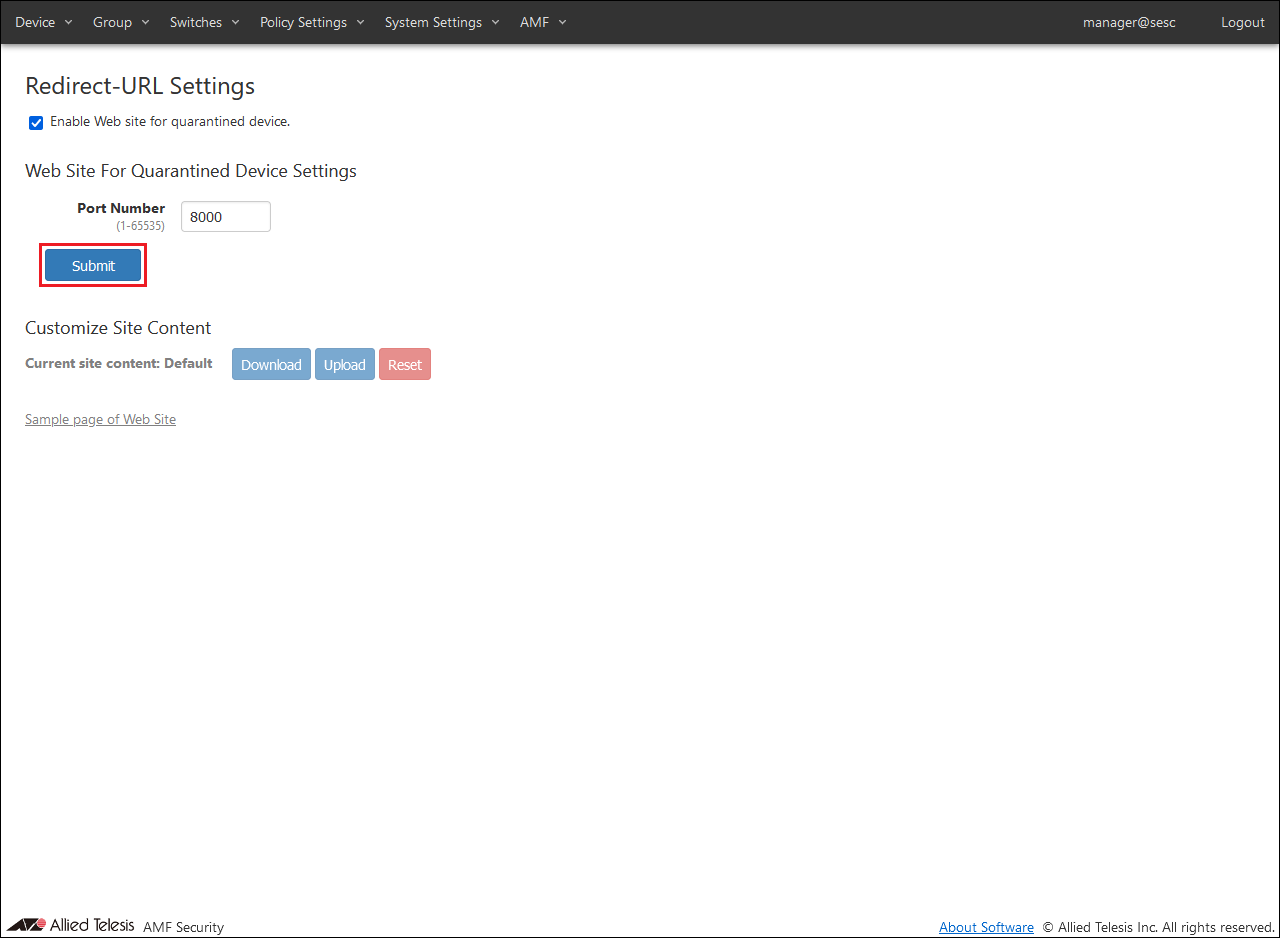
AMF / Redirect-URL Settings
Web Site For Quarantined Device Settings
Port Number
8000
Customize Site Content
Current site content
Default
Note
Since AT-Vista Manager EX of AT-VST-VRT is used, specify the IPv4 Address of AWC Plug-in for "IPv4 Address of Vista Manager EX".
Table 10: Authentication information for devices (wireless terminals) registered with AMF Security
Item Name
Value
Device1
Device ID
Device1
MAC Address
00:00:00:00:00:01
Network (VLAN)
VLAN100
Device2
Device ID
Device2
MAC Address
00:00:00:00:00:02
Network (VLAN)
VLAN101
Table 11: Information to set in AR Router
Item Name
Value
Log output destination for UTM-related functions
192.168.1.30
Configuring AWC Plug-in
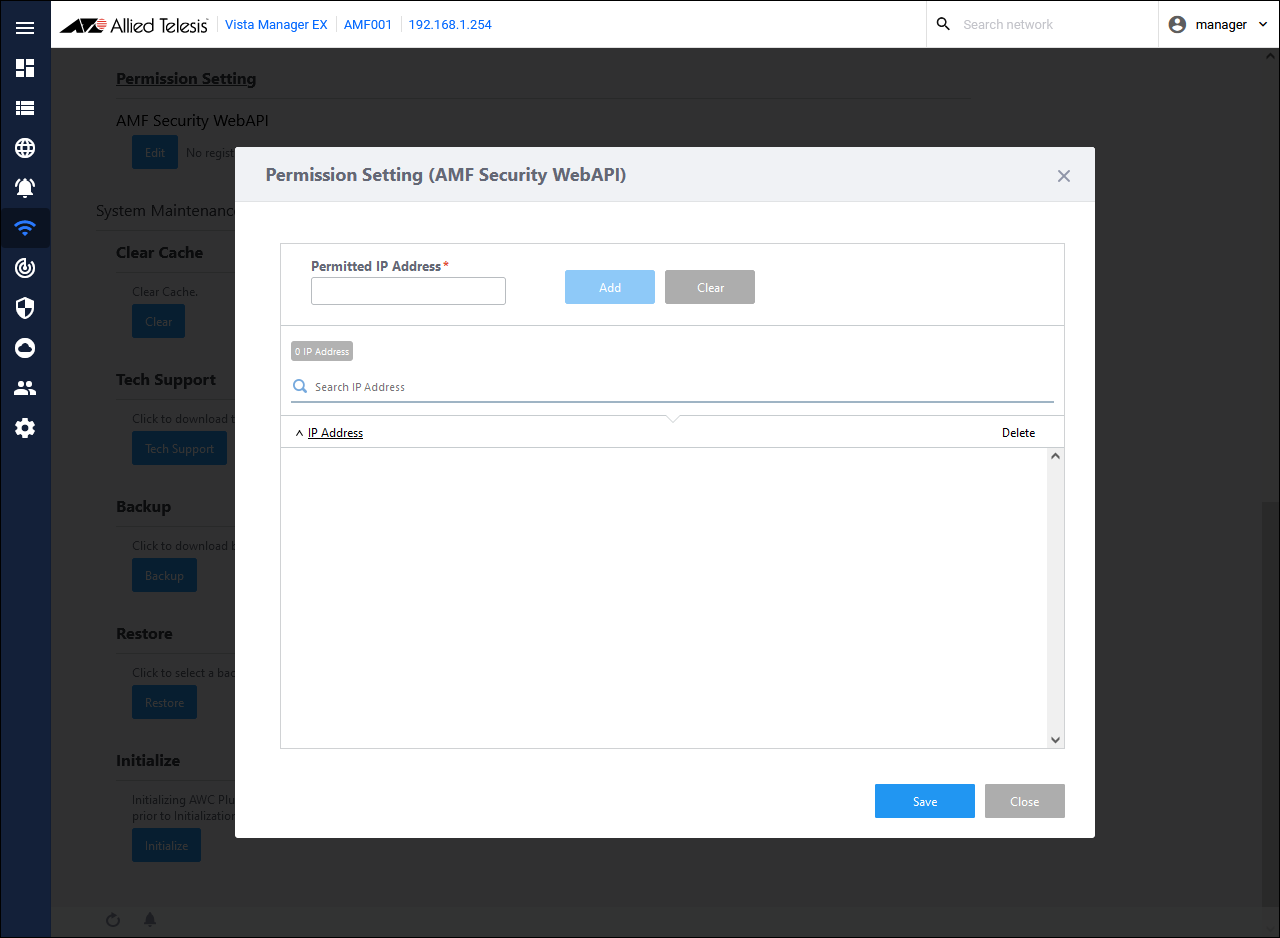
Set the IP Address of AMF Security to allow access. From the AWC Plug-in menu, click the "Edit" button for "System Settings" → "Permission Setting". The "Permission Setting (AMF Security WebAPI)" dialog is displayed.
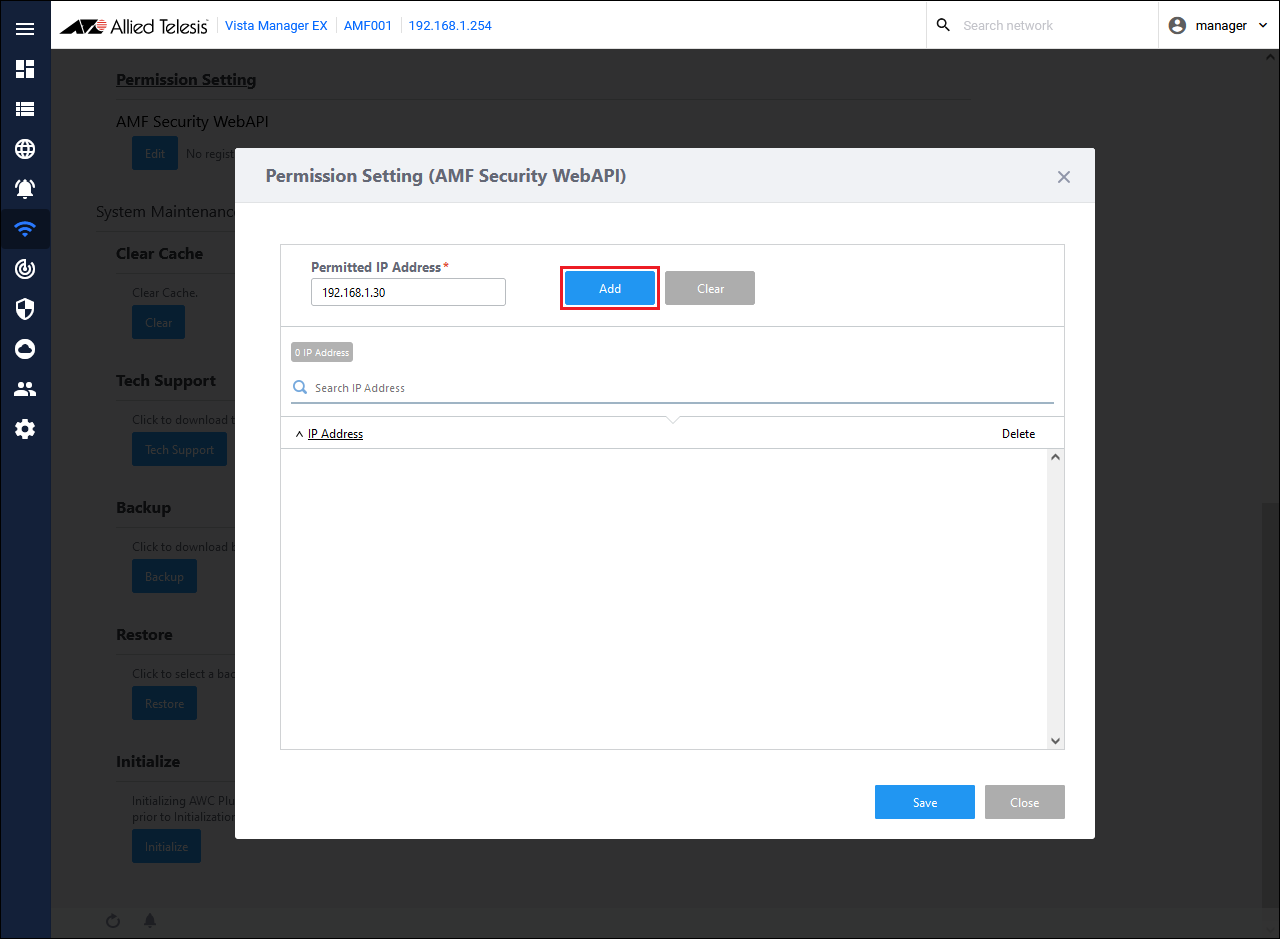
Enter the AMF Security IP Address "192.168.1.30" in the Permitted IP Address, and click the "Add" button.
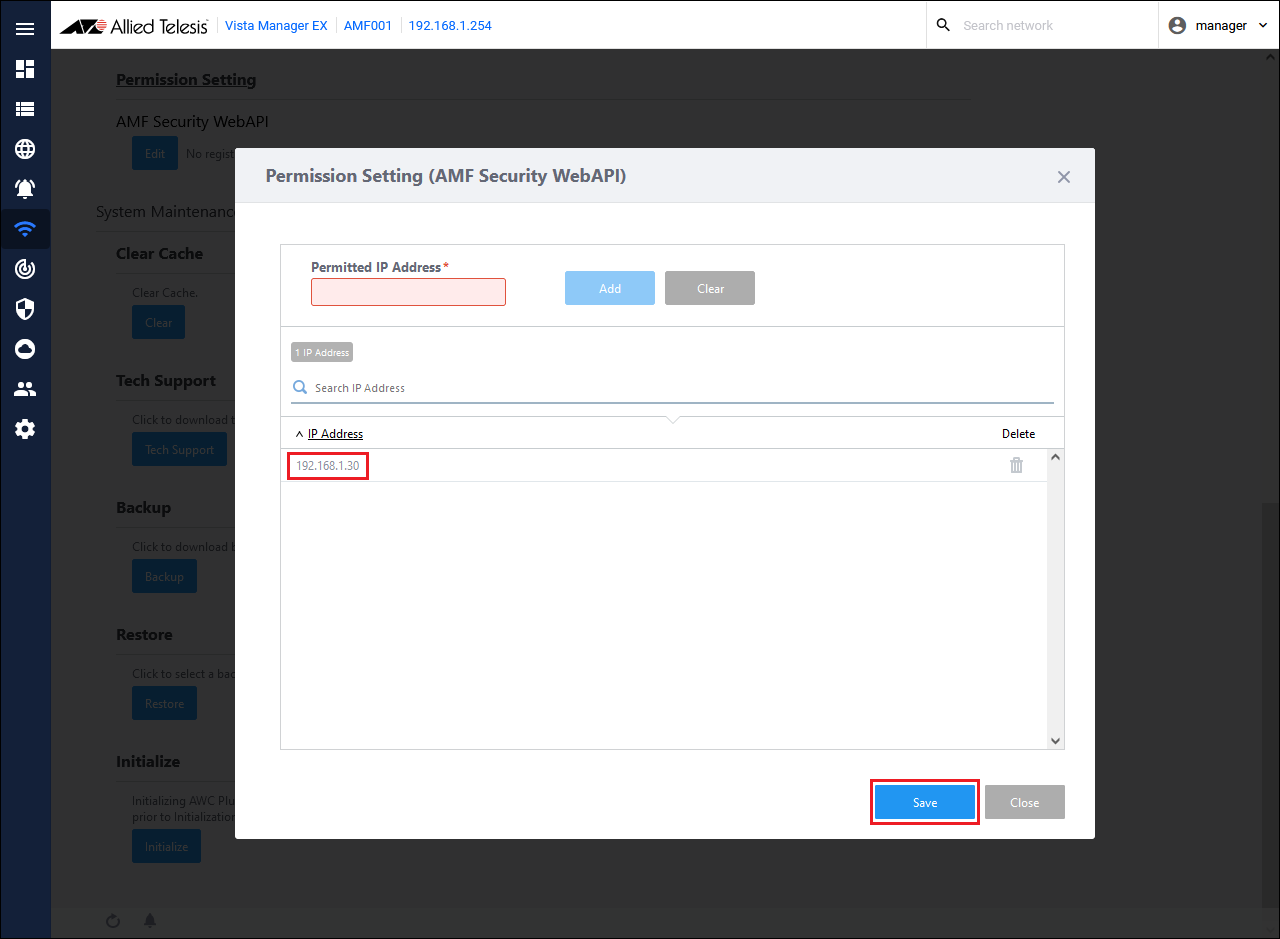
Confirm that the entered IP address "192.168.1.30" is displayed in the IP address field, and click the "Save" button.
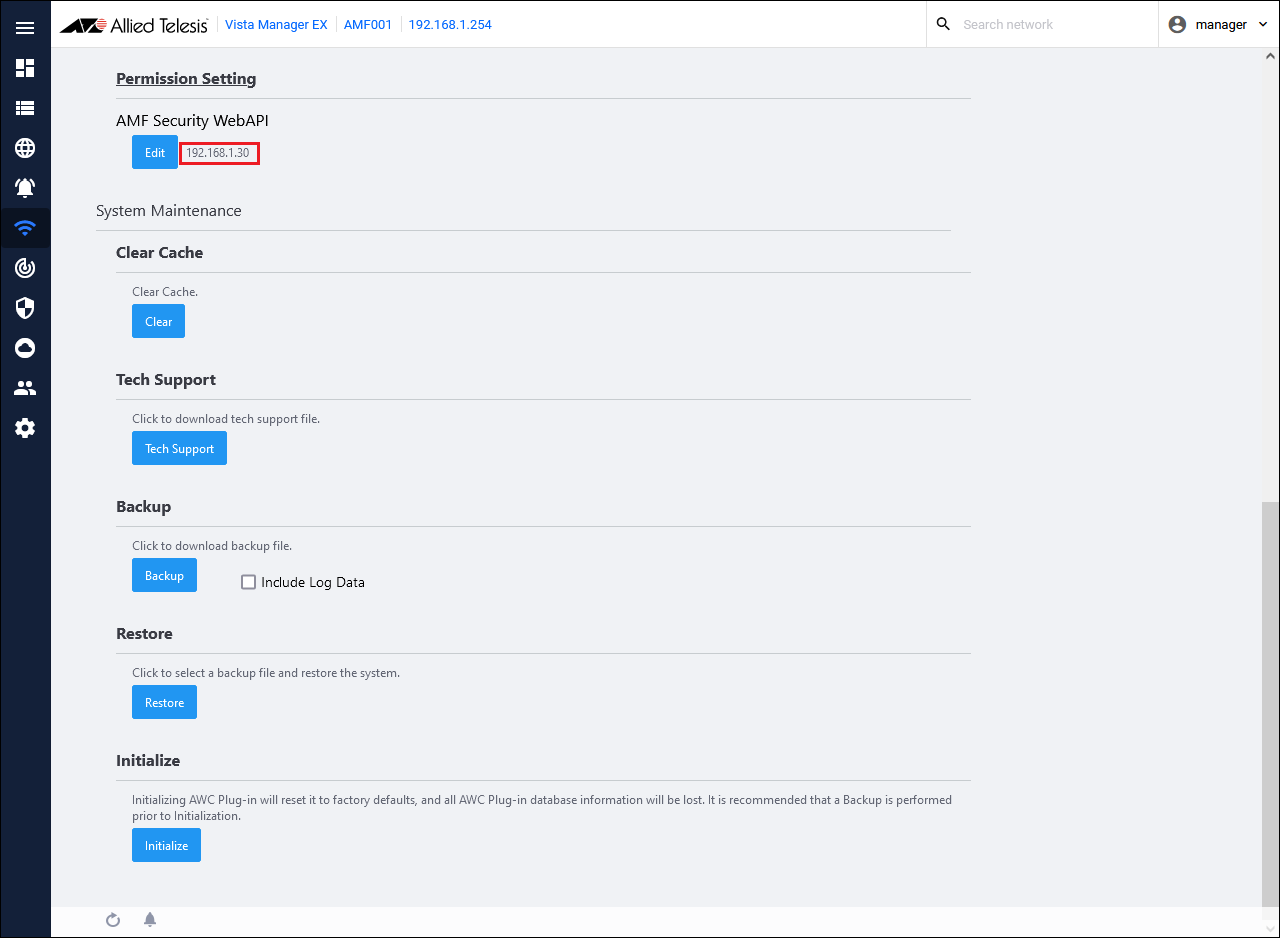
Confirm that the set IP Address "192.168.1.30" is displayed next to the "Edit" button in "Permission Setting".
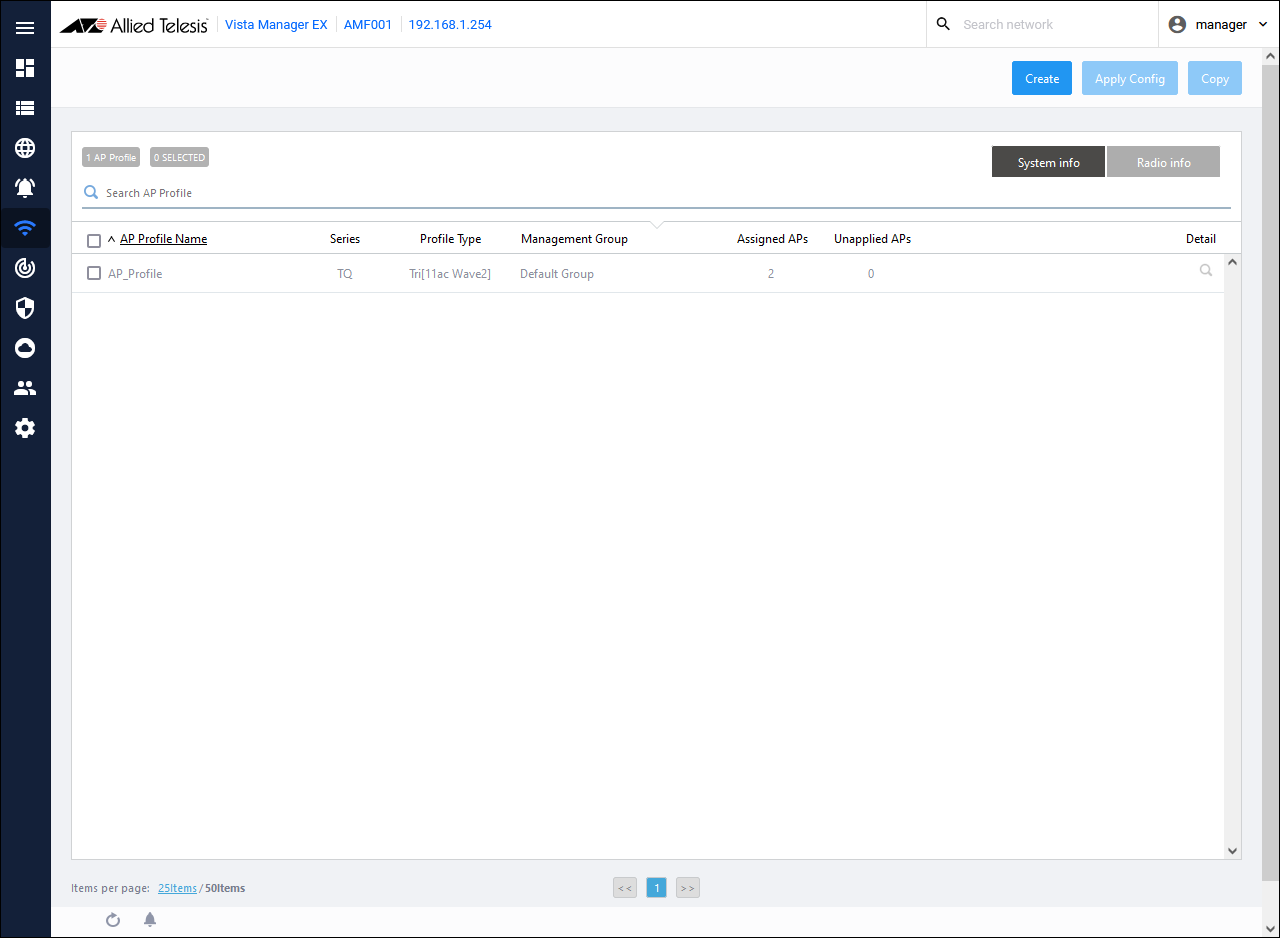
Set the AMF application proxy function information in the AP common settings assigned to the TQ. From the AWC plug-in menu, click "Wireless Settings" → "AP Common Setting". A list of AP common settings is displayed.
Note
AMF Application Proxy configures the VAP. Therefore, configure all VAPs that use AMF Application Proxy.
From the AP common settings list, click the "Details" button (magnifying glass icon) for the AP common settings you want to edit.
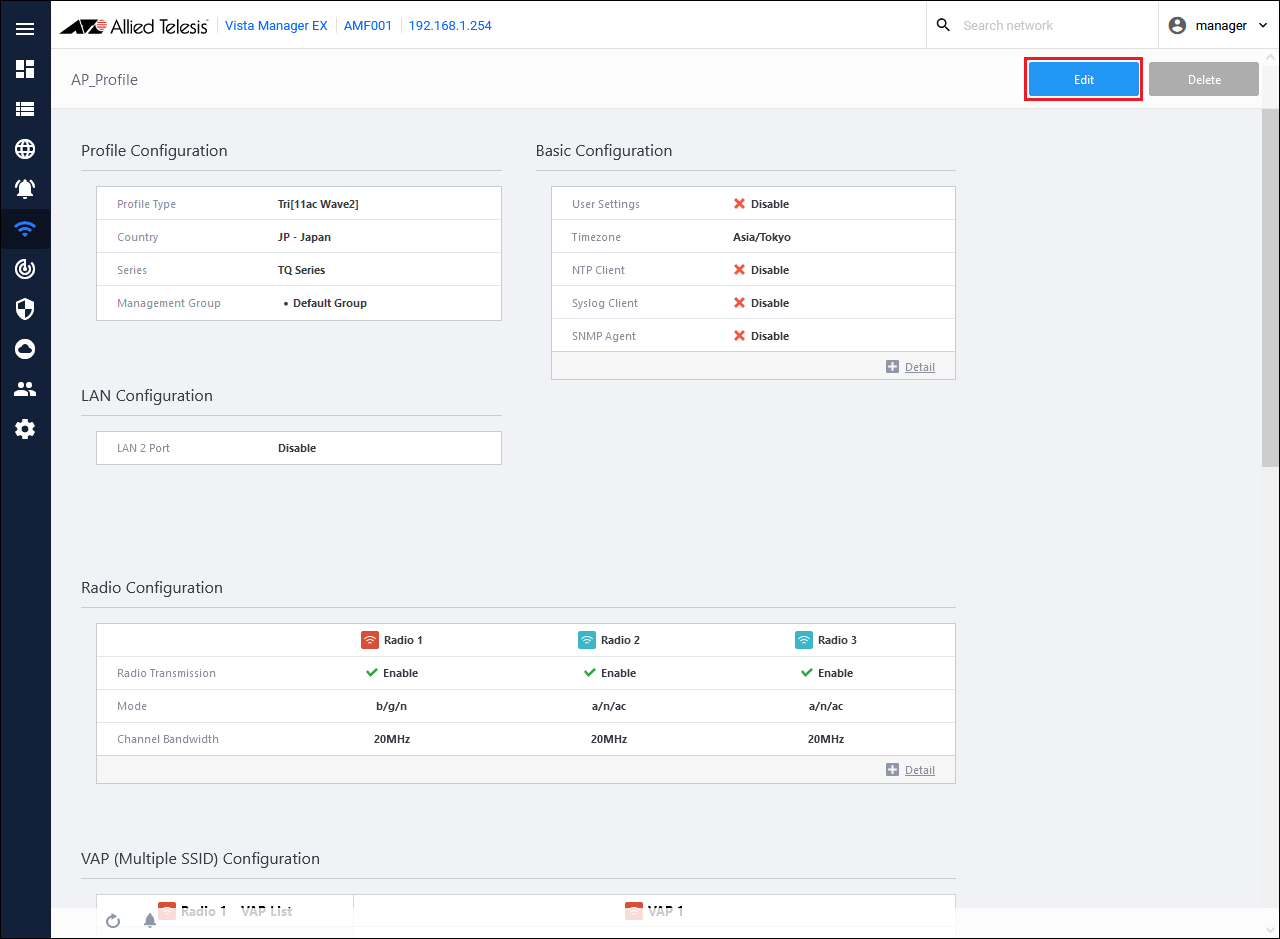
A detailed page for AP common settings is displayed. Click the "Edit" button in the upper right corner of the content field.
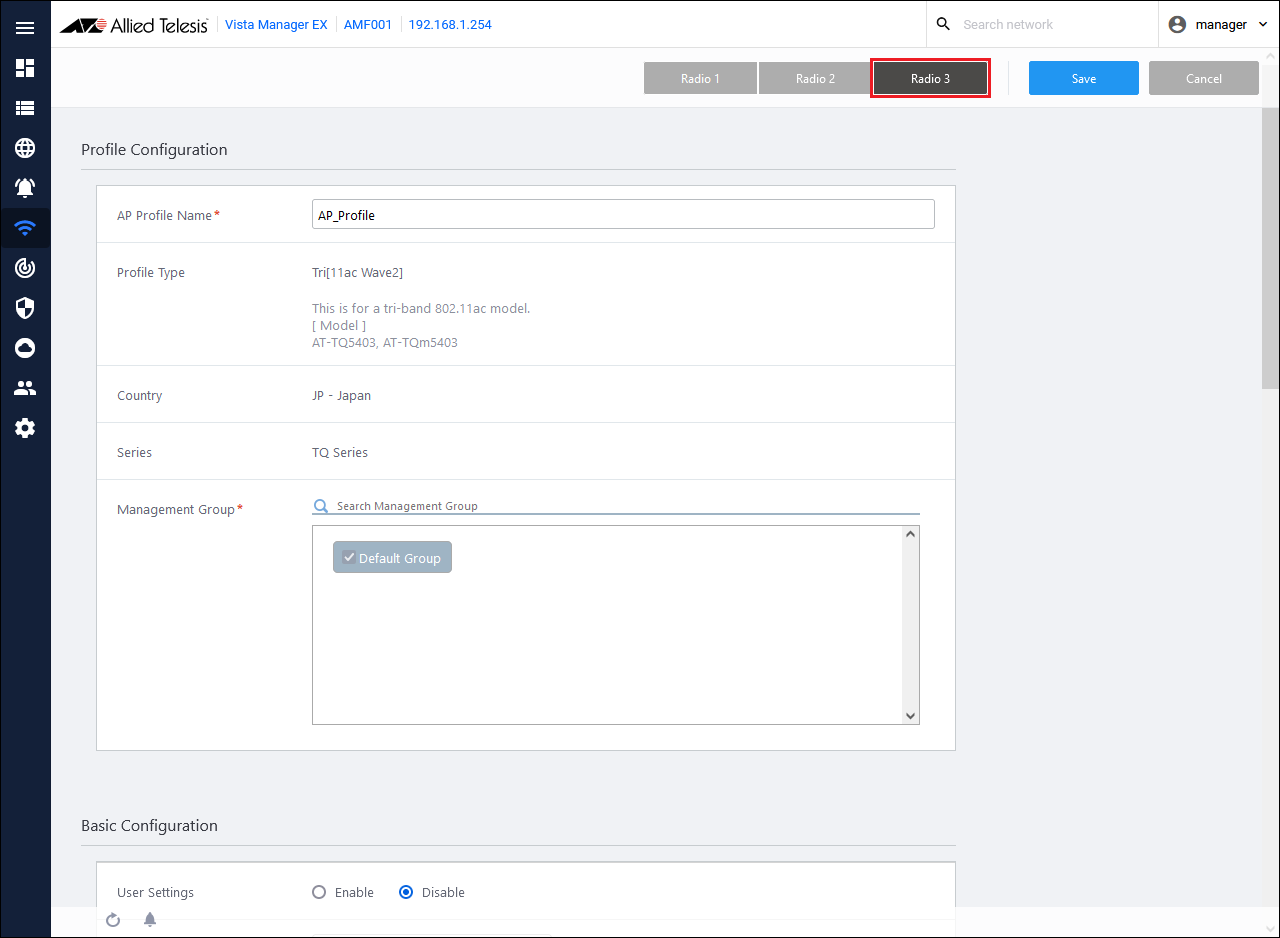
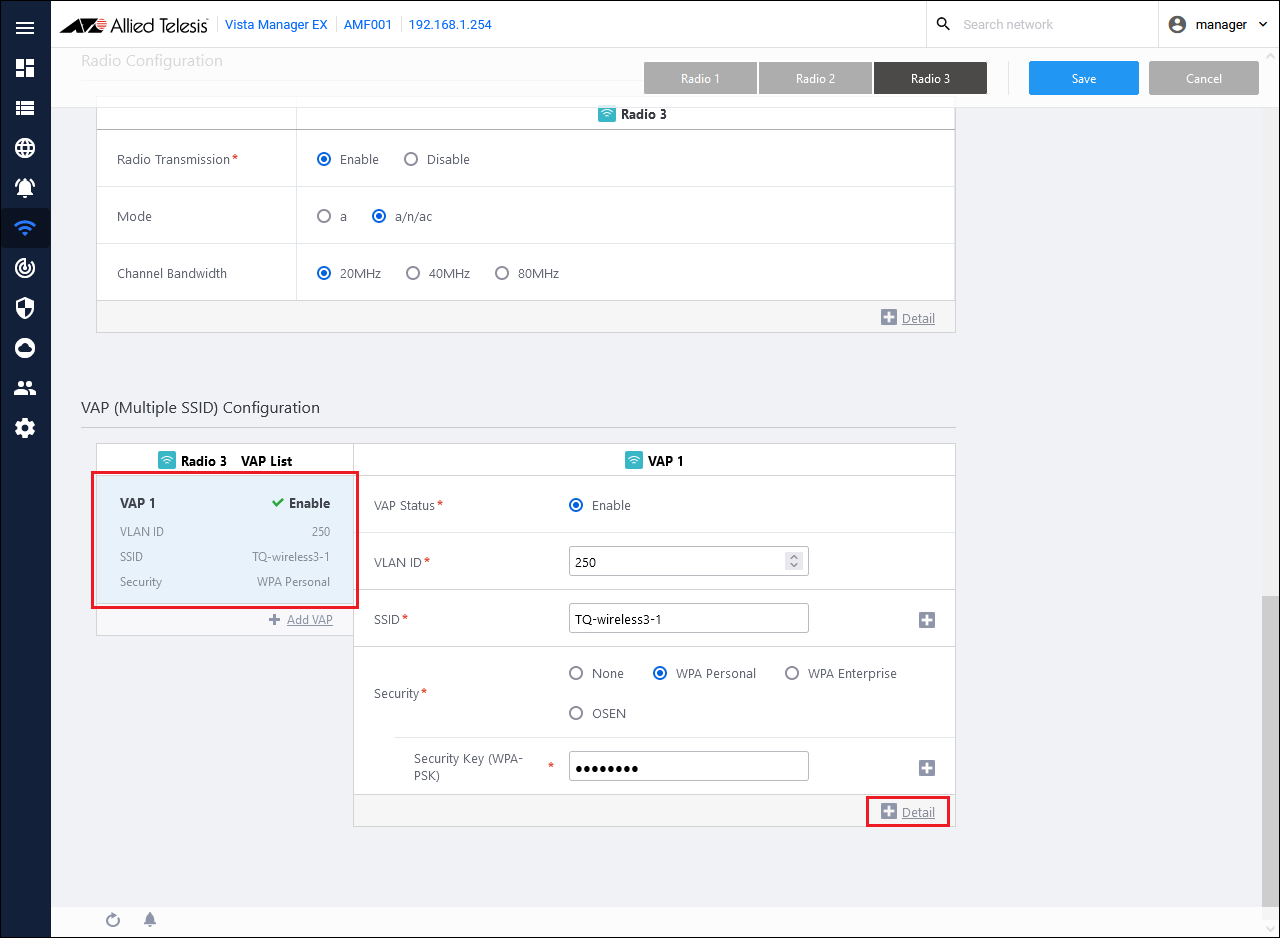
Select the wireless band to be set from the buttons at the top of the page. Here, select Radio 3.
Click the VAP to be set from the VAP list in the VAP (multi-SSID) settings, and then click Detailed Settings.
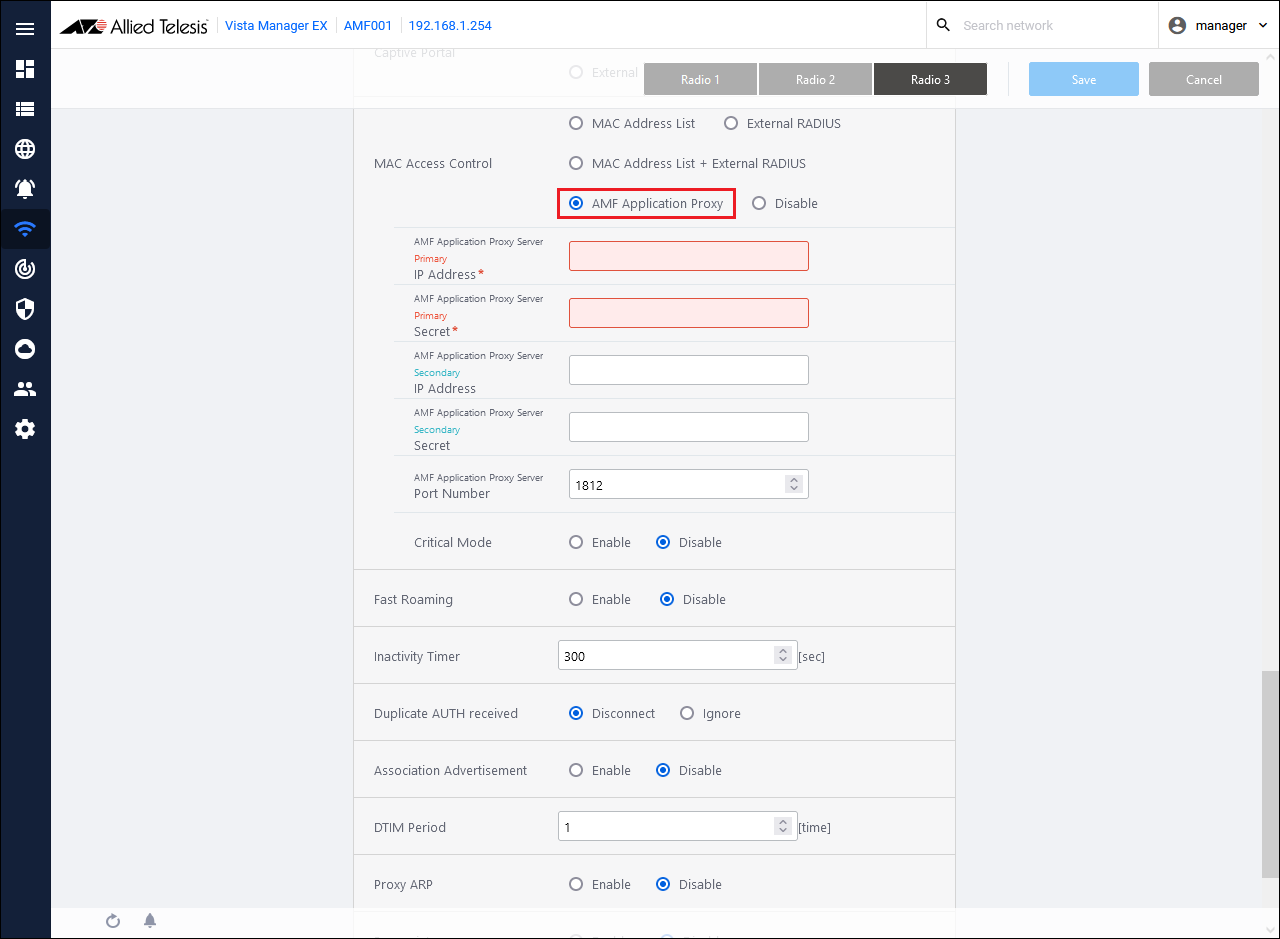
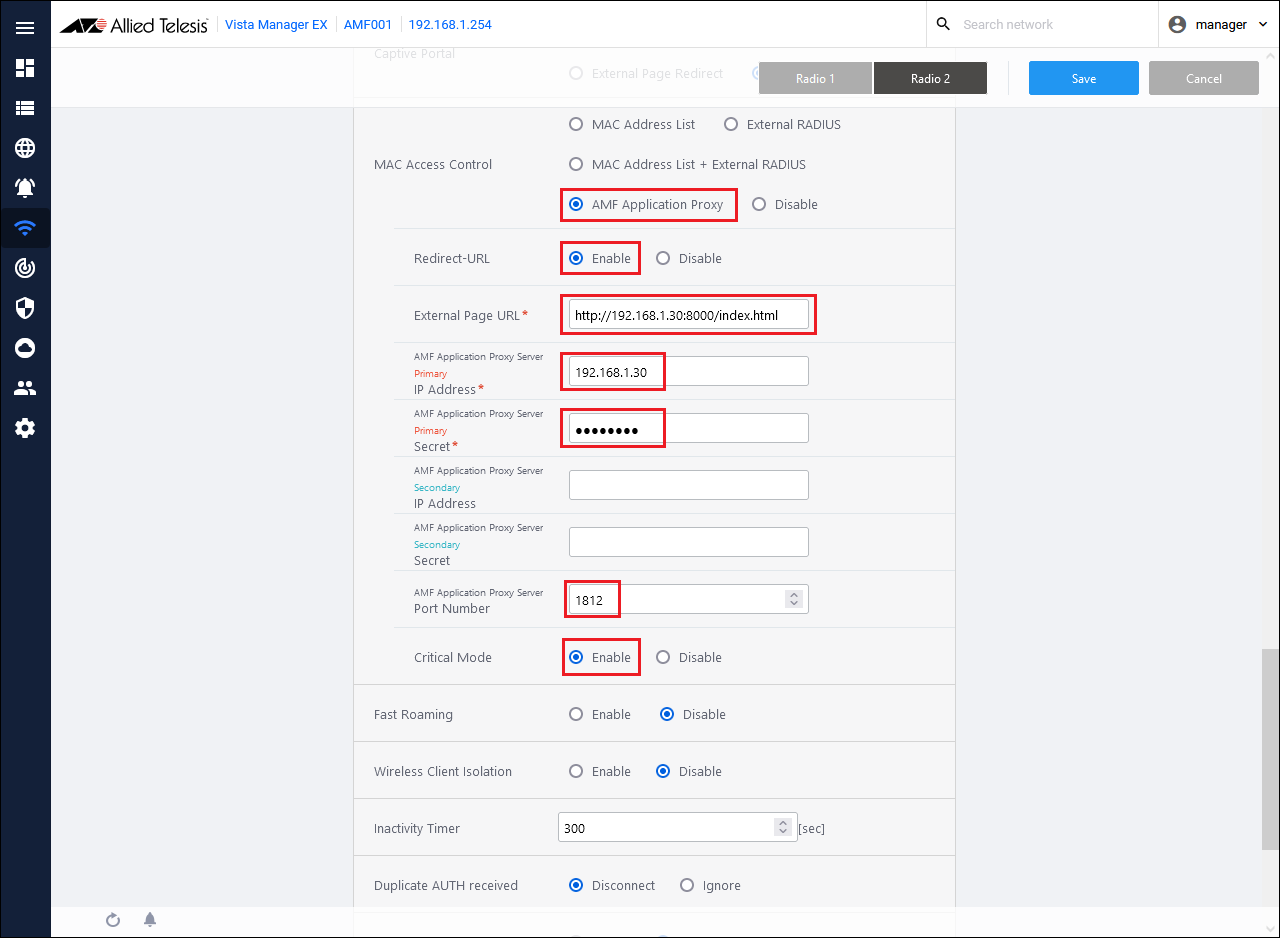
Select "AMF Application Proxy" in MAC Access Control.
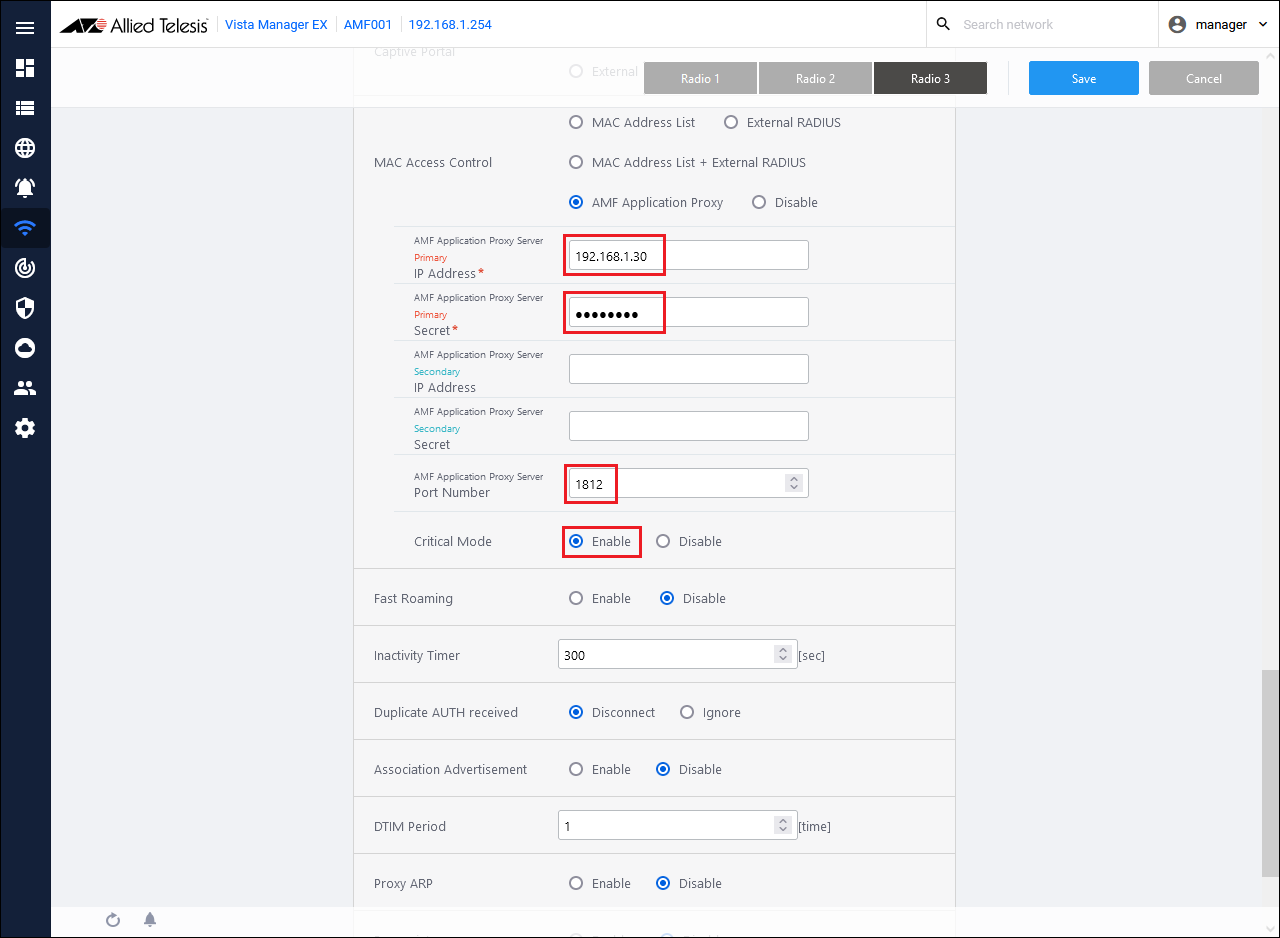
Set AMF Application Proxy related information. Configure the following information when using Drop Packets, Quarantine, and Log-Only actions:
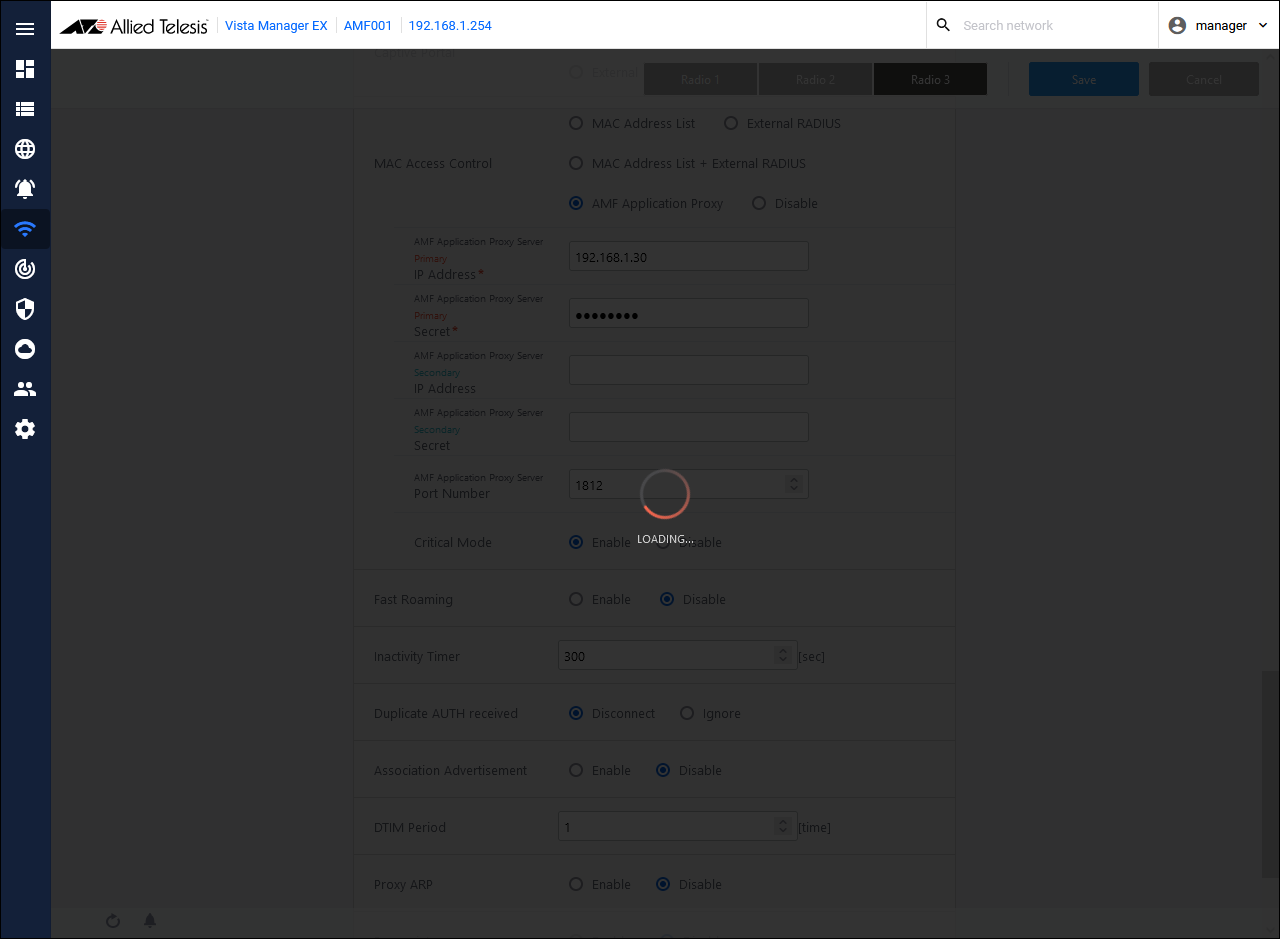
After setting the above information, click the "Save" button at the top right of the content field. Wait until the settings are reflected. When the setting is reflected, it returns to the detail screen of AP common setting.
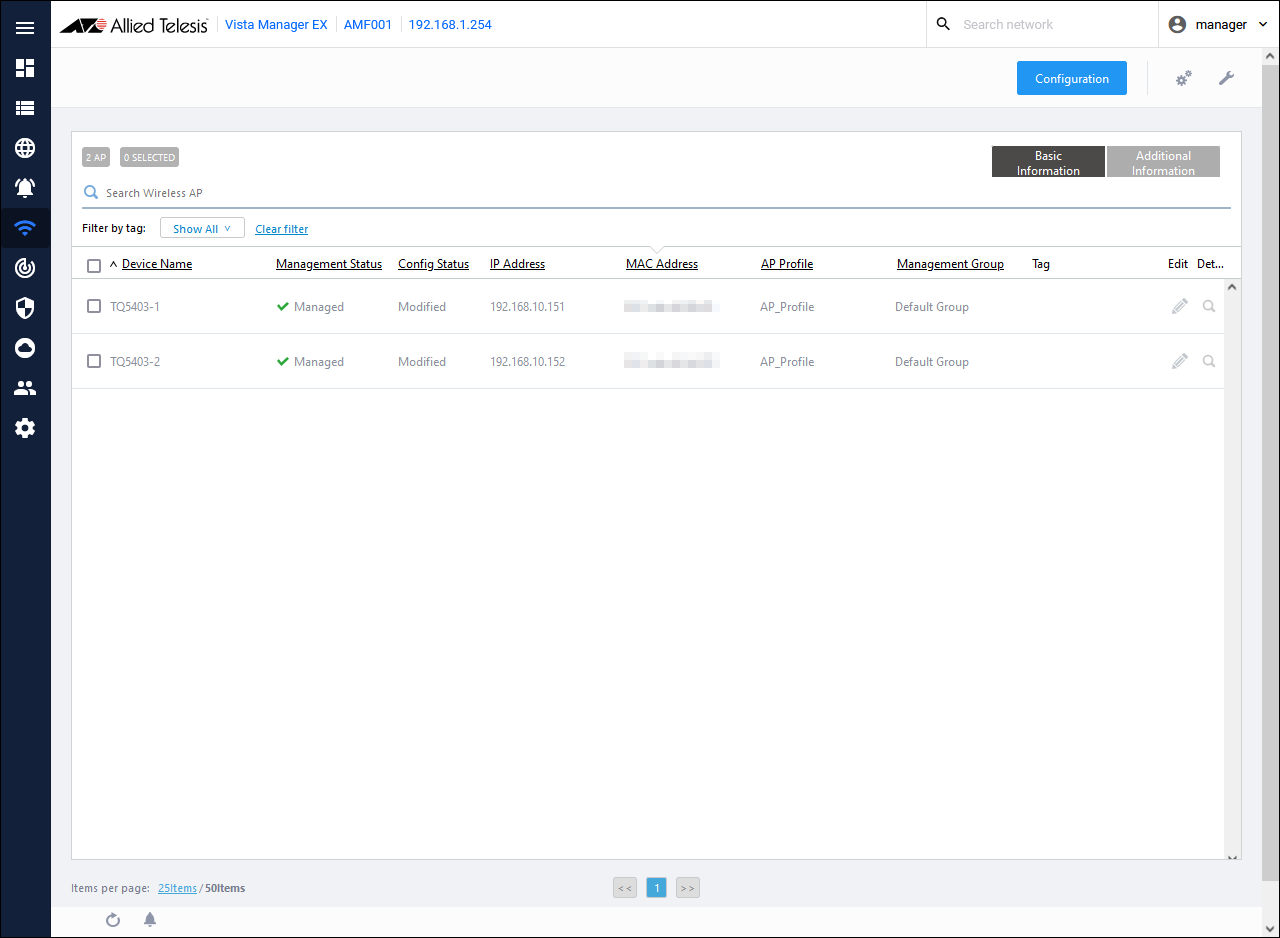
Apply AP common settings to TQ. From AWC Plug-in menu, click "Wireless Settings" → "AP Registration/Settings". A list of wireless APs is displayed.
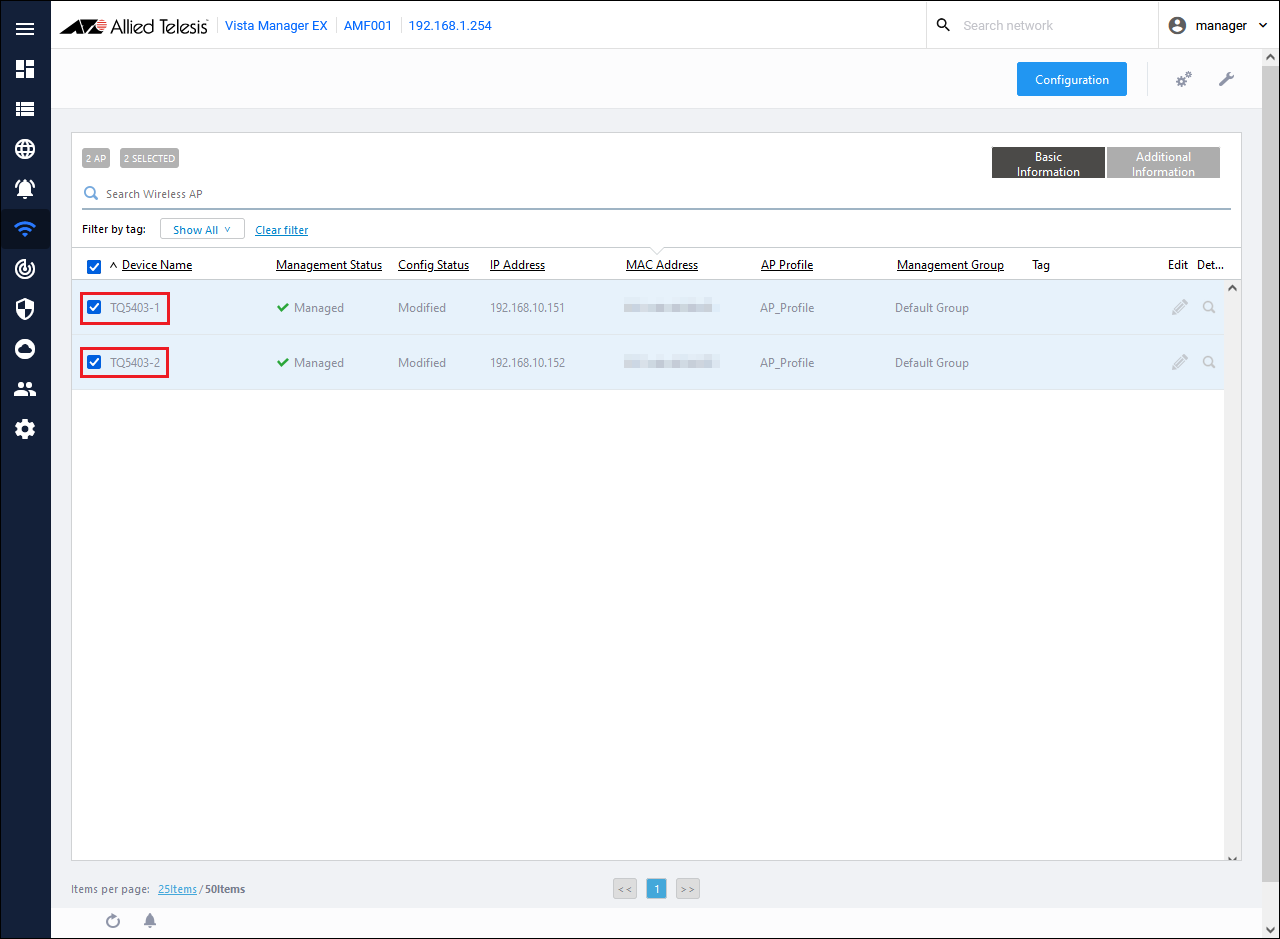
Check the checkboxes of the wireless APs "TQ5403-1" and "TQ5403-2".
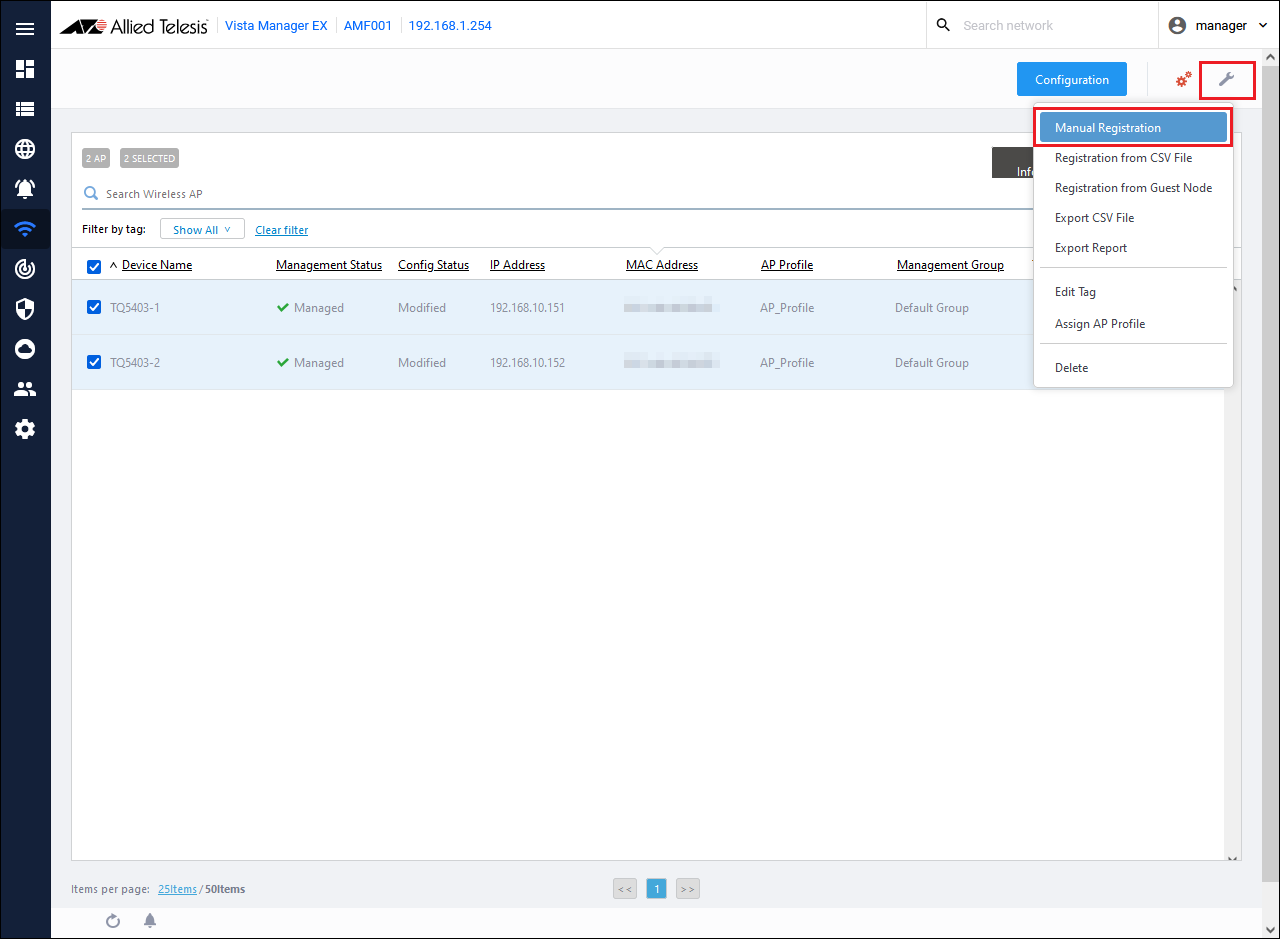
Mouse over the spanner icon on the upper right of the content field and click "Manual Registration" from the displayed menu.
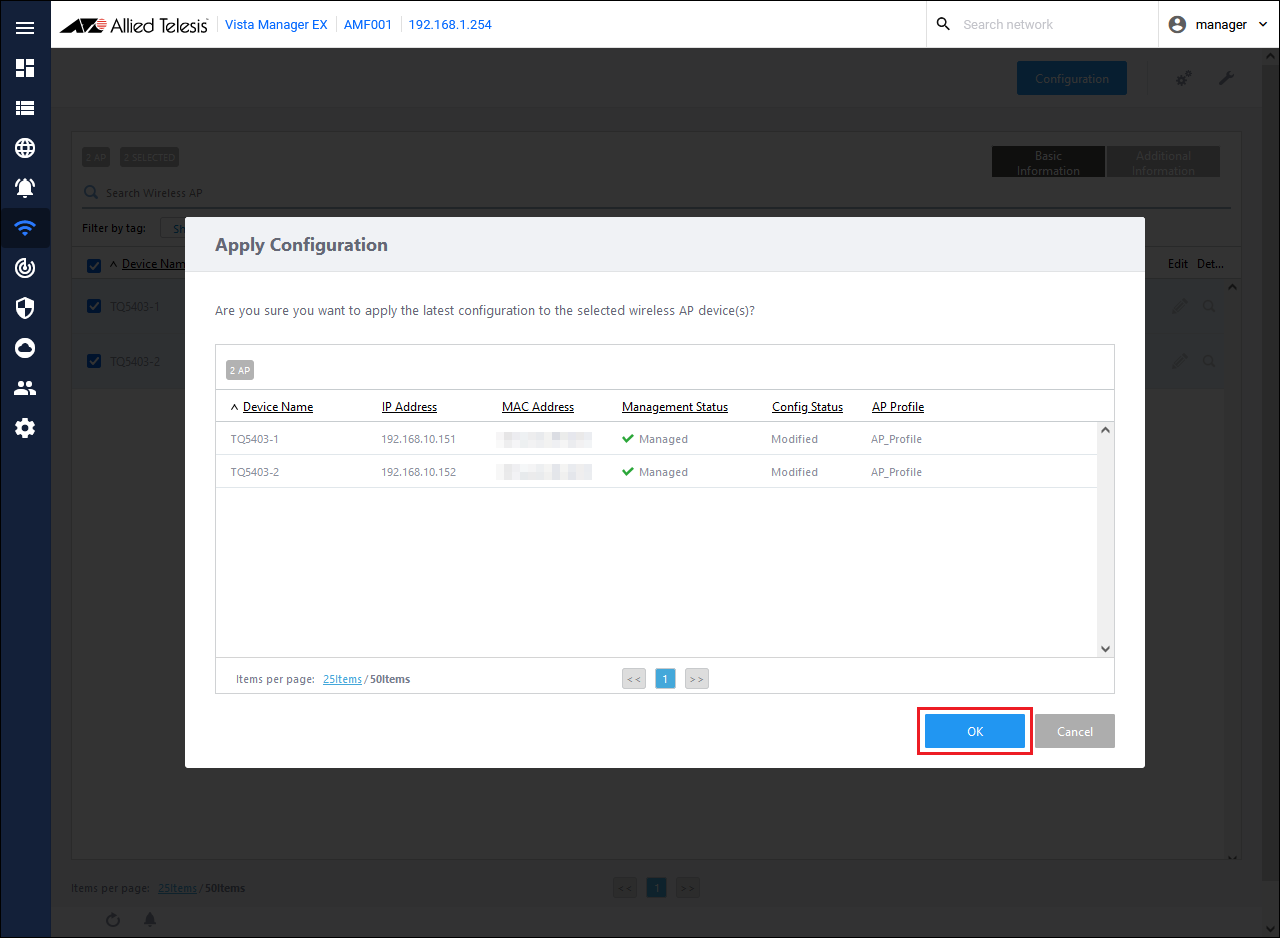
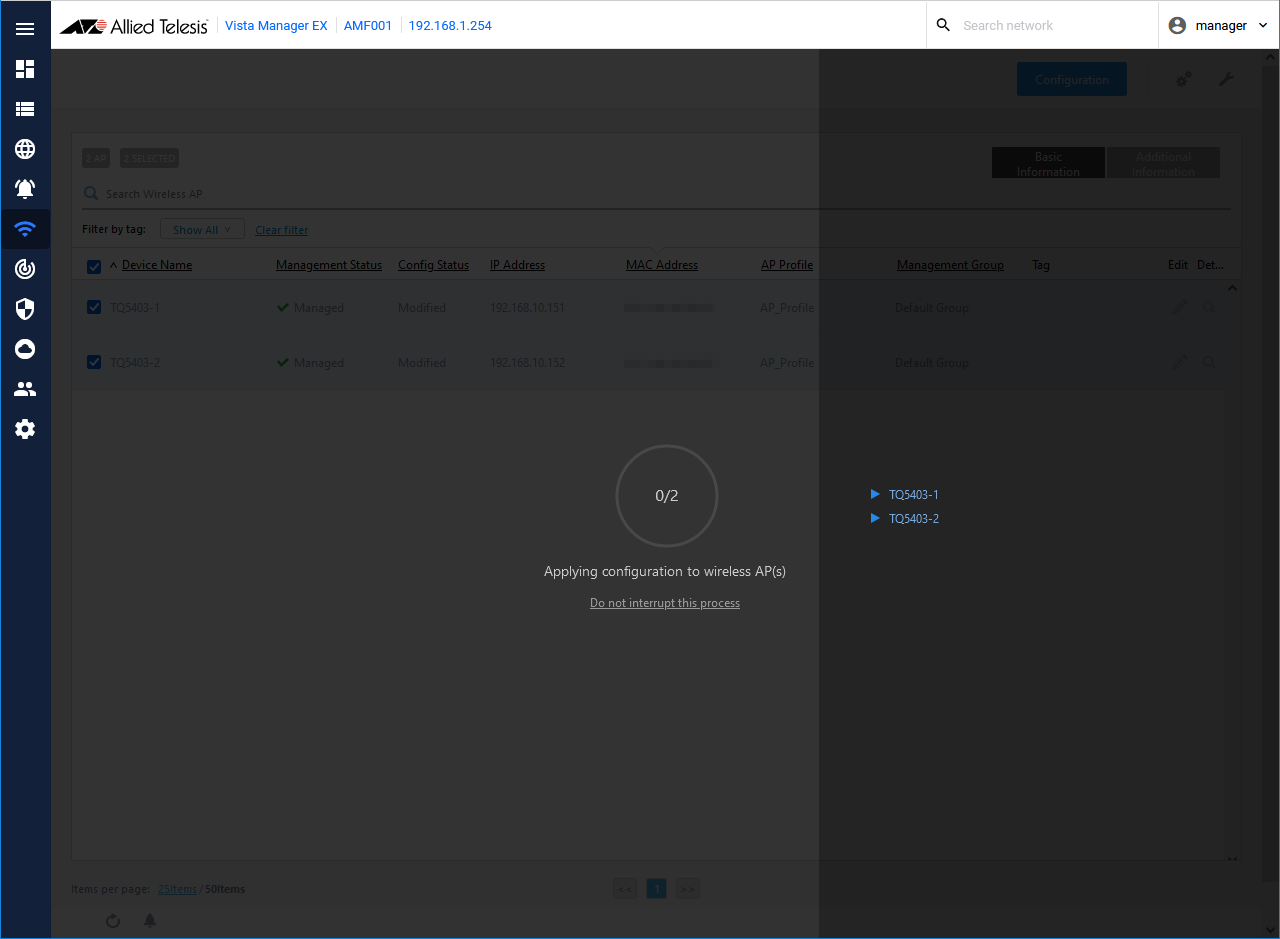
The "Apply Configuration" dialog is displayed, so click the "OK" button.
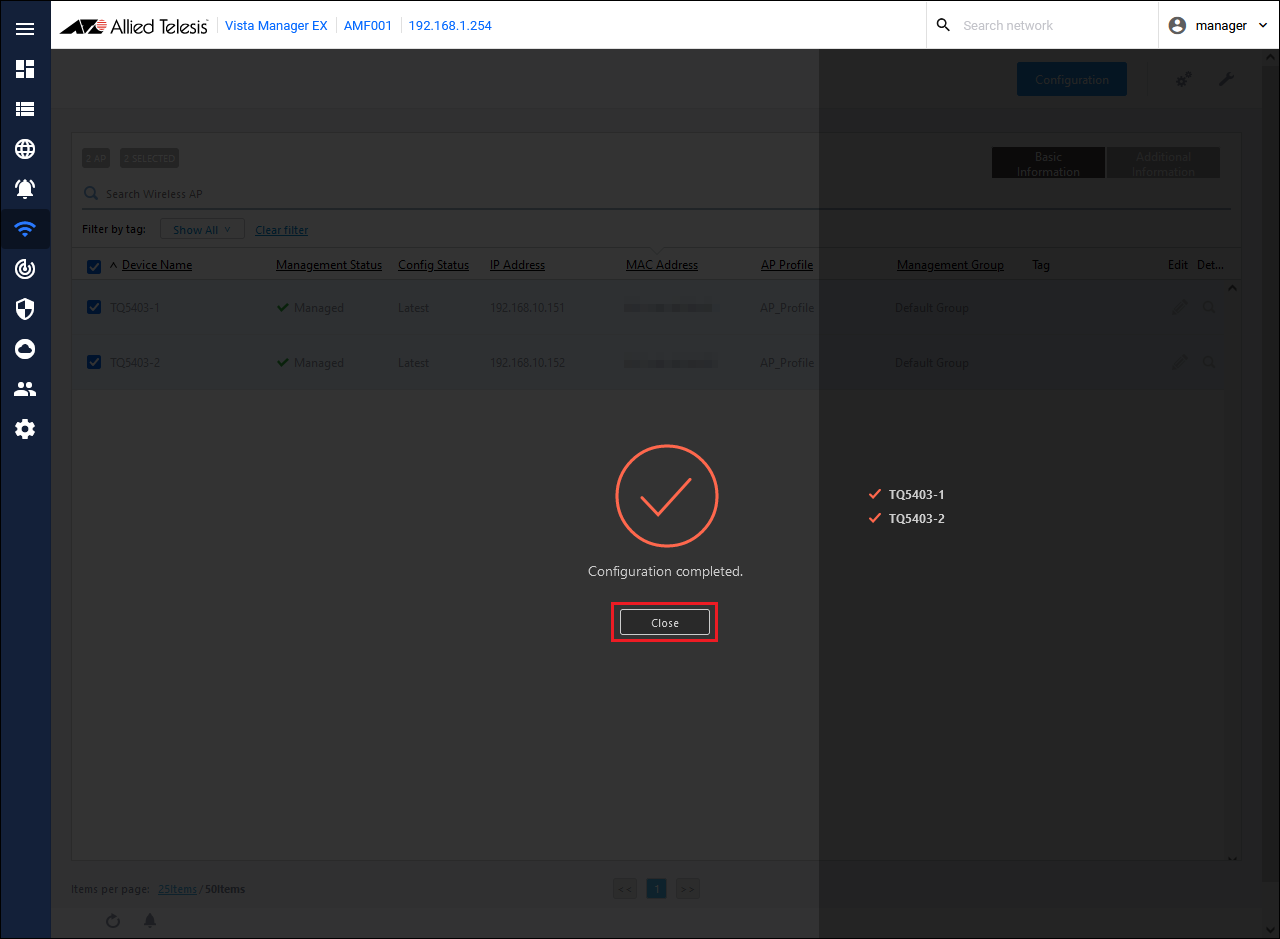
When the completion message is displayed, click the "Close" button.
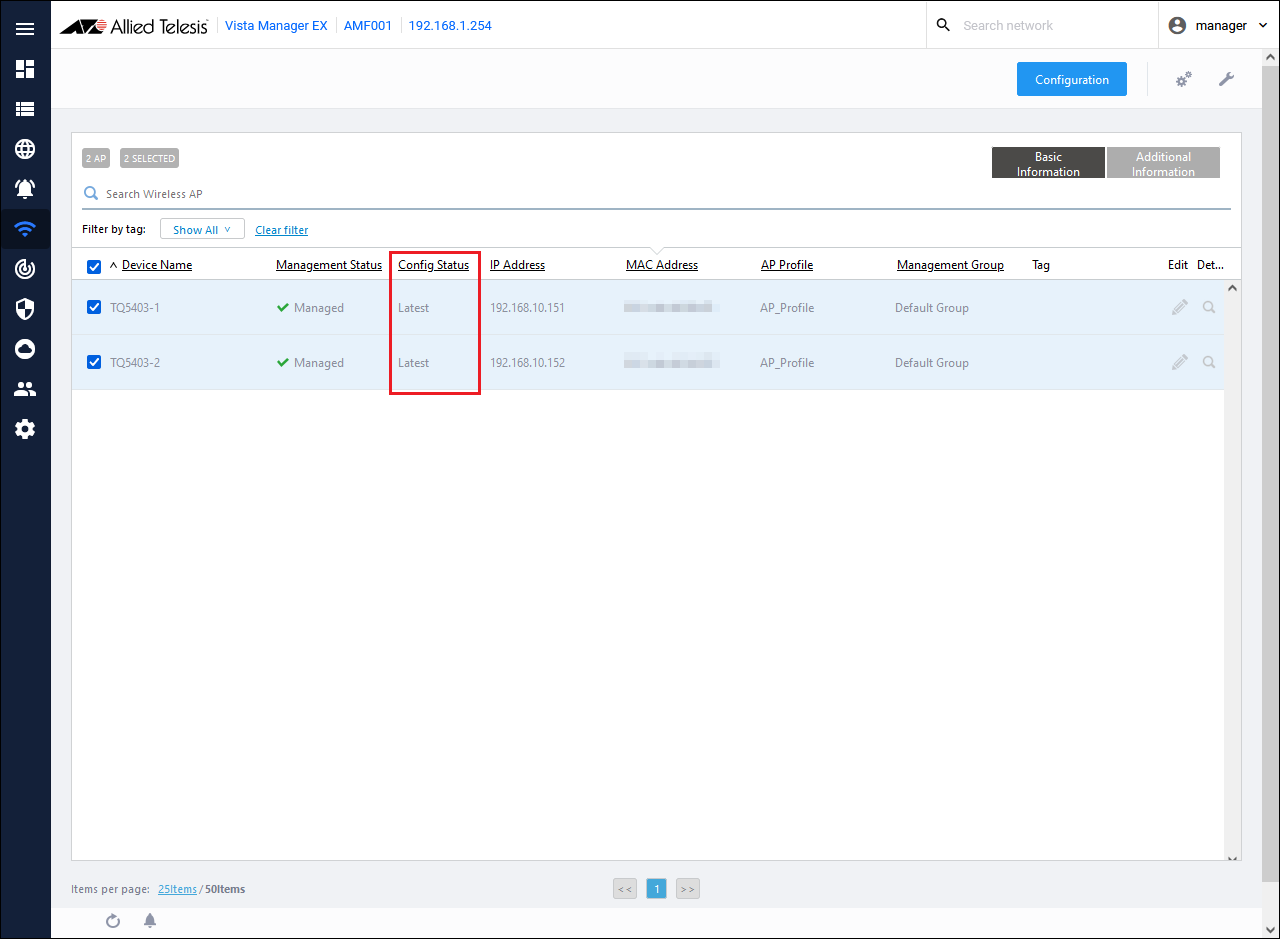
Confirm that "Config Status" is "Latest".
AWC Plug-in configuration is complete.
Configuring AMF Security
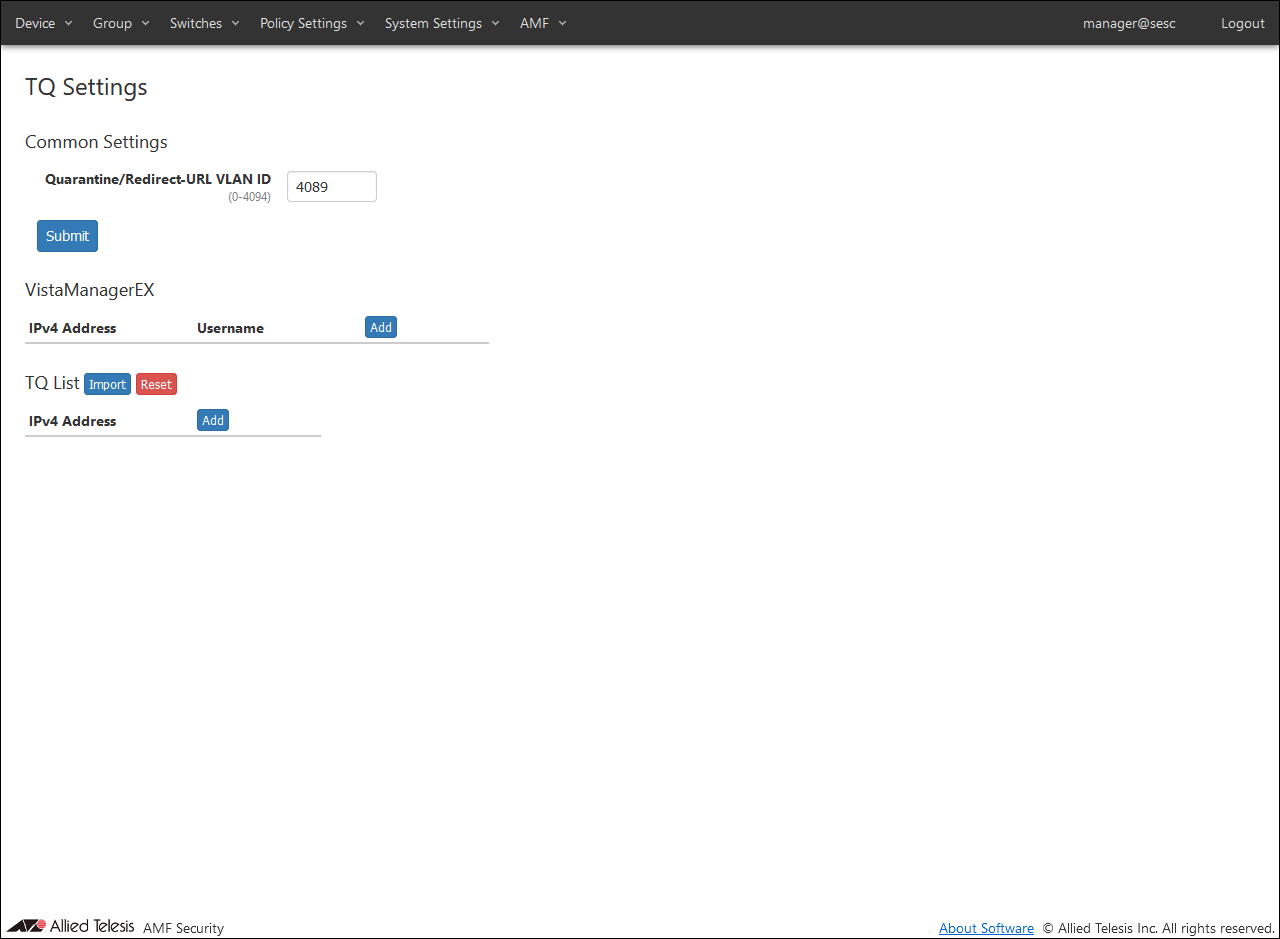
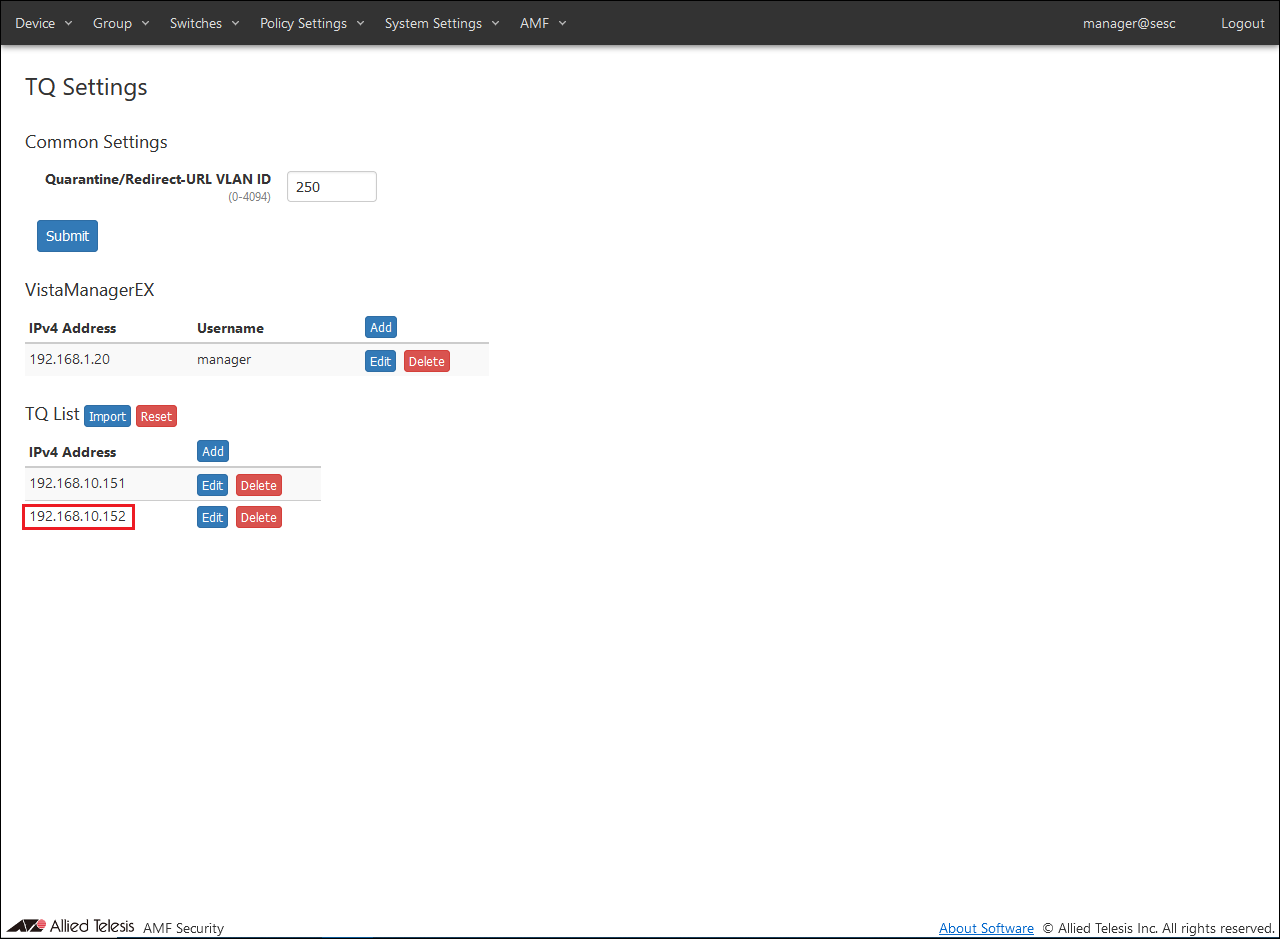
Open the AMF > TQ Settings page to set the quarantine VLAN ID, Vista Manager EX, and TQ information.
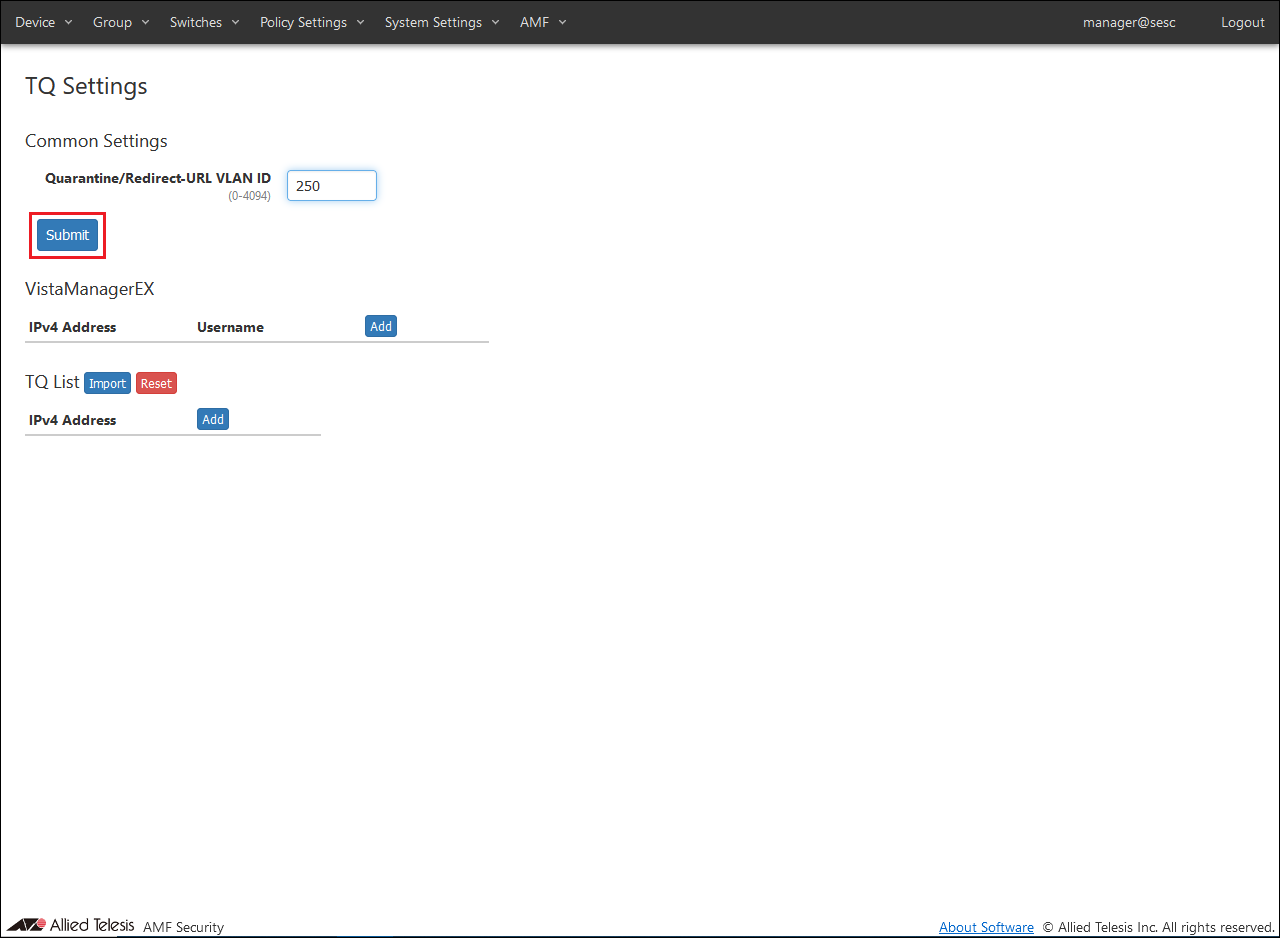
Enter "250" for the quarantine VLAN in Quarantine/Redirect URL VLAN ID in Common Settings, and click the "Register" button.
Note
When using Drop Packets and Log-Only actions, proceed to step 4 because the default settings are not used. When using Redirect-URL Action, configure this setting in the same way as when using Quarantine Action. When using Redirect-URL Action, also refer to Settings when using Redirect-URL Action.
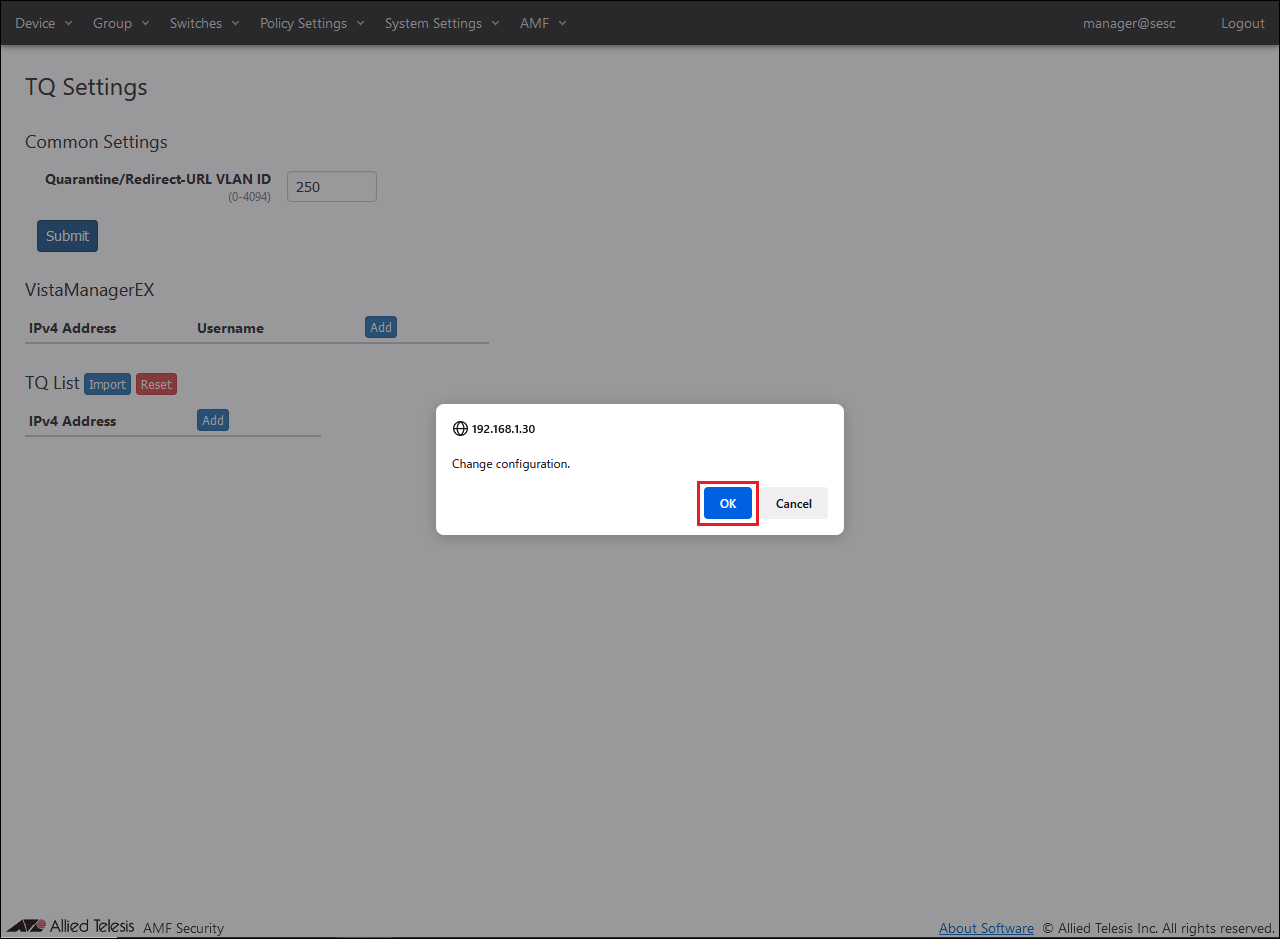
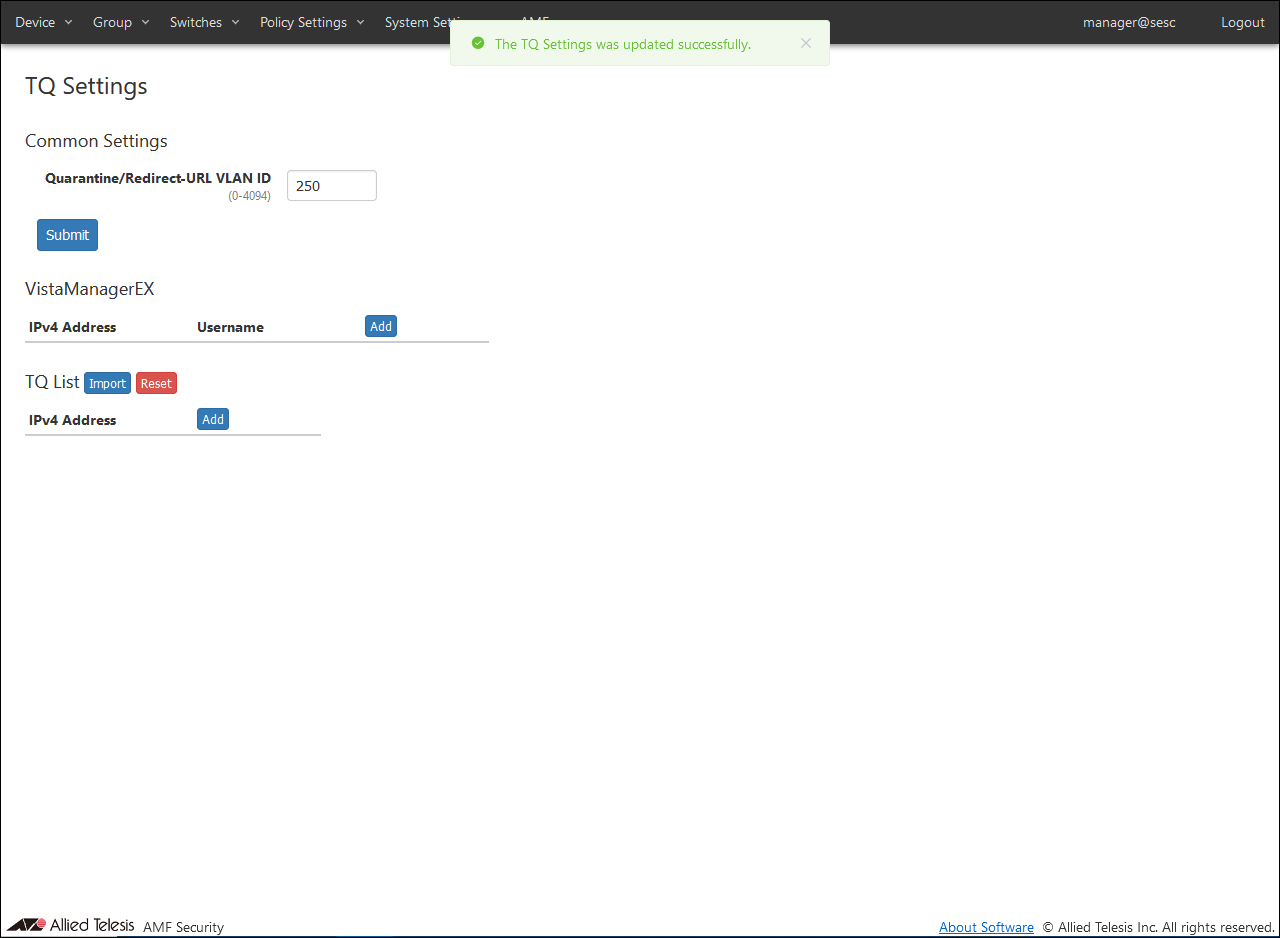
A confirmation dialog is displayed, so click the "OK" button.
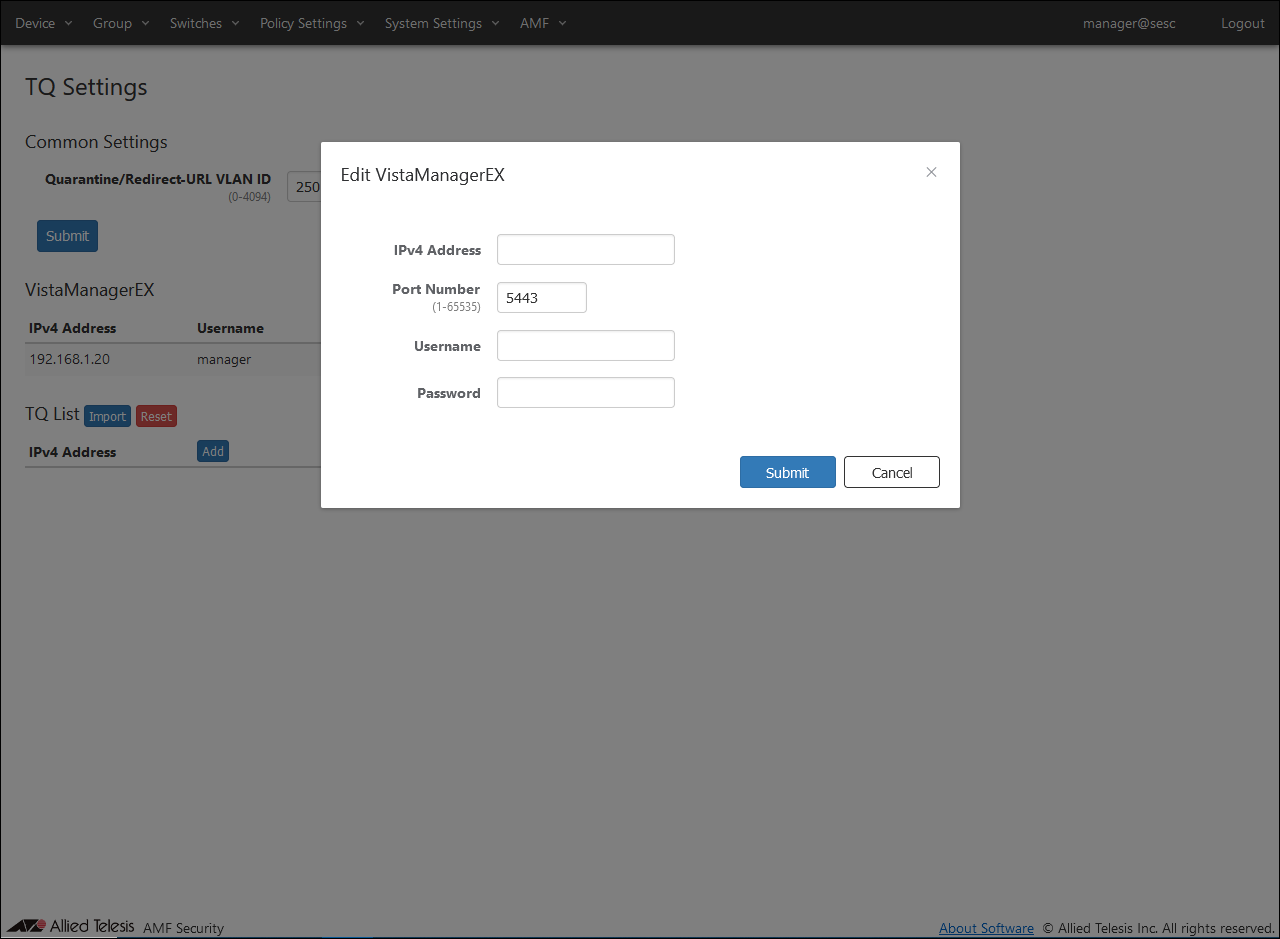
Click the "Add" button in VistaManagerEX. The Edit VistaManagerEX dialog is displayed.
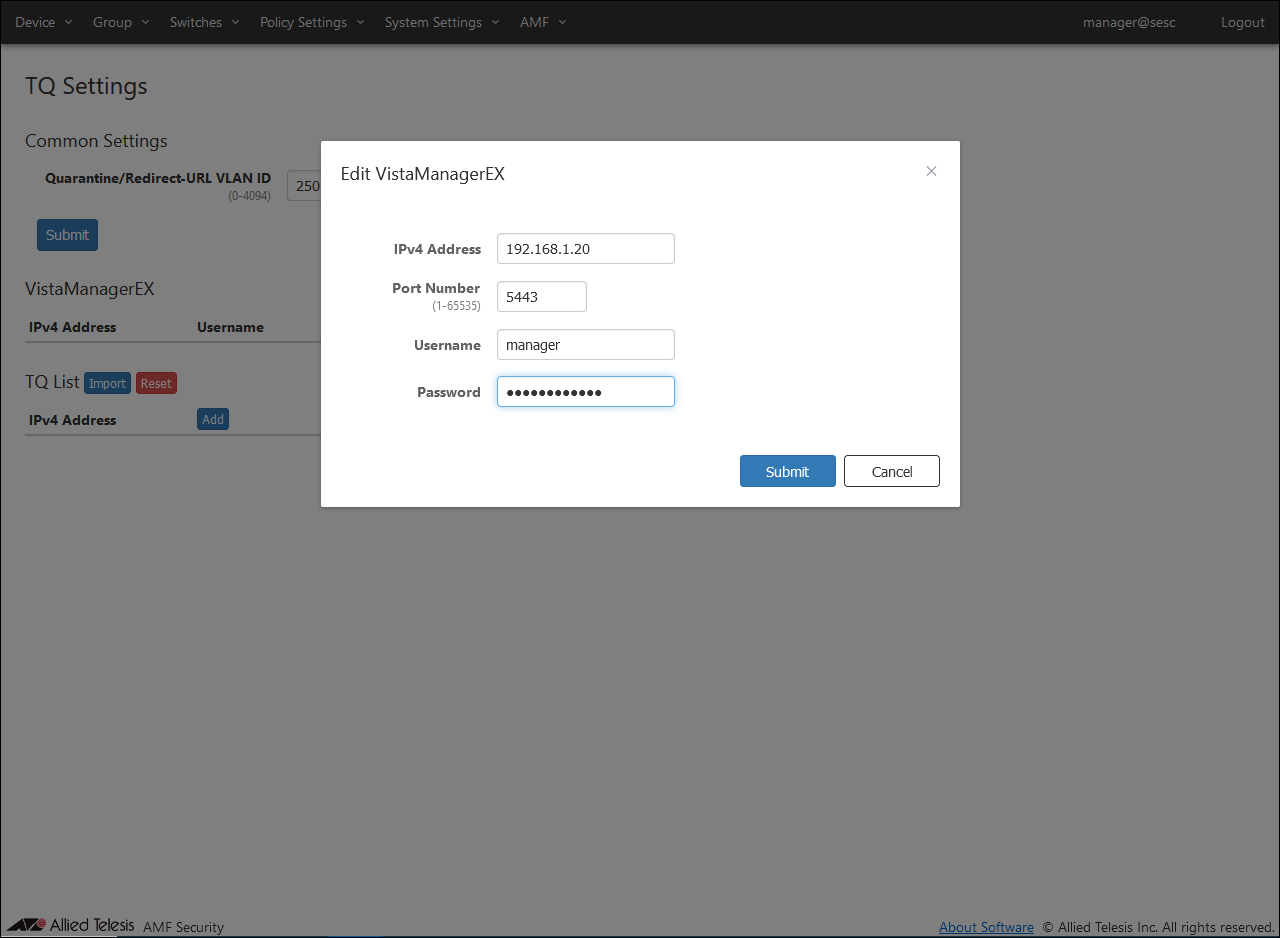
Set the information of Vista Manager EX. Set the following information:
Table 13: Information to set
Item Name
Value
IPv4 Address of Vista Manager EX
192.168.1.20
AWC Plug-in port number
5443
Vista Manager EX Username
manager
Vista Manager EX Password
TopSecret0!
Note
Since AT-Vista Manager EX of AT-VST-VRT is used, specify the IPv4 Address of AWC Plug-in for "IPv4 Address of Vista Manager EX".
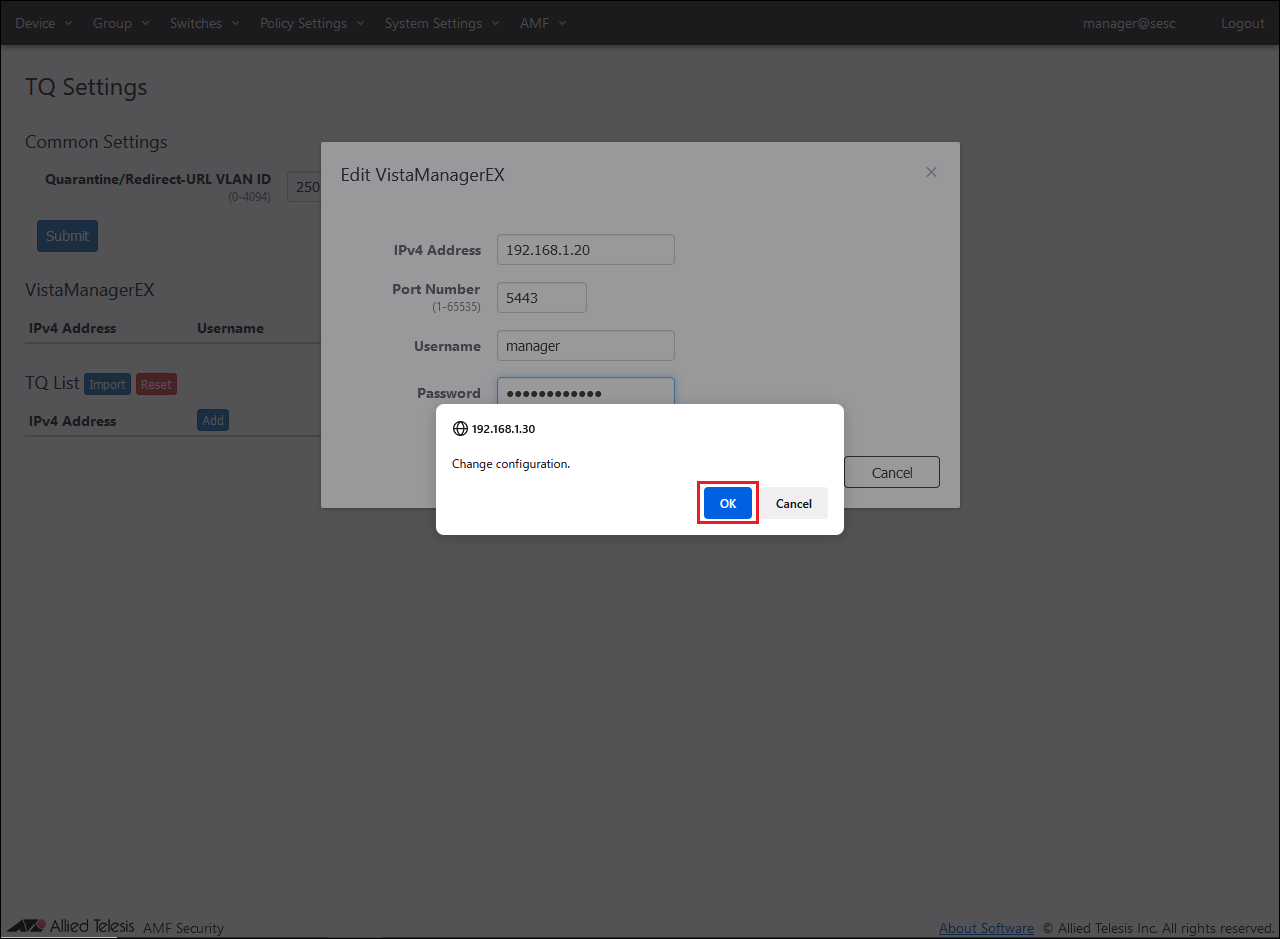
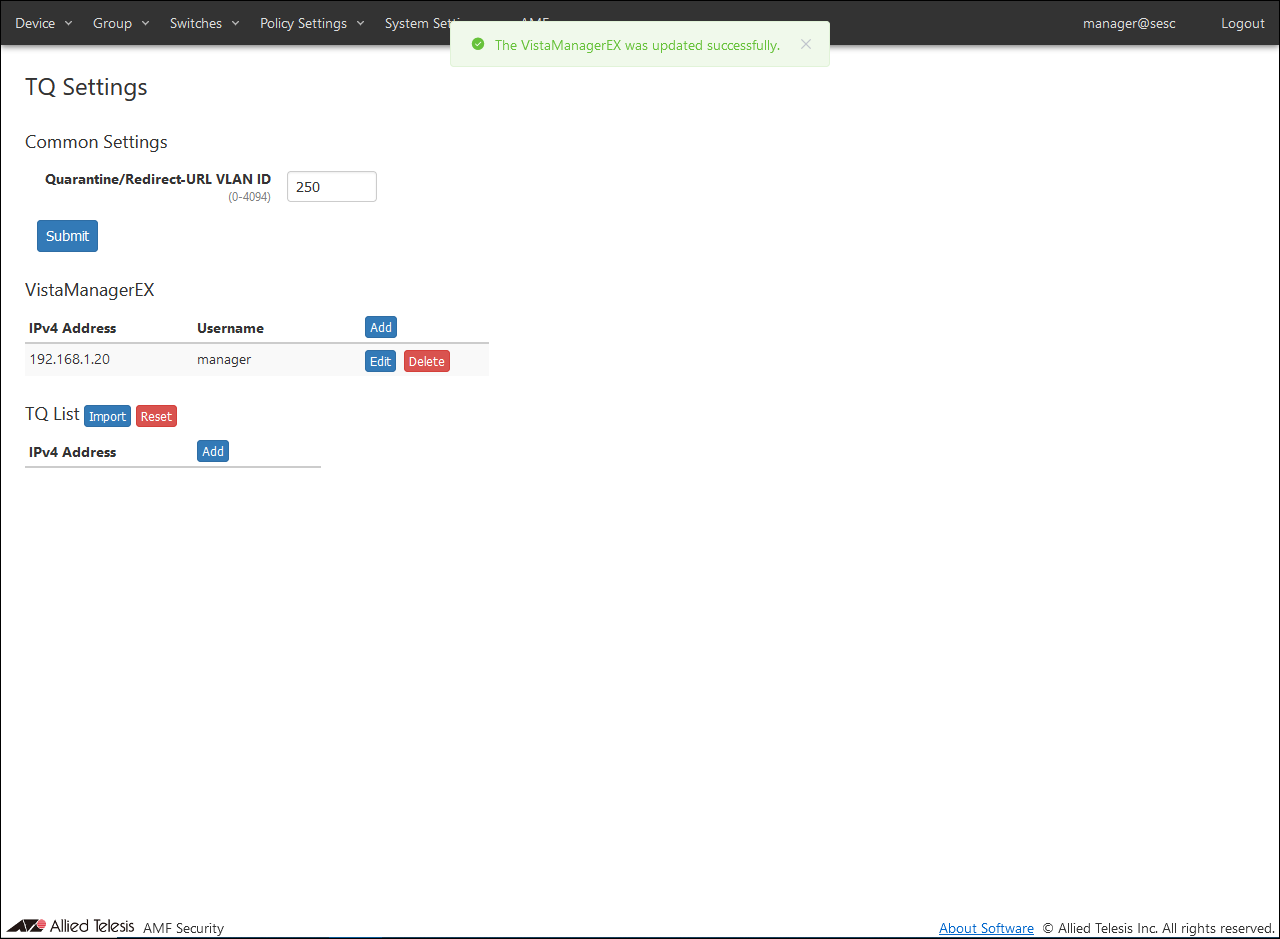
After setting the above information, click the "Submit" button. A confirmation dialog is displayed, so click the "OK" button.
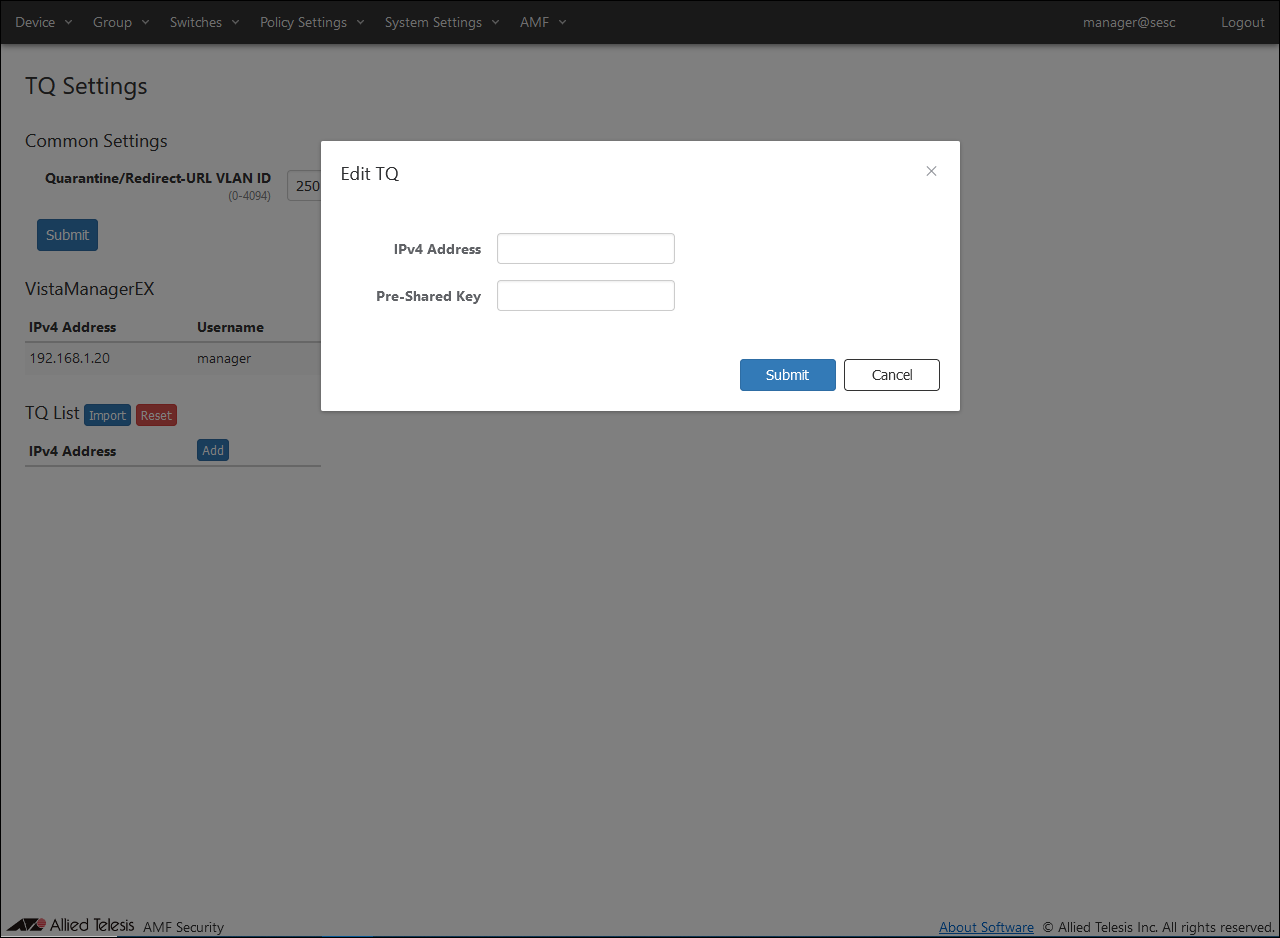
Click the "Add" button in the TQ List. The Edit TQ dialog is displayed.
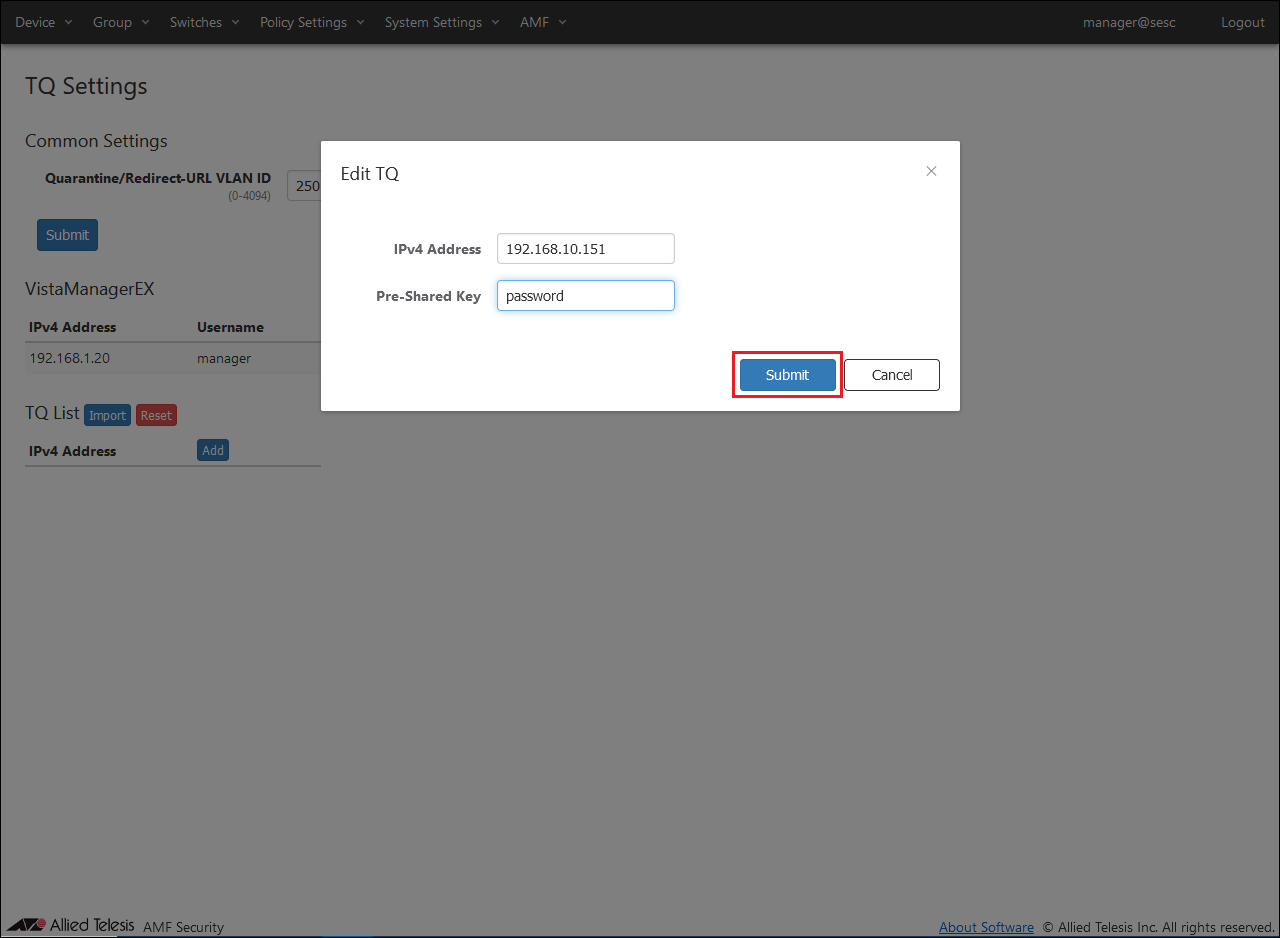
Set TQ information. Set the following information:
Table 14: Information to set
Item Name
Value
IPv4 Address of TQ5403-1
192.168.10.151
Pre-Shared Key
password
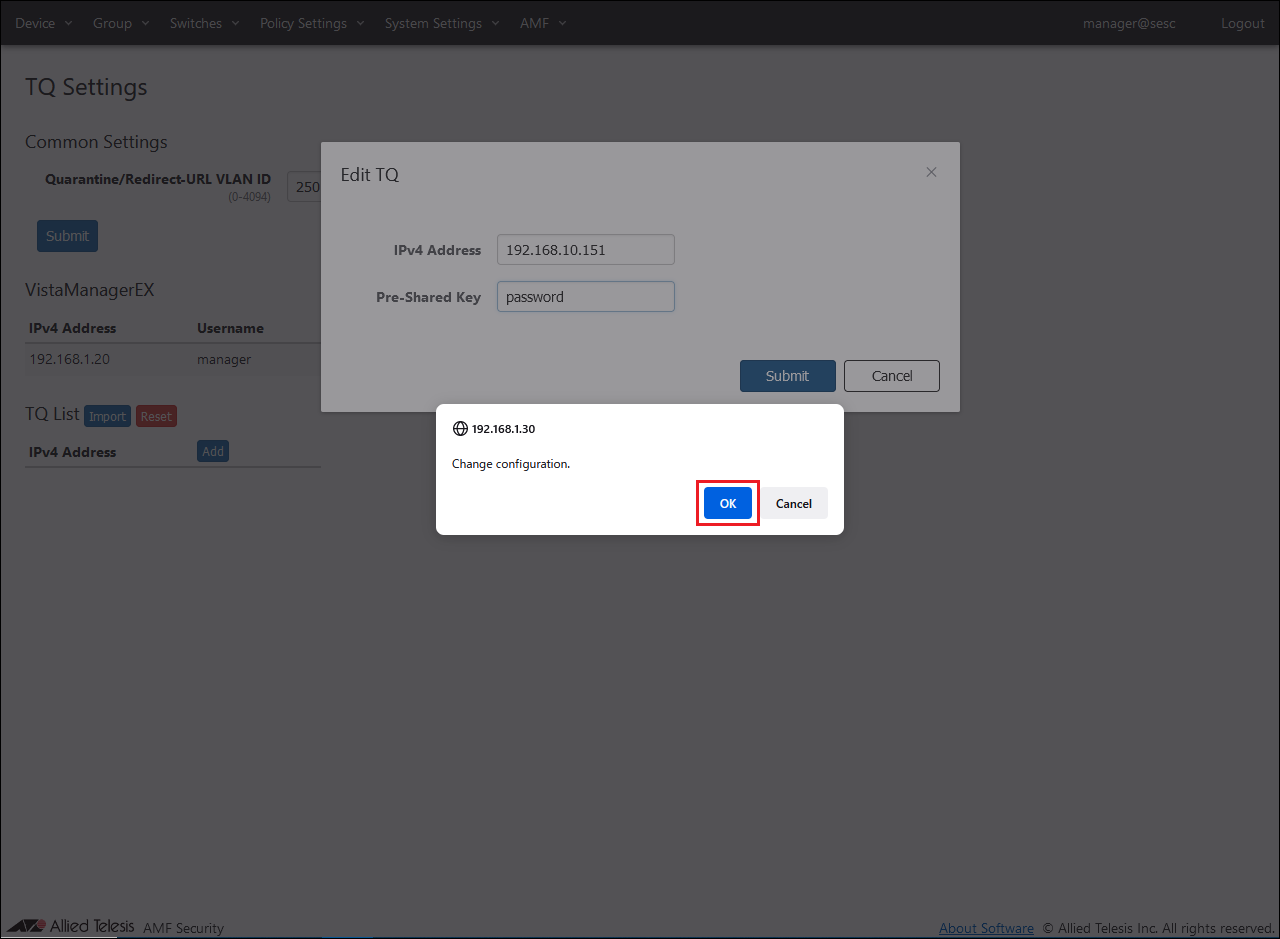
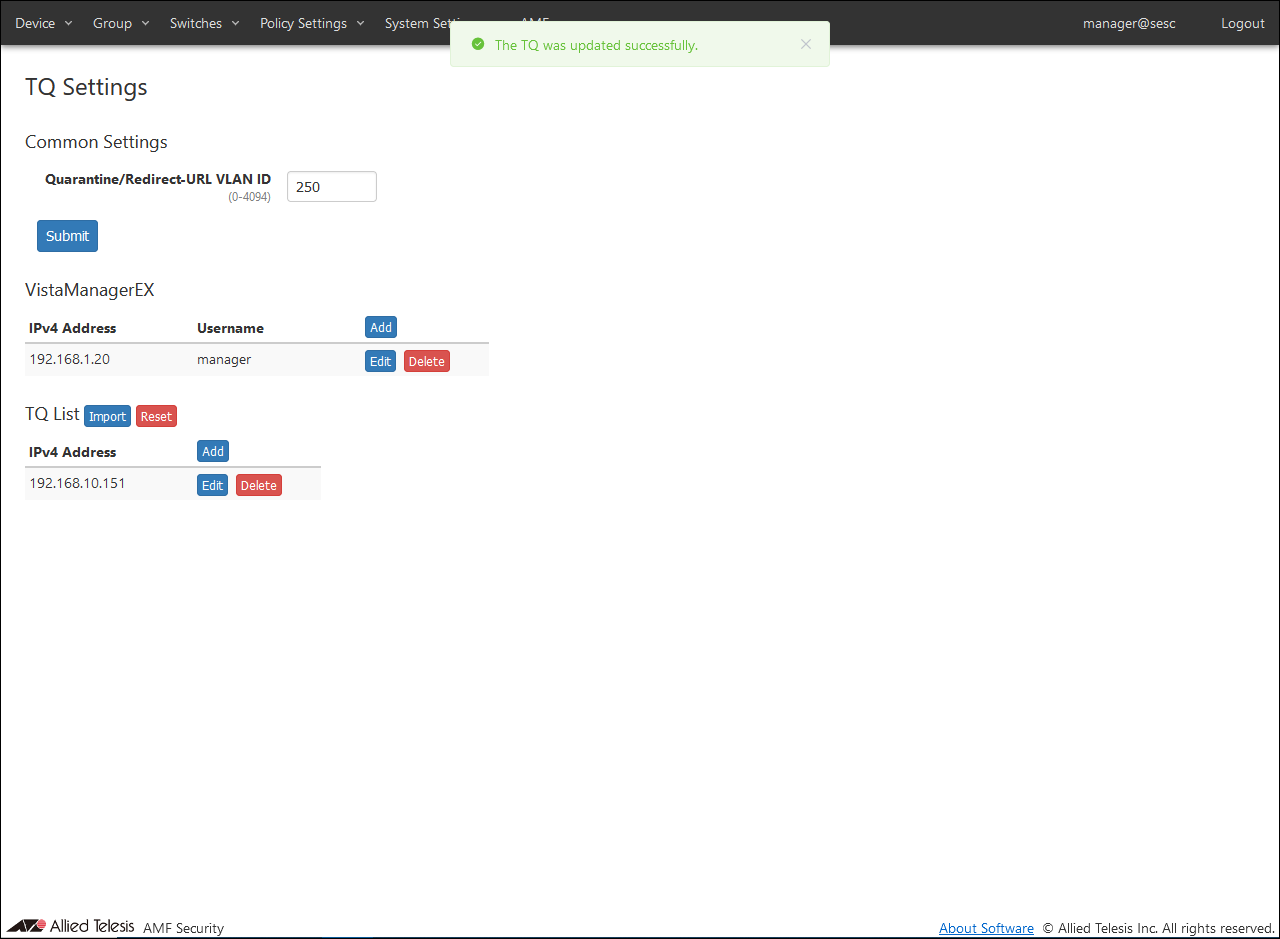
After setting the above information, click the "Submit" button. A confirmation dialog is displayed, so click the "OK" button.
Set the second TQ in the same way as the first TQ.
Table 15: Information to set
Item Name
Value
IPv4 Address of TQ5403-2
192.168.10.152
Pre-Shared Key
password
Note
TQ Settings can be imported using a CSV file. For the format of the CSV file, please refer to References / AMF > TQ Settings.
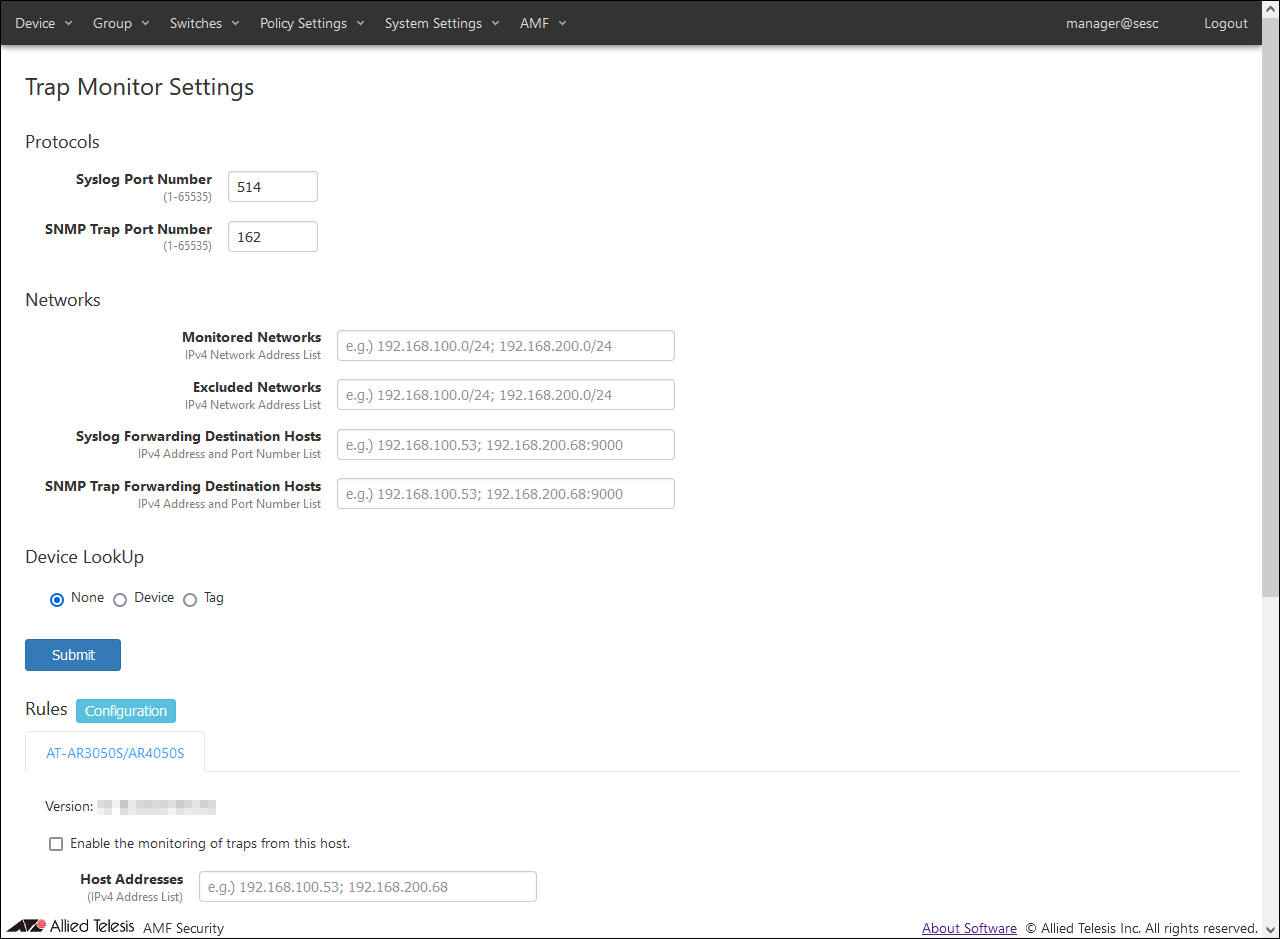
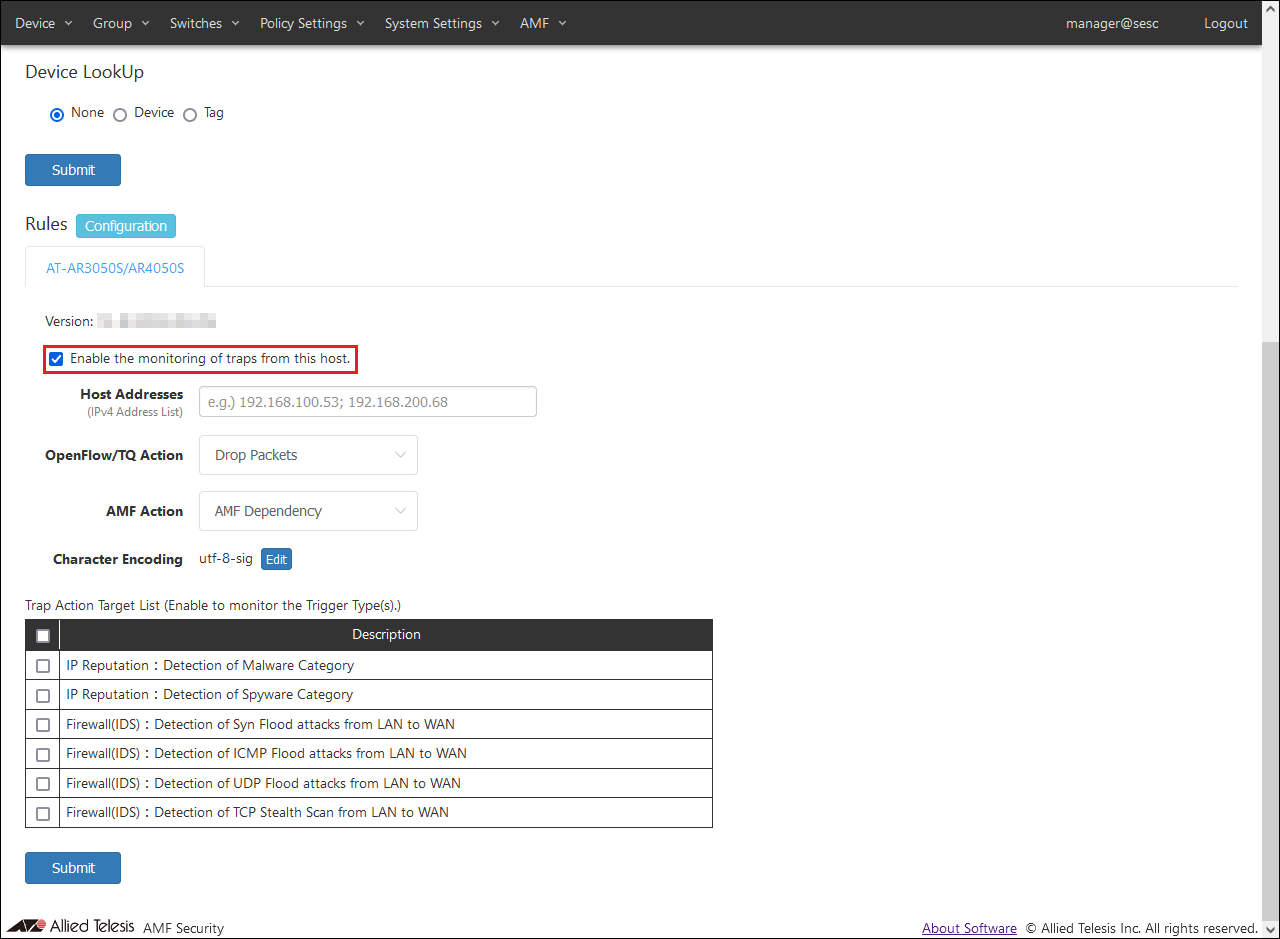
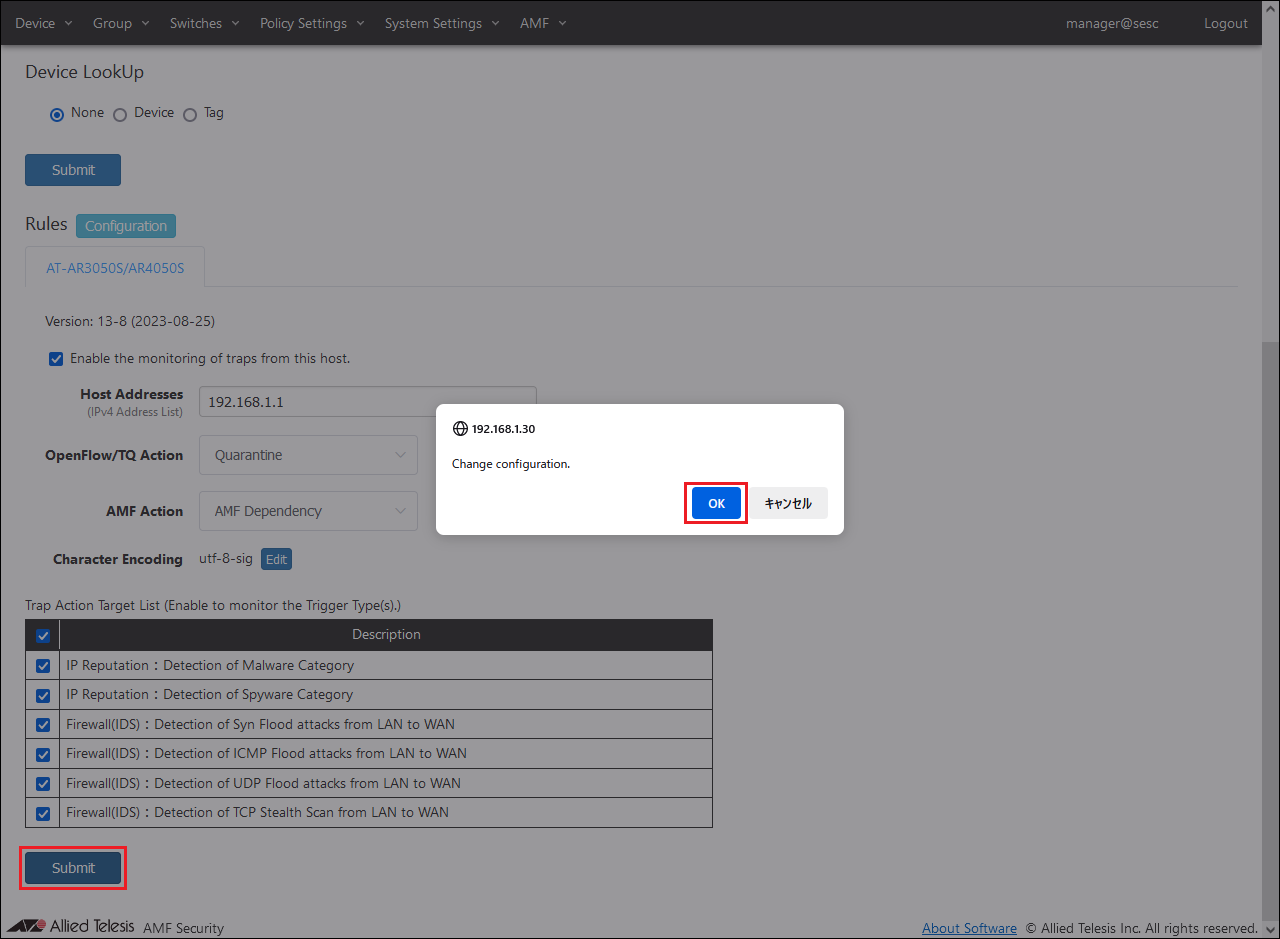
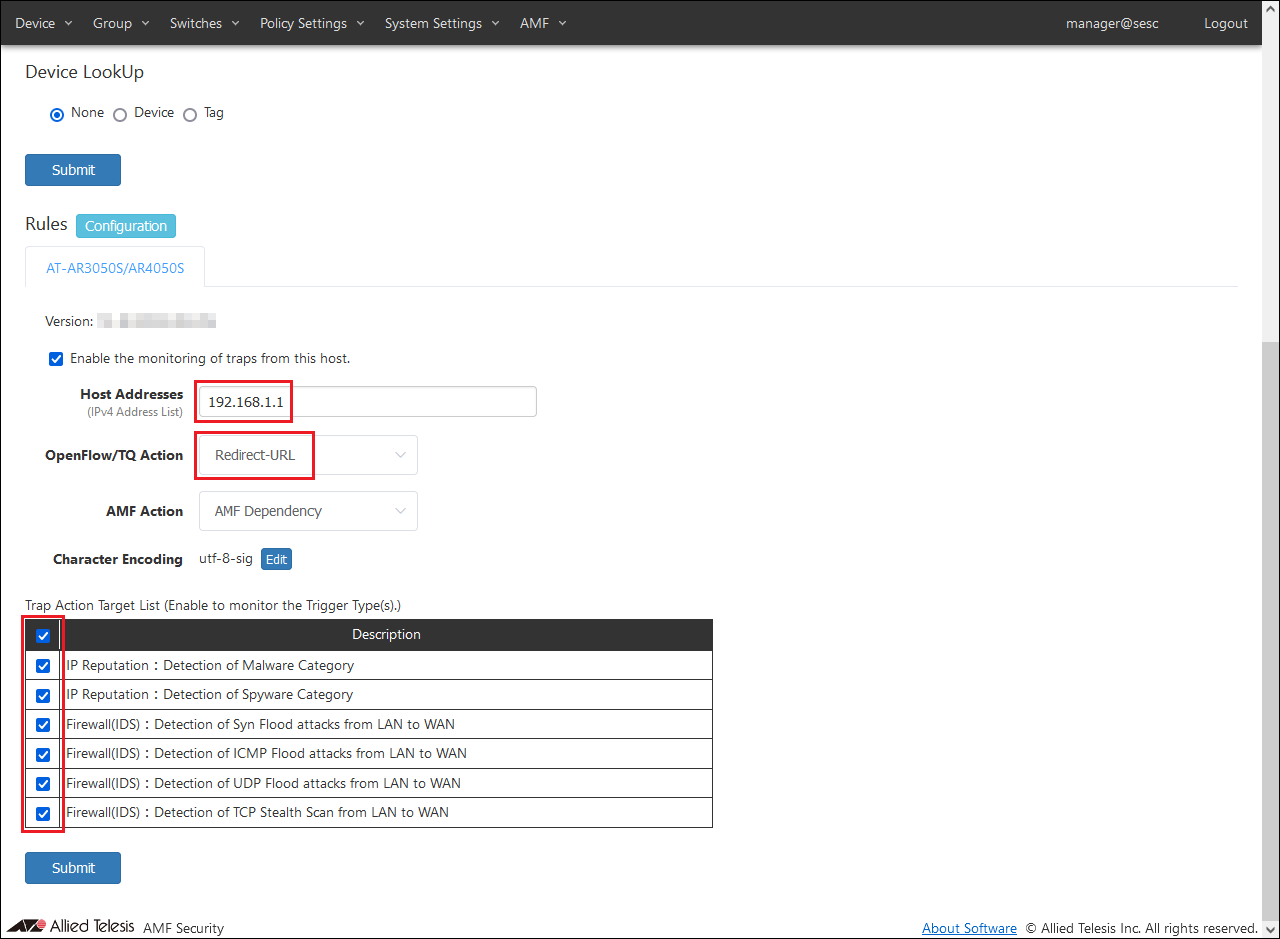
Check the checkbox for "Enable the monitoring of traps from this host."
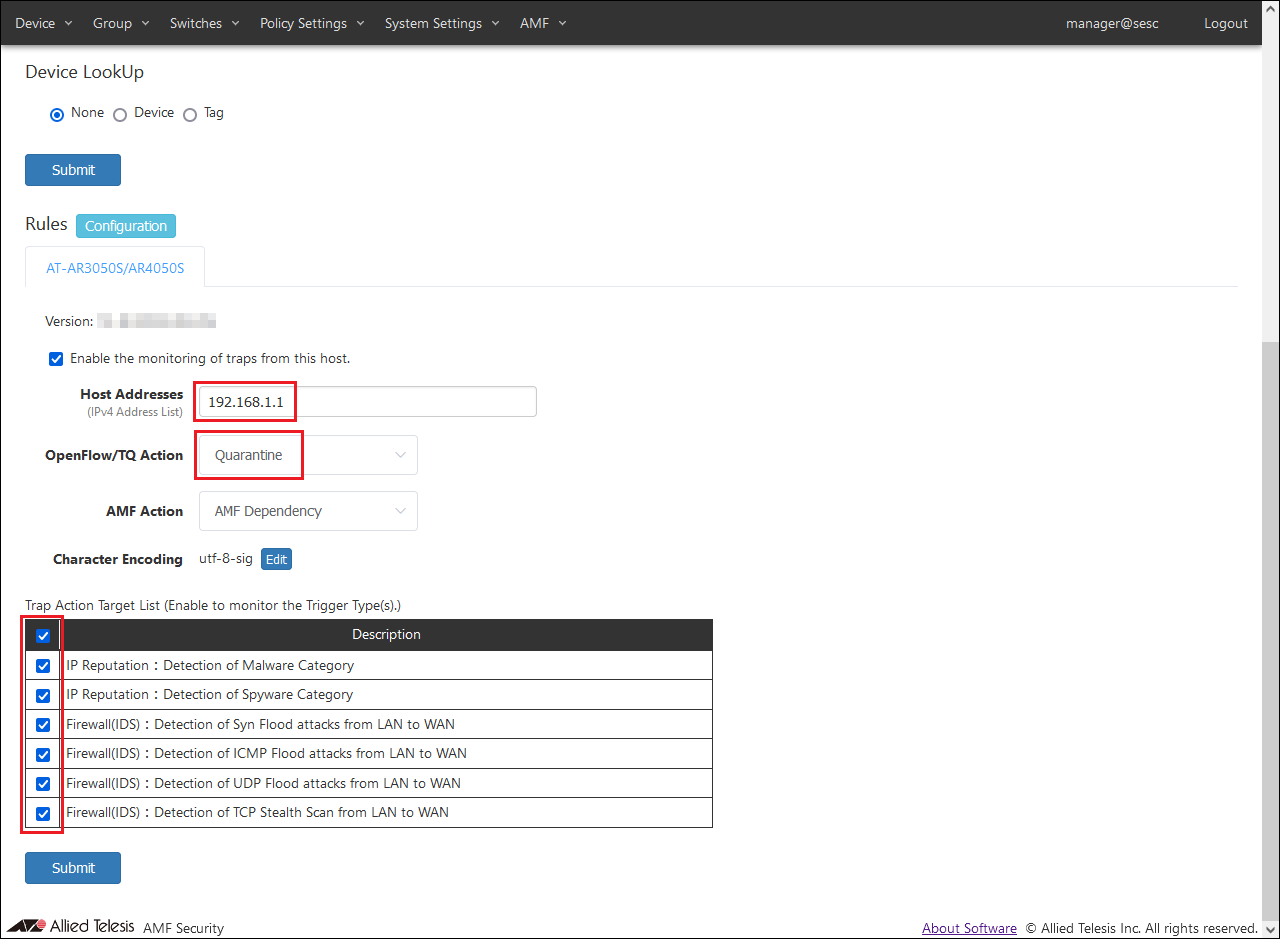
Set AR Router, Action, and Trap Action Target List information. Set the following information:
Table 16: Information to set
Item Name
Value
Host Addresses
192.168.1.1
OpenFlow/TQ Action
Quarantine
Trap Action Target List
Check all
When using Drop Packets or Log-Only actions, set "Drop Packets" or "Log-Only", and when using Redirect-URL Action, set "Redirect-URL". When using Redirect-URL Action, also refer to Settings when using Redirect-URL Action.
Note
Host Addresses is a setting to receive notifications only from the set IP Address. The target of trap monitoring here is all, but the linkage is the firewall/UTM set on the AR Router. For the functions that can be linked, refer to Appendix / Configuring AT-AR3050S/AT-AR4050S.
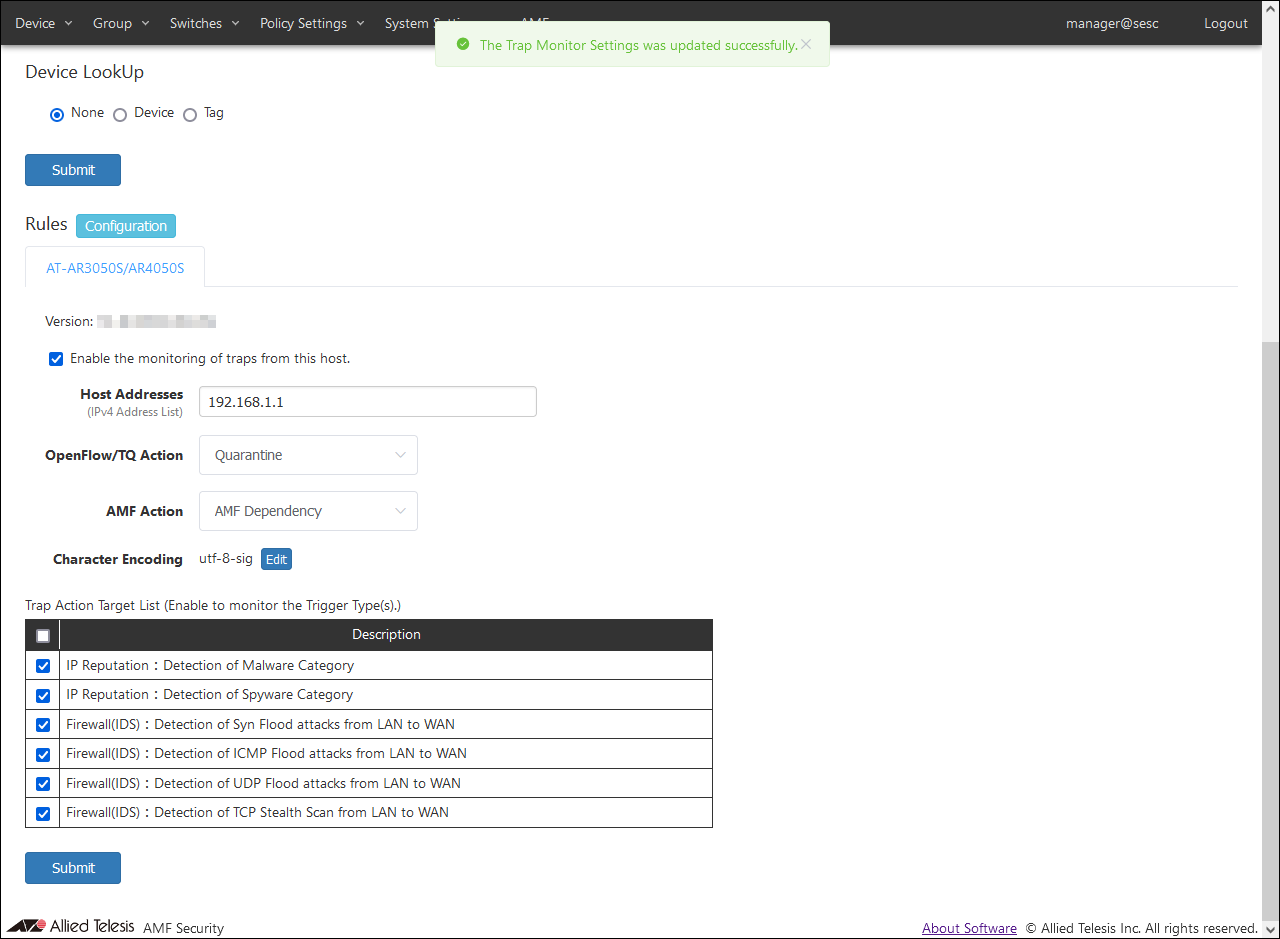
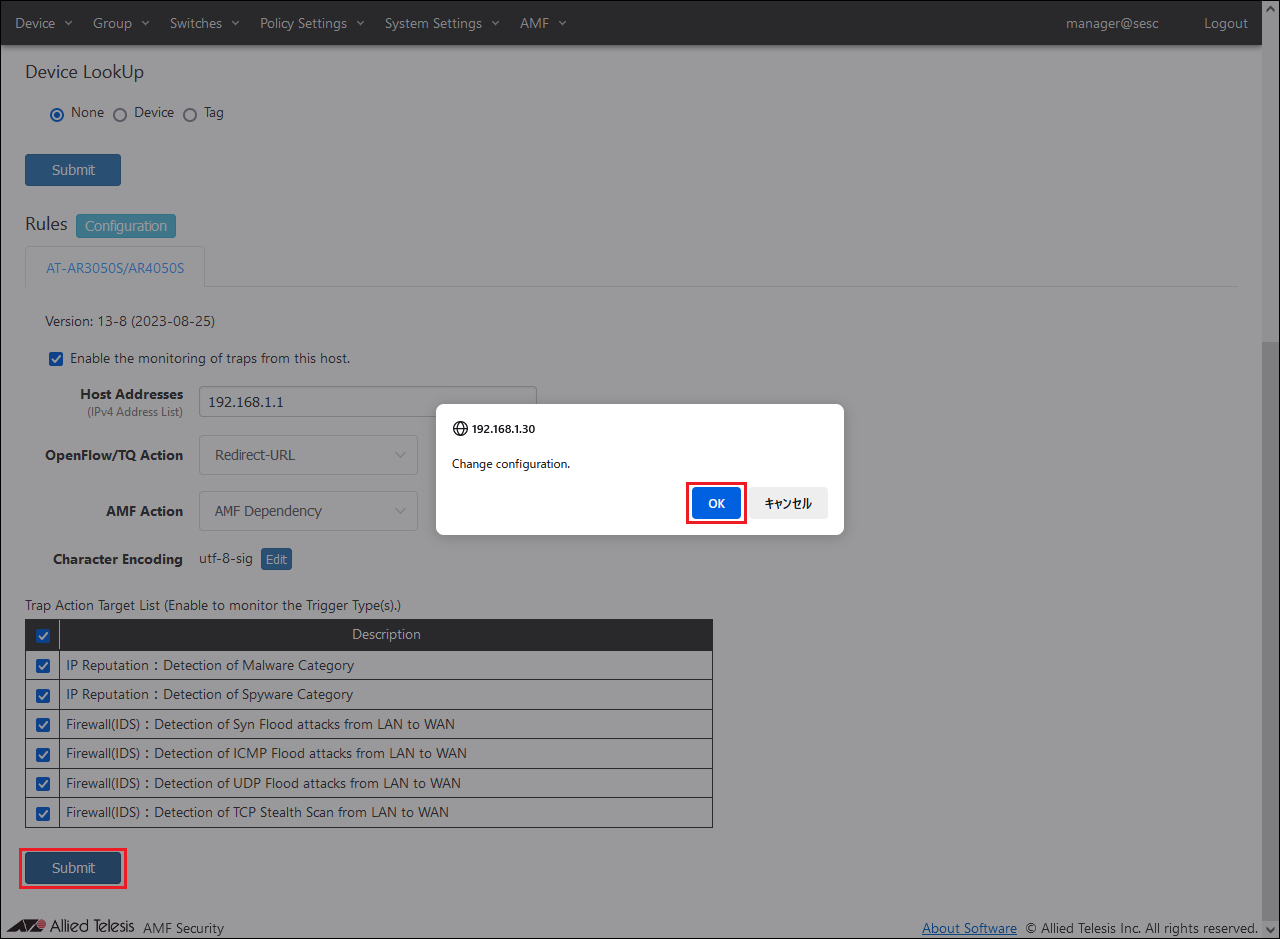
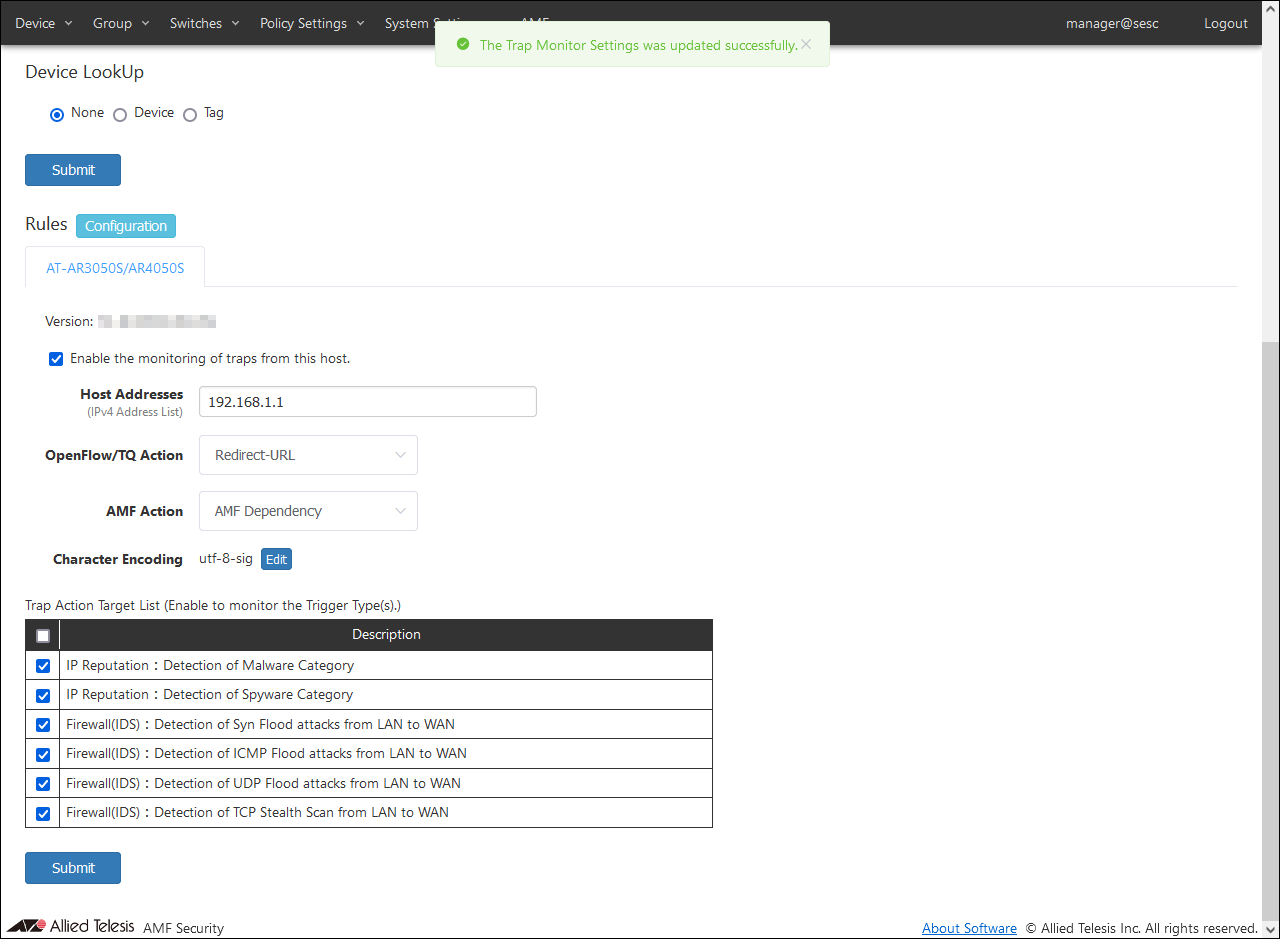
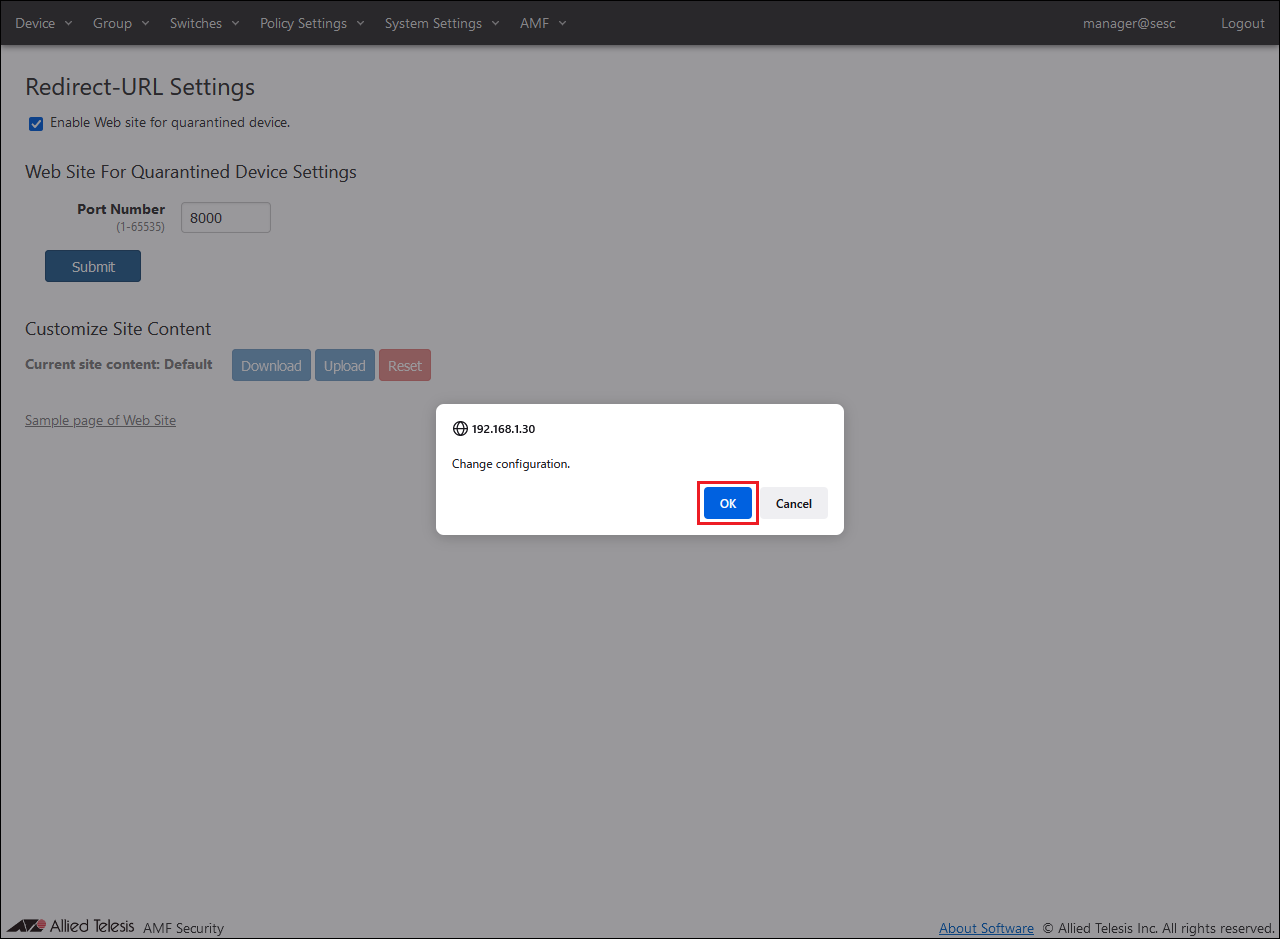
After setting the above information, click the "Submit" button. A confirmation dialog is displayed, so click the "OK" button.
Registration of authentication information (policy)
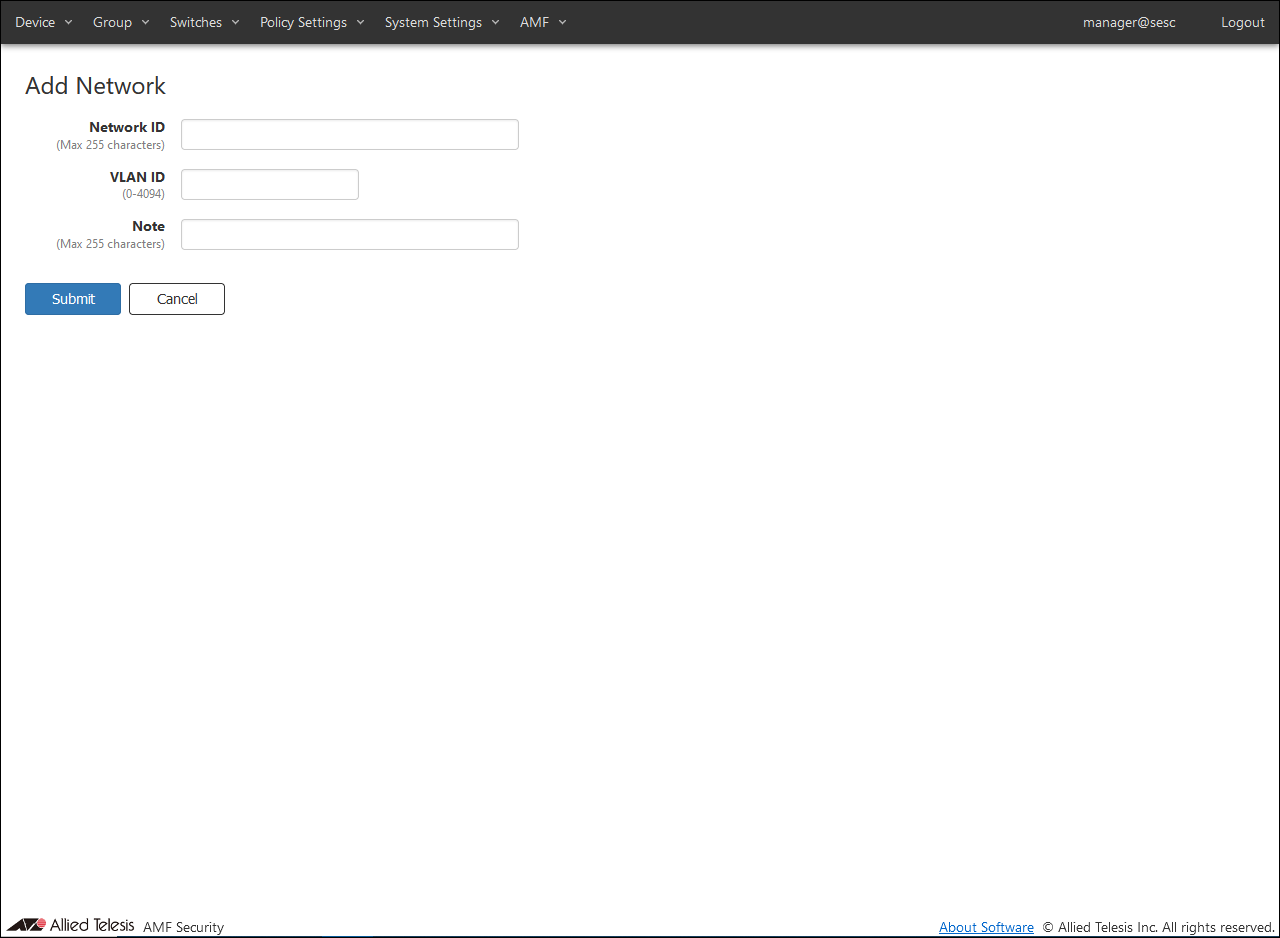
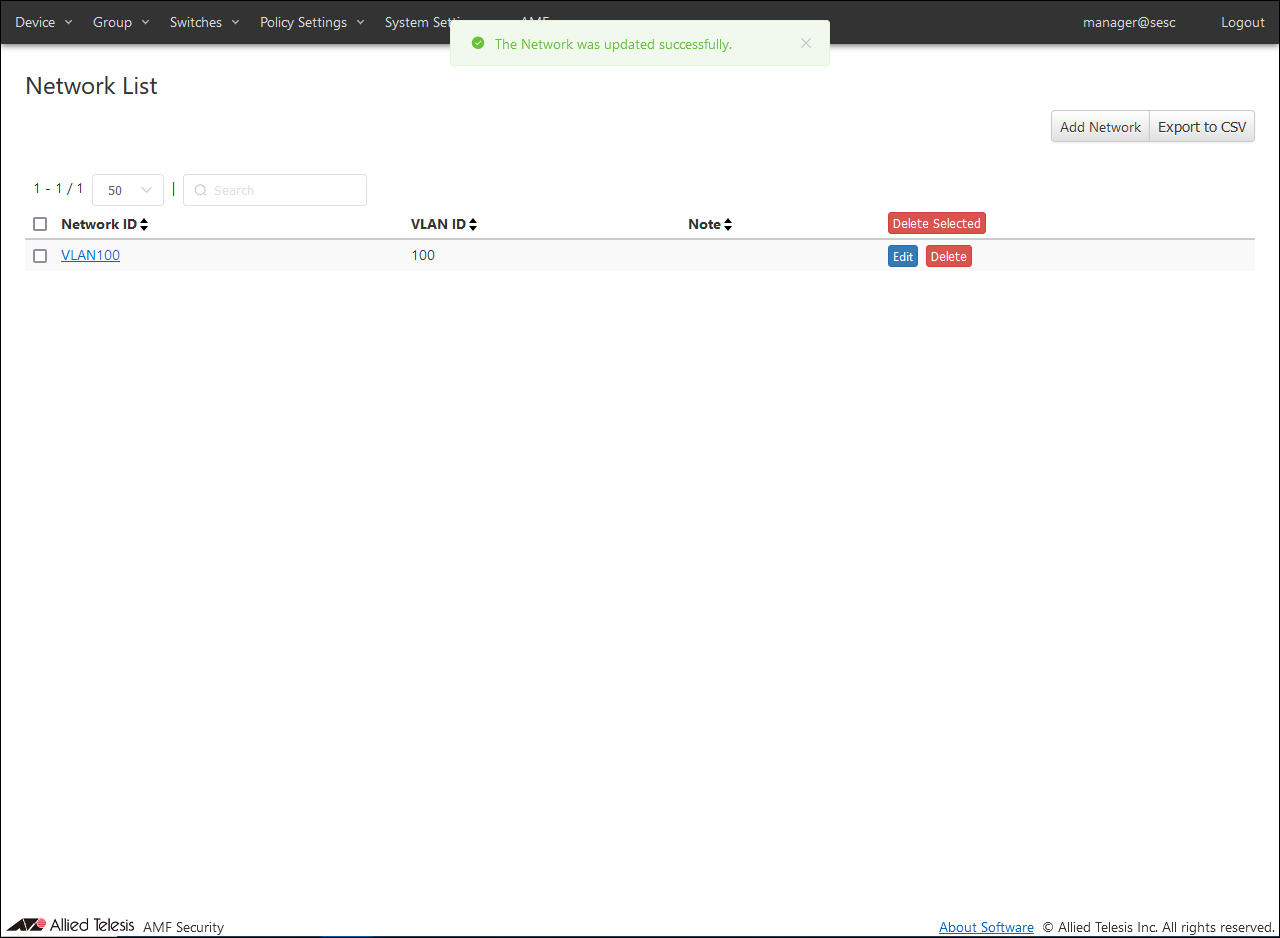
Register the device (wireless terminal) authentication information. Open the Policy Settings > Network List page and click the "Add Network" button to open the Add Network page.
Note
If you select WPA Enterprise in the security of TQ's VAP (multi-SSID) settings, enable dynamic VLAN, and make the wireless terminal belong to the VLAN ID given by the RADIUS server on the WPA Enterprise side, no network policy setting is required.
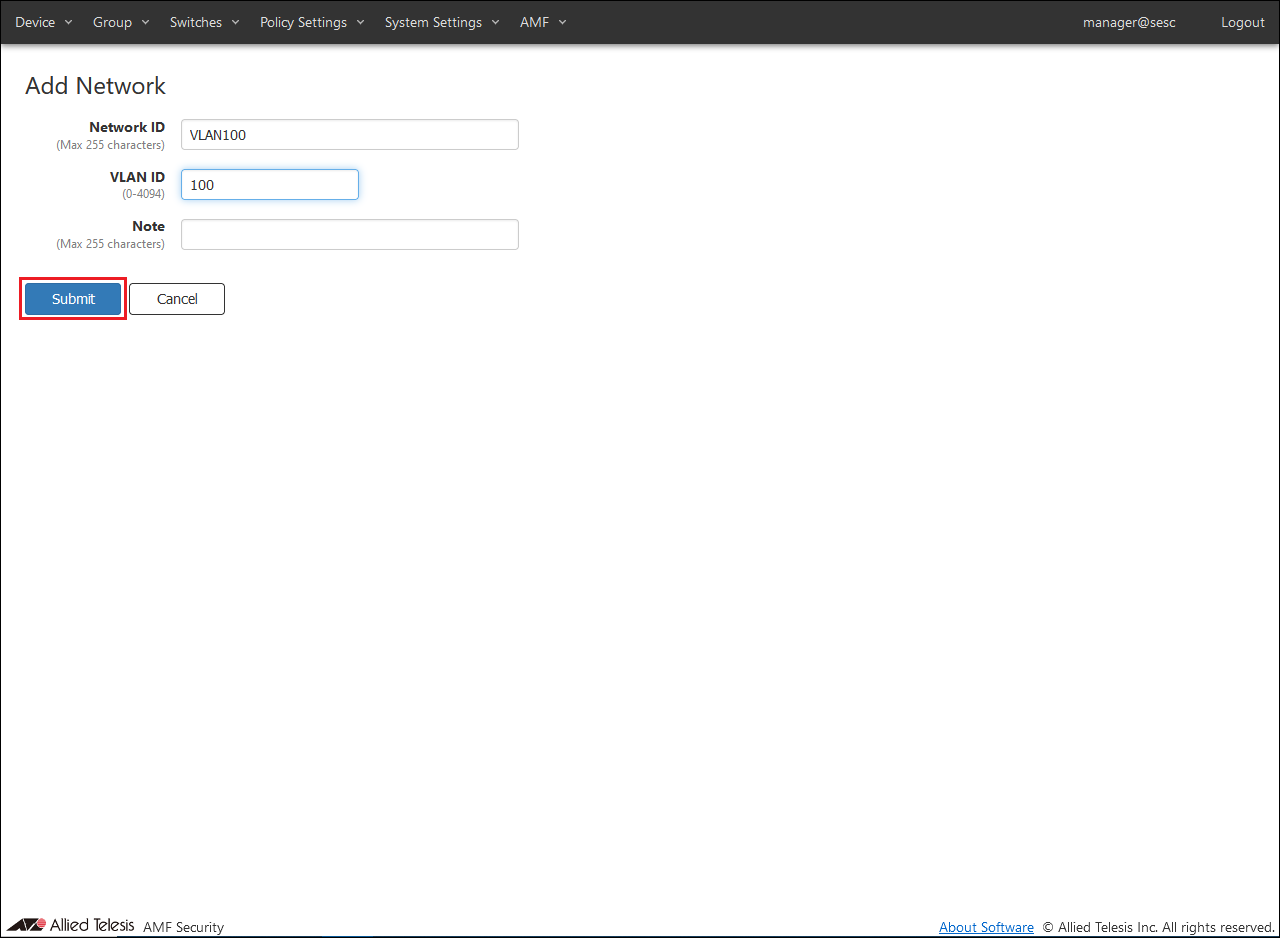
To register VLAN100, enter Network ID and VLAN ID as follows and click the "Submit" button.
Table 17: Information to set
Item Name
Value
Network ID
VLAN100
VLAN ID
100
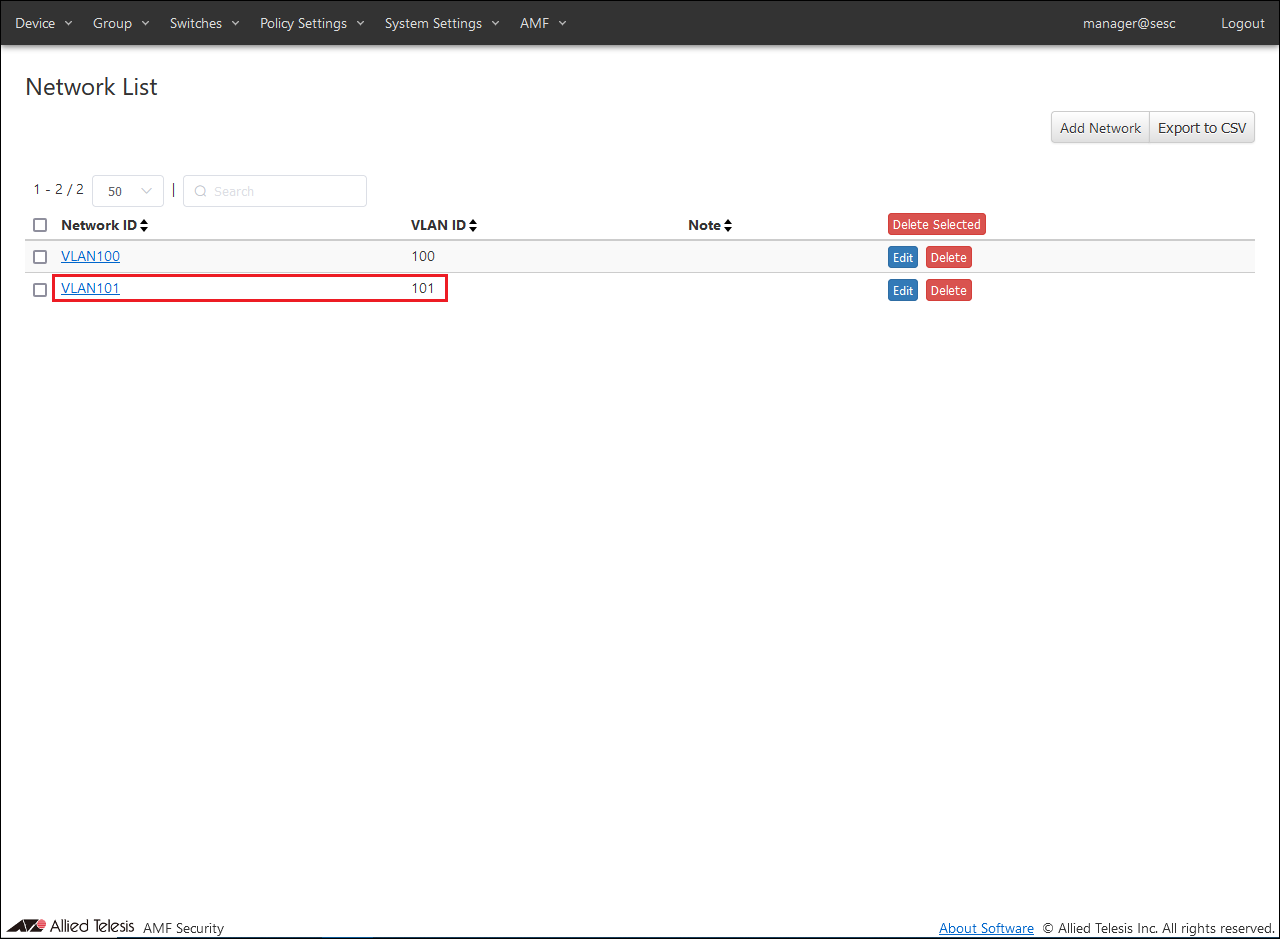
Register VLAN101 using the same procedure as for registering VLAN100.
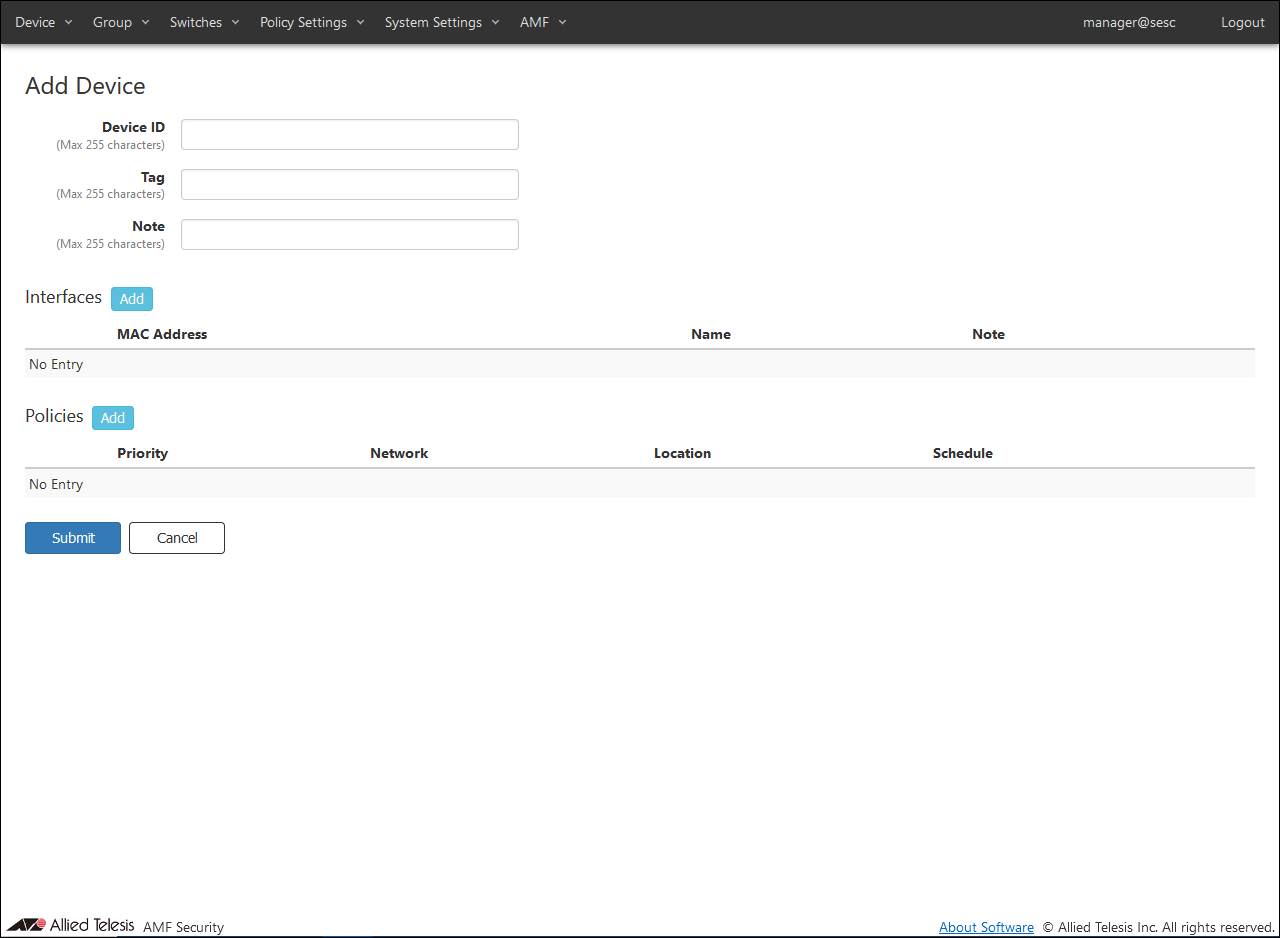
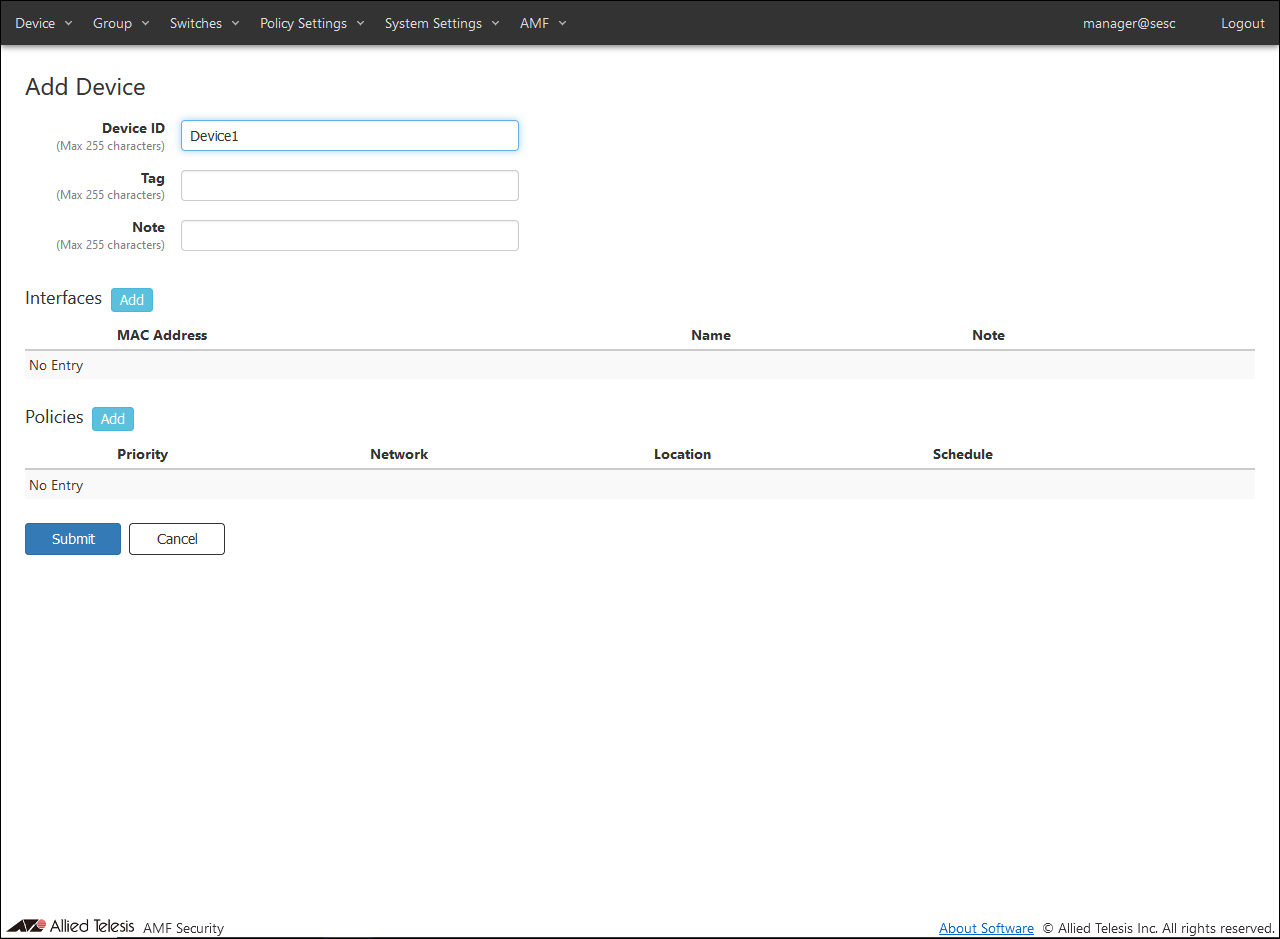
The first to be registered is "Device1". Enter "Device1" for Device ID.
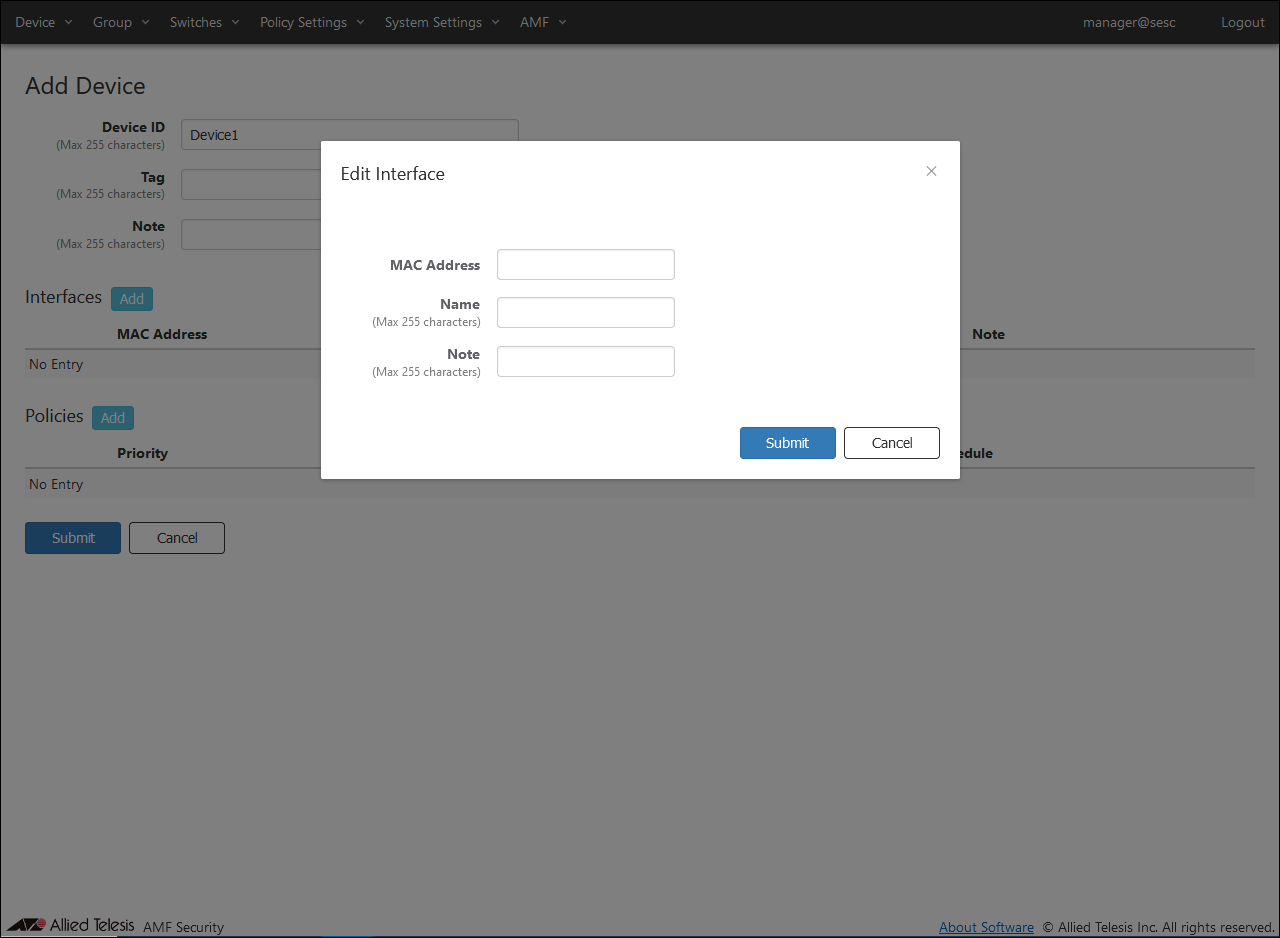
After entering the device ID, click the "Add" button in the Interfaces column to open the Edit Interface dialog.
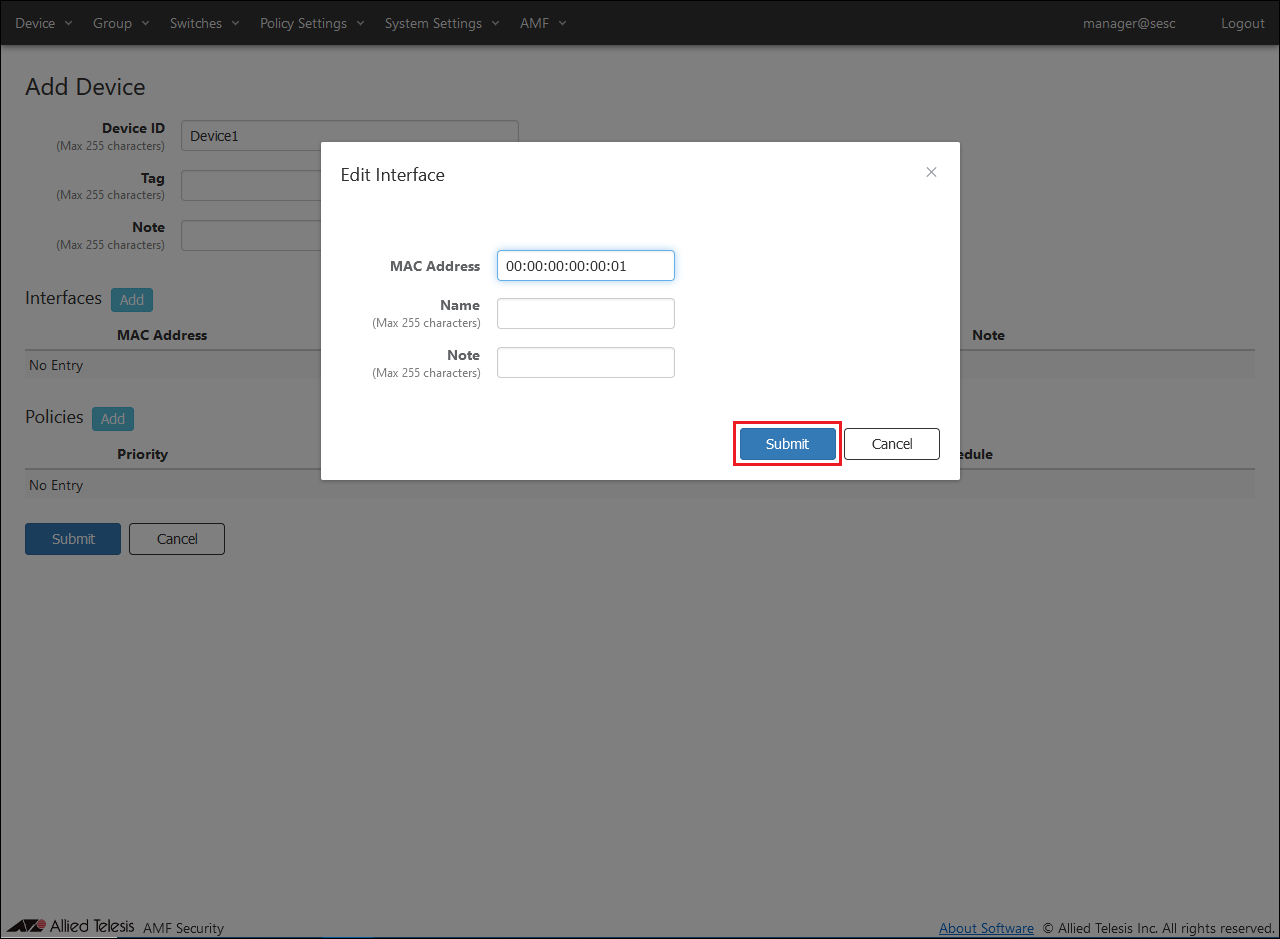
In the same dialog, enter the device's MAC Address "00:00:00:00:00:01" and click the "Submit" button.
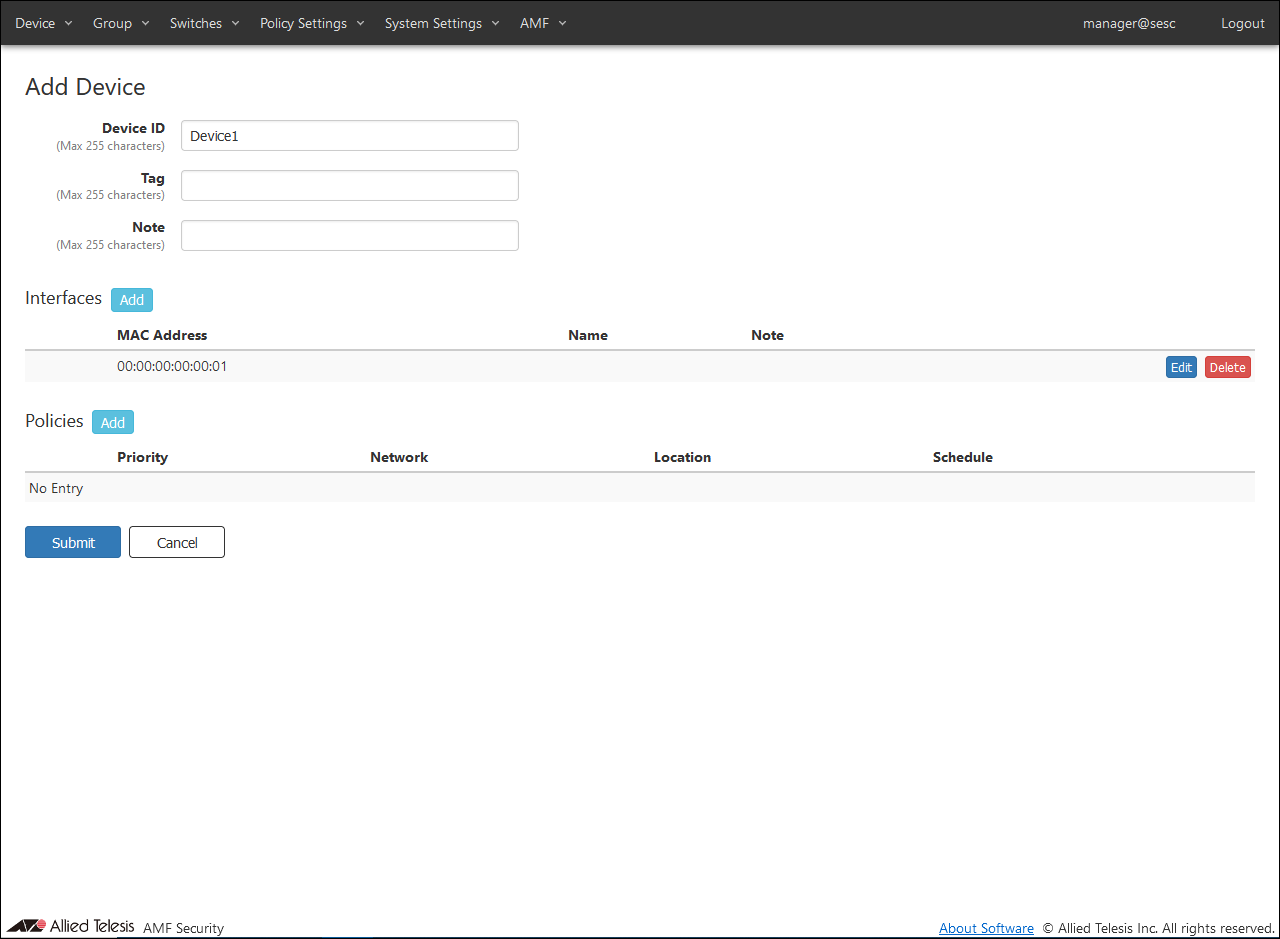
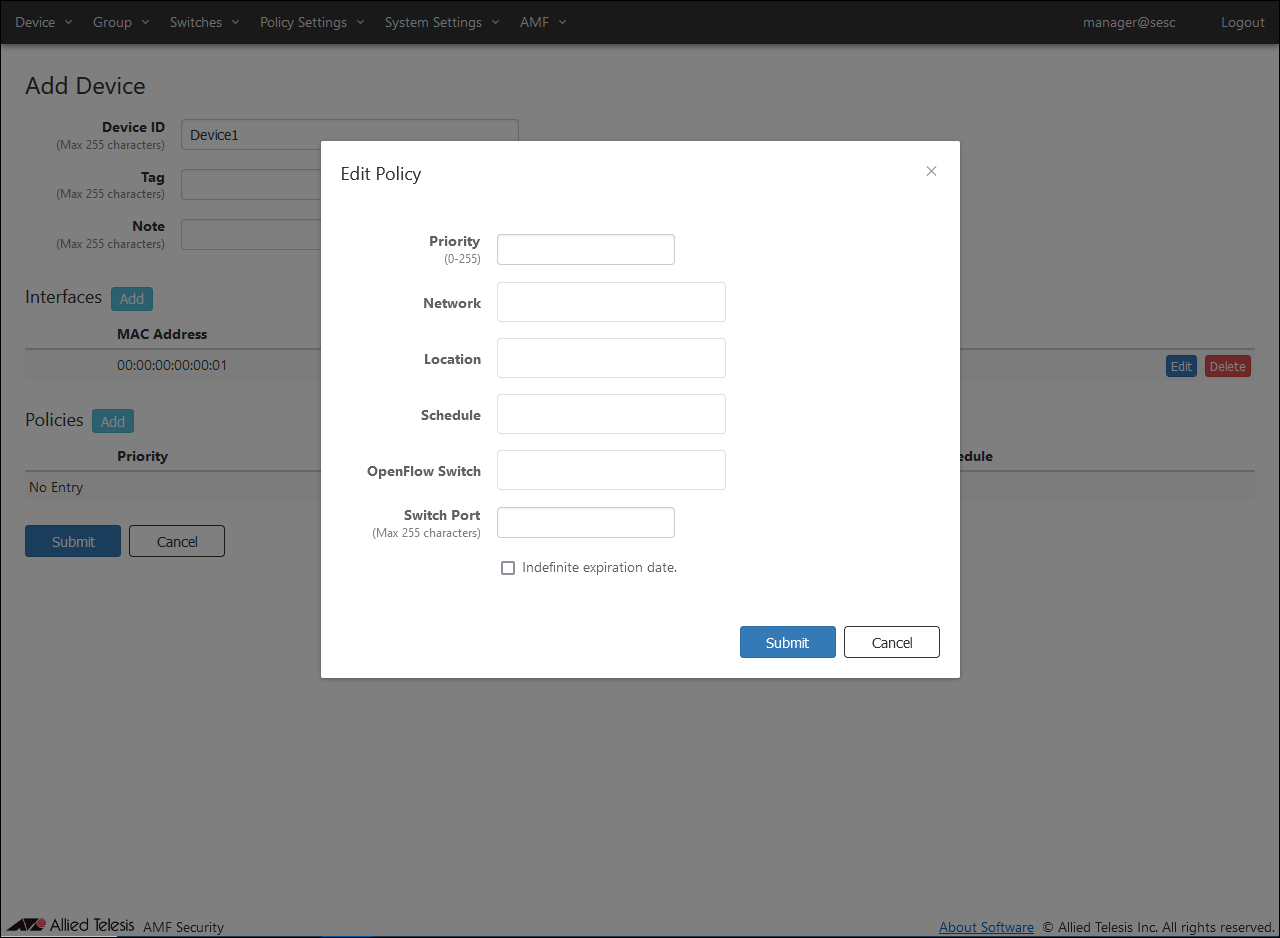
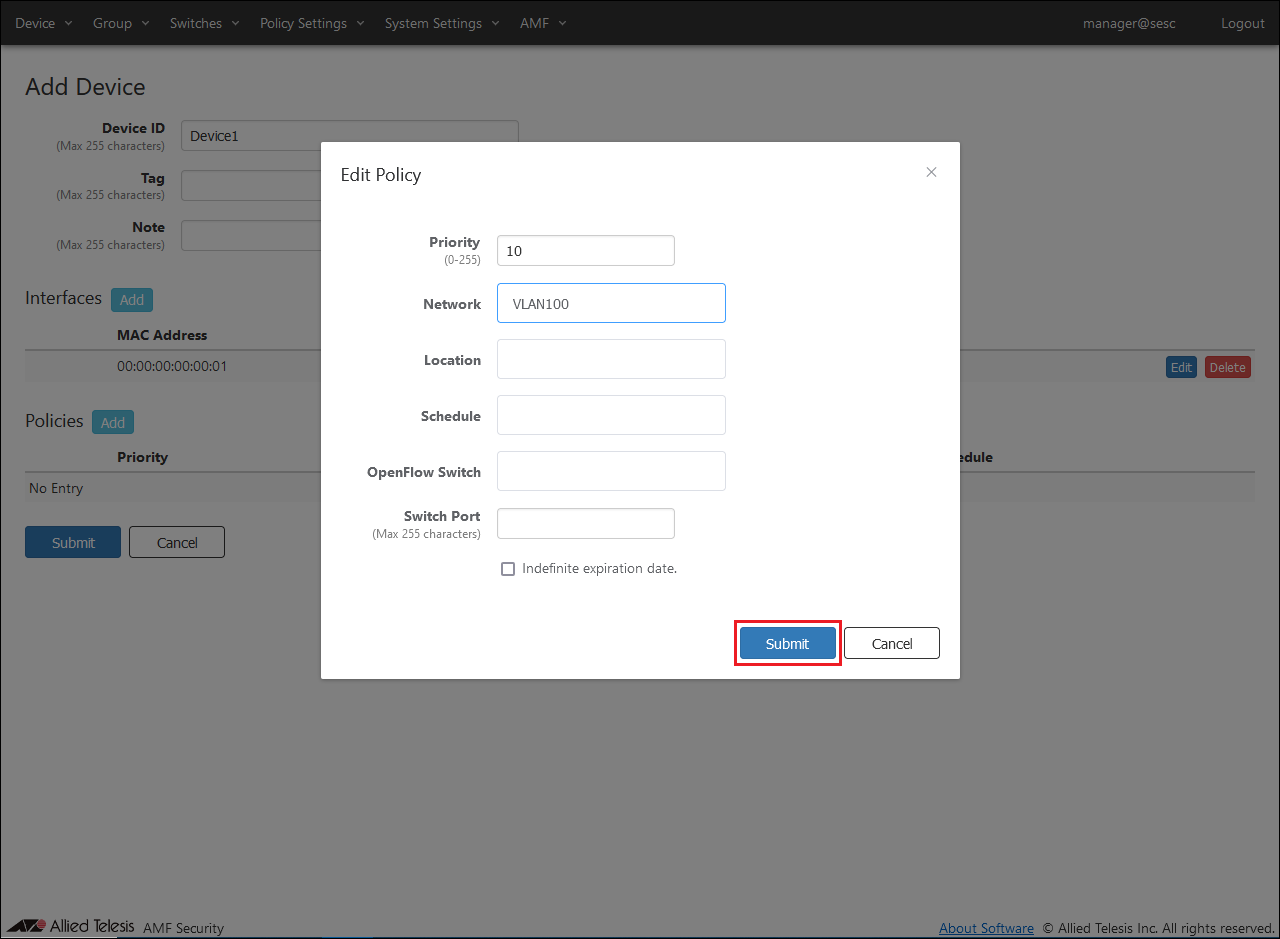
Next, to specify the network to assign to the same device, click the "Add" button in the policies column to open the Edit Policy dialog.
Note
If you select WPA Enterprise for security in TQ's VAP (multi-SSID) settings, enable dynamic VLAN, and assign the wireless terminal to the VLAN ID given by the RADIUS server on the WPA Enterprise side, no policy setting is required.
In the same dialog, select the Network "VLAN100" to be assigned from the drop-down list, enter the Priority "10", and click the "Submit" button.
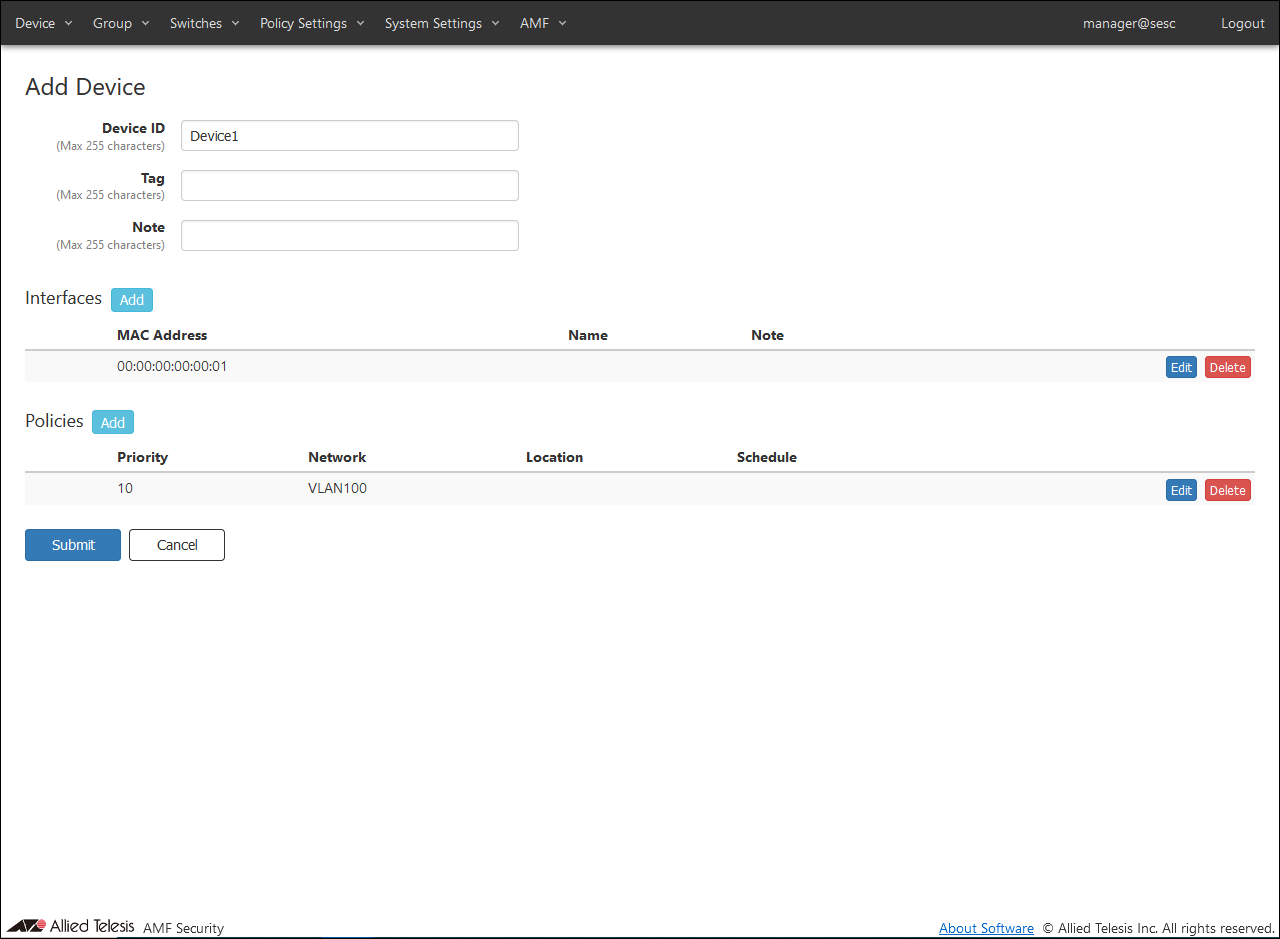
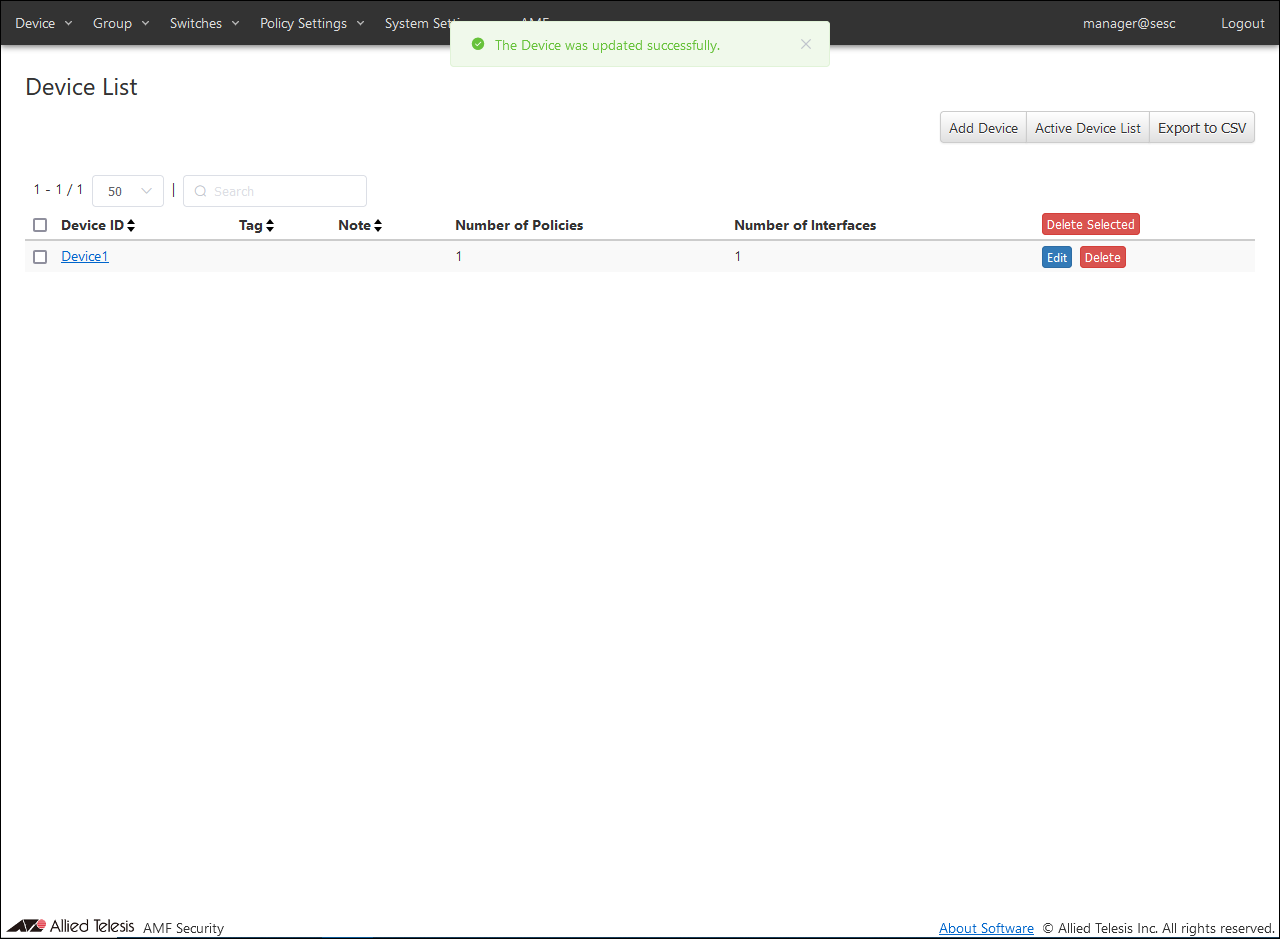
After entering the Device ID and adding Interfaces and Policies, click the "Submit" button. Return to the Devices > Device List page.
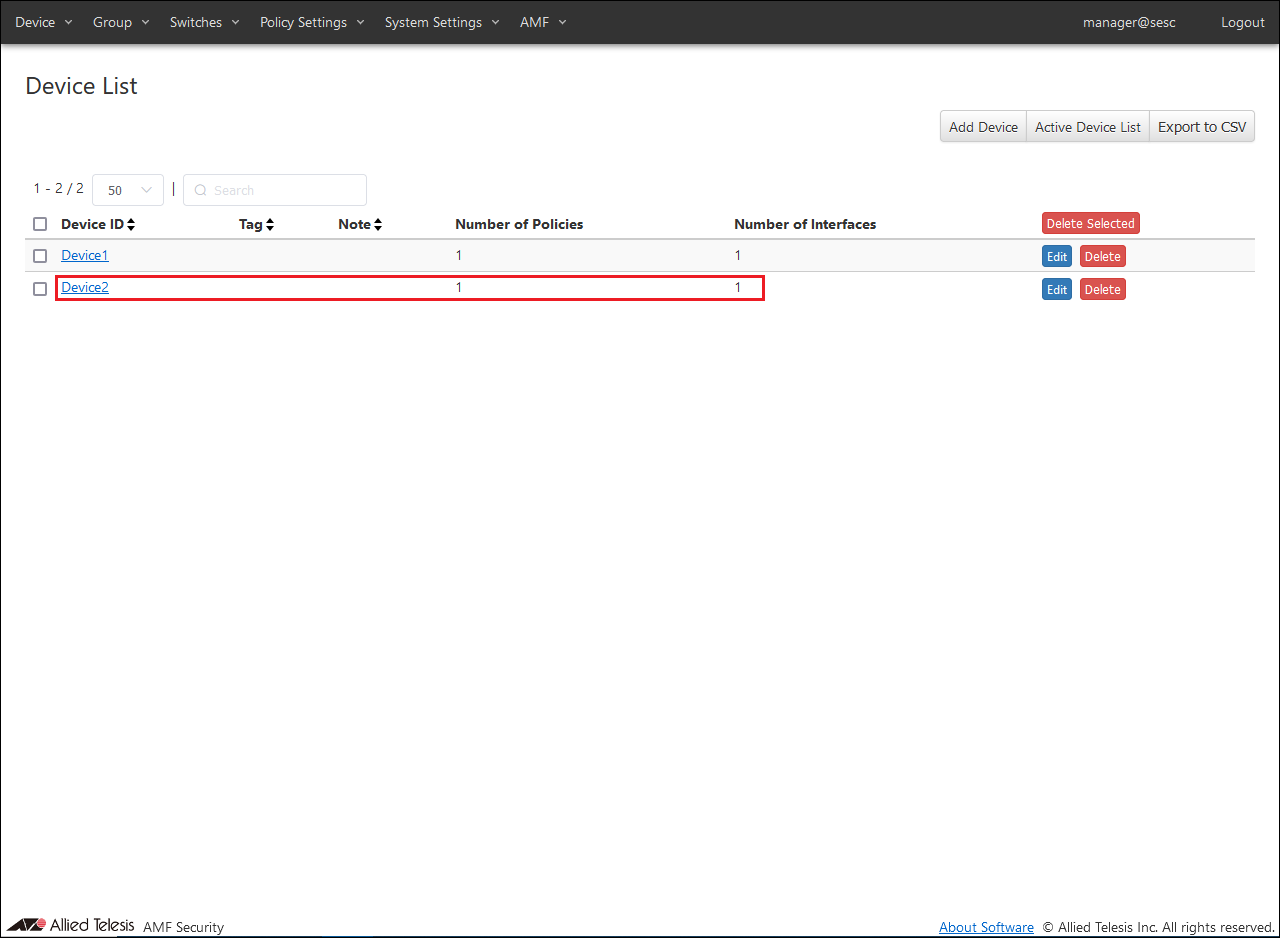
Register "Device2" in the same procedure as registering "Device1".
Table 19: Information to set
Item Name
Value
Device ID
Device2
Interfaces
00:00:00:00:00:02
Policy Priority
10
Policy Network
VLAN101
AMF Security configuration is done.
AR Routre Configuration
Use the log command to configure settings to send threat information detected by UTM-related functions to AMF Security as syslog messages. For the source IPv4 Address of syslog messages, specify the IPv4 Address set for the vlan1 interface.
The log date and time format set by the log date-format command can be used with either default or iso settings.
All product settings are complete.
Settings when using Redirect-URL Action
This section describes the settings when using Redirect-URL Action. When using this action, there are some settings that differ between the AWC Plug-in and AMF Security, unlike when using Drop Packets, Quarantine, and Log-Only actions. Some items are the same as Q actions Action, but the settings for each product are described.
Configuring AWC Plug-in
In the settings made with the AWC Plug-in, "Redirect-URL" and "External page URL" settings are added for VAP (multi-SSID). Here, "External Page URL" specifies the site for AMF Security's Redirect-URL Action. AWC Plug-in settings - "Wireless settings" → "AP common settings" → "VAP (multi-SSID) settings" → "Advanced settings"
Table 20: Information to set
Item Name
Value
Redirect-URL
Enabled
External page URL
http://192.168.1.30:8000/index.html
AMF Application Proxy Server Primary IP Address
192.168.1.30
AMF Application Proxy Server Primary Secret
password
AMF Application Proxy Server port number
1812
Critical mode
Enabled
Configuring AMF Security
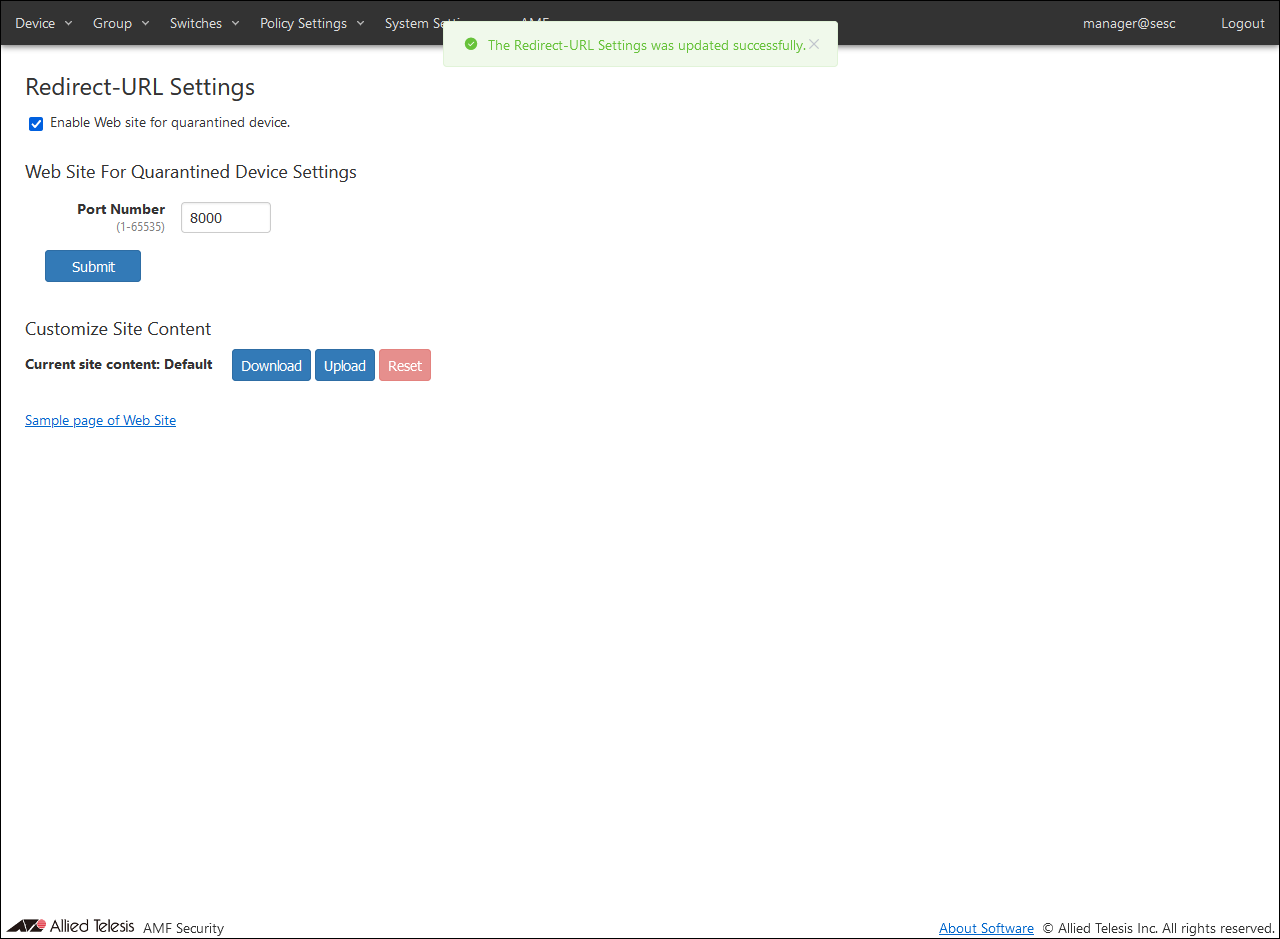
In AMF Security, the following settings are items related to Redirect-URL Action. Note that AMF / Redirect-URL Settings are site settings for AMF Security's Redirect-URL Action. This setting is not required when using other sites.
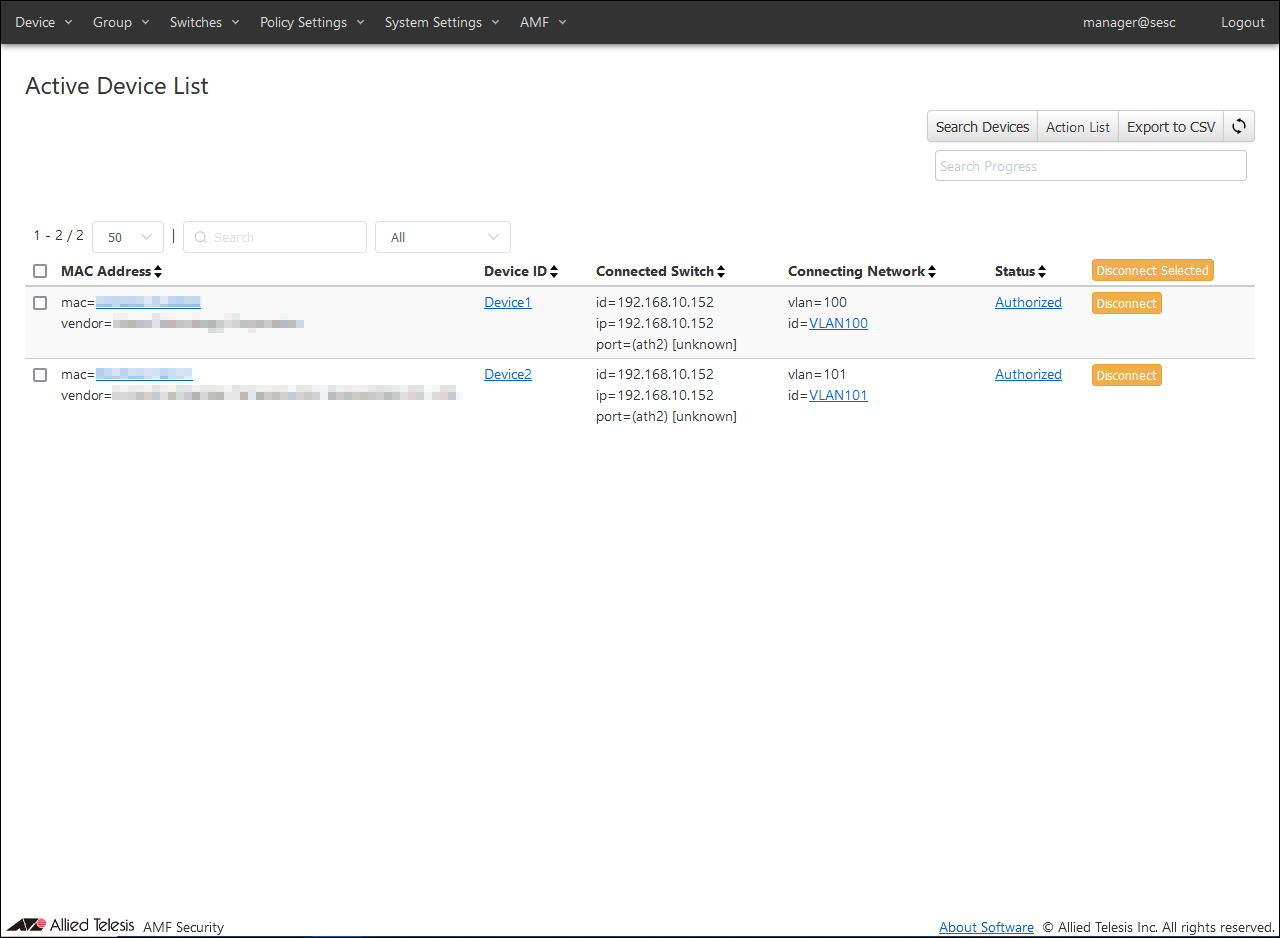
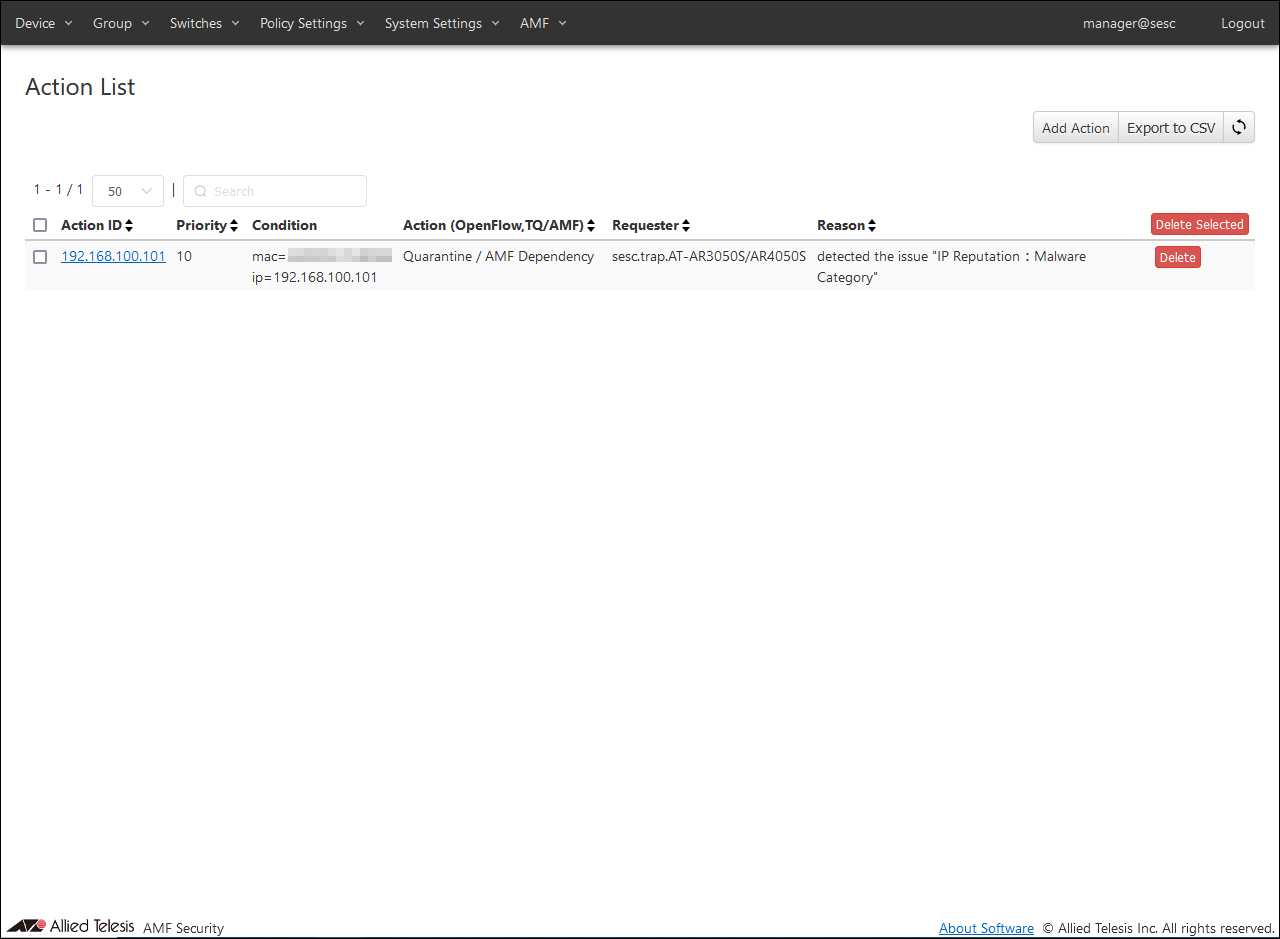
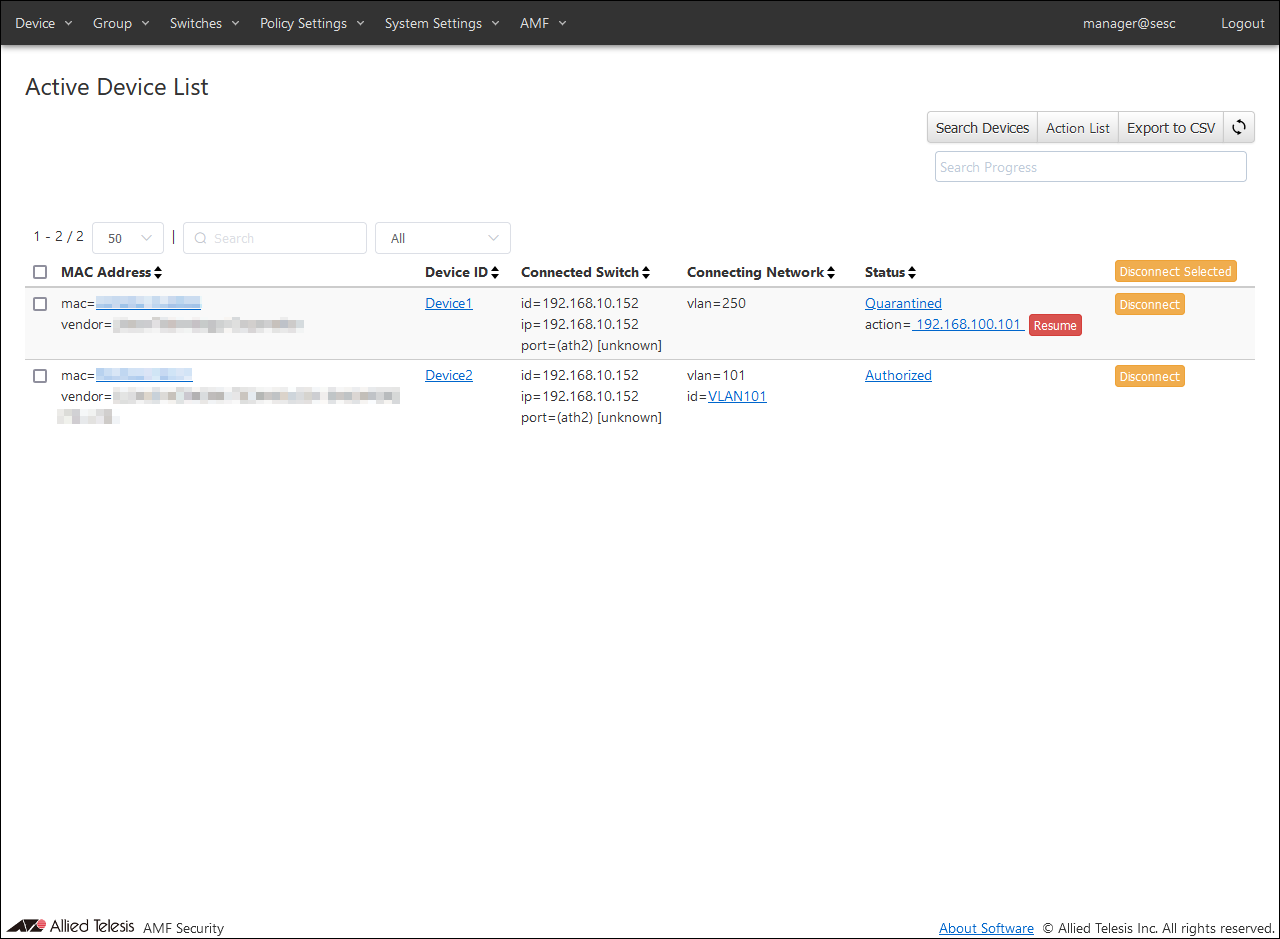
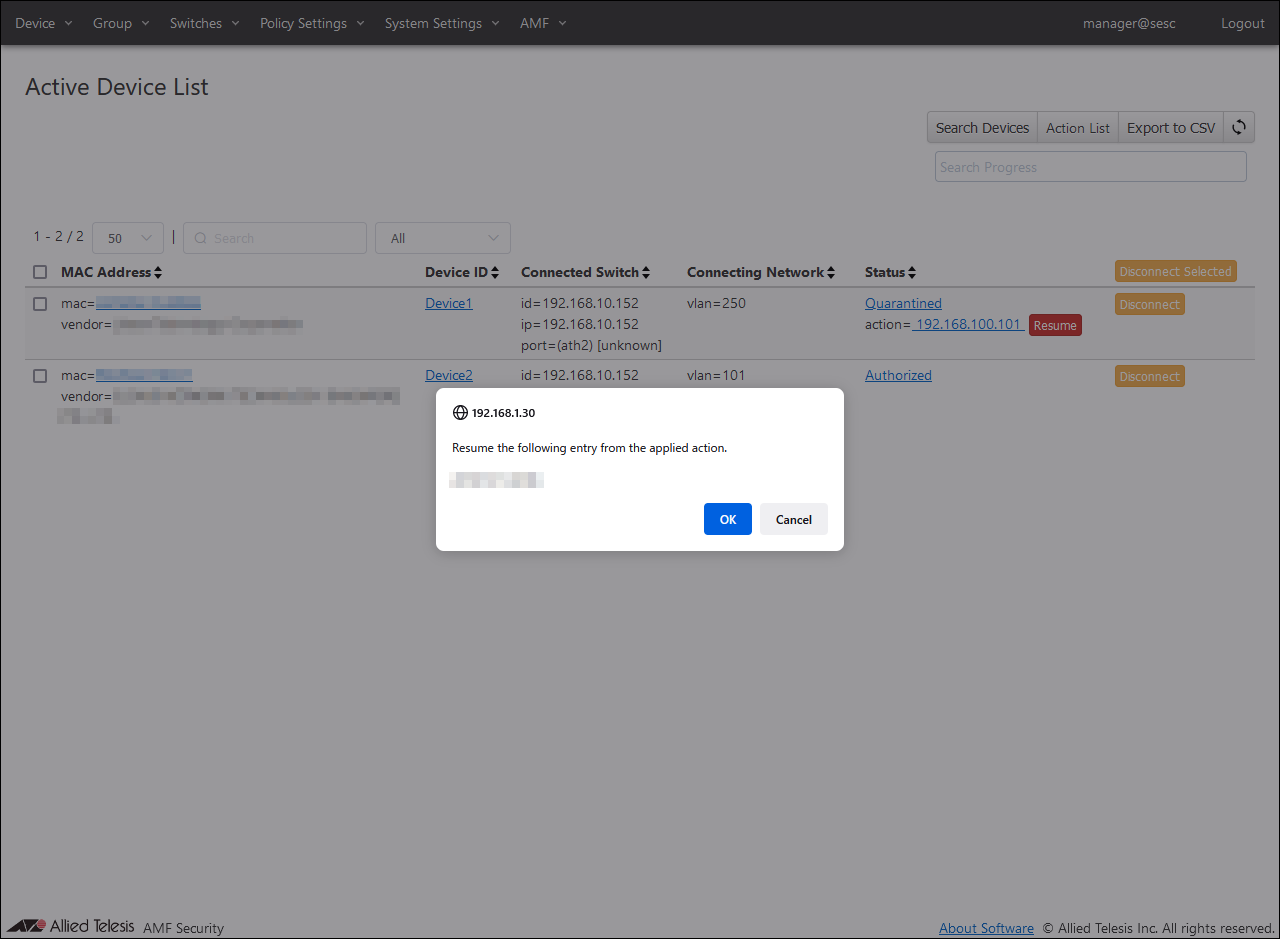
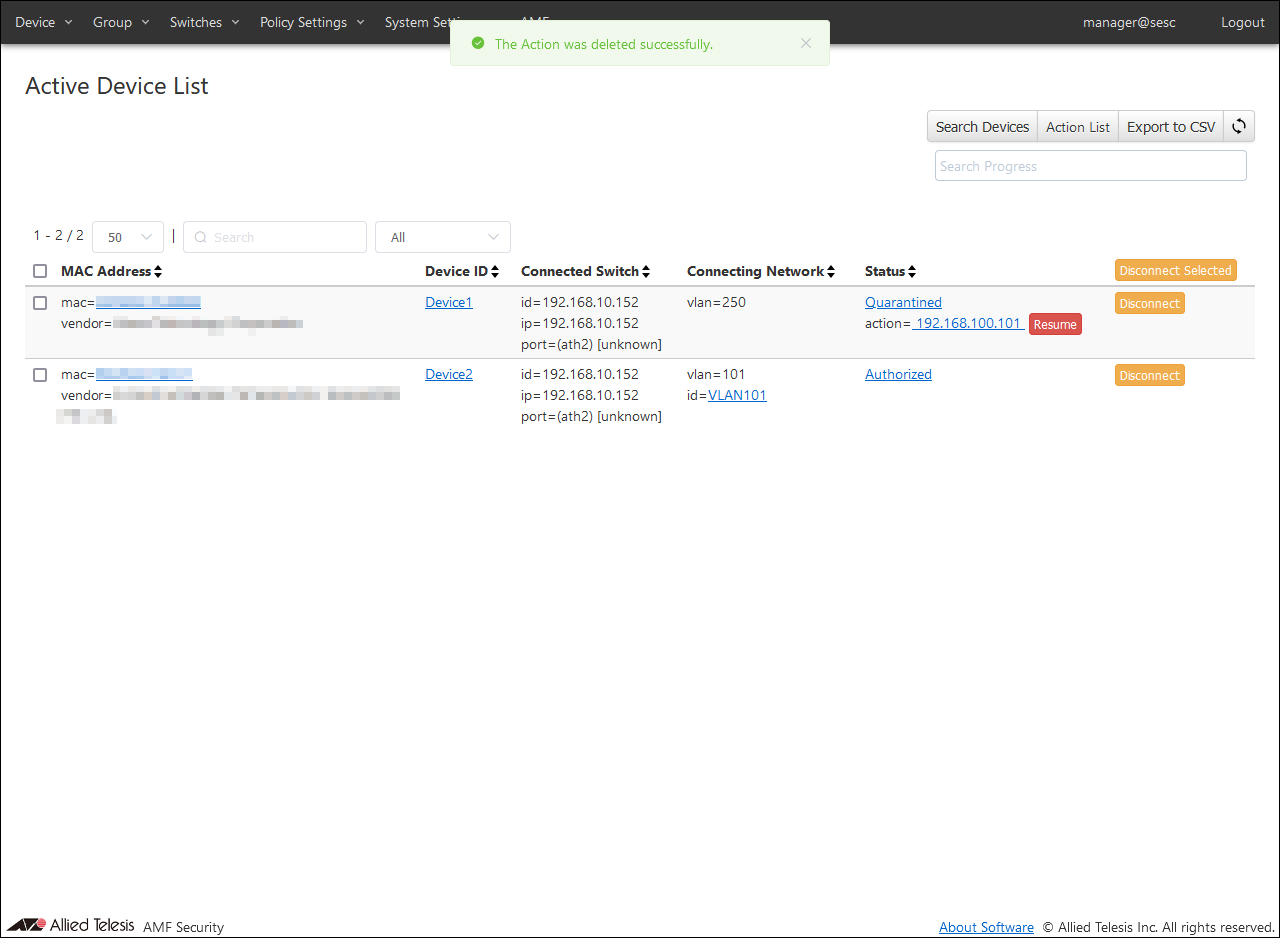
AMF Security authenticates the wireless terminal connected to TQ based on the registered authentication information. You can check the result of authentication on the Devices > Active Device List page. When a wireless device is detected by the AR Router's UTM-related functions, the wireless device's information is registered on AMF Security and displayed on the Policy Settings > Action List page. At the same time, AMF Security queries AT-Vista Manager EX for the MAC Address based on the terminal information (IP Address), obtains the MAC Address of the wireless terminal held by the AWC Plug-in, and enables communication control. In the display below, the MAC Address of the wireless terminal is acquired and the IP Address and MAC Address are linked. You can check the status of actions applied to wireless terminals on the Devices > Active Device List page. Click the "Resume" button and then the "OK" button to release the action.
(C) 2025 Allied Telesis, Inc. All rights reserved.