Subnet
You can list, create, view details, and change settings for subnets.
Subnet List
"Subnet List" lists all subnets monitored by the plugin.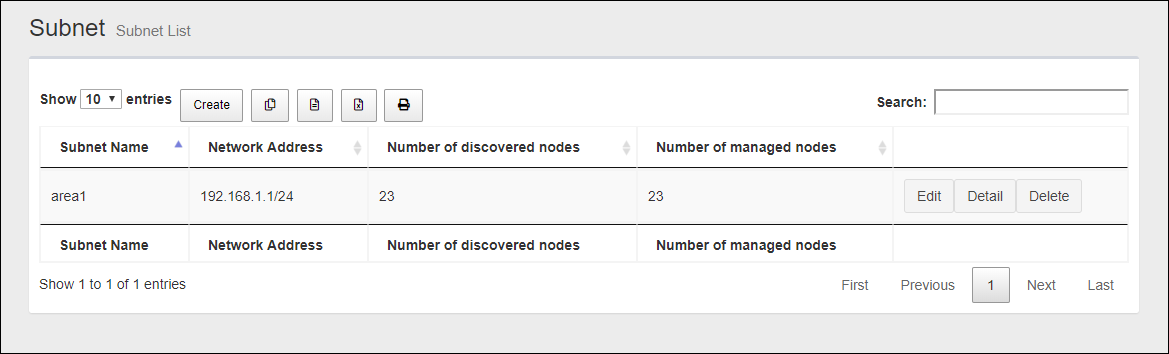
| Item Name | Description |
|---|---|
| Number of items displayed on the page | Lets you select a number of subnets displayed on a single page. |
| "Create" button | Register a new subnet. |
 Copy to Clipboard |
Copies the subnet list (name, network address, number of detected devices and number of monitored devices) to clipboard as a tab-delimited text. It is useful when you want to copy a list to your text editor. You can filter target subnets with "Search" box. "Number of items on the page" and the current page do not affect an output. |
 Export to CSV file |
Exports the subnet list (name, network address, number of detected devices and number of monitored devices) to a CSV file. You can filter target subnets with "Search" box. "Number of items on the page" and the current page do not affect an output. |
 Export to Excel |
Exports the subnet list (name, network address, number of detected devices and number of monitored devices) to an Excel book file (.xlsx for Microsoft Excel 2007 or later). You can filter target subnets with "Search" box. "Number of items on the page" and the current page do not affect an output. |
 |
Shows the subnet list (name, network address, number of detected devices and number of monitored devices) on another browser window or tab and opens a print dialog box. You can filter target subnets with "Search" box. "Number of items on the page" and the current page do not affect an output. |
| Search field |
Lets you filter target subnets by keywords. The search ignores case. "." and "/" in the search keywords do not match them in the network address ("." and "/" in "192.168.1.0/24"). |
| Subnet Name | Shows the name of the subnet. |
| Network Address | Shows a subnet address block by an IPv4 address and a prefix length (xxx.xxx.xxx.xxx/xx format). |
| Number of discovered nodes | Shows the number of devices in the subnet. |
| Number of managed nodes | Shows the number of detected devices which are monitored. |
| "Edit" button | Opens the Edit Subnet page for the subnet. |
| "Details" button | Opens the Subnet Details page for the subnet. |
| "Delete" button |
The Delete Subnet dialog is displayed. Click "Yes" to delete the subnet. Click "No" or "Close (x)" button at the top left of the dialog box allows you to cancel the delete operation and goes back to "Subnet Details" page. NoteIf you delete the subnet to which a large number of devices belong, you may see an internal server error, but after a while the error disappears. |
| Displayed Range | Currently displayed range of the list is shown as "From Xth to Yth out of Z items". |
| Page Navigation |
Lets you view a specific page of the list.
|
Subnet Details
You can open the Subnet Details page by clicking a subnet name on the Device Tree View page."Subnet Details" page shows node attributes.
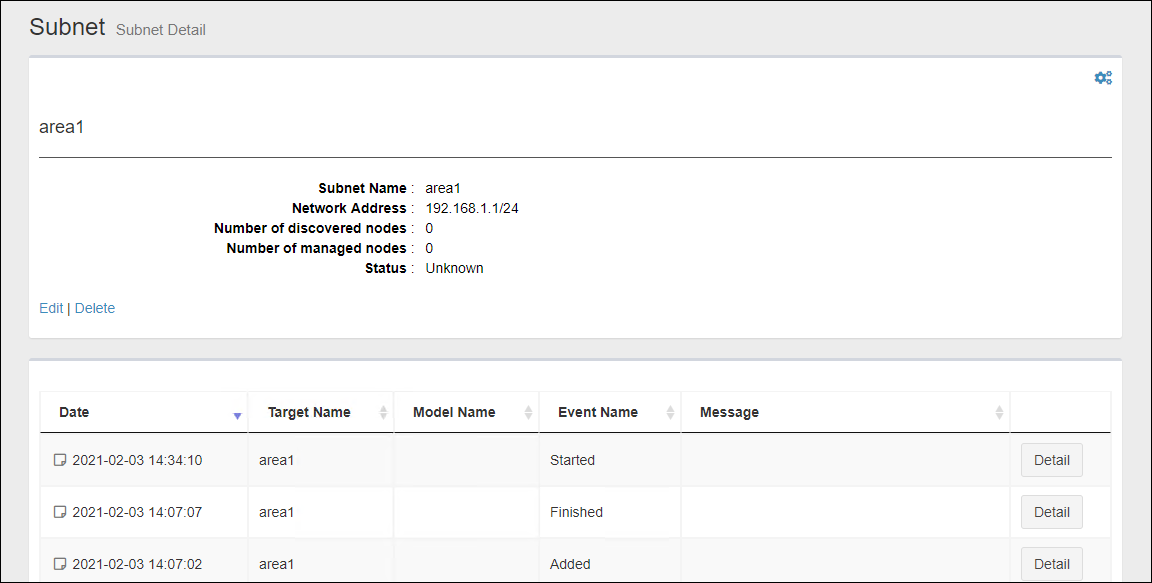
Node Attributes
| Item Name | Contents |
|---|---|
| "Gear" icon |
Clicking "Gear" icon shows the "Auto Discovery" submenu for the subnet. Performing Auto Discovery adds nodes under the subnet to the tree. NoteThe following points should be noted when performing an Auto Discovery. |
| Subnet Name | Shows a user-defined name of the subnet. |
| Network Address | IPv4 address and prefix length (xxx.xxx.xxx.xxx/xx format) |
| Number of discovered nodes | Shows the number of devices in the subnet. |
| Number of managed nodes | Shows the number of detected devices which are monitored. |
| Community Name | Shows a name of the SNMP community. |
| Status | Shows the status of the subnet. |
| Edit | Opens the Edit Subnet page for the subnet. |
| Delete |
Opens the Delete Subnet dialog. Click "Yes" to delete the subnet. Click "No" or "Close (x)" button at the top left of the dialog box allows you to cancel the delete operation and goes back to "Subnet List" page. NoteIf you delete the subnet to which a large number of devices belong, you may see an internal server error, but after a while the error disappears. |
Add Subnet
You can open "Add Subnet" page by selecting the "Network" on Tree View and clicking "Add Subnet" from "Gear" icon's submenu on Device Tree View page.The Add Subnet page lets you add a new subnet to monitor.
When you added a subnet, SNMP plugin begins an auto discovery on the subnet and added found nodes under the subnet in the Tree View.
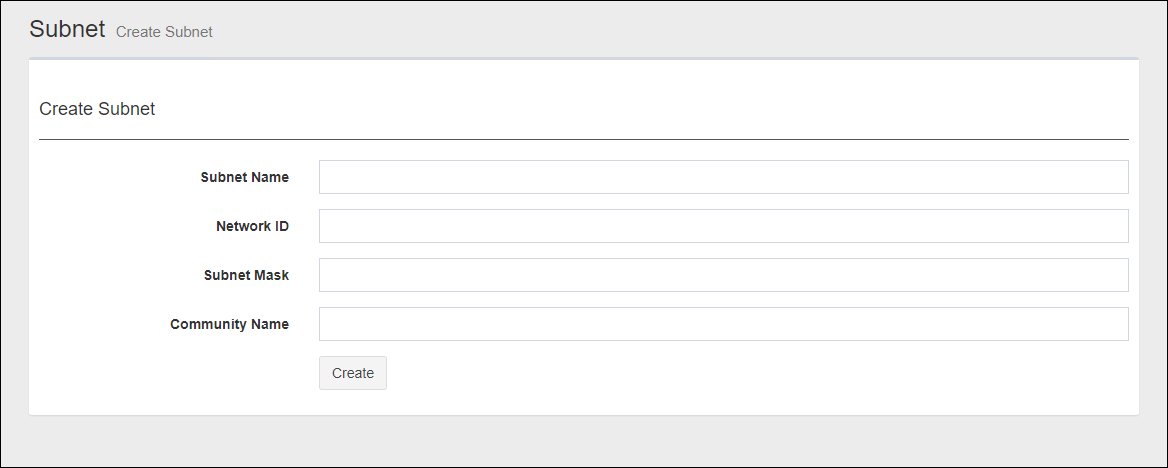
| Item Name | Contents |
|---|---|
| Subnet Name |
Enter a name for the subnet. You can specify any character string.NoteThe following symbos cannot be used for subnet name. NoteYou cannot change the Subnet Name. To change the name, you have to delete and add it with a new name. |
| Network ID | Enter the network ID for the subnet (IPv4 network address such as 192.168.1.0). |
| Subnet Mask |
Enter the subnet mask for the subnet (for example, 255.255.255.0).NoteSet the subnet to a value larger than the 22-bit mask (255.255.252.0) (set the number of IP addresses to be 1,024 or less). |
| Community Name | Enter the community name used to retrieve information from the device via SNMP. |
| "Create" button |
Adds a new subnet with the data you input on the page and moves to the Device Tree View page.NoteThe following points should be noted when creating a subnet (Auto Discovery). |
Edit Subnet
You can open "Edit Subnet" page by clicking a subnet name in the node attribute section of Subnet Details page.In the Update Subnet page, you can edit the node attributes of the corresponding subnet.
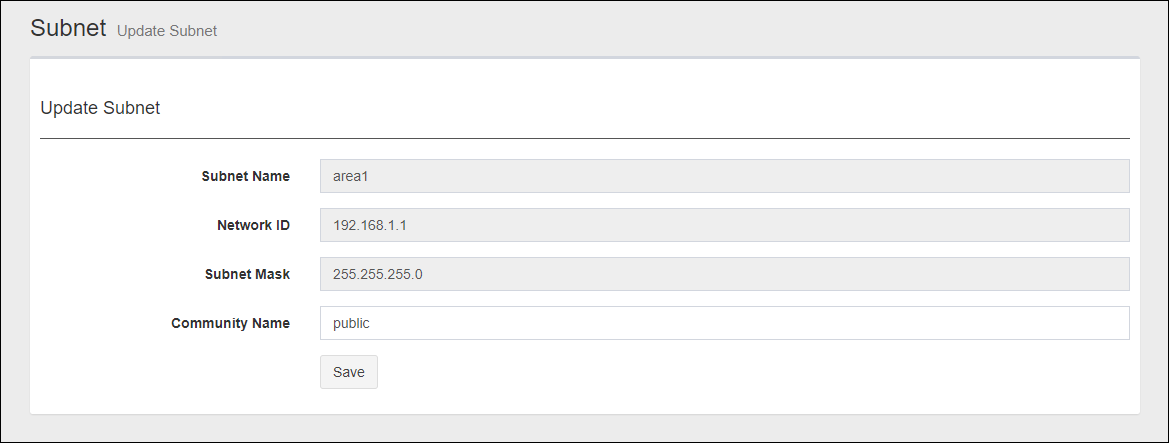
| Item Name | Contents |
|---|---|
| Subnet Name |
Shows the subnet name.NoteYou cannot change the Subnet Name. To change the name, you have to delete and add it with a new name. |
| Network ID | Shows the network ID (IPv4 network address such as 192.168.1.0) of the subnet. |
| Subnet Mask | Shows the subnet mask of the subnet. |
| Community Name | Enter the community name used to retrieve information from the device via SNMP. |
| "Save" button | Saves changes to the subnet attributes and moves to Subnet Details page. |
28 Jan 2022 14:17