Manually Adding Devices
When a device was not found by the auto discovery, you can manually add it by taking the following steps.
Manually add a device on the Add Device page.
You can go to the Add Device page from "Network Tree" menu or "Device Search" menu.
◼ From Network Tree
- Select "Network Tree" from the menu.
The Device Tree View page is displayed.
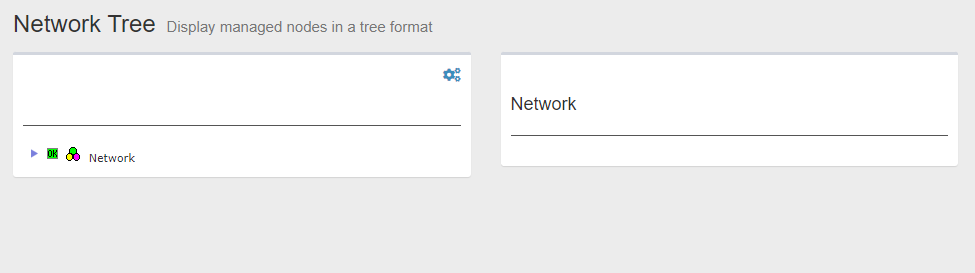
- Click "Network" in the Tree View to expand the tree.
Subnets under the "Network" is displayed.
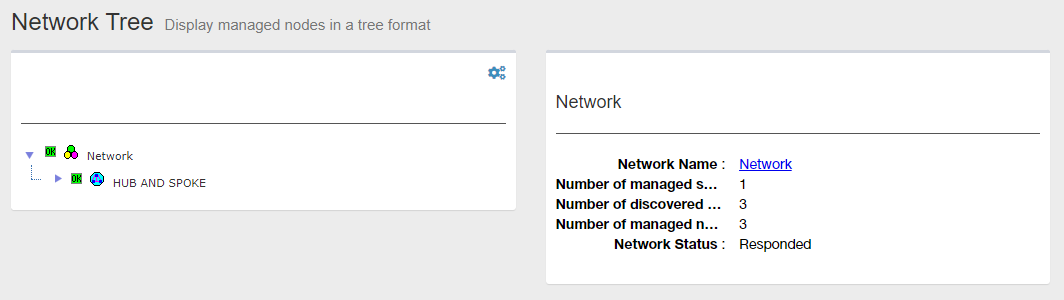
- Click a subnet to expand the subtree.
Devices under the subnet is displayed.
The Node Attribute section on the right side of the Content section shows the selected subnet's name and other information.
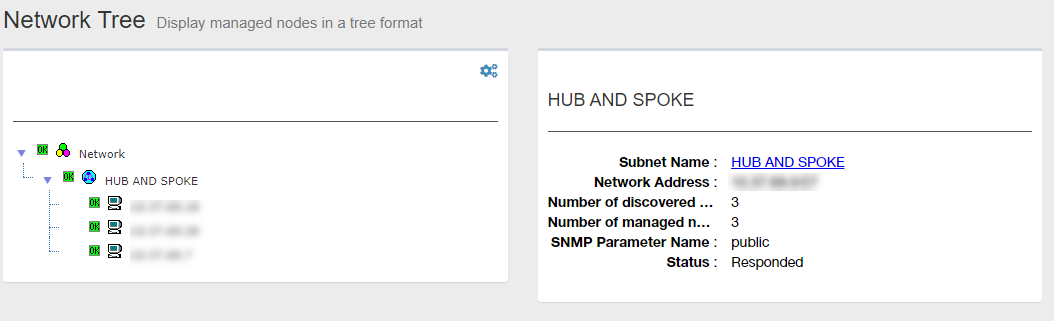
- Click Gear icon at the top right of the Tree View.
A context menu for the selected node is displayed.
When a subnet is being selected, "Add Device" menu item is displayed in the context menu.
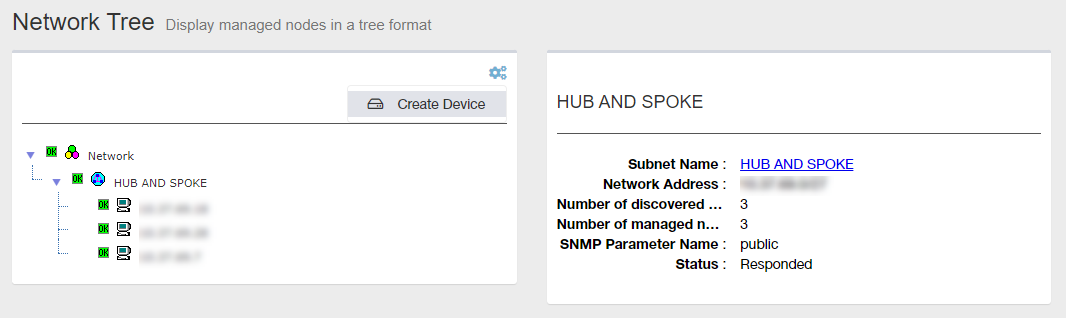
- Select "Add Device" from the menu.
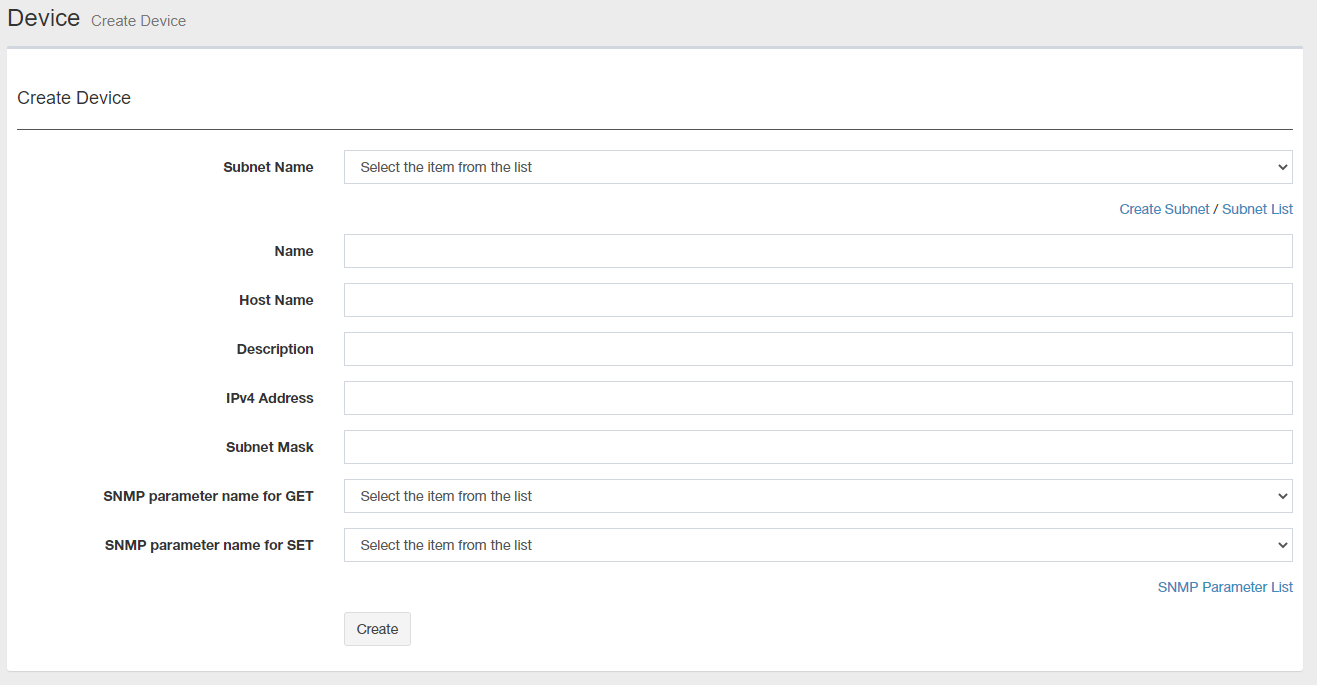
The Add Device page is displayed.
◼ From Device Search
- Select "Device Search" from the menu.
The Device List page is displayed.
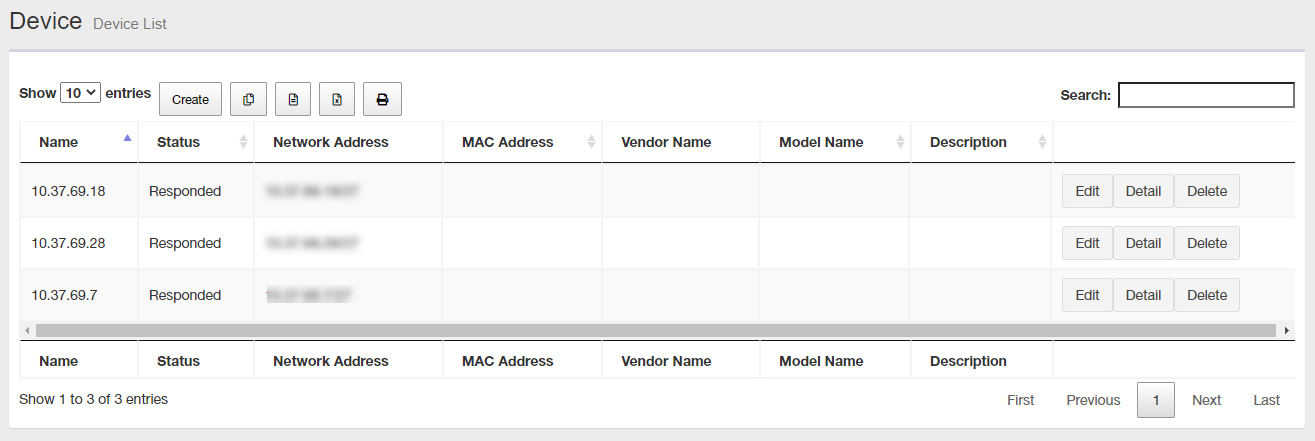
- Click the "Create New" button at the top.
The Add Device page is displayed.
Add Device Manually
- Opne the Add Device page.
- Select a subnet to which you want to add a device.
You have to create a subnet in advance.
Add Subnet and Subnet List links under the "Subnet Name" dropdown list let you add or edit subnets. Create a new subnet or edit an existing one as required before proceeding.
Note
When you move to other pages, data you have entered on this page is lost.
After creating or editing a subnet, start from step 1 again.
- Enter the community name to retrieve the device information.
- Community Name (Get):
Enter the community name used to retrieve information from the device via SNMP.
- Community Name (Set):
Enter the community name to use when writing information to the device via SNMP.
- Community Name (Get):
- Enter an administrative name, a hostname, a comment, an IPv4 address and a subnet mask of the device to add.
- Name:
Enter the name of the device. You can specify any character string.
- Hostname:
Enter the hostname of the device. You can specify any character string.
- IPv4 Address:
Enter an IPv4 address (e.g. 192.168.1.123) of the device.
- Subnet mask:
Enter the subnet mask of the device (for example, 255.255.255.0).

- Name:
- Click "Add New".
The Device Tree View page is displayed.
Once the device has been successfully added, it is displayed under the parent subnet.
NoteWhen manually adding a device, the MAC address, IPv4 address, and vendor name may not be displayed on the Device list page depending on the model. In that case, perform an Auto Discovery on the target subnet. Depending on the result of the Auto Discovery, the information is displayed.
19 Apr 2023 14:09