Device Tree View
"Device Tree View" shows the monitored network components hierarchically.
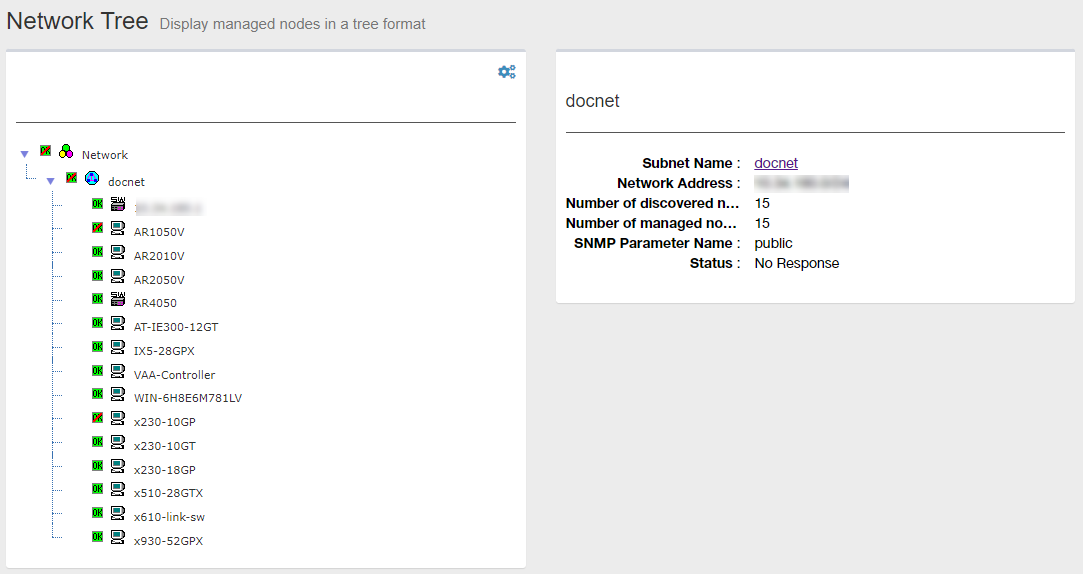
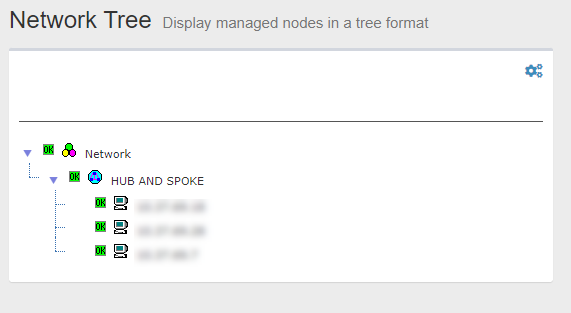
Tree View
SNMP Plug-in classifies the network elements to monitor into the following categories. They are collectively referred to as "Node". As the SNMP Plug-in monitor the network per node, you can track the network status for each subnet as well as for each device. You can perform operations such as reviewing information per node.- Network
- Subnet
- Device (A single device)
Note"Node" in the SNMP Plug-in's context has nothing to do with the Node for an "AMF Node".
| Item Name | Description |
|---|---|
"Gear" icon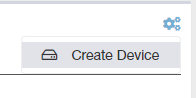
|
Clicking "Gear" icon shows the operation submenu for a node (Network or Subnet) selected on the Tree View. Possible operations are as follows.
|
| Network Tree | Shows the monitored node hierarchically. |
| Node | Represents a network element. Each node comprises of one or two icon(s) and a node name.
|
Status Icons
An icon indicates whether the node is available.| Type | Description |
|---|---|
 Unavailable Icon Unavailable Icon
|
Indicates that the node is unavailable or the node contains unavailable nodes. Meaning of the icon for each node type is as follows.
|
 Available Icon Available Icon
|
Indicates that the node can be used. |
Node Attributes
"Node Attributes" shows the basic information about a node selected on the Tree View.When you click the node name in the attribute section, Detailed information page for the selected node type such as Device Details page is displayed.
Network Attributes
Selecting "Network" in the Tree View shows its attributes in the Node Attribute section.| Item Name | Contents |
|---|---|
| Subnet Name | "Network" |
| Monitored Subnets | Shows the number of monitored subnets in the network. |
| Number of discovered nodes | Shows the number of devices in the network. |
| Number of managed nodes | Shows the number of detected devices which are monitored.NoteThe maximum number of devices SNMP Plug-in can monitor is 1000. |
| Status | Shows the status of the network. |
Subnet Attributes
Selecting a Subnet on the Tree View shows its attribute in the Node Attributes section.| Item Name | Contents |
|---|---|
| Subnet Name | Shows a user-defined name of the subnet. |
| Network Address | IPv4 address and prefix length (xxx.xxx.xxx.xxx/xx format) |
| Number of discovered nodes | Shows the number of devices in the subnet. |
| Number of managed nodes | Shows the number of detected devices which are monitored. |
| SNMP Parameter Name | Shows a Get Parameter Name used to get information from the device via SNMP. |
| Status | Shows the status of the subnet. |
Device Attributes
Selecting a Device in the Tree View shows its attributes in the Node Attribute section.| Item Name | Contents |
|---|---|
| Subnet Name | Shows a configurable name of the device. When the device was auto-discovered, it was named after one of its hostname, IP address or MAC address. |
| Hostname | Shows the hostname of the device. |
| Notes | Shows a comment which was entered on device properties page. |
| Network Address | IPv4 address and prefix length (xxx.xxx.xxx.xxx/xx format) |
| MAC Address | Shows the device MAC address. |
| Trap Address | Shows additional trap source addresses of the device (other than the one shown in "Network Address"). Shown one address per line. |
| Vendor Name | Shows the vendor name of the device. |
| Model Name | Shows the model information (SysObjectID). |
| SNMP Parameter Name(Get) | Shows a Get Parameter Name used to get information from the device via SNMP. |
| SNMP Parameter Name(Set) | Shows a Set Parameter Name used to set information to the device via SNMP. |
| Status | The response status of the device to Ping sent from the SNMP plug-in. |
01 Sep 2023 11:25