Operations related to Nodes
Shows subnet and device node details.
View Node Details
You can view the details of each node on the Device Tree View page under the "Network Tree" menu.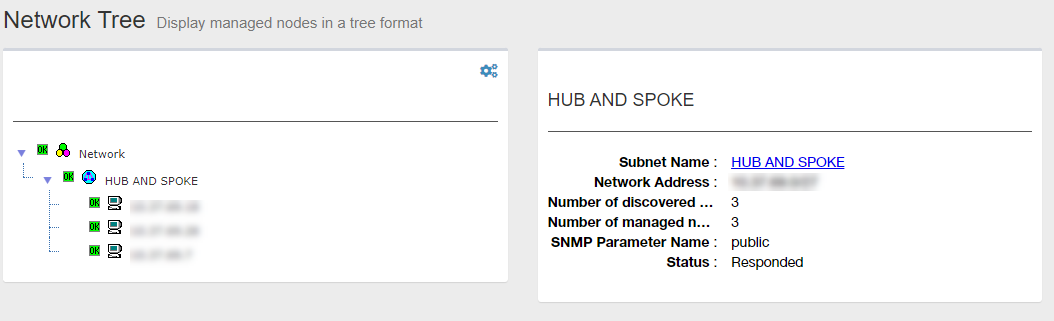
Clicking a node name (e.g. "Network") in the Tree View expands a subtree under the node.
(Clicking "Network" opens subnets under it, clicking a subnet opens devices under it and so on)
Details of the node you clicked is shown in the node attribute section on the right side of the Content section.
When you click the node name in the attribute section, Detailed information page for the selected node type such as the Network Details page, the Subnet Details page or the Device Details page is displayed.
For example, when you click "area1" on the previous page, the following the Subnet Details page is displayed.
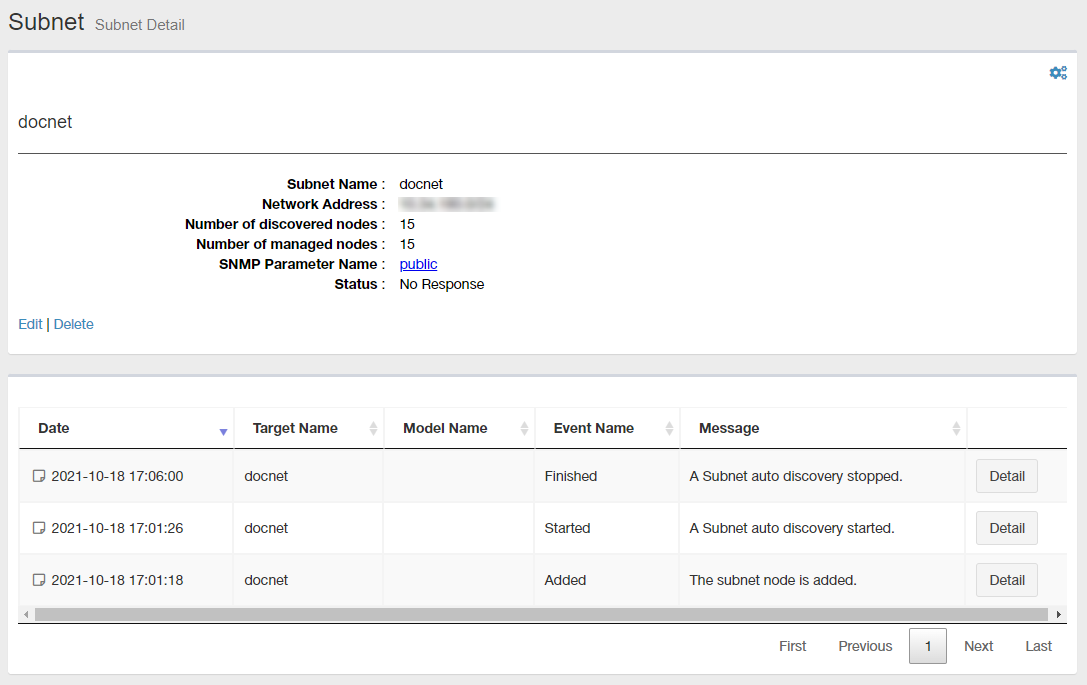
The Device Details page can be also reached from the Device List page by clicking the "Details" button for a device you want to see details.
You can also access Device Details page for a high Importance device from the Dashboard's "Device List by Importance" section.
Edit Node Attributes
To edit a node information, click "Edit" on each node's details page. A page for editing a node such as the Edit Subnet page, the Edit Device page is displayed depending on the selected node type.The next is an example of the Edit Subnet page.
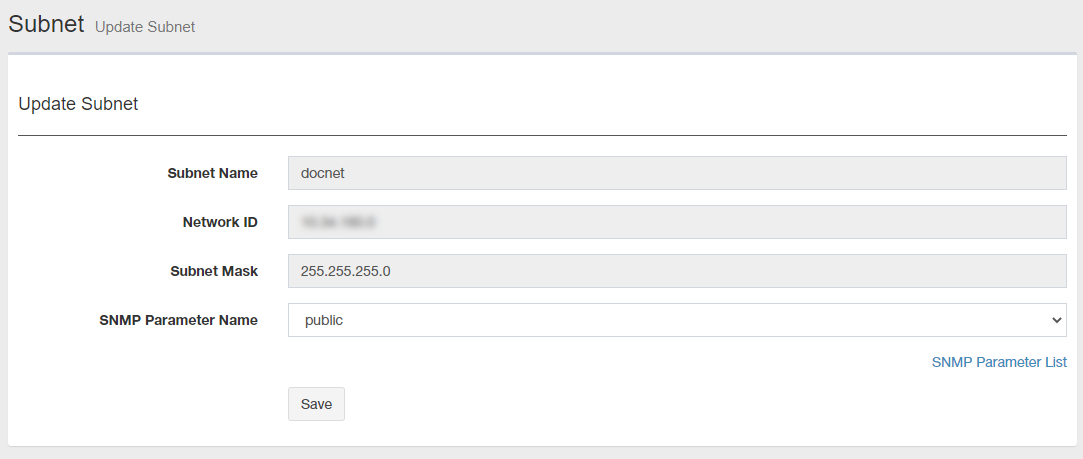
NoteThe above figure is an example. You can not edit any attributes of "Network" node.
Delete Node
To delete a node, click "Delete" on the node's details page. Then "Delete Node" dialog box is displayed.Clicking "Yes" in the dialog box deletes the node.
Click "No" or "Close (x)" button at the top left of the dialog box allows you to cancel the delete operation and goes back to node details page.
NoteYou can directly delete "Subnet" and "Device" only.
NoteTo delete the node specified in "Name of target node" of the event filter, delete the relevant event filter in advance, or exclude the relevant node from the event filter before deleting the node.
02 Aug 2024 15:04