Device List
Device List
This page lists all devices stored in the SNMP Plug-in's database.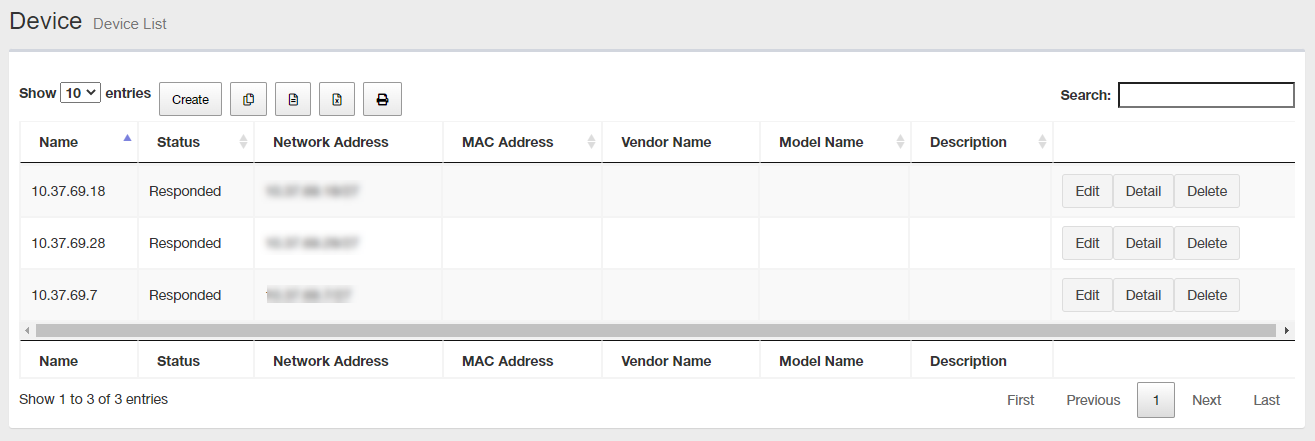
| Item Name | Description |
|---|---|
| Number of items displayed on the page | Lets you select a number of devices displayed on a single page. |
| "Create" button | Lets you add a new device to monitor. |
 Copy to Clipboard |
Copies the device list (name, status, network address, MAC address, vendor name, model name and comment) to clipboard as a tab-delimited text. It is useful when you want to copy a list to your text editor. You can filter target subnets with "Search" box. "Number of items on the page" and the current page do not affect an output. |
 Export to CSV file |
Exports the device list (name, status, network address, MAC address, vendor name, model name and comment) to a CSV file. You can filter target subnets with "Search" box. "Number of items on the page" and the current page do not affect an output. |
 Export to Excel |
Exports the device list (name, status, network address, MAC address, vendor name, model name and comment) to an Excel book file (.xlsx for Microsoft Excel 2007 or later). You can filter target subnets with "Search" box. "Number of items on the page" and the current page do not affect an output. |
 |
Shows the device list (name, status, network address, MAC address, vendor name, model name and comment) on another browser window or tab and opens a print dialog box. You can filter target subnets with "Search" box. "Number of items on the page" and the current page do not affect an output. |
| Search field | Lets you filter target subnets by keywords. The search ignores case. "." and "/" in the search keywords do not match them in the network address ("." and "/" in "192.168.1.0/24"). |
| Subnet Name | Shows the device name. |
| Status | Shows the status of ping test from the SNMP Plug-in to the device. |
| Network Address | Shows a subnet address block by an IPv4 address and a prefix length (xxx.xxx.xxx.xxx/xx format). |
| MAC Address | Shows the device MAC address. |
| Vendor Name | Shows the vendor name of the device. |
| Model Name | Shows the model information (SysObjectID). |
| Notes | Shows a comment configured for the device. |
| "Edit" button | Open the Edit Device page for the device. |
| "Details" button | Open the Device Details page for the device. |
| "Delete" button | The Delete Device dialog is displayed. Click the "Yes" button to delete the device. Click the "No" button or the "Close (x)" button at the top left of the dialog to return to the Device List. |
| Displayed Range | Currently displayed range of the list is shown as "From Xth to Yth out of Z items". |
| Page Navigation | Lets you view a specific page of the list.
|
Device
Create devices, view details, and change settings.Device Details
You can open the Device Details page by selecting a device on the Tree View and clicking a device name in the node attributes section on the Device Tree View page.The "Device Details page shows its attributes and an event list.
NoteIf there is a change in node attributes such as changing the model name, the contents of the node attributes are automatically updated. Reload the web browser manually.
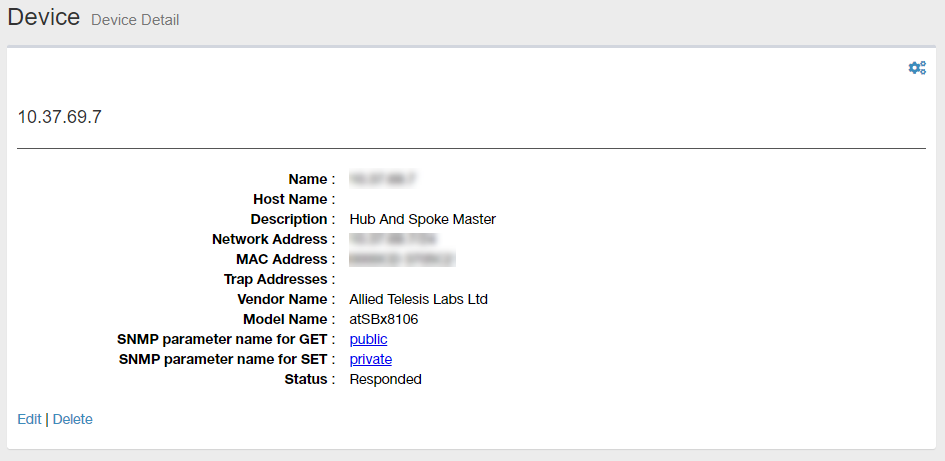
Node Attributes
| Item Name | Contents |
|---|---|
| "Gear" icon | Clicking "Gear" icon shows the operation submenu for the device.
|
| Subnet Name | Shows a name of the device. |
| Hostname | Shows the hostname of the device. |
| Network Address | IPv4 address and prefix length (xxx.xxx.xxx.xxx/xx format) |
| MAC Address | Shows the device MAC address. |
| Vendor Name | Shows the vendor name of the device. |
| Model Name | Shows the model information (SysObjectID). |
| SNMP Parameter Name(Get) | Shows a Get Parameter Name used to get information from the device via SNMP. Click the SNMP parameter name to view details of the SNMP parameter. |
| SNMP Parameter Name(Set) | Shows a Set Parameter Name used to set information to the device via SNMP. Click the SNMP parameter name to view details of the SNMP parameter. |
| Status | The response status of the device to Ping sent from the SNMP plug-in. |
| Edit | Click to open the Edit Device page for that device. |
| Delete | Click to open the Delete Device dialog. Click the "Yes" button to delete the device. Click the "No" button or the "Close (x)" button at the top left of the dialog to return to the Device Details. |
MIB Monitor
Get the information for the device and select the individual MIB node to display the information.In addition to the standard MIB specified by RFC and the private MIB of our product, the MIB compiled by the MIB Compiler from the obtained MIB file can be selected from the MIB tree and added to the list.
NoteMIB Monitor information is saved for each web browser. If you open it from a web browser other than the web browser in which the MIB monitor is set (access from another terminal, another type of web browser, etc.), the displayed contents differ.
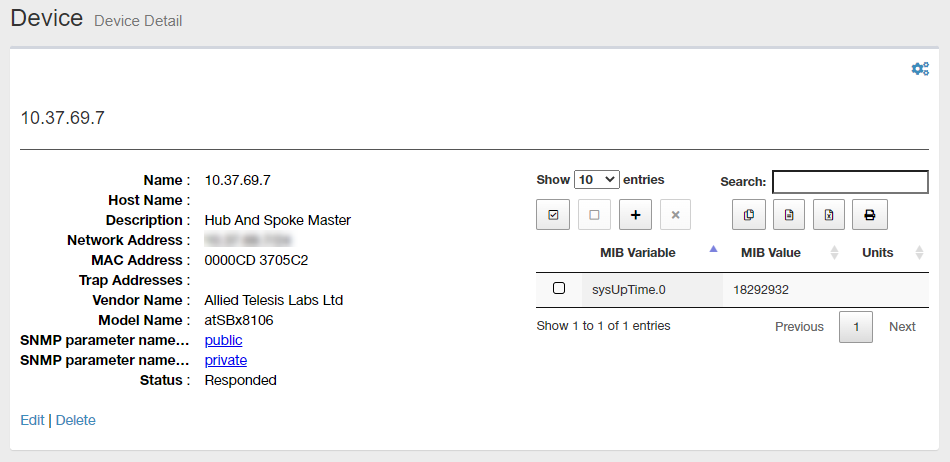
| Item Name | Contents |
|---|---|
| Number of items displayed on the page | Lets you select a number of devices displayed on a single page. |
| Search field | Lets you filter target subnets by keywords. The search ignores case. "." and "/" in the search keywords do not match them in the network address ("." and "/" in "192.168.1.0/24"). |
| "Select All" button | Select all the MIB Variables you have added to the MIB monitor. |
| "Clear All" button | Deselect the MIB Variable you added to the MIB Monitor. |
| "Add" button | Display the MIB Browser dialog and select the MIB Variable to display on the MIB Monitor. |
| "Delete" button | Deletes the selected MIB Variable from the MIB Monitor. |
| Copy to Clipboard | Saves the device's MIB Variable, MIB Value, and Units added to the MIB monitor to the clipboard in tab-delimited text format. It is useful when you want to copy a list to your text editor. You can filter target subnets with "Search" box. "Number of items on the page" and the current page do not affect an output. |
| Export to CSV file | Downloads the device's MIB Variable, MIB Value, and Units added to the MIB monitor as CSV (comma-separated values) files. You can filter target subnets with "Search" box. "Number of items on the page" and the current page do not affect an output. |
| Export to Excel | Downloads the MIB Variable, MIB Value, and Unit of the device added to the MIB monitor as an Excel book file (extension: xlsx, Microsoft Excel 2007 or later). You can filter target subnets with "Search" box. "Number of items on the page" and the current page do not affect an output. |
| Lists the MIB Variable, MIB Value, and Units of devices added to the MIB monitor in a pop-up window or new tab in your web browser to display the print dialog. You can filter target subnets with "Search" box. "Number of items on the page" and the current page do not affect an output. |
|
| MIB Variable | Displays the name of the MIB Variable for the device added to the MIB Monitor by MIB object name and index. |
| MIB Value | Displays the value of the MIB Variable. |
| Units | If the value of the MIB Variable has Units, that Units is displayed. |
| Displayed Range | Currently displayed range of the list is shown as "From Xth to Yth out of Z items". |
| Page Navigation | Lets you view a specific page of the list.
|
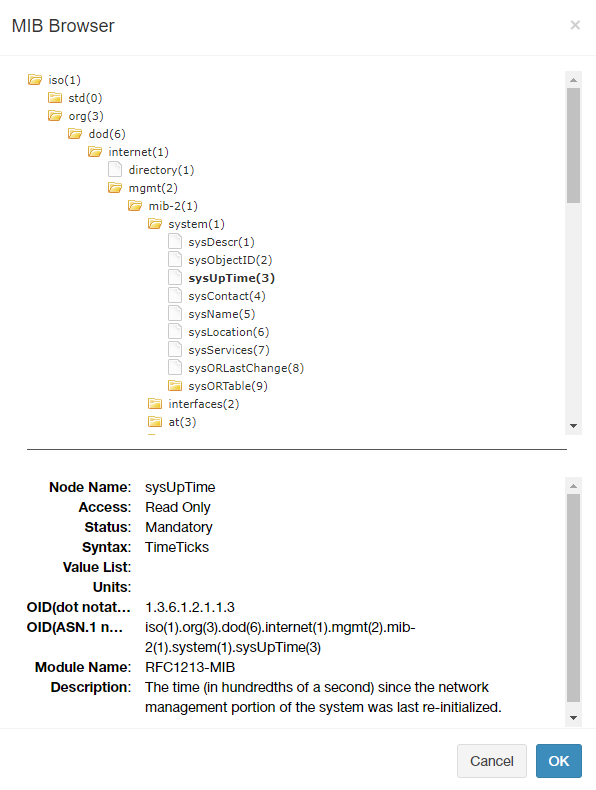
Select the information (MIB Variable) to be displayed in the MIB Monitor from the MIB tree.
| Item Name | Contents |
|---|---|
| MIB Tree | Displays MIB nodes according to the tree structure of MIB nodes. MIB nodes are displayed in the form of "object name (number)". Nodes that have child nodes that are further subdivided into specific attributes are represented by folder icons, and end nodes that do not have child nodes (leaf nodes) are represented by file icons. The object ID (OID) of a node is represented by a numeric string consisting of the node numbers from the first node connected by a period. For example, a MIB node that shows system information traverses the hierarchy of the MIB tree as follows: "Iso (1)-> org (3)-> dod (6)-> internet (1)-> mgmt (2)-> mib-2 (1)-> system (1)" As a result, the object ID is represented as "1.3.6.1.2.1.1". Leaf nodes may have multiple pieces of the same type of information. For example, ifSpeed (OID 1.3.6.1.2.1.2.2.1.5), which indicates the communication speed of an interface, is stored for each Ethernet interface such as a port. The number that identifies the same type of information is called an index. Only leaf nodes can be selected in the MIB Monitor. You cannot see the value of a node that has child nodes. |
| Node Name | Represents the name of the selected MIB node. |
| Access | Displays the access right of the corresponding MIB node as either "Read Only (value is set automatically by the system)" or "Read / Write (value can be set by the user)".NoteYou cannot set the value from the SNMP Plug-in's MIB Monitor and MIB Browser. |
| Status | The implementation status of the MIB node in the specifications is displayed as "mandatory" or "optional". |
| Syntax | Displays the data type of the information stored in the MIB node. |
| Units | Displays the unit of value stored in the MIB node. |
| OID(dot notation) | Displays the object ID of the MIB node. |
| OID(ASN.1 notation) | Displays the MIB object name in the form of the root (top) or MIB node name connected by a period. |
| Module Name | Displays the module name that defines the MIB node. |
| Notes | Displays a description of the MIB node. |
| "Cancel" button | Stops selecting the MIB object and closes the MIB Browser dialog. |
| "OK" button | Adds the MIB object selected in the MIB tree. In the Select Index dialog, select the index of the information stored in the corresponding MIB node. |
The MIB node selected in the MIB Browser dialog may contain multiple pieces of the same type of information. Of these, select the index of information to display on the MIB Monitor.
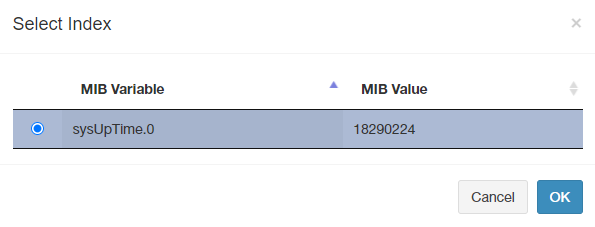
| Item Name | Contents |
|---|---|
| Radio Buttons | Select the information to be displayed on the MIB Monitor while checking the MIB Variable and MIB Value. Only one index can be selected at a time. If you want to display the information stored in multiple indexes on the MIB Monitor, you need to repeat the selection of MIB node and index from the "Add" button of the MIB Monitor. |
| MIB Variable | Displays the selected MIB node name and index connected by a period. |
| MIB Value | Displays the value stored in the corresponding MIB Variable. |
| "Cancel" button | Stops selecting MIB Variables and closes the Select Index dialog. |
| "OK" button | Adds the selected MIB Variable to the MIB Monitor. |
Add Device
Select a subnet in the Device Tree View of the Tree View and select "Create Device" from the gear icon submenu to display the Add Device page.The Add Device page creates a new device in the subnet under the management of the SNMP plug-in.
NoteWhen manually adding a device, the MAC address, IPv4 address, and vendor name may not be displayed on the Device list page depending on the model. In that case, perform an Auto Discovery on the target subnet. Depending on the result of the Auto Discovery, the information is displayed.
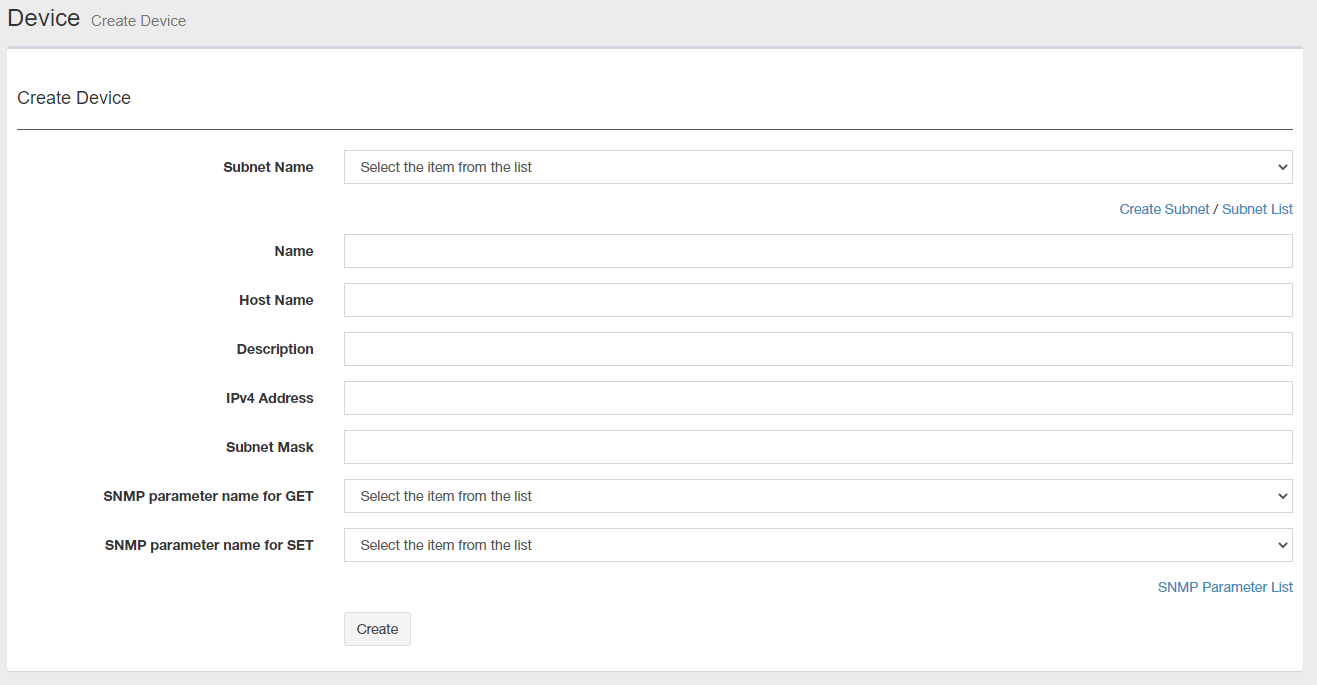
| Item Name | Contents |
|---|---|
| Subnet Name | Select a subnet to which the new device belongs to. |
| Add Subnet | The Create Subnet page is displayed. |
| Subnet List | The Subnet List page is displayed. |
| Subnet Name | Enter the name of the device. You can specify 1 to 255 single-byte alphabets, numbers, and symbols (only spaces " % , - < > ^ _ ` { | } ~ can be used). |
| Hostname | Enter the hostname of the device. You can specify up to 255 characters, all of which are half-width alphabets, numbers, and symbols (only spaces " % , - < > ^ _ ` { | } ~ can be used). |
| Notes | Shows a comment configured for the device. You can specify half-width alphabets, numbers, and symbols within 1024 characters. |
| IPv4 address | Enter the IPv4 address of the device (for example, 192.168.1.0). |
| Subnet Mask | Enter the subnet mask of the device (eg 255.255.255.0) or enter the prefix length (eg 24). |
| SNMP Parameter Name(Get) | Select a Get Parameter Name used to get information from the device via SNMP. |
| SNMP Parameter Name(Set) | Select a Set Parameter Name used to set information to the device via SNMP. |
| SNMP Parameter List | Opens SNMP Parameter List page. You can create, edit or delete SNMP parameters on "SNMP Parameter List" page. |
| "Create" button | Saves the specified device information as a new device and moves it to theDevice Tree View. |
Edit Device
You can open "Edit Device" page for the device by clicking the device name in the node attribute section of Device Details page.In the Update Subnet page, you can edit the node attributes of the corresponding subnet.
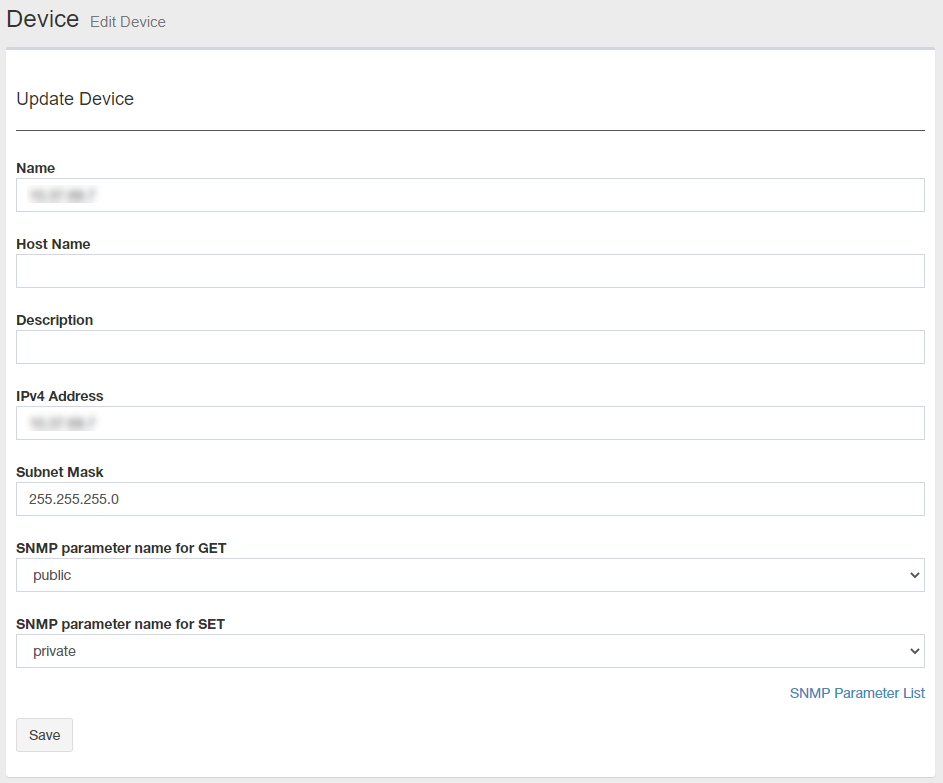
| Item Name | Contents |
|---|---|
| Subnet Name | Enter the name of the device. You can specify 1 to 255 single-byte alphabets, numbers, and symbols (only spaces " % , - < > ^ _ ` { | } ~ can be used). |
| Hostname | Enter the hostname of the device. You can specify up to 255 characters, all of which are half-width alphabets, numbers, and symbols (only spaces " % , - < > ^ _ ` { | } ~ can be used). |
| Notes | Shows a comment configured for the device. You can specify half-width alphabets, numbers, and symbols within 1024 characters. |
| IPv4 address | Enter the IPv4 address of the device (for example, 192.168.1.0). |
| Subnet Mask | Enter the subnet mask of the device (for example, 255.255.255.0). |
| SNMP Parameter Name(Get) | Select a Get Parameter Name used to get information from the device via SNMP. |
| SNMP Parameter Name(Set) | Select a Set Parameter Name used to set information to the device via SNMP. |
| SNMP Parameter List | Opens SNMP Parameter List page. You can create, edit or delete SNMP parameters on "SNMP Parameter List" page. |
| "Save" button | Save the changes to the settings for that subnet and go to the Device Details page. |
NoteMAC addresses associated with IP addresses cannot be changed.
If the MAC address is changed due to device replacement, etc., do one of the following to reflect the information.
- Edit Device
"Device list" → "Details" of the target device → Gear icon → "Update to the latest information"
or
"Network tree" → Select target device → Name (IP address) → Gear icon → "Refresh"
- Delete device, re-register
When deleted:
"Device list" → "Delete" of target device
When re-registering (adding):
"Device List" → "New"
or
"Network tree" → Select target subnet → Gear icon → "Create device"
- Auto discovery of subnets
"Network tree" → Select target subnet → Name (community name) → Gear icon → "Auto search"
02 Aug 2024 15:04