System Setting
The System Setting page lets you see the AWC Plug-in version, factory-reset the plug-in, and configure system settings.
NoteThis page is only accessible by Administrator accounts.
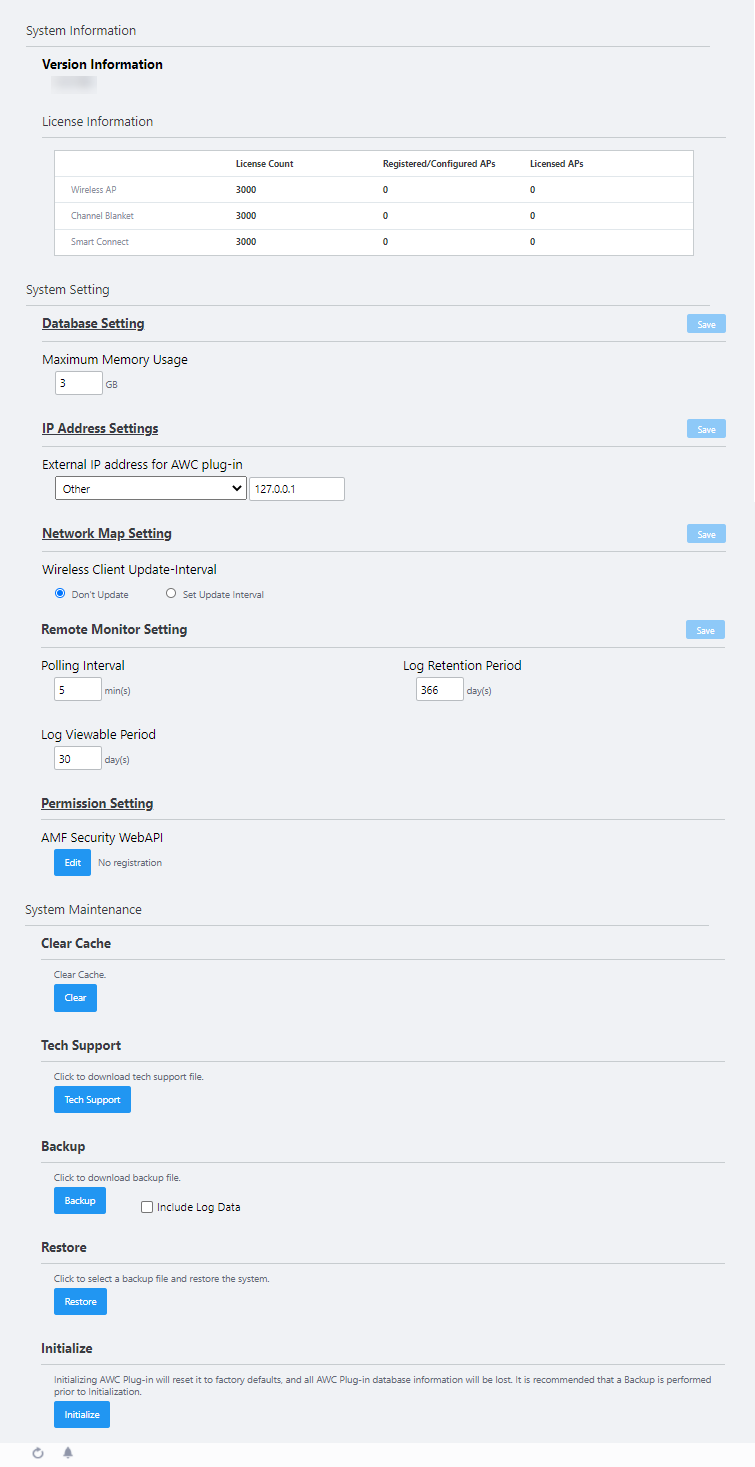
System Info
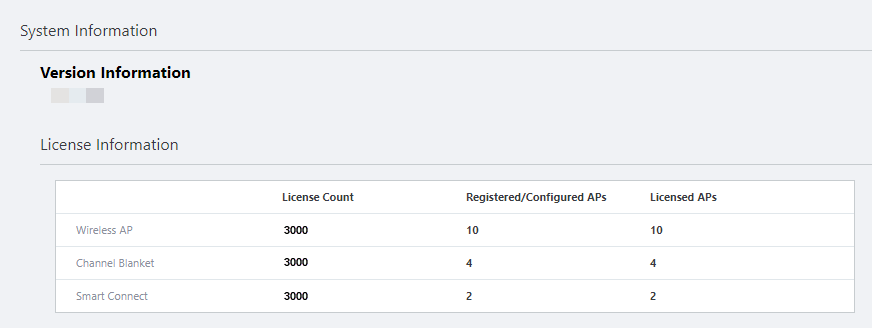
| Item Name | Description |
|---|---|
| Version Information | Shows the AWC Plug-in's version information. |
| License Information |
|
System Settings
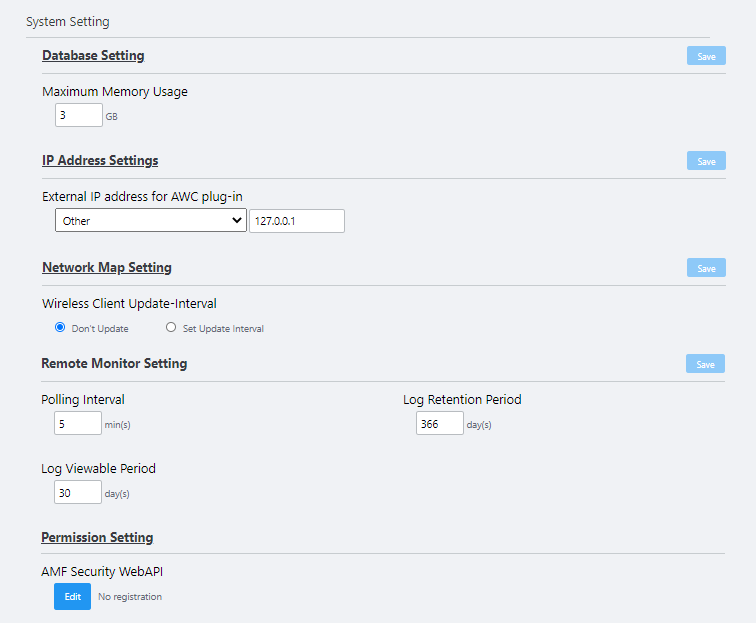
| Item Name | Description |
|---|---|
| Database Setting | |
| Maximum Memory Usage |
Specify the maximum amount of system memory that can be used for the AWC Plug-in database.NoteChanging the maximum memory amount is not supported in the AWC Plug-in for VST-APL. Use the default setting. |
| "Save" button | Save and apply configuration changes to the database. |
| IP Address Settings | |
| External IP address for AWC plug-in |
Set the external IP address to be used for communication between the AWC Plug-in and the wireless APs. The default is "127.0.0.1". NoteTo manage the wireless AP, set this value to be the same as the IP address of the AWC Plug-in server (the "Wireless Controller" application in the VST-APL configuration screen). After registering the AWC Plug-in and after assigning a new IP address to the AWC Plug-in server, make sure you change it to the same IP address as the AWC Plug-in server. |
| "Save" button | Saves the changes to the IP address settings in the operation. |
| Network Map Setting | |
| Wireless Client Update-Interval |
Specify the refresh interval for associated clients that are displayed on the Vista Manager EX "Network Map" screen.
|
| "Save" button | Save and apply configuration changes to the network map. |
| Remote Monitor Setting | |
| Polling Interval | Set the polling interval of the wireless LAN controller specified on the remote monitor screen, with a value from 5 to 30 (minutes). The default is 5 (minutes). |
| Log Retention Period | Set the number of days to keep the logs retrieved from the wireless LAN controller specified on the Remote Monitor screen, using a value from 1 to 366. The default is 366 (days). |
| Log Viewable Period | Set the number of log days to be displayed on the Remote Monitor screen, using a value between 1 and 90 (days). The default is 30 (days). |
| "Save" button | Save and apply configuration changes to the Remote Monitor in the operation. |
| Permission Setting | |
| AMF Security WebAPI |
Displays the sending IP address of the Web API used by our AMF-Security Controller AT-SecureEnterpriseSDN Controller (AT-SESC) and AMF Security mini. If multiple IP addresses are registered, they will be displayed separated by a slash (/).
|
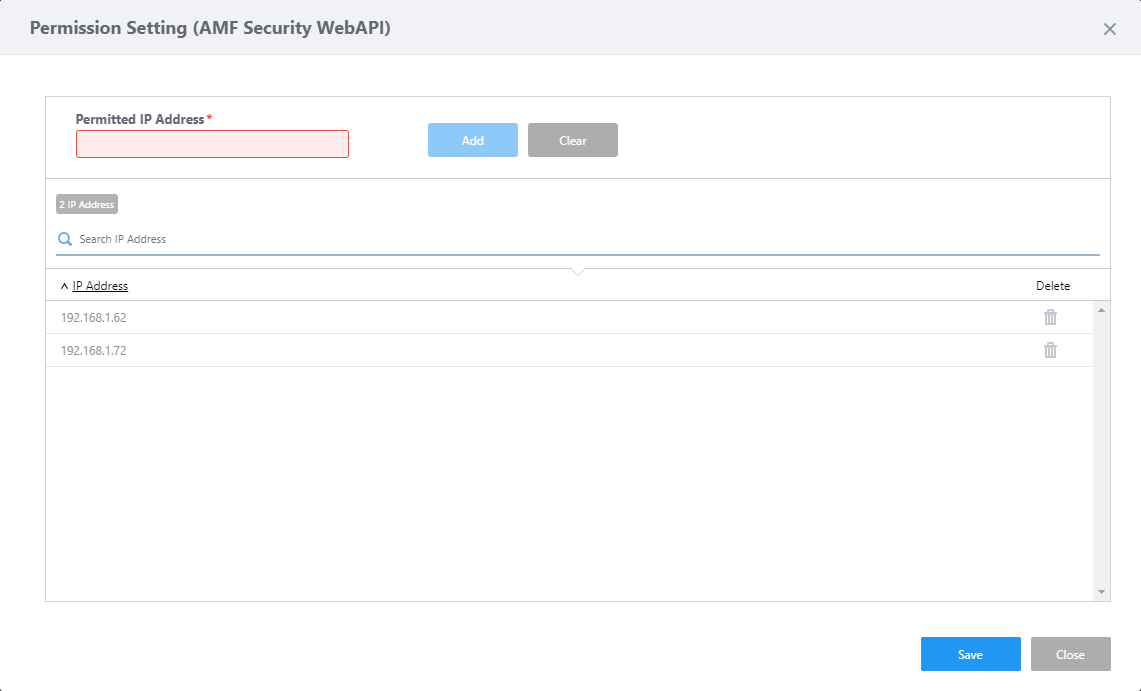
Permission Setting (AMF Security WebAPI)
When the AMF Security server (AMF-Sec or AMF Security mini) receives a threat event, it queries the AWC plug-in for the MAC address from the IP address of the threat device via Web API.Register the IP address of the AMF Security server that you want to allow access to in order to respond only to inquiries from legitimate AMF Security servers.
AMF Security Server IP addresses can be registered up to 1,024 entries.
| Header | |
| Permitted IP Address | Enter the IP address of the AMF Security server to grant access to. |
| "Add" button | Add the IP address to the list. |
| "Clear" button | Clears the Permitted IP address field. |
| IP Address list | |
| X IP Address | Shows the number of IP address entries registered to the list. |
| Search IP address |
Search for a particular IP address. The search field lets you enter a partial string to match. The list shows entries with that string in the "IP Address" field. To remove the filter, delete the string from the search field and press enter. |
| IP Address | Displays a registered IP address of the AMF Security server (AMF-Sec or AMF Security mini). |
| Delete (trashbin icon) | Deletes an entry of the AMF Security server IP Address. |
| Footer | |
| "Save" button | Save changes of the permission setting and close the dialog box. |
| "Exit" button | Discard changes of the permission setting and close the dialog box. |
System Management
| Item Name | Description |
|---|---|
| Clear Cache | |
| "Delete" button | Clears the AWC Plug-in cache. |
| Tech Support | |
| "Tech Support" button |
NoteThis button is for maintenance purposes. For use by support staff only. |
| Backup | |
| "Backup" button | Saves the current settings to an external file as a backup file. |
| Include Log Data | If checked, the backup file will include the log data. By default, this option is not checked. |
| Restore | |
| "Restore" button | Restores the settings from a backup file saved as an external file. |
| Initialize | |
| "Initialize" button | Initialize the AWC Plug-in's data, such as its configuration and various histories. |
21 Oct 2022 11:57