Web Authentication with Captive Portal
Captive Portal is a mechanism to let wireless clients authenticate themselves through their users' web browsers.
When Captive Portal is enabled, the AWC Plug-in and APs block all traffic (except for ARP, DHCP and DNS) until the user's authentication is successfully completed. The AWC Plug-in and APs are monitoring traffic from wireless clients. When they detect the first HTTP/HTTPS packets from each client, they redirect HTTP/HTTPS traffic from that client to a page called "Captive Portal".
NoteThe AWC Plug-in provides three types of Captive Portal:Captive Portal is available only for TQ4600, TQ4400e, TQ1402, TQ5403, TQ5403e, TQ6602, TQ6602 GEN2, and TQ6702 GEN2 running normal firmware, and for TQ4400 and TQ4600 running SDN/OpenFlow compatible firmware.
- External RADIUS Authentication
This method authenticates wireless clients using an external RADIUS server with pre-defined username and password. The next example shows an authentication page on a TQ5403:
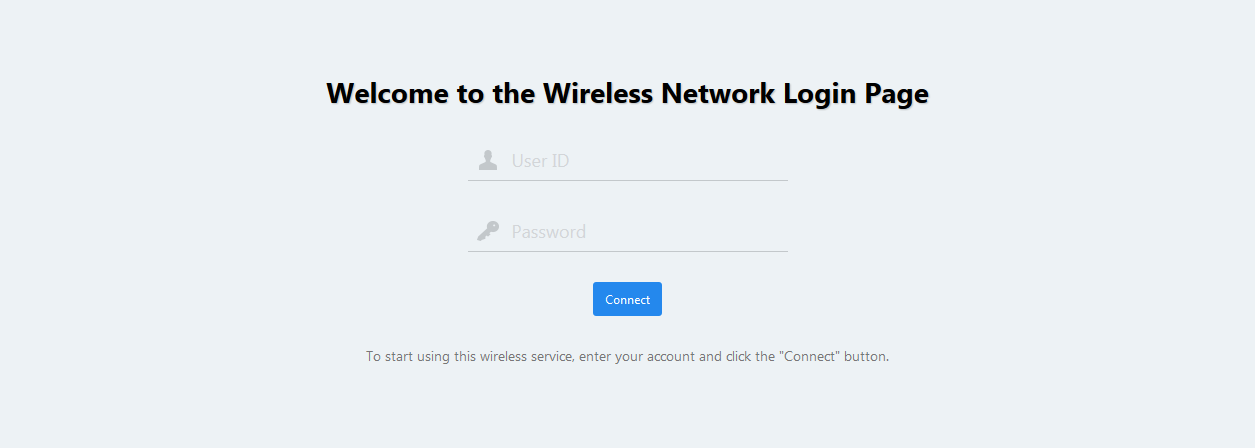
When the user of the client enters authentication credentials, they will be matched against an authentication record in the RADIUS server. Once users have entered their username and password, and have agreed to the terms of use on the single/dual-band TQ series AP and clicked the "Connect" button, they become able to access resources on the network.
- Click-through
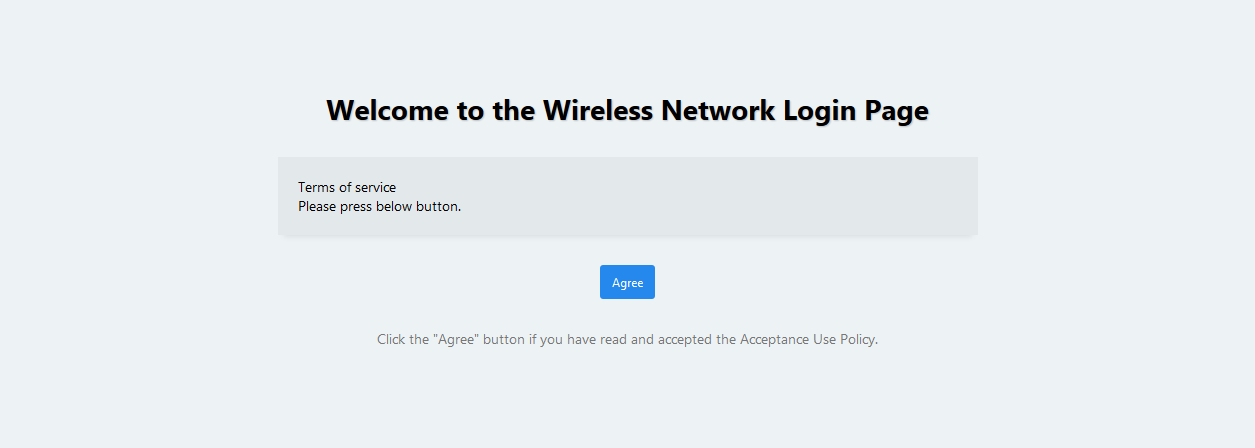
This method only asks users to agree to the terms of use (click-through agreement) before allowing them to connect to the wireless network.
This does not require any user registration, but it allows you to ask users to agree to the terms. For example, you may prohibit illegal activities and any abuse of the wireless network. This is useful when you want to provide a Wi-Fi network service to the general public. The next example shows an authentication page on a TQ5403:
Note
Click-through web authentication is available only for TQ4600, TQ4400e, TQ1402, TQ5403, TQ5403e, TQ6602, TQ6602 GEN2, and TQ6702 GEN2. TQ4400 and TQ4600 running SDN/OpenFlow-capable firmware does not support Click-through.
- External Page Redirect
This method allows wireless clients to access using the authentication result from the authentication page of a third-party service.
Note
Since this function is essential for integration with third-party services, the details are omitted from this page.

Captive Portal authentication is performed at a much higher layer than the IEEE 802.11 authentication and encryption.
For example, if a client tries to send data through an AP that uses WPA, WPA authentication and encryption must be performed before the client can send any data. Once a WPA negotiation is successfully completed, the client sends out ARP/DHCP packets in an encrypted channel provided by WPA. Then the client sends an HTTP packet, and a captive portal is displayed on the client browser when it is detected.
NoteWith the TQ4600, and TQ4400e, "Terms of Use" on the Authentication Page cannot be changed.
With the TQ1402, TQ5403, TQ5403e, TQ6602, TQ6602 GEN2, TQ6702 GEN2, TQm1402, TQm5403,TQm6602 GEN2 and TQm6702 GEN2, the "Terms of Use" on the click-through page can be set on the web setting screen for each AP's web interface.
NoteDo not enable Captive Portal on the radio used for the WDS connection.
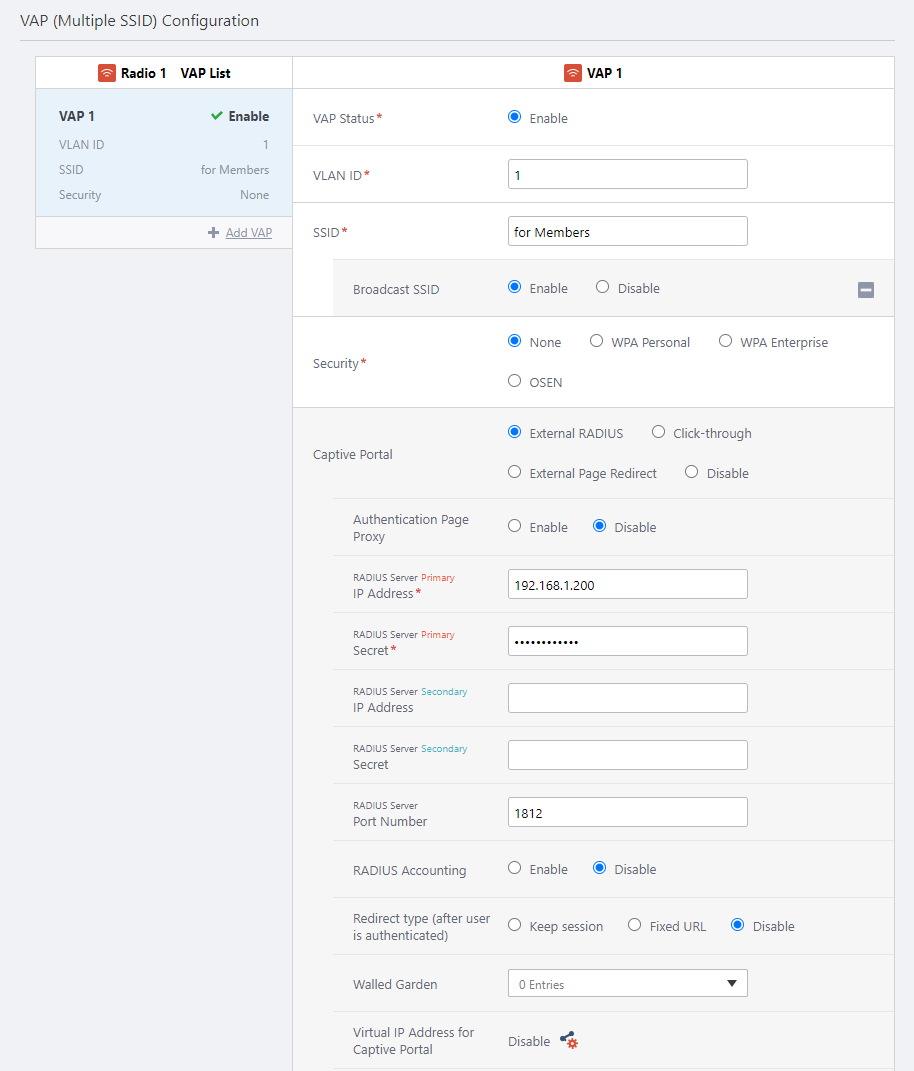
NoteTo use Captive Portal, enable it on the VAP by consulting Configure AP Profiles.You have to configure network equipment so that wireless clients can communicate with the IP address of the AP. Also, TQ1402, TQ5403, TQ5403e, TQ6602, TQ6602 GEN2, TQ6702 GEN2, TQm1402, TQm5403, TQm6602 GEN2, and TQm6702 GEN2 use 8080 (HTTP) and 8443 (HTTPS) as the TCP port number of the captive portal, so the access list is applied in the upstream switch. In this case, it is necessary to allow communication on the corresponding TCP port.
Centralized Web Authentication
The AWC Plug-in can share the captive portal authentication information between the APs under management.When a wireless client roams to another AP after successful authentication, it can keep communication without re-authentication.
The AWC Plug-in stores authentication information up to 50,000 entries.
When the AWC Plug-in is restarted, the authentication information is cleared.
NoteThe Centralized Web Authentication is supported with TQ6602 GEN2, TQ6702 GEN2, TQm6602 GEN2, and TQm6702 GEN2 firmware version 8.0.1-1.x or later; TQ6602 firmware version 7.0.1-2.x or later; TQ5403, TQ5403e, and TQm5403 firmware version 6.0.1-1.x or later; or with TQ1402 and TQm1402 firmware version 6.0.0-1.x or later.
Also, with these supported APs, Centralized Web Authentication will always work.
NoteIf you want to use the Centralized Web Authentication, you need to enable the NTP client function of the wireless AP and match the time of the wireless AP and the server PC with the AWC plug-in installed.
NoteWhen the Centralized Web Authentication is enabled, the session timeout value is not updated when reconnecting by roaming before session timeout.
Configure RADIUS Server
When you use external RADIUS authentication, you have to add wireless APs to the RADIUS server's NAS (RADIUS client) database.| Item Name | Description |
|---|---|
| RADIUS Client's IP Address | Wireless AP's IP Address (Example) 192.168.1.230 |
| Secret | Wireless AP's Password (Example) "MyPassword" |
NoteTo allow the APs to carry out authentication, add all APs to the RADIUS client database.
NoteRefer to the RADIUS server's documentation for detailed instructions of how to configure the server.
NoteAdd the client's username and password to the RADIUS user database.Captive Portal only supports PAP as an authentication mechanism.
| Attribute Name | Attribute Value | Comment |
|---|---|---|
| User-Name | Full Name | The username to authenticate (eg. "user1", "user2") |
| User-Password | Password | (When using PAP) Password for the user (eg. "passwd1", "passwd2") |
| Attribute Name | Attribute Value | Comment |
|---|---|---|
| Session-Timeout | Session Timeout | Allow time for user to connect to network (seconds) |
Authentication Page Proxy
Dual-band/Tri-band TQ Series (TQ1402, TQm1402, TQ5403, TQ5403e, TQm5403, TQ6602, TQ6602 GEN2, TQm6602 GEN2, TQ6702 GEN2, and TQm6702 GEN2) support Authentication Page Proxy.This allows you to customize Captive Portal by placing your own authentication page in an HTML file with a pre-defined filename on an external web server. This is much more flexible than customizing the built-in page. You can also use CSS or image files to change page layout. In the custom HTML, use a relative path to refer to those external files.
When Authentication Page Proxy is enabled, an authenticating AP proxies Web access from a wireless client to the customized page on an external Web server, instead of letting the client directly access the external page.
To use Authentication Page Proxy, enable "Authentication Page Proxy" and specify "Base URL" for the VAP's Captive Portal settings.
For Base URL, specify an absolute URL of the external Web server's directory where the customized HTML files are placed (e.g. http://www.example.com/captive_portal).
NoteBecause an AP requests the custom files every time it authenticates a wireless client, make sure that the external Web server is always accessible to the APs' proxy.
NoteThere's no need for the external Web server to be able to access the RADIUS servers. It is also not required that the customized authentication feature is functional on the external Web server.
External RADIUS
Authentication Page
◼ HTML Filename
The HTML filename of the external authentication page must be "radius_login.html".
For example, when you specify "http://www.example.com/captive_portal" in "Base URL", APs will present the content of the page at "http://www.example.com/captive_portal/radius_login.html" to connecting clients.
◼ HTML File Content
The authentication page on the external Web server should contain the following HTML form elements:
<form method="POST">
 <input type="text" name="userid">
 <input type="password" name="password">
 <input type="submit" value="Connect">
 </form>
NoteWe cannot provide support for issues with writing HTML/CSS or customized pages.
Authentication Failure Page
◼ HTML Filename
The HTML filename of the external authentication failure page must be "radius_login_fail.html".
For example, if you specify "http://www.example.com/captive_portal" in "Base URL", APs will present the content of the page at "http://www.example.com/captive_portal/radius_login_fail.html" to connecting clients.
◼ HTML File Content
Same as the Authentication Page.
The authentication page on the external Web server should contain the following HTML form elements:
<form method="POST">
 <input type="text" name="userid">
 <input type="password" name="password">
 <input type="submit" value="Connect">
 </form>
NoteWe cannot provide support for issues with writing HTML/CSS or customized pages.
Authentication Success Page
◼ HTML Filename
The HTML filename of the external successful authentication page must be "welcome.html".
For example, if you specify "http://www.example.com/captive_portal" in "Base URL", APs will present the content of the page at "http://www.example.com/captive_portal/welcome.html" to connecting clients.
◼ HTML File Content
There is no special requirement for the success page.
Click-through
Click-through Page
◼ HTML Filename
The HTML filename of the external click-through page must be "click_through_login.html".
For example, if you specify "http://www.example.com/captive_portal" in "Base URL", APs will present the content of the page at "http://www.example.com/captive_portal/click_through_login.html" to connecting clients.
◼ HTML File Content
The click-through page on the external Web server should contain the following HTML form elements:
<form method="POST">
 <input type="submit" value="Agree">
 </form>
NoteWe cannot provide support for issues with writing HTML/CSS or customized pages.
Click-through Accepted Page
◼ HTML Filename
The HTML filename of the external post-agreement page must be "welcome.html".
For example, if you specify "http://www.example.com/captive_portal" in "Base URL", APs will present the content of the page at "http://www.example.com/captive_portal/welcome.html" to connecting clients.
◼ HTML File Content
There is no special requirement for the success page.
When used with Dynamic VLAN
Captive Portal doesn't support Dynamic VLAN directly. To use Dynamic VLAN with Captive Portal, you have to use WPA Enterprise for IEEE 802.11 authentication mechanism.A client's VLAN is determined by RADIUS attributes which are received during WPA Enterprise authentication.
If Dynamic VLAN is enabled for WPA Enterprise, VLAN attributes for WPA Enterprise are used. If Dynamic VLAN is disabled for WPA Enterprise, a VLAN configured for a VAP is used.
NoteWhen Captive Portal, MAC Access Control, and WPA Enterprise are used together, they are processed in the order of "MAC Access Control" -> "WPA Enterprise" -> "Captive Portal".
04 Jul 2023 13:01