Floor Map Detail [Smart Connect View]
When an AWC-SC Smart Connect network is configured on the floor map, you can display the connection status, the AP roles, and so on.
Smart Connect View
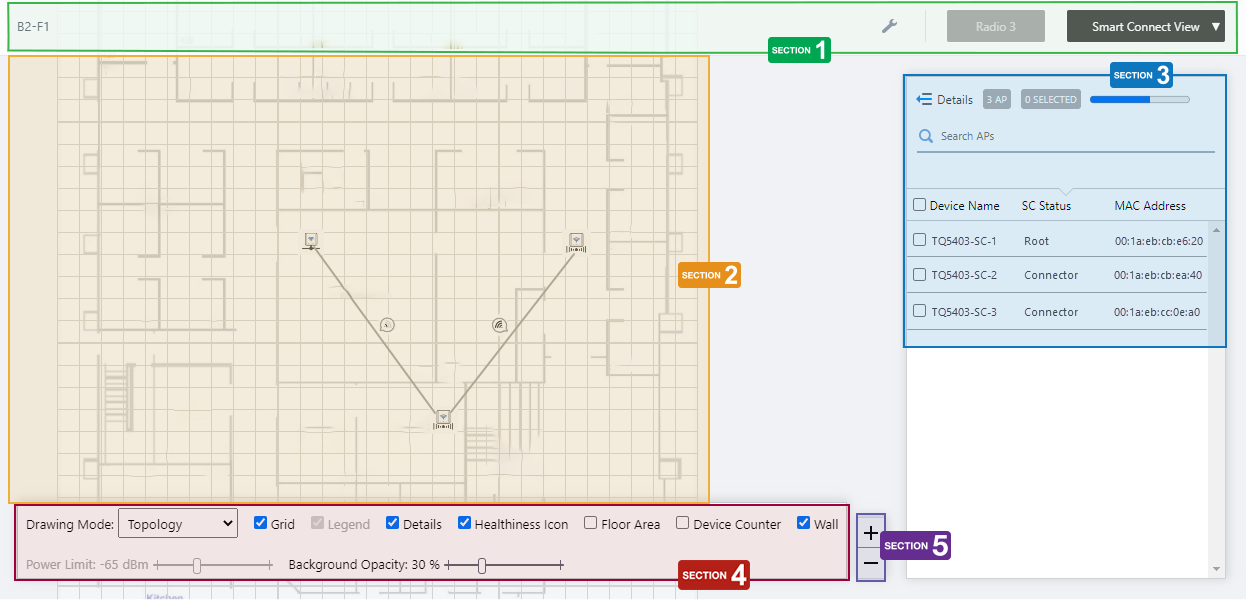
Section 1
| Item Name | Description |
|---|---|
| Management Group / Floor Map Group | The floor map name and the management group of the selected floor map will be displayed. |
| "Spanner" icon | Hovering the mouse cursor over the Spanner icon shows a dropdown menu including some operations for managed APs. Select APs by checking on the AP list or clicking the AP icons on the floormap, you can then configure the selected APs. You cannot perform Apply Settings, Reboot, Assign Firmware, or Upgrade Firmware in Smart Connect view.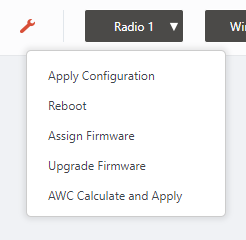
|
| Radio dropdown menu | Disabled in Smart Connect View. |
| View Selection dropdown menu | Lets you change what information is displayed on the Floor Map Details screen.
|
| "Back to list" button | Click to return to the Floor Map List screen. |
Section 2
- The icon of the wireless AP displays its role in AWC-SC.
- Root AP:
Shown by a wired AP icon.

- Satellite AP (Connector AP or Terminator AP)
Shown by an icon of the AP connected by radio.

- Acting as a Satellite AP in spite of being defined as a Root AP
The UTP cable may be not wired up.

- Acting as a Root AP in spite of being defined as a Satellite AP
A UTP cable may be still connected unintentionally.

- Not acting as an AWC-SC member AP
The AP may not be under management, the firmware may not be up to date, or the required license may not have been applied.

- Root AP:
- You can see the logical connections between the wireless APs by selecting "Topology" from the "Drawing Mode" dropdown menu in the floor map control.
In Topology drawing mode, the link between wireless APs is drawn with a gray line.
When "Healthiness Icon" in the floor map control is checked, the radio wave strength will be indicated by the number of bars in the balloon of the Healthiness Icon.
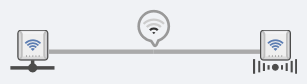
Table 2: Healthiness Icons Number of bars Power 
4 -57dBm or greater 
3 -62 to -58dBm 
2 -69 to -63dBm 
1 -79 to -70dBm 
0 -80dBm or less - You can see the traffic utilization between the wireless APs by selecting "Traffic" from the "Drawing Mode" dropdown menu in the floor map control.
In the Traffic drawing mode, the link line is divided in the middle, and each half depicts the utilization rate from the AP linked directly. For example, in the link between AP1 and AP2, the half nearer to AP1 shows the transmission utilization rate from AP1 to AP2, and the half nearer to AP2 shows transmission from AP2 to AP1.
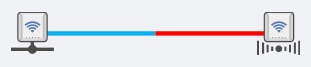
The color of the half link indicates the utilization rate.
The utilization rate is calculated based on the link speed and the amount of traffic between the APs.
- Light blue: 0 to 25%
- Green: 25 to 50%
- Yellow: 50 to 75%
- Red: 75 to 100%
- Light blue: 0 to 25%
Section 3
| Item Name | Description |
|---|---|
| Details | Clicking this shows Acceptor and Connector Tx / Rx Bytes per second and tags, in addition to the default items (Device Name, SC Status, and MAC Address). Clicking Details again returns you to the default non-detailed view. |
| X AP | Shows the number of wireless APs placed on the floor map. This includes APs on which Smart Connect is not enabled or available. |
| Refresh Timer | The elapsed time since the last auto-update in the list and the time remaining until the next auto-update are displayed in a gray progress bar. The list is automatically refreshed at the interval configured on "Refresh Rates" > "Floor MAP (Smart Connect)" in the User Management menu. (The default is 5 seconds.) You can also specify whether to pause or resume automatic updates by clicking Resume/Pause automatic update button on the right, or force the wireless client list to be updated by clicking the Manual update button. |
| Search Wireless AP | The Search field lets you enter a partial string to match. The screen displays entries with that string in one of the following fields: "Device Name", "SC Status", or "MAC Address" fields. To remove the filter, delete the string from the search field and press enter. NoteThe search is case-sensitive. |
| Device Name | Shows the name given to the AP. |
| SC Status | Shows the AP's role in AWC-SC.
|
| MAC Address | Shows the device's MAC address. |
Section 4
In the Smart Connect View, "Power Limit" is does not apply and is disabled.
Also, when the drawing mode is "Topology", "Legend" will be disabled, and when the drawing mode is "Traffic", the "Healthiness Icon" will be disabled.

| Item Name | Description |
|---|---|
| Drawing Mode | You can select the mode that the link lines between APs on the floor map represent, either "Topology" or "Traffic". |
| Grid | Lets you enable or disable grid lines on the floor map. Checking this shows grid lines on the floor map. |
| Legend | Lets you enable or disable the legend. Check to display. |
| Details | Toggles the visibility of the AP List. Check to display. |
| Healthiness Icon | In Topology drawing mode, lets you choose whether to display the Healthiness Icon. Check to display. |
| Floor Area | This item is not supported. |
| Device Counter | This item is not supported. |
| Wall | Lets you choose whether to display the walls if walls have been created on the floor map (using the Edit Wall page). Check to display. |
| Opacity | Specify the opacity of the floor map background image. |
Section 5
Zoom In/Out buttons.
You can zoom in (+) or zoom out (-) of the floor map display. You can also use the mouse wheel scroll to zoom in or out.

Smart Connect AP List (Detail)
Clicking "Details" at the top of the AP list in the "Smart Connect View" extends the list to show additional information such as SC Status and Tx / Rx throughput.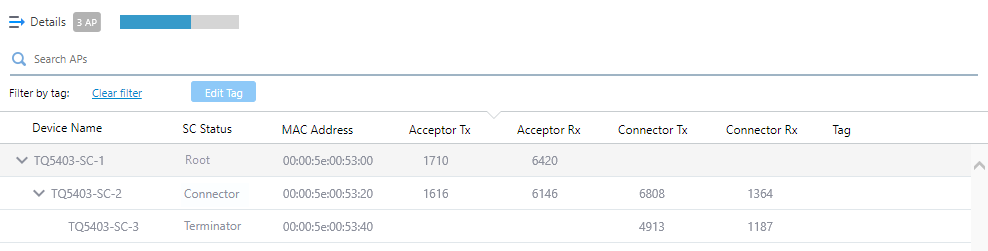
| Item Name | Description |
|---|---|
| Details | Clicking this shows Acceptor and Connector Tx / Rx Bytes per second and tags, in addition to the default items (Device Name, SC Status, and MAC Address). Clicking Details again returns you to the default non-detailed view. |
| X AP | Shows the number of wireless APs placed on the floor map. This includes APs on which Smart Connect is not enabled or available. |
| Refresh Timer | The elapsed time since the last auto-update in the list and the time remaining until the next auto-update are displayed in a gray progress bar. The list is automatically refreshed at the interval configured on "Refresh Rates" > "Floor MAP (Smart Connect)" in the User Management menu. (The default is 5 seconds.) You can also specify whether to pause or resume automatic updates by clicking Resume/Pause automatic update button on the right, or force the wireless client list to be updated by clicking the Manual update button. |
| Search Wireless AP | You can search for wireless APs on the floor map. The Search field lets you enter a partial string to match. The screen displays entries with that string in one of the following fields: "Device Name", "SC Status", or "MAC Address" fields. To remove the filter, delete the string from the search field and press enter. NoteThe search is case-sensitive. |
| Device Name | Shows the name given to the AP. |
| SC Status | Shows the AP's role in AWC-SC.
|
| MAC Address | Shows the device's MAC address. |
| Acceptor Tx | Shows the throughput of the traffic transmitted to the downlink AP (Terminator AP for Root/Connector APs, and Connector AP for Root AP) in bytes per second. |
| Acceptor Rx | Shows the throughput of the traffic received from the downlink AP (the Terminator AP for Root/Connector APs, and the Connector AP for the Root AP) in bytes per second. |
| Connector Tx | Shows the throughput of the traffic transmitted to the uplink AP (the Root AP for Connector/Terminator APs, and the Connector AP for the Terminator AP) in bytes per second. |
| Connector Tx | Shows the throughput of the traffic received from the uplink AP (the Root AP for Connector/Terminator APs, and the Connector AP for the Terminator AP) in bytes per second. |
| Tag | Shows the tags set on the AP. |
14 Dec 2023 11:12