Configure Management Groups
This section covers the procedures to create, edit, and delete Management Groups.
To monitor an AP, the AP has to be assigned to a Management Group. Only users whose account type is Admin can modify Management Groups.
Create Management Group
NoteThe maximum number of APs that can be supported by one management group is 350. It is recommended to operate less than 50 units per management group.
Please note that the number of TQm1402/5403 that can be managed is limited to a maximum of 100 units for the entire AWC Plug-in in combination with the above conditions.
NoteIt is recommended that 100 or less Management Groups are used for managing 101 or more APs.
- Log in to Vista Manager EX using an admin account.
- Select "Wireless Configuration" > "Management Group" from the AWC Plug-in menu.
- Click "Create" at the top right corner.
- The "Create Management Group" dialog box will appear.
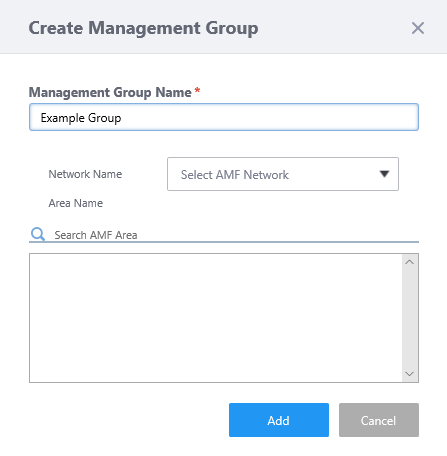
Table 1: "Create Management Group" dialog box
Item Name Description Management Group Enter a name for the Management Group. Max 100 characters. (mandatory) Network Name Select an AMF Network to manage. Area Name Select AMF areas from the list.
Areas in the list can be filtered by entering a partial area name in the "Search AMF Area" box.
You can select all areas by checking "All"."Add" button Add the Management Group. "Cancel" button Cancel adding the Management Group.
- Enter a name for the Management Group.
- Select an AMF Network and its areas to manage.
Once you have specified an AMF network and areas, you can select APs from the list of guest devices when you add new APs to manage.
- Click "Add".
Edit Management Group
- Log in to Vista Manager EX using an admin account.
- Select "Wireless Configuration" > "Management Group" from the AWC Plug-in menu.
- On the Management Group list, click the "Edit" icon to the right of the Management Group you want to edit.
- The "Edit Management Group" dialog box will appear.
- Change the information as needed.
- Click "Save".
Delete Management Group
NoteAfter you delete a Management Group, APs and floor maps which belonged to the deleted group will become members of the "Default Wireless Group".
NoteEven if you delete all entries on the last page of the list, the page will not be deleted and an empty list page will be displayed. The number of pages will be refreshed after moving to another page or reloading the browser.
- Log in to Vista Manager EX using an admin account.
- Select "Wireless Configuration" > "Management Group" from the AWC Plug-in menu.
- Click the "Delete" icon to the right of the Management Group you want to delete.
- The "Confirm" dialog box will appear.
- Click "Delete".
Allow Users to Access Management Groups
An admin user can grant a user read-only access to selected Management Groups.- Log in to Vista Manager EX using an admin account.
- Select "User Management" from the main menu.
- Select the user you want to grant access from the account list.
- Click "Edit".
- Check the Management Groups you want the user to access.
- Click "Save".
26 Mar 2022 18:28