Floor Map
This page allows you to create floor maps to manage APs more efficiently.
Clicking a floor map panel shows its details.
NoteThe page is periodically refreshed to display the latest information.
NotePlease do not use the automatic scroll feature of your mouse wheel on the page.
NoteLong floor map names may be truncated on the "Floor Map List" in the panel or list view and the "Floor Map Details" page.
To see an entire name, go to the "Floor Map List" > "List View" icon > "Pencil" icon > "Edit Floor Map" page.
NoteIf you sort by IP address, the addresses in an AP list are sorted in lexicographical order.
Floor Map List
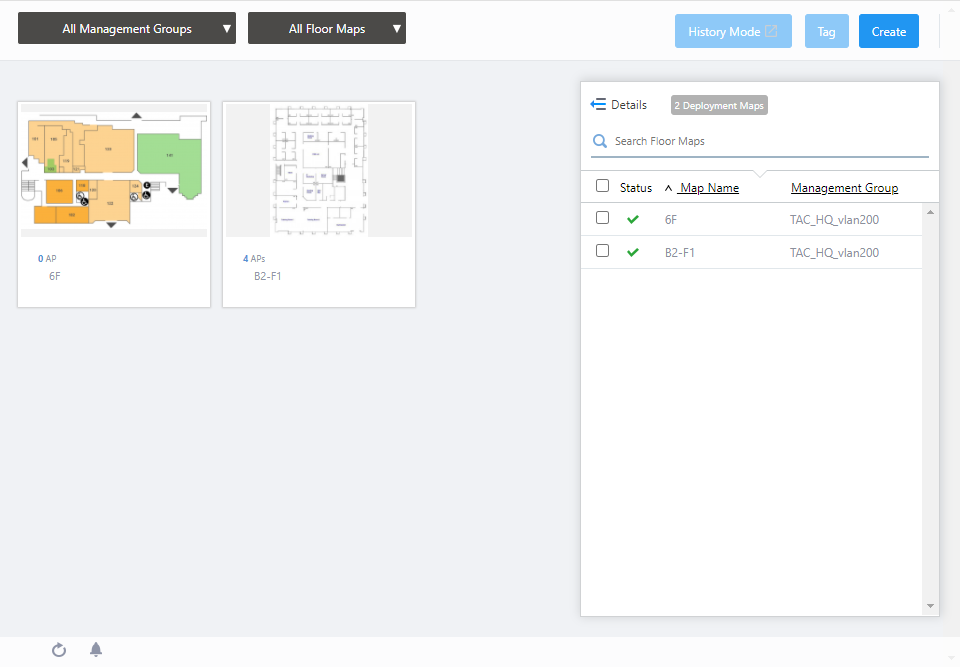
Section 1
| Item Name | Description |
|---|---|
| Management Group drop-down menu | You can narrow down the floor map to be displayed. The default is "All Management Groups". |
| Floor Map drop-down menu |
You can select the floor map to be configured. The default is "All Floor Maps". When you select one of the floor maps, the display in the center of the contents section will switch from floor map list view to floor map detail view. |
| "Tag" button |
NoteThe "Edit Tags" button cannot be used in Panel View. |
| "Create" button | Opens the "Create Floor Map" dialog box. Refer to Operation Reference > Floor Map > Configure Floor Maps for more details. |
Section 2
| Item Name | Description |
|---|---|
| Floor Map Panels |
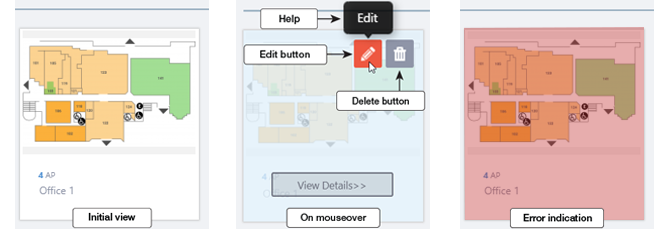
Each floor map is shown as a panel. The name of the floor map and the number of APs placed on the map are shown below the panel. When an Admin user hovers over a panel, that panel will become half-opaque, and "Edit" (pencil) and "Delete" (trashbin) buttons will appear at the top right of the panel Clicking the panel opens the "Floor Map Details" page for the floor map.
|
Section 3
| Details | You can click to see information such as the number of Deployed APs, and Tags, in addition to the default items of Status, Floor Map Name, and Management Group Name. Floor Map Panel will not be displayed in the extended state of Floor Map List. Clicking Details again returns you to the default non-detailed view. |
| X Deployment Map | Shows the number of floor maps. |
| Search Floor Map |
Entries in the list can be filtered by entering a partial string in the search box. The Search field lets you enter a partial string to match. The screen displays entries with that string in one of the following fields: "Floor Map Name", "Management Group Name" or "Tag". To remove the filter, delete the string from the search field and press enter. NoteThe search is case-sensitive. |
| Checkbox | Check this box if you want to select the floor map as the display target. |
| Status Icon |
Overall status of the APs on the floor map is indicated by an icon. A green checkmark means everything is normal. A red triangle indicates some APs on the map have an issue. |
| Floor Map Name | Shows the name of the floor map. |
| Management Group | Shows Management Groups for the floor map. |
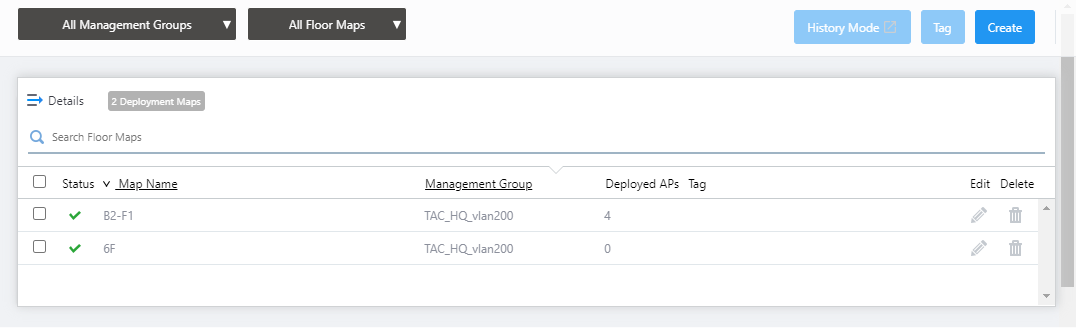
Click the "Detail" button to switch to the expanded view of the Floor Map list.
| Item Name | Description |
|---|---|
| Details | Click to return to the list display of Status, Floor Map Name, and Management Group Name. The Floor Map Panels will also be displayed on the left side of the Contents section. |
| X Deployment Map | Shows the number of floor maps. |
| Search Floor Map |
Entries in the list can be filtered by entering a partial string in the search box. The Search field lets you enter a partial string to match. The screen displays entries with that string in one of the following fields: "Floor Map Name", "Management Group Name" or "Tag". To remove the filter, delete the string from the search field and press enter. NoteThe search is case-sensitive. |
| Checkbox | To edit tags for floor maps, use the checkbox to select the maps and click this button. |
| Status Icon |
Overall status of the APs on the floor map is indicated by an icon. A green checkmark means everything is normal. A red triangle indicates some APs on the map have an issue. |
| Floor Map Name | Shows the name of the floor map. |
| Management Group | Shows Management Groups for the floor map. |
| Deployed APs | Shows the number of wireless APs placed on the floor map. |
| Tag | Shows tags added to the floor map. |
| "Edit" (pencil) button: | Lets you edit the floor map. |
| "Delete" (trashbin) button: | Lets you delete the floor map. |
Detail and Layered Views of Floor Maps
You can select the floor map to be displayed from the management group drop-down menu and Floor Map drop-down menu in the header of the Floor Map list.If you select multiple Floor Maps in the same management group, you can view the layered view of the Floor Maps in 3D.
- Layered Floor Map View
A 3D layered view of the floor map will be displayed in the following case:
- When a specific management group is selected in the management group drop-down menu at the top of the screen, a specific floor map is not selected in the Floor Map drop-down menu. Multiple floor maps are selected in the Floor Map list on the right side of the screen.
The layered floor map view allows you to see the status of APs, the number of associated clients and their locations and flow lines (when AWC-CB is used and the Client Location Estimation History function is enabled), and the connections of APs in the AWC-SC configuration across the floor maps in the same management group.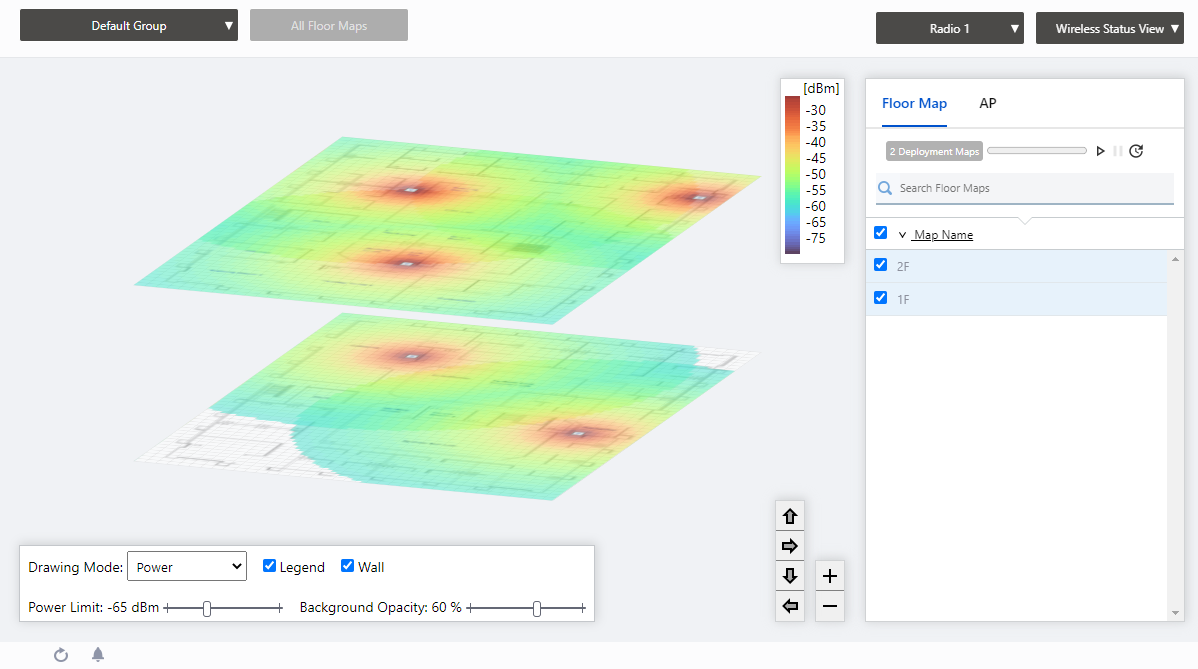
- When a specific management group is selected in the management group drop-down menu at the top of the screen, a specific floor map is not selected in the Floor Map drop-down menu. Multiple floor maps are selected in the Floor Map list on the right side of the screen.
- Floor Map Details
The floor map details will be displayed in the following cases:
- When you select a specific management group in the management group drop-down menu at the top of the screen, and then select a specific floor map with one of the following
- Floor map drop-down menu at the top of the screen
- Floor map panel in the center of the screen
- Floor map drop-down menu at the top of the screen
In the floor map details, you can monitor the status of APs, the number of associated clients, their locations and flow lines (when AWC-CB is used and the Client Location Estimation History function is enabled), and the connections of APs in the AWC-SC configuration, as well as monitor rogue APs detected by each managed AP.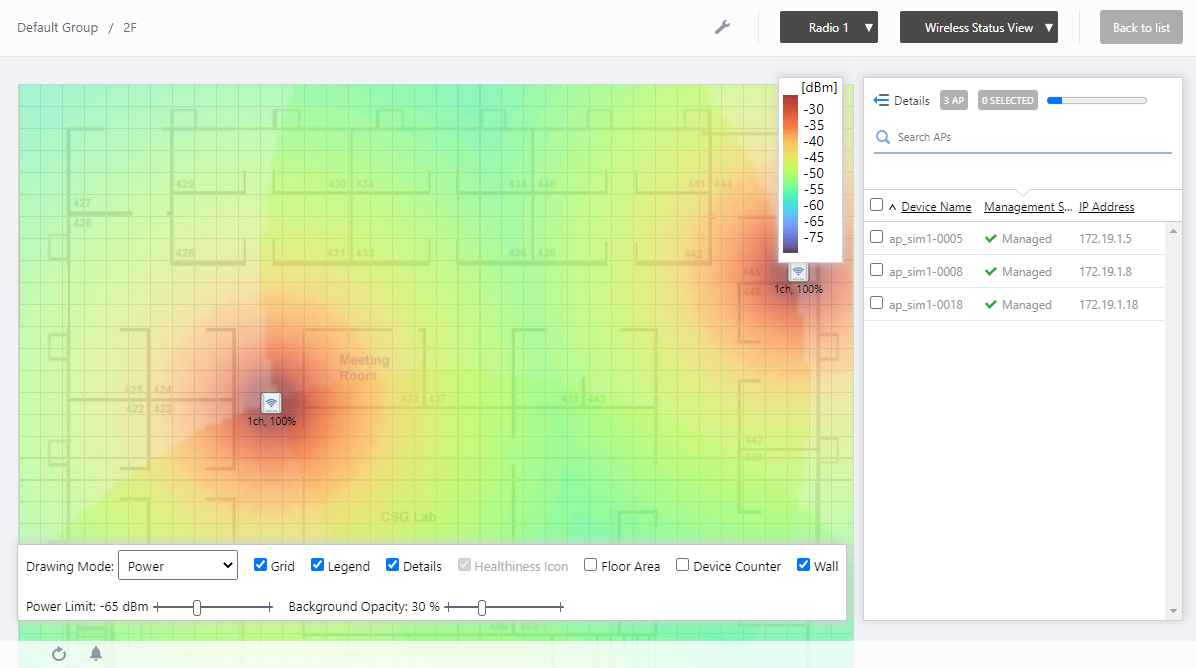
You can also locate the APs on the floor map, edit the area, and edit the walls in the floor map detail view.
- When you select a specific management group in the management group drop-down menu at the top of the screen, and then select a specific floor map with one of the following
Layered Floor Maps [Wireless Status View]
To display the layered floor map view, select a specific management group from the management group drop-down menu on the floor map List screen, and then check any floor maps from the Floor Map List on the right.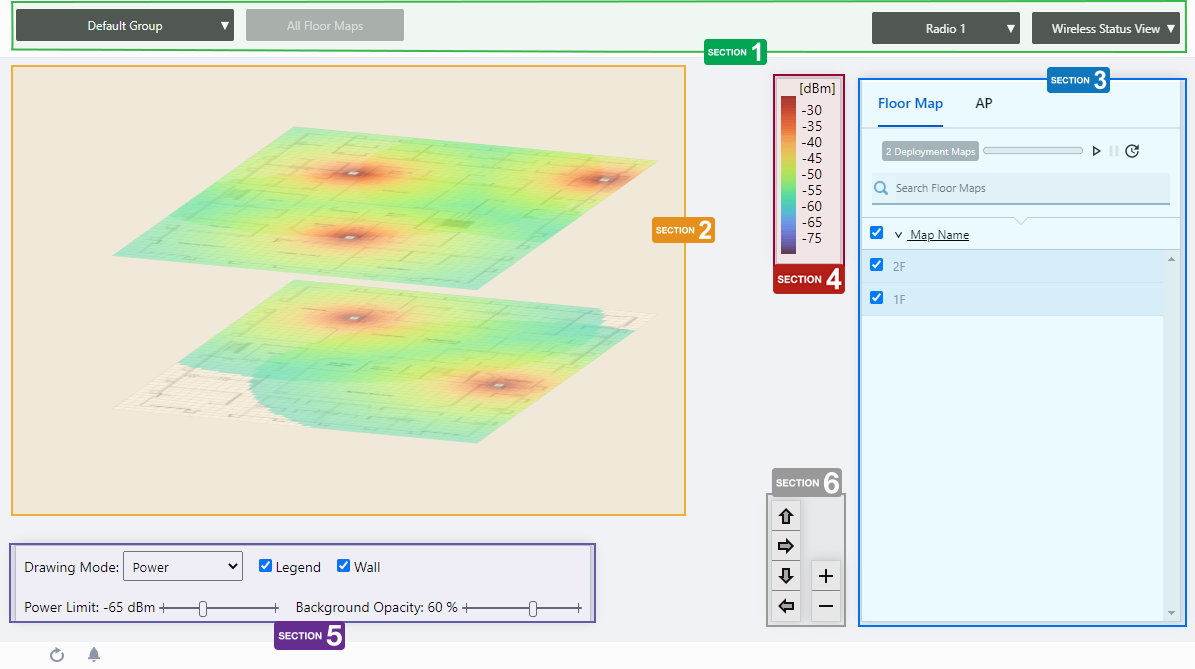
Section 1
| Item Name | Description |
|---|---|
| Management Group drop-down menu | You can narrow down the floor map to be displayed. If you change the currently selected management group, the Layered Floor Map view will be canceled and you will return to the Floor Map List panel view. |
| Floor Map drop-down menu |
This is not available in the layered floor map view. |
| Radio dropdown menu | Lets you select a radio band to show on the map, from Radio 1, 2 or 3. |
| View Selection dropdown menu |
Lets you change what information is displayed on the Floor Map Details screen.
|
Section 2
The selected floor map will be displayed layer by layer.
The display angle of the floor maps can be controlled using the angle adjustment button at the bottom right.
NoteThe order of the stacked floor maps is displayed in ascending order by the character code of the floor map name, starting from the bottom. This cannot be rearranged.
Each floor map displays the icons of the APs placed in the individual floor map detail screen, a heat map showing the channel or signal reach and strength in color around the wireless APs, and the areas or walls you have created.
The drawing mode of the heat map can be selected from the floor map control.
NoteEven between wireless APs operating at the same radio strength, the size of output circle on the heat map may vary depending on the installation location and other factors.
When you place your mouse cursor on an AP, the management information of the AP will pop up.
- Wireless AP Name
- MAC Address
- IP Address
Section 3
Floor maps / wireless AP list will be displayed. You can switch between the floor map list and the wireless AP list using the tabs at the top of the list.
Place the mouse pointer on any line in the floor map list to highlight the corresponding floor map in the layered view.
Also, when you place the mouse pointer on any line of the wireless AP list, the corresponding wireless AP icon on the floor map will be highlighted with a blue dot.
| Item Name | Description |
|---|---|
| Header | |
| Floor Map/AP Tab | Switches the contents of the list. |
| Floor Map List | |
| X Deployment Map | Displays the number of floor maps that belong to the selected management group. |
| Refresh Timer |
Shows the status of the timer that automatically refreshes the page with the blue progress bar. The list is automatically refreshed at the interval configured on "Refresh Rates" > "Floor MAP (Wireless Status)" in the User Management menu. (The default is 1 minute.) In the layered floor maps View, the resume/pause automatic update buttons and the manual update button are displayed along with a progress bar. By default, automatic updates are paused. |
| Search Floor Map |
This item is disabled in layered floor maps. |
| Checkbox | Check this box if you want to select the floor map as the display target. |
| Floor Map Name | The floor map names belonging to the selected management group will be displayed. |
| AP list | |
| X AP | Shows the number of APs placed on the floor map. |
| Refresh Timer |
Shows the status of the timer that automatically refreshes the page with the blue progress bar. The list is automatically refreshed at the interval configured on "Refresh Rates" > "Floor MAP (Wireless Status)" in the User Management menu. (The default is 1 minute.) In the layered floor maps View, the resume/pause automatic update buttons and the manual update button are displayed along with a progress bar. By default, automatic updates are paused. |
| "Search" box |
Entries in the list can be filtered by entering a partial string in the search box. Displays the items among the current display targets that contain the string entered in this field in either " Device Name" or "Floor Map Name". To remove the filter, delete the string from the search field and press enter. NoteThe search is case-sensitive. |
| Device Name | Shows the name given to the AP. |
| Floor Map Name | The name of the floor map the AP belongs to is displayed. |
| Management Status | Shows the Management Status of the AP. |
Section 4
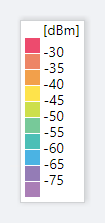
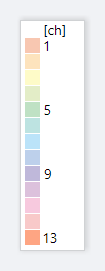
It shows the relationship between colors and signal strength or channels.
The legend can be made invisible or visible by using a checkbox in the floor map control section at the bottom of the page.
Color conventions depend on the floor map drawing mode.
- Power
- Channel
Section 5

| Item Name | Description |
|---|---|
| Drawing Mode | Lets you select what to show on the heatmap. Options are power (signal strength) and channel. |
| Legend | Lets you enable or disable the legend. Check to display. |
| Wall |
Lets you choose whether to display the walls if walls have been created on the floor map (using the Edit Wall page). Check to display.NoteIf walls have been defined, attenuation by the walls takes effect over the heat map even if this control is left unchecked. |
| Power Limit | Specify the minimum signal strength to show in colors on the heatmap. |
| Opacity | Specify the opacity of the floor map background image. |
Section 6
Adjusts the display size and angle of the map.
- Zoom In/Out buttons
You can zoom in (+) or zoom out (-) of the floor map display. You can also use the mouse wheel scroll to zoom in or out.

- Angle adjustment button
Only in the layered view, the angle at which the floor map is displayed can be adjusted using the arrow buttons.
- Up/Down arrows: Adjust the vertical (pitch) angle.
- Left/Right arrows: Adjust the horizontal rotation (yaw) angle.
- Up/Down arrows: Adjust the vertical (pitch) angle.
Layered Floor Maps [Associated Client View]
On the Layered Floor Map view, select "Associated Client View" from the View Selection dropdown menu to display the information of the associated clients on the currently selected floor maps.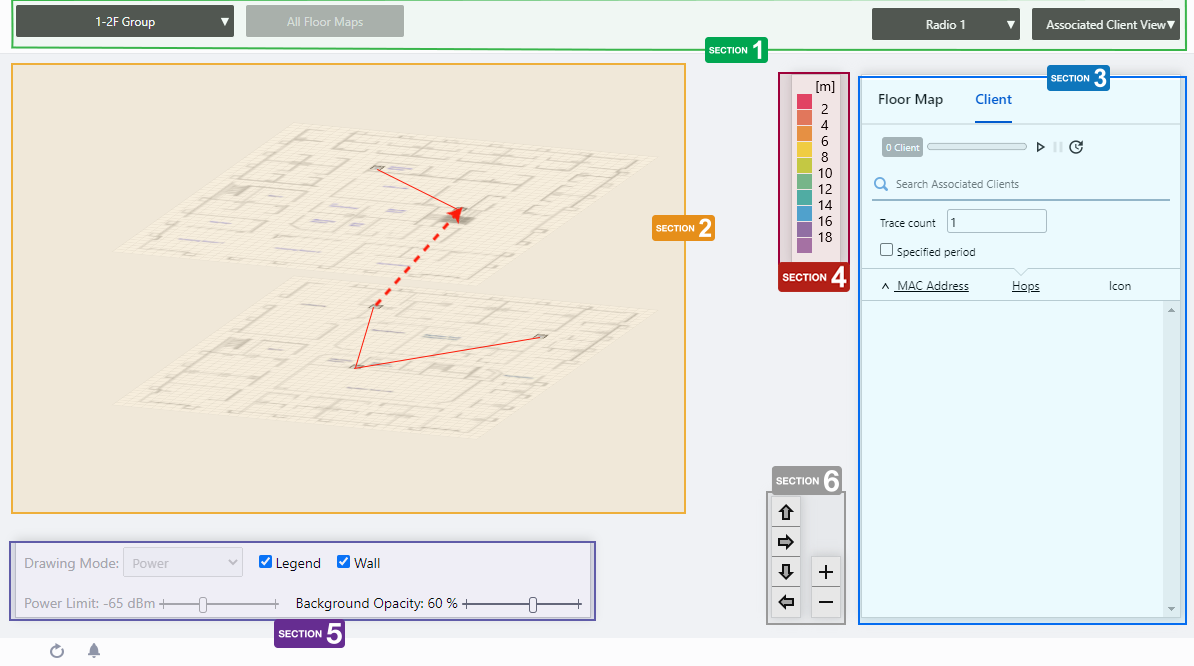
Section 1
| Item Name | Description |
|---|---|
| Management Group drop-down menu | You can narrow down the floor map to be displayed. If you change the currently selected management group, the Layered Floor Map view will be canceled and you will return to the Floor Map List panel view. |
| Floor Map drop-down menu |
This is not available in the layered floor map view. |
| Radio dropdown menu | Lets you select a radio band to show on the map, from Radio 1, 2 or 3. |
| View Selection dropdown menu |
Lets you change what information is displayed on the Floor Map Details screen.
|
Section 2
The selected floor map will be displayed layer by layer.
The display angle of the floor maps can be controlled using the angle adjustment button at the bottom right.
NoteThe order of the stacked floor maps is displayed in ascending order by the character code of the floor map name, starting from the bottom. This cannot be rearranged.
Each floor map displays the icons of the wireless APs you have placed on the individual floor map detail screens.
You can view the estimated location of the selected wireless client in the client list on the right side of the content section. For the estimated location of a wireless client, you can also view the path it has traveled in the recent past or over a specified period.
Section 3
Floor maps / wireless client list will be displayed. You can switch between the floor map list and the wireless client list using the tabs at the top of the list.Place the mouse pointer on any line in the floor map list to highlight the corresponding floor map in the layered view.
| Item Name | Description |
|---|---|
| Header | |
| Floor Map/Client Tab | Switches the contents of the list. |
| Floor Map List | |
| X Deployment Map | Displays the number of floor maps that belong to the selected management group. |
| Refresh Timer |
Shows the status of the timer that automatically refreshes the page with the blue progress bar. In the layered floor maps View, the resume/pause automatic update buttons and the manual update button are displayed along with a progress bar. By default, automatic updates are paused. |
| Search Floor Map |
This item is disabled in layered floor maps. |
| Checkbox | Check this box if you want to select the floor map as the display target. |
| Floor Map Name | The floor map names belonging to the selected management group will be displayed. |
| Client list | |
| X Client | Displays the number of wireless clients connected to the wireless AP, or the number of wireless clients that have a history of connecting to the wireless AP during the specified period. |
| Refresh Timer |
Shows the status of the timer that automatically refreshes the page with the blue progress bar. In the layered floor maps View, the resume/pause automatic update buttons and the manual update button are displayed along with a progress bar. By default, automatic updates are paused. |
| Search Associated Clients |
You can search for clients that are currently connected to the AP or have a history of connecting to the AP during the specified period. Displays the items among the current display targets that contain the string entered in this field in the "MAC Address" field. To remove the filter, delete the string from the search field and press enter. NoteThe search is case-sensitive. |
| Trace count |
Specifies the number of client movement histories to be reflected in the flow lines on the floor map. In the case of wireless clients whose location is estimated by Client Location Estimation, the floor map will reflect the estimated location for the specified number of times from the history of location estimation performed. For wireless clients that do not have client location estimation applied, the floor map will reflect the connection locations for the specified number of times from the roaming history of the connected AP. |
| Specified period |
Check this box if you want to specify a specific period of the location estimation history or connection history to be displayed on the floor maps. When checked, you can specify the start and end date and time of the specified period using the calendar control or manually. Specify the period and click the "Search" button to reflect it in the list. |
| Checkbox | Select a wireless client to display its estimated location or associated wireless APs on the floor map. |
| MAC Address | Shows the MAC address of the wireless client. |
| Hops |
Displays the hop count of the wireless client. For wireless clients whose connection location is estimated by Client Location Estimation, specify the number of times the location estimation is performed for each wireless client on the floor map. Only the specified number of the most recent hops will be displayed for each client. For wireless clients where Client Location Estimation is not applied, the roaming count of the connected wireless AP is displayed. |
| Icon |
Displays the wireless client icon shown on the floor map.
|
Section 4
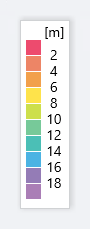
Shows the legend for the Associated Client View.
The color of each cell in the legend represents the reliability of the location estimation of clients shown on the map.
The legend can be made invisible or visible by using a checkbox in the floor map control section at the bottom of the page.
Section 5

| Item Name | Description |
|---|---|
| Legend | Lets you enable or disable the legend. Check to display. |
| Wall |
Lets you choose whether to display the walls if walls have been created on the floor map (using the Edit Wall page). Check to display.NoteIf walls have been defined, attenuation by the walls takes effect over the heat map even if this control is left unchecked. |
| Opacity | Specify the opacity of the floor map background image. |
Section 6
Adjusts the display size and angle of the map.
- Zoom In/Out buttons
You can zoom in (+) or zoom out (-) of the floor map display. You can also use the mouse wheel scroll to zoom in or out.
- Angle adjustment button
Only in the layered view, the angle at which the floor map is displayed can be adjusted using the arrow buttons.
- Up/Down arrows: Adjust the vertical (pitch) angle.
- Left/Right arrows: Adjust the horizontal rotation (yaw) angle.
- Up/Down arrows: Adjust the vertical (pitch) angle.
Layered Floor Maps [Smart Connect View]
On the Layered Floor Map view, select "Smart Connect View" from the View Selection dropdown menu to display the information of the Smart Connect on the currently selected floor maps.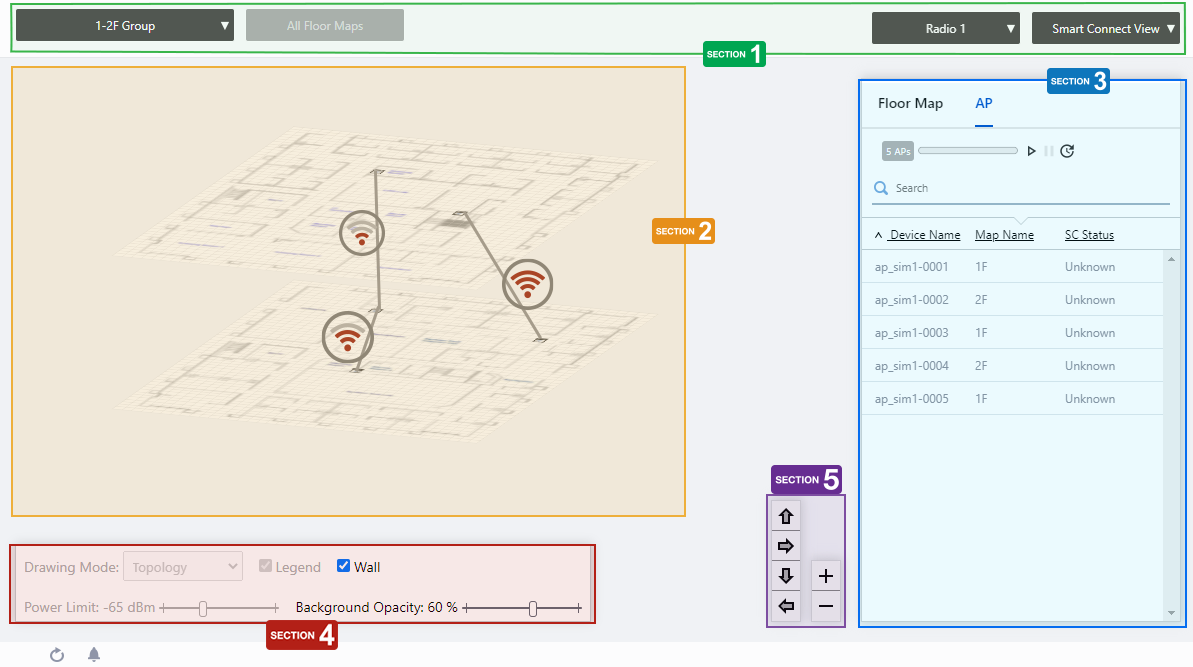
Section 1
| Item Name | Description |
|---|---|
| Management Group drop-down menu | You can narrow down the floor map to be displayed. If you change the currently selected management group, the Layered Floor Map view will be canceled and you will return to the Floor Map List panel view. |
| Floor Map drop-down menu |
This is not available in the layered floor map view. |
| Radio dropdown menu | Lets you select a radio band to show on the map, from Radio 1, 2 or 3. |
| View Selection dropdown menu |
Lets you change what information is displayed on the Floor Map Details screen.
|
Section 2
The selected floor map will be displayed layer by layer.
The display angle of the floor maps can be controlled using the angle adjustment button at the bottom right.
NoteThe order of the stacked floor maps is displayed in ascending order by the character code of the floor map name, starting from the bottom. This cannot be rearranged.
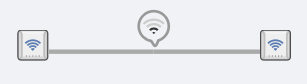
Each floor map shows the icons of the APs placed and the walls created in the individual floor map detail view. When the APs are wirelessly connected by AWC-SC, the connection status between the APs is indicated by a gray link line and a healthiness icon.
The healthiness icon indicates the strength of the signal between APs by the number of ripples in the icon.
| Number of bars | Power | |
|---|---|---|
 |
4 | -57dBm or greater |
 |
3 | -62 to -58dBm |
 |
2 | -69 to -63dBm |
 |
1 | -79 to -70dBm |
 |
0 | -80dBm or less |
When you place your mouse cursor on an AP, the management information of the AP will pop up.
- Wireless AP Name
- MAC Address
- IP Address
Section 3
Floor maps / wireless AP list will be displayed. You can switch between the floor map list and the wireless AP list using the tabs at the top of the list.Place the mouse pointer on any line in the floor map list to highlight the corresponding floor map in the layered view.
Also, when you place the mouse pointer on any line of the wireless AP list, the corresponding wireless AP icon on the floor map will be highlighted with a blue dot.
| Item Name | Description |
|---|---|
| Header | |
| Floor Map/AP Tab | Switches the contents of the list. |
| Floor Map List | |
| X Deployment Map | Displays the number of floor maps that belong to the selected management group. |
| Refresh Timer |
Shows the status of the timer that automatically refreshes the page with the blue progress bar. In the layered floor maps View, the resume/pause automatic update buttons and the manual update button are displayed along with a progress bar. By default, automatic updates are paused. |
| Search Floor Map |
This item is disabled in layered floor maps. |
| Checkbox | Check this box if you want to select the floor map as the display target. |
| Floor Map Name | The floor map names belonging to the selected management group will be displayed. |
| AP list | |
| X AP | Shows the number of APs placed on the floor map. |
| Refresh Timer |
Shows the status of the timer that automatically refreshes the page with the blue progress bar. In the layered floor maps View, the resume/pause automatic update buttons and the manual update button are displayed along with a progress bar. By default, automatic updates are paused. |
| "Search" box |
Entries in the list can be filtered by entering a partial string in the search box. Displays the items among the current display targets that contain the string entered in this field in either " Device Name" or "Floor Map Name". To remove the filter, delete the string from the search field and press enter. NoteThe search is case-sensitive. |
| Device Name | Shows the name given to the AP. |
| Floor Map Name | The name of the floor map the AP belongs to is displayed. |
| SC Status |
Shows the AP's role in AWC-SC.
|
Section 4

| Item Name | Description |
|---|---|
| Wall |
Lets you choose whether to display the walls if walls have been created on the floor map (using the Edit Wall page). Check to display.NoteIf walls have been defined, attenuation by the walls takes effect over the heat map even if this control is left unchecked. |
| Opacity | Specify the opacity of the floor map background image. |
Section 5
Adjusts the display size and angle of the map.
- Zoom In/Out buttons
You can zoom in (+) or zoom out (-) of the floor map display. You can also use the mouse wheel scroll to zoom in or out.
- Angle adjustment button
Only in the layered view, the angle at which the floor map is displayed can be adjusted using the arrow buttons.
- Up/Down arrows: Adjust the vertical (pitch) angle.
- Left/Right arrows: Adjust the horizontal rotation (yaw) angle.
- Up/Down arrows: Adjust the vertical (pitch) angle.
Floor Map [Wireless Status View]
Clicking on a floor map panel or selecting a specific floor map from the floor map dropdown menu will show the "Floor Map Details" page.The floor map is displayed in the center of the Content section and a list of APs is shown on the right side of the Content section.
NoteThe status displayed for an unreachable AP is the status that was last collected.
NoteIf you try to move an AP icon, it may move to an unintended position and your mouse cursor and the icon may become out of sync.
If this occurs, release your mouse button and drag the icon again.
NoteIf you try to place an AP on a floor map that was deleted by another user, you will be brought back to the "Floor Map Details" page without any error message. In such cases, please check if the floor map still exists on the "Floor Map List" page.
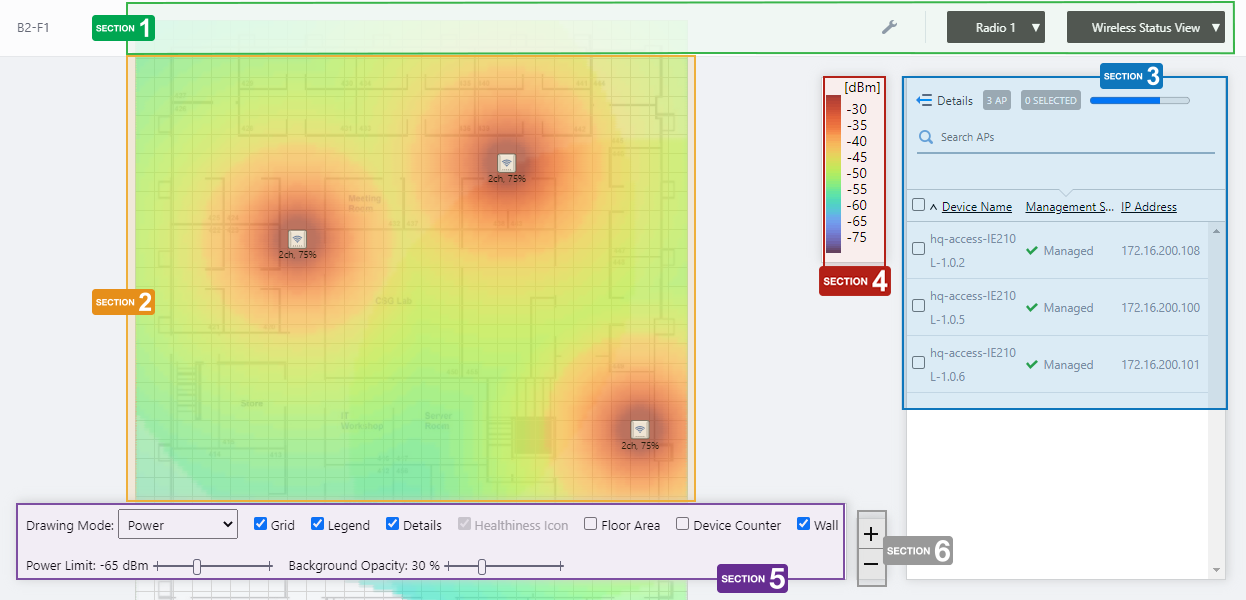
Section 1
| Item Name | Description |
|---|---|
| Management Group / Floor Map Group | The floor map name and the management group of the selected floor map will be displayed. |
| "Spanner" icon |
Hovering the mouse cursor over the Spanner icon shows a dropdown menu including some operations for managed APs. Select APs by checking on the AP list or clicking the AP icons on the floormap, you can then execute the following operation for the selected APs.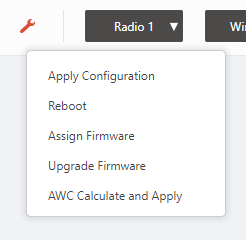
|
| Radio dropdown menu | Lets you select a radio band to show on the map, from Radio 1, 2 or 3. |
| View Selection dropdown menu |
Lets you change what information is displayed on the Floor Map Details screen.
|
| "Back to list" button | Click to return to the Floor Map List screen. |
Section 2
| Item Name | Description |
|---|---|
| Floor Map (Background) | The map image specified when you created the map is shown. You can place icons for the APs in the righthand-side list. |
| Wireless AP Icon |
AP icons placed on the map is shown. Below each icon, the channel and transmit power for the AP are displayed. Notes on icons:
|
Section 3
| Item Name | Description |
|---|---|
| Details | Clicking this shows the device's model, MAC address, AP Profile, the number of associated clients for each radio, and tags, as well as the Device name, Management Status and IP address that are shown on the non-detailed view. Clicking Details again returns you to the default non-detailed view. |
| X AP | Shows the number of APs placed on the floor map. |
| Refresh Timer | Shows the status of the timer that automatically refreshes the page with the blue progress bar. The list is automatically refreshed at the interval configured on "Refresh Rates" > "Floor MAP (Wireless Status)" in the User Management menu. (The default is 1 minute.) |
| Search Wireless AP |
Entries in the list can be filtered by entering a partial string in the search box. The Search field lets you enter a partial string to match. The screen displays entries with that string in one of the following fields: "Device Name", "Management Status", "IP address", "MAC address" or "AP Profile" fields. To remove the filter, delete the string from the search field and press enter. NoteThe search is case-sensitive. |
| Filter by tag |
Lets you filter APs with tags. Clicking tags uses the tags to filter the list. Clicking them again removes the filter. Clicking "Clear filter" removes the filter for all tags. NoteTo select tags, you have to switch the list to detailed mode (by clicking "View Details"). |
| Tag | All tags are displayed under the "Search Wireless AP" box. |
| Status Icon | When the AP is managed by the AWC Plug-in, a green checkmark is displayed. When the AP is not managed by the AWC Plug-in, a red triangle is displayed. |
| Device Name | Shows the name given to the AP. |
| Management Status | Shows the Management Status of the AP. |
| IP Address | Shows the AP's IP address. |
Section 4
Shows the heatmap legend.
It shows the relationship between colors and signal strength or channels.
The legend can be made invisible or visible by using a checkbox in the floor map control section at the bottom of the page.
Color conventions depend on the floor map drawing mode.
- Power
- Channel
Section 5
In Wireless Status View, the "Healthiness Icon" is disabled.

| Item Name | Description |
|---|---|
| Drawing Mode | Lets you select what to show on the heatmap. Options are power (signal strength) and channel. |
| Grid | Lets you enable or disable grid lines on the floor map. Checking this shows grid lines on the floor map. |
| Legend | Lets you enable or disable the legend. Check to display. |
| Details | Whether to display the list of placed APs. Check to display. |
| Floor Area | This item is not supported. |
| Device Counter | This item is not supported. |
| Wall |
Lets you choose whether to display the walls if walls have been created on the floor map (using the Edit Wall page). Check to display.NoteIf walls have been defined, attenuation by the walls takes effect over the heat map even if this control is left unchecked. |
| Power Limit | Specify the minimum signal strength to show in colors on the heatmap. |
| Opacity | Specify the opacity of the floor map background image. |
Section 6
Zoom In/Out buttons.
You can zoom in (+) or zoom out (-) of the floor map display. You can also use the mouse wheel scroll to zoom in or out.
Arranged AP List (Detail)
Clicking "Details" at the top of the list of placed APs on the "Floor Map Details" page extends the list to show additional information such as Device Type and AP Profile.Information displayed on the list can be switched between "System info", "Radio info" and "Client info". By default, each AP's system information is displayed.
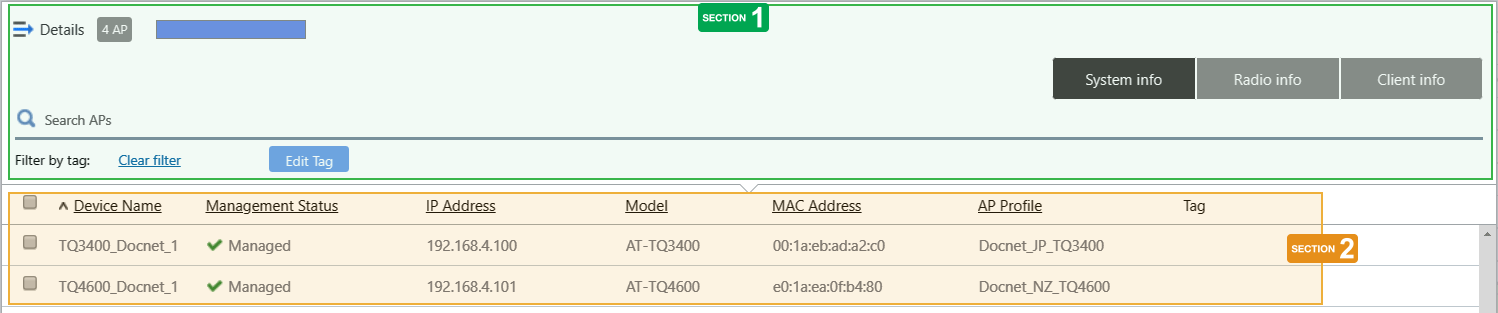
Section 1
| Item Name | Description |
|---|---|
| Details | Clicking "Details" again on the extended list shrinks the list to its default size. |
| X AP | Shows the number of wireless APs placed on the floor map. |
| Refresh Timer | Shows the status of the timer that automatically refreshes the page with the blue progress bar. The list is automatically refreshed at the interval configured on "Refresh Rates" > "Floor MAP (Wireless Status)" in the User Management menu. (The default is 1 minute.) |
| Search Wireless AP |
The Search field lets you enter a partial string to match. The screen displays entries with that string in one of the following fields: "Device Name", "Management Status", "IP address", "MAC address" or "AP Profile" fields. To remove the filter, delete the string from the search field and press enter. NoteThe search is case-sensitive. |
| "System Information" button | Switches the list content to system information for the APs placed on the floor map. |
| "Wireless Information" button | Switches the list content to the wireless configuration of the APs placed on the floor map. |
| "Client Info" button | Switches the list content to the number of clients (per radio) connected to each AP placed on the floor map. |
| Filter by tag |
Lets you filter APs with tags. Clicking tags uses the tags to filter the list. Clicking them again removes the filter. Clicking "Clear filter" removes the filter for all tags. |
| Tag | All tags are displayed under the "Search Wireless AP" box. |
| "Tag" button |
Lets you edit tags for the selected APs. To add the same tags to the APs and the floor map, check "Add the same tags to the floor map". NoteIf you paste a tag string from the clipboard, not all text may be visible. In that case, press Enter to make a tag from the entire pasted string. NotePasting a tag containing a newline is not supported. NoteTag names may be truncated in the tag filter list on the Devices Map, Floor Map Details and Device Search pages. To avoid this, use shorter names for the tags.
|
Section 2
| Item Name | Description |
|---|---|
| System Info | |
| Checkbox | To edit tags for APs, use the checkboxes to select APs and then click the "Edit Tags" button. |
| Device Name | Shows the name given to the AP. |
| Management Status | Shows the Management Status of the AP. |
| IP Address | Shows the AP's IP address. |
| Model | Shows the model name of the AP. |
| MAC Address | Shows the device's MAC address. |
| AP Profile | Shows the AP Profile assigned to the AP. |
| Tag | Shows the tags set on the AP. |
| Radio info | |
| Device Name | Shows the name given to the AP. |
| Channel (Radio1) Channel (Radio2) Channel (Radio3) |
Shows the channel used on each radio band of the AP. |
| Tx Power (Radio1) Tx Power (Radio2) Tx Power (Radio3) |
Shows the transmit power for each radio band of the AP. |
| Client info | |
| Device Name | Shows the name given to the AP. |
| Associated Clients (Radio1) Associated Clients (Radio2) Associated Clients (Radio 3) |
Shows the number of clients (per radio band) connected to the AP. |
Floor Map [Associated Client View]
If you select "Associated Client View" from the dropdown menu on Floor Map Details, the screen switches to the Associated Client View screen.Client Association View
This view uses a link line to show an association between a client and an AP.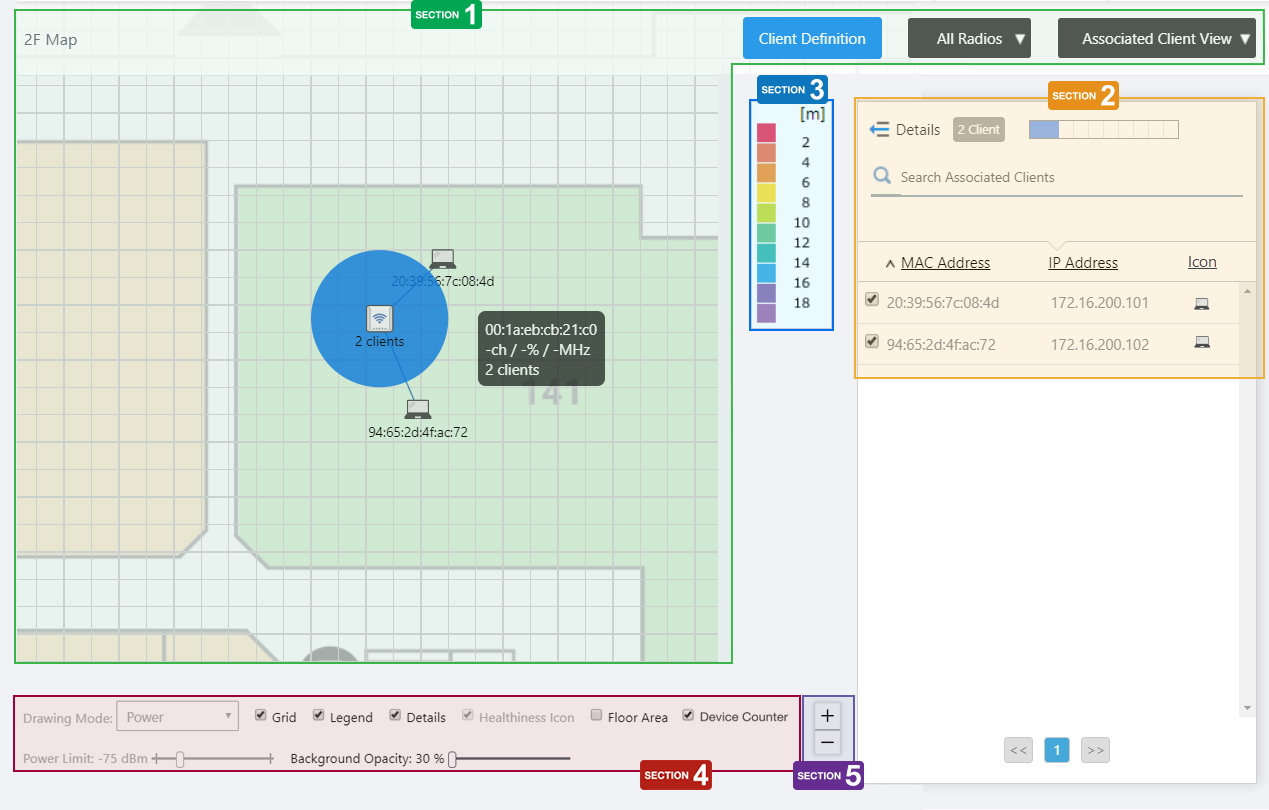
Section 1
| Item Name | Description |
|---|---|
| Floor Map Name | Shows the floor map name. |
| "Client Definition" button | Shows the Client Definition List dialog box. |
| Radio dropdown menu | Select which radio band information to display from Radio 1, Radio 2, Radio 3, or "All Radios". The default is "All Radios". If you select "All Radios", Associated Client Information for all bands (Radio 1, Radio 2, and Radio 3) will be displayed. |
| View Selection dropdown menu |
Lets you change what information is displayed on the Floor Map Details screen.
|
| Floor Map (Background) | The map image specified when you created the map is shown. |
| Wireless AP Icon |
The AP icon placed on the floor map is displayed. Below the icon, the number of associated clients is displayed. When you click an AP icon, only clients connected to the AP are displayed in the associated client list. |
| Wireless Client icon |
An icon representing an associated client. Clients checked on the list will be displayed on the floor map. The position where the client icon is displayed does not indicate the client's actual geographical location on the floor.
|
Section 2
| Item Name | Description |
|---|---|
| Details | You can click here to see client details such as Hostname, Username (based on WPA Enterprise), Duration, Client Name, Notes, SSID, Associating AP, and RSSI, in addition to the items displayed by default (MAC and IP addresses). Clicking Details again returns you to the default non-detailed view. |
| X Client | Shows the number of clients connected to the AP that is selected on the floor map. |
| Refresh Timer | Shows the status of the timer that automatically refreshes the page with the blue progress bar. The list is automatically refreshed at the interval configured on "Refresh Rates" > "Floor MAP (Associated Client)" in the User Management menu. (The default is 5 seconds.) |
| Search Associated Clients |
Entries in the list can be filtered by entering a partial string in the search box. The Search field lets you enter a partial string to match. The screen displays entries with that string in one of the following fields: "MAC Address", "IP Address", "SSID" or "Associating AP". To remove the filter, delete the string from the search field and press enter. NoteThe search is case-sensitive. |
| Checkbox |
Lets you select wireless clients to be shown on the floor map. When you select a client, an icon and the MAC address of the client are shown near the AP with which the client is associated. |
| MAC Address | Shows the MAC address of the wireless client. |
| IP Address | Shows the IP address of the wireless client. |
| Icon |
Displays the wireless client icon shown on the floor map.
|
Section 3
Shows the legend for the Associated Client View.
The color of each cell in the legend represents the reliability of the location estimation of clients shown on the map.
The legend can be made invisible or visible by using a checkbox in the floor map control section at the bottom of the page.
Section 4
In the Client Association View, "Drawing Mode", "Healthiness Icon", and "Power Limit" are irrelevant and disabled.

| Item Name | Description |
|---|---|
| Grid | Lets you enable or disable grid lines on the floor map. Checking this shows grid lines on the floor map. |
| Legend | Lets you enable or disable the legend. Check to display. |
| Details | Whether to display the Associated Client List. Check to display. |
| Floor Area | This item is not supported. |
| Wall | Lets you choose whether to display the walls if walls have been created on the floor map (using the Edit Wall page). Check to display. |
| Opacity | Specify the opacity of the floor map background image. |
Section 5
Zoom In/Out buttons.
You can zoom in (+) or zoom out (-) of the floor map display. You can also use the mouse wheel scroll to zoom in or out.
Associated Client List (Detail)
Clicking "Details" at the top of the client list in the "Associated Client View" extends the list to show additional information including system information, wireless information and statistics.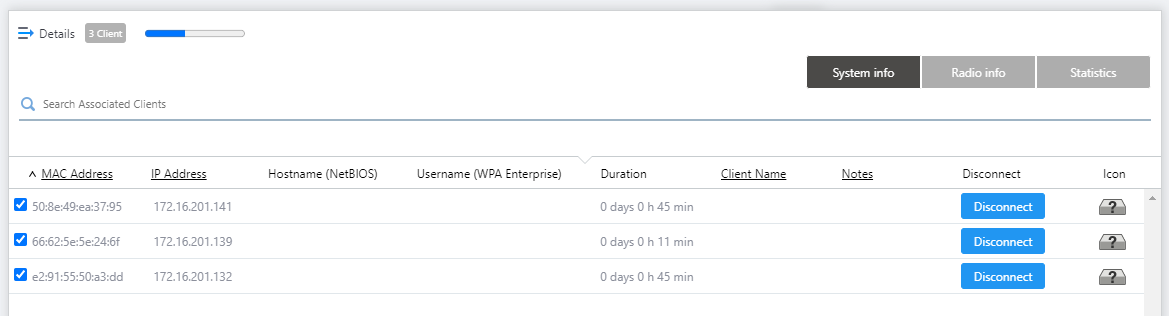
| Item Name | Description |
|---|---|
| Details | Clicking this shows extra data, including the SSID, Associated AP and connection Duration, in addition to the default items (IP and MAC addresses). Clicking Details again returns you to the default non-detailed view. |
| X Client | Shows the number of clients connected to the AP that is selected on the floor map. |
| Refresh Timer | Shows the status of the timer that automatically refreshes the page with the blue progress bar. The list is automatically refreshed at the interval configured on "Refresh Rates" > "Floor MAP (Associated Client)" in the User Management menu. (The default is 5 seconds.) |
| Search Associated Clients |
Entries in the list can be filtered by entering a partial string in the search box. The Search field lets you enter a partial string to match. The screen displays entries with that string in one of the following fields: "MAC Address", "IP Address", "SSID" or "Associating AP". To remove the filter, delete the string from the search field and press enter. NoteThe search is case-sensitive. |
| "System Info" / "Wireless Info" / "Statistics" buttons | Switches the contents of the list. |
| System Info | |
| Checkbox |
Lets you select wireless clients to be shown on the floor map. When you select a client, an icon and the MAC address of the client are shown near the AP with which the client is associated. A selection made through the detailed list view will remain when you go back to default (simpler) client list view. |
| MAC Address | Shows the MAC address of the wireless client. |
| IP Address | Shows the IP address of the wireless client. |
| Hostname (NetBIOS) | Shows the NetBIOS host name of the wireless client. |
| Username (WPA Enterprise) | Shows the RADIUS username when using WPA Enterprise. |
| Duration |
Shows the time duration for which the client has been connected to the AP.NoteMake sure that the clock on the computer for browsing is set to the same date and time as the Vista Manager EX server settings. If you set a different time, the duration of wireless clients may not be displayed correctly. |
| Client Name | Shows the Client Name if defined in the "Client Definition List" dialog box. |
| Notes | Shows any comments entered in the "Client Definition List" dialog box. |
| Disconnect |
Disassociates the wireless client connection. If the AP which the client is associated to supports instant disassociation, the "Disconnect" button will be shown. By clicking "Disconnect", you can immediately kick out the wireless client. NoteYou cannot select and disconnect multiple clients simultaneously. Please click the "Disconnect" button of each client. NoteThe feature is supported with TQ5403, TQ5403e, and TQm5403 firmware version 6.0.1-1.x or later; with TQ1402 and TQm1402 firmware version 6.0.0-0.x or later; or TQ6602 firmware version 7.0.0 or later. NoteIf the client device is set to connect automatically to the SSID, the client will be associated soon again after the disassociation. If you want to deny a specific client device permanently, consider using another authentication method such as MAC Access Control. |
| Icon |
Displays the wireless client icon shown on the floor map.
|
| Radio info | |
| MAC Address | Shows the MAC address of the wireless client. |
| SSID | Shows the SSID the client is associated with. |
| Associating AP | Shows the device name of the AP the client is associated with. |
| RSSI | Shows the RSSI (Received Signal Strength Indicator) of the wireless client. |
| Noise | Shows the strength of the noise that is interfering with the client communication. |
| SNR | Shows the Signal to Noise Ratio. A larger SNR means there is less noise influence. |
| Statistics | |
| MAC Address | Shows the MAC address of the wireless client. |
| Tx Packets | Shows the number of the packets sent to the client. |
| Tx Bytes | Shows the total size of the packets sent to the client. |
| Tx Drop Packets | Shows the number of discarded packets to be sent to the client. |
| Tx Drop Bytes | Shows the number of discarded bytes to be sent to the client. |
| Rx Packets | Shows the number of the packets received from the client. |
| Rx Bytes | Shows the total size of the packets received from the client. |
| Rx Drop Packets | Shows the number of received packets which were discarded. |
| Rx Drop Bytes | Shows the number of received bytes which were discarded. |
Note"Noise Level", "SNR", "Transmit Packets Discarded", "Transmit Bytes Discarded", "Received Packets Discarded" and "Received Bytes Discarded" are not supported in this version.
Client Definition List
With this list, you can define display names and notes for specific clients to help with identification in the Associated Client View.The client names will be used only in the Associated Client View. The Management Log screen will not be affected.
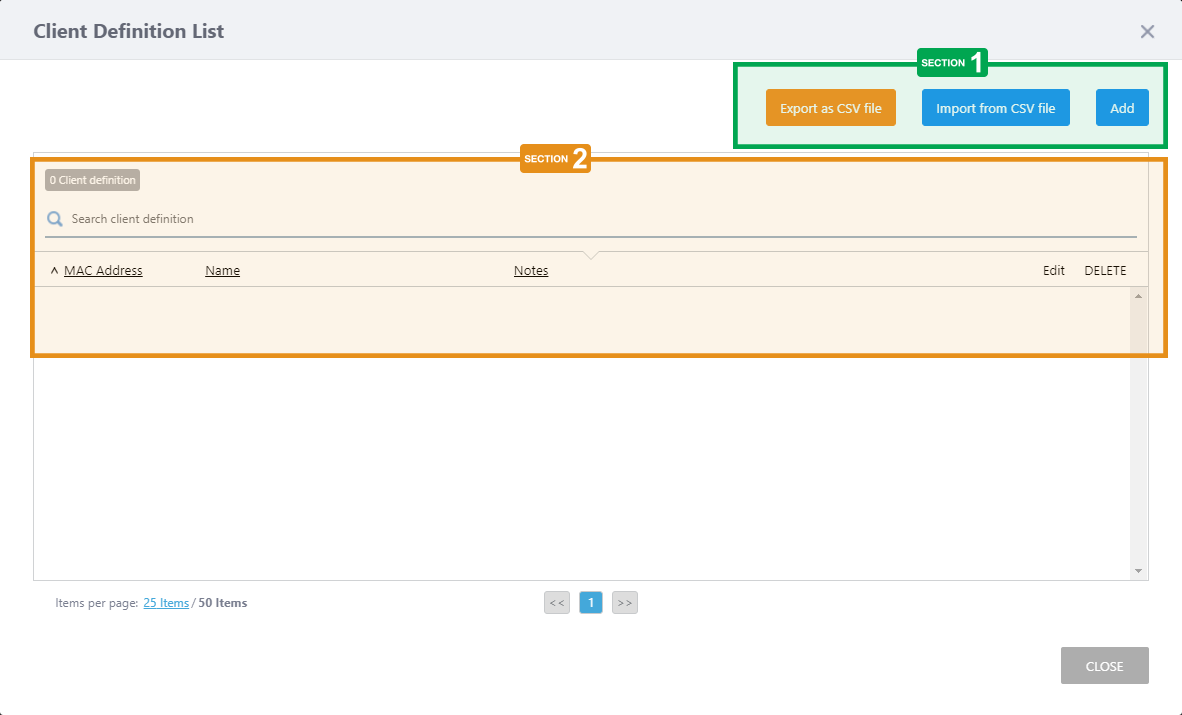
Section 1
| Item Name | Description |
|---|---|
| "Export as CSV file" button | Exports registered client definition to a CSV (Comma-Separated Values) format file. |
| "Import from CSV file" button |
The "Import from CSV" dialog box will appear.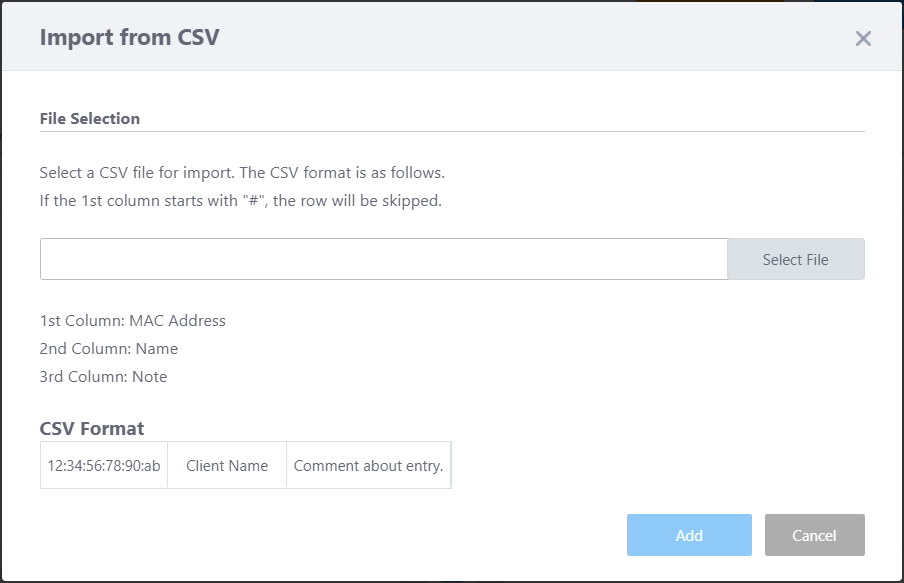
|
| "Add" button |
Shows the "Add client definition" dialog box.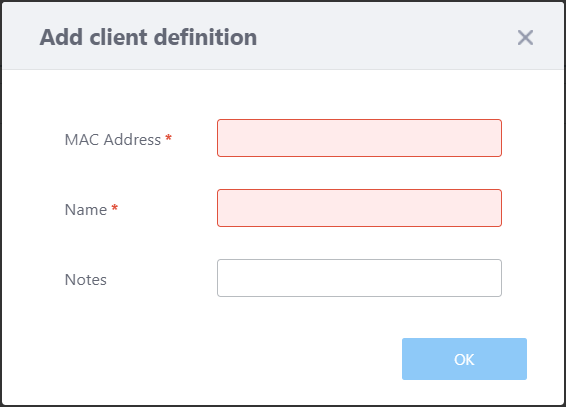
|
Section 2
| Item Name | Description |
|---|---|
| X Client definition | Shows the total number of client definition entries. |
| Search client definition |
Lets you search client definition entries. The Search field lets you enter a partial string to match. The screen displays entries with that string in one of the following fields: "MAC Address", "Name" or "Notes". To remove the filter, delete the string from the search field and press enter. NoteThe search is case-sensitive. |
| MAC Address | Shows the defined MAC address. |
| Client Name | Shows the defined display name of the client. |
| Notes | Shows any comments you entered about the client definition. |
| Edit (pencil icon) |
Shows the "Add client definition" dialog box.
|
| Delete (trashbin icon) | Deletes the client definition. |
Floor Map [Smart Connect View]
When an AWC-SC Smart Connect network is configured on the floor map, you can display the connection status, the AP roles, and so on.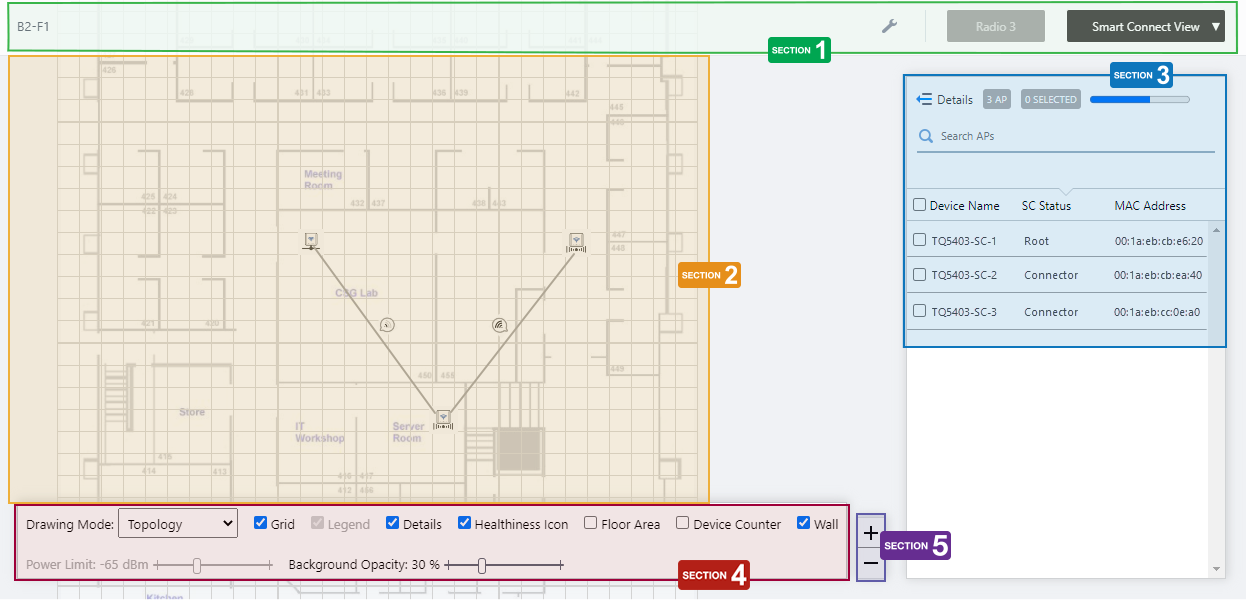
Section 1
| Item Name | Description |
|---|---|
| Management Group / Floor Map Group | The floor map name and the management group of the selected floor map will be displayed. |
| "Spanner" icon |
Hovering the mouse cursor over the Spanner icon shows a dropdown menu including some operations for managed APs. Select APs by checking on the AP list or clicking the AP icons on the floormap, you can then configure the selected APs. You cannot perform Apply Settings, Reboot, Assign Firmware, or Upgrade Firmware in Smart Connect view.
|
| Radio dropdown menu | Disabled in Smart Connect View. |
| View Selection dropdown menu |
Lets you change what information is displayed on the Floor Map Details screen.
|
| "Back to list" button | Click to return to the Floor Map List screen. |
Section 2
- The icon of the wireless AP displays its role in AWC-SC.
- Root AP:
Shown by a wired AP icon.

- Satellite AP (Connector AP or Terminator AP)
Shown by an icon of the AP connected by radio.

- Acting as a Satellite AP in spite of being defined as a Root AP
The UTP cable may be not wired up.

- Acting as a Root AP in spite of being defined as a Satellite AP
A UTP cable may be still connected unintentionally.

- Not acting as an AWC-SC member AP
The AP may not be under management, the firmware may not be up to date, or the required license may not have been applied.

- Root AP:
- You can see the logical connections between the wireless APs by selecting "Topology" from the "Drawing Mode" dropdown menu in the floor map control.
In Topology drawing mode, the link between wireless APs is drawn with a gray line.
When "Healthiness Icon" in the floor map control is checked, the radio wave strength will be indicated by the number of bars in the balloon of the Healthiness Icon.
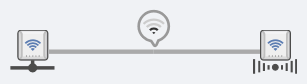
Table 28: Healthiness Icons
Number of bars Power 4 -57dBm or greater 3 -62 to -58dBm 2 -69 to -63dBm 1 -79 to -70dBm 0 -80dBm or less
- You can see the traffic utilization between the wireless APs by selecting "Traffic" from the "Drawing Mode" dropdown menu in the floor map control.
In the Traffic drawing mode, the link line is divided in the middle, and each half depicts the utilization rate from the AP linked directly. For example, in the link between AP1 and AP2, the half nearer to AP1 shows the transmission utilization rate from AP1 to AP2, and the half nearer to AP2 shows transmission from AP2 to AP1.
The color of the half link indicates the utilization rate.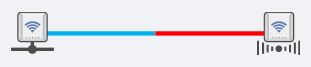
The utilization rate is calculated based on the link speed and the amount of traffic between the APs.
- Light blue: 0 to 25%
- Green: 25 to 50%
- Yellow: 50 to 75%
- Red: 75 to 100%
- Light blue: 0 to 25%
Section 3
| Item Name | Description |
|---|---|
| Details | Clicking this shows Acceptor and Connector Tx / Rx Bytes per second and tags, in addition to the default items (Device Name, SC Status, and MAC Address). Clicking Details again returns you to the default non-detailed view. |
| X AP | Shows the number of wireless APs placed on the floor map. This includes APs on which Smart Connect is not enabled or available. |
| Refresh Timer | Shows the status of the timer that automatically refreshes the page with the blue progress bar. The list is automatically refreshed at the interval configured on "Refresh Rates" > "Floor MAP (Smart Connect)" in the User Management menu. (The default is 5 seconds.) |
| Search Wireless AP |
The Search field lets you enter a partial string to match. The screen displays entries with that string in one of the following fields: "Device Name", "SC Status", or "MAC Address" fields. To remove the filter, delete the string from the search field and press enter. NoteThe search is case-sensitive. |
| Device Name | Shows the name given to the AP. |
| SC Status |
Shows the AP's role in AWC-SC.
|
| MAC Address | Shows the device's MAC address. |
Section 4
In the Smart Connect View, "Power Limit" is does not apply and is disabled.
Also, when the drawing mode is "Topology", "Legend" will be disabled, and when the drawing mode is "Traffic", the "Healthiness Icon" will be disabled.

| Item Name | Description |
|---|---|
| Drawing Mode | You can select the mode that the link lines between APs on the floor map represent, either "Topology" or "Traffic". |
| Grid | Lets you enable or disable grid lines on the floor map. Checking this shows grid lines on the floor map. |
| Legend | Lets you enable or disable the legend. Check to display. |
| Details | Toggles the visibility of the AP List. Check to display. |
| Healthiness Icon | In Topology drawing mode, lets you choose whether to display the Healthiness Icon. Check to display. |
| Floor Area | This item is not supported. |
| Device Counter | This item is not supported. |
| Wall | Lets you choose whether to display the walls if walls have been created on the floor map (using the Edit Wall page). Check to display. |
| Opacity | Specify the opacity of the floor map background image. |
Section 5
Zoom In/Out buttons.
You can zoom in (+) or zoom out (-) of the floor map display. You can also use the mouse wheel scroll to zoom in or out.
Smart Connect AP List (Detail)
Clicking "Details" at the top of the AP list in the "Smart Connect View" extends the list to show additional information such as SC Status and Tx / Rx throughput.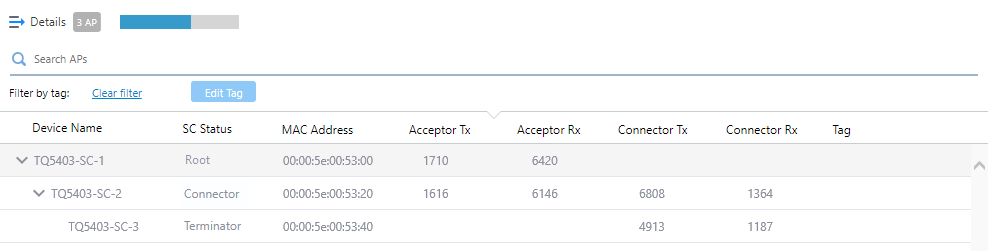
| Item Name | Description |
|---|---|
| Details | Clicking this shows Acceptor and Connector Tx / Rx Bytes per second and tags, in addition to the default items (Device Name, SC Status, and MAC Address). Clicking Details again returns you to the default non-detailed view. |
| X AP | Shows the number of wireless APs placed on the floor map. This includes APs on which Smart Connect is not enabled or available. |
| Refresh Timer | Shows the status of the timer that automatically refreshes the page with the blue progress bar. The list is automatically refreshed at the interval configured on "Refresh Rates" > "Floor MAP (Smart Connect)" in the User Management menu. (The default is 5 seconds.) |
| Search Wireless AP |
You can search for wireless APs on the floor map. The Search field lets you enter a partial string to match. The screen displays entries with that string in one of the following fields: "Device Name", "SC Status", or "MAC Address" fields. To remove the filter, delete the string from the search field and press enter. NoteThe search is case-sensitive. |
| Device Name | Shows the name given to the AP. |
| SC Status |
Shows the AP's role in AWC-SC.
|
| MAC Address | Shows the device's MAC address. |
| Acceptor Tx | Shows the throughput of the traffic transmitted to the downlink AP (Terminator AP for Root/Connector APs, and Connector AP for Root AP) in bytes per second. |
| Acceptor Rx | Shows the throughput of the traffic received from the downlink AP (the Terminator AP for Root/Connector APs, and the Connector AP for the Root AP) in bytes per second. |
| Connector Tx | Shows the throughput of the traffic transmitted to the uplink AP (the Root AP for Connector/Terminator APs, and the Connector AP for the Terminator AP) in bytes per second. |
| Connector Rx | Shows the throughput of the traffic received from the uplink AP (the Root AP for Connector/Terminator APs, and the Connector AP for the Terminator AP) in bytes per second. |
| Tag | Shows the tags set on the AP. |
Floor Map [Rogue AP View]
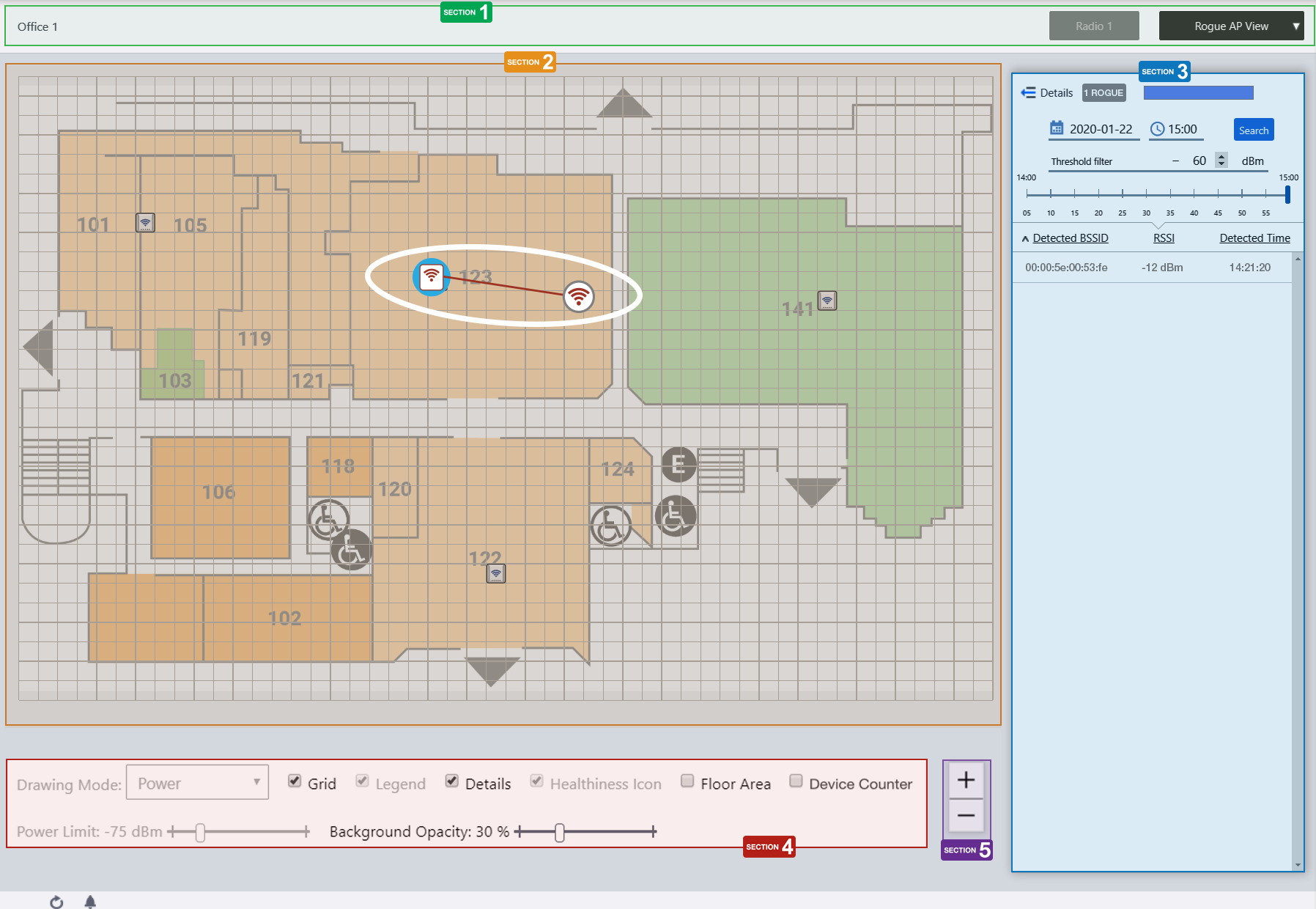
Section 1
| Item Name | Description |
|---|---|
| Management Group / Floor Map Group | The floor map name and the management group of the selected floor map will be displayed. |
| Radio dropdown menu | Disabled in Rogue AP View. |
| View Selection dropdown menu |
Lets you change what information is displayed on the Floor Map Details screen.
|
| "Back to list" button | Click to return to the Floor Map List screen. |
Section 2
- Managed AP icons turn red on the map if there are rogue AP detection reports by the managed AP during the time period specified in section 3.
- Clicking a managed AP on the map toggles display status of the detected rogue APs.
Note
The position of the rogue AP icon does not represent the exact location of the rogue AP at the time. Icons are placed to not overlap with other icons in the history.
- When you click a rogue AP icon on the floor map, the corresponding entry in section 3 is highlighted.
Section 3
In Rogue AP View, "Refresh Timer" is disabled.
| Item Name | Description |
|---|---|
| Details | Clicking this shows the reason to consider the detected neighbor AP a rogue, the SSID, Channel and detecting AP, in addition to the default items (BSSID, RSSI and Detection Time). Clicking Details again returns you to the default non-detailed view. |
| X ROGUE | Shows the number of rogue APs that match the specified time period and received signal strength. |
| Date/Time |
Specify a date and time, to filter rogue APs on the list. You can enter a date in "YYYY-MM-DD hh:mm" format or select a day on the calendar that appears when you click the field. The time can be selected in one-hour intervals. Alternatively, a slider control lets you specify a more granular time. |
| Search | Filters rogue AP detection history by the specifed date/time. |
| Threshold Filter |
Specify a minimum received signal strength for a rogue AP to be displayed. Rogue APs are only shown on the list and floor map if the received signal strength of the rogue AP is greater than the specified minimum value. |
| Slider Control | Lets you specify detection time in 5 minute intervals. |
| Rogue AP List | |
| Detected BSSID |
Shows a list of BSSIDs that managed APs on the map detected. Clicking a rogue AP entry in the list toggles display of all rogue AP icons detected by the managed APs. When the display status of a rogue AP icon is enabled, you can highlight the rogue AP's icon on the floor map by hovering over the rogue AP entry in the list. |
| RSSI | Received Signal Strength of the rogue AP observed on the detecting managed AP. A higher value (closer to 0) means a stronger signal, therefore the rogue AP may be closer to the detecting managed AP. |
| Detected Time | Shows the date/time when the managed AP detected the rogue AP. |
Section 4
In Rogue AP View, "Drawing Mode", "Legend", "Healthiness Icon", and "Power Limit" are irrelevant and disabled.

| Item Name | Description |
|---|---|
| Grid | Lets you enable or disable grid lines on the floor map. Checking this shows grid lines on the floor map. |
| Details | Toggles the visibility of the Rogue AP List. Check to display. |
| Floor Area | This item is not supported. |
| Device Counter | This item is not supported. |
| Wall | Lets you choose whether to display the walls if walls have been created on the floor map (using the Edit Wall page). Check to display. |
| Opacity | Specify the opacity of the floor map background image. |
Section 5
Zoom In/Out buttons.
You can zoom in (+) or zoom out (-) of the floor map display. You can also use the mouse wheel scroll to zoom in or out.
Rogue AP List (Detail)
Clicking "Details" at the top of the Rogue AP list on "Floor Map [Rogue AP View]" extends the list to show additional information such as Rogue Reason, SSID, Channel and Detecting AP.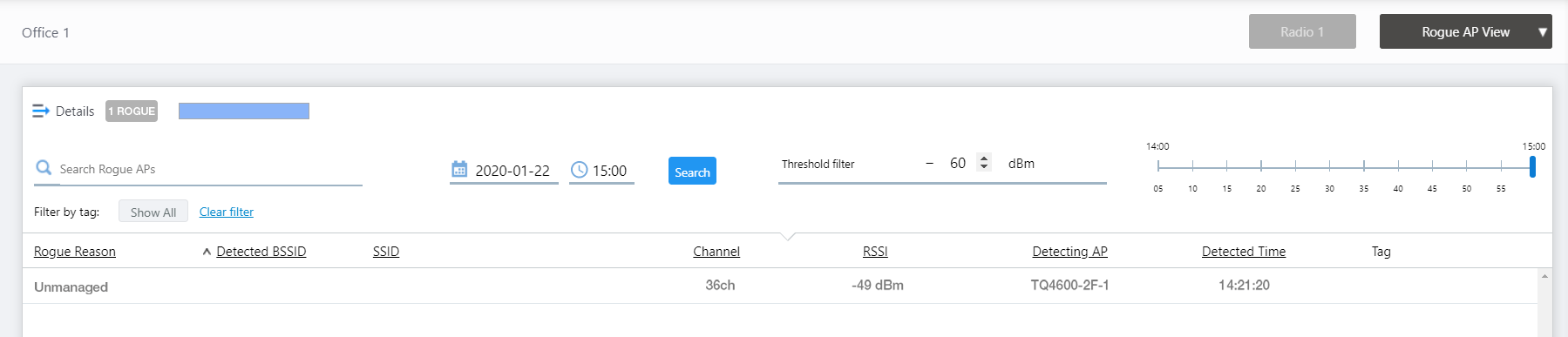
| Item Name | Description |
|---|---|
| Details | Clicking this shows the reason to consider the detected neighbor AP a rogue, the SSID, Channel and detecting AP, in addition to the default items (BSSID, RSSI and Detection Time). Clicking Details again returns you to the default non-detailed view. |
| X ROGUE | Shows the number of rogue APs that match the specified time period and received signal strength. |
| Search Rogue AP search box |
Entries in the list can be filtered by entering a partial string in the search box. The Search field lets you enter a partial string to match. The screen displays entries with that string in one of the following fields: "BSSID" or "SSID". To remove the filter, delete the string from the Search field and press Enter. NoteThe search is case-sensitive. |
| Date/Time |
Specify a date and time, to filter rogue APs on the list. You can enter a date in "YYYY-MM-DD hh:mm" format or select a day on the calendar that appears when you click the field. The time can be selected in one-hour intervals. Alternatively, a slider control lets you specify a more granular time. |
| Search | Filters rogue AP detection history by the specifed date/time. |
| Threshold Filter |
Specify a minimum received signal strength for a rogue AP to be displayed. Rogue APs are only shown on the list and floor map if the received signal strength of the rogue AP is greater than the specified minimum value. |
| Slider Control | Lets you specify detection time in 5 minute intervals. |
| Filter by tag | Lets you filter APs with tags. Clicking tags uses the tags to filter the list. Clicking them again removes the filter. Clicking "Clear filter" removes the filter for all tags. |
| Rogue AP List | |
| Rogue Reason | Shows the reason to consider the detected neighbor AP a rogue. |
| Detected BSSID | Shows a list of BSSIDs that managed APs on the map detected. |
| SSID | Shows the SSID of the detected AP. |
| RSSI | Received Signal Strength of the rogue AP observed on the detecting managed AP. A higher value (closer to 0) means a stronger signal, therefore the rogue AP may be closer to the detecting managed AP. |
| Detecting AP | Shows the AP name which detected the neighbor AP. |
| Detected Time | Shows the date/time when the managed AP detected the rogue AP. |
| Tag | Shows tags added to the AP. |
Floor Map [Add AP to Map]
In this view, you can place an AP on the floor map.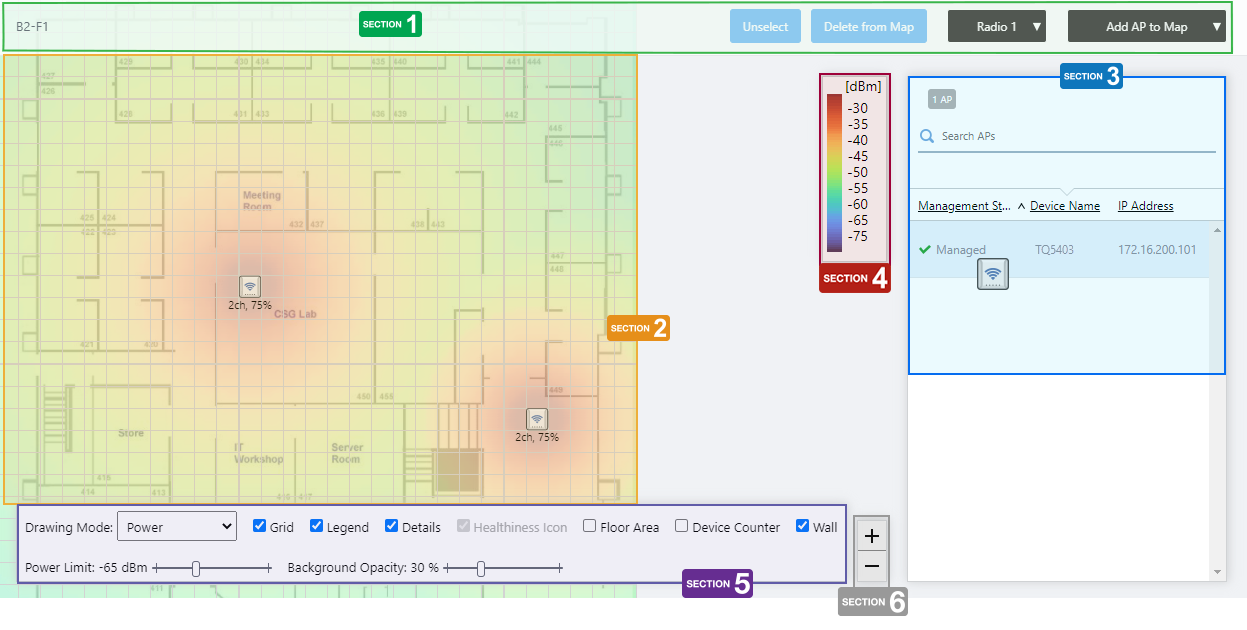
Section 1
| Item Name | Description |
|---|---|
| Management Group / Floor Map Group | The floor map name and the management group of the selected floor map will be displayed. |
| "Unselect" button | Deselects the currently selected (highlighted by blue dot) wireless APs. |
| "Delete from Map" button | Removes the currently selected (highlighted by blue dot) wireless APs from the map. |
| Radio dropdown menu | Select which radio band information to display from Radio 1, Radio 2, Radio 3, or "All Radios". The default is "All Radios". If you select "All Radios", Associated Client Information for all bands (Radio 1, Radio 2, and Radio 3) will be displayed. |
| View Selection dropdown menu |
Lets you change what information is displayed on the Floor Map Details screen.
|
| "Back to list" button | Click to return to the Floor Map List screen. |
Section 2
- When you click the row of the AP you want to place on the Map from the list of unallocated APs in Section 3, the mouse pointer changes to the wireless AP icon.
By clicking on the grid of the floor map with the icon, you can place the AP on the floor map.
- The status of the placed AP will be displayed on the floor map, depending on what you previously selected in the View Selection dropdown menu. If you selected "Smart Connect View" in the dropdown menu, you will see the AP's Smart Connect status, and if you selected a different view, the AP status will be drawn on the floor map according to the "Wireless Status View".
- If you want to move an AP icon on the floor map, you can drag and drop it on the place you want it to move to.
- To remove an AP icon on the floor map, click on it to select it (the selected icon will drawn with a blue circle behind it) and then click the "Delete from Map" button at the top right of the content section.
You can select multiple APs by clicking them one by one.
To deselect, click on the "Unselect" button at the top right of the content section.
Section 3
Shows the wireless AP list.
The list contains only the APs that belong to the same Management Group as the map, and that are not yet placed on any map.
| Item Name | Description |
|---|---|
| X AP | Displays the number of wireless APs under the management group to which the floor map belongs, that are not yet placed on any floor map. |
| Search Wireless AP |
You can search for wireless APs not placed on the floor map. The Search field lets you enter a partial string to match. The screen displays entries with that string in one of the following fields: "Management Status", "Device Name", "IP address", or "AP Profile". To remove the filter, delete the string from the search field and press enter. NoteThe search is case-sensitive. |
| Device Name | Shows the name given to the AP. |
| Status Icon | When the AP is managed by the AWC Plug-in, a green checkmark is displayed. When the AP is not managed by the AWC Plug-in, a red triangle is displayed. |
| Management Status | Shows the Management Status of the AP. |
| IP Address | Shows the AP's IP address. |
Section 4
Shows the legend of either the Wireless Status View or Smart Connect View.
The legend will be shown according to the immediately previous selection of the Views; the Smart Connect View legend for Smart Connect View, and the Wireless Status View legend for the others.
Section 5
The legend will be shown according to the immediately previous selection of the Views; the Smart Connect View legend for Smart Connect View, and the Wireless Status View legend for the others.
| Item Name | Description |
|---|---|
| Drawing Mode | The options in the Drawing Mode dropdown menu differ according to the immediately previous selection of the Views. If you chose Smart Connect View previously, the Drawing Mode dropdown comes with Topology and Traffic, and if you chose another view, the dropdown comes with Power and Channel. |
| Grid | Lets you enable or disable grid lines on the floor map. Checking this shows grid lines on the floor map. |
| Legend | Lets you enable or disable the legend. Check to display. |
| Details | Whether to display List of unallocated APs. Check to display. |
| Healthiness Icon | Whether to display the Healthiness Icon. This will work if you chose Smart Connect View from the View Selection dropdown menu immediately before, and you chose Topology from the Drawing Mode. Otherwise, this is irrelevant and disabled. Check to display. |
| Floor Area | This item is not supported. |
| Device Counter | This item is not supported. |
| Power Limit | You can set the lower limit of the wireless strength that is drawn on the heat map display, if you chose a view other than Smart Connect View from the View Selection dropdown menu immediately before. |
| Wall | Lets you choose whether to display the walls if walls have been created on the floor map (using the Edit Wall page). Check to display. |
| Opacity | Specify the opacity of the floor map background image. |
Section 6
Zoom In/Out buttons.
You can zoom in (+) or zoom out (-) of the floor map display. You can also use the mouse wheel scroll to zoom in or out.
Floor Map [Edit Wall]
You can draw walls with polylines to simulate radio attenuation by walls, partitions, and pillars on the floor map.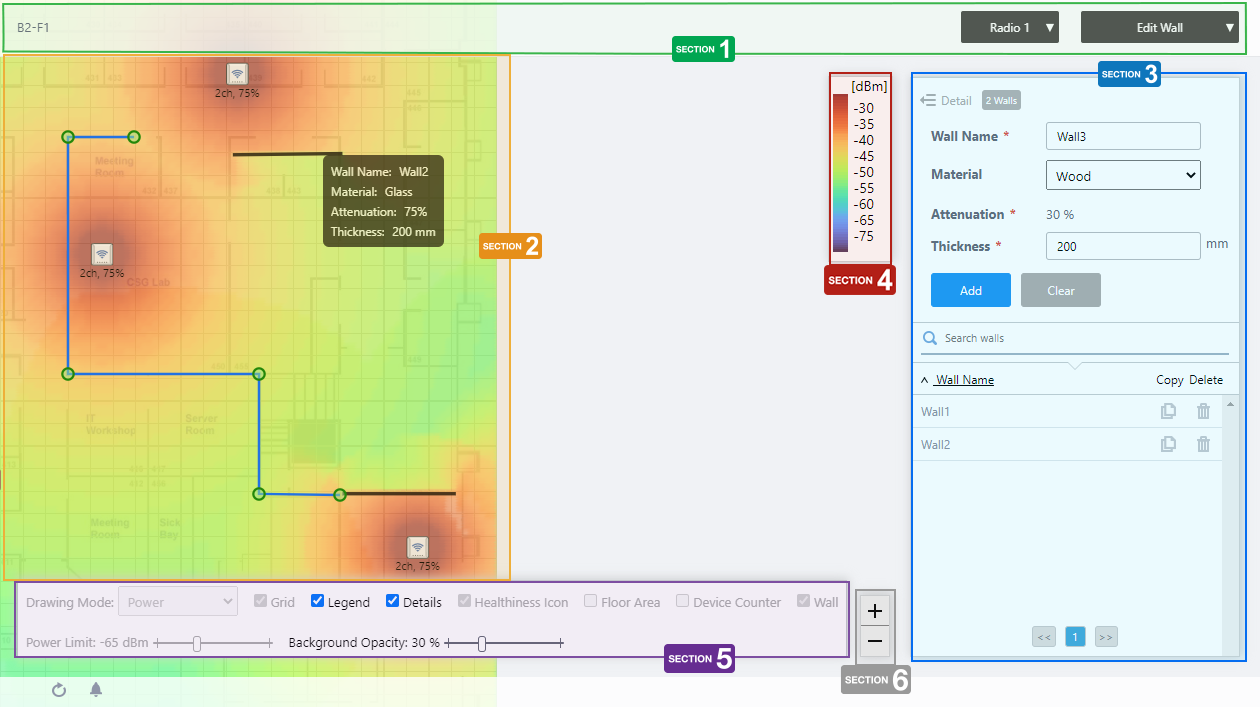
Section 1
| Item Name | Description |
|---|---|
| Management Group / Floor Map Group | The floor map name and the management group of the selected floor map will be displayed. |
| Radio dropdown menu | Lets you select a radio band to show on the map, from Radio 1, 2 or 3. |
| View Selection dropdown menu |
Lets you change what information is displayed on the Floor Map Details screen.
|
| "Back to list" button | Click to return to the Floor Map List screen. |
Section 2
You can view and draw walls.
- Type in the "Wall Name" field to turn on wall edit mode. A crosshair mouse pointer will appear.
- Click on the corner of a wall with the crosshair mouse pointer to start drawing the wall as a polyline.
- To finish drawing a wall, double-click on the end point of the wall.
- You can reshape it by using the drag-and-drop on each corner point.
Note
You can not add or delete corner points.
- Click on the corner of a wall with the crosshair mouse pointer to start drawing the wall as a polyline.
- When you hover over an existing wall, a popup balloon shows the wall information.
- Wall Name:
Shows the wall name configured.
- Material:
Shows the material name specified.
- Attenuation:
Shows the attenuation rate according to the wall material, or specified manually (unit: %).
- Thickness:
Shows the wall thickness (unit: mm).
- Wall Name:
Section 3
Shows the Wall list.
| Item Name | Description |
|---|---|
| X Walls | Shows the number of walls defined on the floor map. |
| Wall Name | Shows the wall name. |
| Material |
Select a wall material from the drop-down list. The attenuation factor varies according to the wall material. The preset materials and attenuation factor are as follows:
|
| Attenuation | Shows the attenuation factor according to the selected material. If "User Specified" is selected for the material, enter a value between 1 and 99 (unit: %), depending on the attenuation by the actual wall. |
| Thickness | Specify the thickness of the wall with a value from 1 to 32767 (unit: mm). |
| "Add" / "Save" button | Saves a newly created wall or edited existing wall. You can add a wall by typing the wall name, then drawing a polyline on the floor map. |
| "Clear" / "Cancel" button | Cancels changes before clicking the "Add" / "Save" button. |
| Search walls |
You can search for particular walls on the floor map. The Search field lets you enter a partial string to match. The screen displays entries with that string in the "Wall Name" field. To remove the filter, delete the string from the search field and press enter. NoteThe search is case-sensitive. |
| Wall Name | Shows the wall name defined for display. |
| "Copy" button | Duplicates the selected wall. The wall name of the duplicated wall will be the original wall name plus "_copy". If this name is already in use, a sequential number with brackets follows the suffix, such as "_copy(1)". If this name is already in use, a sequential number with brackets follows the suffix, such as "_copy(1)". |
| "Delete" button | Deletes the selected wall. |
Section 4
Shows the legend of the Wireless Status View.
Section 5

| Item Name | Description |
|---|---|
| Grid | Lets you enable or disable grid lines on the floor map. |
| Legend | Lets you enable or disable the legend. Check to display. |
| Details | Toggles the visibility of Area List. Check to display. |
| Wall | Lets you choose whether to display the walls if walls have been created on the floor map (using the Edit Wall page). |
| Opacity | Specify the opacity of the floor map background image. |
Section 6
Zoom In/Out buttons.
You can zoom in (+) or zoom out (-) of the floor map display. You can also use the mouse wheel scroll to zoom in or out.
21 Oct 2022 11:59