Access Management Screen
Program Menu
Once the AWC Plug-in is installed with Vista Manager EX, you can see the following items in the "AT-Vista Manager EX" group in the Windows' program menu.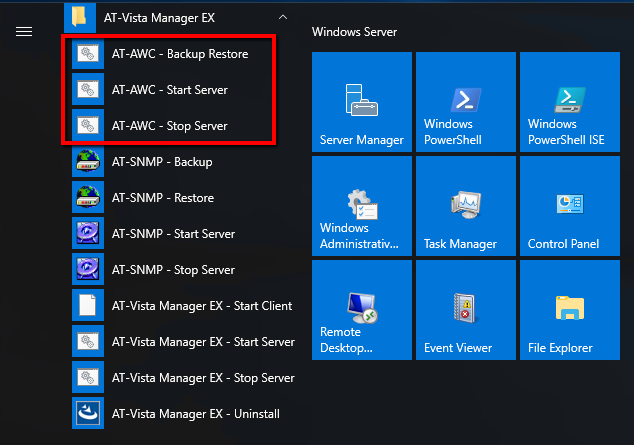
| Item Name | Description |
|---|---|
| AT-AWC - Start Server |
Start the AWC Plug-in server. By default, the AWC Plug-in server automatically starts when Windows boots up. [Executable File] [Vista Manager EX Installation Directory]\Plugins\AT-AWC\root\startserver.bat |
| AT-AWC - Stop Server |
Stop the AWC Plug-in server. [Executable File] [Vista Manager EX Installation Directory]\Plugins\AT-AWC\root\stopserver.bat |
| AT-AWC - Backup Restore |
Back up and restore the AWC Plug-in's system data. [Executable File] [Vista Manager EX Installation Directory]\Plugins\AT-AWC\tools\maintenance\maintenance.bat |
NoteOn Windows Server 2019, some of the menu items may not be created correctly in the program menu's "AT-Vista Manager EX" group.
If this occurs, restart Windows Server 2019 and the missing items will be added to the "AT-Vista Manager EX" program group.
Before restarting Windows Server 2019, you can run the missing items by directly launching the above executable files, with Administrator privileges.
Start and Stop Server
This section covers the steps to start or stop the AWC Plug-in server.NoteAfter restarting the server, the AWC Plug-in shows the last retrieved Management Status for unreachable APs, which may not be up-to-date. Once the APs become reachable again, the latest status will be displayed.
Start Server
By default, the AWC Plug-in is configured to automatically start its server process when Windows boots.To start the server manually, select "AT-Vista Manager EX" > "AT-AWC - Start Server" from the program menu.
To disable automatic startup, do the following steps.
◼ Change the start type of the AT-AWC Service
- Open Administrative Tools > Services (Local).
- Right-click "AT-AWC Service" on the list.
- Select "Properties" on the popup menu.
- Select the "General" tab on the "AT-AWC Service Properties" dialog box.
- Change "Startup type" to "Manual" and click "OK".
◼ Disable the system startup task
- Open Administrative Tools > Task Scheduler.
- Select "Task Scheduler (Local)" > "Task Scheduler Library" > "Allied Telesis".
- Right-click "Start Server" on the list.
- Select "Disable" from the popup menu.
Stop Server
To stop the AWC Plug-in server, select "AT-Vista Manager EX" > "AT-AWC - Stop Server" from the program menu.Login and Logout
To use the AWC Plug-in with Vista Manager EX, you have to register it on Vista Manager EX's "Plug-in Management" screen. See the "Registering the plug-ins" section of the Vista Manager Windows-based Installation Guide (PDF) for more details.Please refer to the "Logging into Vista Manager EX" section of the Vista Manager Windows-based User Guide (PDF) for information on how to login to Vista Manager EX.
Once the AWC Plug-in is registered in Vista Manager EX, the AWC Plug-in menu appears on the Vista Manager EX Main Menu.
In addition, the AWC Plug-in has an emergency mode called "Standalone Mode". This lets you use the plug-in without Vista Manager EX if Vista Manager EX is not available.
To use Standalone Mode, you have to configure it beforehand. Refer to Operation Reference > Miscellaneous Settings > Standalone Mode for more details.
28 May 2020 09:34