Installing Licenses
Basic operation of Licenses
You have to install proper licenses before you start using AT-RADgate.- The RADIUS Authentication feature does not work until the license is installed.
- A license bundles the right to register a certain number of User or Endpoint policies. The number of User and Endpoint policies that can be registered cannot exceed this number.
NoteIf you do not have a license file, contact our sales engineer.
To obtain the license file, you need the AT-RADgate Serial Number displayed on the System Management > About page.
NoteFor the license, also refer to References > System Management > License.
Trial License
If you have not received the official license yet or if you want to try out AT-RADgate, you can use the trial license. The usage rights granted to the trial license are as follows:| Expiry Date | 90 days |
| Number of Units | 200,000 |
NoteWhen you install a regular license, any trial licenses that you have installed as well as any trial licenses that you have not installed are deactivated. Therefore, you cannot install an unused trial license after your regular license has expired. To continue using AT-RADgate, purchase an update license.
About the validity period of the License
The license for this product has a valid period.License expiration date checks are performed between 00:00:00 and 00:05:59 of AT-RADgate system time and when AT-RADgate is started.
As a result of the check, expiration warning messages is displayed in the log 28 days, 21 days, 14 days, 7 days, and 1 day before the license expiration date.
NoteIf any of the following conditions occur, the RADIUS Authentication function stops and a message is displayed at the top of the settings page notifying you that the license is invalid.You can also send deadline warning messages via email. Configure the following settings.
- Set the SMTP Server (Email Settings page)
- Register an Email Address to your account (Account Management page)
- Grant the account the permission to "Allow to configure system settings" (Account Management page)
- When some licenses have expired and the number of registered policies exceeds the permitted number granted by the license.
- If all licenses have expired
Installing Licenses
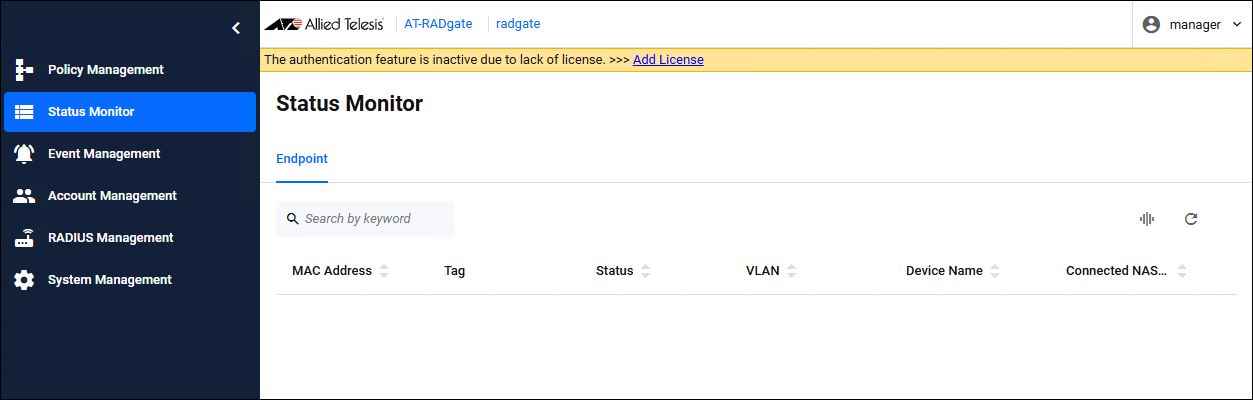
To install the license, follow the steps:- On the System Management > System Date & Time page, verify that Current Date & Time and Time Zone are correct.
- Open the System Management > License page by doing one of the following:
- If a license is not installed, click "Add License" in the message that appears at the top of the settings page.
- Click the "System Management" menu and click the "License" submenu.
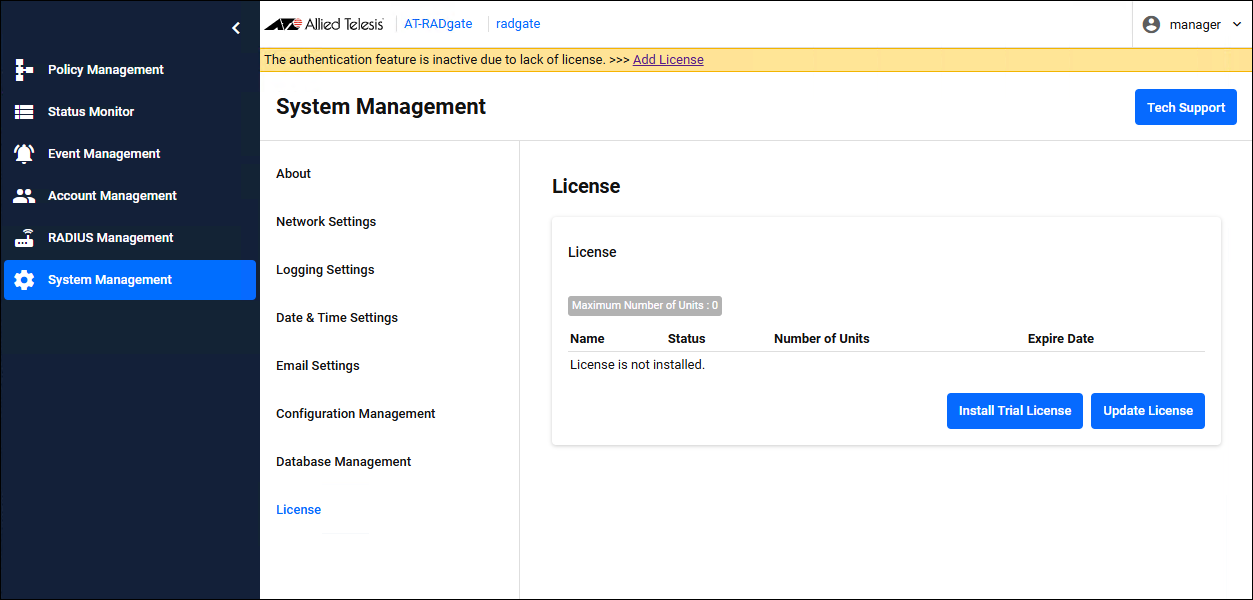
- If a license is not installed, click "Add License" in the message that appears at the top of the settings page.
- Click the "Update License" button.
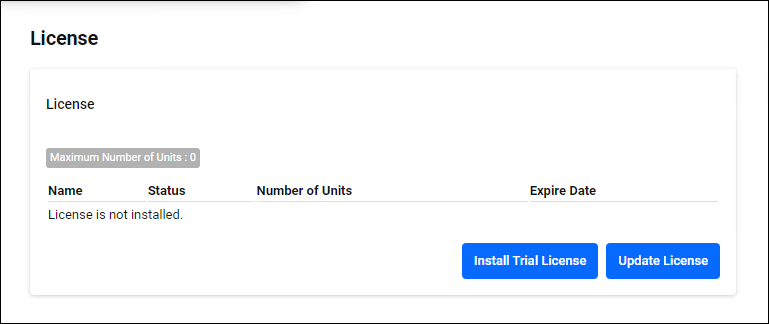
- A file selection dialog appears. Select the license file.
- Click the "OK" button.
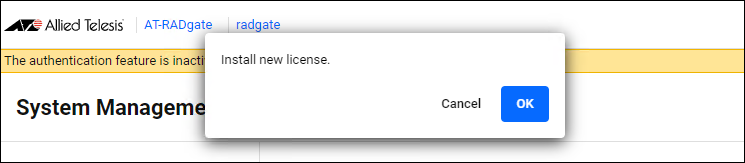
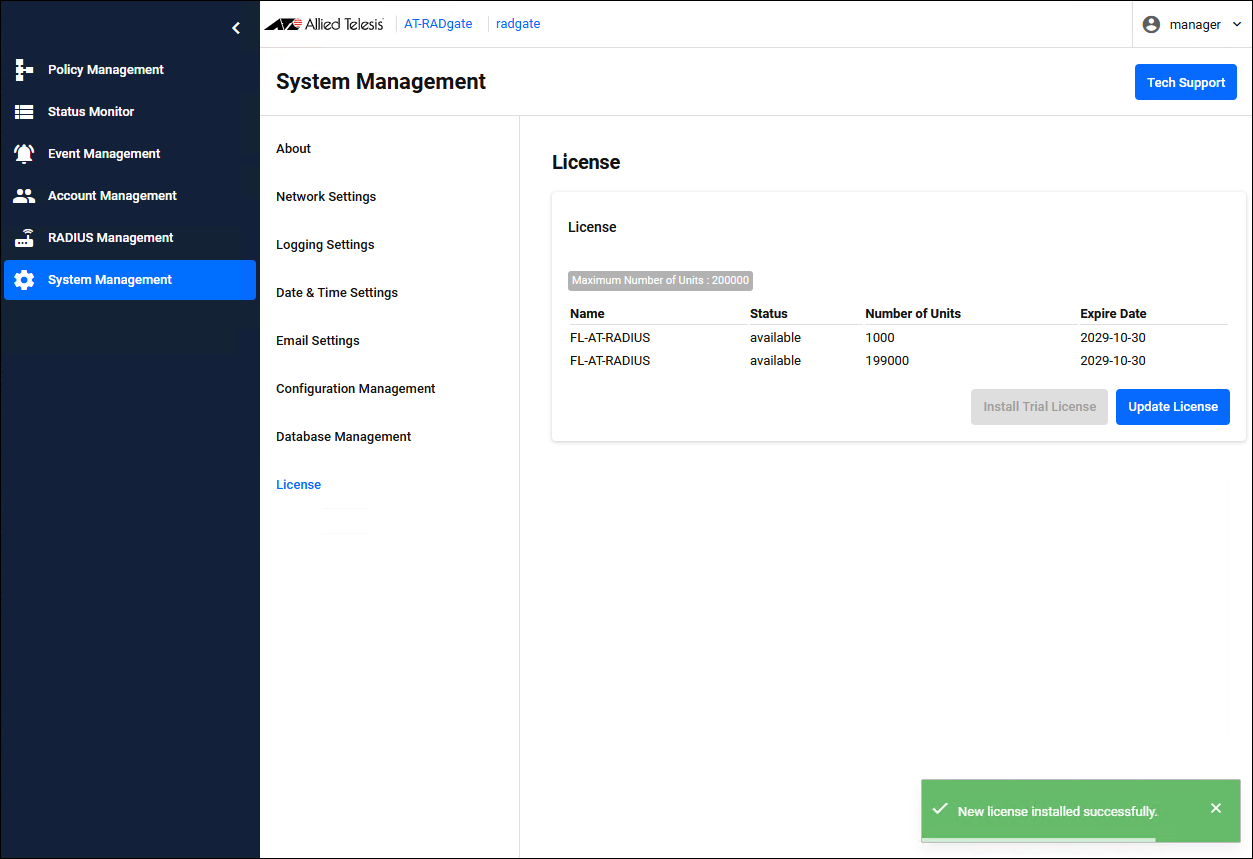
- If the "Name" and "Expire Date" of the registered license are displayed on the System Management > License page, the installation is successful.
Installing Trial License
To install the trial license, follow the steps:- On the System Management > System Date & Time page, verify that Current Date & Time and Time Zone are correct.
- Open the System Management > License page by doing one of the following:
- If a license is not installed, click "Add License" in the message that appears at the top of the settings page.
- Click the "System Management" menu and click the "License" submenu.
- If a license is not installed, click "Add License" in the message that appears at the top of the settings page.
- Click the "Install Trial License" button.
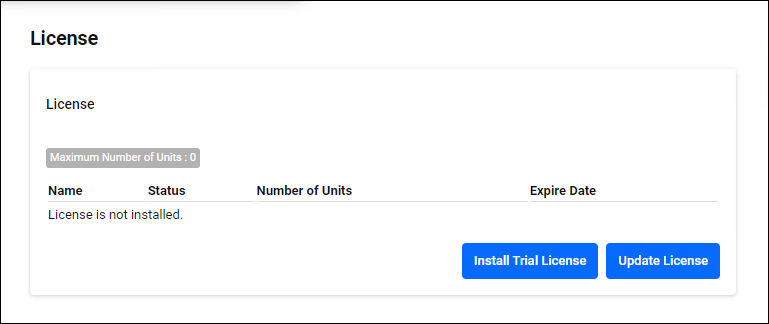
- Click the "OK" button.
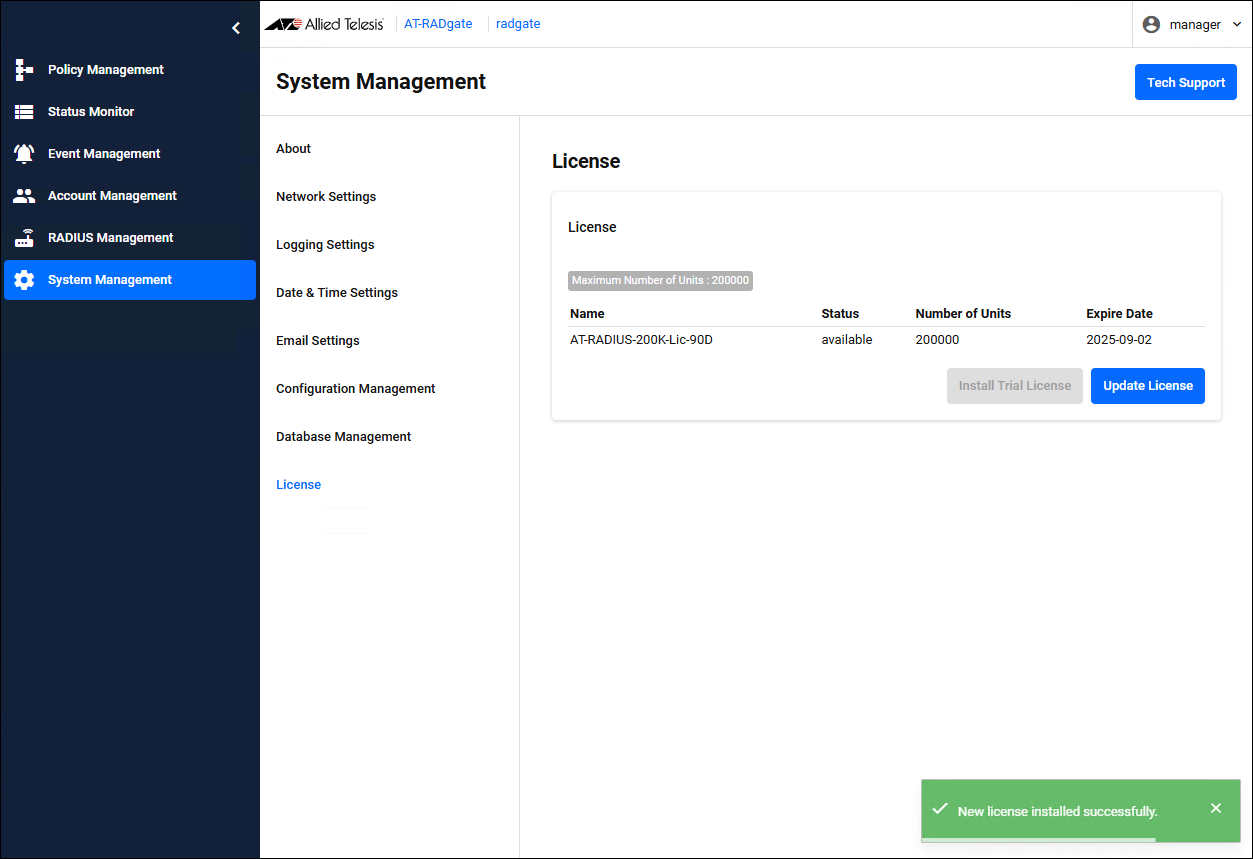
- If the trial license information is displayed on the System Management > License page, the installation is successful.
About reissue of license
The issued license is tied to the AT-RADgate Serial Number.In the following cases, the AT-RADgate Serial Number has changed and the issued license cannot be used and must be reissued. Make a note of the Serial Number displayed on the System Management > About page and contact our sales engineer.
- Remove the AT-RADgate application on the VST-APL or VST-VRT and reinstall it.
- Restore (migrate) the AT-RADgate application to VST-APL in another chassis
- Restore (migrate) the AT-RADgate application to VST-VRT on another virtual machine
Note that the Windows Active Directory settings configured on the RADIUS Management > Active Directory Settings page are not included in the backup file, so you need to reconfigure them after performing a system restore.
03 Jul 2025 16:04