Create/Edit/ Manage Accounts
This section covers the procedures to create, edit, and delete user accounts.
NoteSNMP Plug-in shares the account database with Vista Manager EX and other plugins. Only the Admin account can perform this operation.
Create Account
- Log in to Vista Manager EX using an Admin account.
- Select "User Management" from the main menu.
- Click "Add" at the top right of the Content section.
The New User page is displayed.
- Enter a Username, Full Name, and an Email address.
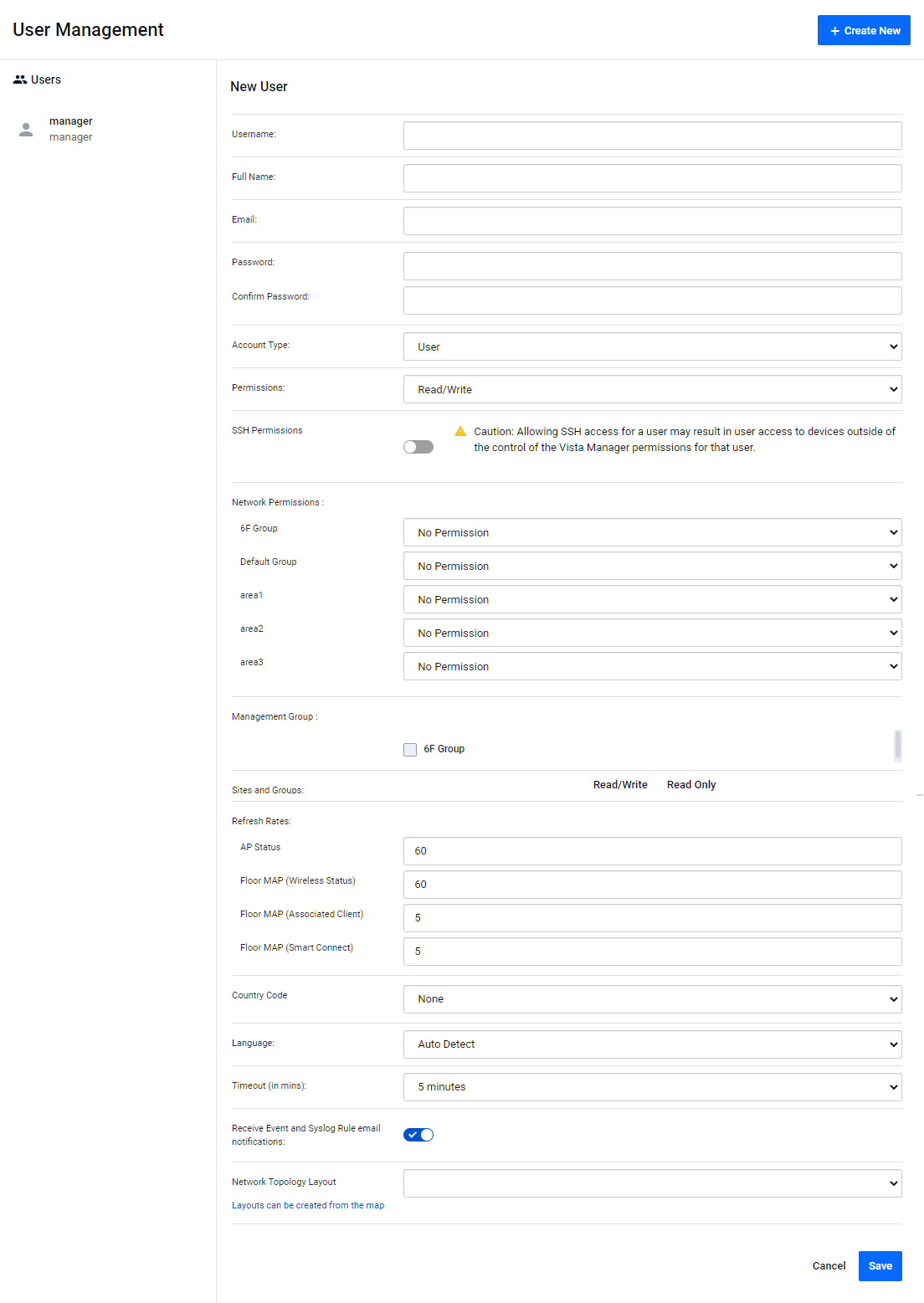
Table 1: Account Configuration 1 Item Name Description Username The account name of the user that is used to login.
Note
The username cannot be changed once created.
Note
An Username that has been registered once cannot be used again as another account even if the corresponding account is subsequently deleted.
Carefully consider the creation policy etc. before creating an Username.
Username A display name for the user, such as their full name. The full name should be less than or equal to 100 characters in length. Email The email address to be used for password recovery and license expiry notification. Please specify a valid email address.
Note
If you delete the account for which you registered your email address, you cannot re-register it as the email address of another account.
- Enter a password.
Then enter the same password again for confirmation.
Table 2: Account Configuration 2 Item Name Description Password Password for the user. The password should have 8 or more characters and contain characters from each category of digits, alphabet, and symbols (! @ # $ % ^ & * ( ) can be used). Confirm Password Enter the same password again for confirmation. - Select an account type, Admin or User.
If you specify "User" as the Account Type, select the user's Network Permissions on AMF areas.
Table 3: Account Configuration 3 Item Name Description Account Type Select an account type.
- Admin
Can use all functions of Vista Manager EX, including user and system settings.
For SNMP Plug-in, an Admin can use all of the following SNMP management functions.
View/Create/Edit/Delete Node Information, Run Subnet Auto Discovery, View/Create/Edit/Delete User Account and View System Version
- User
Can perform configuration and check status of a permitted area only.
For SNMP Plug-in, a User can use the limited set of SNMP management functions shown below.
View Node Information and Run Subnet Auto Discovery
Permission If you specify "User" as the Account Type, select the user's Permission for the Vista Manager EX Service Monitoring function. The default is "Read/Write".
- Read Only
This user can only view Service Monitoring.
- Read/Write
The Admin can view, create, edit, and delete Service Monitors.
Network Permissions If you specify "User" as the Account Type, select the user's access permission for each area. The default is "No Permission".
"Area" here stands for the following elements:
- "AMF Area" in the AMF Network
- "Management Group" of the AWC Plug-in
- "Subnet" of the SNMP Plug-in
You can choose one from the following permission levels for each area:
- No Permission
No information about the area is shown.
Note
On the My Account page of Vista Manager EX, "No Permission" is displayed for the area name.
- Read Only
Users at this level can view the area's status.
The user can view topology maps of areas and nodes and node information.
For plug-in areas, the user can only view device information in the area.
- Read/Write
The user can view the area's status and can perform certain operations on the area.
Operations include performing AMF node backup, SSH to Node, editing notes for nodes, and changing backup configuration on the AMF controller and masters.
For plug-in areas, the user can view and configure devices in the area.
- Admin
- When the AWC Plug-in is registered, configure access permissions for AWC Plug-in's Management Groups.
Table 4: Account Configuration 4 Item Name Description AWC Management Group If the account type is "User", check Management Groups for the user.
Before assigning Management Groups to a User, you have to define those groups using an Administrator account.Refresh Rates Specifies the automatic display refresh intervals (in seconds) for the AWC Plug-in.
- AP Status (Default: 60 secs)
- Floor MAP (Wireless Status) (Default: 60 secs)
- Floor Map Details(Wireless Clients) (Default: 5 sec)
- Floor Map Details (Smart Connect) (Default: 5 sec)
Country Code Specify the default Country Code for AP Profiles in the AWC Plug-in. This is used to properly configure APs for radio frequency regulation in the country. The default is None. - AP Status (Default: 60 secs)
- Select the Language for the web interface and configure the session Timeout.
Table 5: Account Configuration 5 Item Name Description Language Select the language used on the management web interface.
You can select from Auto Detect (Default), English, and Japanese. When set to "Auto Detect", the language is selected according to the web browser's language preference.Timeout Specify the web interface's session timeout.
A login session times out and the login page reappears after the configured number of minutes of inactivity.
Available options are 5 min, 10 min, 20 min, 30 min, 1 hour, and Never. If you set Timeout to Never, a login session never times out and automatic logout is disabled.
Timeout is set to 5 minutes by default. - Click "Save".
Edit Account
- Log in to Vista Manager EX using an Admin account.
- Select "User Management" from the main menu.
- Select an account to change in the user list.
- Click "Edit".
- Change the items as required and click "Save".
Delete Account
- Log in to Vista Manager EX using an Admin account.
- Select "User Management" from the main menu.
- Select an account to change in the user list.
- Click "Delete".
- The "Delete User" dialog box will appear. To delete the user, click "Delete" again.
01 Sep 2023 11:34