Before Adding Subnets and Devices
Dashboard is the page you see just after logging in to the SNMP Plug-in.
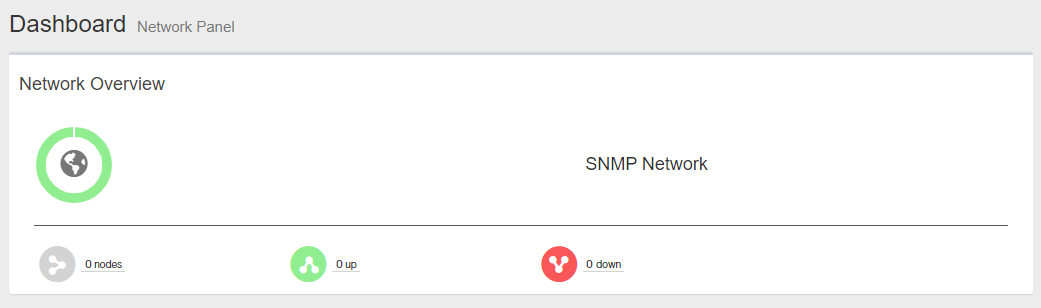
SNMP Plug-in only monitors the subnets in the Network Tree.
Because there's no subnets in the Network Tree at the first login, "Network Overview" panels look empty.
Create SNMP Parameters
A SNMP Parameter is a group of SNMP configurations such as community name, username, context name and security level. It is used by the SNMP Plug-in to access devices via SNMP.By default, SNMP parameters "public", "private" and "netman" are defined.
Add other SNMP Parameters as required.
SNMP Parameters can be added from "Add Subnet" page.
- Select "Network Tree" from the menu.
The Device Tree View page is displayed.
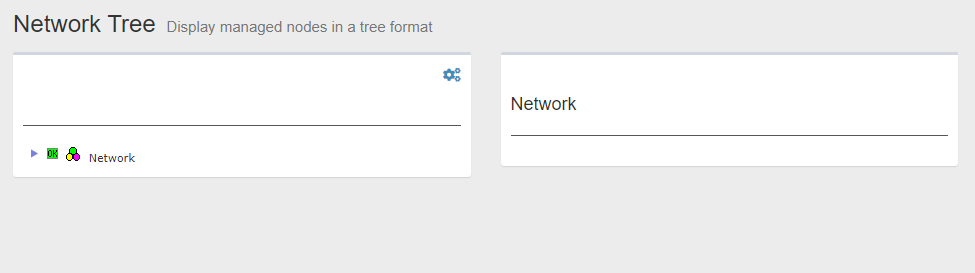
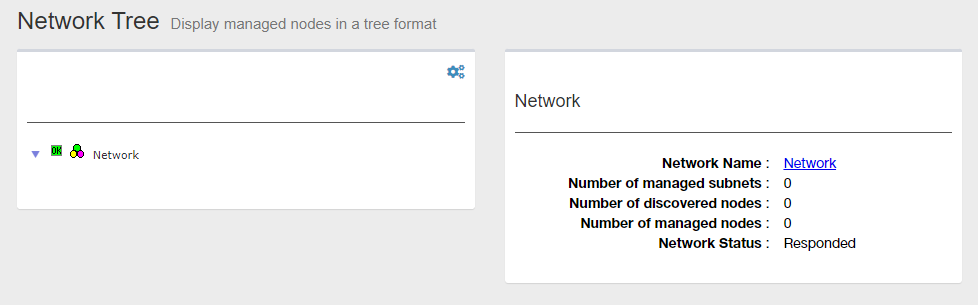
- Click "Network" in the Tree View to expand the tree.
There's no child nodes under the "Network" because there's nothing registered by default.
In the right side of the Content section, information about the selected node in the tree is displayed.
The name of the selected node is shown as the title. You can see the current title is "Network".
Under the title, the numbers of monitored subnets, detected devices and monitored devices are shown as zero.
- Click Gear icon at the top right of the Tree View.
A context menu for the selected node is displayed.
In this case, "Add Subnet" menu appears for the "Network".
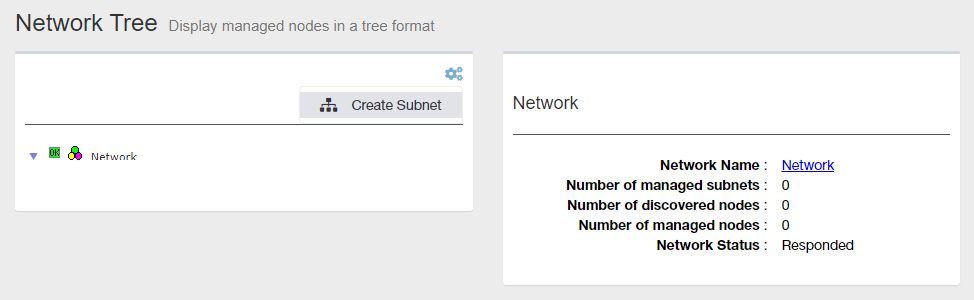
- Select "Add Subnet".
The Add Subnet page is displayed.

- Click "SNMP Parameter List" under the "SNMP Parameter Name" dropdown list.
01 Sep 2023 11:34