Configure MAC Address Lists
This section covers the procedures to create, export, edit and delete MAC Address Lists.
Each AP Profile can be assigned a single MAC address list, which can be either a whitelist or a blacklist.
For each of the TQ access points to which the profile was applied, you can enable/disable MAC Access Control using the MAC Address List on per-VAP basis.
NoteMAC Access Control using a MAC Address List assigned to an AP Profile is only supported on TQ series using standard firmware. TQ Series running SDN/OpenFlow-capable firmware are not supported.
Create MAC Address List
- Select "Wireless Configuration" > "MAC Address List".
- Click "Create" at the top right corner.
- The "Create MAC Address List" screen will appear.
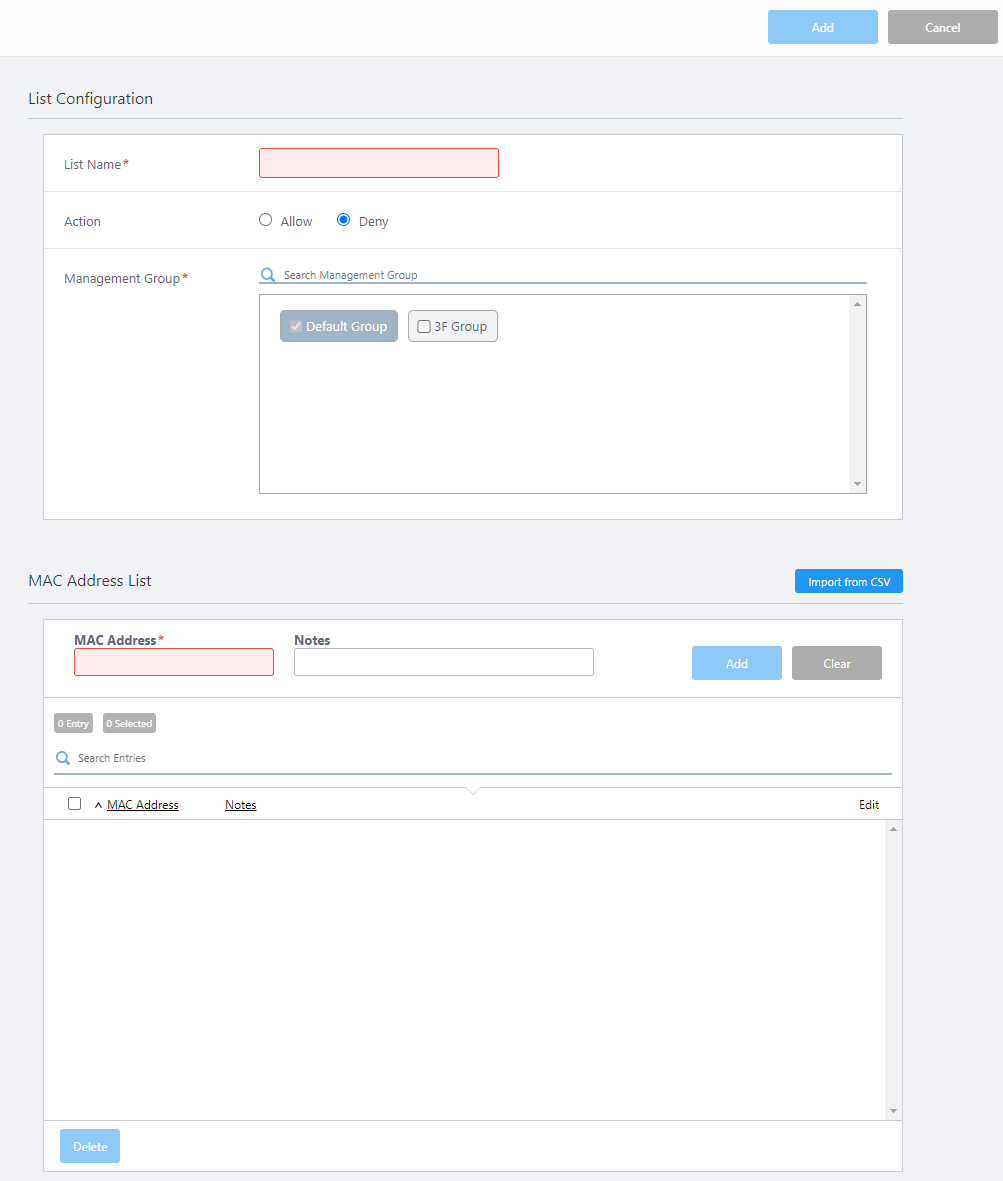
Table 1: "Create MAC Address List" screen
Item Name Description Top of the Content section "Add" button Add a MAC Address List (basic properties and address entries). "Cancel" button Cancel an operation to add the new list. List Configuration List Name Enter a name for the new MAC Address List. Action Specify an action for the MAC Address List.
"Allow" creates a whitelist, which only permits traffic from the MAC addresses in the list and blocks all other traffic.
"Deny" creates a blacklist, which only blocks traffic from the MAC addresses in the list and permits all other traffic.
"Deny" is selected by default.Management Group
Select Management Groups. You cannot uncheck "Default Wireless Group" (mandatory)
- Search Wireless Management Group: Groups in the list can be filtered by entering a partial name in the search box.
The search field lets you enter a partial string to match. The screen displays entries with that string in their name.
To remove the filter, delete the string from the search field and press enter.
Note
The search is case-sensitive.
MAC Address List 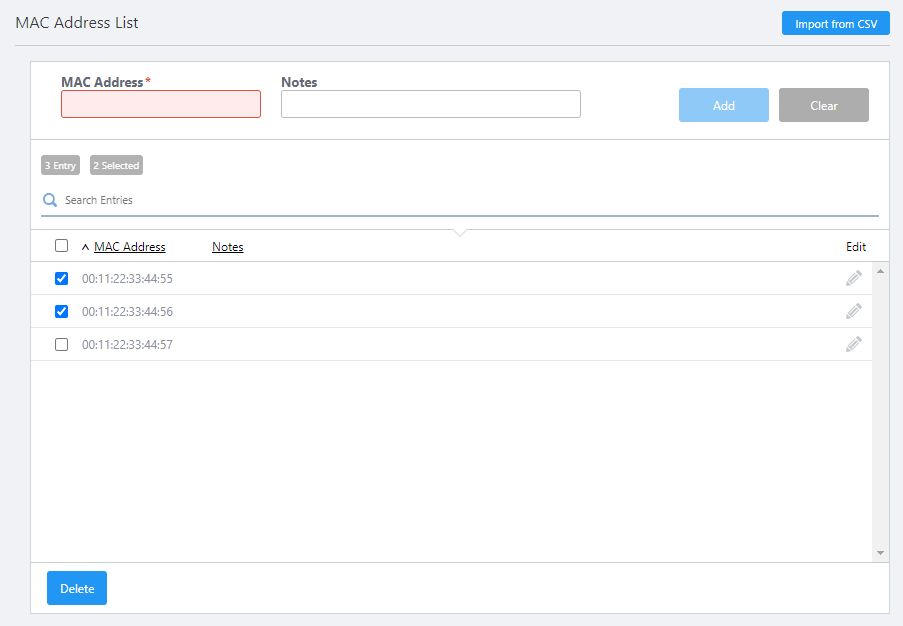
"Import from CSV file" button
Open the "Import from CSV" dialog box.
You can import MAC addresses from a CSV file.
◼ "Import from CSV" dialog box
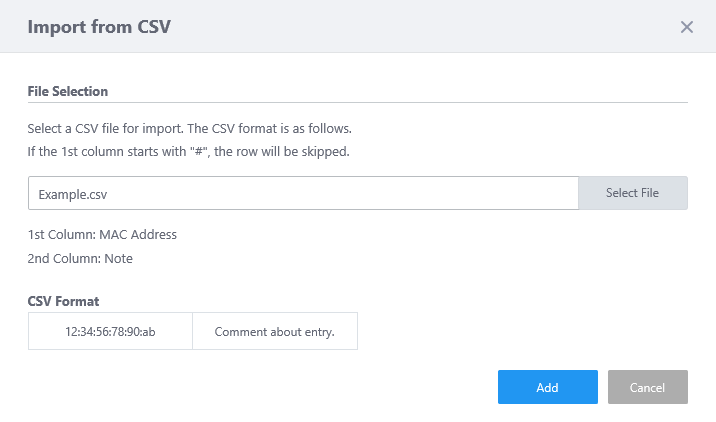
- "Select File": Open the file selection dialog box to specify a CSV file that contains MAC addresses to import.
The CSV file must contain the following data:
1st column: MAC address
2nd column: Note
* Do not include any fields after the 2nd column.
- "Add" button: Import MAC addresses from the specified CSV file.
- "Cancel" button: Stop importing a CSV file.
MAC Address Enter a MAC address to add. If you edit an existing MAC address, change the address being displayed here as needed. Notes Enter a comment for the MAC address to add. If you edit an existing MAC address, change the comment being displayed here as needed. "Add" button Adds the MAC address and comment.
If you are editing an existing MAC address, this button changes to "Save"."Clear" button Clears the "MAC Address" and "Comment" fields.
If you are editing an existing MAC address, this button is changed to "Cancel"."Save" button (When editing an existing entry)
Saves changes made to an exisitng entry."Cancel" button (When editing an existing entry)
Clears the "MAC Address" and "Comment" fields.X Entry Shows the number of MAC addresses added to the list. Search Entries
Filter entries in the list by entering a partial string in the search box.
The Search field lets you enter a partial string to match. The screen displays entries with that string in one of the following fields: "MAC Address" or "Notes".
To remove the filter, delete the string from the search field and press enter.
Note
The search is case-sensitive.
Checkbox To delete multiple entries, tick the checkboxes and click on the "Delete" button. MAC Address Shows entries of MAC addresses registered in the list. Notes Shows the comments for the MAC address entries when available. Edit (pencil icon) Lets you change the selected entry using the "MAC Address" and "Comment" fields. Delete (trashbin icon) Deletes the selected entry.
- Search Wireless Management Group: Groups in the list can be filtered by entering a partial name in the search box.
- Enter a list name.
- Select an action from "Allow" (whitelist) or "Deny" (blacklist).
- Select Management Groups to apply the MAC Address List.
- Add MAC Address entries in the "MAC Address List" section.
◼ Import MAC Addresses from CSV File
- Click "Import from CSV" at the top of the "MAC Address List" section.
- The "Import from CSV" dialog box will appear.
Click "Select File" and select a CSV file which contains MAC addresses to import.
The CSV file must contain the following data:
1st column: MAC address
2nd column: Note<
* Do not include any fields after the 2nd column.
- Click "Add".
◼ Add MAC Addresses Manually
- Enter a MAC address in the "MAC Address" field at the top of the "MAC Address List" section.
MAC address can be in the format of "xx:xx:xx:xx:xx:xx", "xx-xx-xx-xx-xx-xx" or "xxxx.xxxx.xxxx".
- Enter a comment for each MAC address if necessary.
- Click "Add".
- Repeat those steps until you are done.
- Click "Import from CSV" at the top of the "MAC Address List" section.
- Click the "Add" button at the top of the Content section.
- You will return to the MAC Address List page.
Now you can see the new list has been added to the list.
Export MAC Address List as CSV
Entries in the MAC Address List can be exported to the specified file in CSV format.An exported CSV file has the following columns.
1st column: MAC address
2nd column: Note
NoteAn exported CSV file does not contain a list name, action and Management Groups.
- Select "Wireless Configuration" > "MAC Address List".
- Select a MAC Address List to export.
- The MAC Address List will appear. Click "Export as CSV file" at the top right of the Content section.
- Download of the CSV file will begin.
The CSV filename is in the format of "vista_mac_address_list_YYYYMMDD-hhmmss.csv".
Save or open the downloaded CSV file by following the Web Browser's instructions.
Edit MAC Address List
- Select "Wireless Configuration" > "MAC Address List".
- Select a MAC Address List to export.
- The MAC Address List will appear. Click "Edit" at the top right of the Content section.
- Change the information as needed.
- Click "Save" at the top right of the Content section.
Delete MAC Address List
- Select "Wireless Configuration" > "MAC Address List".
- Select a MAC Address List to delete.
- The MAC Address List will appear. Click "Delete" at the top right of the Content section.
- The "Confirm" dialog box will appear.
- Click "Delete".
02 Nov 2021 15:51