Create Management Group
The first thing to do when using the AWC Plug-in is to create a Management Group.
A Management Group is a mechanism to define a set of APs that can be managed by a specific user.
If you created multiple user accounts on the AWC Plug-in, you can specify one or more Management Groups for each user to allow them to manage only APs in those groups.
For example, if you create an AMF network covering an entire building and assigned an administrator for each floor, you can support a multi-tenant set-up with the network, by creating a Management Group per floor and allowing each administrator to manage APs only in the Management Group corresponding to the floor.
Here we are going to create a Management Group to accommodate APs in the 6F network.
- Select "Wireless Configuration" > "Management Group" from the AWC Plug-in menu.
- Click "Create" at the top right of the screen.
The "Create Management Group" dialog box will appear.
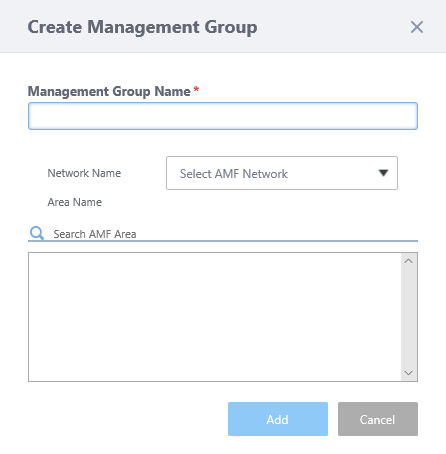
- Enter a name for the Management Group.
Here we name it "6F Group".
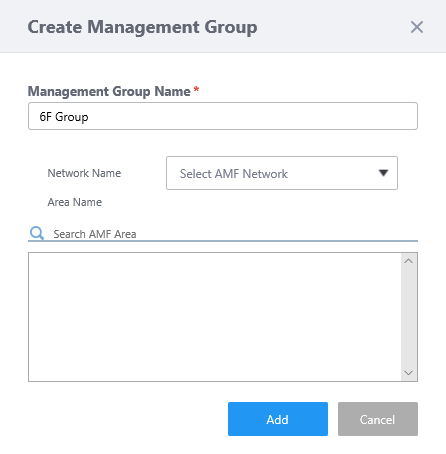
- You can optionally specify an AMF network and areas for the group.
By specifying an AMF network and areas, you can easily find guest device APs when you add APs later.
This time we specify an AMF network "AMF001".
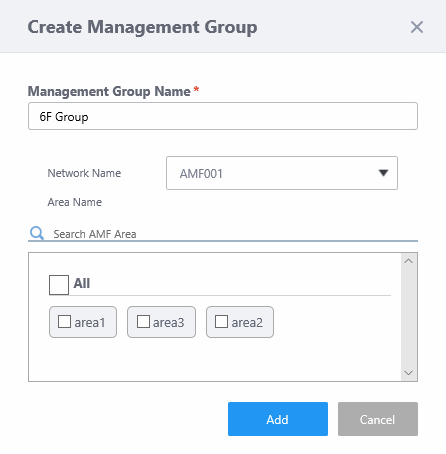
- Once you select an AMF network, a list of AMF Areas in the network will be shown in the "Area Name" field.
Select areas you want to include in the group. You can specify multiple areas for a single Management Group.
Here we select "area1".
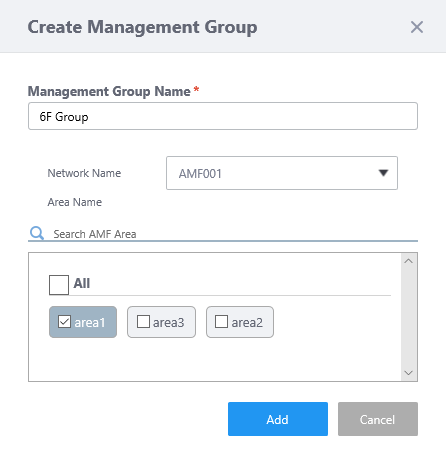
- Click "Add".
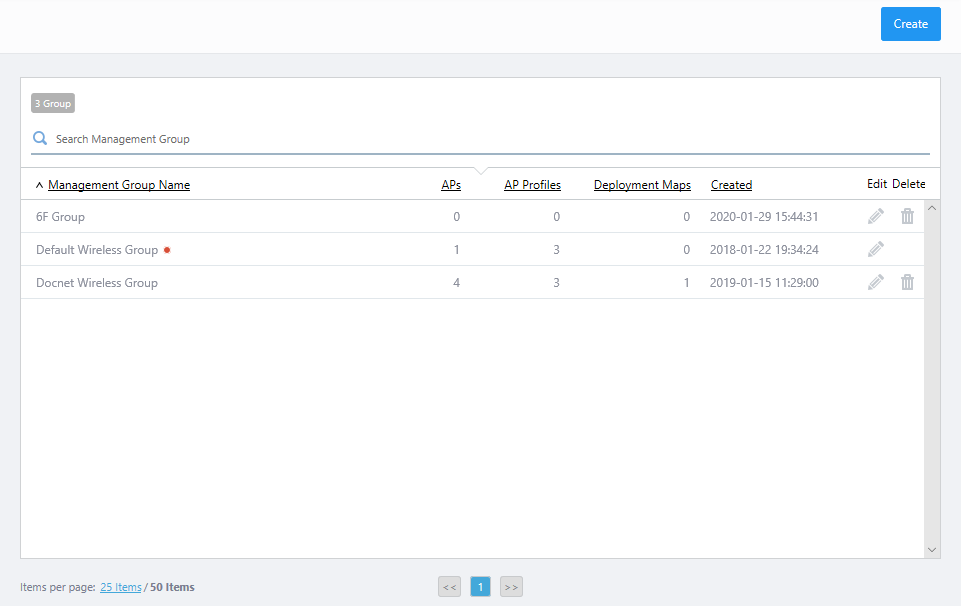
Now you can see the newly created "6F Group" in the group list.
26 Mar 2022 18:26