AP Profile
An AP Profile defines common parameters for use with multiple APs.
This page allows you to create, edit and delete AP Profiles.
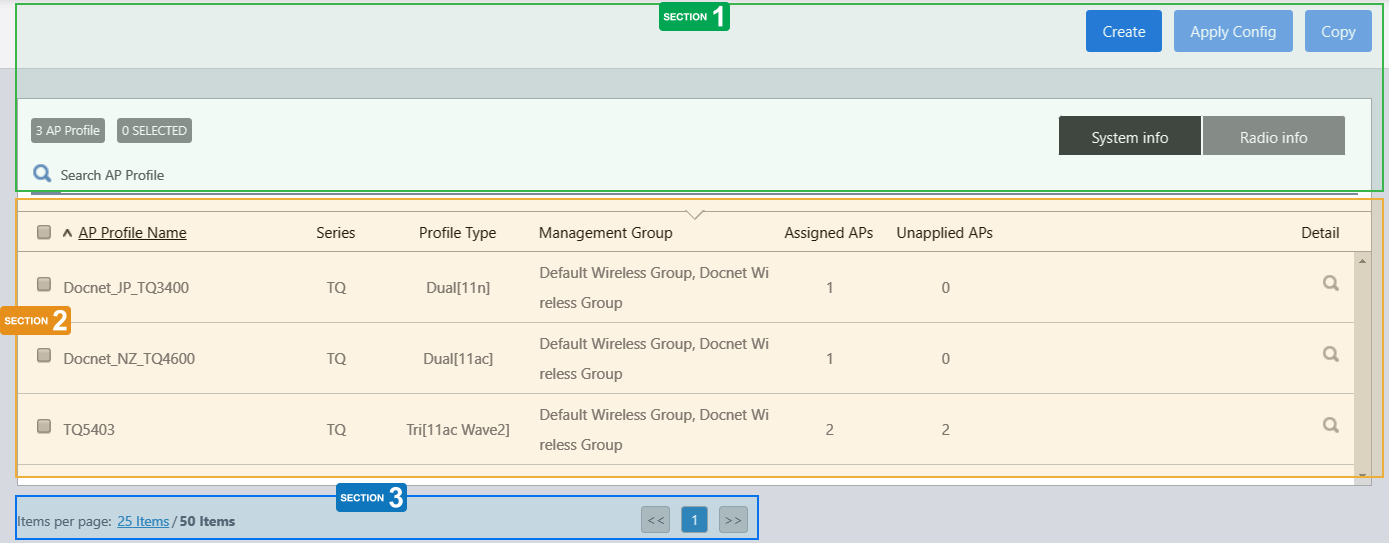
Section 1
| Item Name | Description |
|---|---|
| "Create" button | Opens the "Select Country, AP Series and Profile Type" dialog box to begin creating an AP Profile. Refer to Operation Reference > Wireless Configuration > Configure AP Profiles for more details. |
| "Apply Config" button | Opens the "Apply Configuration" dialog box. This allows you to apply changes to the selected AP Profile to APs which have been assigned the AP Profile.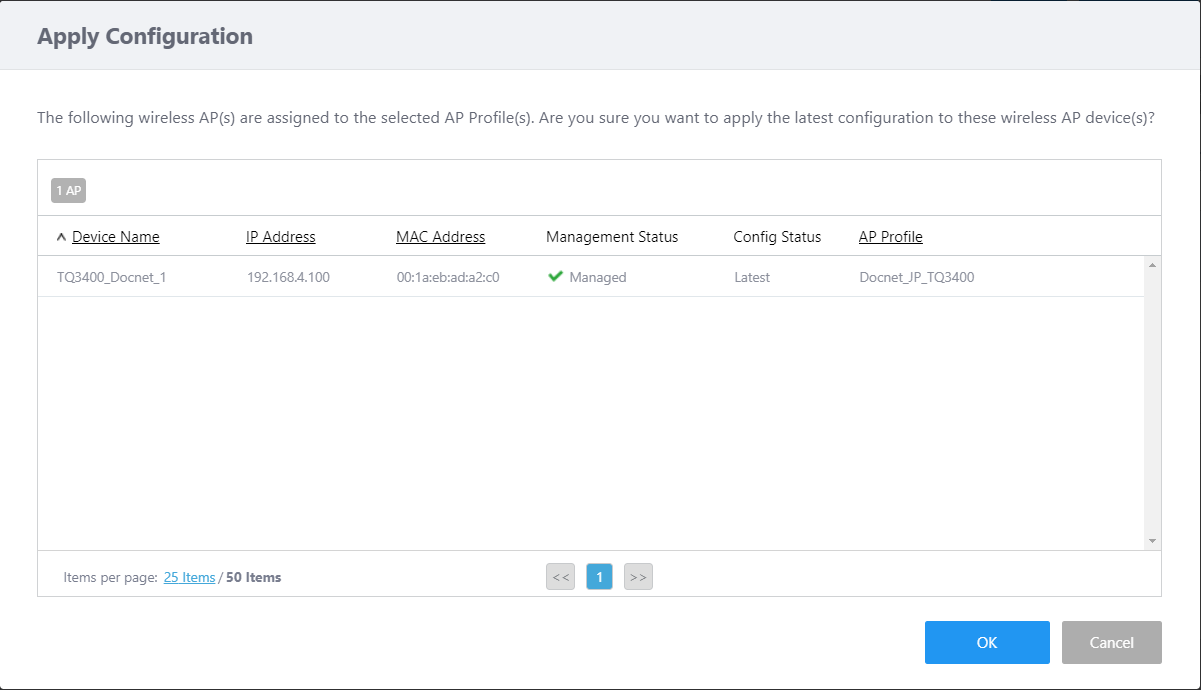
|
| "Copy" button | Duplicates the AP Profiles that are selected (checked). The name of the duplicated AP Profile is of the format Original Profile Name plus "_copy". If that name is already in use, a number in brackets follows the suffix, for example, "_copy(1)" NoteAn AP profile cannot be copied if its name plus a string "_copy" exceeds 101 characters in length. |
| X AP Profile | Shows the number of AP Profiles. |
| X SELECTED | Shows the number of AP Profiles that are selected (checked). |
| Search AP Profile | Lets you search and filter AP Profiles in the list. The Search field lets you enter a partial string to match. The screen displays entries with that string in one of the following fields: "Configuration Name", "Profile Type", "Management Group" or "Tag". To remove the filter, delete the string from the search field and press enter. NoteThe search is case-sensitive. |
| "System info" / "Radio info" buttons | Switches the contents of the list. |
Section 2
| Item Name | Description |
|---|---|
| System Info | |
| Checkbox | Lets you select AP Profiles. A checkbox in the header row can be used to check or uncheck all AP Profiles. Unchecking the box in the heading row deselects all entries in the list. |
| AP Profile Name | Shows the AP Profile name. |
| Series | Shows the AP product series name for which the AP Profile is created. |
| Profile Type | Shows the Profile Type of the AP Profile. |
| Management Group | Shows the Management Group to which the AP belongs. |
| Assigned APs | Shows the number of APs to which the AP Profile is assigned. |
| Unapplied APs | Shows the number of APs for which pending configuration (AP Profile, CB Profile, SC Profile, or AP-specific configuration) exists. |
| Details (magnifying glass icon) | Shows the AP Profile details page. Refer to Operation Reference > Wireless Configuration > Change Management Group or AP Profile for AP for more details. |
| Radio info | |
| Checkbox | Lets you select AP Profiles. A checkbox in the header row can be used to check or uncheck all AP Profiles. Unchecking the box in the heading row deselects all entries in the list. |
| Radio 1 | Shows standards used on Radio 1. |
| Radio 2 | Shows standards used on Radio 2. |
| Radio 3 | Shows standards used on Radio 3. |
| VAPs(Radio1) | Shows the number of VAPs configured for Radio1. |
| VAPs(Radio2) | Shows the number of VAPs configured for Radio2. |
| VAPs(Radio3) | Shows the number of VAPs configured for Radio3. |
| Details (magnifying glass icon) | Shows the AP Profile details page. Refer to Operation Reference > Wireless Configuration > Change Management Group or AP Profile for AP for more details. |
Section 3
| Item Name | Description |
|---|---|
| Items per page | Specifies the number of items per page. |
| << | Goes to the first page of the list. |
| (Page Number) | Shows the current page number in the list. |
| >> | Goes to the last page of the list. |
12 Jul 2024 09:32