Apply AP/CB Profiles
Finally, we can apply the AP Profile and CB Profiles to the wireless APs.
As the AP Profile is not yet applied to the APs added in Register Wireless AP, the Management Status of the APs is still "Unmanaged".
If you assign an AP Profile to a wireless AP in "Unmanaged" status, the AP Profile will be automatically applied to the AP.
If the AP belongs to a channel blanket, the related CB Profile will be also applied to the AP. If there is an AP-specific configuration for the AP, it will be also applied to the AP.
If you want to add an AP that is already in the "Managed" state to a channel blanket, make sure you use "Apply Configuration" on the AP so that the latest AP Profile, CB Profile and AP-specific configuration will be applied to the already managed AP. Refer to Apply CB Profile to Operating AP in Operation Reference > Channel Blanket > Create Channel Blanket for more details.
- Select "Wireless Configuration" > "AP Settings" from the AWC Plug-in menu.
The AP list screen will appear.
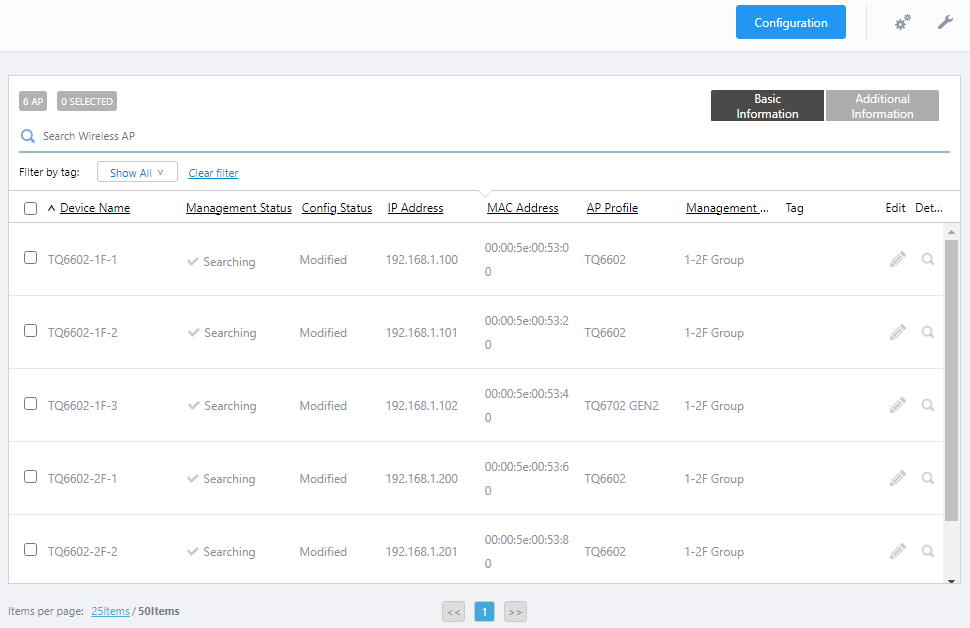
- Select wireless APs to which you want to apply the AP Profile.
This time we are going to apply the same AP Profile to all APs. Select all APs by checking the checkbox in the header row.
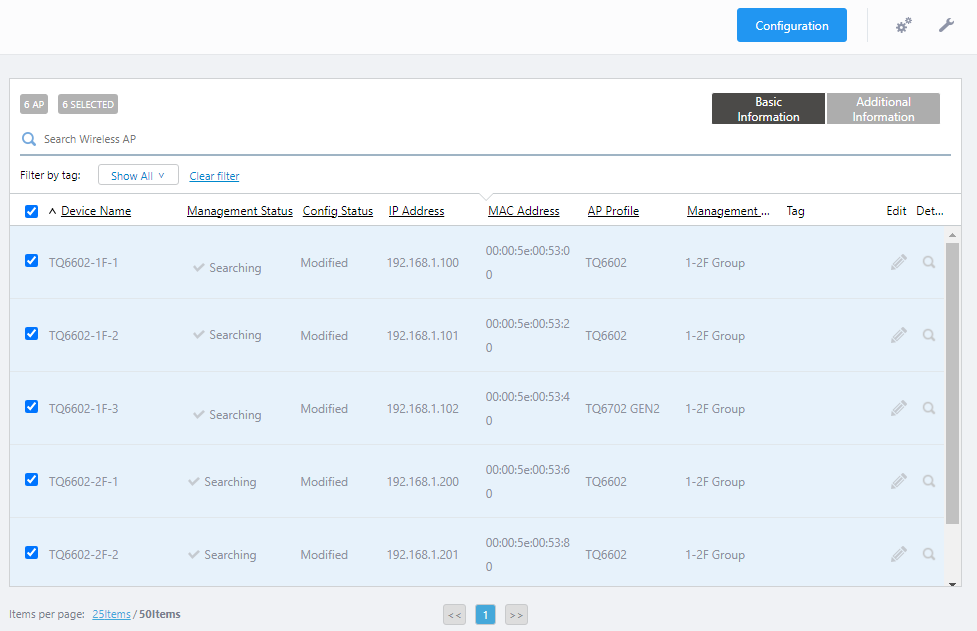
- Put the mouse cursor on the gear icon at the top right of the screen and select "Assign AP Profile" from the submenu.

The "AP Profile Assignment" dialog box will appear.
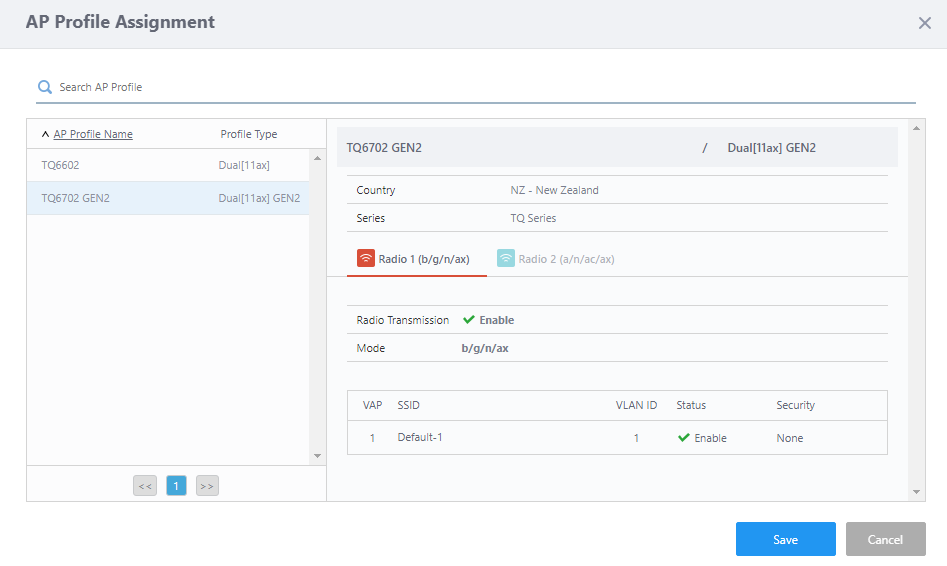
- Make sure that the AP Profile "TQ6702G2" created in Create AP Profile is selected in the AP Profile list, Click "Save".
- On the AP list screen, you can see that the target APs' "Management Status" and "Configuration Status" were changed to "Searching" and "Modified" respectively.
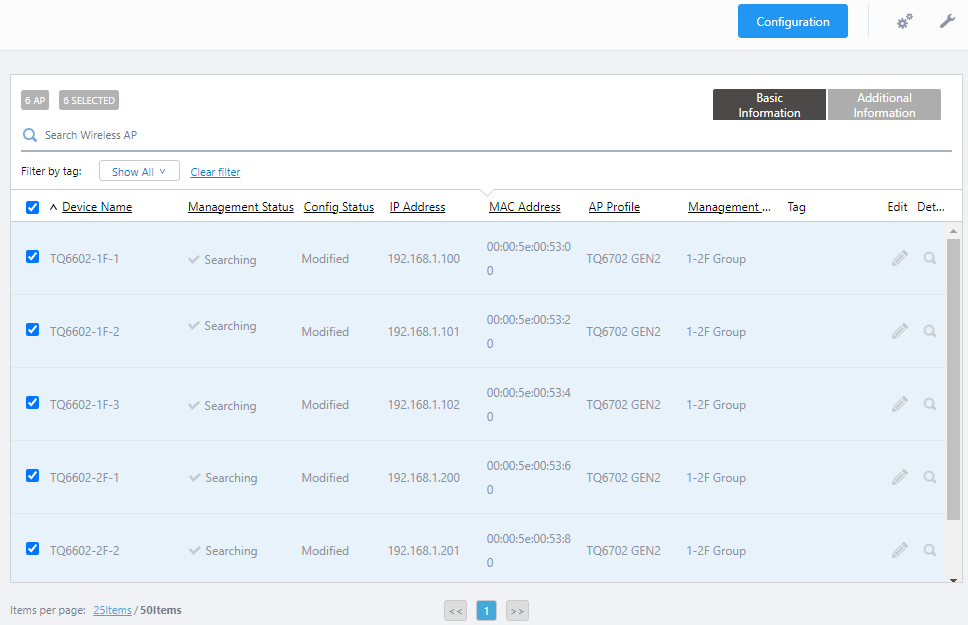
Various settings are applied to the wireless AP sequentially, and VAPs become operational.
29 Apr 2025 11:26