Configure DCN Profile Configuration
This section describes how to create, edit, and delete an DCN (Dynamic Client Navigation) Profile.
An DCN profile defines several settings for optimization of client connection under control of AWC-DCN.
Create DCN Profile
- Select "Wireless Configuration" > "DCN Profile" from the AWC Plug-in menu.
A list of DCN profiles is displayed.
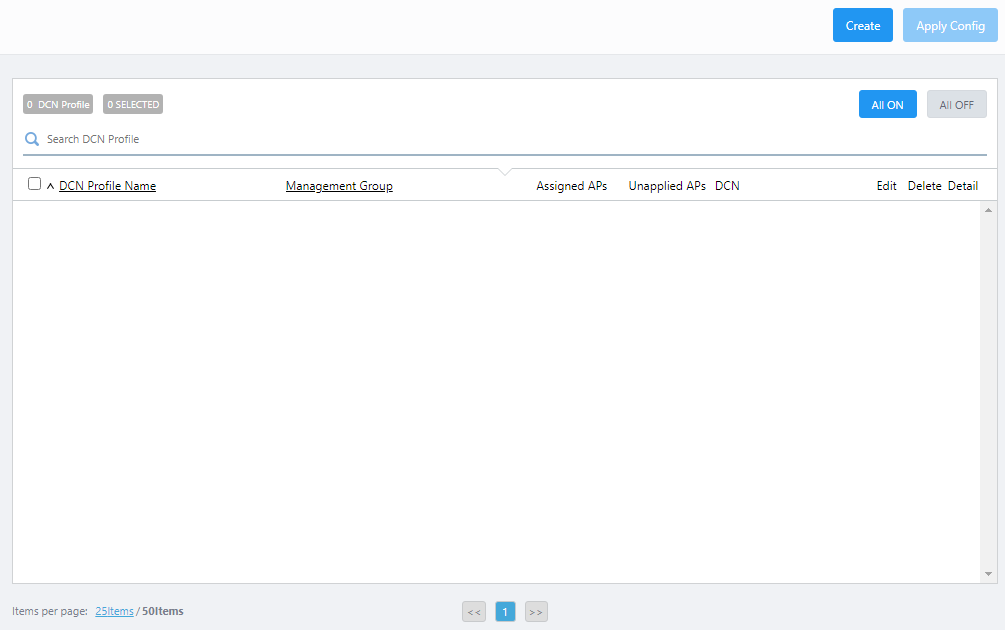
- Click "Create" at the top right corner.
The DCN Profile configuration screen will appear.
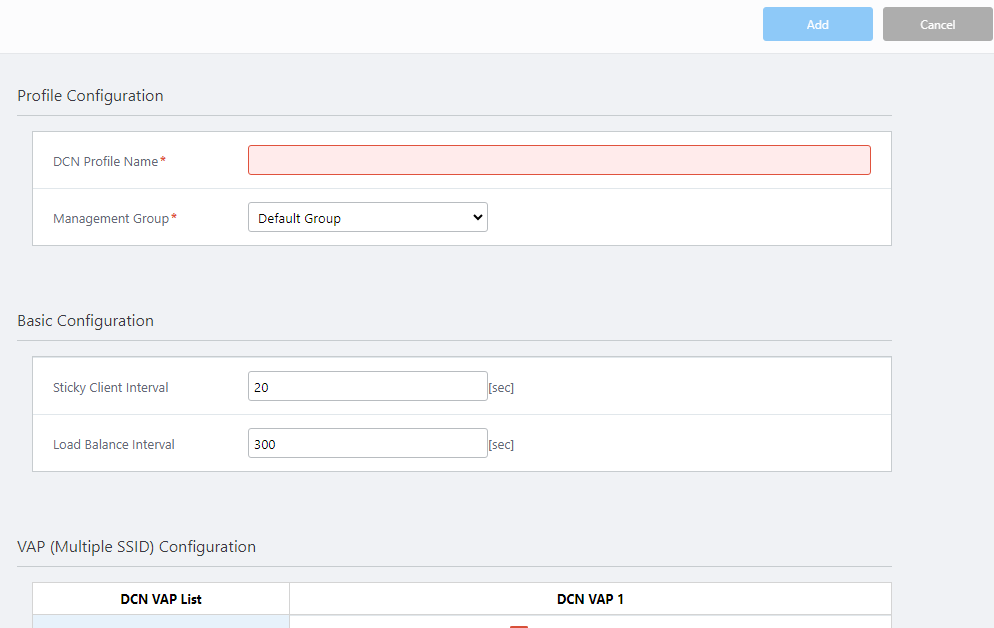
- Configure items in the Profile Configuration, Basic Configuration and VAP (Multiple SSID) Configuration sections as required.
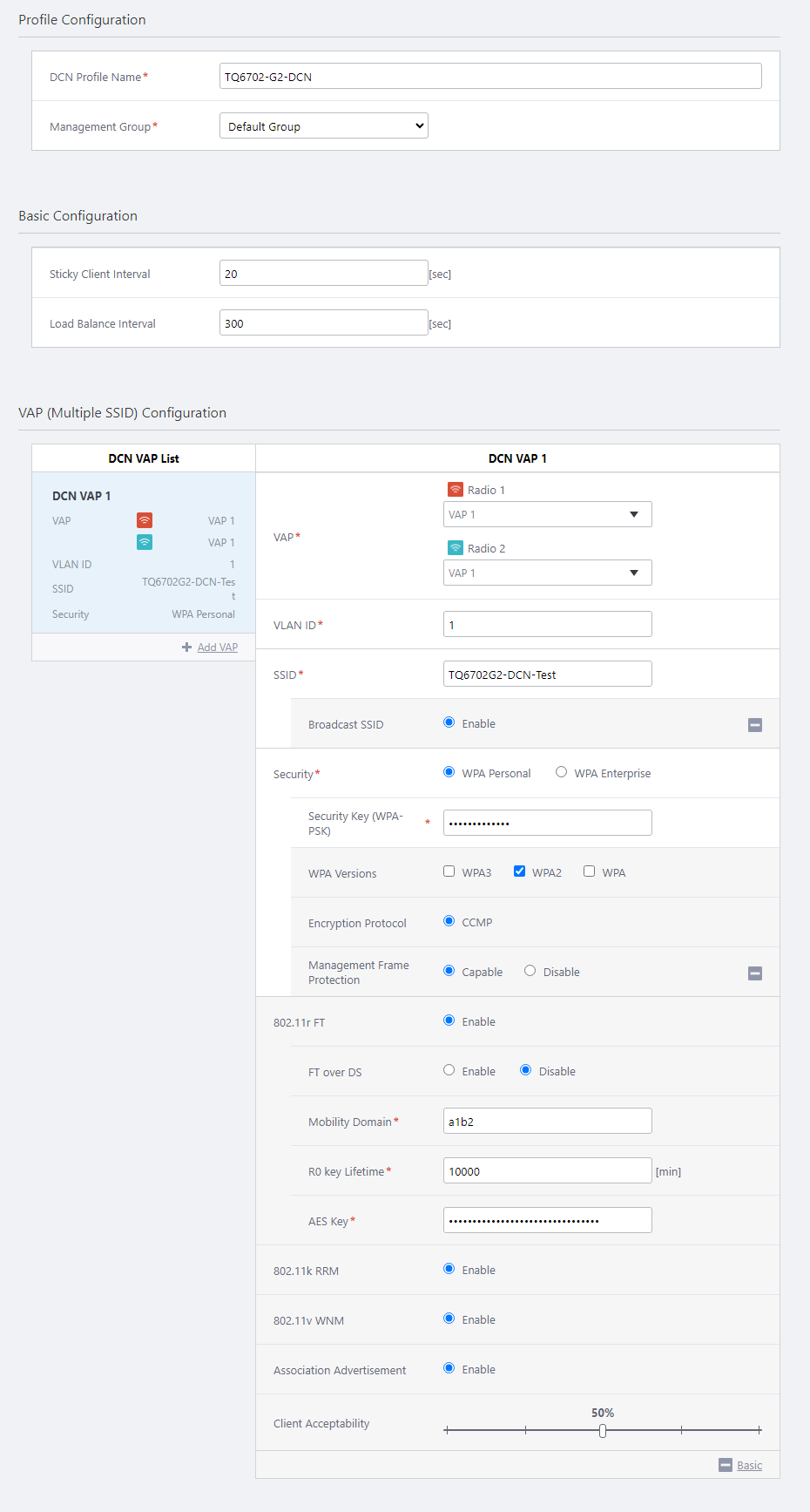
- Click "Save" at the top right of the Content section to save the configuration.
To select the AP to be managed by AWC-DCN, continue from step 4 of Operation Reference > AWC-DCN > Select target APs.
Profile Configuration
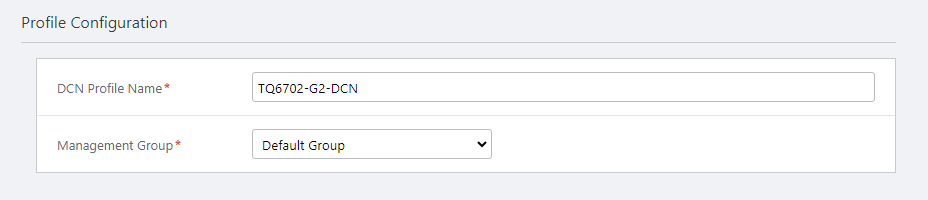
| Item Name | Description |
|---|---|
| DCN Profile Name | Enter a name for the DCN Profile. Should be 1 to 100 characters in length, with alphabets, numbers and symbols (including spaces). (required) |
| Management Group | Select the management group the DCN Profile applies to. (required) |
Basic configuration
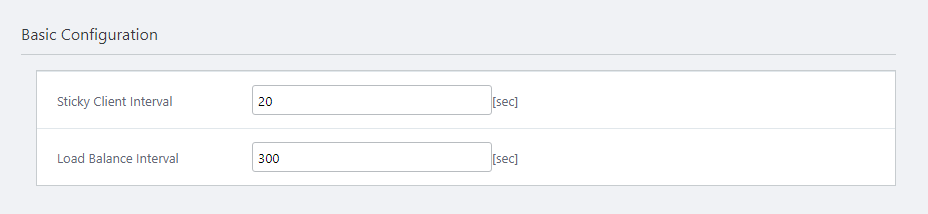
| Item Name | Description |
|---|---|
| Sticky Client Interval | Specify the detection interval for sticky client (wireless clients that move after associating with the AP and remain associated even though the signal conditions have deteriorated) with a value from 1 to 3600 (unit: seconds). The default is 20 seconds. |
| Load Balance Interval | Specify the interval for load balancing with a value from 1 to 3600 (unit: second). The default is 300 seconds. |
VAP (Multiple SSID) Configuration
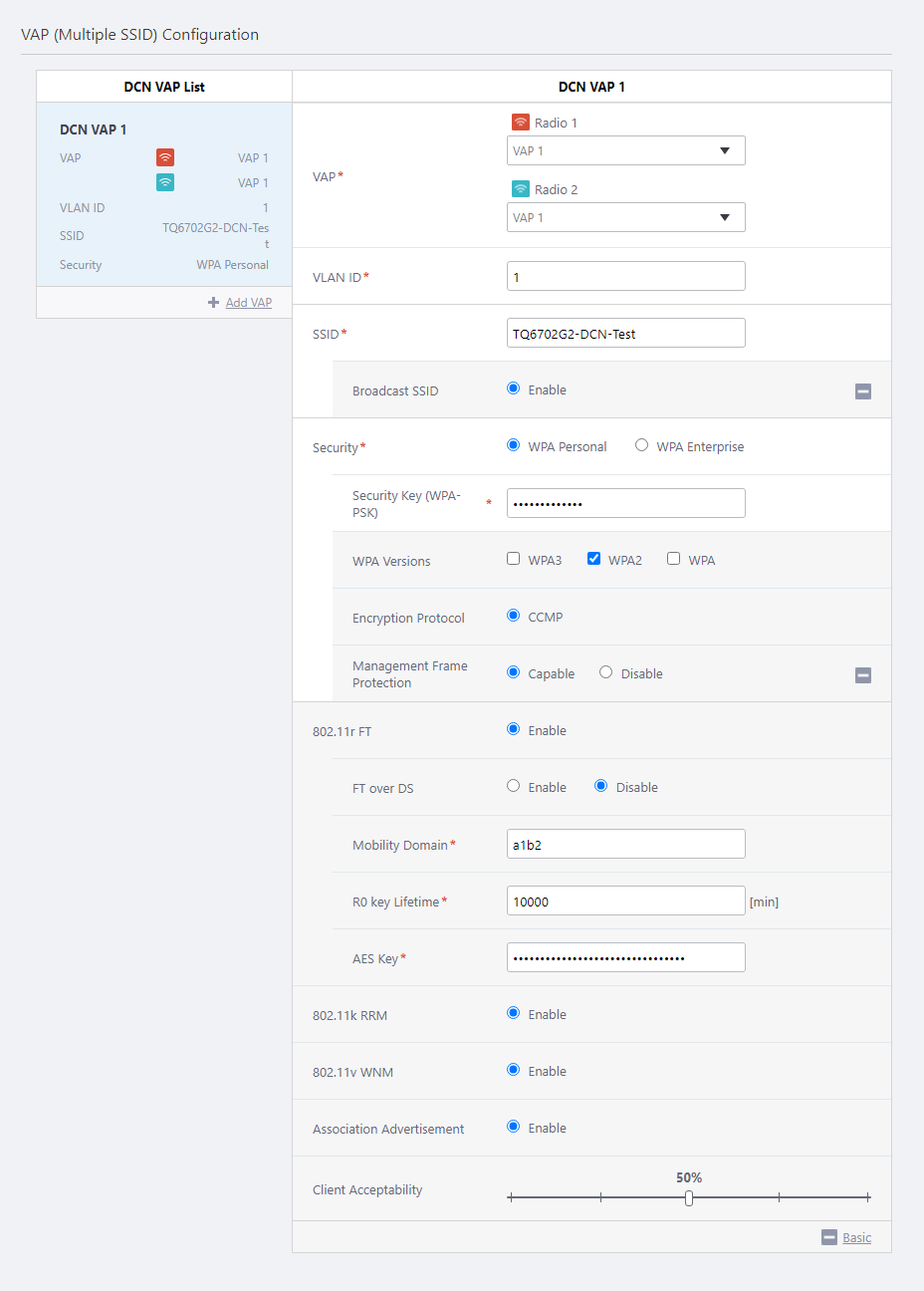
| Item Name | Description |
|---|---|
| DCN VAP List | Shows a list of configured DCN VAPs (Virtual Access Points). Here you can view the VAP number, VLAN ID, SSID, and security settings for each radio. |
| + Add VAP | Creates a new DCN VAP. A DCN VAP is assigned a number sequentially from 1. Note that the number in the CB VAP Name has nothing to do with the "VAP Number" (described later) for the CB VAP. You can add up to 16 DCN VAPs. NoteIt is recommended to use 5 or less VAPs per radio band in total, including both AP VAPs and DCN VAPs. |
| VAP | Specify the VAP number to be overwritten by the DCN VAP for each or any one of Radio 1 (2.4 GHz) and Radio 2 (5 GHz) (required) |
| VLAN ID | Specify a VLAN ID used for communication between the DCN VAP and associated clients (required) |
| SSID | Specify an SSID (network name) to use on the DCN VAP. The SSID is mapped to the VLAN ID. Enter a name between 1 to 32 alphanumeric characters. The default is "Default-X" (where X is an automatically assigned DCN VAP number). (required) |
| Broadcast SSID | Specify whether to broadcast the SSID on the VAP. In DCN VAP, Broadcast is always enabled. |
| Security | Select a security mechanism to use. The available options are "WPA Personal", and "WPA Enterprise". The default is "WPA Personal".
For more details, refer to Additional options for Security. |
| 802.11r FT | Shows whether to use IEEE 802.11r (Fast Basic Service Set Transition). In DCN VAP, 802.11r FT is always enabled. When a wireless client transitions from one AP to another to which it is currently associated, it takes advantage of the fast transition by IEEE 802.11r. |
| FT over DS | Specify whether to request authentication via distributed system (DS). When enabled, wireless clients send an authentication request to the destination AP via the current (source) AP. (Over The DS.) When disabled, wireless clients send an authentication request to the destination AP directly over the radio. (Over The Air) The default is "Disable". |
| Mobility Domain | Specify a mobility domain with 4 hexadecimal digits (0 to 9, A to F, a to f). This is not case-sensitive. A wireless client can perform IEEE 802.11r fast transition between the APs in the same mobility domain. The default is "a1b2". |
| R0 key Lifetime | Specify a PMK-R0 lifetime, between 1 and 65535 minutes. Once the lifetime expires, IEEE 802.11r fast transition is not performed. The default is 10000. |
| AES Key | Specify an AES key that is used to exchange PMK-R1 between APs with 32 hexadecimal digits (0 to 9, A to F, a to f). This is not case-sensitive. The default is set to a random value. (required) |
| IEEE 802.11k RRM | Specify whether to use IEEE 802.11k RRM (Radio Resource Management). In DCN VAP, IEEE 802.11k RRM is always enabled. |
| IEEE 802.11v WNM | Specify whether to use IEEE 802.11v WNM (Wireless Network Management). In DCN VAP, IEEE 802.11v WNM is always enabled. |
| Association Advertisement | Shows whether to use Association Advertisement. In DCN VAP, Association Advertisement is always enabled. When a wireless client associates with its AP, a notification broadcast frame is sent to the network configured in the management VLAN of the AP. The AP that receives this frame updates its own wireless client associate information. |
| Client Acceptability | Use the slider to set the acceptability of association of wireless clients with the corresponding DCN VAP at each AP. Can be specified in 25% steps from 0 to 100%. The default is 100%. |
Additional options for Security
◼ WPA Personal ConfigurationSelecting "WPA Personal" for Security will show you the following additional items:
| Item Name | Description |
|---|---|
| Security Key (WPA-PSK) | Specify an encryption key for the VAP. The key should contain 8 to 63 alphanumeric and symbol characters. The key is case-sensitive. |
| WPA Versions | Select the WPA version(s) to use. You can select "WPA3" only, both "WPA3" and "WPA2", "WPA2" only, or both "WPA" and "WPA2". However, you cannot select both "WPA3" and "WPA". Additionally, you cannot select "WPA" only. The default is "WPA2". Select both for a mixed environment. In that case, the security level of the wireless network is the same as WPA. NoteWPA is based on a draft of IEEE 802.11i while WPA2 is based on the final version of IEEE 802.11i and therefore meets all mandatory items required by the standard. |
| Encryption Protocol | Displays the encryption protocol used. If only "WPA3" is specified for the WPA version, only "CCMP" will be used. If both "WPA3" and "WPA2", or "WPA2" only is specified, only "CCMP" will be used. If both "WPA2" and "WPA" are selected for the WPA version, "TKIP + CCMP" is used. Although "TKIP" uses RC4 as WEP does, TKIP uses a separate encryption key for each client and changes the key after using it for some time. "CCMP" uses the standard encryption algorithm approved by the US Secretary of Commerce. This standard has a strong algorithm. |
| Management Frame Protection | Specify whether to protect management frames from eavesdropping and forging. Management Frame Protection options depend on the WPA version specified.
|
Selecting "WPA Enterprise" for Security will show you the following additional items:
| Item Name | Description |
|---|---|
| RADIUS Server Primary IP Address | Enter the IP address of the primary RADIUS server. (required) |
| RADIUS Server Primary Secret | Enter the password to connect to the primary RADIUS server with 128 or less alphanumeric and symbol characters (including spaces). (required) |
| RADIUS Server Secondary IP Address | Enter the IP address of the secondary RADIUS server. Leave it blank if you are not using a secondary RADIUS server. |
| RADIUS Server Secondary Secret | Enter the password to connect to the secondary RADIUS server with 128 or less alphanumeric and symbol characters (including spaces). Leave it blank if you are not using a secondary RADIUS server. |
| RADIUS Server Port Number | Enter a port number between 1 and 65535 on which the primary and secondary RADIUS server is listening. The default is 1812. |
| WPA Versions | Select the WPA version(s) to use. You can select "WPA3" only, both "WPA3" and "WPA2", "WPA2" only, or both "WPA" and "WPA2". However, you cannot select both "WPA3" and "WPA". Additionally, you cannot select "WPA" only. The default is "WPA2". Select both for a mixed environment. In that case, the security level of the wireless network is the same as WPA. NoteWPA is based on a draft of IEEE 802.11i while WPA2 is based on the final version of IEEE 802.11i and therefore meets all mandatory items required by the standard. |
| Encryption Protocol | Displays the encryption protocol used. If only "WPA3" is specified for the WPA version, select from "GCMP" or "CCMP". If both "WPA3" and "WPA2", or "WPA2" only is specified, only "CCMP" will be used. If both "WPA2" and "WPA" are selected for the WPA version, "TKIP + CCMP" is used. Although "TKIP" uses RC4 as WEP does, TKIP uses a separate encryption key for each client and changes the key after using it for some time. "CCMP" uses the standard encryption algorithm approved by the US Secretary of Commerce. This standard has a strong algorithm. |
| Management Frame Protection | Specify whether to protect management frames from eavesdropping and forging. Management Frame Protection options depend on the WPA version specified.
|
Edit DCN Profile
- Select "Wireless Configuration" > "DCN Profile" from the AWC Plug-in menu.
- Click on "Edit" (the magnifying glass icon) to the right of the DCN profile you want to edit or delete.
- Change the information as needed.
- Click "Save" at the top right of the Content section.
Delete DCN Profile
- Select "Wireless Configuration" > "DCN Profile" from the AWC Plug-in menu.
- Click on "Delete" (the magnifying glass icon) to the right of the DCN profile you want to edit or delete.
- The "Confirm" dialog box will appear.
- Click "Delete".
29 Apr 2025 11:26