View Clients
This section explains how to view clients connecting to APs on a Floor Map.
View Wireless Clients on Floor Map
- Select "Wireless Monitoring" > "Floor Map" from the AWC Plug-in menu.
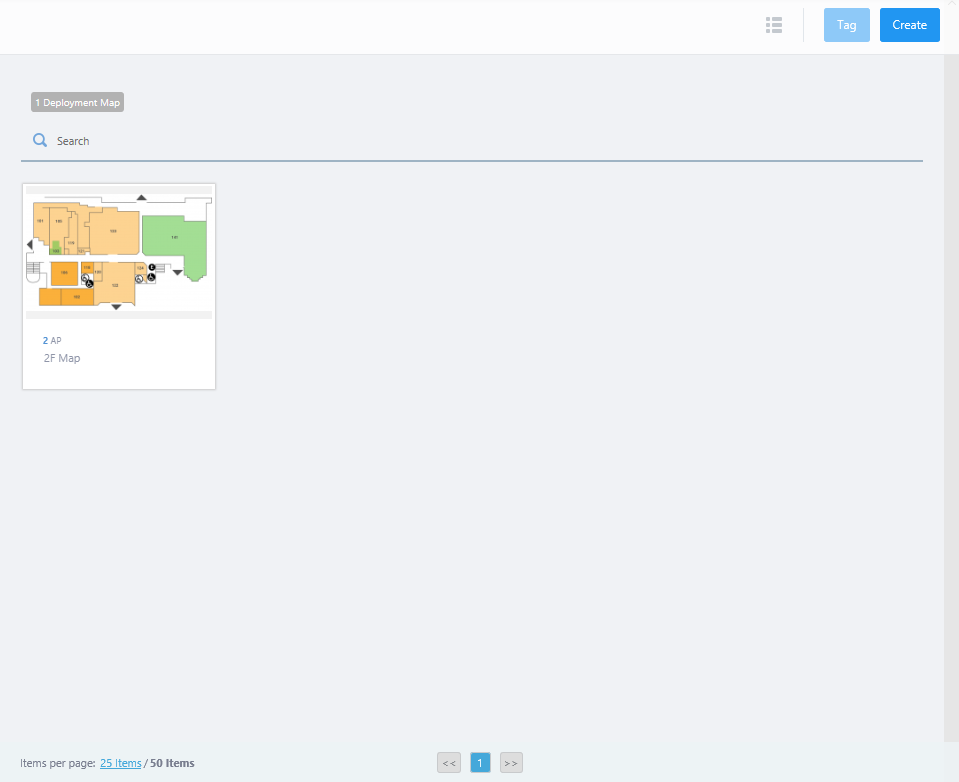
- Mouse over a floor map panel.
- Click the "View Details>>" button on the floor map panel.
The Wireless Status View of the map will be shown in the Content section.
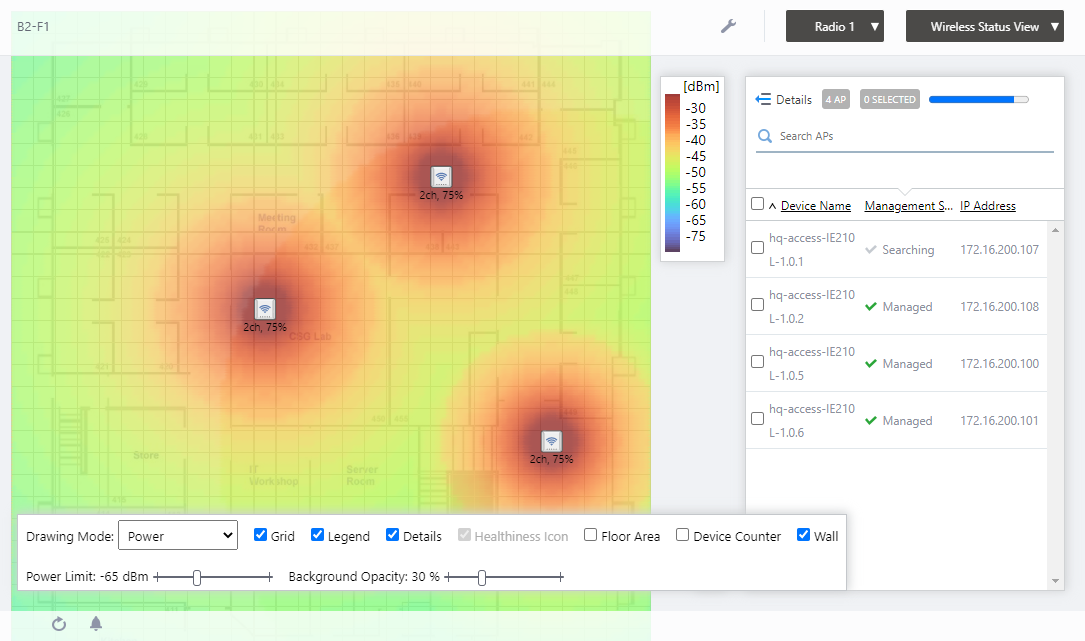
- Click the View Selection drop down menu at the top right and select "Associated Client View" from the list.
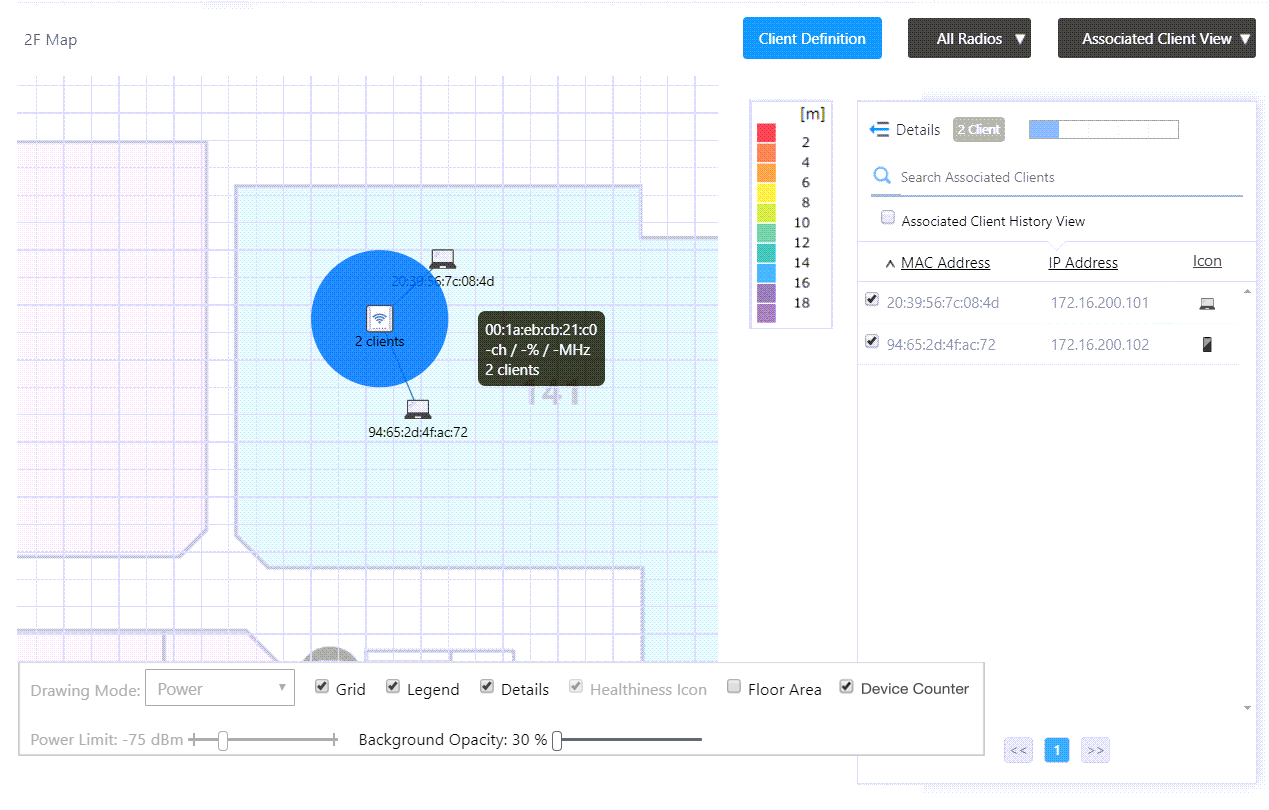
The Associated Client View will be displayed on the map in the Content section.
- The number of clients will be shown under each AP icon on the map.
- The MAC and IP addresses of all the clients on the map will be shown in the client list at the right side of the Content section.
- When you select checkboxes in the list, icons and MAC addresses of the selected clients will be shown on the map beside the APs they are connecting to.
- When you click an AP icon, only clients connecting to the selected AP will be shown in the client list.
Also, if the Client Location Estimation History function is enabled on the System Setting screen, the location of wireless clients connected to a channel blanket will be displayed on the floor map, reflecting the coordinates on the map.
For more detail, refer to Client Location Estimation View in Screen Reference > Wireless Monitoring > Floor Map.
- The number of clients will be shown under each AP icon on the map.
View Wireless Client History on Floor Map
By checking "Associated Client History View", you can view only clients that have connected to the APs on the floor map during the specified time period.NoteThe Client History feature supports TQ series only. A warning message will appear beside the "Associated Client History View" checkbox if you select the checkbox while the map has APs that are not supported by the feature.
NoteIn order to use the "Associated Client History View" feature, you have to configure how long the client history will be held for in the System Configuration page's "Data Retention Period Configuration" > "Associated Client History" section.
NoteTo see the Client Location Estimation History, enable the function on the System Setting screen first.
NoteThe Client Location Estimation function will be supported with TQ5403, TQ5403e firmware version 6.0.1-1.x or later.
- Select "Wireless Monitoring" > "Floor Map" from the AWC Plug-in menu.
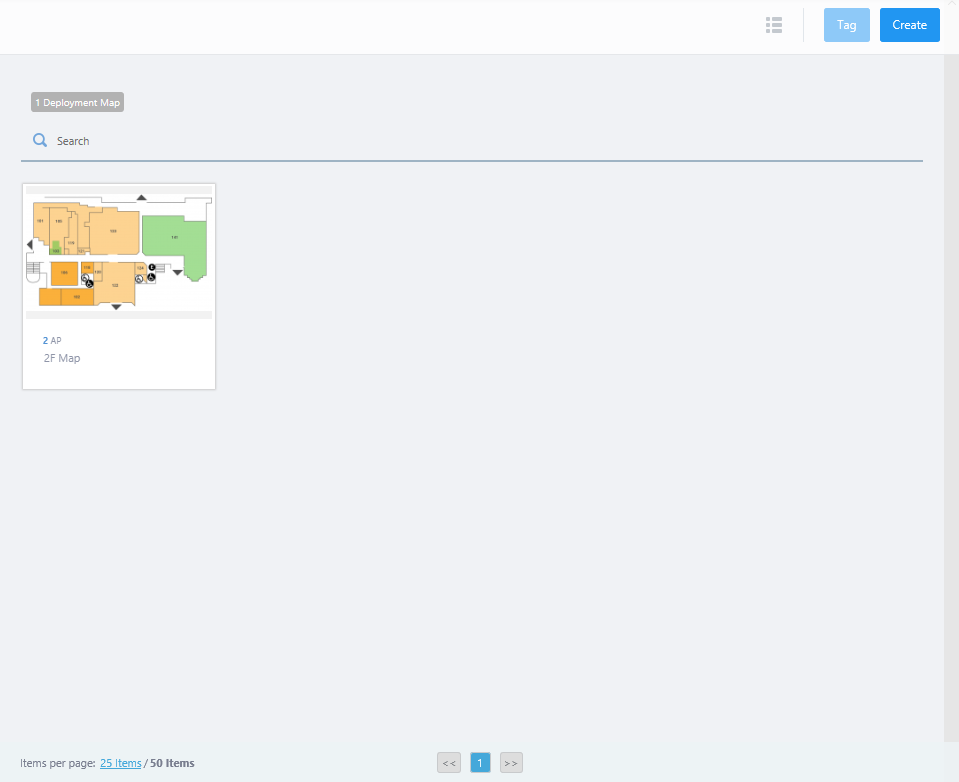
- Mouse over a floor map panel.
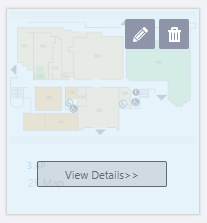
- Click the "View Details>>" button on the floor map panel.
The Wireless Status View of the map will be shown in the Content section.
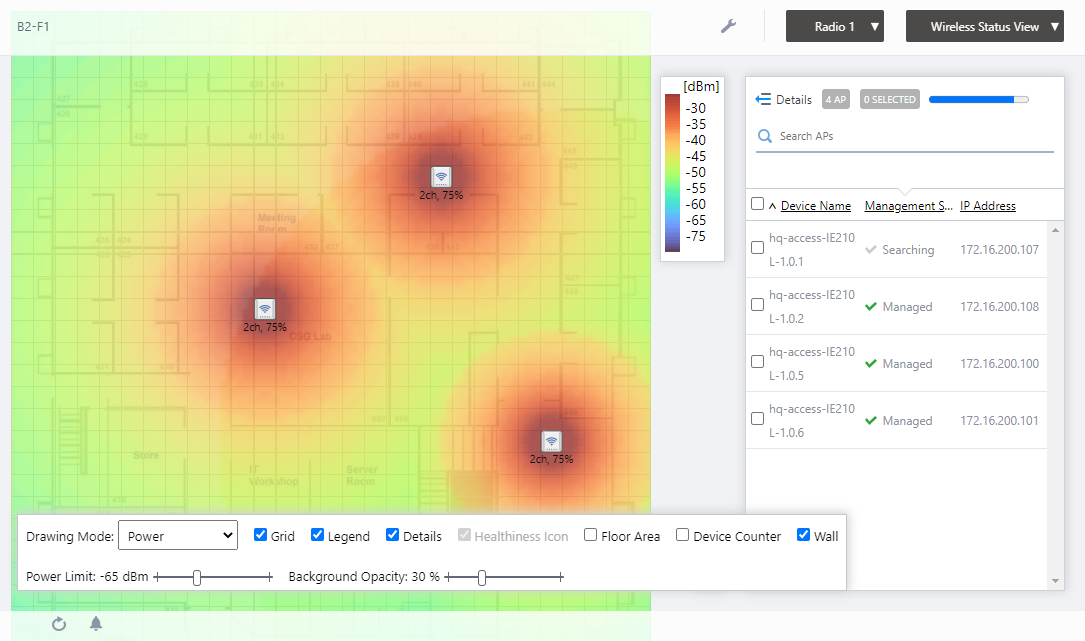
- Select "Associated Client View" from the View Selection dropdown menu at the top right of the screen.
Wireless clients on the map will be displayed in the Content section.
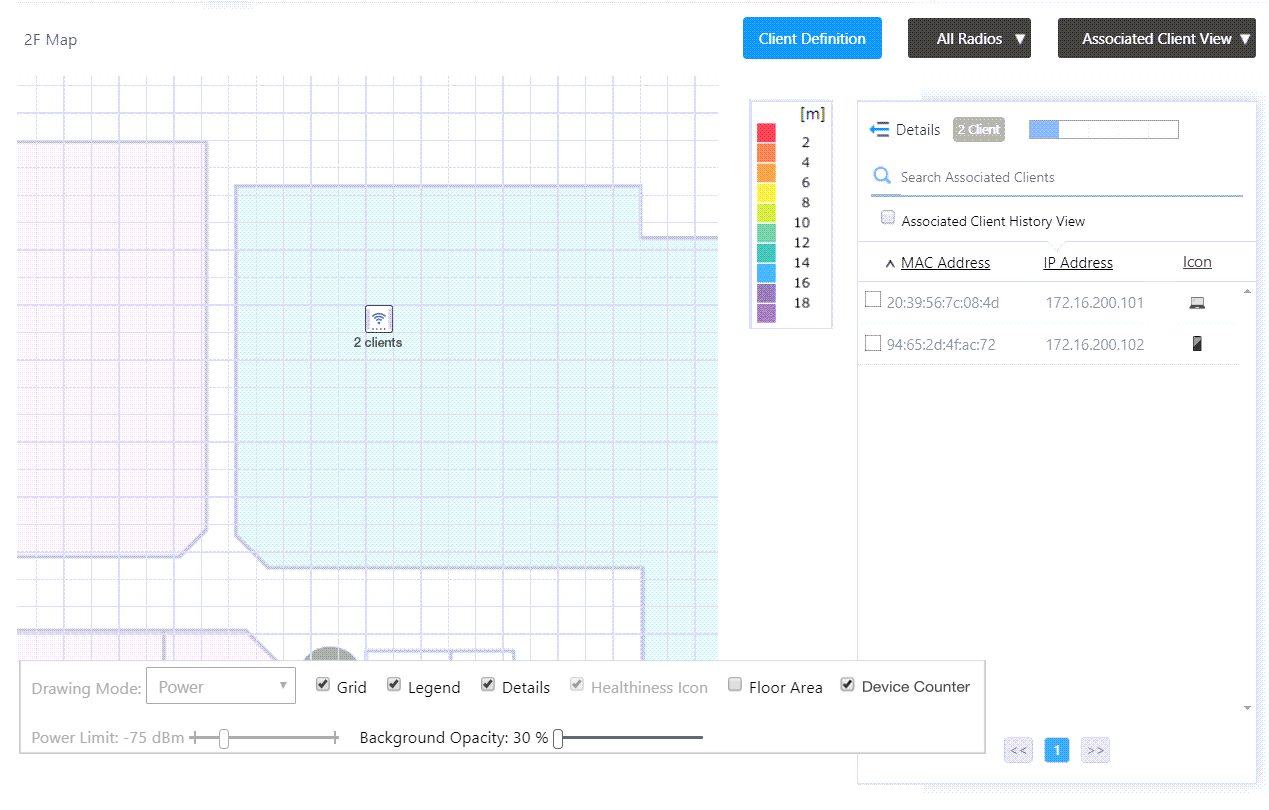
- Check "Associated Client History View" in the client list shown in the Content section.
Client history for the floor map will be displayed in the Content section.
On the associated client list in the Content section, you can see the MAC Addresses and hop counts of the wireless clients that have associated to the APs during the past 24 hours.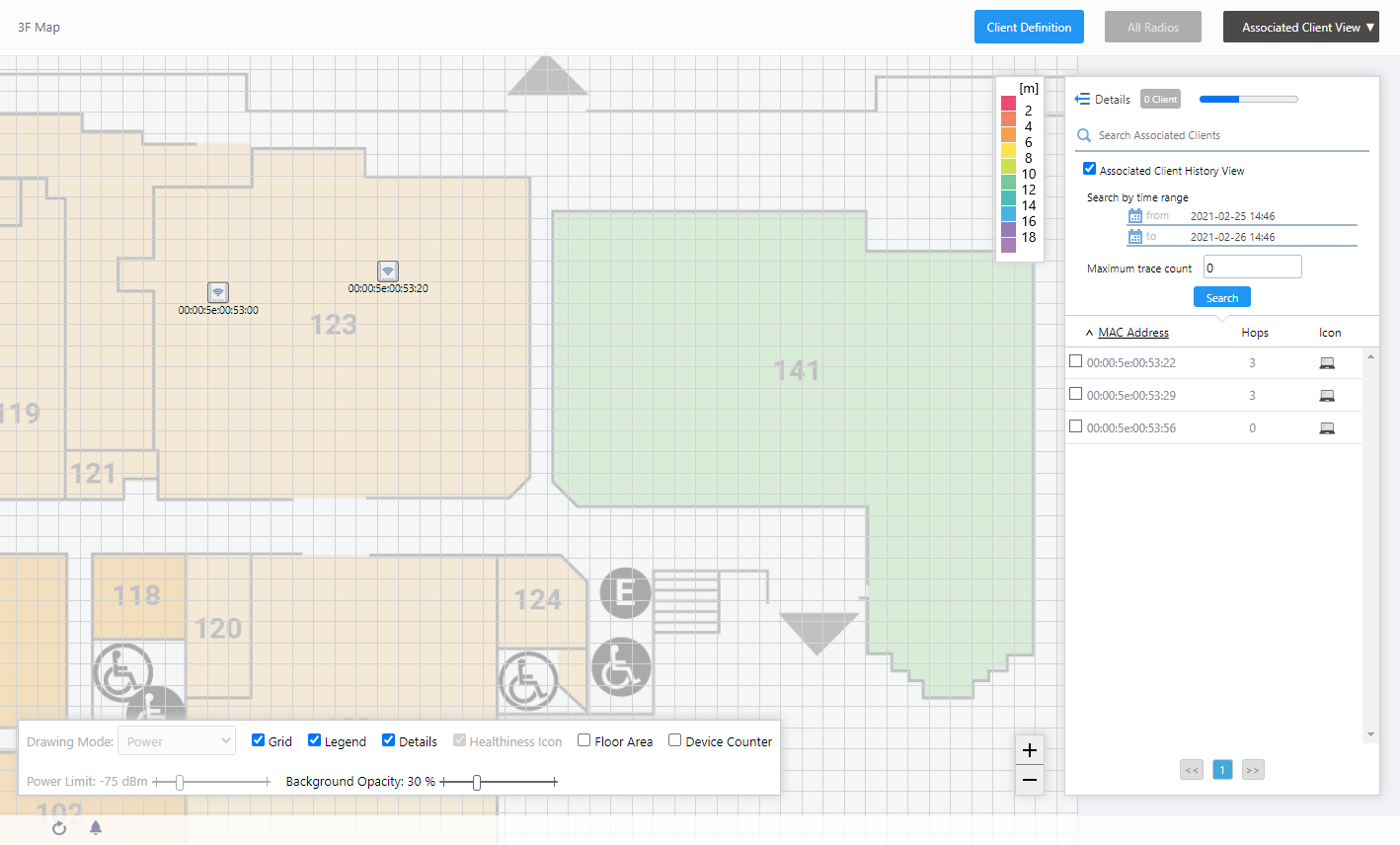
The movement that the hop count differs depend on whether the Client Location Estimation function is available on the client.
- When the Client Location Estimation is not available:
The hop count refers to the number of times the client's roaming occured among the APs.
- When the Client Location Estimation is available:
The hop count refers to the number of detected movement of locations where the client is being estimated.
- When the Client Location Estimation is not available:
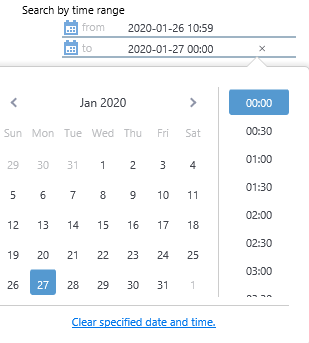
- To filter the clients by time period, specify a start and/or end date/time in the client list.
You can specify the date/time using the calendar that appears when you click a date/time field.
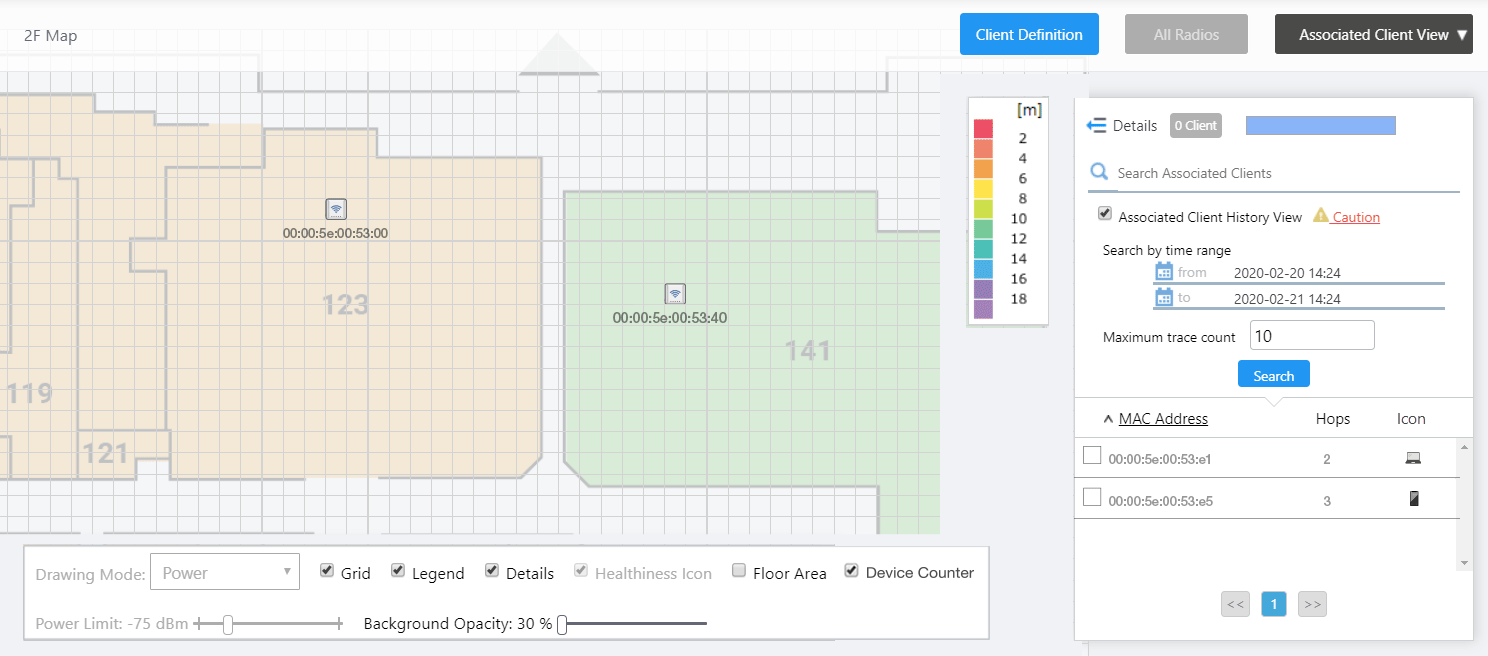
- To limit the number of hop counts to show on the map, enter a limit in "Maximum Trace Count".
If each client has many hop records within the specified period, it will display the latest hop history limited to the number specified here.
- Clicking the "Search" button filters the clients shown in the list by the specifed time period.
- When you check a client in the list, an icon and the MAC address of the client are shown near the AP to which the client is connected.
If the selected client roamed mutiple times between the APs on the map during the specifed time period, its most recent position will be shown by the client icon. Earlier positions will be shown by circles. The client's roaming trace will be also depicted by a broken line.
You can also see when the client was connected to the AP at the position by clicking a client icon or circles.
Note
The position of the icon does not represent the exact location of the client at the time. Icons are placed so they do not overlap with other icons in the history.
If the Client Location Estimation function is enabled and the client is associated to a channel blanket, the path of the estimated location can be displayed graphically.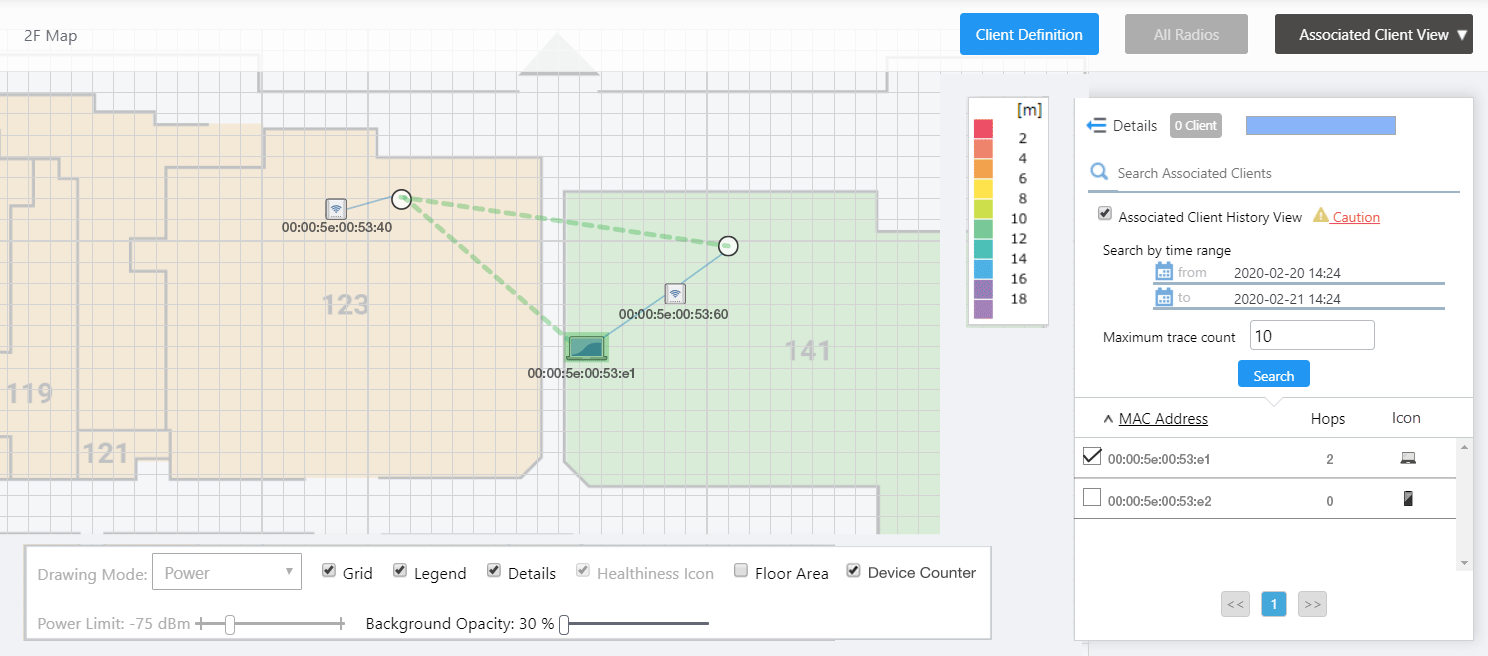
For more detail, refer to Client Location Estimation History in Screen Reference > Wireless Monitoring > Floor Map.
28 Mar 2022 10:47