Sky Defender
Create a user account for AWC-SDF (AWC-Sky Defender).
This user account is only valid for logging in to the AWC-SDF management screen.
User List
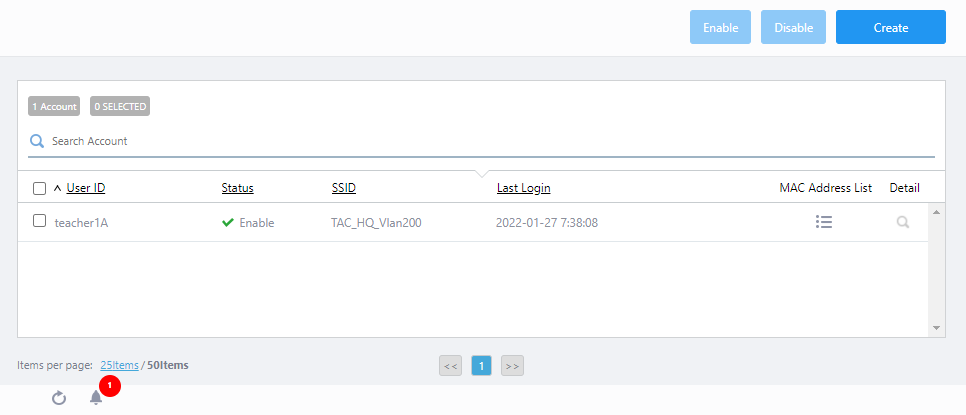
◼ Header
| Item Name | Description |
|---|---|
| "Enable" button | Enables the selected accounts. |
| "Disable" button | Disables the selected accounts. |
| "Create" button | Displays the Add User page. |
◼ User List
| Item Name | Description |
|---|---|
| X Account | Shows the total number of user accounts for AWC-SDF management. |
| X SELECTED | Shows the number of user accounts you selected. |
| Search Account |
Lets you filter the list of Accounts. The search field lets you enter a partial string to match. The screen displays entries with that string in one of the following fields: "User ID" or "SSID". To remove the filter, delete the string from the Search field and press Enter. NoteThe search is case-sensitive. |
| User ID |
Shows the User ID. Click the checkbox to the left of the User ID to select or deselect the account. |
| Status | Displays the enabled/disabled status of the account. |
| SSID | Displays the SSID of the Network (VAP) associated with the user account. Users can enable or disable the Network for this SSID and publish it for MAC address collection for wireless clients. |
| Last Login | The date and time when this user last logged in to the AWC-SDF management screen will be displayed. |
| MAC Address List | Shows the MAC Address List screen. You can view basic information of the MAC address list collected by the user (information entered with the MAC addresses) and detailed information of each MAC address (Allow/Deny status, registration status, connection status, collection date and time, and last connection date and time). |
| "Detail" button (magnifier icon) |
Displays User Details page. |
Add User
Add new user account and register basic information.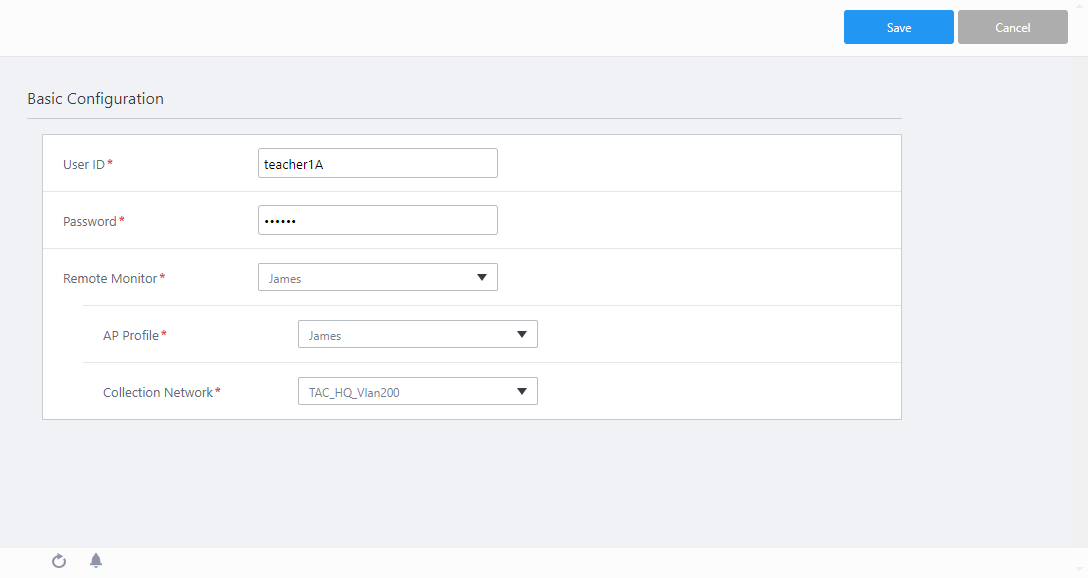
◼ Header
| Item Name | Description |
|---|---|
| "Save" button | Creates a new user account with the settings you have entered. |
| "Cancel" button | Aborts the creation of a new user account. |
◼ Basic Configuration
| Item Name | Description |
|---|---|
| User ID | Enter a user ID with 1 to 12 alphanumeric characters. User IDs cannot start with a number. |
| Password | Enter a password with 1 to 32 alphanumeric characters and symbols. |
| Remote Monitor |
Select a remote monitor. By clicking the field, Select Remote Monitor dialog box will be displayed. |
| AP Profile |
Select the profile (equivalent to AP Profile in AWC Plug-in) applied to the APs you want to allow the user to manage access to. By clicking the field, Select AP Profile dialog box will be displayed. "Select AP Profile" dialog box lists the Profiles configured on the remote monitor selected above. NoteWhen you configure Vista Manager mini via its CLI, please make sure to configure the "description" property of the profile. |
| Collection Network |
Select the Network (VAP) to be used for MAC address collection. By clicking the field, Select Collection Network dialog box will be displayed. "Select Collection Network" dialog box lists the Network SSID configured on the Profile selected above. This MAC Address Collection Network needs to be created separately from the Network used for normal communication. The following conditions apply to the Networks that can be listed in the "Select Collection Network" dialog box.
|
Select Remote Monitor
Select the remote monitor to which the wireless AP belongs to.
| Item Name | Description |
|---|---|
| "Close" button | Abort selection of the remote monitor and close the dialog box. |
| X Remote MOnitor | Displays the total number of registered remote monitors. |
| Search Remote Monitor |
Lets you filter the list of Remote Monitors. The search field lets you enter a partial string to match. The screend displays entries with that string in one of the following fields: "Display Name", "IP Address" or "System Location". To remove the filter, delete the string from the Search field and press Enter. NoteThe search is case-sensitive. |
| Display Name | Shows the display name of the remote monitor entered in the Wireless Monitoring > Remote Monitor screen. |
| Status | Displays the operational status of the wireless LAN controller. |
| IP Address | Displays the IP address of the wireless LAN controller. |
| System Location | Displays the site of which the AMF device running the wireless LAN controller belongs to. |
| "Select" button | Confirm the selection of the remote monitor and close the dialog box. |
| "Cancel" button | Abort selection of the remote monitor and close the dialog box. |
Select AP Profile
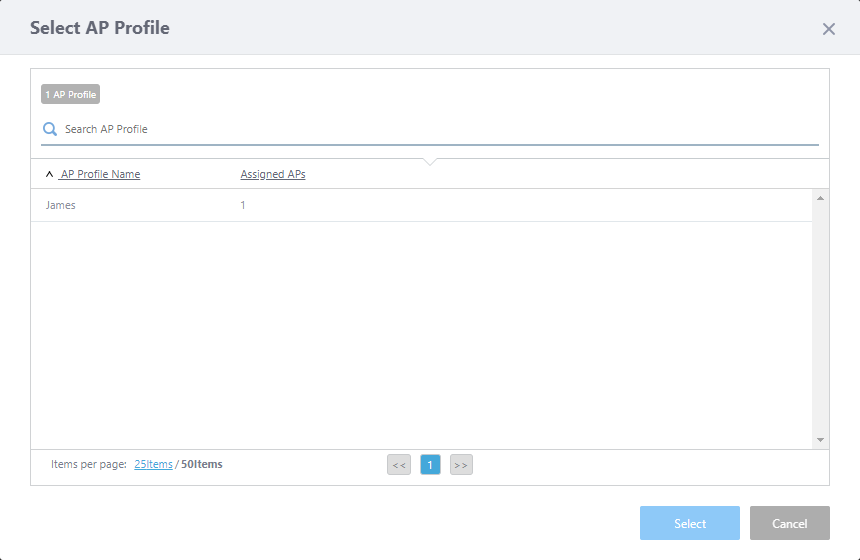
Select the Profile in Vista Manager mini (equivalent to AP Profile in AWC Plug-in) for which the AWC-SDF user manages the access control.The MAC addresses collected and allowed to connect by the user will be registered as an allow list in the MAC filter of the Profile selected here, and will be distributed to the wireless APs to which they belong.
| Item Name | Description |
|---|---|
| "Close" button | Abort selecting a Profile and close the dialog box. |
| X AP Profile | Displays the total number of registered Profiles. |
| Search AP Profile |
Lets you filter the list of Profiles. The search field lets you enter a partial string to match. The screen displays entries with that string in the "AP Profile Name" field. To remove the filter, delete the string from the Search field and press Enter. NoteThe search is case-sensitive. |
| AP Profile Name | Shows Profile name registered in Vista Manager mini. |
| Assigned APs | Displays the number of wireless APs to which the Profile assigned. |
| "Select" button | Confirm the selection of the Profile and close the dialog box. |
| "Cancel" button | Abort selecting a Profile and close the dialog box. |
Select Collection Network
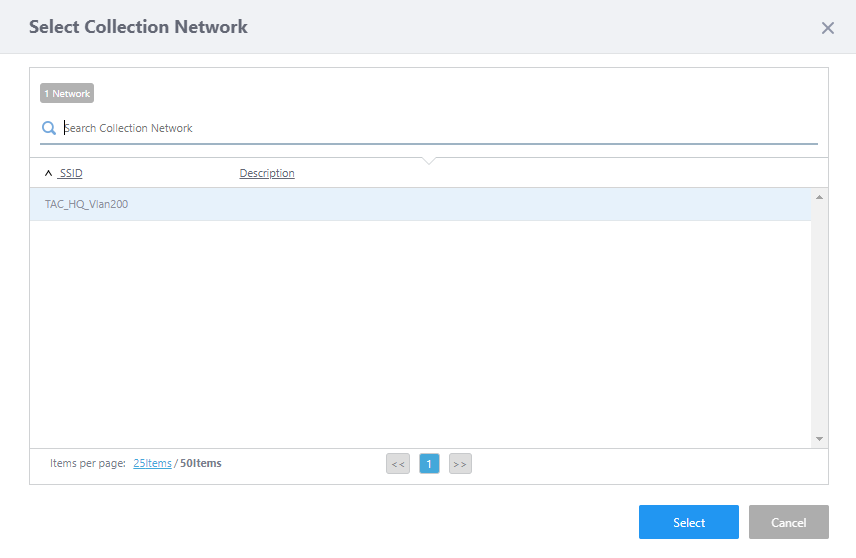
Select the Network (VAP) for MAC address collection to be managed by the AWC-SDF user.The AWC-SDF user can enable or disable the Collection Network. It provides a captive portal for connected wireless clients to register information such as MAC address and model name.
The Collection Network must have a Wireless Trigger assigned to it in Vista Manager mini to enable/disable it from the AWC Plug-in.
The Collection Network used by another AWC-SDF user is not shown on this list.
| Item Name | Description |
|---|---|
| "Close" button | Abort selecting a Profile and close the dialog box. |
| X Network | Displays the total number of registered Networks. |
| Select Collection Network |
Lets you filter the list of Collection Networks. The search field lets you enter a partial string to match. The screen displays entries with that string in the "SSID" field. To remove the filter, delete the string from the Search field and press Enter. NoteThe search is case-sensitive. |
| SSID | Displays the SSID of Collection Network. |
| Description | Displays the description which is entered to the Network in Vista Manager mini. |
| "Select" button | Confirm the selection of the Collection Network and close the dialog box. |
| "Cancel" button | Abort selecting a Network and close the dialog box. |
MAC Address List
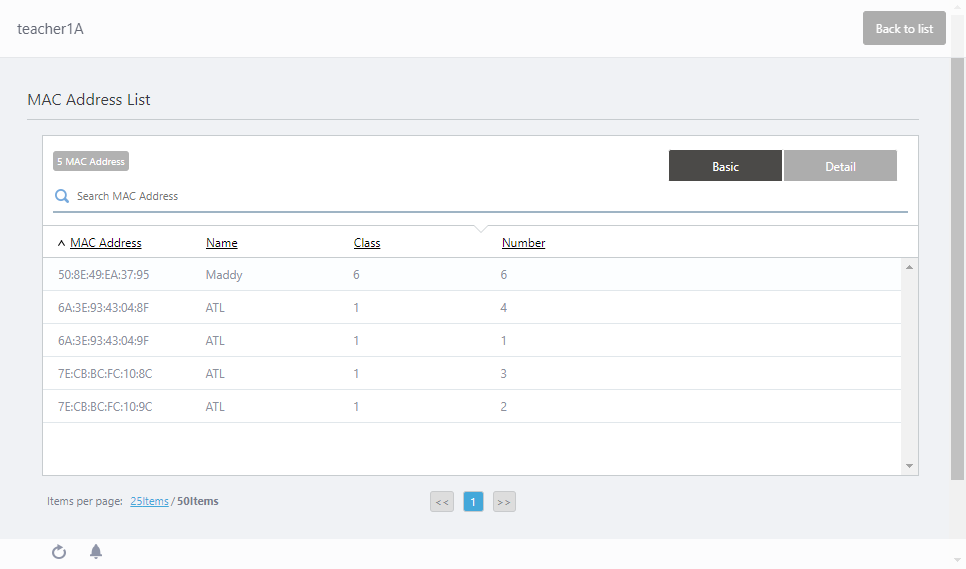
◼ Header
| Item Name | Description |
|---|---|
| "Back to list" button | Click to return to the User List screen. |
◼ AP List
| Item Name | Description |
|---|---|
| X MAC Address | Displays the total number of wireless APs which the user manages access for. |
| "Basic" button | Displays the collected MAC addresses and information entered together with the MAC addresses. |
| "Detail" button | In addition to the MAC address and client label, it shows the acceptance status, registration status, connection status, collection date and time, and last connection date and time. |
| Search MAC Address |
Lets you filter the list of APs. The list displays the records that contain the string entered in this field in either the "MAC Address" or other information entered with MAC Address. To remove the filter, delete the string from the Search field and press Enter. NoteThe search is case-sensitive. |
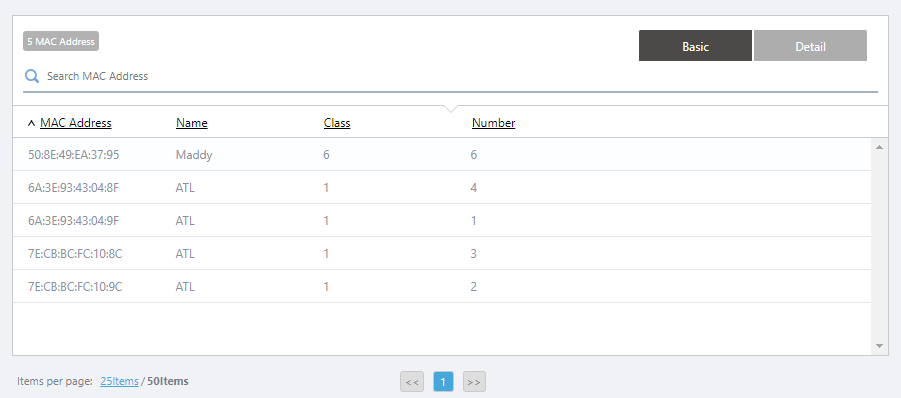
| Basic | |
 |
|
| MAC Address | Shows the MAC address of the AP. |
| Information collected |
Displays information entered in conjunction with the collection of MAC addresses. The item name can be set by the user as needed, such as device name, identification number, etc. Depending on the setting, the number of items can vary from 1 to 5. |
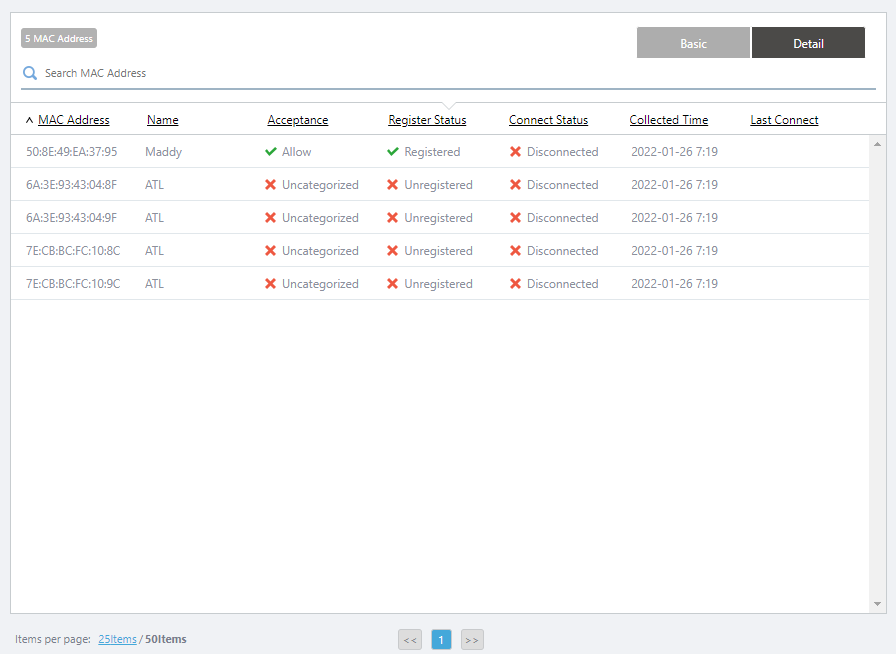
| Detail | |
 |
|
| MAC Address | Shows the MAC address of the AP. |
| Information collected |
Displays the first item of information that has been entered in conjunction with the MAC address collected. The item name can be set by the user as needed, such as device name, identification number, etc. |
| Acceptance | Displays the setting status of accepting or declining the connection from the wireless clients with the corresponding MAC address, as "Allowed", "Denied" or "Uncategorized". |
| Register Status | Indicates whether the MAC Address is registered to the managed APs' MAC address list, as "Registered" or "Unregistered". |
| Connect Status | Indicates whether the wireless client with the corresponding MAC address is currently connected or not, as "Connected" or "Disconnected". |
| Collected Time | Shows the date and time when the client information was collected. |
| Last Connect | Shows the date and time when the client was last connected to the operational Network. |
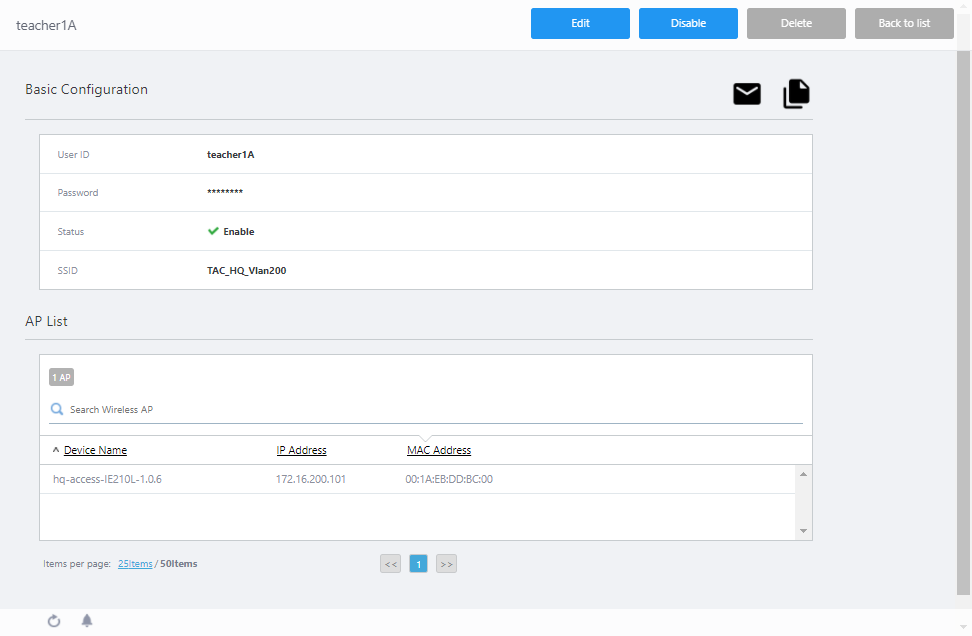
User Details
◼ Header
| Item Name | Description |
|---|---|
| "Edit" button | Lets you edit basic information of the user account. |
| "Disable" button | Disables the account. This is visible only when the account status is "Enable". |
| "Enable" button | Enables the account. This is visible only when the account status is "Disable". |
| "Delete" button | Deletes the user account being displayed. |
| "Back to list" button | Click to return to the User List screen. |
◼ Basic Configuration
| Item Name | Description |
|---|---|
| Mail button | Create an email draft with the user ID of the user account being displayed, the SSID that can be managed, and the URL of the configuration screen. |
| Copy button | Copy the user ID of the currently displayed user account, the manageable SSID, and the URL of the configuration screen to the clipboard. |
| User ID | Shows the User ID. |
| Password | When a password has been set, "********" will be displayed instead. |
| Status | Displays the enabled/disabled status of the account. |
| SSID | Displays the SSID of the Network (VAP) associated with the user account. Users can enable or disable the Network for this SSID and publish it for MAC address collection for wireless clients. |
◼ AP List
| Item Name | Description |
|---|---|
| X AP | Displays the total number of wireless APs which the user manages access for. |
| Search Wireless AP |
Lets you filter the list of APs. The box will perform incremental search for the entries which have the matching string in one of "Device Name", "IP Address", or "MAC Address" fields. To remove the filter, delete the string from the Search field and press Enter. NoteThe search is case-sensitive. |
| Device Name | Displays the management name of the wireless AP in Vista Manager mini. |
| IP Address | Shows the IP address of the AP. |
| MAC Address | Shows the MAC address of the AP. |
28 Mar 2022 10:47