Configure Emergency Mode
Emergency Mode is a function to instantly allow managed APs to open a pre-defined emergency network to the public in case of an emergency, such as a large-scale disaster.
To use Emergency Mode, the following setup is required:
- Create Emergency VAP
- Enable Emergency Mode
NoteEmergency Mode cannot be used with channel blanket. You cannot use a channel blanket as an emergency Wi-Fi network.
Create Emergency VAP
First you have to create a VAP which is dedicated for use when Emergency Mode is enabled.By preparing an emergency VAP in advance, you can quickly open it to the public in case of an emergency.
Here we are going to add an emergency VAP configuration to an existing AP Profile. Please also refer to Configure AP Profiles for details on AP Profile configuration.
- Select "Wireless Configuration" > "AP Profile" from the AWC Plug-in menu.
- Click an AP Profile to edit.
- The selected AP Profile will be displayed.
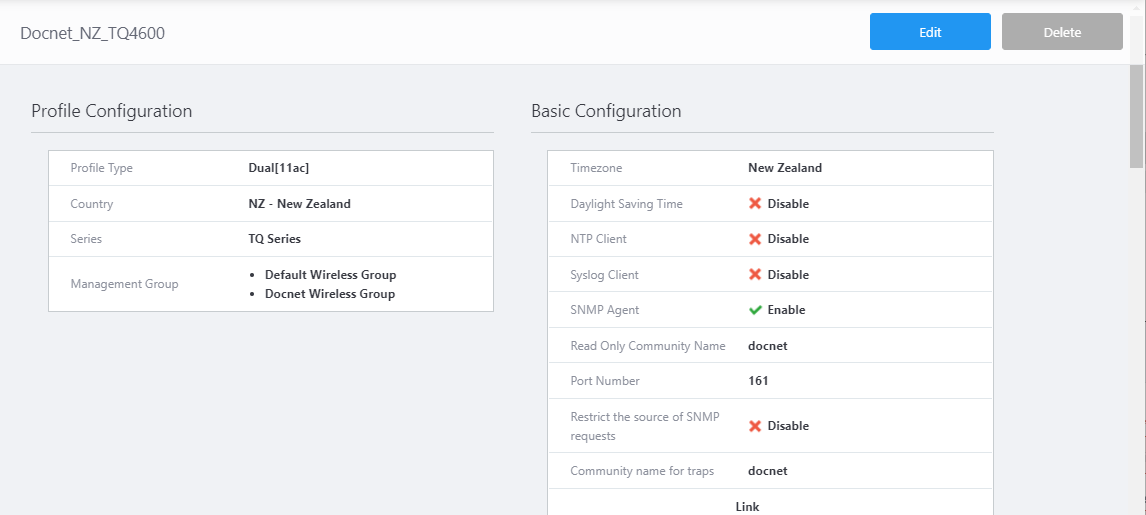
- Click "Edit" at the top right corner.
- In the "VAP (Multiple SSID) Configuration" section, click "+ Add VAP". Select Radio 1, Radio 2, or Radio 3 depending on the band you want to make public in case of an emergency.
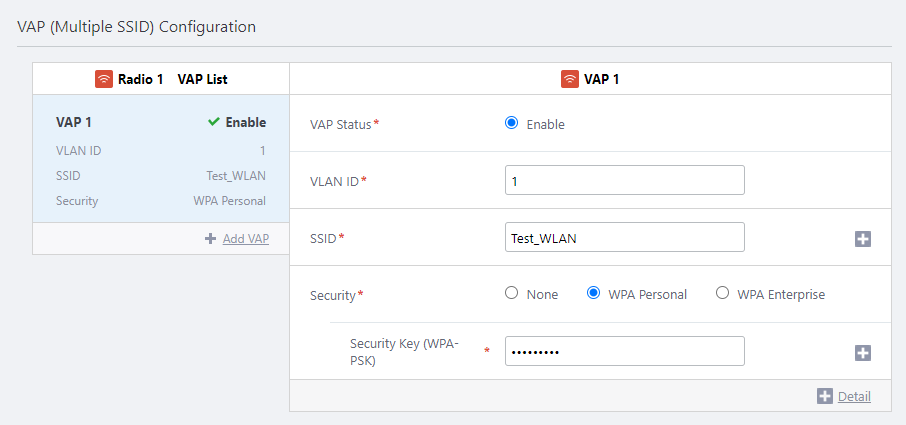
- Configure the newly created VAP as an emergency VAP.
Select "Emergency" from the "VAP Status" radio buttons.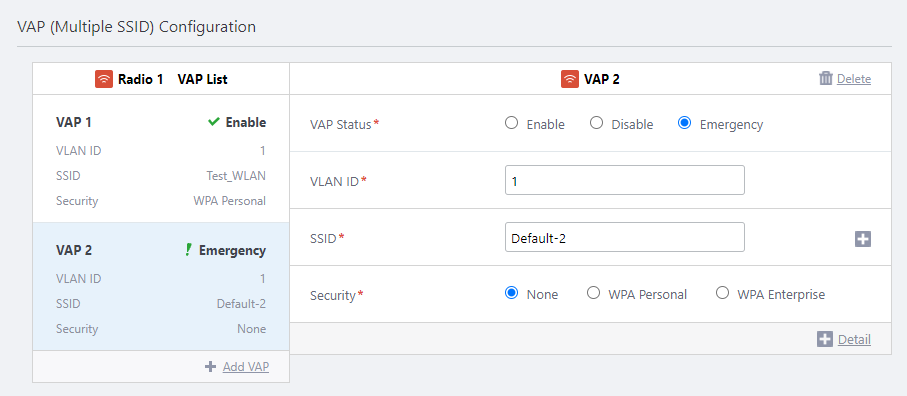
- Specify a VLAN ID for emergency use.
Select a unique VLAN ID for the emergency VAP.
- Configure SSID, Band Steering, Security, Captive Portal, and MAC Access Control appropriately.
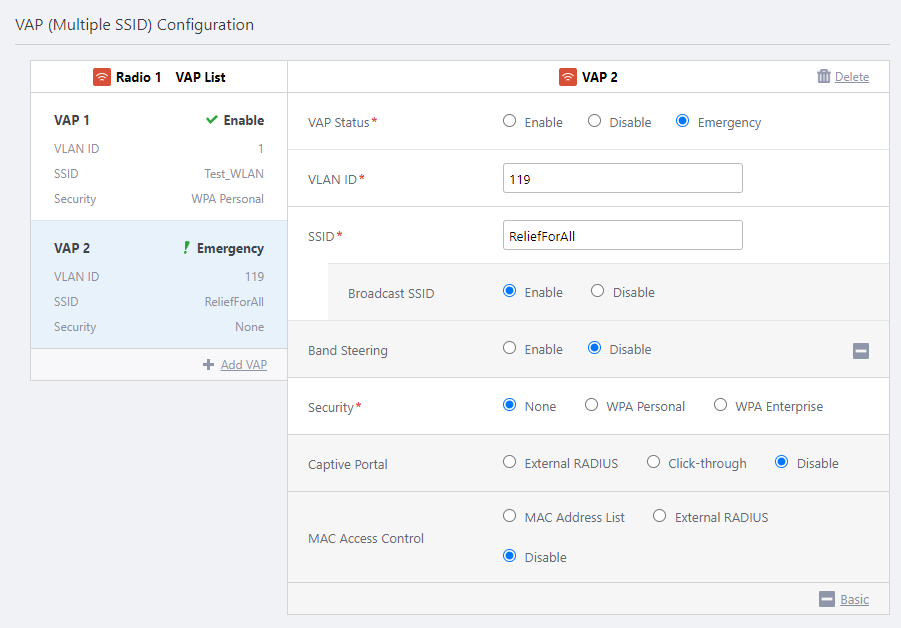
- If necessary, create another emergency VAP on the other radio band.
- Click "Save" at the top corner when you are done.
In most cases, you have to apply changes to the APs after making changes to an AP Profile.
If you are going to enable Emergency Mode now, proceed to the next section. When you enable Emergency Mode by following the steps described in the next section, the AP Profile including emergency VAP settings will be (re)applied to APs to which the AP Profile is assigned.
Even if you are not going to use Emergency Mode immediately, we recommend that you apply the configuration changes to the APs. See the Change Management Group or AP Profile for AP section.
Enable Emergency Mode
- Select "Wireless Maintenance" > "Emergency Mode" from the AWC Plug-in menu.
Emergency Mode can be enabled for each management group. Even if more than one management group is using an AP Profile, you can enable an Emergency VAP only for APs in a specific management group.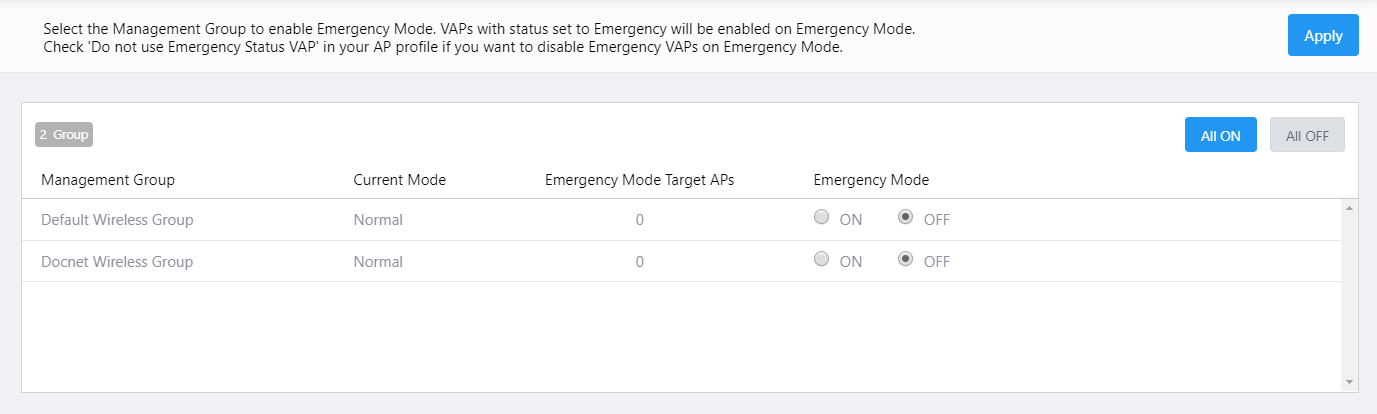
Select "ON" (Enabled) or "OFF" (Disabled) in the "Emergency Mode" field for each management group.
To enable Emergency Mode on APs in all management groups, click the "All ON" button.
- Then click the "Apply" button.
Note
When you click "Apply", AP Profiles are applied to APs in the selected management groups in order to enable Emergency VAPs. While this happens, wireless network service may be intermittently unavailable. Once the AP Profiles have been applied to the APs, existing VAPs resume normal operations.
- Emergency Mode is now enabled.
When Emergency Mode is enabled, it is indicated by a yellow color in the Administration section of the management web interface. The "AWC Plug-in" text in the main menu also changes to "AWC Plug-in Emergency Mode".
Disable Emergency Mode
To disable the emergency VAP, follow the steps below:- Select "Wireless Maintenance" > "Emergency Mode" from the AWC Plug-in menu.
Emergency Mode can be enabled for each management group. Even if more than one management group is using an AP Profile, you can enable an Emergency VAP only for APs in a specific management group.
Select "ON" (Enabled) or "OFF" (Disabled) in the "Emergency Mode" field for each management group.
To disable Emergency Mode on APs in all management groups, click the "All OFF" button.
- Then click the "Apply" button.
Note
When you click "Apply", AP Profiles are applied to APs in the selected management groups in order to disable Emergency VAPs. While this happens, wireless network service may be intermittently unavailable. Once the AP Profiles have been applied to the APs, existing VAPs resume normal operations.
- Emergency Mode is now disabled.
Once the Emergency Mode is disabled, the yellow color in the Administration section of the management web interface turns back to white. The "AWC Plug-in Emergency Mode" text in the main menu also changes back to "AWC Plug-in".
28 Mar 2022 10:47