Synchronizing AMF Security
By preparing two AT-VST-APLs and synchronizing the AMF Security authentication data (authentication database), you can add redundancy to the network control.
In a synchronized environment, one AMF Security system is called primary and the other is called secondary where the database on the primary is copied to the secondary.
The settings are for both primary and secondary AMF Security. In the Database Synchronization Node Settings dialog, specify the IP address of both AMF Security and select whether it is primary or secondary.
The following data is synchronized.
- Device
- UnAuth Group
- Switches
- Security Policies
- Network
- Location
- Schedule
- Action
- Network
- Account Group
NoteThe Device > Active Device List page and Switches > Active OpenFlow Switch List page show the live information retrieved from OpenFlow Switches managed by AMF Security. Therefore, the information displayed on those pages may differ between the primary and secondary's web interfaces.
NoteAMF Application Proxy Whitelist does not support redundant AMF Security configuration.
NoteWhen an OpenFlow packet control flow (flow entry) is updated, such as when an authenticated node moves to another port, multiple logs indicating that the flow entry has been deleted may be recorded. However, it does not affect the authentication behavior.
NoteDatabase synchronization settings are not included in the file exported (downloaded) on the System Settings > System Information page. Therefore, after importing the system settings file, set the database synchronization again.
Prerequisites for Synchronization
The following requirements must be met to synchronize two AMF Security systems.- Uses two AT-VST-APLs. The AT-VST-APL used for the secondary only supports the use of the AMF Security application. Therefore, it is necessary to stop all but the AMF Security application on the AT-VST-APL setting page.
For how to stop the application with AT-VST-APL, refer to the AT-VST-APL document posted on our website.
- The two AT-VST-APL and AMF Security used for synchronization must be connected to the IPv4 segment that can communicate with each other.
- Those interfaces can be the same as the ones for connecting OpenFlow Switches (i.e. ports acting as control plane port and a management port).
- Both systems must have the same system settings. That's because the system settings are not synchronized.
- Both systems must synchronize their clocks with the same NTP server. Also, the timezone of both systems must have the same settings.
In addition to those, Allied Telesis recommends you to implement the following configurations to devices in the network.
- Configure OpenFlow Switches to use both systems as OpenFlow controllers.
If OpenFlow Switches are using only one OpenFlow controller, the information displayed on the Device > Active Device List and the Switches > Active OpenFlow Switch List pages may differ between the primary and secondary systems.
- Configure applications interacting with AMF Security to send syslog or trap messages to both AMF Security systems.
If the applications are configured to send messages to only one of two AMF Security systems, application actions won't be updated correctly when one of the synchronized systems fails.
If the applications do not support multiple IP addresses to which they send notifications, you can lower the possibility that actions are not updated properly by setting "Syslog Forwarding Destination Hosts" and "SNMP Trap Forwarding Destination Hosts" on the System Settings > Trap Monitor Settings page.
Configuring Synchronization
Set up database synchronization on the device used first as the secondary device and then on the device used as the primary device.NoteAllied Telesis recommends you to download authentication data on both systems for backup before configuring synchronization.
- Make sure that both AMF Security systems can communicate with each other.
- Display the System Settings > Network Settings page with AMF Security of AT-VST-APL used on the secondary. Click the "Enable" button of the Database Synchronization item.
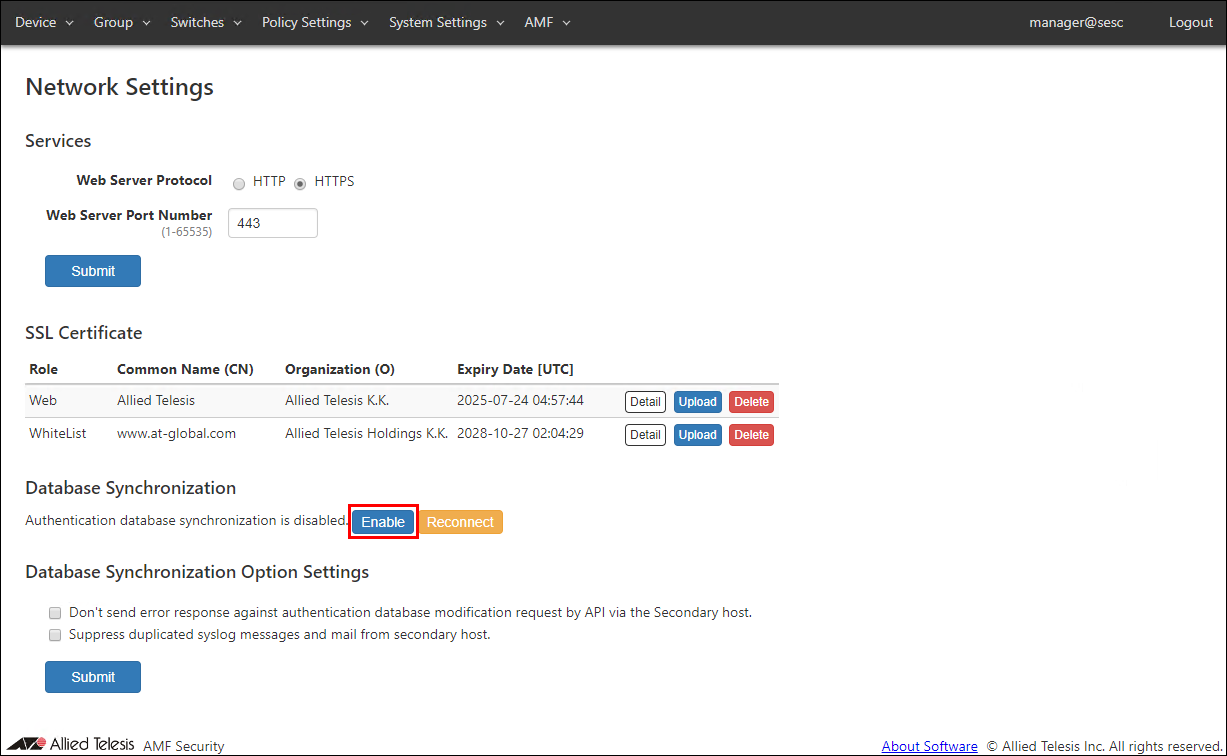
- The "Database Synchronization Node Settings" dialog is displayed.
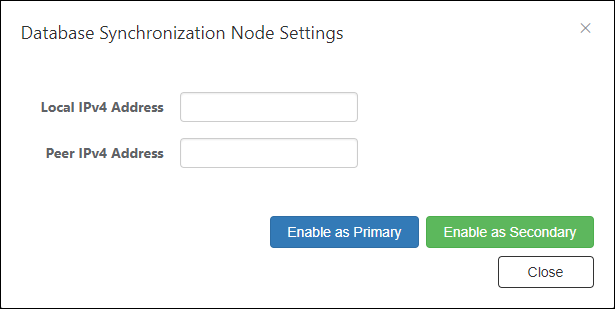
- Enter "Local IPv4 Address" and "Peer IPv4 Address" and click the "Enable as Secondary" button.
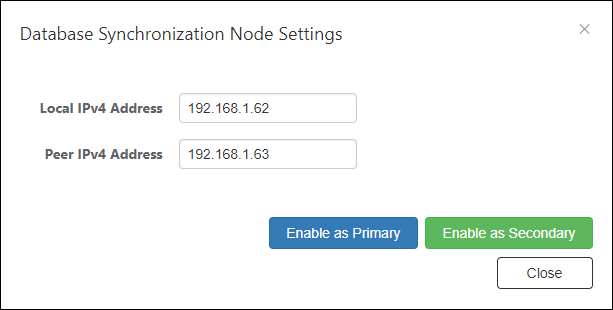
- After the message is displayed, AMF Security restarts, so log in again.
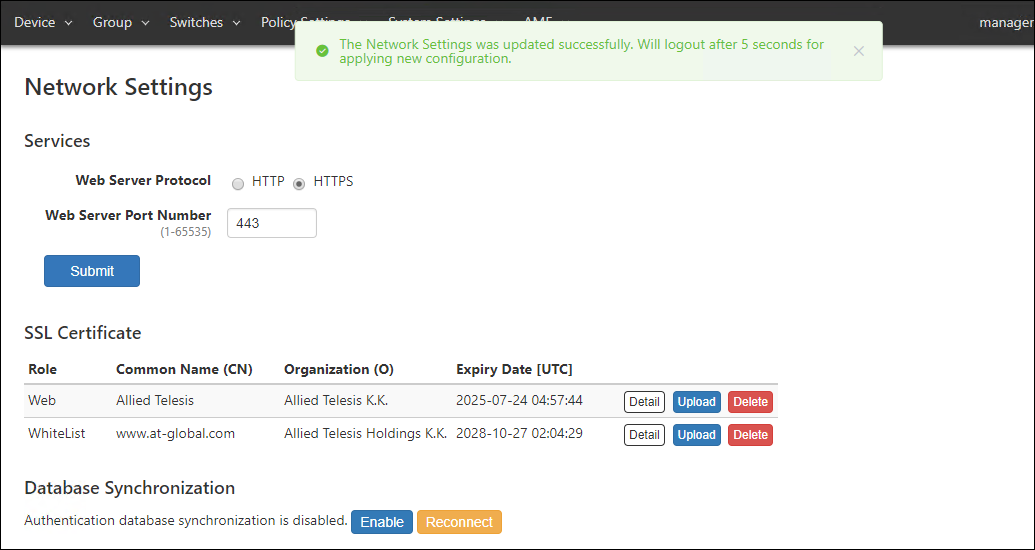
- Display the System Settings > Network Settings page and check the "Database Synchronization" item.
(At this point, Peer's "State" item is displayed as "Down" because the primary setting has not been made.)
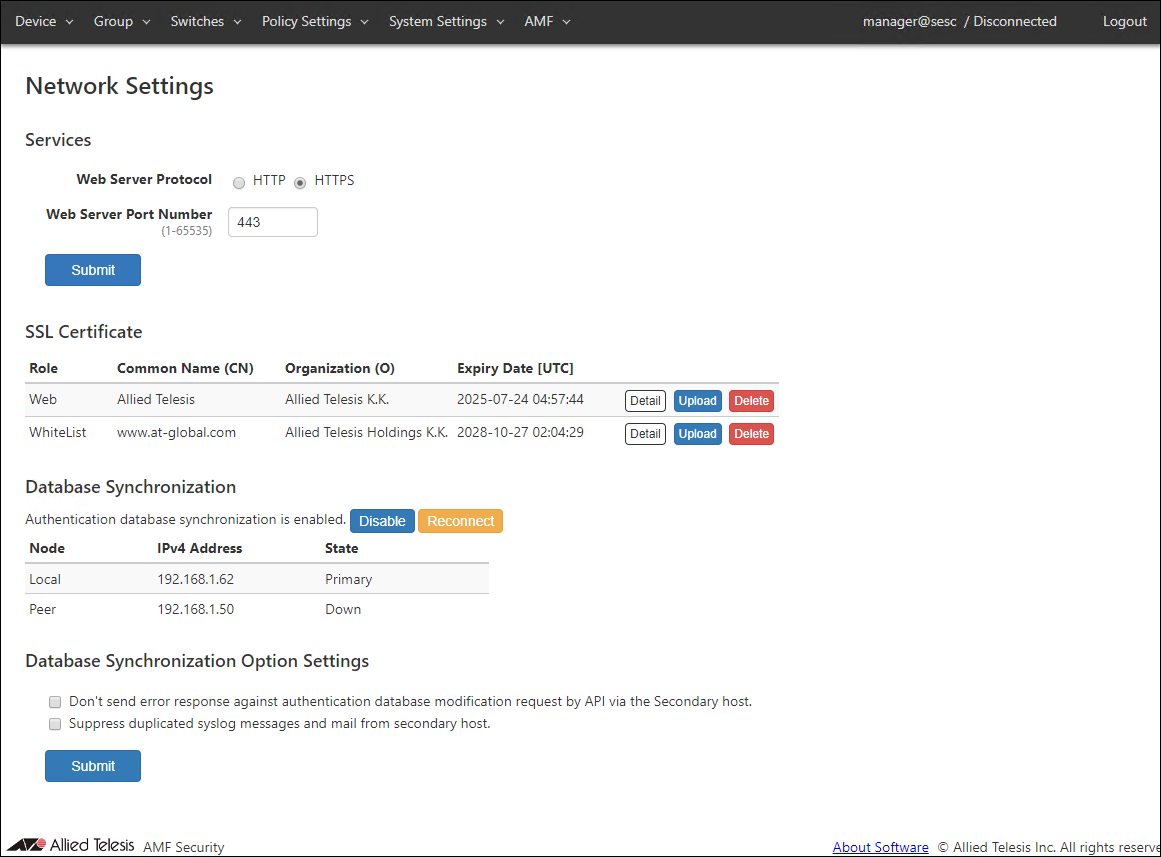
Perform those procedures on both systems. Since you have set "Enable as Secondary" on the screen in step 4, set "Enable as Secondary" for the other AMF Security system.
After synchronization, when you log in to the AMF Security web setting screen, follow the host name in the upper right of the screen, such as "manager@sesc / Syncing (Primary)", "manager@sesc / Syncing (Secondary)", The synchronization status is displayed.
You can also see the similar information on the System Settings > System Information page's "Database Synchronization" field.
When Synchronization Fails
When synchronization fails for some reason, the systems respond in the following manner.- When the primary fails (e.g. power outage) and only the secondary remains operational, the secondary is automatically promoted to the primary and takes over the roles as the OpenFlow controller.
- When the secondary fails, the primary continues its role as the OpenFlow controller.
When Synchronization Recovers
When synchronization recovers from a failure, the promoted primary system (ex-secondary) continues to act as the primary.In case that the secondary fails and then recovers, roles are not changed before and after the failure.
If the network route is lost while both systems are operating normally, the primary and secondary may switch when the failure is recovered.
If you replace one of the systems with a new hardware, synchronization might not restart.
In that case, download authentication data from the current primary system, re-configure synchronization and upload the authentication data.
NoteIf you replace one of the synchronized AMF Security systems, you have to configure the new system to have the same System Settings as the old one.
- On the AMF Security settings page that is operating as the primary, display the System Settings > System Information page.
- Click the "Export" button of the Authentication Data item to download the authentication data.
- Open the System Settings > Network Settings page.
- Click the "Disable" button in the Database Synchronization item.
- Click "OK" button.
- Re-configure synchronization on both systems by following the steps described in Synchronizing AMF Security > Configuring Synchronization of the Quick Tour.
Note
Authentication data on the primary system could be deleted during synchronization.
- Once you reconfigured the synchronization, Go to the System Settings > System Information page on the primary system.
- Click the "Import" button for the Authentication Data item to open the "Upload Authentication Data" dialog.
- Click the "Choose File" button, select the authentication data (CSV format) downloaded in step 2, and click the "Submit" button.
Steps to stop and start AMF Security
Take the following procedures when you stop and start a synchronized system for maintenance.Steps to stop the AMF Security application
- On the AMF Security management page of the device operating as the secondary, click the "Stop" button to stop the AMF Security application.
For how to stop the application with AT-VST-APL, refer to the AT-VST-APL document posted on our website.
- Open the System Settings > Network Settings page of the AMF Security that is running as the primary. Make sure that "Peer" in the "Database Synchronization" item is "Down".
Note
It might take one to one and a half minutes for the log message to appear after performing the step 1.
- Shutdown the secondary system with the same procedure as the step 1.
Steps to start the AMF Security application
- On the AMF Security management page of the device operating as the primary, click the "Start" button to stop the AMF Security application.
For how to start the application with AT-VST-APL, refer to the AT-VST-APL document posted on our website.
- Open the System Settings > Network Settings page of the AMF Security that was running as the primary. Make sure that "Local" in the "Database Synchronization" item is "Primary".
Note
It might take one to one and a half minutes for the log message to appear after performing the step 1.
- Shutdown the secondary system with the same procedure as the step 1.
25 Mar 2021 14:11