How to use the setting page
This section describes the basic screen configuration of the setting page and how to operate it.
Navigation menu
Navigation menu is located at the top of the screen.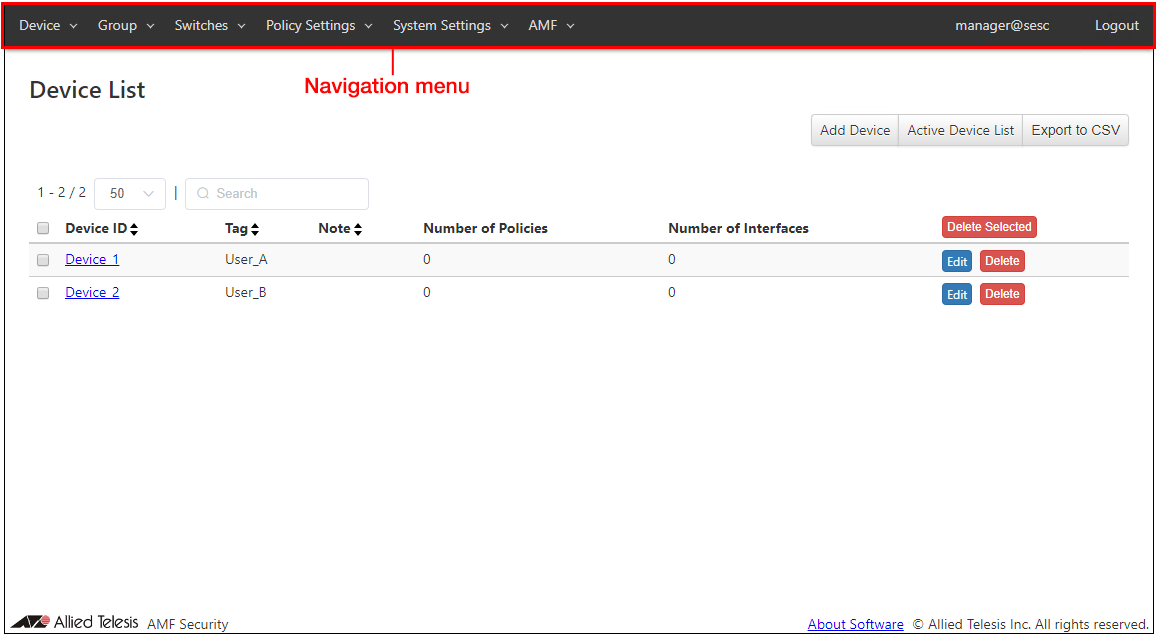
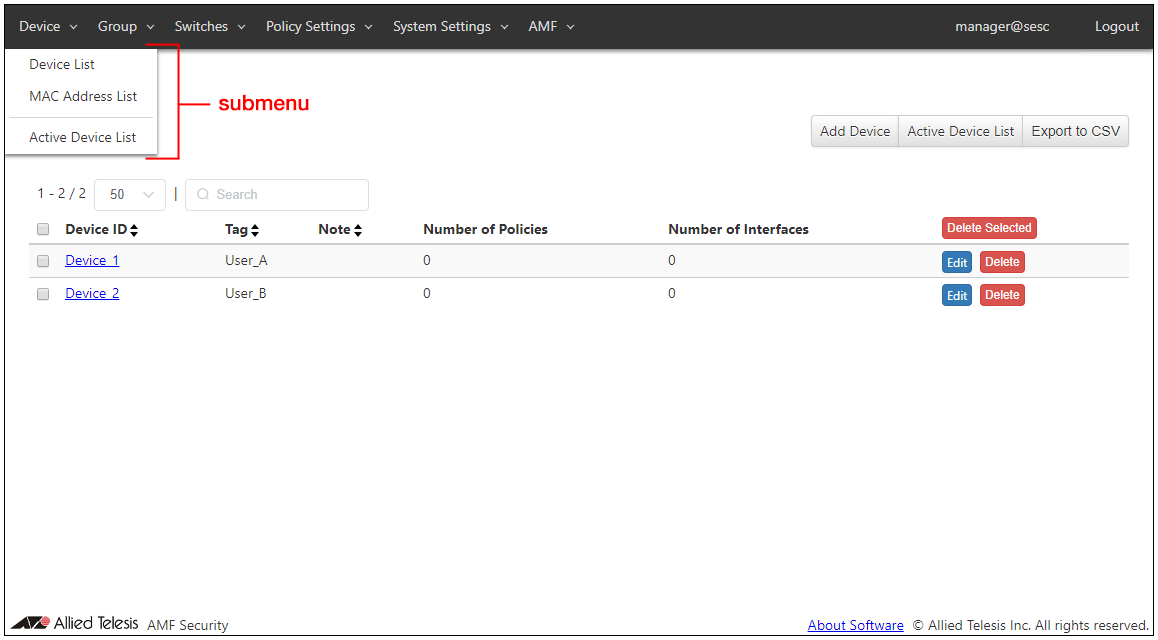
Searching and Sorting in Tables
The following pages have controls to search, filter or sort items in tables.- Device > Device List
- Device > MAC Address List
- Device > Active Device List
- Group > UnAuth Group List
- Switches > AMF Member List
- Switches > Active AMF Member List
- Policy Settings > Network List
- Policy Settings > Location List
- Policy Settings > Schedule List
- Policy Settings > Action List
- System Settings > Action Log
The next table shows which columns can be searched, filtered and sorted on each page.
| Page | Item Name | Search | Filter | Sort | Note |
|---|---|---|---|---|---|
| Device > Device List | Device ID | × | − | × | |
| Tag | × | − | × | ||
| Note | × | − | × | ||
| Number of Policies | × | − | × | ||
| Number of Interfaces | × | − | × | ||
| Interface: MAC Address* | × | − | × | ||
| Interface: Name* | × | − | × | ||
| Interface: Note* | × | − | × | ||
| Device > MAC Address List | MAC Address | × | − | × | |
| Name | × | − | × | ||
| Device ID | × | − | × | ||
| Note | × | − | × | ||
| Device: Tag* | × | − | × | ||
| Device: Note* | × | − | × | ||
| Device > Active Device List | MAC Address | △* | − | × | |
| Device ID | △*1 | − | △*2 | ||
| Connected Switch | △*1 | − | △*2 | ||
| Connecting Network | △*1 | − | △*2 | ||
| Status | × | × | △* | ||
| Group > UnAuth Group List | Group ID | × | − | × | |
| Enabled | × | − | × | ||
| Note | × | − | × | ||
| Number of Policies | × | − | × | ||
| Switches > AMF Member List | Name | × | − | × | |
| Account Group ID | × | − | × | ||
| Note | × | − | × | ||
| Switches > Active AMF Member List | Name | × | − | × | |
| Registration Status | × | − | × | ||
| Domain Name | × | − | × | ||
| Latest Access | × | − | × | ||
| Policy Settings > Network List | Network ID | × | − | × | |
| VLAN ID | × | − | × | ||
| Note | × | − | × | ||
| Policy Settings > Location List | Location ID | × | − | × | |
| Note | × | − | × | ||
| Number of Switches | × | − | × | ||
| Policy Settings > Schedule List | Schedule ID | × | − | × | |
| Start Date / Time | × | − | × | ||
| End Date / Time | × | − | × | ||
| Note | × | − | × | ||
| Policy Settings > Action List | Action ID | × | − | × | |
| Priority | × | − | × | ||
| Condition | △* | − | × | ||
| Action (OpenFlow, TQ/AMF) | △ *1 | − | △*2 | ||
| Requester | × | − | × | ||
| Reason | × | − | × | ||
| System Settings > Account List | Account Name | − | − | × | |
| Account Group ID | − | − | × | ||
| System Settings > Account Group List | Account Group ID | × | − | × | |
| Note | × | − | × | ||
| System Settings > Action Log | Duration | × | − | − | |
| MAC Address | × | − | − | ||
| Device IPv4 Address | × | − | − | ||
| Device Tag | × | − | − | ||
| Action Originator | × | − | − | ||
| Status | − | × | − |
Number of items displayed on the page
A range of currently displayed items and a total number of items are shown above each table in the form of "RANGE / TOTAL". You can also change the maximum number of items displayed on a page by using the dropdown menu.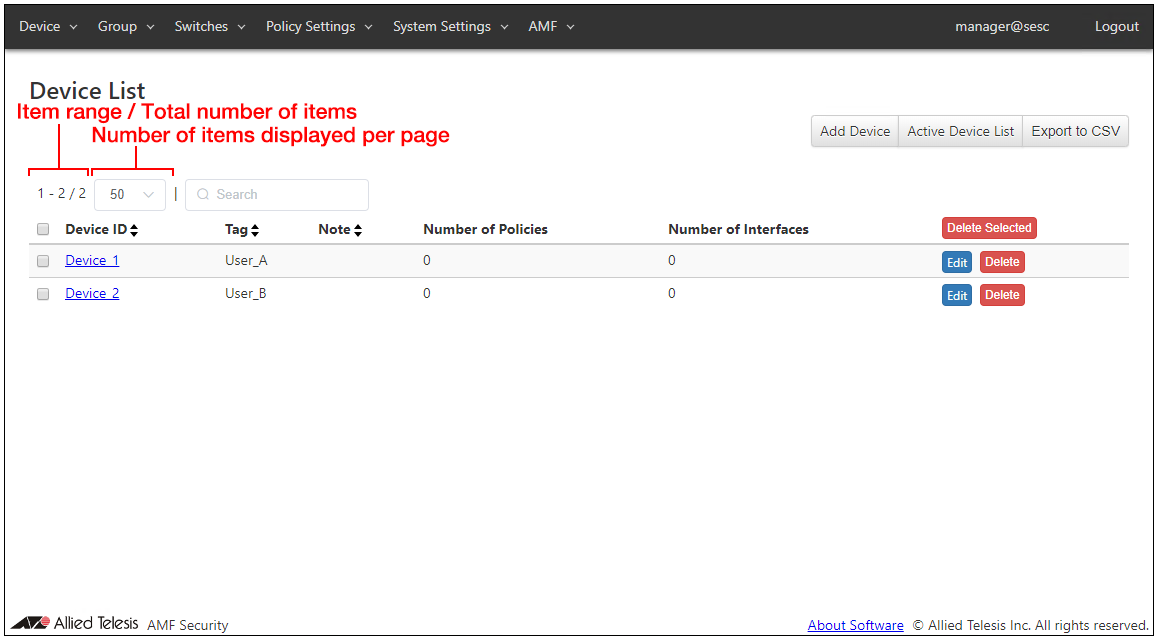
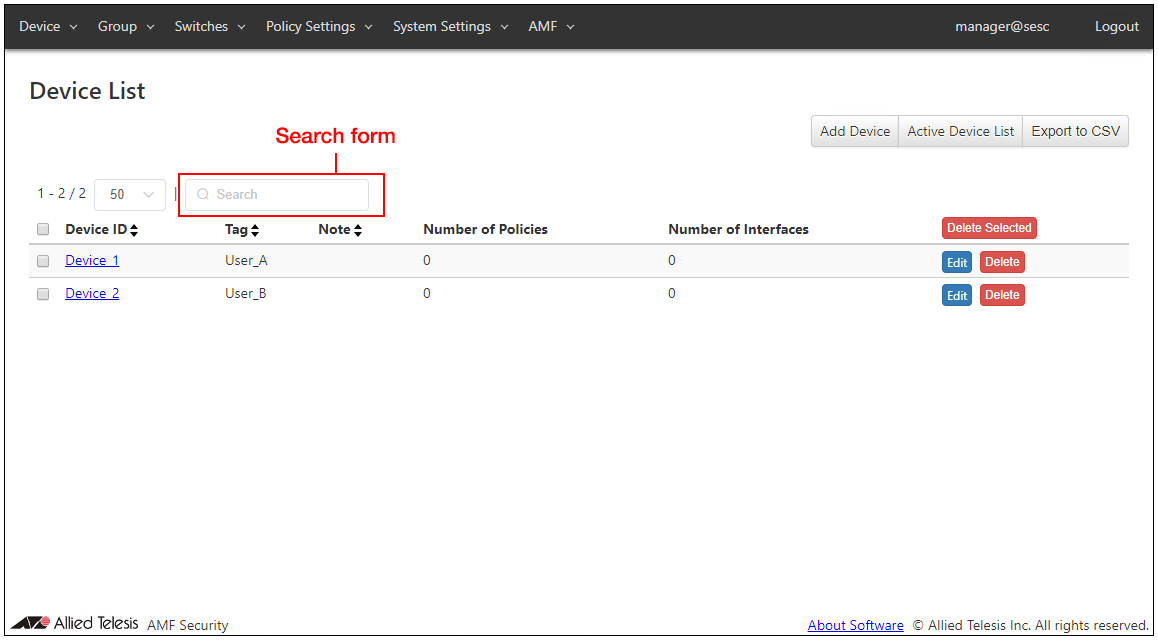
Filter using search form
You can filter items to display by entering keywords in the search form.If you enter multiple keywords separated by space, only items matching all the keywords are displayed. (AND search)
When you filter items, matched texts are highlighted in red. Matched texts are highlighted even when they are in the columns which cannot be matched.
Filter using dropdown menu
On the Device > Active Device List page, you can filter items by the status of Devices using dropdown menu.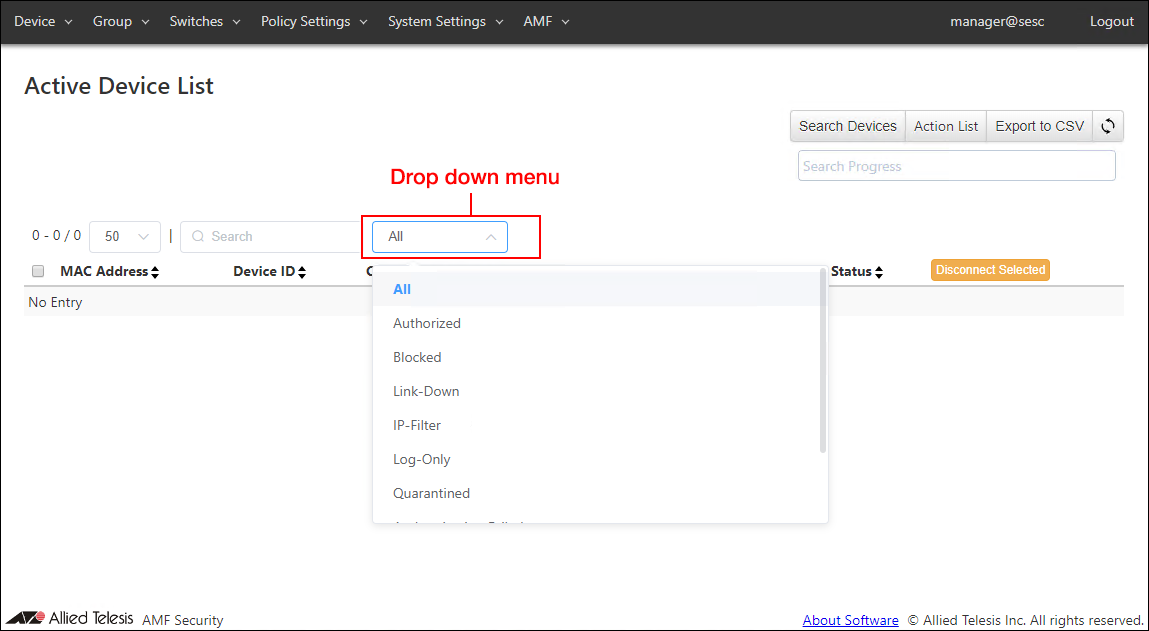
| Option | What is displayed |
|---|---|
| All | All the devices in any of the Authorized, Blocked, Link-Down, IP-Filter, Quarantined, Authentication Failed or Detected status. |
| Authorized | Devices matching the security policy for the registered device or the UnAuth Group. |
| Blocked | Devices which were blocked by an instruction of an external system or an operation of an administrator. |
| Link-Down | Devices which are being blocked by AMF Application Proxy's Link-Down action. |
| IP-Filter | Devices which are being blocked by AMF Application Proxy's IP-Filter (Layer 3) action. |
| Log-Only | Devices for which logs were generated without taking any actions. |
| Quarantined | Devices which were moved to quarantine network by an instruction of an external system or an operation of an administrator. |
| Authentication Failed | Devices which failed to authenticate because they were not registered or they didn't match any security policy. |
| Quarantined | Blocked | IP-Filter | Authentication Failed | Devices which are in any of the Quarantined, Blocked, Link-Down, IP-Filter or Authentication Failed status. |
| Detected | Devices which were detected by the UnAuth Group's detection feature. |
Sort
You can sort items by clicking small buttons next to the column headers.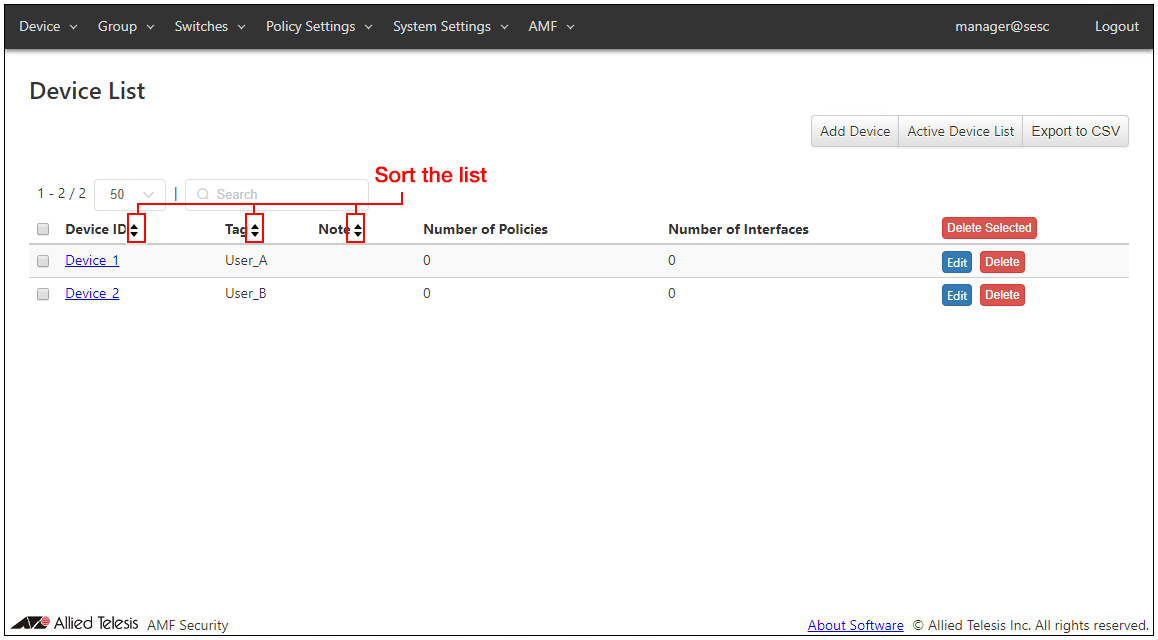
Toggling Order
The sort order is toggled among ascending > descending > default order whenever you click the same button.- Sorted in the order of "Authorized", "Blocked", "Link-Down", "Quarantined", "Authentication Failed", "Detected", "IP-Filter" and "Log-Only".
- VLAN ID and Network ID is sorted in the order of No Connection > Untagged > VLAN ID (1-4094).
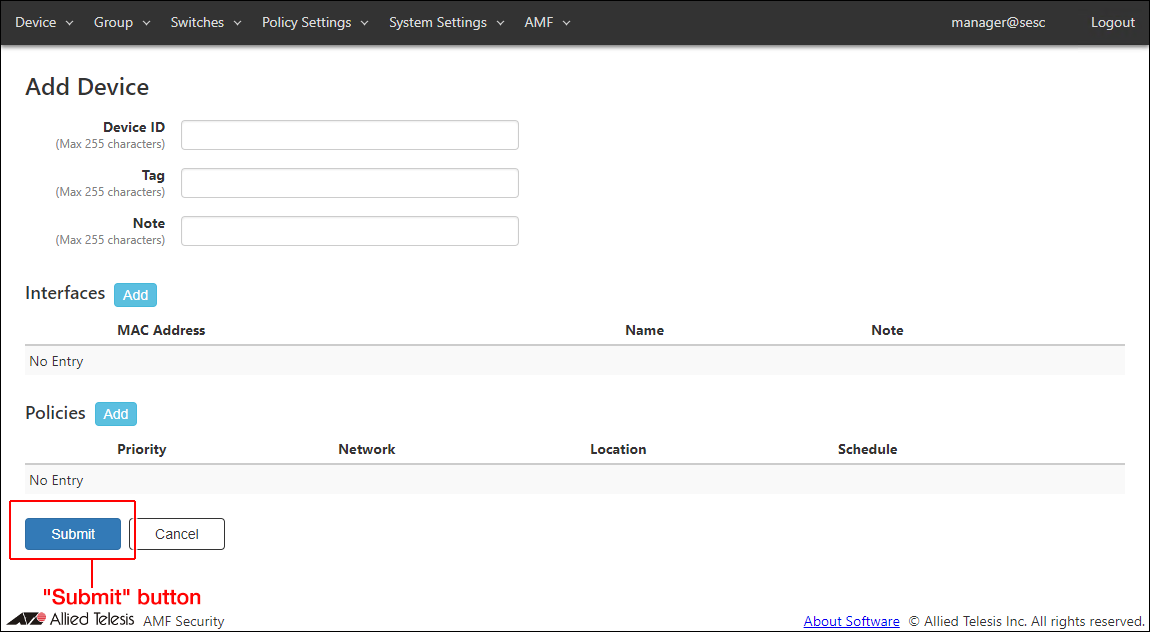
Apply Configuration Changes
There is the "Submit" button on each configuration page or dialog. After changing configurations on a page or a dialog, do not forget to click the "Submit" button before moving to another page.When you click the "Submit" button, the changes you made on the page are immediately applied to the AMF Security's operation.
NoteThere are some pages without the "Submit" button because they are read-only and do not have any configuration element to change.
About Software
You can view the list of names and licenses of the software used by AMF Security mini.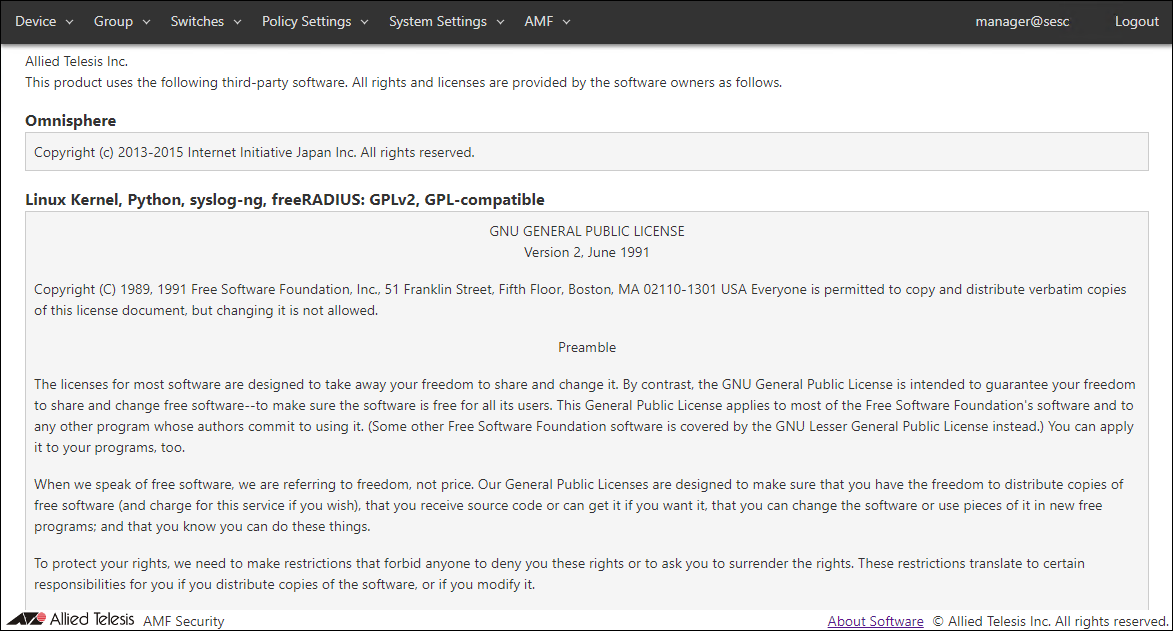
09 Jul 2021 12:05