Device
This page shows the list of networks registered in AMF Security mini's database.
Device List
This page shows the list of networks registered in AMF Security mini's database.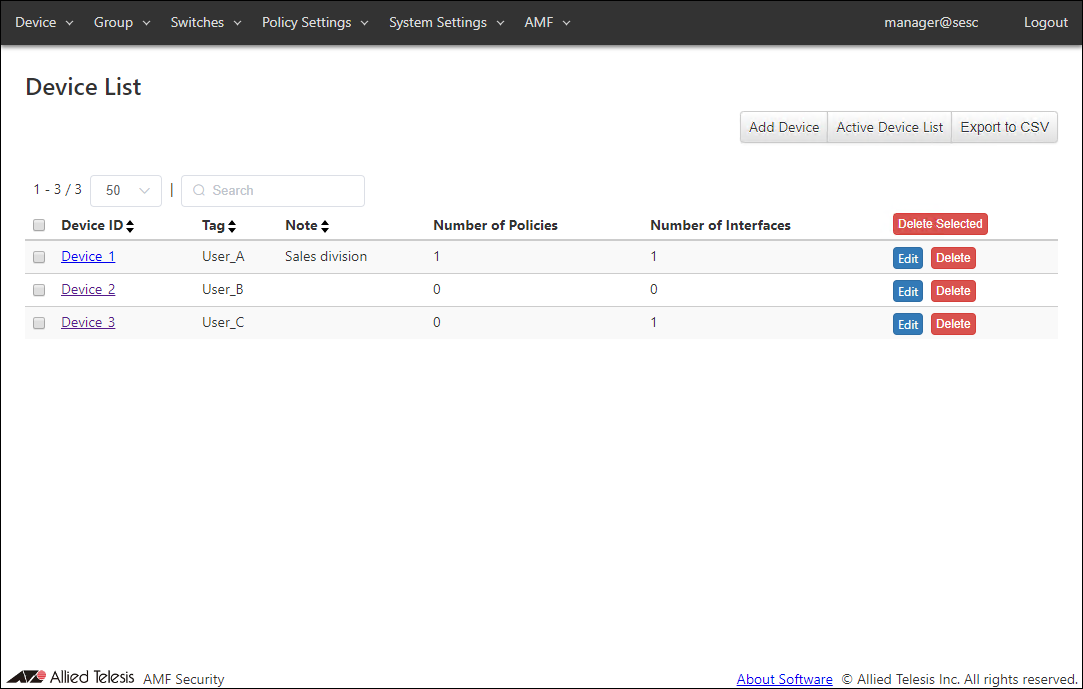
| Item Name | Search | Sort | Note |
|---|---|---|---|
| Device ID | × | × | |
| Tag | × | × | |
| Note | × | × | |
| Number of Policies | × | × | |
| Number of Interfaces | × | × | |
| Interface: MAC Address* | × | × | |
| Interface: Name* | × | × | |
| Interface: Note* | × | × |
| Item Name | Description |
|---|---|
| Device ID | ID (Name) of the device to register. |
| Tag | Secondary name of the device for administrative use. |
| Note | Arbitrary string (comment) for the device. |
| Number of Policies | Number of security policies applied to the device. |
| Number of Interfaces | Number of MAC addresses (interfaces) associated with the device. |
| Item Name | Description |
|---|---|
| Page Top | |
| Add Device | Open the Add Device page. |
| Active Device List | Open the Active Device List page. |
| Export to CSV | Start downloading of a list of devices in CSV format. |
| Device List | |
| Delete Selected | Delete all the checked devices. |
| Edit | Open the Update Device page for the selected device. |
| Delete | Delete the device. |
NoteRefer to Appendix > CSV File for CSV Files.
Add Device
This page lets you add a new device to the database.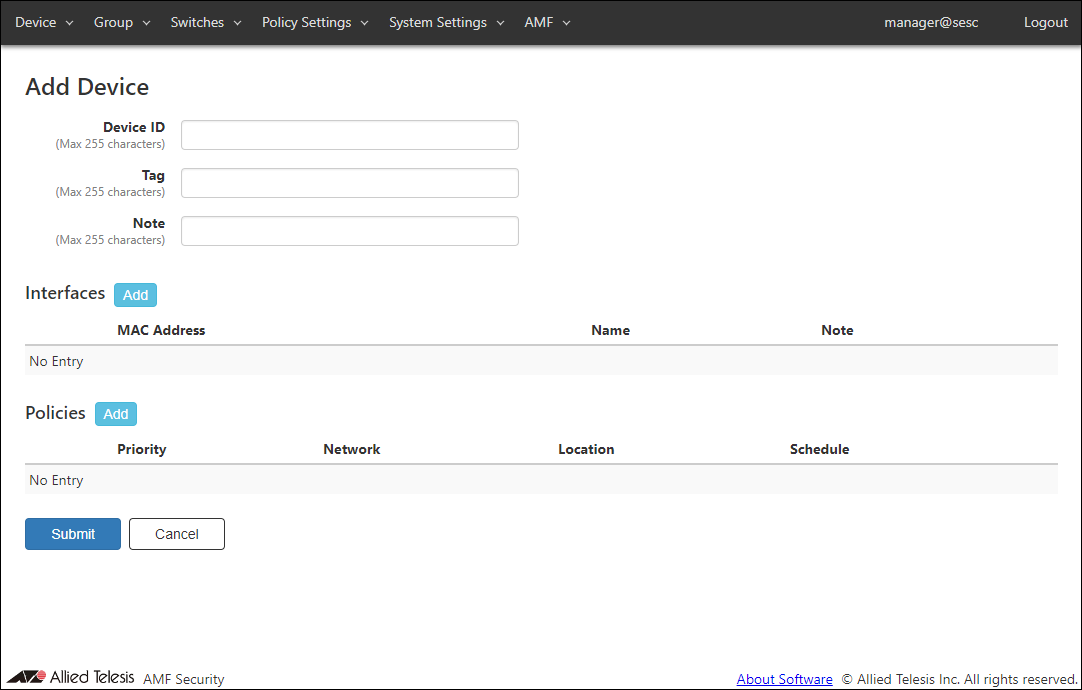
| Item Name | Description |
|---|---|
| Device ID (Mandatory) | ID (Name) of the device to register. Device ID must be unique. Max 255 characters |
| Tag | Secondary name of the device. It can be used by administrators to easily distinguish, categorize or filter devices. Max 255 characters |
| Note | Arbitrary string (comment) for the device. Max 255 characters. |
| Item Name | Description |
|---|---|
| Interfaces | |
| Interfaces | List of MAC addresses (interfaces) associated with the device. |
| MAC Address | Interface MAC address of the device. |
| Name | Administrative name of the interface (MAC address). |
| Note | Arbitrary string (comment) for the interface (MAC address). |
| Policies | |
| Policies | List of security policies which are being applied to the device. |
| Priority | A priority value of the security policy. It must be an integer in the range of 0 to 255. When multiple security policies are set, if the interface registered on the device is connected to AMF Members, it is determined whether the security policy with the lowest priority value matches in order. |
| Network | ID of the network which AMF Security assigns the device to. |
| Location | Location ID |
| Schedule | A Schedule ID. |
| Item Name | Description |
|---|---|
| Interfaces | |
| Add | Open the Edit Interface dialog to register new interface for the device. |
| Edit | Open the Edit Interface dialog to edit the selected interface. |
| Delete | Mark to delete the MAC address (interface) associated with the device. The interface to be deleted is indicated with the DEL mark on the left side of its record line. |
| Revert | Clear the DEL mark on the interface. |
| Policies | |
| Add | Open the Edit Policy dialog to register new security policy for the device. |
| Edit | Open the Edit Policy dialog to edit the selected security policy. |
| Delete | Mark to delete the security policy attached to the device. The security policy to be deleted is indicated with the DEL mark on the left side of its record line. |
| Revert | Clear the DEL mark on the security policy. |
| Page Bottom | |
| Submit | Add a new device with the input information on this page and subordinate dialogs by committing the information for the newly added device. |
| Cancel | Cancel the operation for adding a new device. |
NoteInterfaces and security policies marked with DEL is deleted when the "Submit" button is clicked. Once you click the "Submit" button, you cannot undo the delete operations.
Edit Interface
This dialog lets you add a new MAC address (interface) to the device or update an existing MAC address (interface) associated with the device.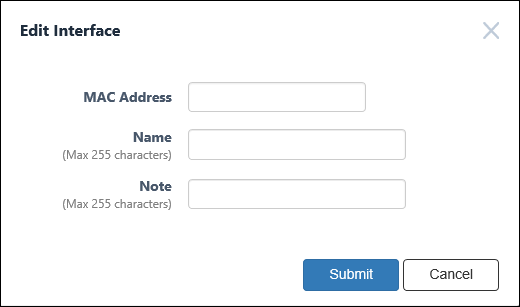
| Item Name | Description |
|---|---|
| MAC Address (Mandatory) | MAC address of the interface. MAC address must be unique. Valid formats are as follows xx:xx:xx:xx:xx:xx, xx-xx-xx-xx-xx-xx, xxxx.xxxx.xxxx |
| Name | Administrative name of the interface. Max 255 characters. |
| Note | Arbitrary string (comment) for the interface. Max 255 characters. |
| Item Name | Description |
|---|---|
| Bottom of the dialog | |
| Submit | Add or update the interface information. |
| Cancel | Cancel the operation of adding or updating the interface information. |
Edit Policy
This dialog lets you add a new security policy to the device or update an existing security policy attached to the device.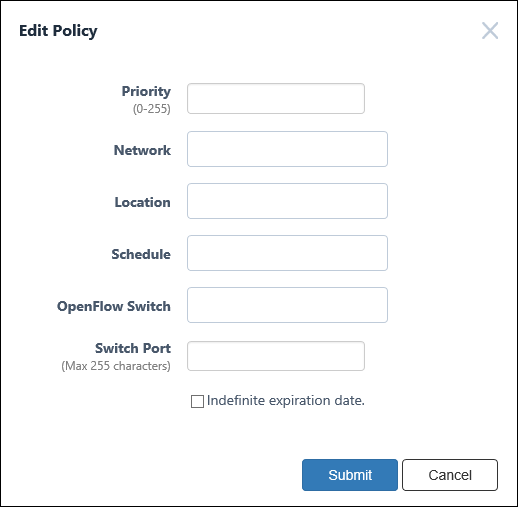
| Item Name | Description |
|---|---|
| Priority (Mandatory) | A priority value of the security policy. It must be an integer in the range of 0 to 255. When multiple security policies are set, when a registered device is connected to an AMF Member, it is determined whether the security policy with the lowest priority value matches in order. |
| Network | ID of the network which AMF Security assigns the device to. Maximum 100 IDs of the existing networks are shown in the dropdown list. If you enter text in the field, Network IDs in the dropdown list are dynamically filtered to the ones which contain the input text in Network ID, VLAN ID or Note (it shows maximum 100 elements). From the dropdown list, select a Network ID. If the registered device is connected to AMF Members, it is connected to the VLAN subnet configured in the network. If the network is not registered in the device (if this setting is blank or the VLAN ID is set to 0 in the network security policy setting), it is assigned to the VLAN set as the AMF Member. The connection to the VLAN subnet is realized by sending as a tagged VLAN with the set VLAN ID when it is sent to the upper network of the connected AMF Members. You have to add the network before assigning a device to the network. Refer to Policy Settings > Add Network for the instruction on how to register a network. |
| Location | Specify a location where the device can access the network. Maximum 100 IDs of the existing locations are shown in the dropdown list. If you enter text in the field, location IDs in the dropdown list are dynamically filtered to the ones which contain the input text in Location ID or Note (it shows maximum 100 elements). From the dropdown list, select a Location ID. If you specify Location, the UnAuth Group can access the network only from AMF Members in the location. If you do not specify Location, the UnAuth Group can access the network from all AMF Members. You have to add the location before specifying it for a device. Refer to Policy Settings > Add Location for the instructions on how to add locations. |
| Schedule | Specify a schedule when the device can access the network. Maximum 100 IDs of the existing schedules are shown in the dropdown list. If you enter text in the field, Schedule IDs in the dropdown list are dynamically filtered to the ones which contain the input text in Schedule ID or Note (it shows maximum 100 elements). From the dropdown list, select a Schedule ID. If you specify a Schedule for a device, the device can access the network only when the schedule is effective. If you do not specify a schedule, a device can always access the network. You have to add the schedule before specifying it for a device. Refer to Policy Settings > Add Schedule for the instruction on how to register a schedule. |
| OpenFlow Switch | Not supported in this version. |
| Switch Port | Not supported in this version. |
| Indefinite expiration date. | Not supported in this version. |
NoteIf you can access the VLAN set for AMF Members, depending on the switch settings, the device may be able to connect to devices on the control plane.
| Item Name | Description |
|---|---|
| Bottom of the dialog | |
| Submit | Add or update the security policy information. |
| Cancel | Cancel the operation for adding or updating policy. |
Update Device
This page lets you update the information of an existing device.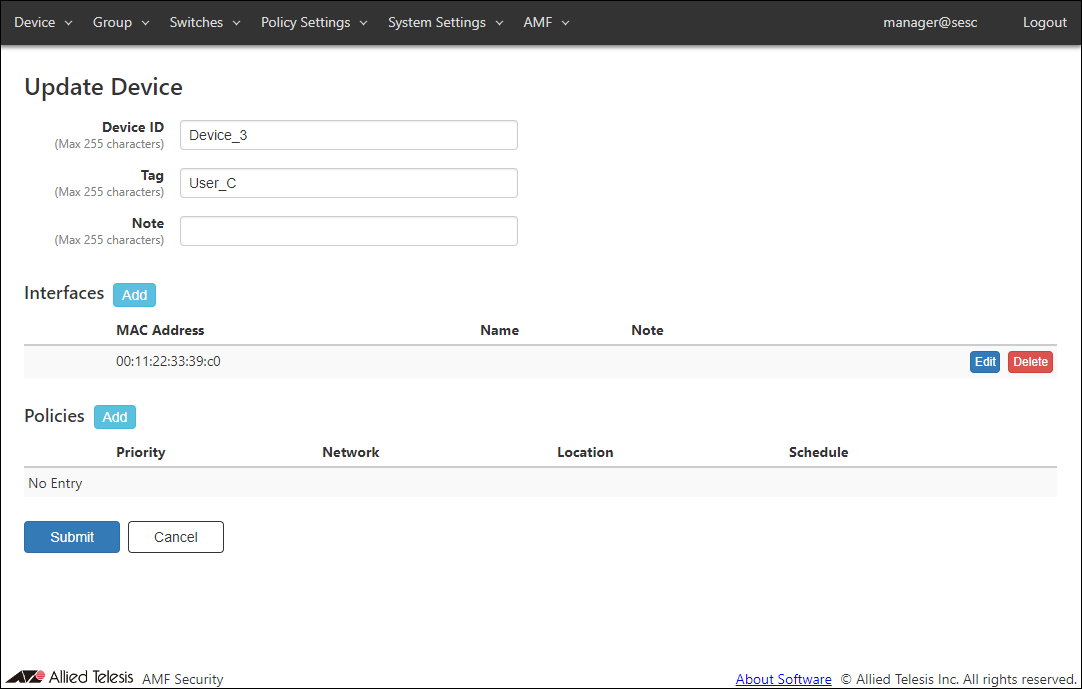
| Item Name | Description |
|---|---|
| Device ID (Mandatory) | ID (Name) of the device to register. Device ID must be unique. Max 255 characters |
| Tag | Secondary name of the device. It can be used by administrators to easily distinguish, categorize or filter devices. Max 255 characters |
| Note | Arbitrary string (comment) for the device. Max 255 characters. |
| Item Name | Description |
|---|---|
| Interfaces | |
| Interfaces | List of MAC addresses (interfaces) associated with the device. |
| MAC Address | Interface MAC address of the device. |
| Name | Administrative name of the interface (MAC address). |
| Note | Arbitrary string (comment) for the interface (MAC address). |
| Policies | |
| Policies | List of security policies which are being applied to the device. |
| Priority | A priority value of the security policy. It must be an integer in the range of 0 to 255. When multiple security policies are set, if the interface registered on the device is connected to AMF Members, it is determined whether the security policy with the lowest priority value matches in order. |
| Network | ID of the network which AMF Security assigns the device to. |
| Location | Location ID |
| Schedule | A Schedule ID. |
| Item Name | Description |
|---|---|
| Interfaces | |
| Add | Open the Edit Interface dialog to register new interface for the device. |
| Edit | Open the Edit Interface dialog to edit the selected interface. |
| Delete | Mark to delete the MAC address (interface) associated with the device. The interface to be deleted is indicated with the DEL mark on the left side of its record line. |
| Revert | Clear the DEL mark on the interface. |
| Policies | |
| Add | Open the Edit Policy dialog to register new security policy for the device. |
| Edit | Open the Edit Policy dialog to edit the selected security policy. |
| Delete | Mark to delete the security policy attached to the device. The security policy to be deleted is indicated with the DEL mark on the left side of its record line. |
| Revert | Clear the DEL mark on the security policy. |
| Page Bottom | |
| Submit | Update the device with the input information on this page and subordinate dialogs by committing the information for the existing device. |
| Cancel | Cancel the operation for updating the device. |
NoteInterfaces and security policies marked with DEL is deleted when the "Submit" button is clicked. Once you click the "Submit" button, you cannot undo the delete operations.
Edit Interface
This dialog lets you add a new MAC address (interface) to the device or update an existing MAC address (interface) associated with the device.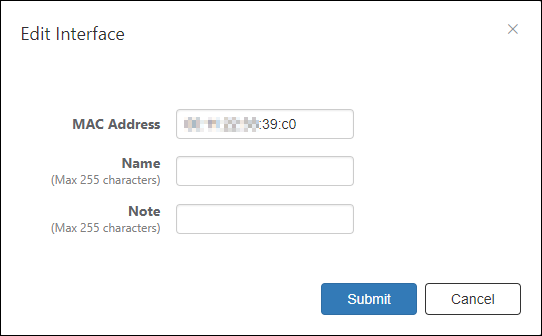
| Item Name | Description |
|---|---|
| MAC Address (Mandatory) | MAC address of the interface. MAC address must be unique. Valid formats are as follows xx:xx:xx:xx:xx:xx, xx-xx-xx-xx-xx-xx, xxxx.xxxx.xxxx |
| Name | Administrative name of the interface. Max 255 characters. |
| Note | Arbitrary string (comment) for the interface. Max 255 characters. |
| Item Name | Description |
|---|---|
| Bottom of the dialog | |
| Submit | Add or update the interface information. |
| Cancel | Cancel the operation of adding or updating the interface information. |
Edit Policy
This dialog lets you add a new security policy to the device or update an existing security policy attached to the device.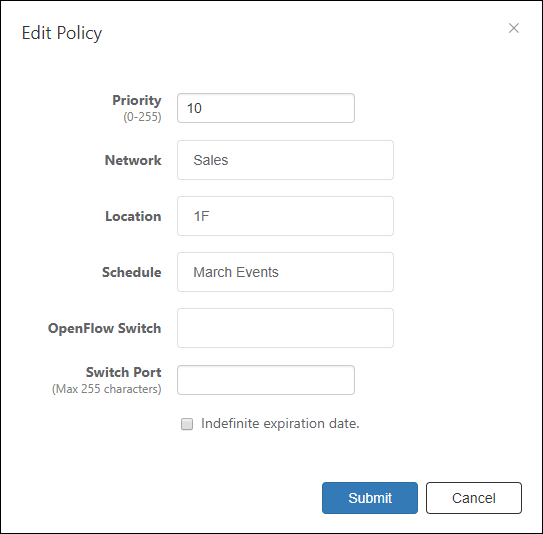
| Item Name | Description |
|---|---|
| Priority (Mandatory) | A priority value of the security policy. It must be an integer in the range of 0 to 255. When multiple security policies are set, when a registered device is connected to an AMF Member, it is determined whether the security policy with the lowest priority value matches in order. |
| Network | ID of the network which AMF Security assigns the device to. Maximum 100 IDs of the existing networks are shown in the dropdown list. If you enter text in the field, Network IDs in the dropdown list are dynamically filtered to the ones which contain the input text in Network ID, VLAN ID or Note (it shows maximum 100 elements). From the dropdown list, select a Network ID. If the registered device is connected to AMF Members, it is connected to the VLAN subnet configured in the network. If the network is not registered in the device (if this setting is blank or the VLAN ID is set to 0 in the network security policy setting), it is assigned to the VLAN set as the AMF Member. The connection to the VLAN subnet is realized by sending as a tagged VLAN with the set VLAN ID when it is sent to the upper network of the connected AMF Members. You have to add the network before assigning a device to the network. Refer to Policy Settings > Add Network for the instruction on how to register a network. |
| Location | Specify a location where the device can access the network. Maximum 100 IDs of the existing locations are shown in the dropdown list. If you enter text in the field, location IDs in the dropdown list are dynamically filtered to the ones which contain the input text in Location ID or Note (it shows maximum 100 elements). From the dropdown list, select a Location ID. If you specify Location, the UnAuth Group can access the network only from AMF Members in the location. If you do not specify Location, the UnAuth Group can access the network from all AMF Members. You have to add the location before specifying it for a device. Refer to Policy Settings > Add Location for the instructions on how to add locations. |
| Schedule | Specify a schedule when the device can access the network. Maximum 100 IDs of the existing schedules are shown in the dropdown list. If you enter text in the field, Schedule IDs in the dropdown list are dynamically filtered to the ones which contain the input text in Schedule ID or Note (it shows maximum 100 elements). From the dropdown list, select a Schedule ID. If you specify a Schedule for a device, the device can access the network only when the schedule is effective. If you do not specify a schedule, a device can always access the network. You have to add the schedule before specifying it for a device. Refer to Policy Settings > Add Schedule for the instruction on how to register a schedule. |
| OpenFlow Switch | Not supported in this version. |
| Switch Port | Not supported in this version. |
| Indefinite expiration date. | Not supported in this version. |
NoteIf you can access the VLAN set for AMF Members, depending on the switch settings, the device may be able to connect to devices on the control plane.
| Item Name | Description |
|---|---|
| Bottom of the dialog | |
| Submit | Add or update the security policy information. |
| Cancel | Cancel the operation for adding or updating policy. |
MAC Address List
This page shows a list of MAC addresses registered in AMF Security mini's database.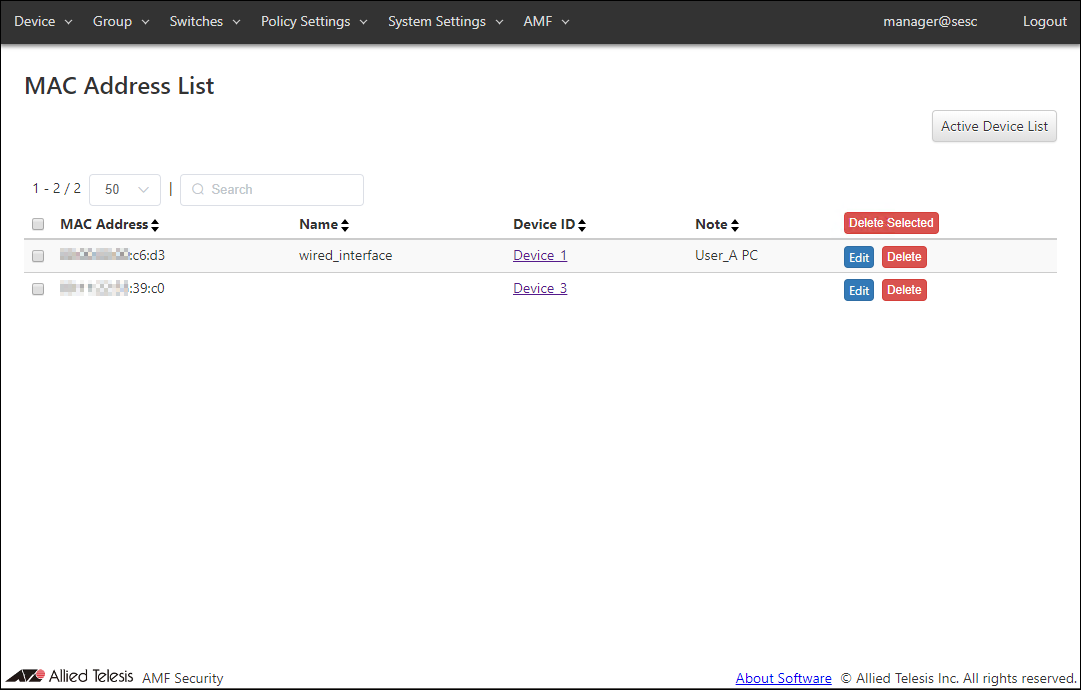
| Item Name | Search | Sort | Note |
|---|---|---|---|
| MAC Address | × | × | |
| Name | × | × | |
| Device ID | × | × | |
| Note | × | × | |
| Device: Tag* | × | × | |
| Device: Note* | × | × |
| Item Name | Description |
|---|---|
| MAC Address | This page shows a list of MAC addresses registered in AMF Security mini's database. |
| Name | Administrative name of the interface (MAC address). |
| Device ID | ID of the device which is associated with the MAC address. When clicked, the Update Device page for the device is displayed. |
| Note | Arbitrary string (comment) for the MAC Address. |
| Item Name | Description |
|---|---|
| Page Top | |
| Active Device List | Open the Active Device List page. |
| MAC Address List | |
| Delete Selected | Delete all the checked MAC addresses. |
| Edit | Open the Update Device page for a device associated with the MAC address. |
| Delete | Delete the MAC address. |
Active Device List
This page shows a list of the devices that have been authenticated with AMF Application Proxy and have actions applied.If you have set up Account Group, the MAC Addresses of the following devices are listed: Of the devices connected to the AMF Member managed by AMF Security mini, the devices under AMF Member belonging to the Account Group to which the logged-in Account belongs.
◼ About AW+ AMF Application Proxy Whitelist and AMF Application Proxy Blacklist
For the devices which are applied actions by AMF Application Proxy, information retrieved from an AMF Master is listed.
Because AMF Application Proxy Whitelist and Blacklist operate independently, Information shown on Device > Active Device List page may be different from the status held by Edge Nodes.
When a device authenticated by AMF Application Proxy Whitelist becomes unauthenticated without a linkdown event, information on the device is deleted from Edge Nodes but it remains "Authorized" on the Device > Active Device List page.
- Example 1
When a device authenticated by AMF Application Proxy Whitelist applied a blocking action, the device is shown as both "Authorized" and "Blocked" on the Device > Active Device List page.
In this case, blocking action is being applied to the node.
- Example 2
When the session timeout is expired for a device authenticated by AMF Application Proxy Whitelist, information on the device is deleted from Edge Nodes but it remains "Authorized" on the Device > Active Device List page.
In this case, no log message or notification email is generated even when the device is re-authenticated.
◼ About TQ AMF Application Proxy
TQ's AMF Application Proxy Whitelist and Blacklist work together.
When a device authenticated by AMF Application Proxy Whitelist applied a blocking action, the device is shown as "Blocked" on the Device > Active Device List page.
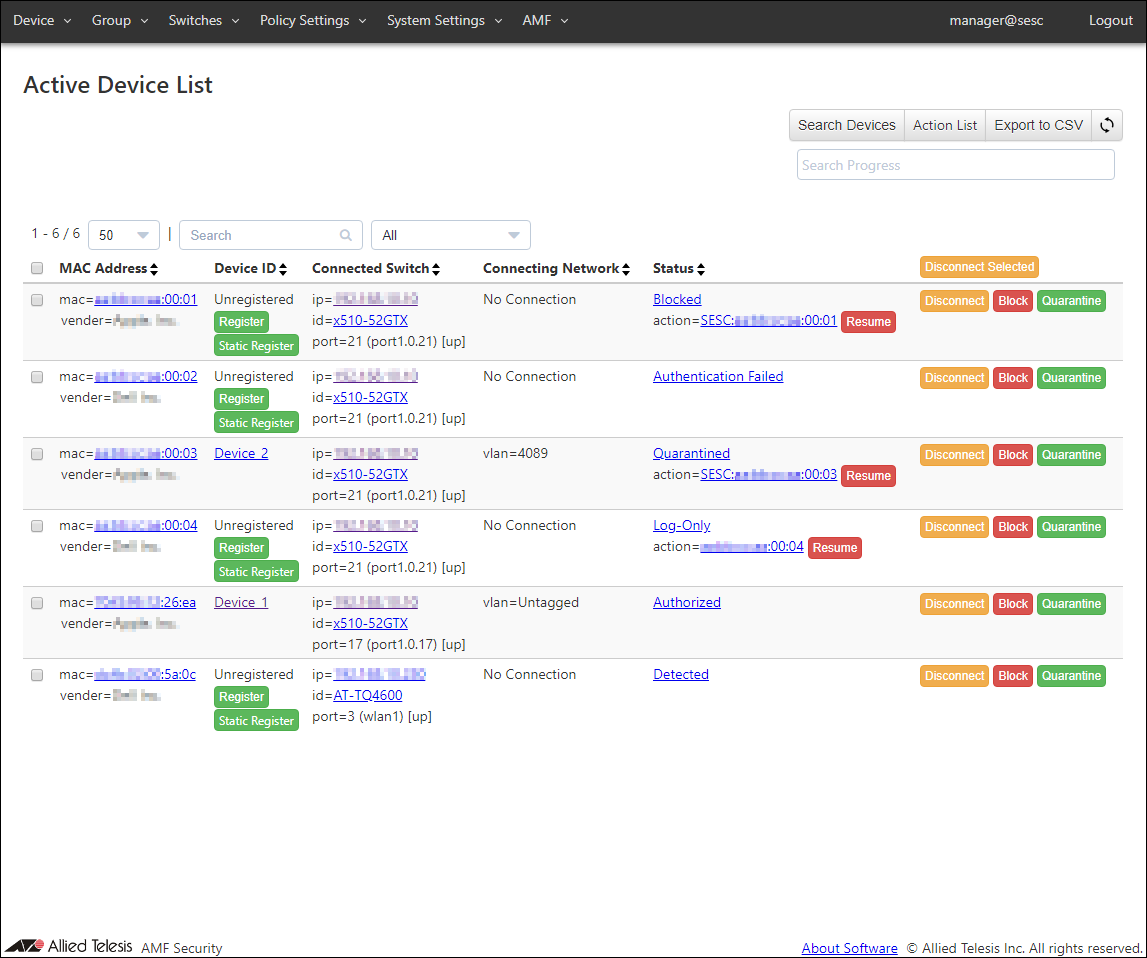
| Item Name | Search | Filter | Sort | Note |
|---|---|---|---|---|
| MAC Address | △* | − | × | |
| Device ID | △*1 | − | △*2 | |
| Connected Switch | △*1 | − | △*2 | |
| Connecting Network | △*1 | − | △*2 | |
| Status | × | × | △* |
| Item Name | Description |
|---|---|
| MAC Address | The MAC address and vendor name managed by AMF Security mini are displayed. When the device is blocked by an IP Address, the IP Address is also displayed. (AW+ AMF Application Proxy only) When you click the MAC or IP Address, the Active Device Detail page for the device is displayed. |
| Device ID | ○ AMF Application Proxy (AW+/TQ) ID of the device which is associated with the MAC address.
|
| Connected Switch | ○ AMF Application Proxy (AW+) Edge node to which authentication and AMF Action are applied by AMF Application Proxy Whitelist, and the Port Name of the edge node Switch. When Account Group is set, only AMF Members belonging to the Account Group to which the logged-in Account belongs are displayed. Edge Node is displayed in the format "id=Edge Node Name". The IPv4 Address of the Edge Node Switch is displayed in the format of "ip=IPv4 Address". Also, the port name of the edge node Switch is displayed in the format of "port=(Port Name)". If the AMF Action displayed in the status is "IP filter", the port name is not displayed. ○ AMF Application Proxy (TQ) Displays the IPv4 Address and port name of the TQ to which the device is connected. IPv4 Address is shown in the form of "ip=IPv4 Address". In addition, the TQ port name is displayed in the format of "port= (Port Name)". The link status of the port is always "unknown". |
| Connecting Network | ○ AMF Application Proxy (TQ) VLAN ID and Network ID of the network to which the MAC address is connected. VLAN ID and Network ID are shown in the form of "vlan=VLAN ID" and "id=Network ID" respectively. When clicking a string after "id=", the Policy Settings > Update Network page is displayed. A blocked device is shown with "No Connection". ○ AMF Application Proxy (AW+) VLAN ID and Network ID of the network to which the MAC address is connected. VLAN ID and Network ID are shown in the form of "vlan=VLAN ID" and "id=Network ID" respectively. When clicking a string after "id=", the Policy Settings > Update Network page is displayed. No Connecting Network is displayed for devices which are applied actions. |
| Status | ○ AMF Application Proxy (TQ) Current status of the MAC address.
For "Authorized", "Blocked", "Quarantined" or "Log-Only" actions, you can go to the Policy Settings > Action Detail page for the action by clicking its Action ID (a string after "action="). ○ AMF Application Proxy (AW+) Current status of the MAC address.
For "Blocked", "Link-Down", "IP-Filter", "Quarantined" and "Log-Only" action, ID of the action which is performing the action is shown in the form of "action=Action ID" with the "Delete" button beside it. You can go to the Policy Settings > Action Detail page by clicking a string after "action=". |
| Port Name | Description |
|---|---|
| AlliedWare Plus Devices | |
| portX.Y.Z | X - always "1" Y - Expansion bay number. "0" for a base (non-expansion) port. Z - Port number printed on the product. |
| AT-TQ series wireless access point | |
| wlanX | radio interface. |
| athX | radio interface. |
| Item Name | Description | |
|---|---|---|
| Page Top | ||
| Search Devices | Open the Search Devices dialog. Once the search began, the label of the "Search Device" button changes to "Cancel Search". Progress of the search operation is displayed in the "Search Progress" text box under the button. |
|
| Cancel Search | Cancel the search operation. It's only available when the search is in progress. |
|
| Action List | Open the Policy Settings > Action List page. | |
| Export to CSV | Start downloading of a list of devices in CSV format. | |
| Refresh | Refresh the Active Device List page. | |
| Active Device List | ||
| Disconnect Selected | ○ AMF Application Proxy (TQ) Temporarily disconnect all the checked MAC addresses from the network. Because this operation is temporary, disconnected devices can reconnect to the network as they have appropriate permissions. ○ AMF Application Proxy (AW+) This operation is not for a device which is applied an AMF action. ○ AMF Application Proxy Whitelist Temporarily disconnect all the checked MAC addresses from the network. Because this operation is temporary, disconnected devices can reconnect to the network as they have appropriate permissions. |
|
| Device ID | Submit | (Only displayed when the MAC address is unregistered) Open the Add Device dialog to add the MAC address as a new device or an additional interface of an existing device. You can select whether to add the address as a new device or to associate it with an existing device on the Add Device dialog. |
| Static Register | Not supported in this version. | |
| Status | Delete | (Only displayed if an action is running on the MAC address) Delete the action. |
| End of Each Row | Disconnect | ○ AMF Application Proxy (TQ) Temporarily disconnect the MAC addresses from the network. Because this operation is temporary, disconnected devices can reconnect to the network as they have appropriate permissions. ○ AMF Application Proxy (AW+) This operation is not for a device which is applied an AMF action. ○ AMF Application Proxy Whitelist Temporarily disconnect the MAC addresses from the network. Because this operation is temporary, disconnected devices can reconnect to the network as they have appropriate permissions. |
| Block | Not supported in this version. | |
| Quarantine | Not supported in this version. | |
NoteRefer to Appendix > CSV File for CSV Files.
The VLAN ID of the AMF Application Proxy(TQ) Quarantine network can be set on the AMF > TQ Setting page.
Add Device
By clicking the "Register" button for an unregistered MAC address on the Device > Active Device List page, you can add the MAC address as a new device or associate the MAC address with an existing device.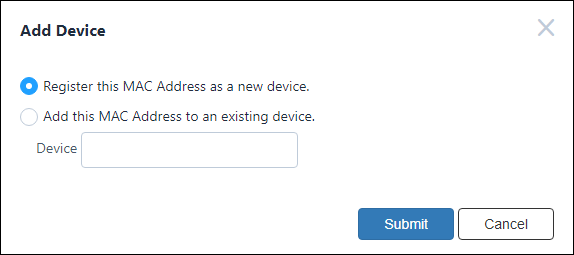
| Item Name | Description |
|---|---|
| Register this MAC Address as a new device. | Add the MAC address specified on the Active Device List page as an interface of a new device. |
| Add this MAC Address to an existing device. | Add the MAC address specified on the Active Device List page as an additional interface of an existing device. |
| Device | When you select "Add this MAC Address to an existing device.", specify a Device ID to which the MAC address is associated. Maximum 100 device IDs are shown in the dropdown list. If you enter text in the field, device IDs in the dropdown list are dynamically filtered to the ones which contain the input text in Device ID, Tag or Note (it shows maximum 100 elements). From the dropdown list, select a Device ID for the device. |
| Item Name | Description |
|---|---|
| Bottom of the dialog | |
| Submit | Add a new MAC address as a new device or a new interface of an existing device. The Device > Add Device page is displayed if you selected "Add the MAC address as an interface of a new device.", while the Device > Update Device page is displayed if you selected "Add this MAC Address to an existing device.". On the Add Device or the Update Device page, the MAC address is automatically added to the "Interfaces" for the device. Enter additional data such as Device ID, Tag, Note, security policies and other interfaces as required, then click "Submit". |
| Cancel | Cancel the operation for adding the MAC address. |
Search Devices
When you click the "Search Devices" button on the Device > Active Device List page, the following dialog appears and lets you specify a range of IP Addresses to search.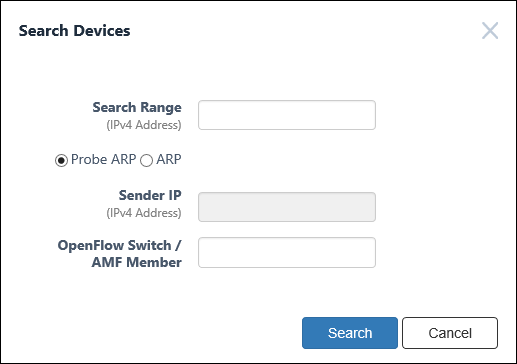
| Item Name | Description |
|---|---|
| Search Range | Enter an IPv4 Address or an IPv4 Address range to search for devices. An IPv4 Address range can be specified in one of the following formats. xxx.xxx.xxx.xxx-xxx.xxx.xxx.xxx (The first and the last address in the range) xxx.xxx.xxx.xxx/xx (A base IPv4 Address and a mask length) xxx.xxx.xxx.xxx or xxx.xxx.xxx.xxx/32 (A single IP Address) |
| Probe ARP or ARP | Select a search method from "Probe ARP" and "ARP". Also specify a Sender IP when using ARP. |
| Sender IP | Specify this only when you select "ARP". |
| OpenFlow Switches / AMF Members | ○ AMF Application Proxy Specify AMF Member names to send out search packets. Multiple AMF Members can be specified by separating each name with a semicolon (;). When no AMF Member is specified, all connected AMF Members send out search packets. |
NoteMake sure to specify a Sender IP which is not used in the target address range.
When specifying the first and the last address, make sure that the number of IP Addresses is 4,094 or less.
Specify the subnet mask length in the range of 20 to 32 bit mask.
| Item Name | Description |
|---|---|
| Bottom of the dialog | |
| Search | Start search on the input IPv4 Address(es). Clicking the "Search" button brings you back to the Active Device List page. Once the search began, the label of the "Search Device" button changes to "Cancel Search". Progress of the search operation is displayed in the "Search Progress" text box under the button. |
| Cancel | Cancel the search operation. |
Active Device Detail
When clicking a MAC address or "Status" on the Device > Active Device List page, detailed information of the selected device is displayed.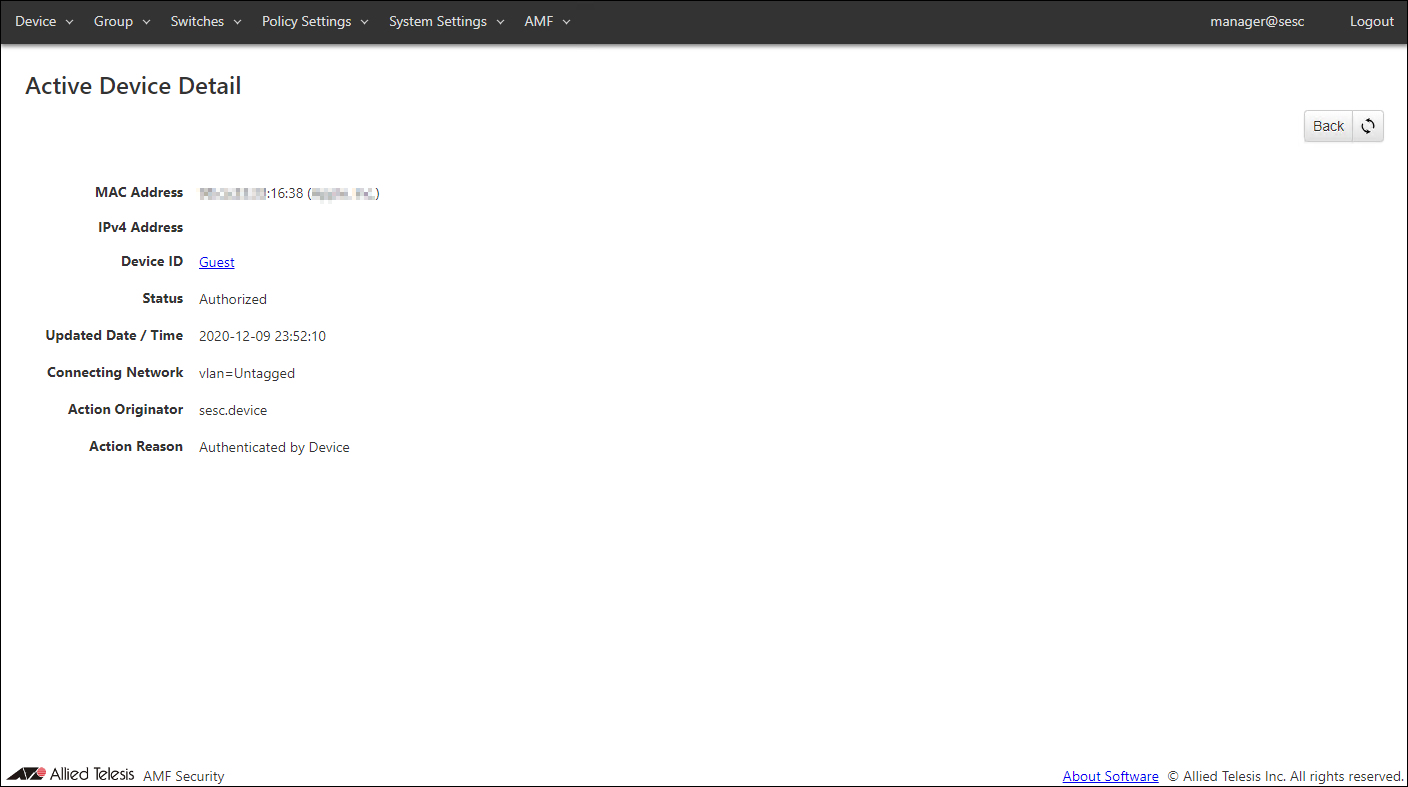
| Item Name | Description |
|---|---|
| MAC Address | The MAC address and vendor name managed by AMF Security mini are displayed. |
| IPv4 Address | IPv4 Address of the device. It is displayed only if it is known. |
| Device ID | ID of the device which is associated with the MAC address.
|
| Status | Current status of the MAC address. ○ AMF Application Proxy (TQ)
|
| Updated Date / Time | The last time the status of the device changed. |
| Connecting Network | VLAN ID and Network ID of the network to which the MAC address is connected. VLAN ID and Network ID are shown in the form of "vlan=VLAN ID" and "id=Network ID" respectively. When clicking a string after "id=", the Policy Settings > Update Network page is displayed. |
| Action Originator | Shows the name of a system which requests the device authentication or running action on the device. |
| Action Reason | Shows a reason which is provided by the Action Originator. If the action is triggered by a notification from an interacting application, contents of the notification syslog message or SNMP trap message is shown. |
| Item Name | Description |
|---|---|
| Page Top | |
| Back | Go back to the Active Device List page. |
| Refresh | Refresh the Active Device Detail page. |
09 Jul 2021 12:05