Synchronizing AMF Security
By preparing two AMF Security systems and synchronizing the AMF Security authentication data (authentication database), you can add redundancy to the network control.
In a synchronized environment, one AMF Security system is called primary and the other is called secondary where the database on the primary is copied to the secondary.
The settings are for both primary and secondary AMF Security. In the Database Synchronization Node Settings dialog, specify the IP address of both AMF Security and select whether it is primary or secondary.
The following data is synchronized.
- Device
- UnAuth Group
- Switches
- Security Policies
- Network
- Location
- Schedule
- Action
- Network
- Account Group
NoteThe Device > Active Device List page and Switches > Active OpenFlow Switch List page show the live information retrieved from OpenFlow Switches managed by AMF Security. Therefore, the information displayed on those pages may differ between the primary and secondary's web interfaces.
NoteAMF Application Proxy Whitelist does not support redundant AMF Security configuration.
NoteWhen an OpenFlow packet control flow (flow entry) is updated, such as when an authenticated node moves to another port, multiple logs indicating that the flow entry has been deleted may be recorded. However, it does not affect the authentication behavior.
NoteDatabase synchronization settings are not included in the file exported (downloaded) on the System Settings > System Information page. Therefore, after importing the system settings file, set the database synchronization again.
NoteIf you import a system configuration file that contains database synchronization settings from an older version (AT-SESC 1.8.0 or earlier) into AMF Security 2.x.x, the database synchronization settings do not apply. Therefore, set the database synchronization again.
NoteBoth systems must synchronize their clocks with the same NTP Server.
Also, the timezone of both systems must have the same settings.
NoteIf the system time is changed by a certain amount after synchronization started, there may be a case where the authentication data cannot be changed any further.
If it happens, please disable synchronization on both systems, adjust system clocks correctly, then enable synchronization again.
Prerequisites for Synchronization
The following requirements must be met to synchronize two AMF Security systems.- Both systems used for synchronization must be connected to an IPv4 segment that can communicate with each other.
- Those interfaces can be the same as the ones for connecting OpenFlow Switches (i.e. ports acting as control plane port and a management port).
It is also possible to separate synchronization traffic from OpenFlow traffic by using dedicated interfaces for synchronization.
- Both systems must have the same system settings. That's because the system settings are not synchronized.
- Both systems must synchronize their clocks with the same NTP Server. Also, the timezone of both systems must have the same settings.
In addition to those, Allied Telesis recommends you to implement the following configurations to devices in the network.
- Configure OpenFlow Switches to use both systems as OpenFlow controllers.
If OpenFlow Switches are using only one OpenFlow controller, the information displayed on the Device > Active Device List and the Switches > Active OpenFlow Switch List pages may differ between the primary and secondary systems.
- When using the linked application, set two AMF Security IP addresses as notification destinations for Syslog messages or SNMP traps.
If only one AMF Security is set as the notification destination for Syslog messages or SNMP traps, if a failure occurs, the linked application may not update the action normally.
If the applications do not support multiple IP addresses to which they send notifications, you can lower the possibility that actions are not updated properly by setting "Syslog Forwarding Destination Hosts" and "SNMP Trap Forwarding Destination Hosts" on the System Settings > Trap Monitor Settings page.
Configuring Synchronization
Set up database synchronization on the device used first as the secondary device and then on the device used as the primary device.NoteAllied Telesis recommends you to download authentication data on both systems for backup before configuring synchronization.
- Make sure that both AMF Security systems can communicate with each other.
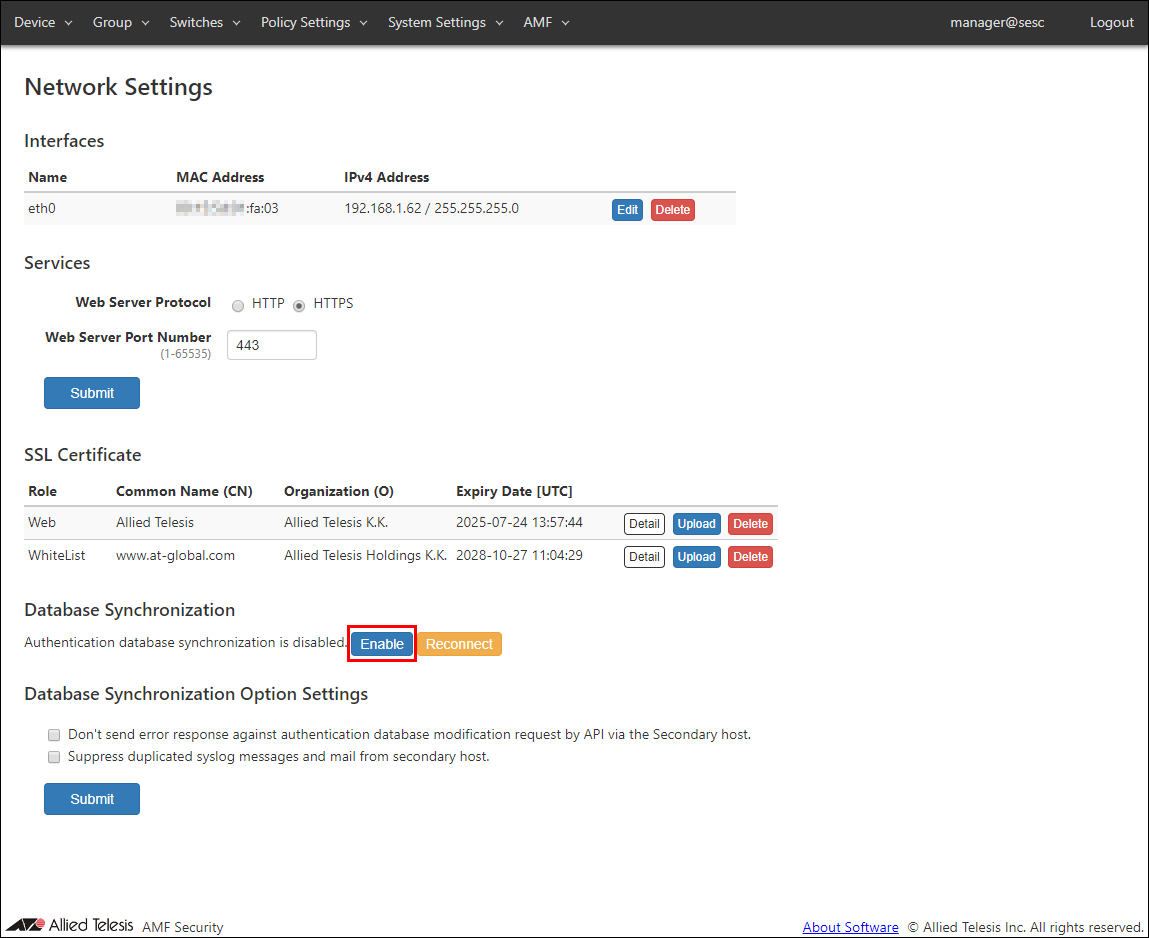
- Display the System Settings > Network Settings page with AMF Security used on the secondary. Click the "Enable" button of the Database Synchronization item.
- The "Database Synchronization Node Settings" dialog is displayed.
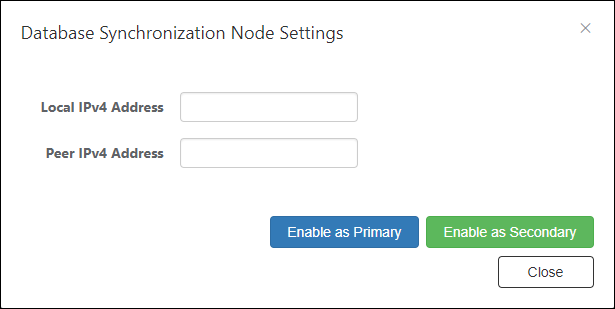
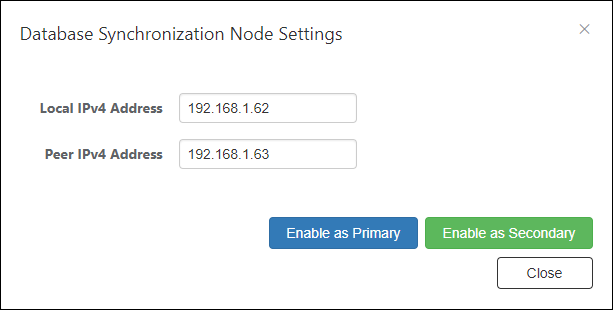
- Enter "Local IPv4 Address" and "Peer IPv4 Address" and click the "Enable as Secondary" button.
- Click the "OK" button.
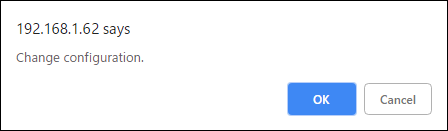
- After the message is displayed, AMF Security restarts, so log in again.
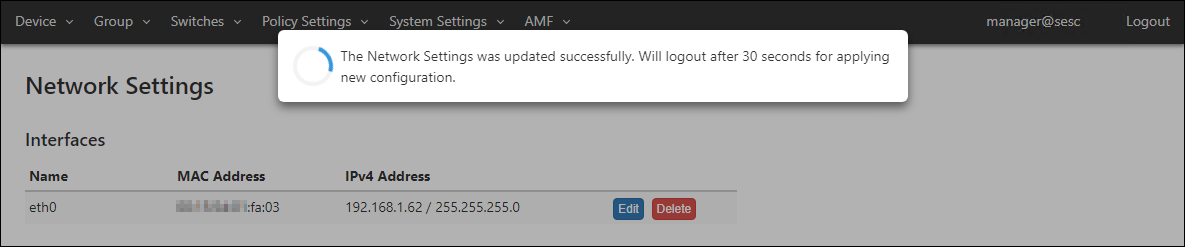
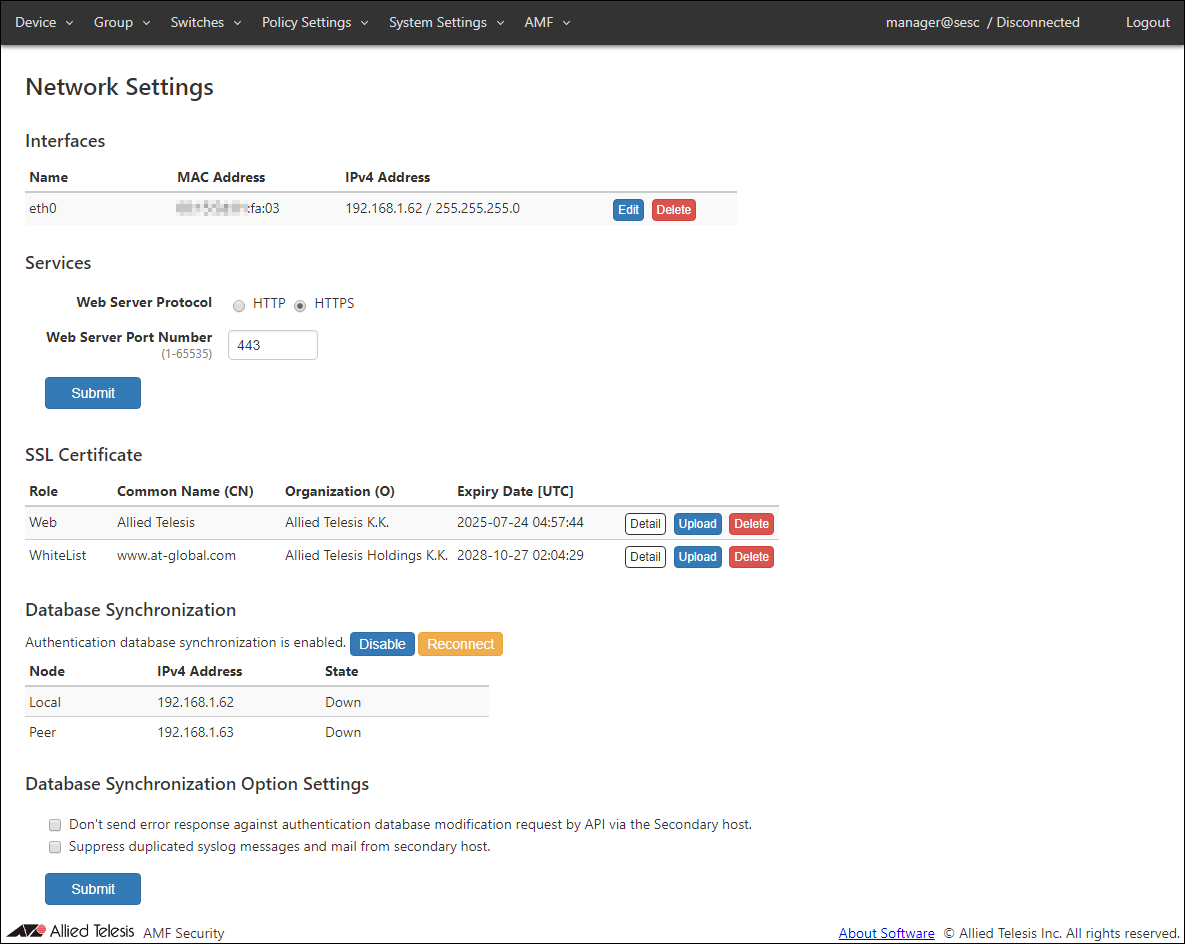
- After logging in, the System Settings > Network Settings page is displayed. Confirm that the settings have been reflected in the "Database Synchronization" item.
(At this point, Peer's "State" item is displayed as "Down" because the primary setting has not been made.)
Since you set "Enable as Secondary" on the page of step 4, set "Enable as Primary" in another AMF Security.
After synchronization, when you log in to the AMF Security web setting screen, follow the host name in the upper right of the screen, such as "manager@sesc / Syncing (Primary)", "manager@sesc / Syncing (Secondary)", The synchronization status is displayed.
You can also see the similar information on the System Settings > System Information page's "Database Synchronization" field.
When Synchronization Fails
If the synchronization fails, AMF Security determines the primary or secondary as follows:- When the primary fails (e.g. power outage) and only the secondary remains operational, the secondary is automatically promoted to the primary and takes over the roles as the OpenFlow controller.
- When the synchronization link (communication) is lost while the primary and the secondary are operational, both systems act as the primary (after the secondary is automatically promoted to the primary) and perform the OpenFlow controller role. In this case, both systems make decisions using the same information unless configurations are changed through web interfaces or only one of the two receives syslog or SNMP trap messages.
- When the secondary fails, the primary continues its role as the OpenFlow controller.
When Synchronization Recovers
When synchronization recovers from a failure, the promoted primary system (ex-secondary) continues to act as the primary.In case that the secondary fails and then recovers, roles are not changed before and after the failure.
When the synchronization link (communication) was lost while the primary and the secondary were operational and then the link was recovered, there may be a case where the systems exchanged the role of the primary and the secondary.
If you replace one of the systems with a new hardware, synchronization might not restart.
In that case, download authentication data from the current primary system, re-configure synchronization and upload the authentication data.
NoteIf you replace one of the synchronized AMF Security systems, you have to configure the new system to have the same System Settings as the old one.
- Open the System Settings > System Information page on the current primary's management web interface.
- Click the "Export" button of the Authentication Data item to download the authentication data.
- Open the System Settings > Network Settings page.
- Click the "Disable" button in the Database Synchronization item.
- Click the "OK" button.
- Re-configure synchronization on both systems by following the steps described in Synchronizing AMF Security > Configuring Synchronization of the Quick Tour.
Note
Authentication data on the primary system could be deleted during synchronization.
- Once you reconfigured the synchronization, Go to the System Settings > System Information page on the primary system.
- Click the "Import" button for the Authentication Data item to open the "Upload Authentication Data" dialog.
- Click the "Choose File" button, select the authentication data (CSV format) downloaded in step 2, and click the "Submit" button.
Shutting Down and Restarting Synchronized System
Take the following procedures when you shutdown and restart a synchronized system for maintenance.Shutting Down
- Open the System Settings > System Information page of AMF Security running as the secondary. Click the "Shutdown" button in "Power-off this system." to shut it down.
- Open the System Settings > Network Settings page of AMF Security running as the primary. Confirm that the synchronization destination of the "Database Synchronization" item is "Down".
Note
It takes about 30 seconds to 1 minute after performing step 1.
- Open the System Settings > System Information page of AMF Security running as the primary. Click the "Shutdown" button in "Power-off this system." to shut it down.
Restarting the system
- Power on the primary system.
- Open the System Settings > Network Settings page of AMF Security running as the primary. Confirm that the synchronization destination of the "Database Synchronization" item is "Primary".
Note
It takes about 30 seconds to 1 minute after performing step 1.
- Power on the secondary system.
14 Jun 2021 09:30