Access Management Screen
SNMP Plug-in does not have a dedicated configuration page or command line interface (CLI).
Register SNMP Plug-in in the menu of the Vista Manager application running on VST-APL, and use the functions in cooperation.
Therefore, in order to use SNMP Plug-in, it is necessary to set it in VST-APL and in the Vista Manager application.
This section describes the procedure for using SNMP Plug-in in the Vista Manager application running on VST-APL.
Preparing to use SNMP Plug-in
To use SNMP Plug-in, VST-APL and the Vista Manager applications must be available. Refer to the following documents.| Contents | Documents |
|---|---|
| How to install VST-APL | VST-APL Installation Guide |
| How to use VST-APL |
VST-APL User Guide |
Supported Web Browsers
You can configure SNMP Plug-in through its web-based management interface.Make sure that your management PC has one of the following web browsers installed:
- Microsoft Edge
- Google Chrome
NoteThe latest release only is supported.
Initial setting of SNMP Plug-in
In the initial state of VST-APL, the application instance of SNMP Plug-in is not set. Please login to VST-APL's management web interface and set the application instance of SNMP Plug-in. Refer to the following documents.| Documents | Contents |
|---|---|
| VST-APL User Guide | Description of application settings |
Register SNMP Plug-in with the Vista Manager application
This section describes the procedure for registering SNMP Plug-in in the Vista Manager application.- Use one of the following methods to log in to the Vista Manager setting page.
- Start a web browser and enter the IP address set for Vista Manager.
The IP address is explained using 192.168.1.10 as an example.
http://192.168.1.10
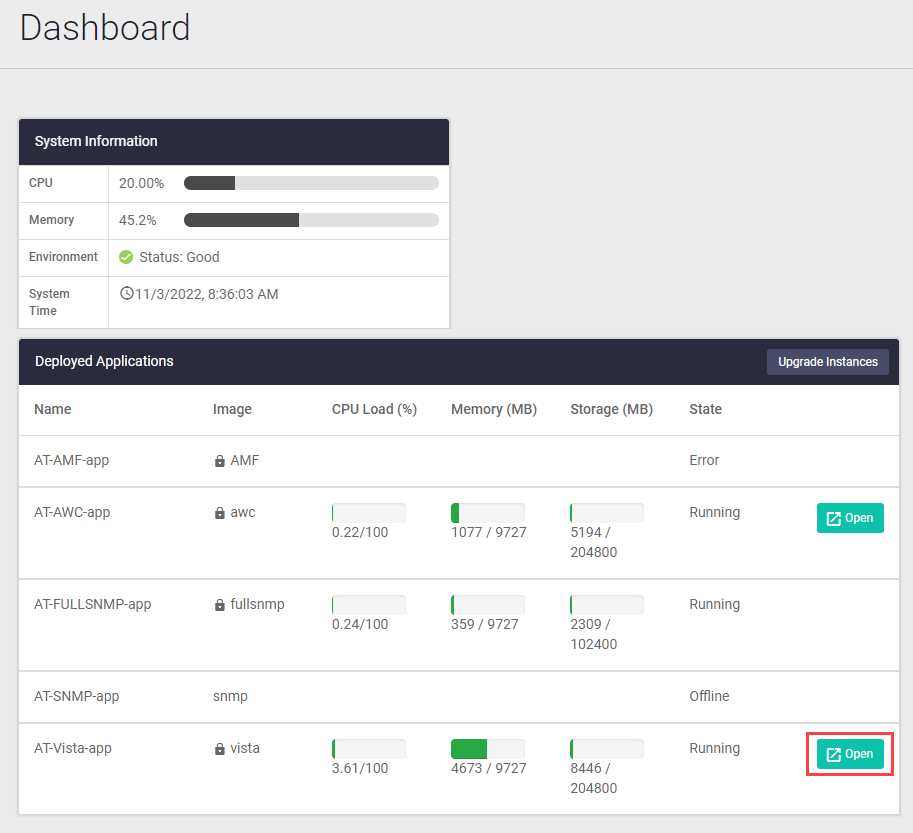
- On the Dashboard page of VST-APL, click the "Open" button in the AT-Vista-app section.
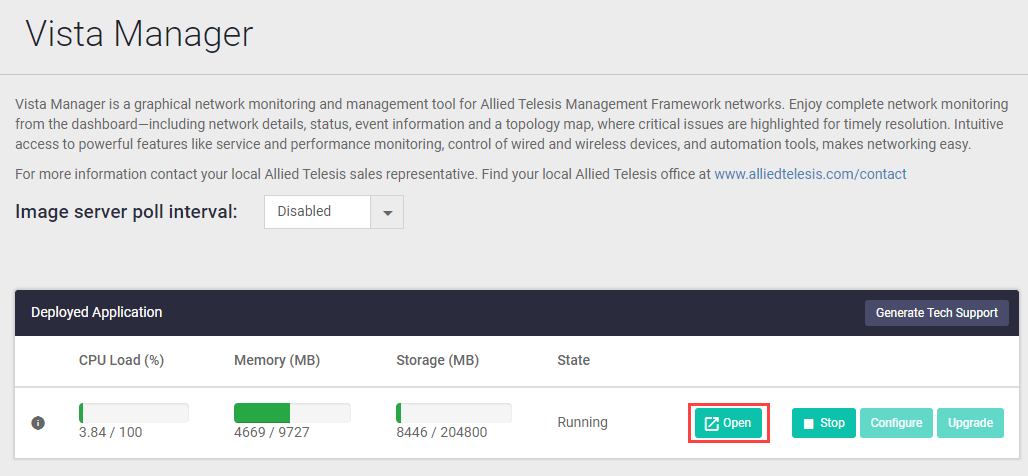
- On the Vista Manager management page of VST-APL, click the "Open" button.
- Start a web browser and enter the IP address set for Vista Manager.
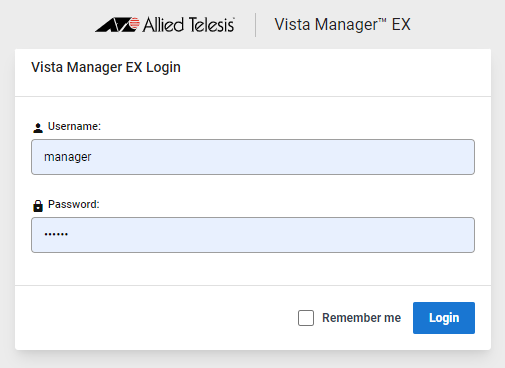
- The following login page is displayed. Enter the default Username and Password and click the "Login" button.
Entered password is masked with bullets on the screen.
Note
The default Username is "manager" and the Password is "friend".
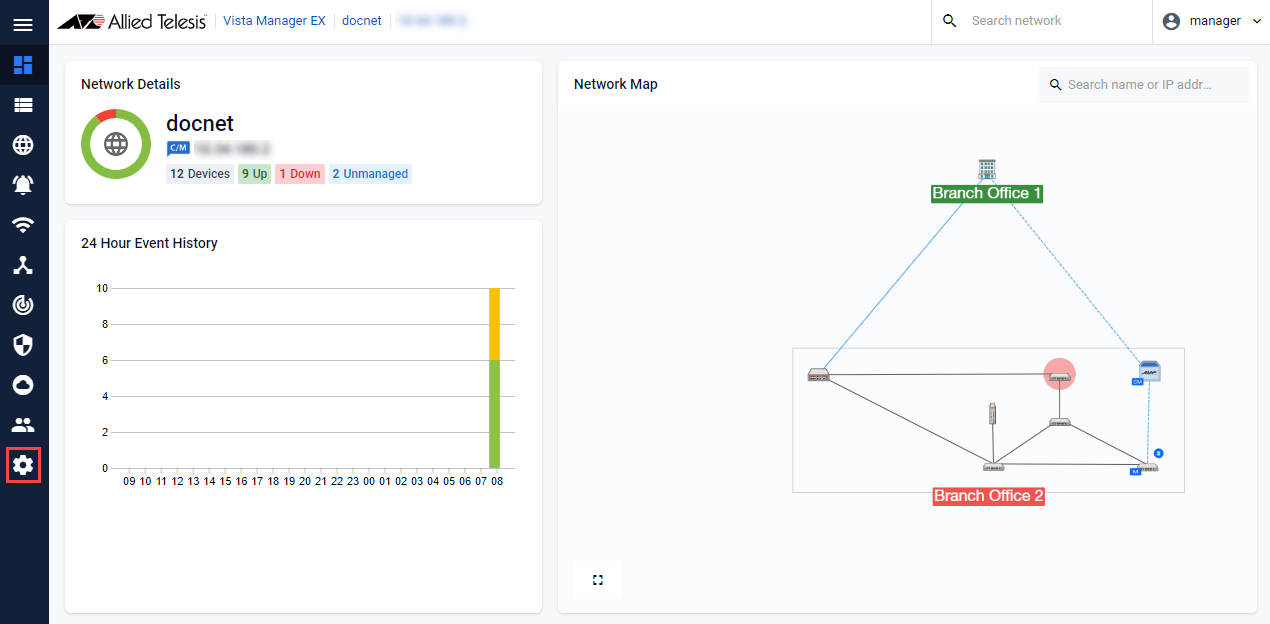
- On the Vista Manager dashboard page, click the System Management icon in the left menu.
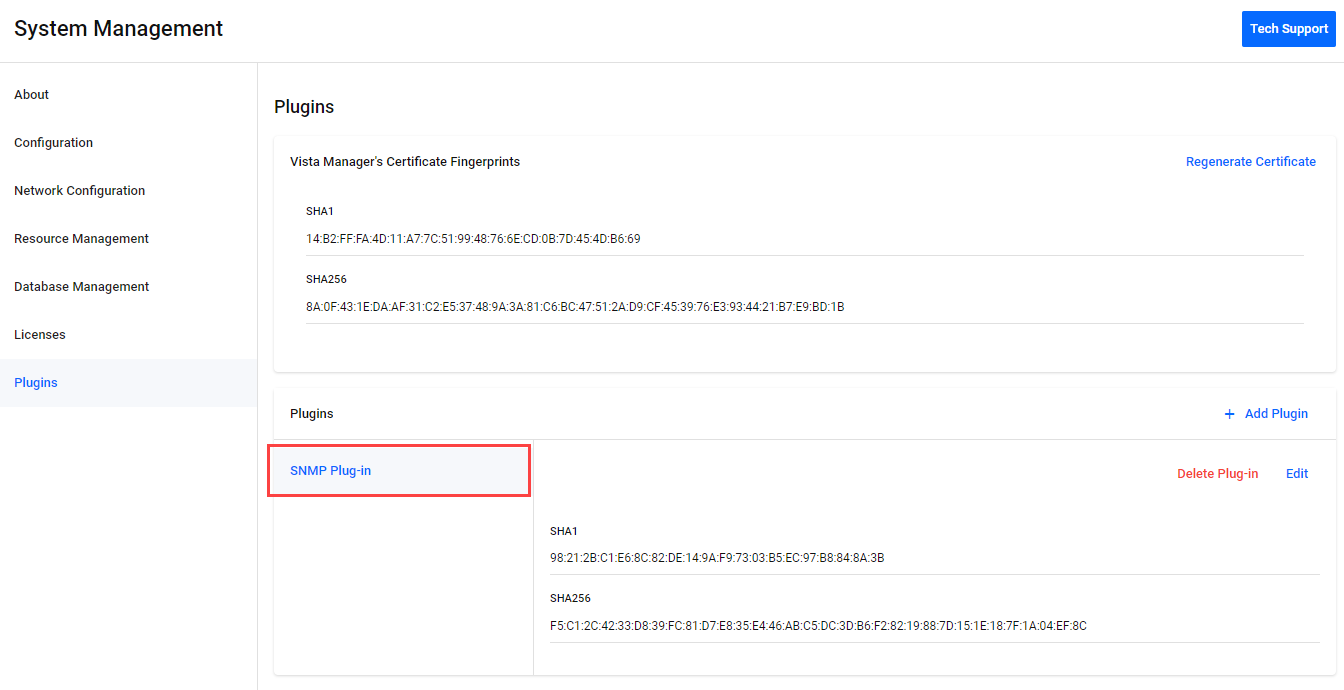
- On the System Management page, click the "Plug-ins" tab.
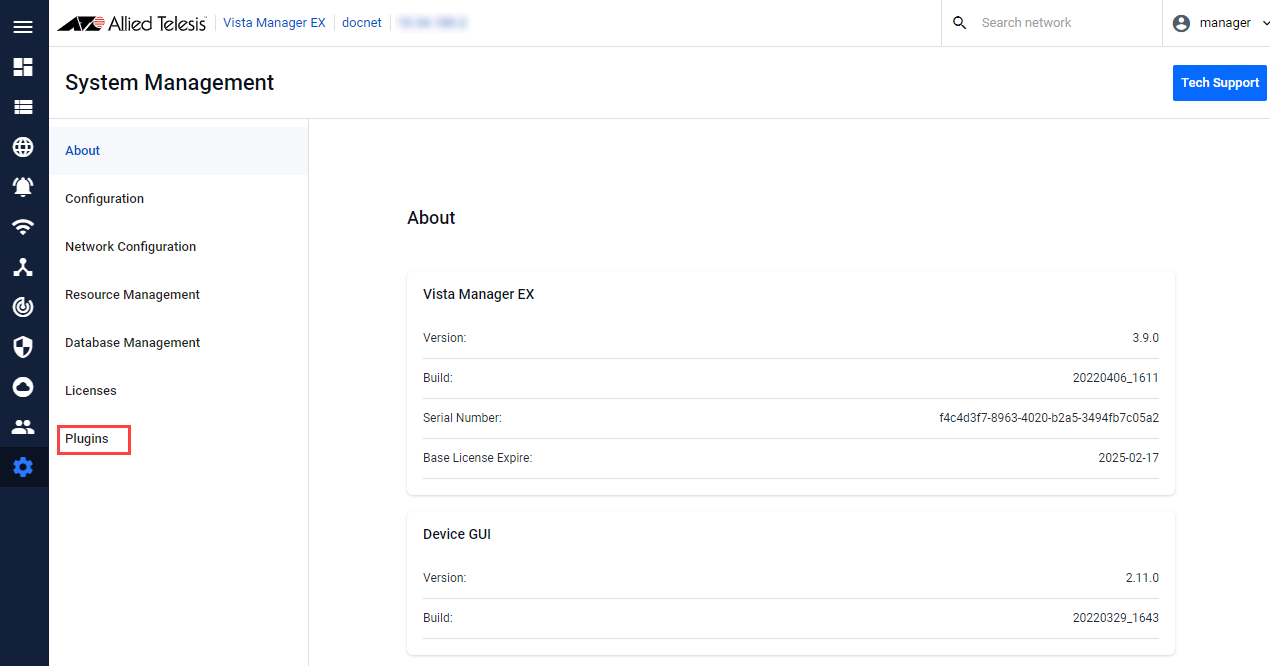
- On the Plug-in Management page, click the "Add Plug-in" button.
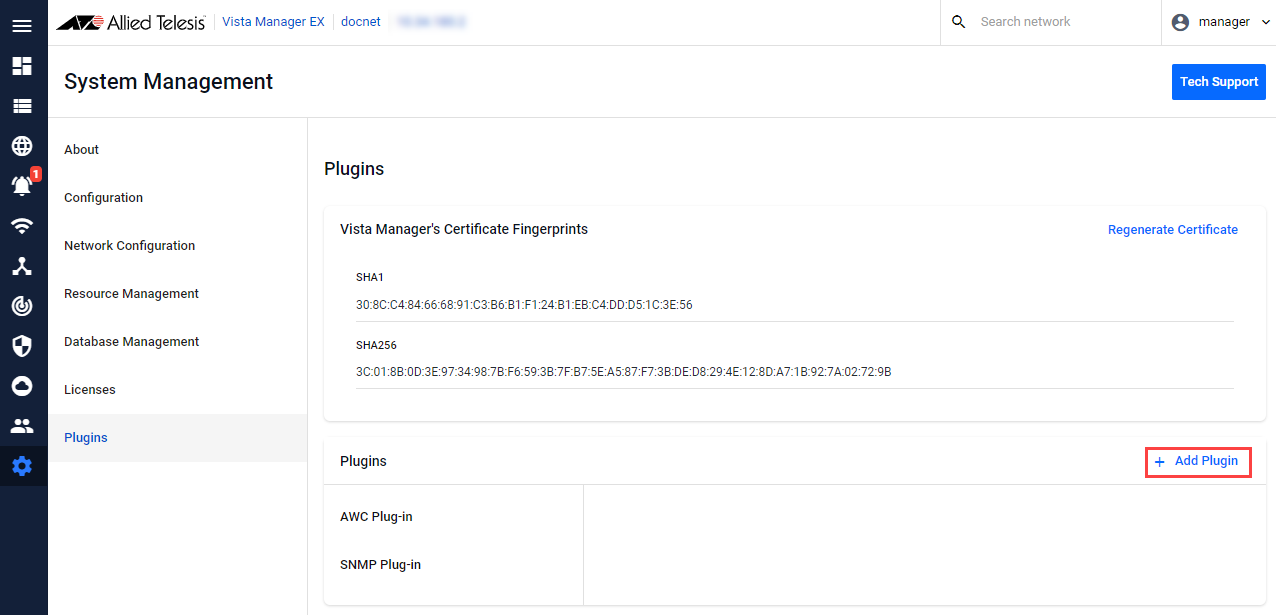
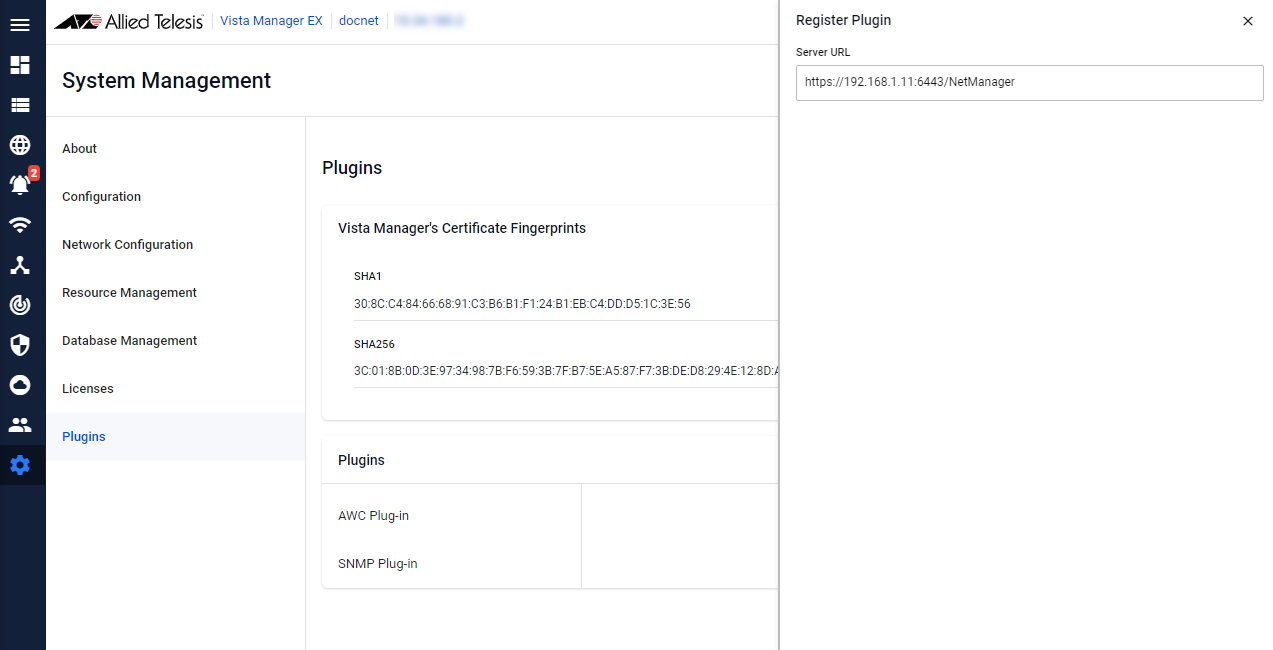
- Enter the following URL in "Server URL".
The IP address set in SNMP Plug-in is explained using 192.168.1.11 as an example.
https://192.168.1.11:6443/NetManager
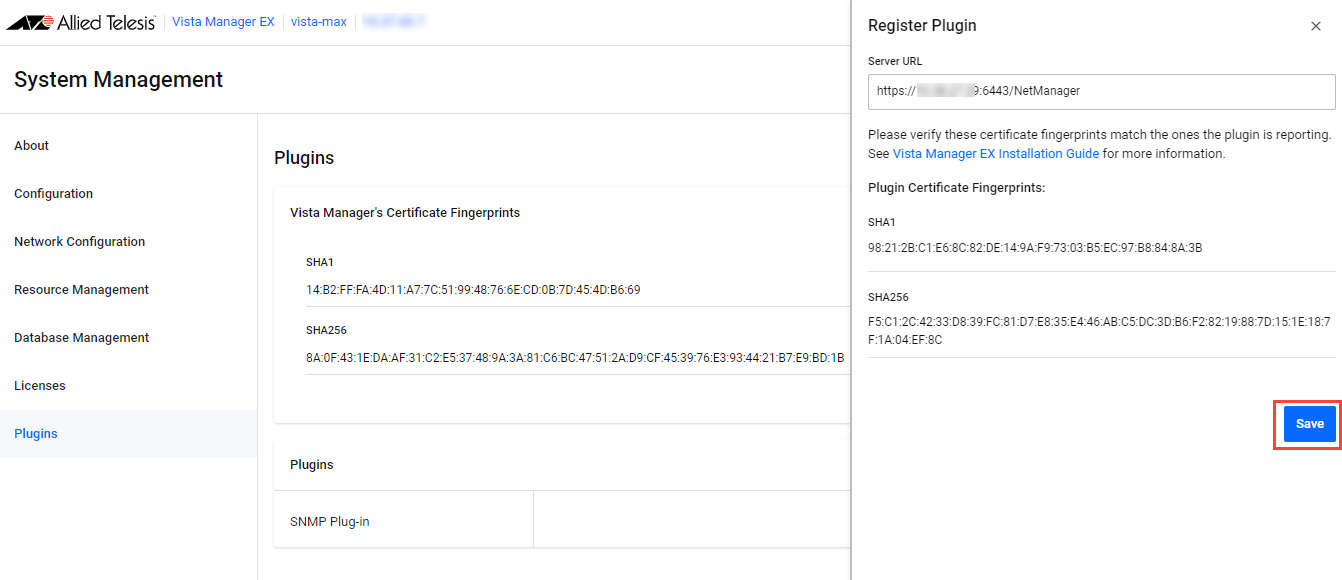
- When the SNMP Plug-in URL responds, the SHA1 and SHA256 certificate fingerprints are displayed in the "Plugin Certificate Fingerprints" field.
Confirm the fingerprints and click the "Save" button to register the Plug-in.
- If the Plug-in is registered normally, "SNMP Plug-in" is added to the Plug-ins list.
It also adds an SNMP Plug-in icon to the main menu.
Launch SNMP Plug-in in the Vista Manager application
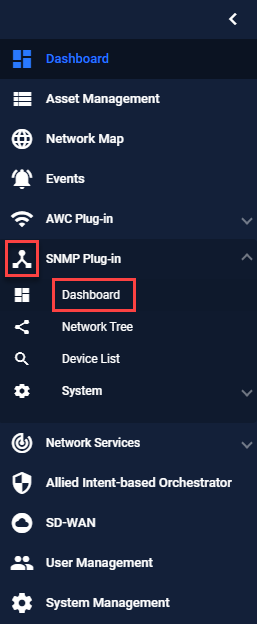
This section describes the procedure for launching SNMP Plug-in in the Vista Manager application.- Click the SNMP Plug-in icon in the left menu of the Vista Manager application, then click the "Dashboard" menu.
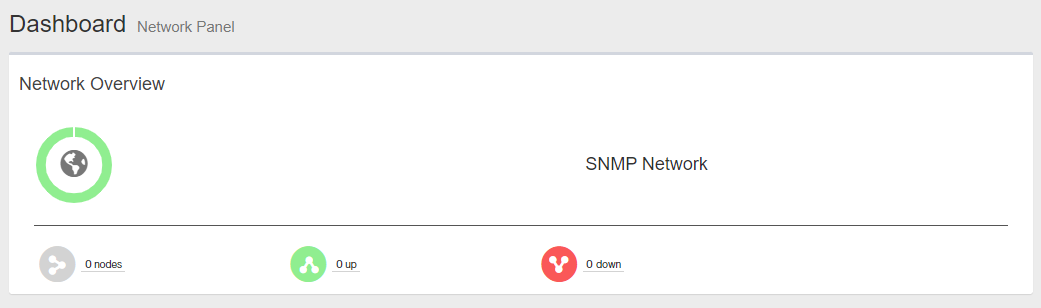
- Dashboard screen is displayed.
The same applies to how to open the Network Tree screen, Device List screen, and System screen.
02 Aug 2024 14:28