Event Filter
The Event Filter is a feature that takes an automatic action when an event occurs (eg. "node detected" and "trap received"). Possible actions include sending an email.
You can specify what action to take when what type of event occurs on which node on "Add Event Filter" or "Update Event Filter" dialog box.
Event Filter List
This page lists all event filters configured on a monitored network and allows you to view, edit and delete some or all of them. You can also create a new event filter by specifing an IP address or device name.
NoteBy clicking a column header (eg. "ID", "Event Name" or "Memo"), you can sort the list by the column. Order (ascending or descending) can be toggled by clicking the header.
| Item Name | Contents |
|---|---|
| Number of items displayed on the page | Select a number of event filters displayed on a page. Options are 10, 25, 50 and All. |
| "Create" button | Create a new event filter. Add Event Filter page will appear. |
 Copy to Clipboard |
Copies the event filter list (Event Name, Event Type, Node Name, Node Address, Node Device Name, Memo and Action Command) to clipboard as a tab-delimited text. It is useful when you want to copy a list to your text editor. You can filter target subnets with "Search" box. "Number of items on the page" and the current page do not affect an output. |
 Export to CSV file |
Exports the event filter list (Event Name, Event Type, Node Name, Node Address, Node Device Name, Memo and Action Command) to a CSV file. You can filter target subnets with "Search" box. "Number of items on the page" and the current page do not affect an output. |
 Export to Excel |
Exports the event filter list (Event Name, Event Type, Node Name, Node Address, Node Device Name, Memo and Action Command) to an Excel book file (.xlsx for Microsoft Excel 2007 or later). You can filter target subnets with "Search" box. "Number of items on the page" and the current page do not affect an output. |
 |
Shows the event filter list (Event Name, Event Type, Node Name, Node Address, Node Device Name, Memo and Action Command) on another browser window or tab and opens a print dialog box. You can filter target subnets with "Search" box. "Number of items on the page" and the current page do not affect an output. |
| Search field | Lets you filter target subnets by keywords. The search ignores case. |
| ID | Shows an ID of the event filter which was automatically assigned when it was created on "Add Event Filter" dialog box. |
| Event Name | Shows an arbitrary name of the event which you entered on "Add Event Filter" or "Update Event Filter" dialog box. |
| Event Type | Select a type (Error, Alarm, Trap or Event) of the event to react.
|
| Node Address | Shows addresses of the target node. Multiple items are delimited by commas. |
| Node Device Name | Shows device names of the target nodes. Multiple items are delimited by commas. |
| Notes | Shows an arbitrary memo strings which you input on "Add Event Filter" or "Update Event Filter" dialog box. |
| Action Command | Shows an action to take upon when the event occurs. Multiple items are delimited by commas. Its ID is shown in parenthesis. |
| "Edit" button | Opens Update Event Filter page for the event filter. |
| "Details" button | Opens Event Filter Details page for the event filter. |
| "Delete" button | Opens "Delete Event Filter" dialog box. Clicking "Yes" in the dialog box deletes the event filter. Click "No" or "Close (x)" button at the top left of the dialog box allows you to cancel the delete operation and goes back to "Event Filter List" page. |
| Page Navigation | Lets you view a specific page of the list.
|
Add Event Filter
You can create and add a new event filter on this page.An event filter runs an action command when a specific event occurs on a target node.
Target nodes for an event filter are all nodes which meet all of the following specified criteria.
- Node Name
- Node's IP Address
- Nodes' MAC Address (Not Supported)
- Node Device Name
For instance,
- Node Name matches Node A and B
- IP Address matches Node B and C
If you want to run the action command on all of the node A, B and C, create two separate event filters, one matches Node Name and the other matches IP Address.
NoteNote that you have to create an action command using Action Command before creating an event filter.Currently, MAC Address is not supported for the criteria of target node.
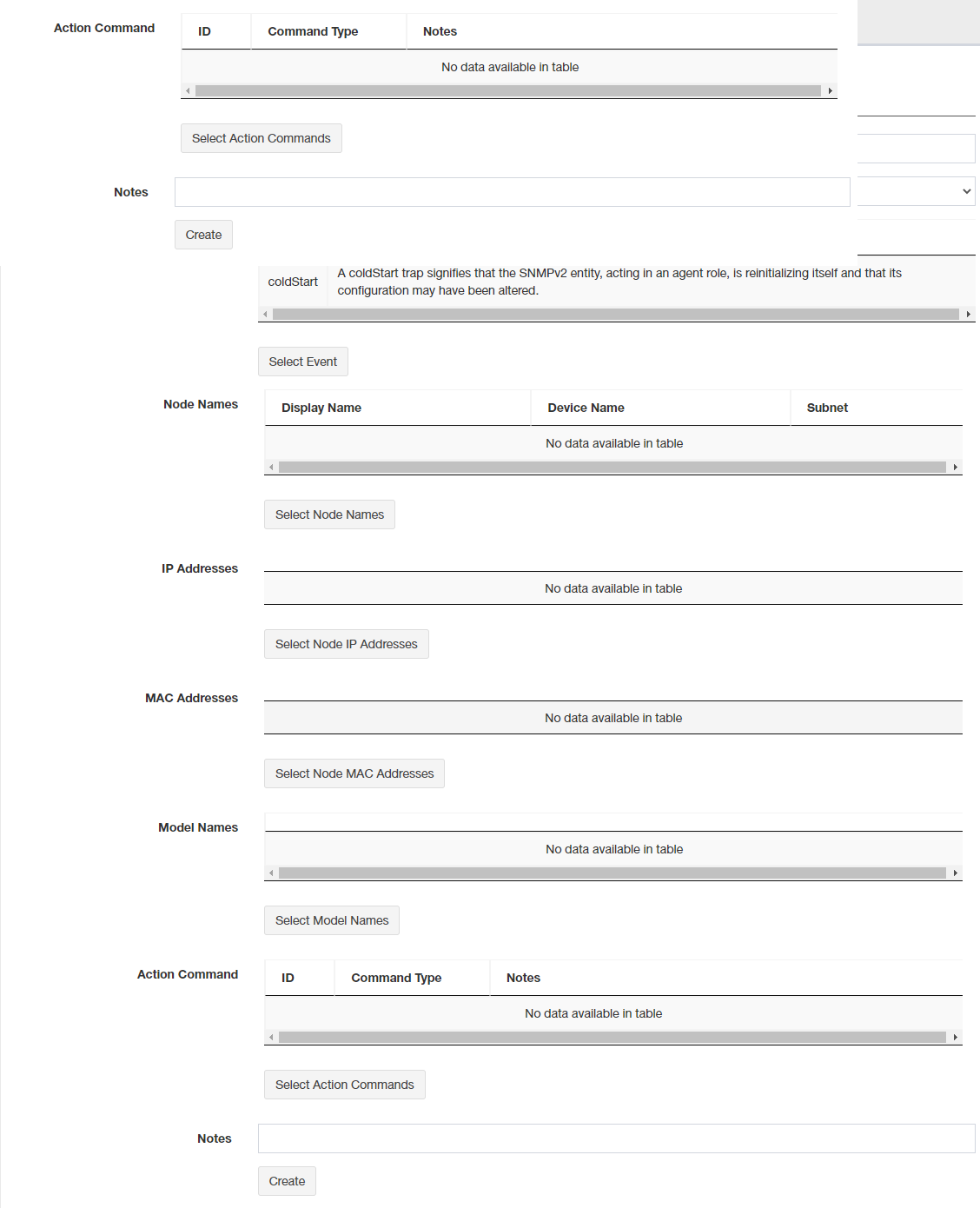
| Item Name | Contents |
|---|---|
| Event Name | Specify a display name of the event (filter). You can specify 1 to 4096 single-byte alphabets, numbers, and symbols. |
| Event Type | Select a type (trap, info, error or alarm) of the event to react. |
| Event | Shows a selected event and its description. |
| "Select Event" button | Opens "Event List" dialog box and lets you choose one. |
| Node Name | Shows selected node names, device names and subnet names.
|
| Node's IP Address | Shows selected target IP addresses.
|
| Nodes's MAC Address | Shows selected target MAC addresses.
|
| Node Device Name | Shows selected target device name. It is the same as log's "Source Model Name".
|
| Action Command | Shows a selected action's ID, command type and memo to take when the specified event occurs.
|
| Notes | Input any notes. You can specify half-width alphabets, numbers, and symbols within 4096 characters. |
| "Create" button | Save the newlly created event filter configuration. |
Event List Dialog Box
This dialog box lets you choose a target event for an event filter.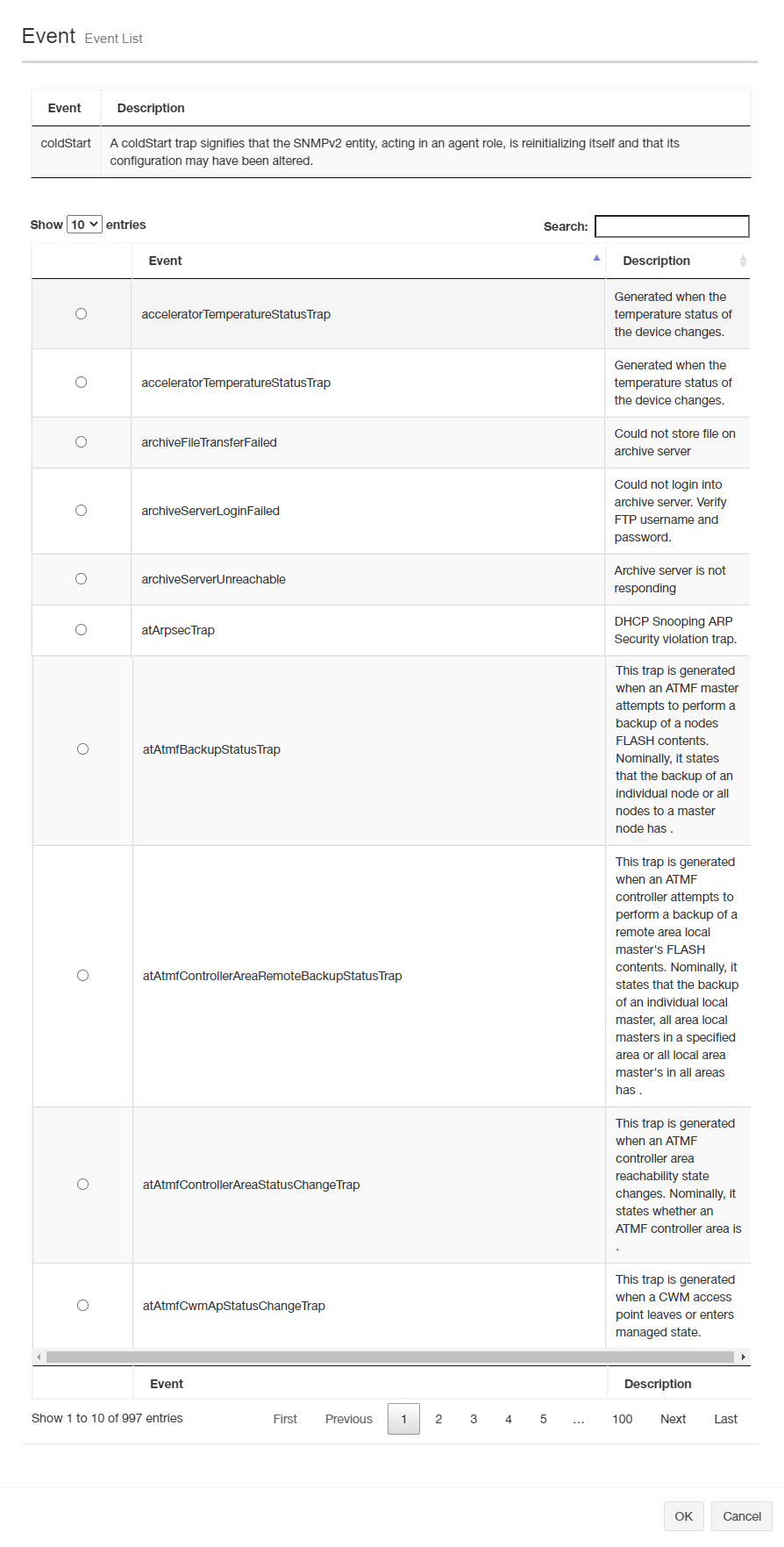
| Item Name | Contents |
|---|---|
| Target Event (Top of the dialog box) | |
| Event | Shows event names. |
| Description | Shows brief event descriptions. |
| Event List (Bottom of the dialog box) | |
| Lists candidate events for a target event, which are registered in SNMP Plug-in. Contents of the list varies depending on the event type you choose on the "Add Event Filter" dialog box. NoteWhen you choose "Trap" for "Event Type", all traps for all devices added to SNMP Plug-in are listed even if you selected target nodes. Narrow down the event list using Search box then select an event. NoteThe language displayed in the description column depends on the installation environment, so even if Japanese is selected in Vista Manager EX user settings, it will be displayed in English. |
|
| Number of items displayed on the page | Select a number of events displayed on a page. Options are 10, 25, 50 and All. |
| Search field | Lets you filter target event candidates by keywords. The search ignores case. |
| Radio Buttons | Select a radio button to select that event. You cannot select multiple events. Selecting an event deselects the one previously selected. |
| Event | Shows a name of the event. |
| Description | Shows brief event descriptions. |
| Page |
|
| "OK" button | Saves the event selection and update "Add Event Filter" or "Update Event Filter" pages. |
| "Cancel" button | Discards the event selection and go back to "Add Event Filter" or "Update Event Filter" page. |
Device List Dialog Box (Name)
This dialog box lets you choose target nodes by their node names.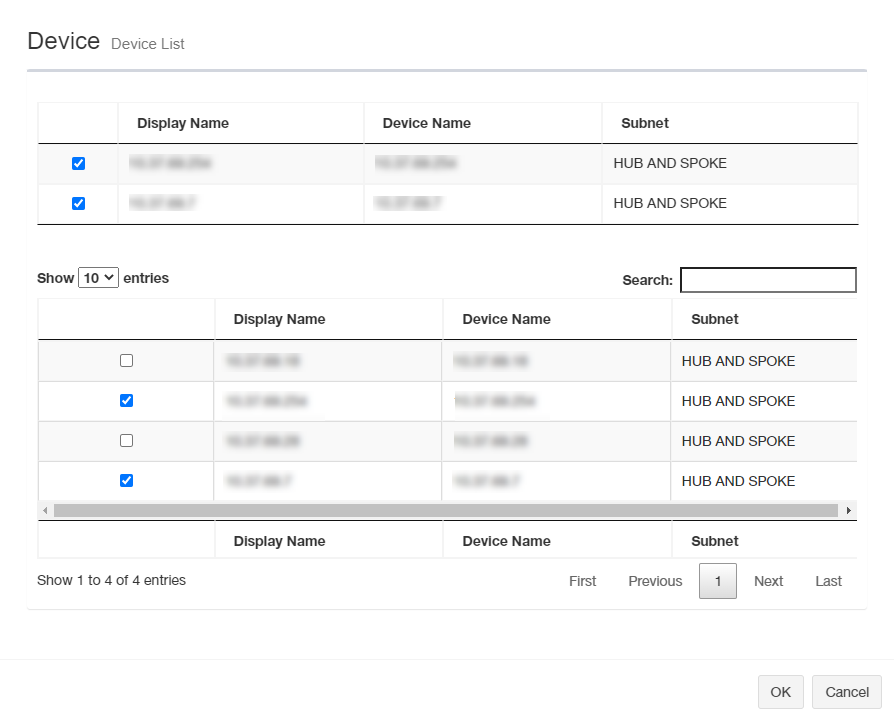
| Item Name | Contents |
|---|---|
| Target Nodes (Top of the dialog box) | |
| Checkbox | Target nodes are checked. You can uncheck those checkboxes or the ones in the node list at the bottom of the dialog box to deselect target nodes. |
| Subnet Name | Shows node names of the selected target nodes. |
| Device | Shows device names of the selected target nodes. |
| Subnet | Shows subnet names where the selected target nodes were added. |
| Node List (Bottom of the dialog box) | |
| Lists candidates for the target nodes, which are registered in SNMP Plug-in. | |
| Number of items displayed on the page | Select a number of nodes displayed on a page. Options are 10, 25, 50 and All. |
| Search field | Lets you filter target node candidates by keywords. The search ignores case. |
| Checkbox | Check those boxes to select target nodes. You can uncheck those checkboxes or the ones in the target node list at the top of the dialog box to deselect target nodes. |
| Subnet Name | Shows node names It is the same as the "Name" on "Device Details" page and "Source Name" on "Event Log". |
| Device | Shows a device name of the target node. It is automatically configured when the device was added. It is an IP address or a hostname of the device.NoteDevice added manually has a device name in the format of "<IP-Address>_<Numbers>". |
| Subnet | Shows a subnet to which the device belongs. |
| Page |
|
| "OK" button | Saves the target node selection and update "Add Event Filter" or "Update Event Filter" pages. |
| "Cancel" button | Discards the target node selection and go back to "Add Event Filter" or "Update Event Filter" page. |
Device List Dialog Box (IP Address)
This dialog box lets you choose target nodes by their IP address.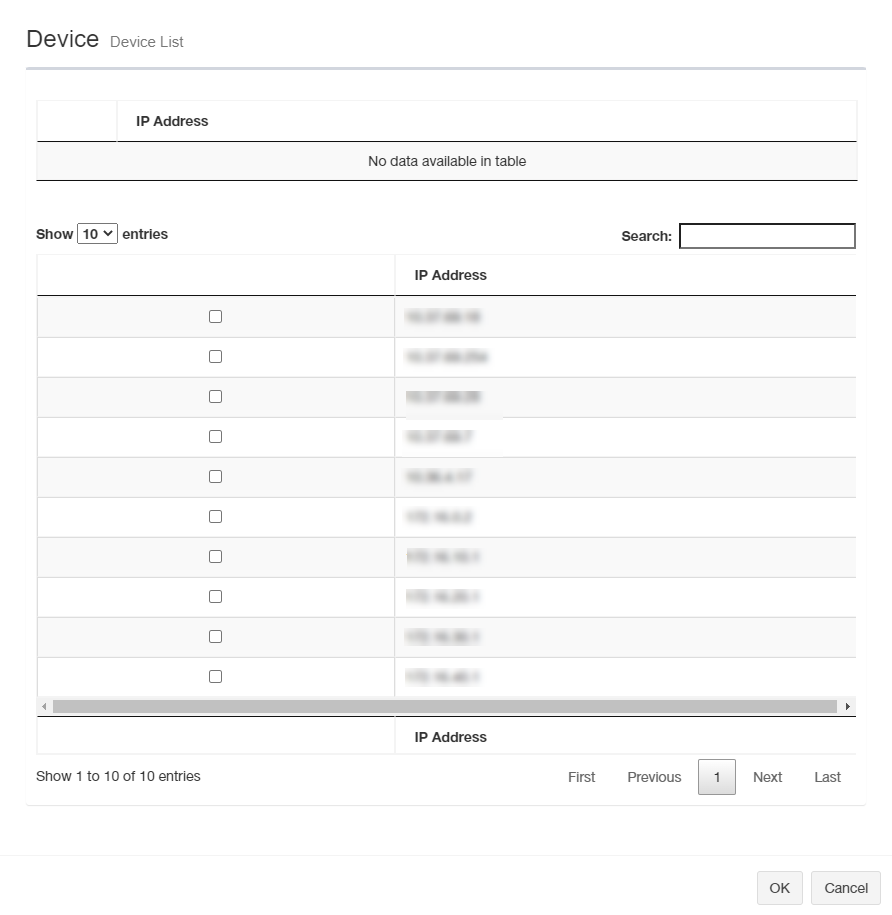
| Item Name | Contents |
|---|---|
| Target Nodes (Top of the dialog box) | |
| Checkbox | Target nodes are checked. You can uncheck those checkboxes or the ones in the node list at the bottom of the dialog box to deselect target nodes. |
| IP Address | Shows IP addresses of the selected target nodes. |
| Node List (Bottom of the dialog box) | |
| Lists candidates for the target nodes, which are registered in SNMP Plug-in. | |
| Number of items displayed on the page | Select a number of nodes displayed on a page. Options are 10, 25, 50 and All. |
| Search field | Lets you filter target node candidates by keywords. The search ignores case. |
| Checkbox | Check those boxes to select target nodes. You can uncheck those checkboxes or the ones in the target node list at the top of the dialog box to deselect target nodes. |
| IP Address | Shows IP addresses of the devices registered in SNMP Plug-in. |
| Page |
|
| "OK" button | Saves the target node selection and update "Add Event Filter" or "Update Event Filter" pages. |
| "Cancel" button | Discards the target node selection and go back to "Add Event Filter" or "Update Event Filter" page. |
Device List Dialog Box (MAC Address)
This dialog box lets you choose target nodes by their MAC address.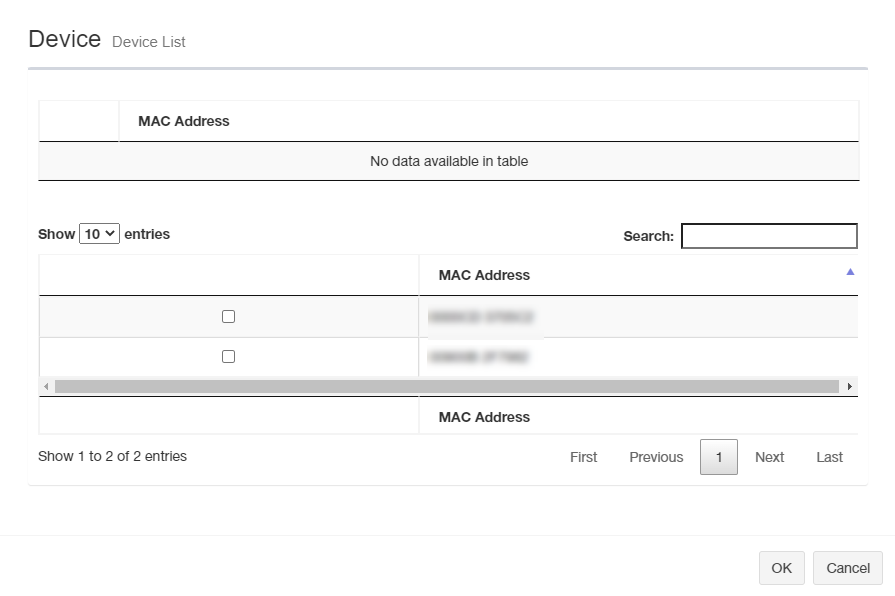
| Item Name | Contents |
|---|---|
| Target Nodes (Top of the dialog box) | |
| Checkbox | Target nodes are checked. You can uncheck those checkboxes or the ones in the node list at the bottom of the dialog box to deselect target nodes. |
| MAC Address | Shows MAC addresses of the selected target nodes. |
| Node List (Bottom of the dialog box) | |
| Lists candidates for the target nodes, which are registered in SNMP Plug-in. | |
| Number of items displayed on the page | Select a number of nodes displayed on a page. Options are 10, 25, 50 and All. |
| Search field | Lets you filter target node candidates by keywords. The search ignores case. |
| Checkbox | Check those boxes to select target nodes. You can uncheck those checkboxes or the ones in the target node list at the top of the dialog box to deselect target nodes. |
| MAC Address | Shows MAC addresses of the devices registered in SNMP Plug-in. |
| Page |
|
| "OK" button | Saves the target node selection and update "Add Event Filter" or "Update Event Filter" pages. |
| "Cancel" button | Discards the target node selection and go back to "Add Event Filter" or "Update Event Filter" page. |
Device List Dialog Box (Model Name)
This dialog box lets you choose target nodes by their model names.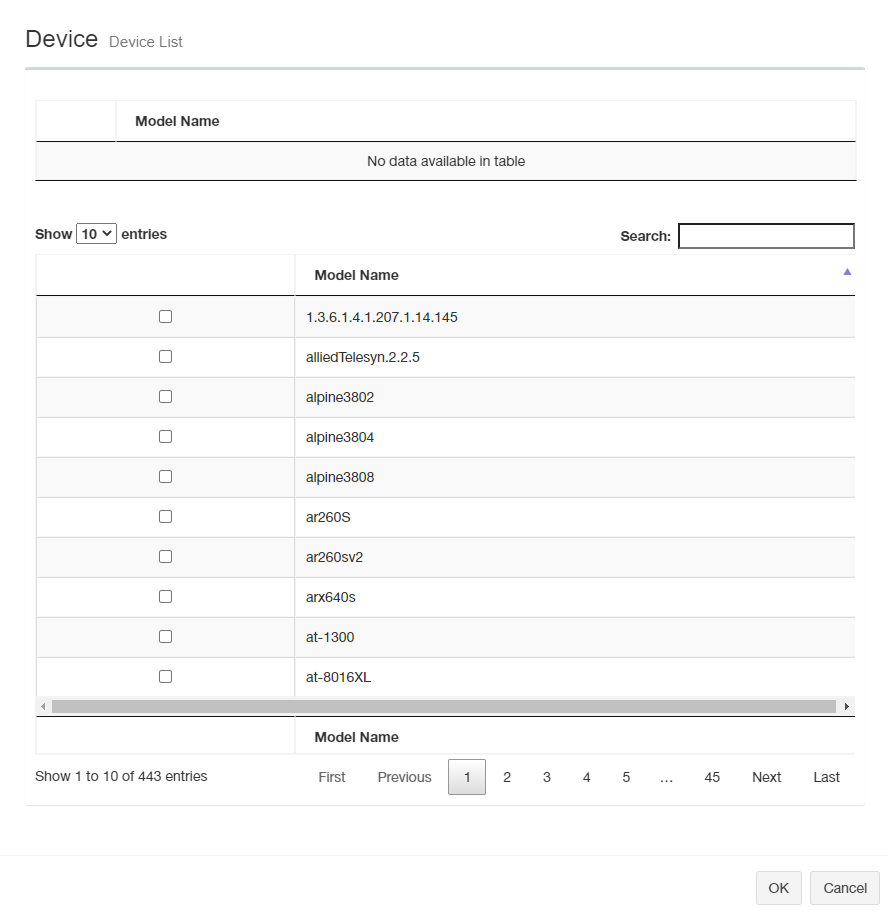
| Item Name | Contents |
|---|---|
| Target Nodes (Top of the dialog box) | |
| Checkbox | Target nodes are checked. You can uncheck those checkboxes or the ones in the node list at the bottom of the dialog box to deselect target nodes. |
| Model Name | Shows model names of the selected target nodes. |
| Node List (Bottom of the dialog box) | |
| Lists candidates for the target nodes, which are registered in SNMP Plug-in. | |
| Number of items displayed on the page | Select a number of nodes displayed on a page. Options are 10, 25, 50 and All. |
| Search field | Lets you filter target node candidates by keywords. The search ignores case. |
| Checkbox | Check those boxes to select target nodes. You can uncheck those checkboxes or the ones in the target node list at the top of the dialog box to deselect target nodes. |
| Model Name | Shows model names of the devices registered in SNMP Plug-in. |
| Page |
|
| "OK" button | Saves the target node selection and update "Add Event Filter" or "Update Event Filter" pages. |
| "Cancel" button | Discards the target node selection and go back to "Add Event Filter" or "Update Event Filter" page. |
Action Command List Dialog Box
This dialog box lets you choose an action command to run when an event occurs on the target nodes from a list of commands configured on Action Command.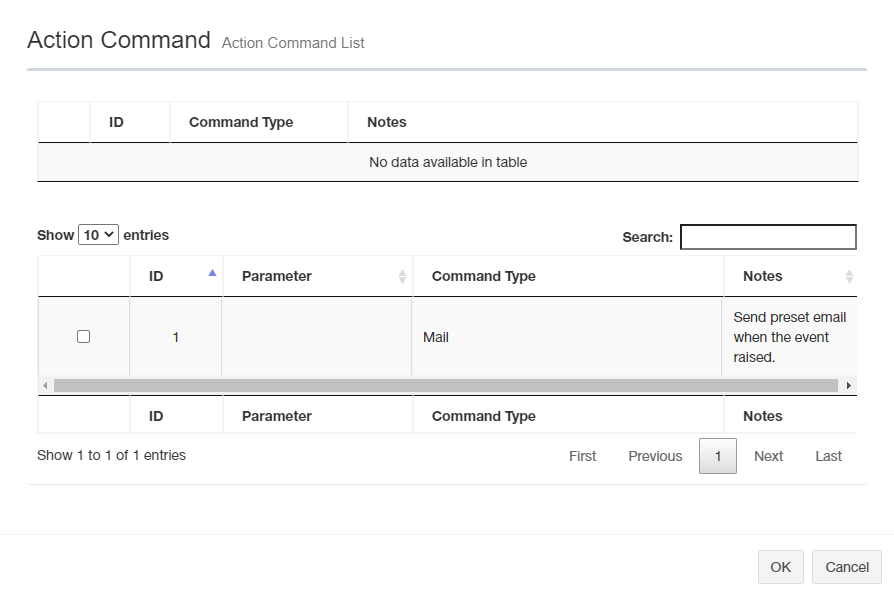
| Item Name | Contents |
|---|---|
| Selected Action Commands List (Top of the dialog box) | |
| Checkbox | Selected action commands are checked. You can uncheck those checkboxes or the ones in the action command list at the bottom of the dialog box to deselect target nodes. |
| ID | Shows IDs of the selected action commands. |
| Command Type | Shows types of the selected action commands. |
| Notes | Shows notes for the selected action commands. |
| Action Command List (Bottom of the dialog box) | |
| Lists candidates for the action commands, which are registered in SNMP Plug-in. | |
| Number of items displayed on the page | Select a number of actions displayed on a page. Options are 10, 25, 50 and All. |
| Search field | Lets you filter action candidates by keywords. The search ignores case. |
| Checkbox | Check those boxes to select actions. You can uncheck those checkboxes or the ones in the selected action command list at the top of the dialog box to deselect actions. |
| ID | Shows an ID of the action command created on Action Command. |
| Parameters | Shows parameters to the command. |
| Command Type | Shows a command type (Sending email). |
| Notes | Shows a notes on the action command. |
| Page |
|
| "OK" button | Saves the action command to run and update "Add Event Filter" or "Update Event Filter" pages. |
| "Cancel" button | Discards the action command selection and go back to "Add Event Filter" or "Update Event Filter" page. |
Event Filter Details
This dialog box shows detailed information on an event filter.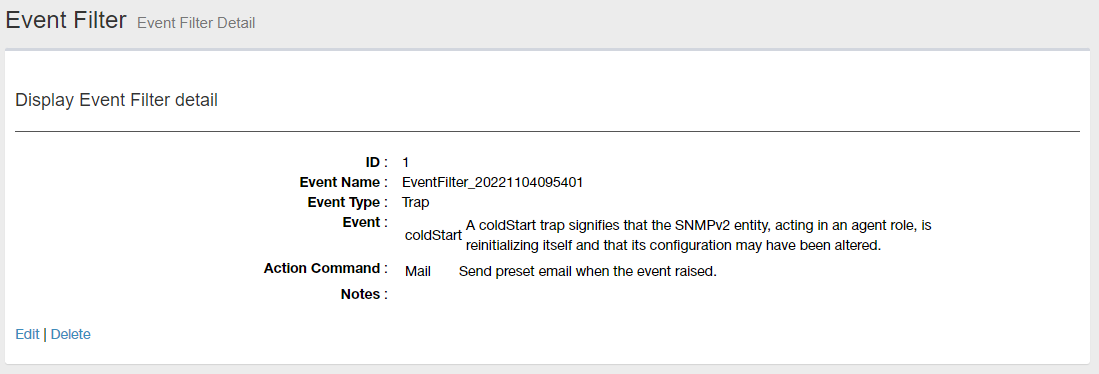
| Item Name | Contents |
|---|---|
| ID | Shows an ID of the event filter which was automatically assigned when it was created. |
| Event Name | Shows a name of the event filter which is registered on SNMP Plug-in. |
| Event Type | Shows a type (trap, info, error or alarm) of the event. |
| Event | Shows a selected event and a short description. |
| Node Name | Shows selected target nodes. |
| Node's IP Address | Shows selected target IP addresses. |
| Nodes's MAC Address | Shows selected target MAC addresses. |
| Node Device Name | Shows selected target device name. |
| Action Command | Shows a selected action's command type and a note.
|
| Notes | Shows a note on the event filter. |
| Edit | Clicking it opens Update Event Filter page for the event filter. |
| Delete | Opens "Delete Event Filter" dialog box. Clicking "Yes" in the dialog box deletes the event filter. Click "No" or "Close (x)" button at the top left of the dialog box allows you to cancel the delete operation and goes back to "Event Filter Details" page. |
Update Event Filter
This dialog box lets you change an existing event filter.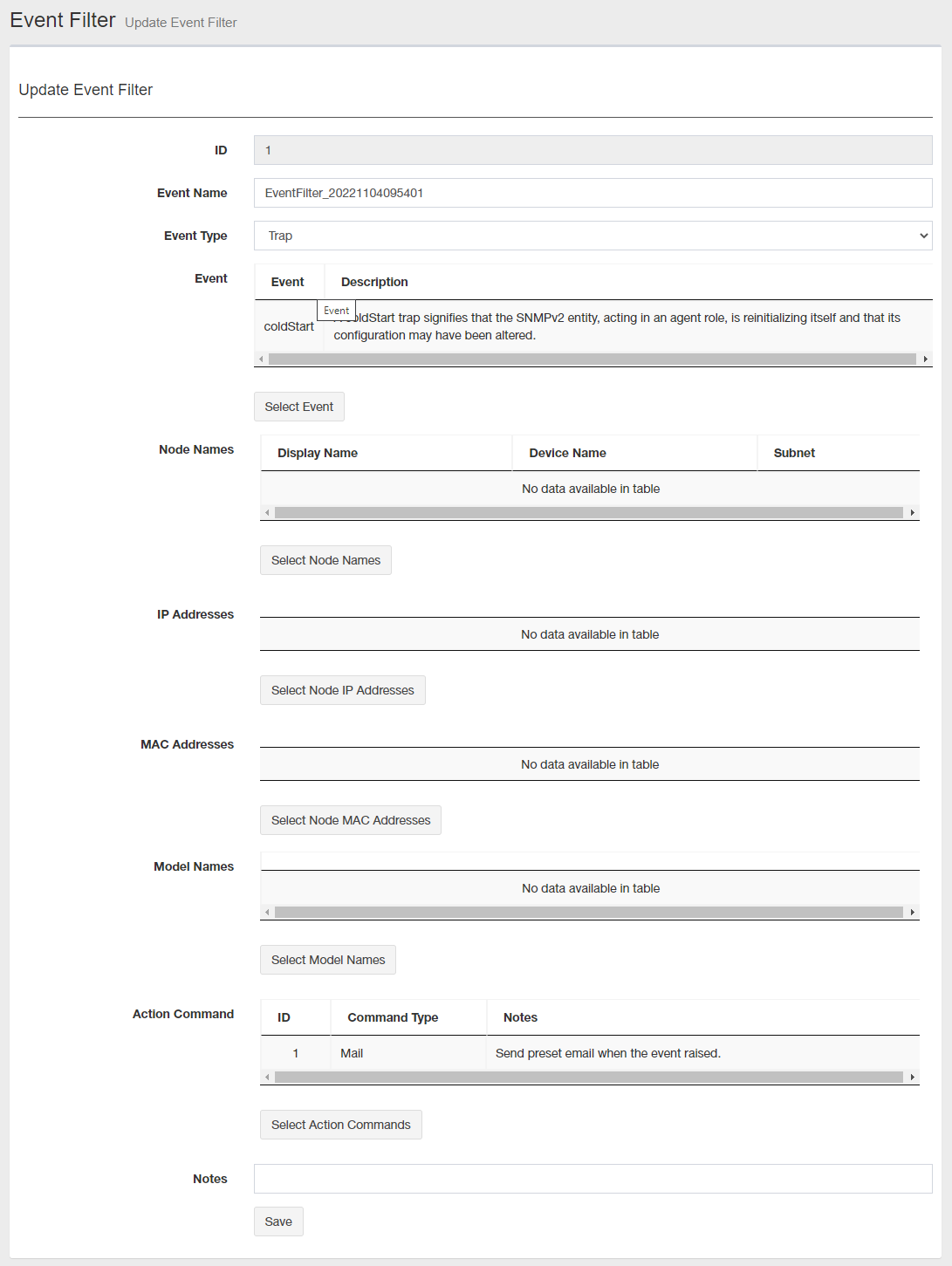
| Item Name | Contents |
|---|---|
| ID | Shows an ID of the event filter which was automatically assigned when it was created. |
| Event Name | Specify a display name of the event (filter). |
| Event Type | Select a type (trap, info, error or alarm) of the event to react. |
| Event | Shows a selected event and its description. |
| "Select Event" button | Opens "Event List" dialog box and lets you choose one. |
| Node Name | Shows selected node names, device names and subnet names.
|
| Node's IP Address | Shows selected target IP addresses.
|
| Nodes's MAC Address | Shows selected target MAC addresses.
|
| Node Device Name | Shows selected target device name. It is the same as log's "Source Model Name".
|
| Action Command | Shows a selected action's ID, command type and memo to take when the specified event occurs.
|
| Notes | Input any notes. |
| "Save" button | Save the changes made to the event filter configuration. |
02 Aug 2024 14:28