Add Subnet
Create an SNMP subnet
This section describes how to create an SNMP subnet.- Display the Add Subnet page.
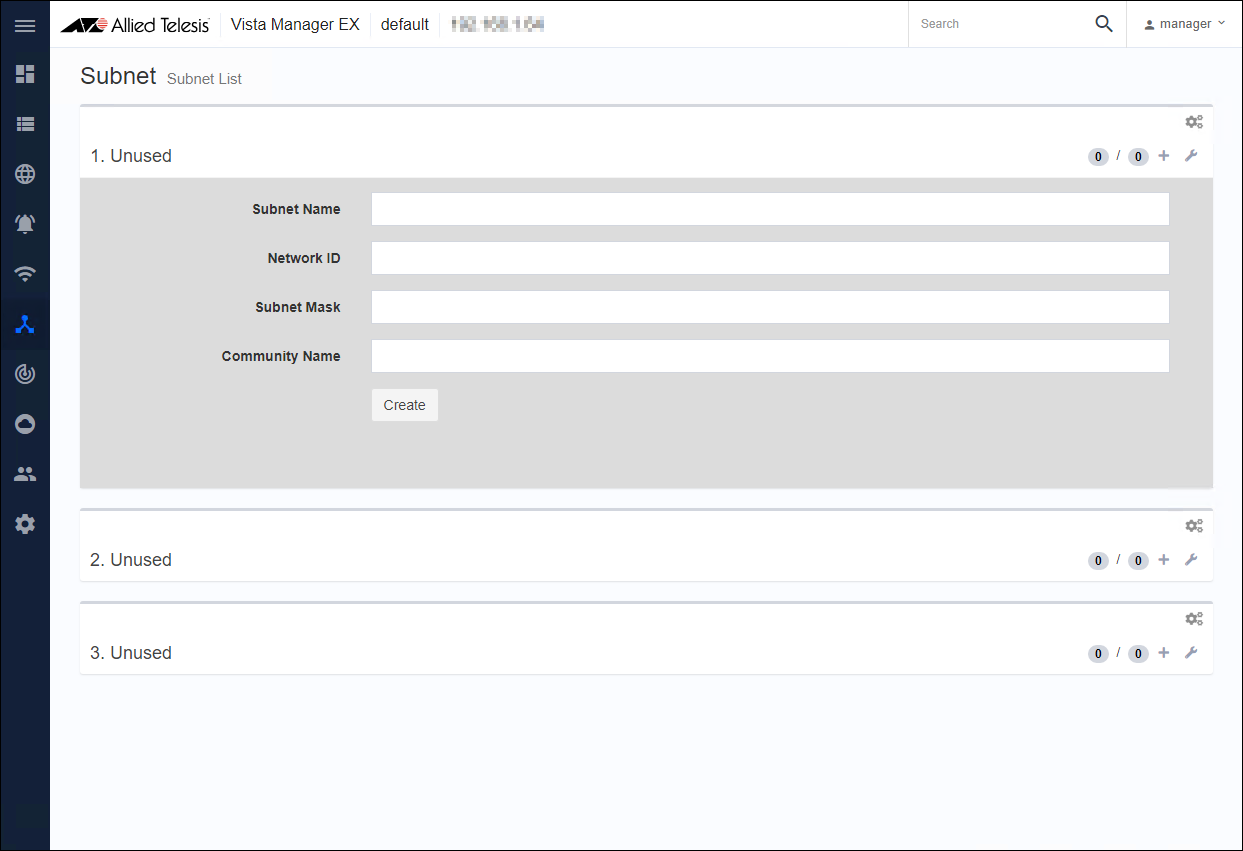
- Set the items shown in the following table and click the "Create" button to create a subnet.
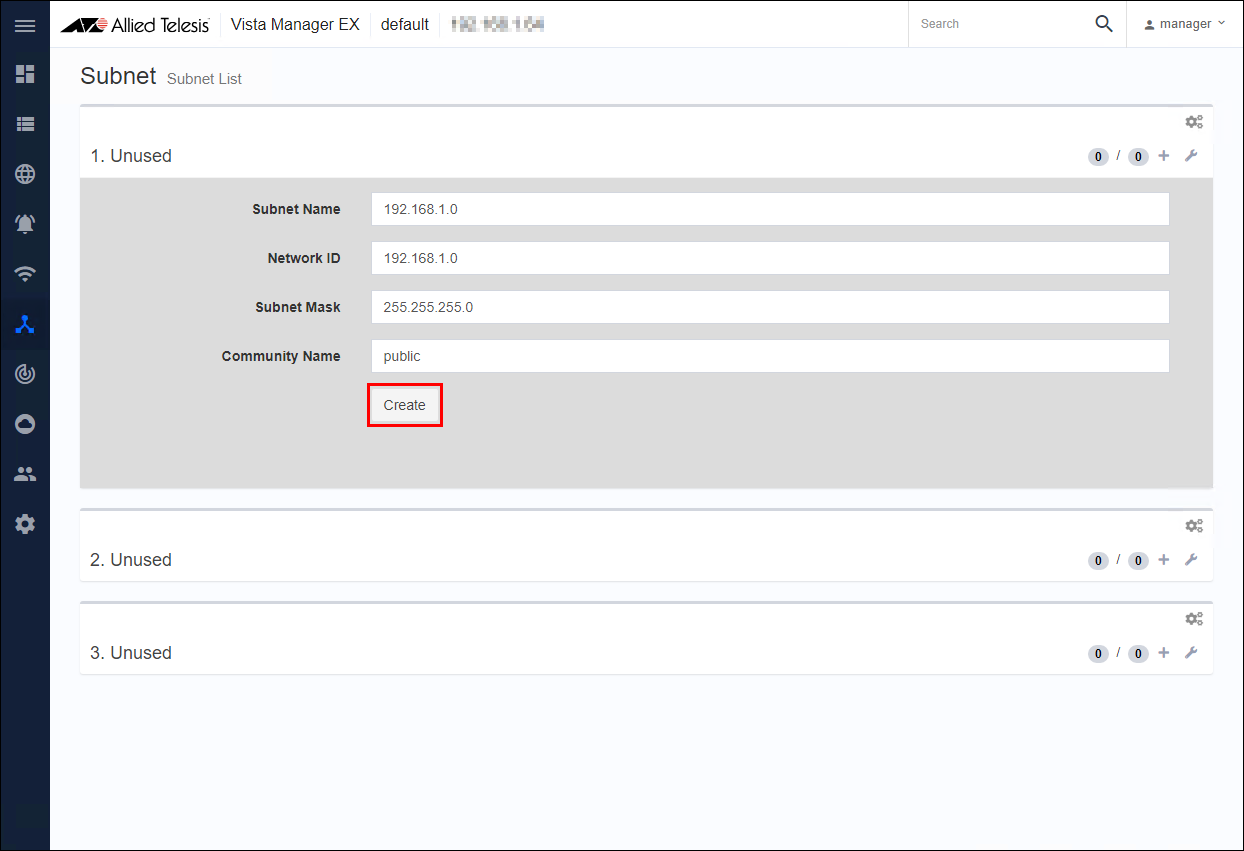
Table 1: Subnet setting items
Subnet Name Enter the subnet name (for example, 192.168.1.0). You can specify any character string. Network ID Enter the network ID for the subnet (IPv4 network address such as 192.168.1.0). Subnet Mask Enter the subnet mask for the subnet (for example, 255.255.255.0). Community Name Enter the SNMP community name to use when discovering the device (for example, public). Note
The following points should be noted when creating a subnet (Auto Discovery).
-Click the "Add New" button only once.
-Auto Discovery is executed immediately after subnet creation, so manual Auto Discovery is not required.
-During Auto Discovery, do not perform Auto Discovery for the same subnet.
-After a while (about 10 minutes for a 24-bit mask), reload the web browser and check the status of the newly created subnet.Note
You cannot change the Subnet Name. If you want to change it, you need to delete the subnet and the nodes under it and create a new subnet.
Note
Set the subnet to a value larger than the 22-bit mask (255.255.252.0) (set the number of IP addresses to be 1,024 or less).
Example:
22-bit mask (255.255.252.0), Number of IP addresses: 1,024
23-bit mask (255.255.254.0), Number of IP addresses: 512
24-bit mask (255.255.255.0), Number of IP addresses: 256
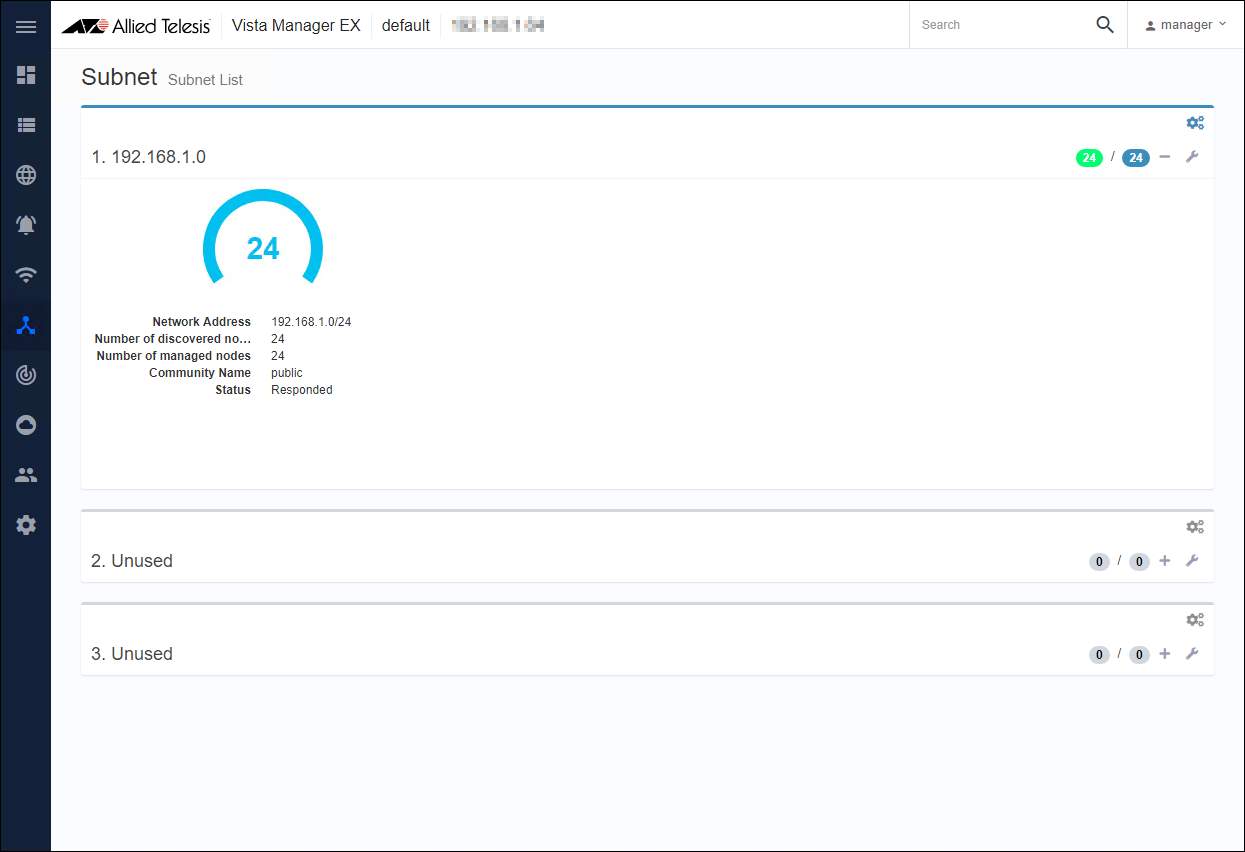
- When the subnet is created, the search for SNMP devices starts, and when it is completed, the number of detected devices is displayed (the screenshot shown below is an example).
Note
Trap Receiver manages the status of all the nodes detected by creating a subnet by performing periodic monitoring every 10 minutes.
Therefore, the status of the monitored node is updated at the timing of periodic monitoring.Note
To change the registered subnet (add or delete devices), actually add or delete devices on the target subnet, and then manually execute Auto Discovery.
Note
If a node device is replaced on the registered subnet, the icon of the target node is duplicated on the Vista Manager Network Map.
Therefore, when you replace the device, manually execute Auto Discovery of the subnet to which the target node belongs to update the information of Trap Receiver.Note
If the IP address of the monitored node is changed, the status of the monitored node is down on the Vista Manager Network Map.
Therefore, when you change the IP address, manually execute Auto Discovery of the subnet to which the target node belongs to update the information of Trap Receiver.Note
If Trap Receiver detects a node that is managed by the Vista Manager or AWC Plug-in and the SNMP settings are not enabled, the icon is duplicated on the Vista Manager Network Map. To integrate the icons, enable the Trap Receiver settings on the node side.
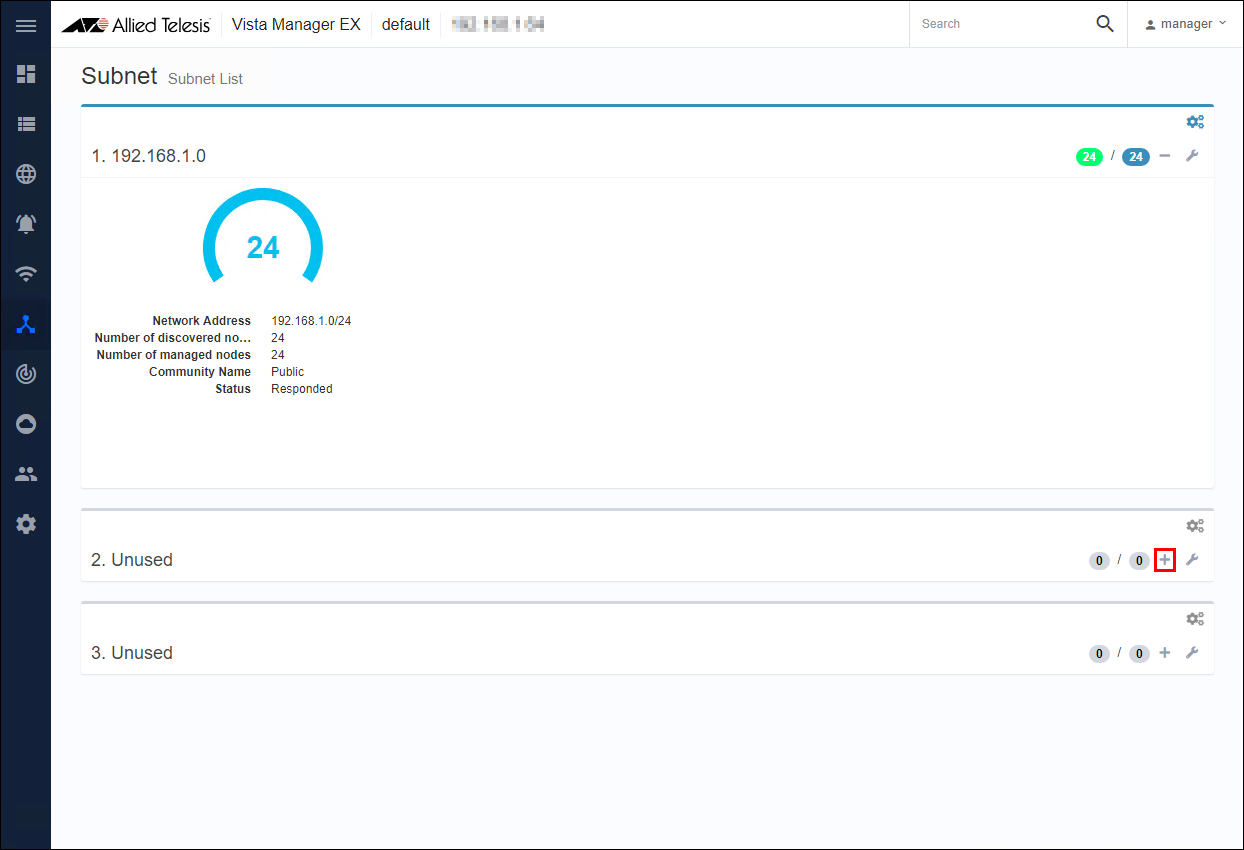
- You can create up to 3 subnets. Click the "+" icon on the far right and create it in the same way as in step 2.
Refer to the Vista Manager EX document posted on our website.
20 Sep 2021 14:30