Configure AP Profiles
This section explains how to create, edit, and delete AP Profiles.
NoteFor TQ series APs, LLDP, Ethernet, and HTTP/HTTPS configuration is only possible from the AP's own management web interface. Please follow the steps described in Configure AP through Its Own Web Interface to perform that configuration.
For detailed explanation on configuring TQ series APs, refer to the "TQ series Reference Manual" on our website.
NoteAP Profile and AP-specific configuration created in the AWC Plug-in are not instantly applied to wireless APs. They will be applied to APs when:
- an AP is put under the AWC Plug-in's control
- a user manually applys configuration
- a scheduled task for applying configuration is run.
Create AP Profile
NoteTo monitor an AP, you have to assign an AP Profile to the AP which has been added to the AWC Plug-in's database.
- Select "Wireless Configuration" > "AP Profile" from the AWC Plug-in menu.
The AP Profile list screen will appear.
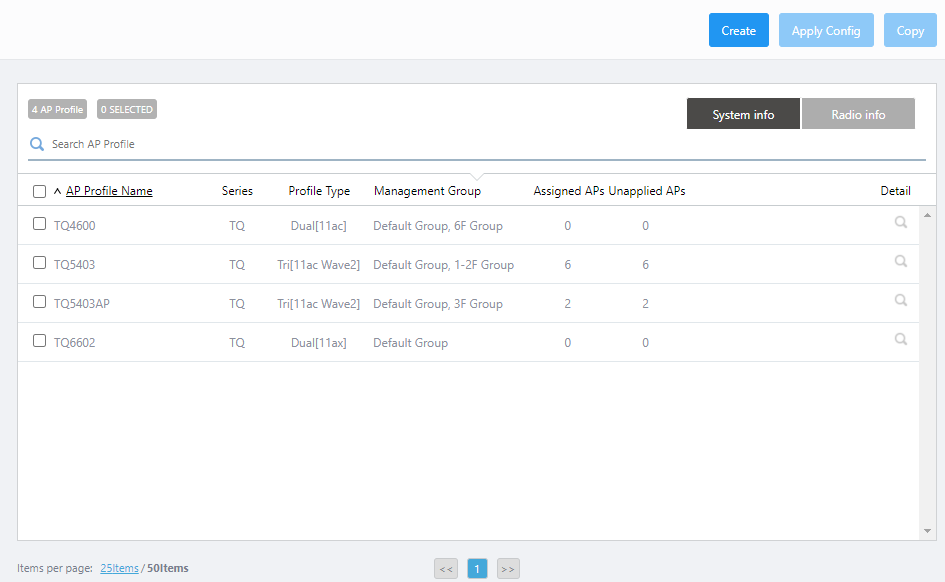
- Click "Create" at the top right corner.
- The "Select Country, AP Series and Profile Type" dialog box will appear.
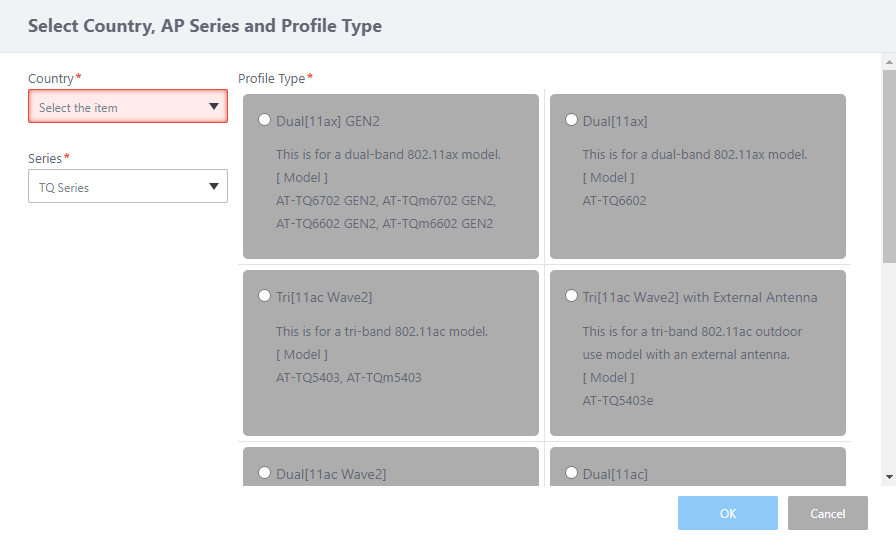
Table 1: "Select Country Code/AP Series/Settting Type" dialog box Item Name Description Country Specify a country code for the AWC Plug-in's AP profile. It is used to properly configure APs for radio frequency regulation in the country.
When a country code is set in the "User Management" screen of Vista Manager EX, the preferred country code will be selected as the default.Series Select an AP series.
- TQ Series:
Select this to create an AP Profile for TQ series.
Note
The AWC Plug-in no longer supports the management of AT-TQ2450, AT-TQ3200, AT-TQ3400, AT-TQ3600, and AT-TQ4400 APs. Please note that the setting functions for these models of APs, such as the AP Profile Type, are retained for compatibility with the backup file of the previous version.
- MWS-AP Series:
Note
The AWC Plug-in no longer supports the management of the MWS AP series. Please note that the setting functionalities for the MWS AP series, such as the AP Profile Type, are retained for compatibility with the backup file of the previous version.
- TQ Series - SDN/OpenFlow
Select this to create an AP Profile for TQ series that are using SDN/OpenFlow-capable firmware.
Profile Type Select a Profile Type to match the model's radio specifications.
- TQ series
- Dual[11ax] GEN2
Select this for TQ6602 GEN2, TQ6702 GEN2, TQm6602 GEN2 and TQm6702 GEN2.
- Dual[11ax]
Select this for TQ6602.
- Tri[11ac Wave2]
Select this for TQ5403 and TQm5403.
- Tri[11ac Wave2] with External Antenna
Select this for TQ5403e (indoor/outdoor).
- Dual[11ac Wave2]
Select this for TQ1402 and TQm1402.
- Dual[11ac]
Select this for TQ4600 and TQ4400e (indoor use).
Note
The AWC Plug-in no longer supports the management of TQ4400 AP.
- 11ac with External Antenna
Select this for TQ4400e (indoor/outdoor).
The setting items listed below are retained for compatibility with the backup file of the previous version. Please do not select:
- Dual[11n]
- Single
- Dual[11ax] GEN2
- TQ series (SDN/OpenFlow-capable firmware)
- Tri[11ac Wave2]
Select this for TQ5403 in SDN/OpenFlow-capable mode.
- Dual[11ac]
Select this for TQ4400 and TQ4600 using SDN/OpenFlow-capable firmware.
- Tri[11ac Wave2] with External Antenna
Select this for TQ5403e (indoor/outdoor) in SDN/OpenFlow-capable mode.
- Tri[11ac Wave2]
Location If the Profile Type is "Tri[11ac Wave2] with External Antenna" or "11ac with External Antenna", select Location ("Indoor" or "Outdoor") to place the Wireless APs. "OK" button Create an AP Profile of the selected Profile Type. "Cancel" button Stop adding an AP Profile. - TQ Series:
- Select a Country.
Note
An AP Profile with a country code other than "JP - Japan" cannot be applied to Japanese models of TQ series.
- Select an AP series to configure.
- Select a Profile Type that matches the AP model's radio specifications.
- If you chose "Tri[11ac Wave2] with External Antenna" or "11ac with External Antenna" in Step 6, in addition to the settings above, select "Location" from "Indoor" or "Outdoor". This is shown on the left side of the list.
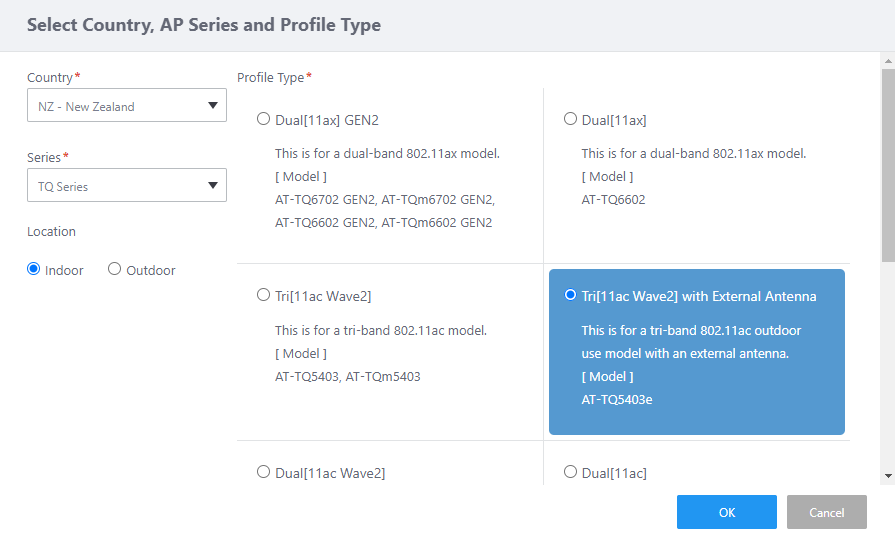
- Click "OK".
- The AP Profile configuration page will appear.
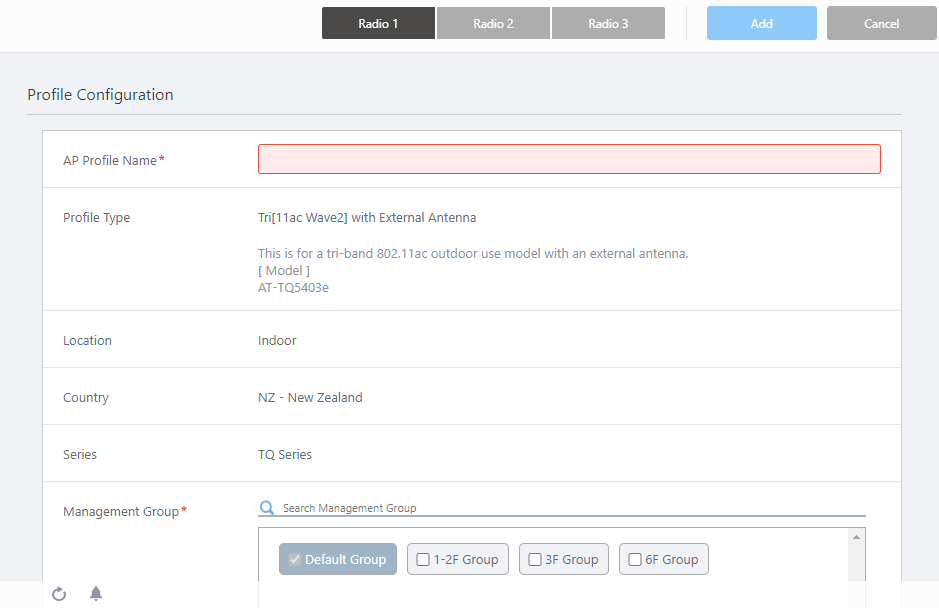
The configuration items for an AP Profile may vary depending on the "Series" and "Profile Type". The following image shows a sample AP Profile for the "TQ Series" / "Tri[11ac Wave2]".
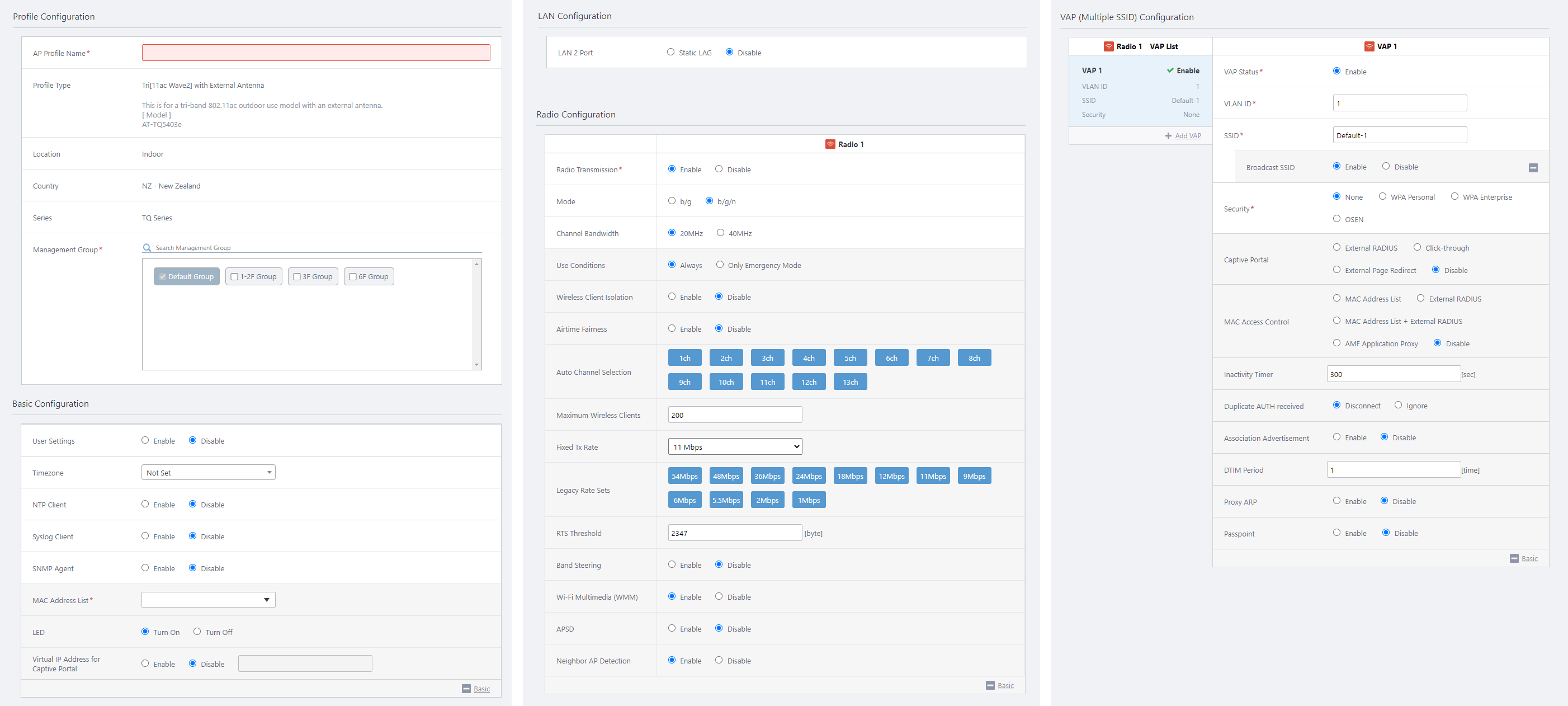
On the top right of the screen, you can switch the radio band, and save or cancel changes for the AP profile.
Table 2: AP Profile Item Name Description Top right of the screen "Radio 1" / "Radio 2" / "Radio 3" buttons Select a radio to configure in the "Radio Configuration" and "VAP (Multiple SSID) Configuration" sections.
The following buttons are displayed depending on the Profile Type.
- Tri[11ac Wave2], Tri[11ac Wave2] with External Antenna
- Radio 1: 2.4GHz
- Radio 2: 5GHz (W52/W53)
- Radio 3: 5GHz (W56)
- Radio 1: 2.4GHz
- Dual[11ax] GEN2, Dual[11ax], Dual[11ac Wave2], Dual[11ac], 11ac with External Antenna
- Radio 1: 2.4GHz
- Radio 2: 5GHz (W52/W53/W56)
- Radio 1: 2.4GHz
- Tri[11ac Wave2], Tri[11ac Wave2] with External Antenna
- Configure items as required.
- Click "Add" at the top right corner.
Profile Configuration
Configure general parameters in the "Profile Configuration" section.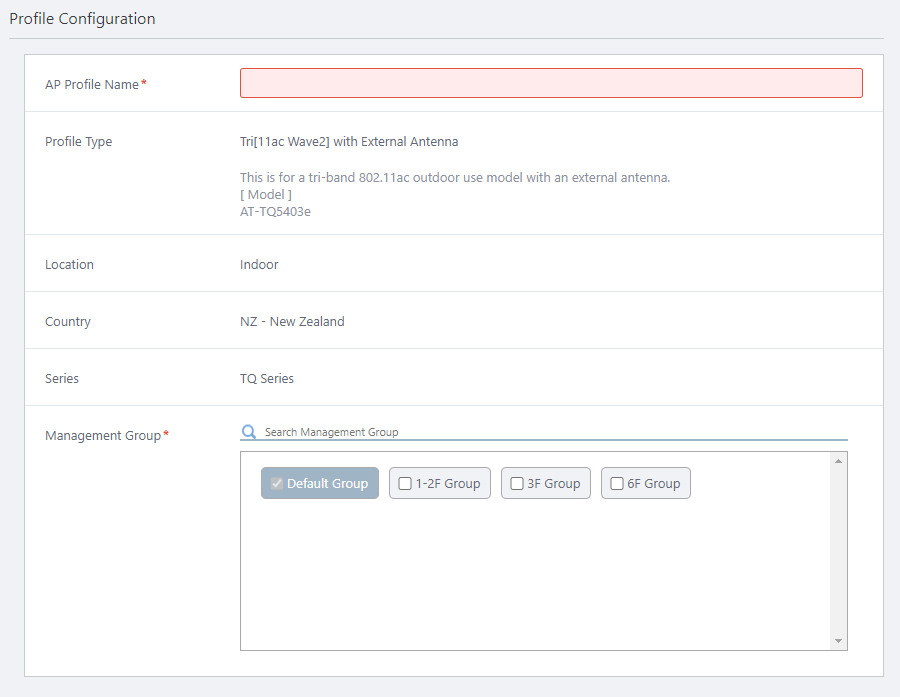
| Item Name | Description |
|---|---|
| AP Profile Name | Enter a name for the AP Profile. Should be 1 to 100 characters in length, with alphabets, numbers and symbols (including spaces). (mandatory) |
| Profile Type | Shows the Profile Type you selected in the earlier step. |
| Location | Shows the Location (indoor/outdoor) you selected in the earlier step (TQ4400e and TQ5403e only). |
| Antenna Model | Shows the antenna model (TQ4400e only). |
| Country | Shows the Country Code you selected in the earlier step. |
| Series | Shows the Series you selected in the earlier step. |
| Management Group | Select Management Groups. You cannot uncheck "Default Wireless Group" (mandatory)
|
Basic Configuration
You can specify the AP's system settings in the "Basic Configuration" section.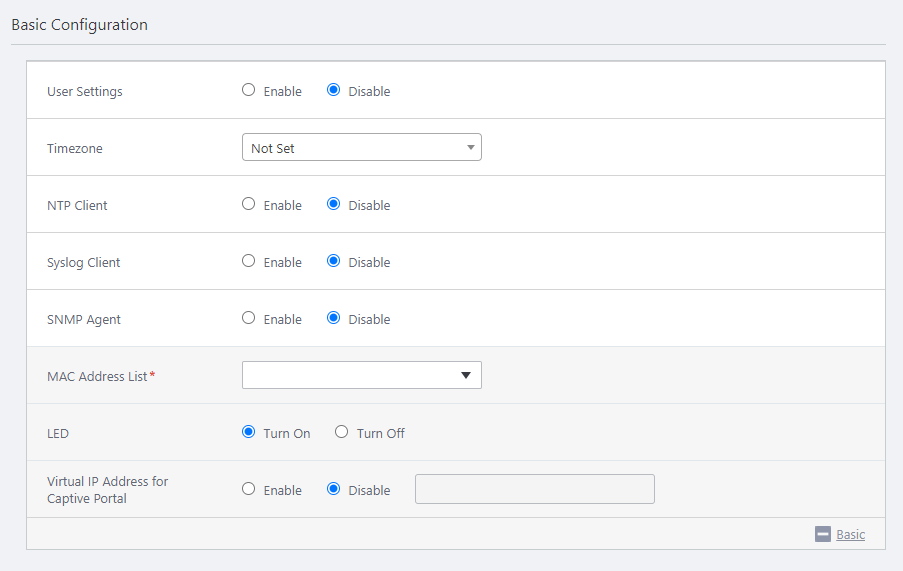
| Item Name | Description |
|---|---|
| User Settings | Select whether to configure the username and password for the AP's management web interface in a batch. By selecting "Enable", the additional items described below will be displayed.
NoteThese options will be displayed if you select "TQ Series" or "TQ Series - SDN/OpenFlow" for Series, and "Dual[11ax] GEN2", "Dual[11ax]", "Tri[11ac Wave2]", "Tri[11ac Wave2] with External Antenna", or "Dual[11ac Wave2]" for Profile Type. |
| Timezone | Select a timezone. The timezone notation varies depending on the AP Profile type.
NoteBy selecting a timezone suporting Dalylight Saving Time (DST), the additional items described below will be displayed.Some timezones (e.g. "(UTC+09:00) Asia/Tokyo" and "(UTC+09:00) Japan") don't support Daylight Saving Time.
|
| NTP Client | Specify whether to use clock synchronization using an NTP (Network Time Protocol) server.
Select "Disable" when NTP servers are not available. Note that without NTP, clocks tend to get faster or slower, and AP clocks will become unsynchronized as time passes. Moreover, because APs do not have real time clocks, AP clocks are reset to the initial value (Wed Jan 01 2014 09:00:00 JST) after system restarts. The default is "Disable". By selecting "Enable", the additional items described below will be displayed.
|
| Syslog Client | Specify whether to use the Syslog Client function. When enabled, AP log messages can be sent to a Syslog server. By selecting "Enable", the additional items described below will be displayed.
NoteThis item is displayed if you select "TQ Series" or "TQ Series - SDN/OpenFlow". |
| SNMP Agent | Specify whether to use the SNMP Agent function. By selecting "Enable", the additional items described below will be displayed.
|
| MAC Address List | Select a MAC Address List (a whitelist or a blacklist). When you click the dropdown list, the "Select MAC Address List" dialog box will appear. 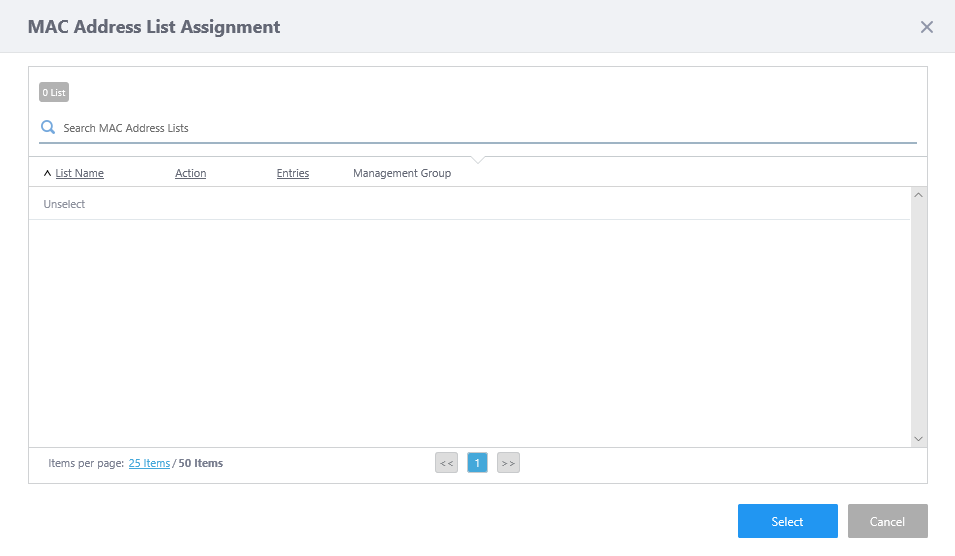 Refer to Configure MAC Address List for detailed instructions on how to create a MAC Address List. NoteThis item is displayed when: |
| LED | Specify whether to turn on the LED. Select "Turn On" to turn on the LED. Otherwise select "Turn Off". The default is "Turn On". |
| Factory Reset Button | Specify whether to enable the RESET button. Select "Enable" to enable the button. Otherwise select "Disable". When disabled, you cannot factory-reset APs with the RESET button. The default is "Enable". NoteThis item is displayed if you select "TQ Series" or "TQ Series - SDN/OpenFlow" for Series, and "Dual[11ac]" or "11ac With External Antenna" for Profile Type. |
| Virtual IP Address for Captive Portal | Specify whether to use the virtual IP address on the captive portal, when Captive Portal is enabled. When enabled, you can specify the IP address to be used to display the captive portal. If disabled, the captive portal will be displayed using the IP address assigned to the wireless AP itself to which this AP profile has been applied. The default is "Disable". NoteThis item is displayed if you select "TQ Series" for Series, and "Dual[11ax] GEN2", "Dual[11ax]", "Tri[11ac Wave2]" or "Tri[11ac Wave2] With External Antenna" for Profile Type. |
Additional options for User Settings
| Item Name | Description |
|---|---|
| Username | Specify the username used to logon to the AP's management web interface. This setting is mandatory when you change "Password". If both "Username" and "Password" are left blank, they will stay at their previous value or the default value. 1 to 12 characters in length, with letters and digits. Must begin with a letter. NoteThese options will be displayed if you select "TQ Series" or "TQ Series - SDN/OpenFlow" for Series, and "Dual[11ax] GEN2", "Dual[11ax]", "Tri[11ac Wave2]", "Tri[11ac Wave2] with External Antenna", or "Dual[11ac Wave2]" for Profile Type. |
| Password | Specify the password used to logon to the AP's management web interface. This setting is mandatory when you change "Username". If both "Username" and "Password" are left blank, they will stay at their previous value or the default value. Once the Password is set in the AP Profile and not being changed from that, the string "Configured" will be shown in this field. Should be 0 to 32 characters in length, with alphabets (case-sensitive), numbers and symbols (! # % ( ) + , - . / ; = ? @ [ \ ] ^ _ ` { | } ~ may be used). The password is case-sensitive. Each character in the password is represented by a bullet. NoteThese options will be displayed if you select "TQ Series" or "TQ Series - SDN/OpenFlow" for Series, and "Dual[11ax] GEN2", "Dual[11ax]", "Tri[11ac Wave2]", "Tri[11ac Wave2] with External Antenna", or "Dual[11ac Wave2]" for Profile Type. |
| Password (Confirm) | Enter the same login password for confirmation. Each character in the password is represented by a bullet.NoteThese options will be displayed if you select "TQ Series" or "TQ Series - SDN/OpenFlow" for Series, and "Dual[11ax] GEN2", "Dual[11ax]", "Tri[11ac Wave2]", "Tri[11ac Wave2] with External Antenna", or "Dual[11ac Wave2]" for Profile Type. |
| AP's User Settings | Can prevent changing the user settings per AP by AP-Specific Configuration. Checking "Disable" prevents user settings from being overridden by AP-specific settings. Only batch configuration by AP Profile will be available. Unchecking "Disable" allows the user settings to be overridden by AP-specific settings. By default, this option is not checked. NoteThese options will be displayed if you select "TQ Series" or "TQ Series - SDN/OpenFlow" for Series, and "Dual[11ax]", "Tri[11ac Wave2]", "Tri[11ac Wave2] with External Antenna", or "Dual[11ac Wave2]" for Profile Type. |
Additional options for Timezone
| Item Name | Description |
|---|---|
| Daylight Saving Time | When selecting a timezone supporting Dalylight Saving Time (DST), you can select whether the daylight saving time is enabled or not. If you select "Enable", the following items are also displayed. The default is "Enable". |
| DST Start (24HR) | The menu pops up and lets you select the starting and ending date/time (week, day of the week, month, hour and minute) of DST. Only displayed when "Daylight Saving Time" is set to "Enable". |
| DST Start (24HR) | |
| DST Offset | Select an offset (minutes) for Daylight Saving Time. 15, 30, 45, 60, 75, 90, 105, 120 Only displayed when "Daylight Saving Time" is set to "Enable". |
Additional options for NTP Client
| Item Name | Description |
|---|---|
| NTP Server IP Address / Hostname | Enter an IP address or a hostname (FQDN) of the NTP server to synchronize. (Example) ntp.your.domain.com, 12.34.56.78 NoteFQDN consists of labels (strings) and periods (.). |
| NTP Synchronization Interval | Specify a time between synchronizing the clock to the NTP server. It must be in the range of 1 to 9999 (minutes). The default is 10 minutes.NoteThis item is displayed if you select "TQ Series" or "TQ Series - SDN/OpenFlow" for Series, and "Dual[11ax] GEN2", "Dual[11ax]", "Dual[11ac]" or "11ac With External Antenna" for Profile Type. NoteWhen you use the AWC function, do not use an interval larger than the default of 10 minutes. |
Additional options for Syslog Client
| Item Name | Description |
|---|---|
| Syslog Server IP Address / Hostname | Enter the IP address or hostname (FQDN) of the Syslog server to send log messages to. (Example) syslog.your.domain.com, 12.34.56.78 NoteFQDN consists of labels (strings) and periods (.). |
| Port Number | Specify a listening port number on the Syslog Server. The default is 514. |
| Severity | Select the lowest log severity that will be sent to the Syslog Server. The default is "7: Debug". Severity is a value in the range of 0 to 7; the lower the number, the greater the importance.
|
Additional options for SNMP Agent
| Item Name | Description |
|---|---|
| Version | Select the SNMP version to be used from "v1/v2c" or "v3". The default is "v1/v2c".NoteThis item is displayed if you select "Dual[11ax] GEN2", "Dual[11ax]", "Tri[11ac Wave2]", or "Tri[11ac Wave2] with External Antenna" for the Profile Type. |
| Read Only Community Name | Enter the read-only SNMP community name. Should be 1 to 256 characters in length, with alphabets, numbers, and symbols (space ! # $ % ( ) * + , - . /)NoteThis item is displayed if you select "Dual[11ax] GEN2", "Dual[11ax]", "Tri[11ac Wave2]", or "Tri[11ac Wave2] with External Antenna" for the Profile Type, and specified "v1/v2c" as the SNMP Version. |
| Port Number | Enter the UDP port that the SNMP agent listens on. The default is 161. |
| Full Name | Enter the SNMPv3 username with 1 to 12 length alphanumeric character(s).NoteThis item is only displayed if you select "Dual[11ax] GEN2", "Dual[11ax]", "Tri[11ac Wave2]", or "Tri[11ac Wave2] with External Antenna" for the Profile Type, and specified "v3" as the SNMP Version. |
| Password | Should be 8 to 32 characters in length, with alphabets (case-sensitive), numbers and symbols (space ! # % ( ) + , - . / ; = ? @ [ \ ] ^ _ ` { | } ~ may be used).NoteThis item is only displayed if you select "Dual[11ax] GEN2", "Dual[11ax]", "Tri[11ac Wave2]", or "Tri[11ac Wave2] with External Antenna" for the Profile Type, and specified "v3" as the SNMP Version. |
| Restrict the source of SNMP requests | Enable this to accept SNMP requests only from specific source addresses.NoteThis item is displayed if you select "Dual[11ax] GEN2", "Dual[11ax]", "Tri[11ac Wave2]", or "Tri[11ac Wave2] with External Antenna" for the Profile Type, and specified "v1/v2c" as the SNMP Version. |
| Only allow from the designated hosts or subnets | Enter the IP address or hostname (FQDN) of the SNMP manager. (Example) snmpmgr.your.domain.com, 12.34.56.78 This is only displayed when "Restrict the source of SNMP requests" is enabled. Only one host can be set for this field. NoteFQDN consists of labels (strings) and periods (.). NoteThis item is displayed if you select "Dual[11ax] GEN2", "Dual[11ax]", "Tri[11ac Wave2]", or "Tri[11ac Wave2] with External Antenna" for the Profile Type, and specified "v1/v2c" as the SNMP Version. |
| Community name for traps | Specify the trap SNMP community name. Should be 1 to 256 characters in length, with alphabets, numbers, and symbols (space ! # $ % ( ) * + , - . /) The default is "public".NoteThis item is displayed if you select "Dual[11ax] GEN2", "Dual[11ax]", "Tri[11ac Wave2]", or "Tri[11ac Wave2] with External Antenna" for the Profile Type, and specified "v1/v2c" as the SNMP Version. |
| Trap types | Select the SNMP Trap types to generate. Available messages vary depending on the selected Profile Type.
|
| Trap Host IP Address/Hostname | Specify IP addresses or hostnames (FQDNs) to which SNMP traps will be sent. (Example) manager.your.domain.com, 12.34.56.78 A maximum of 3 trap hosts can be configured. NoteFQDN consists of labels (strings) and periods (.). |
LAN Configuration
Only when you select "TQ Series" or "TQ Series - SDN/OpenFlow" as Series, and "Dual[11ax] GEN2" or "Tri[11ac Wave2]" as Profile Type, you can configure the item related to the operation of LAN1/PoE port and LAN2 port in "LAN Configuration".NoteThis item is displayed if you select "TQ Series" or "TQ Series - SDN/OpenFlow" for Series, and "Dual[11ax] GEN2" or "Tri[11ac Wave2]" for Profile Type.

| Item Name | Description |
|---|---|
| LAN 2 Port | Specifies TQ5403/6602 GEN2/6702 GEN2 and TQm5403/6602 GEN2/6702 GEN2's LAN1/PoE and LAN2 ports behavior, such as link aggregation or cascading.
|
Wireless Configuration
You can specify configuration parameters for radio waves in the "Radio Configuration" section.Depending on the selected "Profile Type", you can switch radios by clicking the "Radio 1", "Radio 2" and "Radio 3" buttons at the top right of the screen.
NoteOnly the Radio 1/2/3 buttons available on the Profile Type will be displayed at the top of the screen.
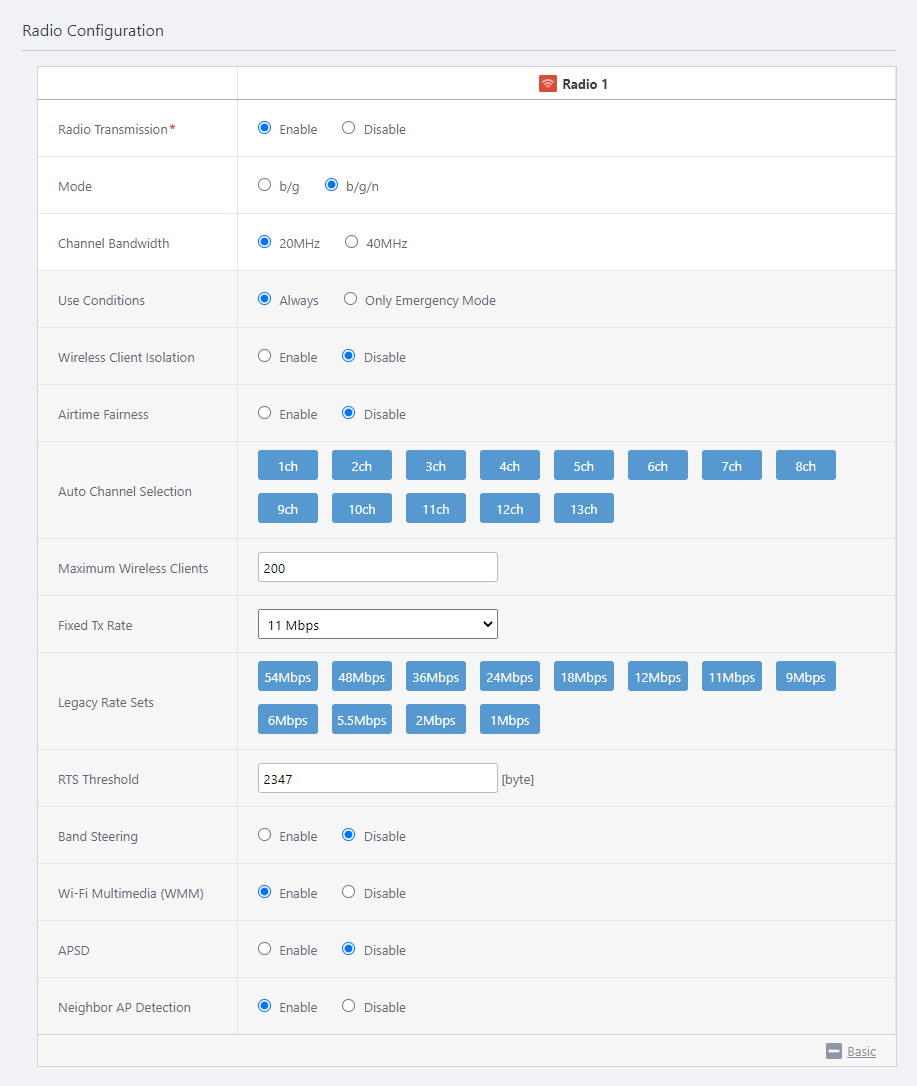
| Item Name | Description |
|---|---|
| Radio Transmission | Specify whether to transmit/receive in the selected frequency band. Select "Enable" to use the radio. Otherwise select "Disable" (mandatory). The default is "Enable" for all radio frequencies. However, depending on the Country and Profile Type selected, there may be cases where "Enable" cannot be selected due to legal restrictions. (For example: "JP-Japan" as Country, "TQ Series" or "TQ Series-SDN / OpenFlow" as Series, "Tri [11ac Wave2] with External Antenna" as Profile Type, and "Outdoor" as Location, Radio 2 (W52 / W53) only has the option "Disable"). NoteIf you disable all radios on an AP Profile, it is possible to apply the profile to APs of other Profile Types, this profile will not be valid. Make sure you apply an appropriate AP Profile to APs. |
| Band | NoteThis item is not supported. |
| Mode | Select a mode (protocol) to use on the Radio band. Available modes vary depending on the selected Profile Type.
|
| Bandwidth | Specify the bandwidth to use. IEEE 802.11n, IEEE 802.11ac, and IEEE 802.11ax allow two or four adjacent channels to be combined and used as a 40MHz or 80MHz bandwidth channel.
"40MHz", "80MHz", and "80+80MHz" give you higher traffic rates, but exhaust the number of available channels because they use two, four, or eight channels. This item is only displayed when the selected mode includes IEEE 802.11n, IEEE 802.11ac or IEEE 802.11ax. |
| Use Conditions | Specify when to use the wireless feature. Select "Always" to always use the wireless feature. Select "Only Emergency Mode" to use the radio band only in emergency mode. The default is "Always". Refer to Enable Emergency Mode for more details. NoteEmergency Mode cannot be used with channel blanket. You cannot use a channel blanket as an emergency Wi-Fi network. |
| Wireless Client Isolation | Specify whether to block communications between wireless clients connected to the same radio. Select "Disable" to allow communications between wireless clients. Otherwise select "Enable". The default is "Disable". When the setting type is "Dual[11ax] GEN2" and this item is set to "Disabled", settings can be made for individual VAPs at "Wireless Client Isolation" under the VAP (Multi-SSID) Configuration. |
| Airtime Fairness | Specify whether to give each client an equal amount of airtime regardless of its speed. Select "Enable" to use Air Time Fairness. Otherwise select "Disable". The default is "Disable".NoteThis item is displayed if you select "TQ Series" or "TQ Series - SDN/OpenFlow". |
| Management Frame Protection (MFP) | Specify whether to protect Management Frames. Select "Enable" to use MFP. Otherwise select "Disable". The default is "Enable".NoteThis item is displayed if you select "TQ Series" or "TQ Series - SDN/OpenFlow" for Series, and "Dual[11ac]" or "11ac With External Antenna" for Profile Type. NoteIf you select "TQ Series" for Series, and "Dual[11ax] GEN2", "Dual[11ax]", "Tri[11ac Wave2]", "Tri[11ac Wave2] with External Antenna" or "Dual[11ac Wave2]" for Profile Type, configure per VAP in the "VAP (Multiple SSID) Configuration" section. |
| Auto Channel Selection | Specify the channels to use. All channels are selected by default. When the Channel Bandwidth "80MHz" is selected on the 5GHz radio band (Radio 2 or 3), you can enable or disable the four adjacent channels as a group, for example "36ch/40ch/44ch/48ch". At least one group must be enabled for Auto Channel Selection when "80MHz" is selected for Channel Bandwidth. |
| Maximum Wireless Clients | Specify the maximum number of clients that can connect to the APs. This number counts wireless clients on all radios (Radio 1 to Radio 3). When 0 is specified for a radio, no wireless client can connect to APs on the radio.
|
| Multicast Tx Rate | Specify a selection method for IEEE 802.3 multicast/broadcast rate. Available options vary depending on the selected Profile Type.
|
| Fixed Tx Rate | Specify the fixed multicast transmission rate used when "Fixed" is selected for "Multicast Tx Rate".
NoteThis item is displayed if you select "TQ Series" or "TQ Series - SDN/OpenFlow" for Series, and "Dual[11ac]" or "11ac With External Antenna" for Profile Type. |
| Legacy Rate Sets | Specify valid rates to use when IEEE 802.11b/g or IEEE 802.11a is being used. Available options vary depending on the selected Profile Type.
NoteThis item is displayed when: |
| RTS Threshold | Specify the threshold for sending RTS (Request to Send) packets for IEEE 802.11b/g/a. When a packet to send is larger than the specifed size, RTS is transmitted before the packet is sent.
If you set the RTS threshold to a lower value, RTS packets are transmitted more frequently. It consumes more bandwidth and reduces throughput, but may alleviate collision and interference in a crowded network. Therefore we do not recommend changing the RTS threshold under normal circumstances. When using IEEE 802.11n or 802.11ac, RTS packets are transmitted regardless of the RTS Threshold setting. NoteIf you select "Tri[11ac Wave2]", "Tri[11ac Wave2] with External Antenna" or "Dual[11ac Wave2]" for Profile Type, and "IEEE 802.11a/n/ac" for Mode, RTS packets are not sent to wireless clients connected by IEEE 802.11a. This setting is ignored. NoteThis item is displayed if you select "TQ Series" or "TQ Series - SDN/OpenFlow". |
| DTIM Period | Specify how frequently to insert a DTIM (Delivery Traffic Indication Map) in the AP's beacons (every 1 to 255 beacons) This item is displayed if you select "TQ Series" or "TQ Series - SDN/OpenFlow" for Series, and "Dual[11ac]" or "11ac With External Antenna" for Profile Type. The default is 1. The value of 1 means that a DTIM is inserted in every beacon. For example, if you set the DTIM interval to 2, one in two beacons has a DTIM inserted (i.e. a beacon with a DTIM and one without a DTIM are transmitted in turn). When a wireless client operates in power-saving mode, DTIM notifies the client that there is a packet to send to the client. The AP will send the packet to the client once the client is ready to communicate. Increasing the DTIM Interval reduces power consumption but also makes communication less responsive. NoteIf you select "TQ Series" or "TQ Series - SDN/OpenFlow" for Series, and "Dual[11ax] GEN2", "Dual[11ax]", "Tri[11ac Wave2]" or "Tri[11ac Wave2] with External Antenna" for Profile Type, configure per VAP in the "VAP (Multiple SSID) Configuration" section. |
| Band Steering | Specify whether to use Band Steering.
The default is "Disable". This item is displayed only for "Radio 1" (2.4GHz). To use this feature, make sure you enable two or more bands (Radio 1, 2 and 3) and configure a VAP with the same SSID and security for each radio. NoteThese options will be displayed if you select "TQ Series" or "TQ Series - SDN/OpenFlow" for Series, and "Dual[11ax] GEN2", "Dual[11ax]", "Tri[11ac Wave2]", "Tri[11ac Wave2] with External Antenna", or "Dual[11ac Wave2]" for Profile Type. NoteBand Steering cannot be used with channel blanket. Disable Band Steering on the AP Profile for APs using channel blanket. |
| Wi-Fi Multimedia (WMM) | Specify whether to use Wi-Fi Multimedia (WMM). When enabled, WMM information is included in the AP beacon. This shortens the frame transmission interval for video/audio streaming and VoIP traffic and therefore keeps communication quality high. The default is "Enable". NoteThese options will be displayed if you select "TQ Series" or "TQ Series - SDN/OpenFlow" for Series, and "Dual[11ax] GEN2", "Dual[11ax]", "Tri[11ac Wave2]", "Tri[11ac Wave2] with External Antenna", or "Dual[11ac Wave2]" for Profile Type. NoteTo use IEEE 802.11n IEEE 802.11ac or IEEE 802.11ax, this must be enabled. |
| APSD | Specify whether to use APSD (Automatic Power Save Delivery). Enabling APSD can lower power consumption of mobile devices (VoIP) and therefore increase the battery life. The mobile device should also support APSD (U-APSD). The default setting varies depending on the selected Profile Type.
NoteThese options will be displayed if you select "TQ Series" or "TQ Series - SDN/OpenFlow" for Series, and "Dual[11ax] GEN2", "Dual[11ax]", "Tri[11ac Wave2]", "Tri[11ac Wave2] with External Antenna", or "Dual[11ac Wave2]" for Profile Type. |
| Neighbor AP Detection | Specify whether to detect Neighbor APs. When enabled, it scans in-use and other channels of the radio band for AWC Calculation. In this case, the channel currently being used is periodically stopped, so the performance of the wireless network service slightly decreases. When disabled, detection does not work. In this case, the effect of surrounding unmanaged APs may not be correctly reflected in the AWC Calculation. The default is "Enable". NoteThese options will be displayed if you select "TQ Series" or "TQ Series - SDN/OpenFlow" for Series, and "Dual[11ax] GEN2", "Dual[11ax]", "Tri[11ac Wave2]", "Tri[11ac Wave2] with External Antenna", or "Dual[11ac Wave2]" for Profile Type. NoteIf Neighbor AP Detection is supported on the management web interface of the AP system and set to "Enable" in the AWC Plug-in management, the Neighbor AP Detection setting will remain as "Enable". |
| MU-MIMO | Select whether to enable or disable MU-MIMO (Multi-user MIMO). MU-MIMO allows multiple wireless clients to communicate simultaneously (upwards and downwards), thus increasing the communication speed. The default is "Disable". NoteThis setting is displayed when "Dual[11ax] GEN2" or "Dual[11ax]" is selected as Profile Type. |
| OFDMA | Select whether to Enable or Disable OFDMA (Orthogonal Frequency Division Multiple Access). OFDMA allows multiple wireless clients to communicate simultaneously by dividing the channel into multiple RUs (resource units). The default is "Disable". NoteThis item is displayed when "Dual[11ax] GEN2" or "Dual[11ax]" is selected as the Profile Type and a mode other than "a" or "b/g" is selected for the Radio Configuration. |
VAP (Multiple SSID) Configuration
Configure VAPs in the "VAP (Multiple SSID) Configuration" section.Depending on the selected "Profile Type", you can switch radios to create VAPs by clicking the "Radio 1", "Radio 2" and "Radio 3" buttons at the top right of the screen.
NoteOnly the Radio 1/2/3 buttons available on the Profile Type will be displayed at the top of the screen.
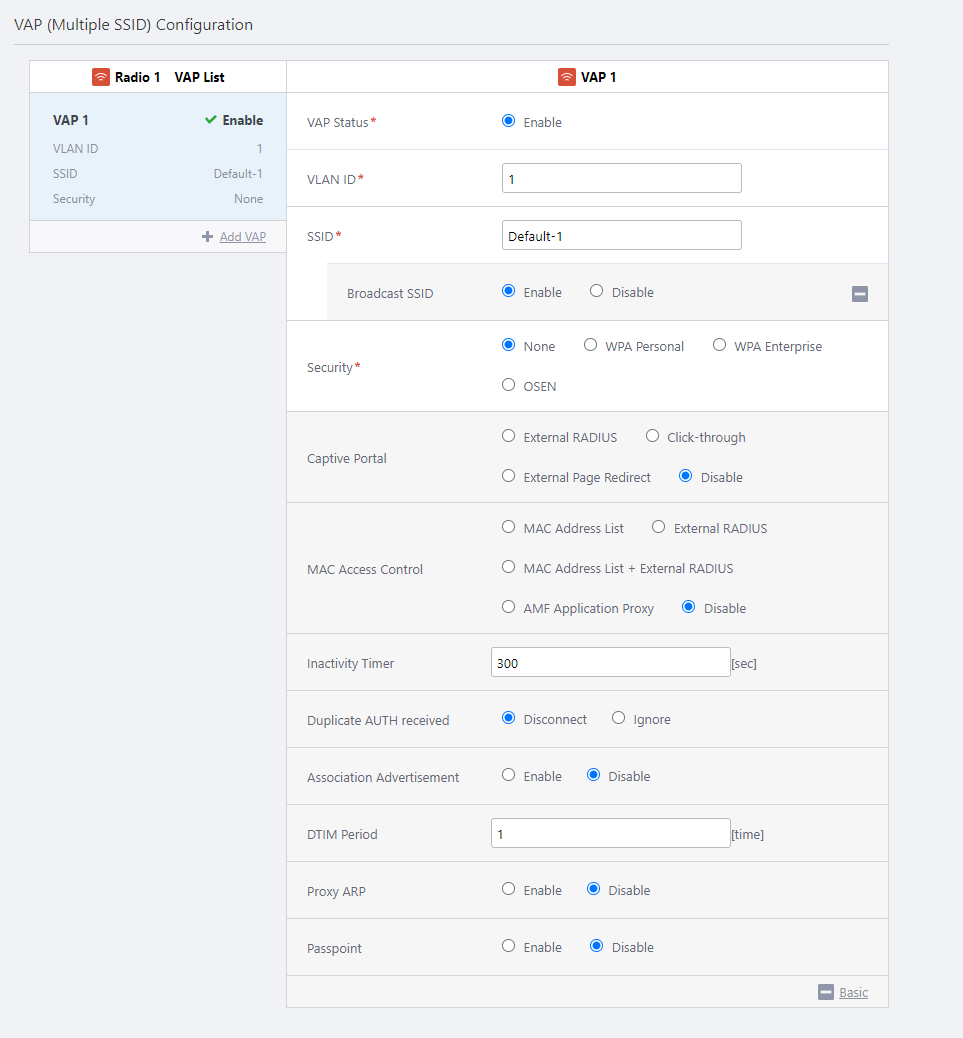
| Item Name | Description |
|---|---|
| VAP List | Shows a list of configured VAPs (Virtual Access Points). Here you can view the status, VLAN ID, SSID, and security settings for each VAP. |
| + Add VAP | Creates a new VAP. The VAPs will be automatically numbered, starting from 1. The number of VAPs that can be created varies depending on the selected Series and Profile Type.
NoteIt is recommended to use 5 or less VAPs per radio band in total, including both multi-channel and blanket VAPs. |
| VAP Status | Enables or disables the VAP.
For VAP 1, "Enable" and "Disable" are displayed when "Use Conditions" is set to "Always", and "Disable" and "Emergency" are displayed when "Use Conditions" is set to "Only Emergency Mode". For other VAPs, all three options, "Enable", "Disable", and "Emergency" are displayed. The default is "Enable". NoteEmergency Mode cannot be used with channel blanket. You cannot use a channel blanket as an emergency Wi-Fi network. |
| VLAN ID | Specify a VLAN ID (between 1 and 4094) to use on the VAP (mandatory) NoteSpecify a VLAN ID that is different from the AP's management VLAN. When the AP is detected as a guest device, a parent AMF device is configured to collect the guest device information automatically ("dynamic discovery"), and wireless clients get their IP addresses via DHCP. |
| SSID | Specify an SSID (network name) to use on the VAP. The SSID is mapped to the VLAN ID. Enter a name between 1 to 32 alphanumeric characters. The default is "Default-X" (where X is a VAP number) (mandatory) |
| Broadcast SSID | Specify whether to broadcast the SSID on the VAP.
The default is "Enable". NoteAn "ANY" connection is a connection where a wireless client tries to connect to an AP by specifying a wildcard or null as the SSID. Even when an "ANY" connection is allowed, clients cannot connect to APs without knowing the correct security key. |
| Band Steering | Specify whether to use Band Steering.
The default is "Disable". This item is displayed only for "Radio 1" (2.4GHz). To use this feature, make sure you enable both radios (Radio 1 and Radio 2) and configure a VAP with the same SSID and security for each radio. NoteThis item is displayed if you select "TQ Series" for Series, and "Dual[11ac]" or "11ac With External Antenna" for Profile Type. |
| Security | Select a security mechanism to use. The available options are "None", "Static WEP", "WPA Personal", "WPA Enterprise", and "OSEN". The default is "None". Note"Static WEP" is not displayed when the selected Mode contains "IEEE 802.11n". This can be configured only on VAP 1 of each radio. Note"OSEN" is displayed if you select "TQ Series", and "Tri[11ac]" or "Tri[11ac] With External Antenna" for Profile Type.
When "Static WEP", "WPA Personal", "WPA Enterprise", or "OSEN" is selected, additional options will be displayed for each security method. For more details, refer to Additional options for Security. |
| Captive Portal | Specify whether to use Captive Portal on the VAP. Captive Portal displays an authentication page before granting web access. When either option is selected, wireless clients connected to the corresponding VAP will be directed to a page (Captive Portal) that contains text such as licensing and authentication dialogs when they attempt to access any web page with a Web browser. Wireless APs that have applied the AP profile will allow or deny wireless clients according to the options specified in this item. Once successfully authenticated, wireless clients can continue to communicate through the VAP until a certain amount of time has elapsed.
If you select "External RADIUS", "Click-through", or "External Page Redirect", the following additional items are displayed: For more details, refer to Additional options for Captive Portal. NoteThis item is displayed if you select "TQ Series" for Series, and "Dual[11ax] GEN2", "Dual[11ax]", "Tri[11ac Wave2]", "Tri[11ac Wave2] with External Antenna", "Dual[11ac Wave2]", "Dual[11ac]", "Dual[11n]" or "11ac with External Antenna" for Profile Type, or if you selected "TQ Series - SDN/OpenFlow" for Series and "Dual[11ac]" for Profile Type. Note"Click-through" is displayed if you select "TQ Series" for Series, and "Dual[11ax] GEN2", "Dual[11ax]", "Tri[11ac Wave2]", "Tri[11ac Wave2] with External Antenna", "Dual[11ac Wave2]", "Dual[11ac]" or "11ac with External Antenna" for Profile Type. Note"External Page Redirect" will appear when you select "TQ Series" for Series, and "Dual[11ax] GEN2", "Dual[11ax]", "Tri[11ac Wave2]" or "Tri[11ac Wave2] with External Antenna" for Profile Type. NoteDo not enable Captive Portal on the radio used for the WDS connection. |
| MAC Access Control | Select the MAC Access Control method to apply to the relevant VAPs.
When you select either "External RADIUS", "MAC Address List", or "MAC Address List + External RADIUS", additional items are also displayed. For more details, refer to Additional options for MAC Access Control. NoteThis item is displayed if you select "TQ Series" or "TQ Series - SDN/OpenFlow". Note"MAC Address List" and "MAC Address List + External RADIUS" are only available when "TQ Series" is selected for Series, and any of MAC Address List is selected in the "Basic Configuration" section. Note"MAC Address List + External RADIUS" will appear when you select "TQ Series" for Series, and "Dual[11ax] GEN2", "Tri[11ac Wave2]" or "Tri[11ac Wave2] with External Antenna" for Profile Type. Note"AMF Application Proxy" will appear when you select "TQ Series" for Series, and "Dual[11ax] GEN2", "Dual[11ax]", "Tri[11ac Wave2]", or "Tri[11ac Wave2] with External Antenna" for Profile Type. |
| Fast Roaming | Specify whether to use Fast Roaming of wireless clients. The default is "Disable". By selecting "Enable", the additional items described below will be displayed.
NoteThis item is displayed if you select "TQ Series" or "TQ Series - SDN/OpenFlow" for Series, and "Dual[11ax] GEN2", "Dual[11ax]", "Tri[11ac Wave2]", "Tri[11ac Wave2] with External Antenna" or "Dual[11ac Wave2]" for Profile Type, and "WPA Personal", "WPA Enterprise" or "OSEN" for Security of VAP. |
| Wireless Client Isolation | Specify whether to block communication between wireless clients connected to the same VAP. The options for this item vary depending on whether "Wireless Client Isolation" is set for the entire radio in Radio Configuration.
NoteThis item is displayed if you select "TQ Series" for Series, and "Dual[11ax] GEN2" for Profile Type. |
| Inactivity Timer | Specify the time, between 5 and 65535 seconds, after which a client will be disconnected if it disappears without disassociating from an AP. It should also be specified in multiples of 15. If you specify a value that is not a multiple of 15, it will be converted to the nearest multiple greater than the specified value. The default is 300 (seconds). NoteThese options will be displayed if you select "TQ Series" or "TQ Series - SDN/OpenFlow" for Series, and "Dual[11ax] GEN2", "Dual[11ax]", "Tri[11ac Wave2]", "Tri[11ac Wave2] with External Antenna", or "Dual[11ac Wave2]" for Profile Type. NoteThis feature cannot be used with the OpenFlow feature. Use the default setting. NoteIf you select "TQ Series" for Series and "Dual[11ax]" for Profile Type, the setting of this item in any VAP will take effect on the VAPs in the same radio band. NoteIf you select "TQ Series" for Series and "Dual[11ac]" for Profile Type, this setting is not supported for Radio 1. Use the default setting. |
| Duplicate AUTH received | Select how to process connection requests from clients that have maintained a connection. If you select "Disconnect", it disconnects the previous connection and then accepts the new connection. If you select "Ignore", it connects as normal, without disconnecting. The default is "Disconnect". NoteThese options will be displayed if you select "TQ Series" or "TQ Series - SDN/OpenFlow" for Series, and "Dual[11ax] GEN2", "Dual[11ax]", "Tri[11ac Wave2]", "Tri[11ac Wave2] with External Antenna", or "Dual[11ac Wave2]" for Profile Type. NoteThis feature cannot be used with the OpenFlow feature. Use the default setting. NoteWhen "Management Frame Protection" is set to "Enable", "Disconnect" is used regardless of this item's setting. |
| Association Advertisement | Specify whether to use Association Advertisement. When enabled, a notification broadcast frame is sent to the network configured in Control VLAN when a Wireless Client connects to the AP. The AP that receives this frame updates its wireless client connection information. The default is "Disable". NoteThese options will be displayed if you select "TQ Series" or "TQ Series - SDN/OpenFlow" for Series, and "Dual[11ax] GEN2", "Dual[11ax]", "Tri[11ac Wave2]", "Tri[11ac Wave2] with External Antenna", or "Dual[11ac Wave2]" for Profile Type. NoteThis feature cannot be used with the OpenFlow feature. Use the default setting. NoteTo make this function take effect, APs on the same subnet must have "Roaming Notification" set to "Enable" for each other. |
| DTIM Period | Specify how frequently to insert a DTIM (Delivery Traffic Indication Map) in the AP's beacons (every 1 to 5 beacons). These options will be displayed if you select "TQ Series" or "TQ Series - SDN/OpenFlow" for Series, and "Dual[11ax] GEN2", "Dual[11ax]", "Tri[11ac Wave2]", or "Tri[11ac Wave2] with External Antenna" for Profile Type. The default is 1. The value of 1 means that a DTIM is inserted in every beacon. For example, if you set the DTIM interval to 2, one in two beacons has a DTIM inserted (i.e. a beacon with a DTIM and one without a DTIM are transmitted in turn). When a wireless client operates in power-saving mode, DTIM notifies the client that there is a packet to send to the client. The AP will send the packet to the client once the client is ready to communicate. Increasing the DTIM Interval reduces power consumption but also makes communication less responsive. NoteIf you select "TQ Series" or "TQ Series - SDN/OpenFlow" for Series, and "Dual[11ac]" or "11ac With External Antenna" for Profile Type, you specify this item for each band on "Wireless Configuration". |
| Proxy ARP | Specify whether to use Proxy ARP.
NoteThis item is displayed if you select "TQ Series" for Series, and "Dual[11ax] GEN2", "Dual[11ax]", "Tri[11ac Wave2]" or "Tri[11ac Wave2] with External Antenna" for Profile Type. |
| Passpoint | Specify whether to use Passpoint (Hotspot 2.0). Passpoint is a feature developed by the Wi-Fi Alliance to create a seamless network. By using a wireless client that implements Passpoint, users can automatically sign up and roam within Passpoint-enabled networks without the hassle of having to sign up for each network. Users can also automatically connect to the network when they enter a Passpoint-enabled area. By selecting "Enable", the additional items for Passpoint described below will be displayed. For more details, refer to Additional options for Passpoint. NoteTo enable Passpoint, WPA Enterprise must be used as security mode. When enabling this item, a confirmation dialog will appear asking if you allow to change the security mode to WPA Enterprise to continue Passpoint setting. Note"MAC Address List + External RADIUS" will appear when you select "TQ Series" for Series, and "Tri[11ac Wave2]" or "Tri[11ac Wave2] with External Antenna" for Profile Type. |
Additional options for Security
◼ Static WEP ConfigurationSelecting "Static WEP" for Security will show you the following additional items:
| Item Name | Description |
|---|---|
| Key Length | Select the WEP key length. The default is 128bit.
|
| Key Type | Select a generation method for the WEP key. The default is "Hex".
|
| Key Index | Specify a key to use. The default is 1. |
| Security Key (WEP Key) | Enter a WEP key (in hex) or a seed of a key (in ASCII) according to the selected "Key Length" and "Key Type". You have to enter the same WEP key as the one specified by "Key Index" on the wireless client. |
| WEP Authentication Method | "Open System" is the recommended option here. The default is "Open System". It is recommended to use the default "Open System" for security.
|
◼ WPA Personal Configuration
Selecting "WPA Personal" for Security will show you the following additional items:
| Item Name | Description |
|---|---|
| Security Key (WPA-PSK) | Specify an encryption key for the VAP. The key should contain 8 to 63 alphanumeric and symbol characters. The key is case-sensitive. |
| WPA Versions | Select the WPA version(s) to use.
NoteWPA is based on a draft of IEEE 802.11i while WPA2 is based on the final version of IEEE 802.11i and therefore meets all mandatory items required by the standard. |
| Encryption Protocol |
Although "TKIP" uses RC4 as WEP does, TKIP uses a separate encryption key for each client and changes the key after using it for some time. "CCMP" uses the standard encryption algorithm approved by the US Secretary of Commerce. This standard has a strong algorithm. NoteAccording to the WPA standard, TKIP is mandatory while CCMP is optional. Our products implement both algorithms. NoteIf the WPA version includes "WPA3", only "CCMP" can be selected. "TKIP" is not displayed. NoteIf the Profile Type is set to other than "Dual[11ax] GEN2", and the WPA version is set to "WPA2", or both "WPA2" and "WPA", "TKIP" can be selected as necessary. |
| Management Frame Protection (MFP) | Specify whether to protect Management Frames. Available options vary depending on the selected Profile Type.
NoteThis item is displayed if you select "TQ Series" for Series, and "Dual[11ax] GEN2", "Dual[11ax]", "Tri[11ac Wave2]", "Tri[11ac Wave2] with External Antenna" or "Dual[11ac Wave2]" for Profile Type. NoteIf you select "TQ Series" or "TQ Series - SDN/OpenFlow" for Series, and "Dual[11ac]" or "11ac With External Antenna" for Profile Type, you specify this item for each band on "Wireless Configuration". NoteIf the WPA version includes "WPA3", "Disable" can not be selected. If the WPA version includes "WPA", only "Disable" can be selected. NoteIf the Profile Type is set to "Dual[11ax] GEN2", and the WPA version is set to "WPA2" solely, please do not set to "Required". |
| Broadcast Key Refresh Rate | Specify an interval at which to refresh the broadcast key that is sent to clients on the VAP. Specify an interval between 0 and 86400 (seconds). A value of 0 means that the key is never refreshed. The default is 0. |
◼ WPA Enterprise Configuration
Selecting "WPA Enterprise" for Security will show you the following additional items:
| Item Name | Description |
|---|---|
| RADIUS Server Primary IP Address | Enter the IP address of the primary RADIUS server. (mandatory) |
| RADIUS Server Primary Secret | Enter the password to connect to the primary RADIUS server with 128 or less alphanumeric and symbol characters (including spaces). (mandatory) |
| RADIUS Server Secondary IP Address | Enter the IP address of the secondary RADIUS server. Leave blank if you are not using a secondary RADIUS server. |
| RADIUS Server Secondary Secret | Enter the password to connect to the secondary RADIUS server with 128 or less alphanumeric and symbol characters (including spaces). Leave blank if you are not using a secondary RADIUS server. |
| Port Number | Enter a port number between 1 and 65535 on which the external RADIUS server or servers are listening. For TQ series, the port number applies to both primary and secondary. The default is 1812. |
| Pre-authentication | When enabled and a client is about to roam, the source (current) AP forwards the client's pre-authentication information to the destination AP. The default is "Enable". This reduces the time required for authentication of roaming clients.NoteThis item is displayed if you select "TQ Series" or "TQ Series - SDN/OpenFlow" for Series, and the options except "Dual[11ax]" for Profile Type. NoteIf Profile Type is "Dual[11ax] GEN2", "Tri[11ac Wave2]" or "Dual [11ac Wave2]", this item can be configured only on VAP1 of each radio. When you select "Enable", this function is valid for all VAP. |
| WPA Versions | Select the WPA version(s) to use.
NoteWPA is based on a draft of IEEE 802.11i while WPA2 is based on the final version of IEEE 802.11i and therefore meets all mandatory items required by the standard. |
| Encryption Protocol |
Although "TKIP" uses RC4 as WEP does, TKIP uses a separate encryption key for each client and changes the key after using it for some time. "CCMP" uses the standard encryption algorithm approved by the US Secretary of Commerce. This standard has a strong algorithm. NoteAccording to the WPA standard, TKIP is mandatory while CCMP is optional. Our products implement both algorithms. NoteIf the Profile Type is set to other than "Dual[11ax] GEN2", and the WPA version is set to "WPA2", or both "WPA2" and "WPA", "TKIP" can be selected as necessary. |
| Management Frame Protection (MFP) | Specify whether to protect Management Frames. Available options vary depending on the selected Profile Type.
NoteThis item is displayed if you select "TQ Series" for Series, and "Dual[11ax] GEN2", "Dual[11ax]", "Tri[11ac Wave2]", "Tri[11ac Wave2] with External Antenna" or "Dual[11ac Wave2]" for Profile Type. NoteIf you select "TQ Series" or "TQ Series - SDN/OpenFlow" for Series, and "Dual[11ac]" or "11ac With External Antenna" for Profile Type, you specify this item for each band on "Wireless Configuration". NoteIf the WPA version includes "WPA3", "Disable" can not be selected. If the WPA version includes "WPA", only "Disable" can be selected. NoteIf the Profile Type is set to "Dual[11ax] GEN2", and the WPA version is set to "WPA2" solely, please do not set to "Required". |
| Broadcast Key Refresh Rate | Specify an interval at which to refresh the broadcast key that is sent to clients on the VAP. Specify an interval between 0 and 86400 (seconds). A value of 0 means that the key is never refreshed. The default is 0. |
| Session Key Refresh Interval | Specify an interval at which to refresh the unicast session key that is sent to clients on the VAP. Specify an interval between 0 and 86400 (seconds). A value of 0 means that the key is never refreshed. The default is 0. Because keys are generated for every session, there is little need to refresh the key, given that a strong encryption algorithm such as CCMP is used in "WPA Enterprise". A shorter interval may decrease the AP's performance. NoteThis item is displayed if you select "TQ Series" for Series, and "Dual[11ax] GEN2", "Dual[11ax]", "Tri[11ac Wave2]", "Tri[11ac Wave2] with External Antenna", "Dual[11ac Wave2]", "Dual[11ac]", "Dual[11n]" or "11ac with External Antenna" for Profile Type, or if you selected "TQ Series - SDN/OpenFlow" for Series and "Dual[11ac]" for Profile Type. |
| Session Key Refresh Action | Select the action to be taken when the session key is updated, from "Reauthentication" or "Disconnection". The default is "Reauthentication". NoteThis item is displayed if you select "TQ Series" for Series, and "Dual[11ax] GEN2", "Dual[11ax]", "Tri[11ac Wave2]", "Tri[11ac Wave2] with External Antenna" or "Dual[11ac Wave2]" for Profile Type. |
| RADIUS Accounting | Specify whether to use RADIUS accounting server to record the resources (such as connection time) used by each user. Select "Enable" to perform accounting. Otherwise select "Disable". The default is "Disable". |
| RADIUS Accounting Port Number | Specify a port number on which the RADIUS accounting server is listening. This is valid only when RADIUS Accounting is enabled. The default is 1813. |
| Dynamic VLAN | When enabled, the VLAN included in a RADIUS response is assigned to the user. When disabled, the VLAN configured for the VAP is always applied to the user regardless of the VLAN information in a RADIUS response. The default is "Enable". |
◼ OSEN Configuration
Selecting "OSEN" for Security will show you the following additional items:
| Item Name | Description |
|---|---|
| RADIUS Server Primary IP Address | Enter the IP address of the primary RADIUS server. (mandatory) |
| RADIUS Server Primary Secret | Enter the password to connect to the primary RADIUS server with 128 or less alphanumeric and symbol characters (including spaces). (mandatory) |
| RADIUS Server Secondary IP Address | Enter the IP address of the secondary RADIUS server. Leave blank if you are not using a secondary RADIUS server. |
| RADIUS Server Secondary Secret | Enter the password to connect to the secondary RADIUS server with 128 or less alphanumeric and symbol characters (including spaces). Leave blank if you are not using a secondary RADIUS server. |
| Port Number | Enter a port number between 1 and 65535 on which the external RADIUS server or servers are listening. For TQ series, the port number applies to both primary and secondary. The default is 1812. |
| Pre-authentication | When enabled and a client is about to roam, the source (current) AP forwards the client's pre-authentication information to the destination AP. The default is "Enable". This reduces the time required for authentication of roaming clients. This is only available for TQ series. NoteThis can be configured only on VAP1 of each radio. When you select "Enable", this function is valid for all VAP. |
| WPA Versions | Select the WPA version(s) to use. Radio 2: You can select "WPA3" only, "WPA2" only, or both "WPA" and "WPA2". You cannot select both "WPA3" and "WPA2", or both "WPA3" and "WPA". "WPA" can be selected only together with "WPA2". The default is "WPA2". Select both for a mixed environment. In that case, the security level of the wireless network is the same as WPA. NoteWPA is based on a draft of IEEE 802.11i while WPA2 is based on the final version of IEEE 802.11i and therefore meets all mandatory items required by the standard. |
| Encryption Protocol | You can select "CCMP" only, or both "TKIP" and "CCMP". The default is "CCMP". Although "TKIP" uses RC4 as WEP does, TKIP uses a separate encryption key for each client and changes the key after using it for some time. "CCMP" uses the standard encryption algorithm approved by the US Secretary of Commerce. This standard has a strong algorithm. NoteAccording to the WPA standard, TKIP is mandatory while CCMP is optional. Our products implement both algorithms. NoteIf the WPA version includes "WPA3", only "CCMP" can be selected. "TKIP" is not displayed. NoteIf the WPA version is set to "WPA2", or both "WPA2" and "WPA", "TKIP" can be selected as necessary. |
| Management Frame Protection (MFP) | Specify whether to protect Management Frames. Specify "Required" if you want the MFP mandatory for client association, "Capable" if you want it optionally, or "Disabled" if you don't want the management frames protected. The default is "Capable". NoteIf the WPA version includes "WPA3", only "CCMP" can be selected. If the WPA version includes "WPA", only "Disable" can be selected. NoteIf the Profile Type is set to "Dual[11ax] GEN2", and the WPA version is set to "WPA2" solely, please do not set to "Required". |
| Broadcast Key Refresh Rate | Specify an interval at which to refresh the broadcast key that is sent to clients on the VAP. Specify an interval between 0 and 86400 (seconds). A value of 0 means that the key is never refreshed. The default is 0. |
| Dynamic VLAN | When enabled, the VLAN included in a RADIUS response is assigned to the user. When disabled, the VLAN configured for the VAP is always applied to the user regardless of the VLAN information in a RADIUS response. The default is "Enable". |
Additional options for Captive Portal
◼ External RADIUS ConfigurationIf you select "External RADIUS" for Captive Portal, configure the following items:
| Item Name | Description |
|---|---|
| Authentication Page Proxy | Specify whether to use an external authentication page or not.
NoteThis item is displayed if you select "TQ Series" for Series, and "Dual[11ax] GEN2", "Dual[11ax]", "Tri[11ac Wave2]", "Tri[11ac Wave2] with External Antenna" or "Dual[11ac Wave2]" for Profile Type. |
| RADIUS Server Primary IP Address | Enter the IP address of the primary RADIUS server. (mandatory) |
| RADIUS Server Primary Secret | Enter the password to connect to the primary RADIUS server with 128 or less alphanumeric and symbol characters (including spaces). (mandatory) |
| RADIUS Server Secondary IP Address | Enter the IP address of the secondary RADIUS server. Leave blank if you are not using a secondary RADIUS server. |
| RADIUS Server Secondary Secret | Enter the password to connect to the secondary RADIUS server with 128 or less alphanumeric and symbol characters (including spaces). Leave blank if you are not using a secondary RADIUS server. |
| RADIUS Server Port Number | Enter a port number between 1 and 65535 on which the primary and secondary RADIUS server is listening. The default is 1812. |
| RADIUS Accounting | Specify whether to use the RADIUS Accounting.
NoteThis item is displayed if you select "TQ Series" for Series, and "Dual[11ax] GEN2", "Dual[11ax]", "Tri[11ac Wave2]", "Tri[11ac Wave2] with External Antenna" or "Dual[11ac Wave2]" for Profile Type. |
| Redirect type (after user is authenticated) | Specify a page to be shown after the user passes web authentication.
NoteThis item is displayed if you select "TQ Series" for Series, and "Dual[11ax] GEN2", "Dual[11ax]", "Tri[11ac Wave2]", "Tri[11ac Wave2] with External Antenna", "Dual[11ac Wave2]", "Dual[11ac]" or "11ac with External Antenna" for Profile Type. |
| Walled Garden | Shows the number of entries on the page that uses the Walled Garden feature. The Walled Garden feature allows you to specify which pages can be viewed by users who have not yet completed the authentication or who have not yet been authenticated. If they try to view a page other than specified, the Captive Portal page will appear again. Clicking on this will bring up the "Walled Garden List" dialog box.
NoteThis item is displayed if you select "TQ Series" for Series, and "Dual[11ax] GEN2", "Dual[11ax]", "Tri[11ac Wave2]" or "Tri[11ac Wave2] With External Antenna" for Profile Type. |
| Virtual IP Address for Captive Portal | Shows the setting you made on the "Virtual IP Address for Captive Portal" in "Basic Configuration" section. By clicking on the link icon, you can jump to the section.NoteThis item is displayed if you select "TQ Series" for Series, and "Dual[11ax] GEN2", "Dual[11ax]", "Tri[11ac Wave2]" or "Tri[11ac Wave2] With External Antenna" for Profile Type. |
| Session Timeout | Specify the client's authentication session timeout; between 0 and 86400 (seconds). After the client is successfully authenticated, the session will be automatically terminated when the time set for timeout elapses. The default is 3600. NoteThis item is displayed if you select "TQ Series" for Series, and "Dual[11ax] GEN2", "Dual[11ax]", "Tri[11ac Wave2]", "Tri[11ac Wave2] with External Antenna" or "Dual[11ac Wave2]" for Profile Type. |
| Session Timeout Action | Select the action to be taken when the session is timed out, from "Reauthentication" or "Disconnection". The default is "Reauthentication". NoteThis item is displayed if you select "TQ Series" for Series, and "Dual[11ax] GEN2", "Dual[11ax]", "Tri[11ac Wave2]", "Tri[11ac Wave2] with External Antenna" or "Dual[11ac Wave2]" for Profile Type. |
◼ Click-through Configuration
If you select "Click-through" for Captive Portal, configure the following items:
| Item Name | Description |
|---|---|
| Authentication Page Proxy | Specify whether to use an external Click-through page or not.
NoteThis item is displayed if you select "TQ Series" for Series, and "Dual[11ax] GEN2", "Dual[11ax]", "Tri[11ac Wave2]", "Tri[11ac Wave2] with External Antenna" or "Dual[11ac Wave2]" for Profile Type. |
| Redirect type (after user is authenticated) | Specify a page to be shown after the user passes web authentication.
NoteThis item is displayed if you select "TQ Series" for Series, and "Dual[11ax] GEN2", "Dual[11ax]", "Tri[11ac Wave2]", "Tri[11ac Wave2] with External Antenna", "Dual[11ac Wave2]", "Dual[11ac]" or "11ac with External Antenna" for Profile Type. |
| Walled Garden | Shows the number of entries on the page that uses the Walled Garden feature. The Walled Garden feature allows you to specify which pages can be viewed by users who have not yet completed the authentication or who have not yet been authenticated. If they try to view a page other than specified, the Captive Portal page will appear again. Clicking on this will bring up the "Walled Garden List" dialog box.
NoteThis item is displayed if you select "TQ Series" for Series, and "Dual[11ax] GEN2", "Dual[11ax]", "Tri[11ac Wave2]" or "Tri[11ac Wave2] With External Antenna" for Profile Type. |
| Virtual IP Address for Captive Portal | Shows the setting you made on the "Virtual IP Address for Captive Portal" in "Basic Configuration" section. By clicking on the link icon, you can jump to the section.NoteThis item is displayed if you select "TQ Series" for Series, and "Dual[11ax] GEN2", "Dual[11ax]", "Tri[11ac Wave2]" or "Tri[11ac Wave2] With External Antenna" for Profile Type. |
| Session Timeout | Specify the client's authentication session timeout; between 0 and 86400 (seconds). After the client is successfully authenticated, the session will be automatically terminated when the time set for timeout elapses. The default is 3600. NoteThis item is displayed if you select "TQ Series" for Series, and "Dual[11ax] GEN2", "Dual[11ax]", "Tri[11ac Wave2]", "Tri[11ac Wave2] with External Antenna" or "Dual[11ac Wave2]" for Profile Type. |
| Session Timeout Action | Select the action to be taken when the session is timed out, from "Reauthentication" or "Disconnection". The default is "Reauthentication". NoteThis item is displayed if you select "TQ Series" for Series, and "Dual[11ax] GEN2", "Dual[11ax]", "Tri[11ac Wave2]", "Tri[11ac Wave2] with External Antenna" or "Dual[11ac Wave2]" for Profile Type. |
◼ External Page Redirect Configuration
If you have selected "External Page Redirect" on the Captive Portal, you will need to configure the following items.
| Item Name | Description |
|---|---|
| External Page URL | Enter the URL of which the APs redirect the users with 1 to 128 alphanumeric characters. The default is empty. |
| RADIUS Server Primary IP Address | Enter the IP address of the primary RADIUS server. (mandatory) |
| RADIUS Server Primary Secret | Enter the password to connect to the primary RADIUS server with 128 or less alphanumeric and symbol characters. (mandatory) |
| RADIUS Server Secondary IP Address | Enter the IP address of the secondary RADIUS server. Leave blank if you are not using a secondary RADIUS server. |
| RADIUS Server Secondary Secret | Enter the password to connect to the secondary RADIUS server with 128 or less alphanumeric and symbol characters. Leave blank if you are not using a secondary RADIUS server. |
| RADIUS Server Port Number | Enter a port number between 1 and 65535 on which the primary and secondary RADIUS server is listening. The default is 1812. |
| RADIUS Accounting | Specify whether to use the RADIUS Accounting.
NoteThis item is displayed if you select "TQ Series" for Series, and "Dual[11ax] GEN2", "Dual[11ax]", "Tri[11ac Wave2]", "Tri[11ac Wave2] with External Antenna" or "Dual[11ac Wave2]" for Profile Type. |
| Redirect type (after user is authenticated) | Specify a page to be shown after the user passes web authentication.
NoteThis item is displayed if you select "TQ Series" for Series, and "Dual[11ax] GEN2", "Dual[11ax]", "Tri[11ac Wave2]", "Tri[11ac Wave2] with External Antenna", "Dual[11ac Wave2]", "Dual[11ac]" or "11ac with External Antenna" for Profile Type. |
| Walled Garden | Shows the number of entries on the page that uses the Walled Garden feature. The Walled Garden feature allows you to specify which pages can be viewed by users who have not yet completed the authentication or who have not yet been authenticated. If they try to view a page other than specified, the Captive Portal page will appear again. Clicking on this will bring up the "Walled Garden List" dialog box.
NoteThis item is displayed if you select "TQ Series" for Series, and "Dual[11ax] GEN2", "Dual[11ax]", "Tri[11ac Wave2]" or "Tri[11ac Wave2] With External Antenna" for Profile Type. |
| Virtual IP Address for Captive Portal | Shows the setting you made on the "Virtual IP Address for Captive Portal" in "Basic Configuration" section. By clicking on the link icon, you can jump to the section.NoteThis item is displayed if you select "TQ Series" for Series, and "Dual[11ax] GEN2", "Dual[11ax]", "Tri[11ac Wave2]" or "Tri[11ac Wave2] With External Antenna" for Profile Type. |
| Session Timeout | Specify the client's authentication session timeout; between 0 and 86400 (seconds). After the client is successfully authenticated, the session will be automatically terminated when the time set for timeout elapses. The default is 3600. NoteThis item is displayed if you select "TQ Series" for Series, and "Dual[11ax] GEN2", "Dual[11ax]", "Tri[11ac Wave2]", "Tri[11ac Wave2] with External Antenna" or "Dual[11ac Wave2]" for Profile Type. |
| Session Timeout Action | Select the action to be taken when the session is timed out, from "Reauthentication" or "Disconnection". The default is "Reauthentication". NoteThis item is displayed if you select "TQ Series" for Series, and "Dual[11ax] GEN2", "Dual[11ax]", "Tri[11ac Wave2]", "Tri[11ac Wave2] with External Antenna" or "Dual[11ac Wave2]" for Profile Type. |
Additional options for MAC Access Control
◼ When "MAC Address List" or "MAC Address List + External RADIUS" is selected| Item Name | Description |
|---|---|
| Selected List | Shows the name of the "MAC Address List" selected in the AP Profile's "System" section.NoteYou cannot use a different MAC Address List for each radio or VAP. A single list is used for all radios (Radio 1/Radio 2/Radio 3) and VAPs in an AP Profile. |
◼ When "External RADIUS" or "MAC Address List + External RADIUS" is selected
| Item Name | Description |
|---|---|
| RADIUS Server Primary IP Address | Enter the IP address of the primary RADIUS server. (mandatory) |
| RADIUS Server Primary Secret | Enter the password to connect to the primary RADIUS server with 128 or less alphanumeric and symbol characters. |
| RADIUS Server Secondary IP Address | Enter the IP address of the secondary RADIUS server. Leave blank if you are not using a secondary RADIUS server. |
| RADIUS Server Secondary Secret | Enter the password to connect to the secondary RADIUS server with 128 or less alphanumeric and symbol characters. Leave blank if you are not using a secondary RADIUS server. |
| Port Number | Enter a port number between 1 and 65535 on which the primary and secondary RADIUS server is listening. The default is 1812. |
| User-Name Format Separator | A client's MAC address is sent to the RADIUS server as a User-Name attribute. Specify an octet delimiter to use in a User-Name attribute from "Hyphen", "Colon" and "None". The default is "Hyphen". |
| User-Name Format Letter Case | Specify which case to use in a User-Name attribute from "Upper" and "Lower". The default is "Lower". |
| User-Password Format | Specify what is used for a User-Password attribute when a client MAC address is sent to the RADIUS server for authentication. The default is "User Name".
|
| User-Password Format Password | Specify a fixed password string which is used when "User-Password Format Type" is set to "Fixed Password". |
- User-Name ab-cd-ef-12-34-56
- User-Password ab-cd-ef-12-34-56
◼ When "AMF Application Proxy" is selected:
Specify the information of AMF Application Proxy server which contains the device list to allow, deny, or quarantine.
| Item Name | Description |
|---|---|
| Redirect-URL | Specifies whether the wireless client detected as a "suspected node" by the AMF Application Proxy server is forwarded to the external page URL.
Normally, when a user of a suspected node tries to access a website, the loading session of the web page times out and the user cannot know the reason for the denial of access. By using Redirect-URL function, Web access from the user in question can be redirected to a pre-designated URL, and by preparing a page explaining the situation at the same URL, the reason for the block and contact information can be provided to the user. NoteWeb page used in Redirect-URL should not be placed on a server that handles sensitive information. NoteThis setting is displayed when "Dual[11ax] GEN2" is selected as Profile Type. NoteRedirect-URL cannot be used in conjunction with Captive Portal. NoteIf the suspected node uses HTTPS instead of HTTP for access, the user of the node may see screens such as "Your connection is not private", "Your connection is not secure", "Connect to Wi-Fi hotspot", "Connect to Wi-Fi", or "Log in to network". In that case, the user will be redirected to the Redirect-URL page by selecting Refresh, Reload or Connect button on her/his Web browser. |
| External Page URL | Enter the URL to be redirected to using 1 to 128 alphanumeric characters (including spaces). The default is empty. |
| AMF Application Proxy Server Primary IP Address | Enter the IP address of the primary AMF Application Proxy server (mandatory) |
| AMF Application Proxy Server Primary Secret | Enter the pre-shared key to connect to the primary AMF Application Proxy server using up to 128 alphanumeric characters (including spaces). |
| AMF Application Proxy Server Secondary IP Address | Enter the IP address of the secondary AMF Application Proxy server. Leave blank if you are not using a secondary AMF Application Proxy server.NoteIn this version, the secondary AMF Application Server is not available. |
| AMF Application Proxy Server Secondary Secret | Enter the pre-shared key to connect to the secondary AMF Application Proxy server using up to 128 alphanumeric characters (including spaces). Leave blank if you are not using a secondary AMF Application Proxy server.NoteIn this version, the secondary AMF Application Server is not available. |
| AMF Application Proxy Server Port Number | Enter a port number between 1 and 65535 on which the primary and secondary AMF Application Proxy server is listening. The default is 1812. |
| Critical Mode | Specify whether to enable or disable Critical Mode. The default is "Disable".
|
NoteWhen using the dynamic VLAN feature of WPA Enterprise together, if a VLAN is assigned by the RADIUS server, the wireless device will be assigned to the VLAN ID of the dynamic VLAN.
If a VLAN is not assigned by the RADIUS server, the wireless device will be assigned to the VLAN ID specified by the AMF Application Server. If a VLAN is neither assigned by the RADIUS server nor assigned by the security policy on the AMF Application Proxy server, the wireless device will be assigned to the VLAN ID of VAP.
If the action on the AMF application proxy server side is quarantine, the VLAN ID of quarantine network will be applied regardless whether the dynamic VLAN has a VLAN ID or not.
NoteWhen using the Dynamic VLAN feature of WPA Enterprise together, the VLAN IDs of wireless clients already connected to the network will not be changed even if the VLAN ID of the network specified in the security policy of the AMF application proxy server is changed.
NoteIf a wireless client already connected to a Quarantine VLAN is allowed by the AMF application proxy server to connect to the VLAN ID of the network specified in the security policy, the VLAN ID of the wireless client will be changed to the VLAN ID of the network specified in the security policy.
However, if a high-priority action results in an assignment from one quarantine VLAN to another quarantine VLAN, the VLAN ID to which the wireless client belongs will not change.
NoteMAC Access Control with AMF Application Proxy cannot be used with Channel Blanket. If you want to use the AP as part of a Channel Blanket, do not assign the AP profile which the MAC Access Control with AMF Application Proxy is enabled.
Additional options for Fast Roaming
| Item Name | Description |
|---|---|
| 802.11r FT | Specify whether to use IEEE 802.11r (Fast Basic Service Set Transition). When enabled, wireless clients can do IEEE 802.11r fast transition when roaming from one AP to another. The default is "Disable". NoteOnly "Disable" is available when you select "Dual[11ax]" for Profile Type, and "WPA2/WPA3" or "WPA3" for WPA versions. An AP profile that contains VAPs using both WPA Enterprise and Fast Transition behaves as follows:
|
| FT over DS | Specify whether to request authentication via distributed system (DS).
|
| Mobility Domain | Specify a mobility domain with 4 hexadecimal digits (0 to 9, A to F, a to f). This is not case-sensitive. A wireless client can perform IEEE 802.11r fast transition between the APs in the same mobility domain. The default is "a1b2". |
| R0 key Lifetime | Specify a PMK-R0 lifetime, between 1 and 65535 minutes. Once the lifetime expires, IEEE 802.11r fast transition is not performed. The default is 10000. |
| AES Key | Specify an AES key that is used to exchange PMK-R1 between APs with 32 hexadecimal digits (0 to 9, A to F, a to f). This is not case-sensitive. The default is empty.NoteThis is mandatory for every function in the "Fast Roaming" section. Configure this item even if you only use IEEE 802.11k or IEEE 802.11v and you are not going to use IEEE 802.11r fast transition. |
| IEEE 802.11k RRM | Specify whether to use IEEE 802.11k RRM (Radio Resource Management). The default is "Disable". NoteIf you select "Dual[11ax] GEN2" or "Dual[11ax]" for Profile Type, the selection of "IEEE 802.11k RRM" on VAP 1 will also affect VAP 2 to VAP 16. NoteOnly "Disable" is available when you select "Dual[11ax] GEN2" or "Dual[11ax]" for Profile Type, and "WPA2/WPA3" or "WPA3" for WPA versions. |
| IEEE 802.11v WNM | Specify whether to use IEEE 802.11v WNM (Wireless Network Management). The default is "Disable". NoteOnly "Disable" is available when you select "Dual[11ax] GEN2" or "Dual[11ax]" for Profile Type, and "WPA2/WPA3" or "WPA3" for WPA versions. |
Additional options for Passpoint
| Item Name | Description |
|---|---|
| Access Network Type | Specify a network type.
|
| Homogeneous ESS Identifier(HESSID) | Specify the same ESSID as the other APs in the Passpoint network. MAC address is in the format xxxx.xxxx.xxxx (where x is a hexadecimal number). The default is empty. |
| Roaming Consortium List | Specify a list of Organization Indicators (OIs). A single OI can be specified in hexadecimal numbers from 3 to 15 octets, and not more than 100 octets in a whole list. The number of OIs that can be registered is limited to 15, separated by commas (,) (e.g. 021122,2233445566). Please specify the OI as an even number of digits. When specifying an odd-numbered OI, enter it as an even-numbered digit by adding a leading "0(zero)". For example, "1234567" becomes "01234567". When specifying a value of less than 3 octets, pad leading zeros so that the value is at least 6 digits long. For example, "123" becomes "000123". The default is empty. |
| Domain Name | Specify the domain name(s) used for the certificate with up to 100 characters in length. To specify more than one domain, separate them with a comma (,). The default is empty. |
| 3GPP Cellular Network Information | Specify the 3GPP Cellular Network Information. The default is empty. |
| NAI Realm Information 1 - 5 NAI Realm |
Specify the NAI Realm in FQDN format. To specify more than one, separate them with a semicolon (;). |
| NAI Realm Information 1 - 5 EAP Method |
Select the EAP Method to use for the NAI Realm with the same number from following list (multiple choices area allowed).
|
| Operator Friendly Name | The name of the operator providing the service, as a display language/string pair. You can register pairs in several languages. |
| Disable Downstream Group-Addressed Forwarding(DGAF) | Specify whether to disable sending multicast and broadcast frames. By selecting "Enable", these frames will not be sent. The default is "Disable". |
| L2 Traffic Inspection and Filtering | Specifies whether to discard L2 traffic (ARP, ICMP, TDKS) between VAPs. By selecting "Enable", these traffic will be discarded. The default is "Disable". |
OpenFlow Configuration
If you select "AT-TQ Series - SDN/OpenFlow" for Series, configure the communication settings with the OpenFlow controller in "OpenFlow Configuration".| Item Name | Description |
|---|---|
| Controller1/ Controller2/ Controller3 |
Enable or disable OpenFlow Controller Configuration. You can configure three OpenFlow controllers. When you select "Enable", the "IP Address : Port" and "SSL" fields become accessible. |
| IP Address : Port | Enter the IP address and port of the OpenFlow controller. The port number defaults to 6653. |
| SSL | Specify whether to encrypt communication with the OpenFlow controller (control plane).
The default is "Disable". NoteTo use encrypted control plane, the OpenFlow controller must also be configured appropriately. |
| Critical Mode | Specify whether to use "Critical Mode" which enables traffic to continue to flow even if the connection to the OpenFlow controller is lost for some reason. Options are "Enable(Permit any)", "Enable(Discard any)" or "Disable". The default is "Disable".
If you select "Enable (Accept All)" or "Enable (Drop All)", all flow entries registered on APs are deleted when the "Fallback Time" expires after the connection to the controller is lost. |
| Fallback Time | Specify a "Fallback Time" for the "Critical Mode" between 15 and 1000 (seconds). This is valid when the Critical Mode is set to "Enable (Accept All)" or "Enable (Drop All)". The default is 15. NoteActual transition time varies depending on the timing of the health check interval for the OpenFlow controller. |
| RADIUS Disconnect | NoteThis item is not supported. |
Edit AP Profile
- Select "Wireless Configuration" > "AP Profile" from the AWC Plug-in menu.
- Click "Detail" (magnifying glass icon) of the AP Profile to edit from the List of AP Profiles.
- The selected AP Profile will be displayed. Click "Edit" at the top right of the Content section.
- Change the information as needed.
- Click "Save" at the top right of the Content section.
Copy AP Profile
- Select "Wireless Configuration" > "AP Profile" from the AWC Plug-in menu.
- Select (Check) the AP Profile to be copied from the list of AP Profiles.
- Click "Copy" at the top right of the Content section.
The selected AP Profile is duplicated.
The duplicated AP Profile gets a temporary name, which is made by appending "_copy" to the original AP Profile name. Rename it on the Edit page as required.
NoteAn AP profile cannot be copied if its name plus a string "_copy" exceeds 101 characters in length.
In that case, a dialog box will appear and tell you that the profile was not copied.
Delete AP Profile
- Select "Wireless Configuration" > "AP Profile" from the AWC Plug-in menu.
- Click "Detail" (magnifying glass icon) of the AP Profile to delete from the List of AP Profiles.
- The selected AP Profile will be displayed. Click "Delete" at the top right of the Content section.
- The "Confirm" dialog box will appear.
- Click "Delete".
04 Jul 2023 13:01