System Settings
Account List
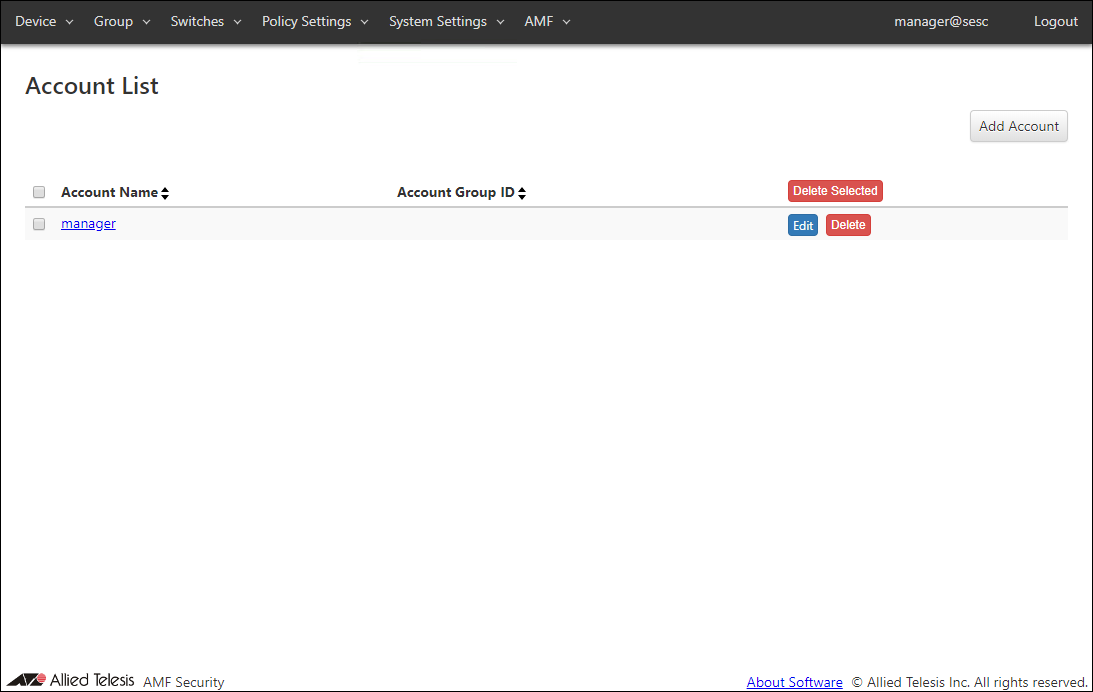
| Item Name | Sort |
|---|---|
| Account Name | × |
| Account Group ID | × |
| Item Name | Description |
|---|---|
| Account Name | Name of the login account. When clicked, the Update Account page for the account is displayed. |
| Account Group ID | Account group to which the Login Account belongs. When clicked, the Update Account Group page for the account group is displayed. If you delete the account group on the System Settings > Account Group List page after registering the account group to the login account, the link to the Update Account Group page above is deleted. |
| Item Name | Description |
|---|---|
| Page Top | |
| Add Account | Go to Add Account page. |
| Account List | |
| Delete Selected | Delete all the checked accounts. |
| Edit | Go to Update Account page for the account. |
| Delete | Delete the account. |
NoteDefault account "manager" cannot be deleted.
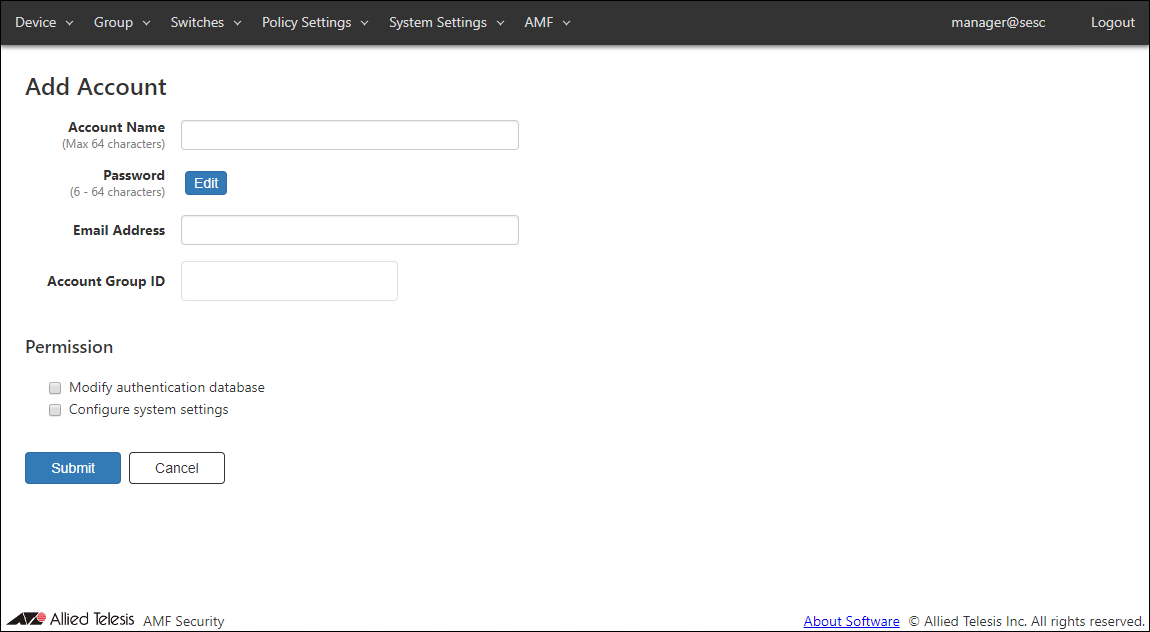
Add Account
| Item Name | Description |
|---|---|
| Account Name (Mandatory) | Name of the login account. Maximum length is 64 characters. Allowed characters are as follows. a-z, A-Z, 0-9, ' - _ . |
| Password | Login password for the account. Click "Edit" to configure password. |
| Email Address | Enter the Email Address associated with the account. If you forget your password, you can recover it by email. |
| Account Group ID | Select the Account Group ID to which the Login Account belongs. |
| Permission | |
| Modify authentication database | Check this to grant permission to change authentication database to the account. |
| Configure system settings | Check this to grant permission to change system configurations to the account. |
| Item Name | Description |
|---|---|
| Password | |
| Edit | Open Password Configuration dialog to configure the account's password. |
| Page Bottom | |
| Submit | Add a new account with the input information. |
| Cancel | Cancel the operation for adding a new account. |
NoteThe AMF Security configurations must be initialized if you forget passwords for all accounts with the permission of "Configure system settings" including the "manager" account. Please make sure that you keep your passwords safely and never forget them.
Refer to Appendix > Recovery mode for the initialization of AMF Security.
NoteRegister your Email Address in your account and set the Email Notification on the System Settings > Email Notification Settings page. This allows you to recover your password by email if you forget it.
Refer to Appendix > If you forget your password for instructions on how to recover your password by email.
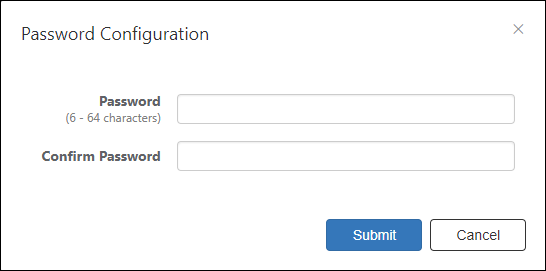
Password Configuration
| Item Name | Description |
|---|---|
| Password (Mandatory) | Login password for the account. Password must be 6 to 64 characters long. Allowed characters are as follows. a-z, A-Z, 0-9, ! # $ % & ' * + - / = ? ^ _ ` { | } ~ . |
| Confirm Password (Mandatory) | Enter the password again. |
| Item Name | Description |
|---|---|
| Bottom of the dialog | |
| Submit | Configure the input password. |
| Cancel | Cancel the operation for configuring a password. |
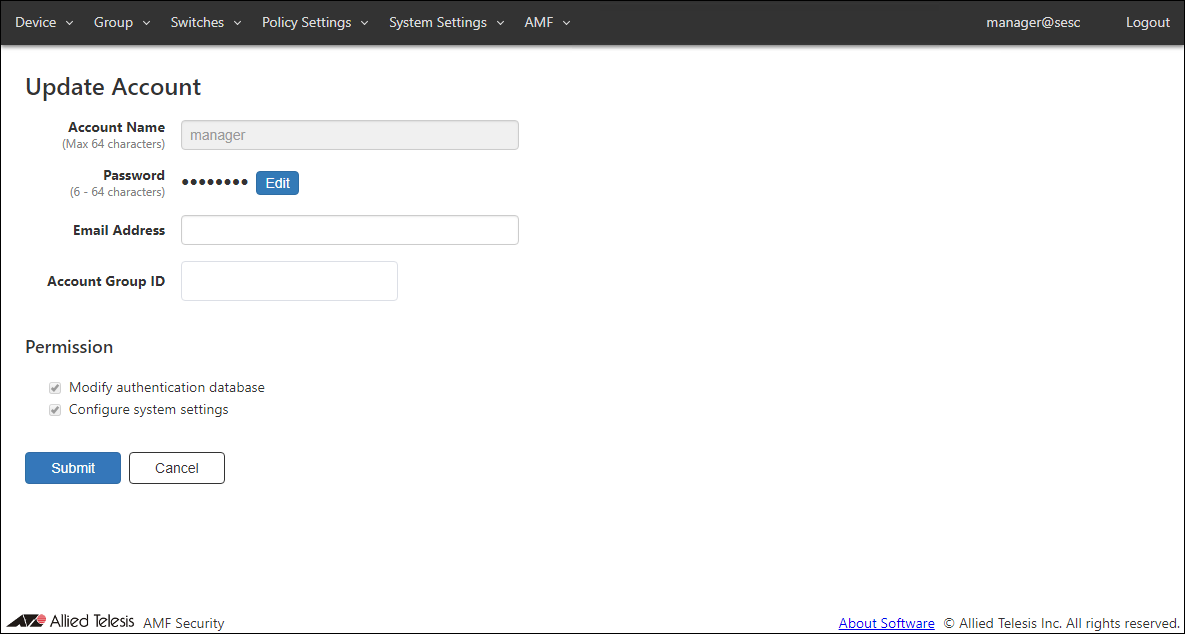
Update Account
| Item Name | Description |
|---|---|
| Account Name (Mandatory) | Name of the login account. Maximum length is 64 characters. Allowed characters are as follows. a-z, A-Z, 0-9, ' - _ . |
| Password | Login password for the account. Click "Edit" to configure password. |
| Email Address | Enter the Email Address associated with the account. If you forget your password, you can recover it by email. |
| Account Group ID | Select the Account Group ID to which the Login Account belongs. |
| Permission | |
| Modify authentication database | Check this to grant permission to change authentication database to the account. |
| Configure system settings | Check this to grant permission to change system configurations to the account. |
| Item Name | Description |
|---|---|
| Password | |
| Edit | Open Password Configuration dialog to configure the account's password. |
| Page Bottom | |
| Submit | Update the account with the input information. |
| Cancel | Cancel the operation for updating the account. |
NoteAccount name and permissions of the default account "manager" cannot be changed.
NoteThe AMF Security configurations must be initialized if you forget passwords for all accounts with the permission of "Configure system settings" including the "manager" account. Please make sure that you keep your passwords safely and never forget them.
Refer to Appendix > Recovery mode for the initialization of AMF Security.
NoteRegister your Email Address in your account and set the Email Notification on the System Settings > Email Notification Settings page. This allows you to recover your password by email if you forget it.
Refer to Appendix > If you forget your password for instructions on how to recover your password by email.
Password Configuration
| Item Name | Description |
|---|---|
| Password (Mandatory) | Login password for the account. Password must be 6 to 64 characters long. Allowed characters are as follows. a-z, A-Z, 0-9, ! # $ % & ' * + - / = ? ^ _ ` { | } ~ . |
| Confirm Password (Mandatory) | Enter the password again. |
| Item Name | Description |
|---|---|
| Bottom of the dialog | |
| Submit | Configure the input password. |
| Cancel | Cancel the operation for configuring a password. |
Account Group List
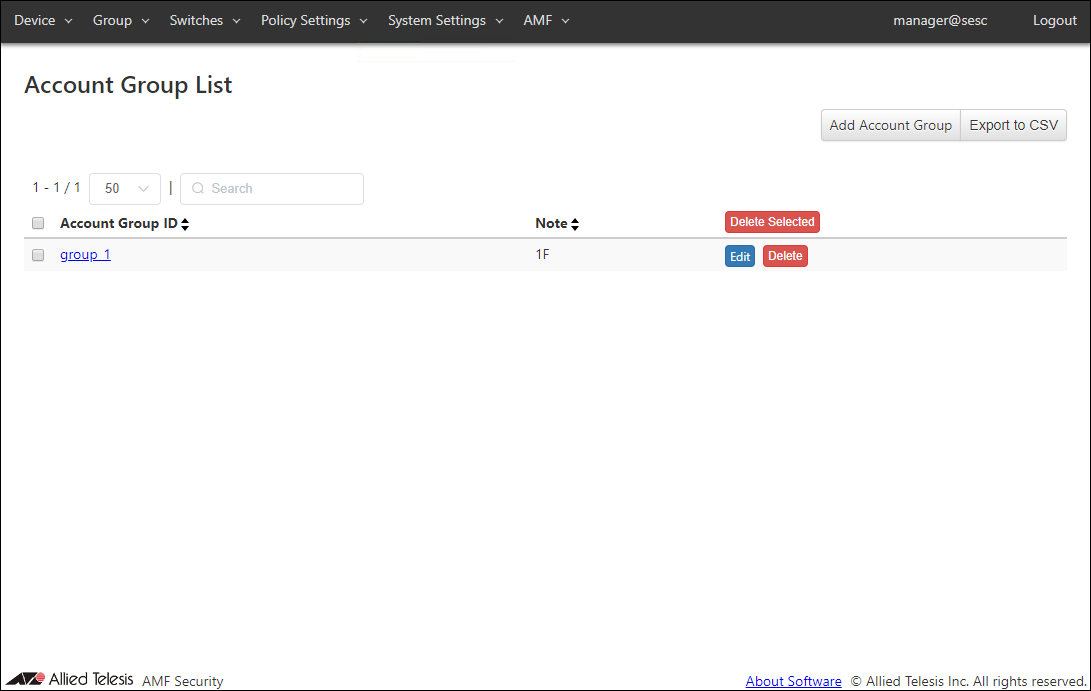
| Item Name | Search | Sort |
|---|---|---|
| Account Group ID | × | × |
| Note | × | × |
| Item Name | Description |
|---|---|
| Account Group ID | Account group name. |
| Note | Arbitrary string (comment) for the Account Group. |
| Item Name | Description |
|---|---|
| Page Top | |
| Add Account Group | Go to Add Account Group page. |
| Export to CSV | Start downloading of a list of account groups in CSV format. |
| Account Group List | |
| Delete Selected | Delete all the checked account groups. |
| Edit | Go to Update Account Group page for the account group. |
| Delete | Delete the account group. |
NoteRefer to Appendix > CSV File for CSV Files.
Add Account Group
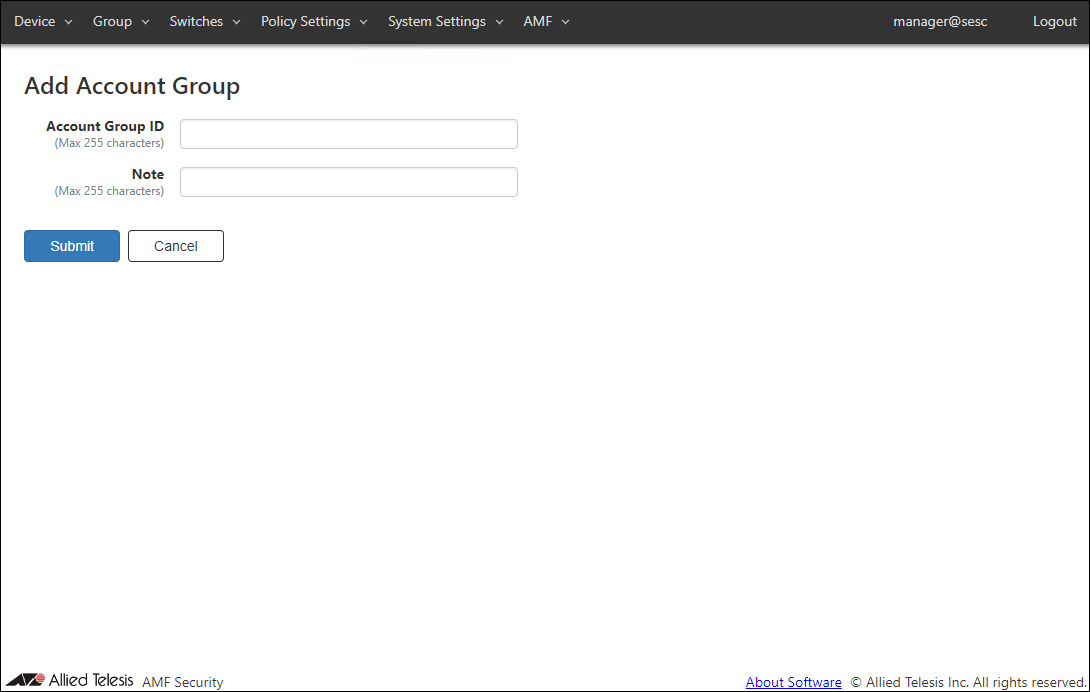
| Item Name | Description |
|---|---|
| Account Group ID (Mandatory) | Account group to which the Login Account belongs. Account Group ID must be unique. Max 255 characters |
| Note | Arbitrary string (comment) for the Account Group. |
| Item Name | Description |
|---|---|
| Submit | Add a new account group with the input information. |
| Cancel | Cancel the operation for adding a new account group. |
Update Account Group
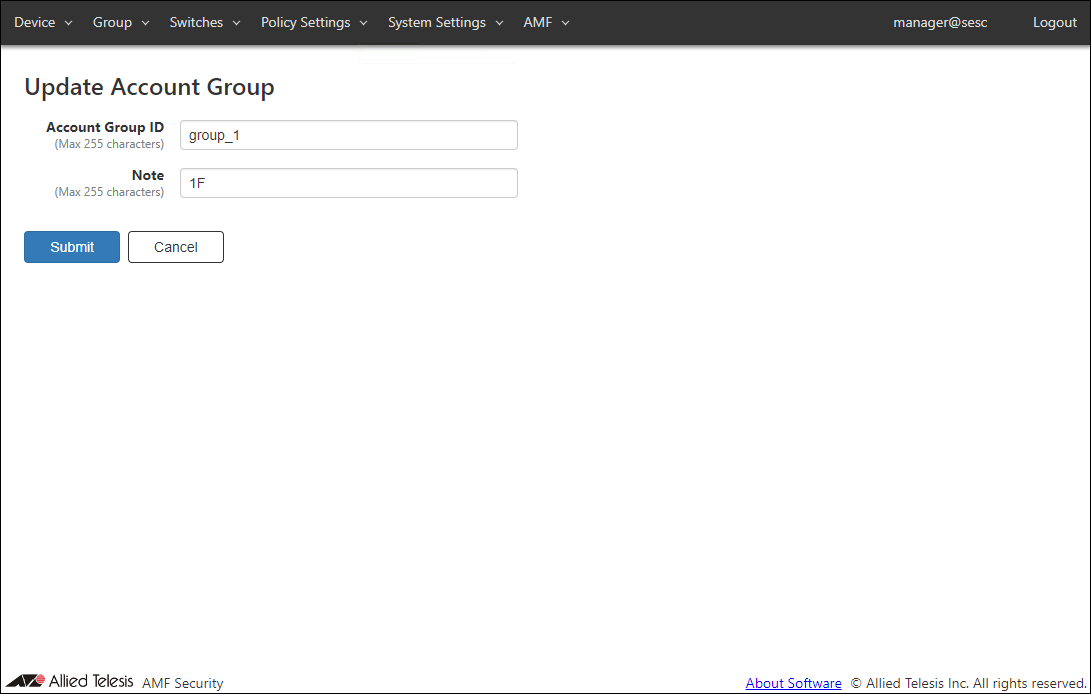
| Item Name | Description |
|---|---|
| Account Group ID (Mandatory) | Account group to which the Login Account belongs. Account Group ID must be unique. Max 255 characters |
| Note | Arbitrary string (comment) for the Account Group. |
| Item Name | Description |
|---|---|
| Submit | Go to Update Account Group page for the account group. |
| Cancel | Cancel the operation for updating the account group. |
Network Settings
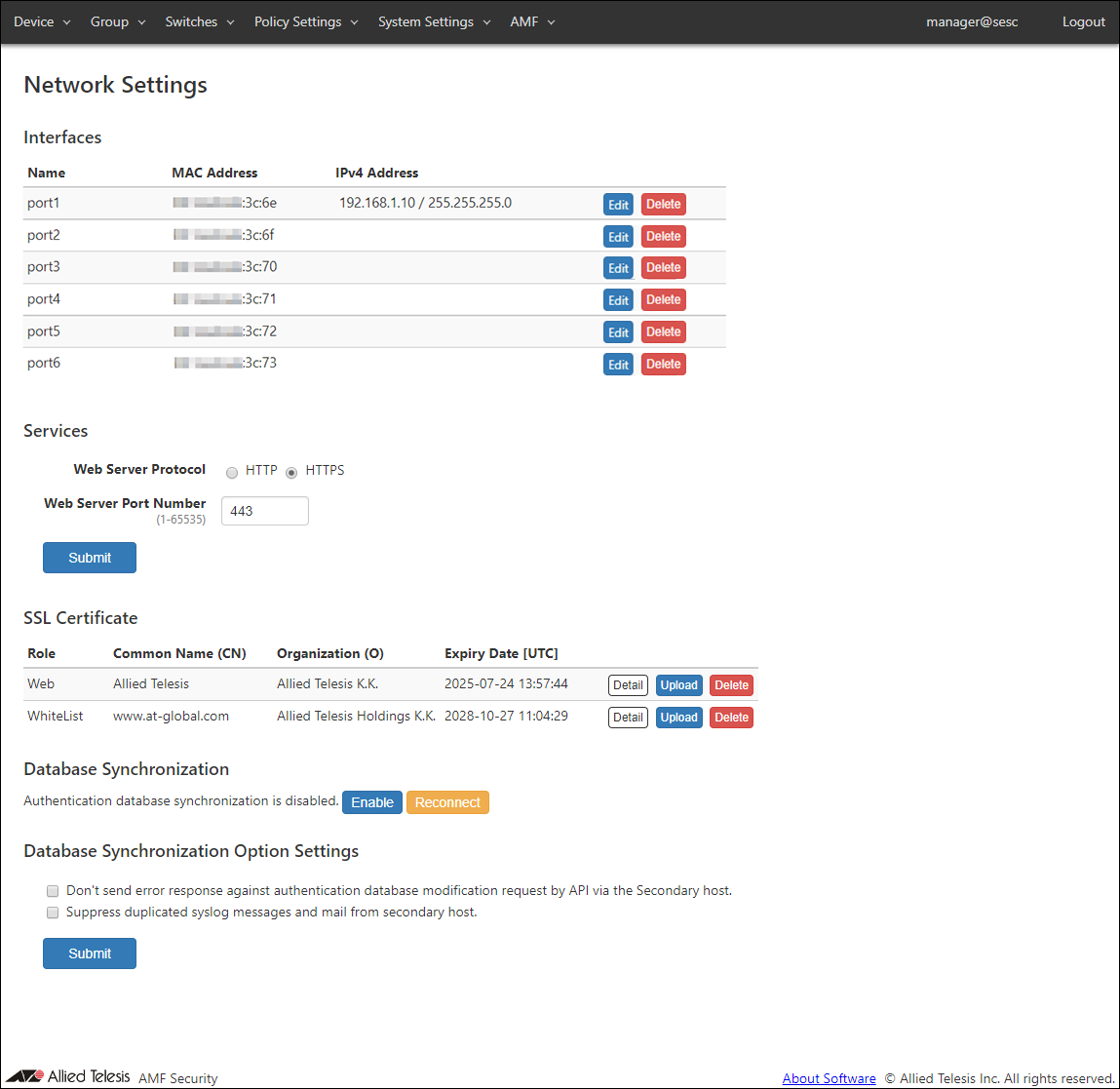
View and change network configurations for the AMF Security system.Note◼ AMF SecurityWith the following settings, the connection with connected OpenFlow Switch or AMF Master is temporarily disconnected.
・Interfaces
・Uploading or deleting the SSL Certificate of the Web server
・Database Synchronization
・Database Synchronization Option Settings
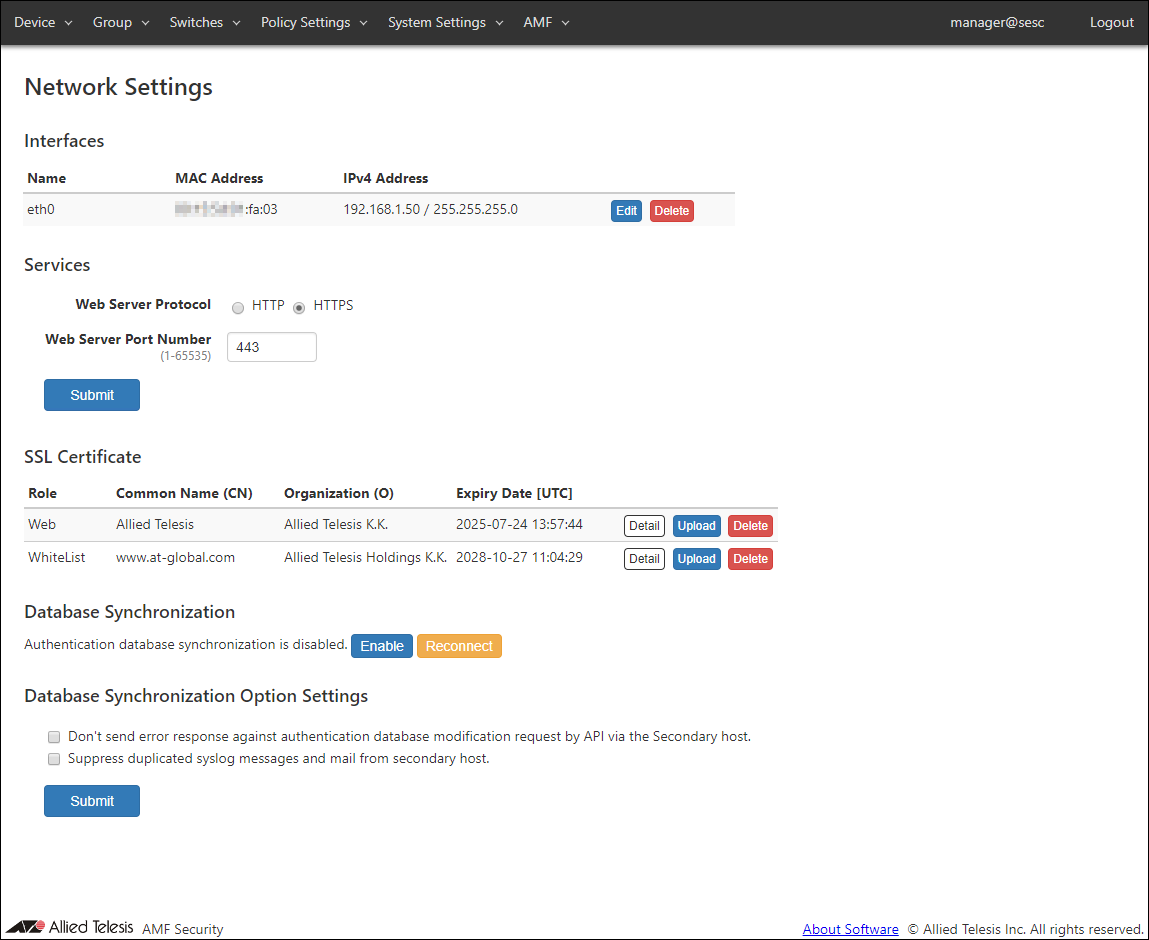
Interfaces
◼ AMF Security
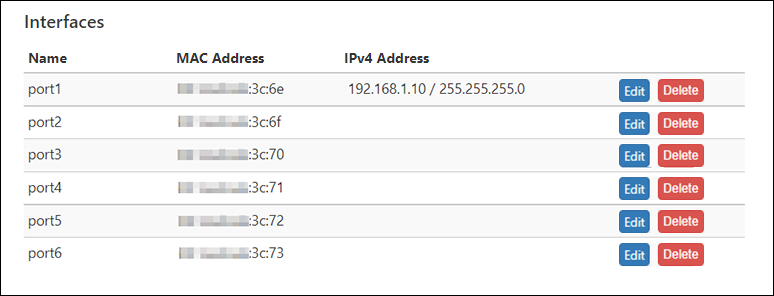
| Item Name | Description |
|---|---|
| Name | Name of the interface. |
| MAC Address | MAC address of the interface. |
| IPv4 Address | IPv4 Address and subnet mask of the interface. |
| Item Name | Description |
|---|---|
| Edit | Open the Edit Interface dialog for the interface. |
| Delete | Delete configurations for the interface. |
Edit Interface
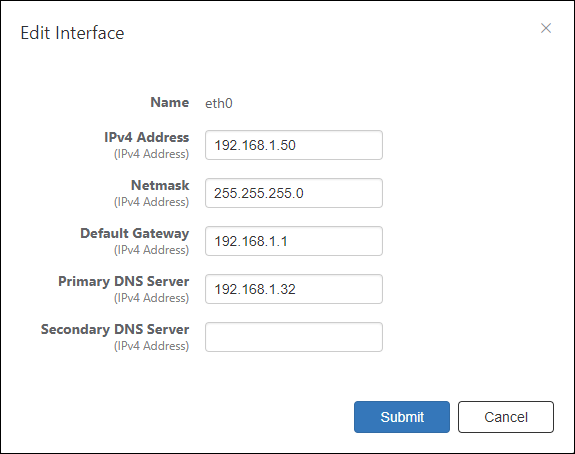
| Item Name | Description |
|---|---|
| Name | Name of the interface. |
| IPv4 Address | IPv4 Address of the interface. |
| Netmask | IPv4 netmask for the interface. |
| Default Gateway | IPv4 default gateway address. |
| Primary DNS Server Secondary DNS Server |
IPv4 DNS server addresses. |
| Item Name | Description |
|---|---|
| Submit | Save the input interface configurations. |
| Cancel | Cancel the settings and return to the Network Settings page. |
Services
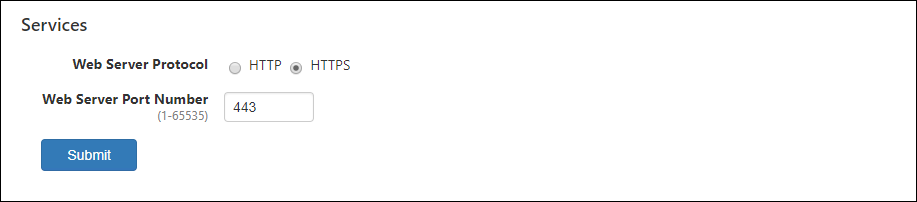
| Item Name | Description |
|---|---|
| Web Server Protocol | Protocol (HTTP or HTTPS) to use for the web interface. Default is HTTPS. |
| Web Server Port Number | TCP port number that AMF Security's web interface is listening on. Valid range is 1 to 65535. Default is 443. |
NoteThe supported security protocol is TLS 1.2.
NoteAMF Security is using several ports internally. Refer to Appendix > TCP or UDP port used by AMF Security for the ports used by AMF Security.
NoteIf you specify HTTP as the web server protocol and 80 as the port number when accessing the web setting screen, you will be redirected to the web server protocol and port number set above.
NoteThe combination of web server protocol and port number HTTPS / 80 is non-configurable (reserved).
NoteIf you upgrade to this version with the web server protocol and port number set to HTTPS / 80 in AT-SESC software version 1.8.x, or if you import the system setting file with the same settings, It will be changed to HTTP / 80 settings.
| Item Name | Description |
|---|---|
| Submit | Save the input services configurations. |
SSL Certificate
Register the SSL server certificate of the Web server (AMF Security) and the SSL server certificate of the whitelist authentication server installed in AMF Security.If you want external applications to interact with AMF Security via HTTPS, you may have to install an SSL server certificate issued by a trusted certificate authority (CA).
If you want to encrypt control session between AMF Master and Whitelist Server (AMF Security), upload an SSL server certificate issued by a trusted certificate authority (CA).
"SSL Certificate" section shows a summary of the installed SSL server certificate.

- If your CA provides you with intermediate CA certificates or cross root CA certificates in addition to your server certificate, concatenate those certificates into a single file then upload the file to AMF Security. Contact the CA for detailed information on how to concatenate certificate files.
- To install a certificate file, it must meet the following requirements.
Table 25: SSL Certificate Requirements
Type X.509, RFC6818 Encryption PEM (Privacy Enhanced Mail) Extension .crt
| Item Name | Description |
|---|---|
| Role | Displays Web (Web server) or WhiteList (Authentication server). |
| Common Name(CN) | Displays the common name of the web server (AMF Security) or authentication server (AMF Security). |
| Organization(O) | Displays the name of the organization to which the Web server (AMF Security) or authentication server (AMF Security) belongs. |
| Expiration Date [UTC] | Expiration date of the certificate. |
| Item Name | Description |
|---|---|
| Detail | The detailed information of the registered SSL server certificate is displayed. |
| Upload | Open the Upload SSL Certificate dialog to register the SSL Certificate with AMF Security. |
| Delete | Delete the installed SSL server certificate and restore the default certificate which is self-signed by AMF Security. |
NoteAfter setting the AMF master, AMF Security accepts both unencrypted and encrypted sessions. You cannot disable one of them.
Upload SSL Certificate
This dialog lets you upload your own SSL Certificate for the White-list Authentication Server.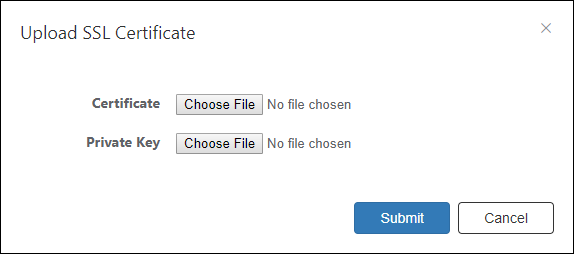
| Item Name | Description |
|---|---|
| Certificate | Click the "Choose File" button and select the SSL Certificate to upload. |
| Private Key | Click the "Choose File" button and select the SSL private key to upload. |
| Item Name | Description |
|---|---|
| Submit | Import the specified private key and certificate. |
| Cancel | Cancel the operation for importing SSL Certificate. |
Database Synchronization
Set AMF security to redundant and synchronize the authentication database.Set up database synchronization on the device used first as the secondary device and then on the device used as the primary device.
Disable database synchronization on the device used first as the secondary device and then on the device used as the primary device.
NoteThe Device > Active Device List page and Switches > Active OpenFlow Switch List page show the live information retrieved from OpenFlow Switches managed by AMF Security. Therefore, the information displayed on those pages may differ between the primary and secondary's web interfaces.
NoteAMF Application Proxy Whitelist does not support redundant AMF Security configuration.
NoteWhen an OpenFlow packet control flow (flow entry) is updated, such as when an authenticated node moves to another port, multiple logs indicating that the flow entry has been deleted may be recorded. However, it does not affect the authentication behavior.
NoteDatabase synchronization settings are not included in the file exported (downloaded) on the System Settings > System Information page. Therefore, after importing the system settings file, set the database synchronization again.
NoteIf you import a system configuration file that contains database synchronization settings from an older version (AT-SESC 1.8.0 or earlier) into AMF Security 2.x.x, the database synchronization settings do not apply. Therefore, set the database synchronization again.
NoteBoth systems must synchronize their clocks with the same NTP Server.
Also, the timezone of both systems must have the same settings.
NoteIf the system time is changed by a certain amount after synchronization started, there may be a case where the authentication data cannot be changed any further.
If it happens, please disable synchronization on both systems, adjust system clocks correctly, then enable synchronization again.

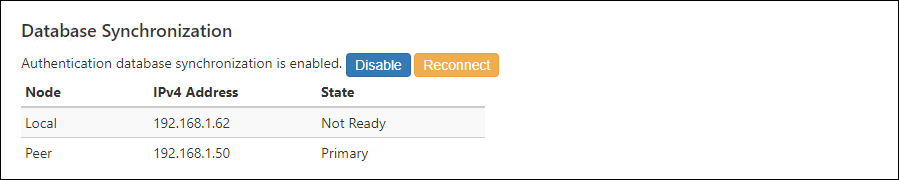
| Item Name | Description |
|---|---|
| Node | Displays the database synchronization node as Local or Peer. |
| IPv4 Address | The set IPv4 Address is displayed. |
| Status | Displays the status of database synchronization as Primary, Secondary, Not Ready, or Down. |
| Item Name | Description |
|---|---|
| Enable | Open the Database Synchronization Node Settings dialog. |
| Disable | Disable authentication database synchronization. Only when database synchronization is enabled, the "Enable" button changes to the "Disable" button. |
| Reconnect | Reconnect to the authentication database. |
Database Synchronization Node Settings
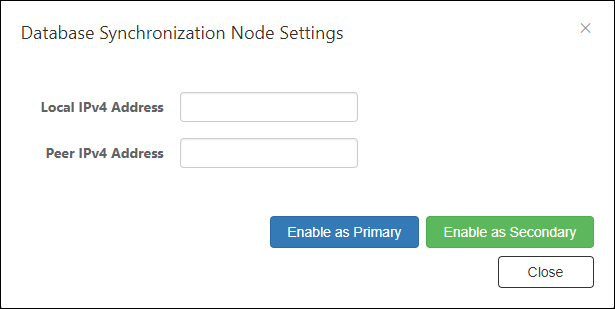
| Item Name | Description |
|---|---|
| Local IPv4 Address | Set the currently set AMF Security IPv4 Address. |
| Peer IPv4 Address | Set the IPv4 Address of the synchronization destination AMF security. |
| Item Name | Description |
|---|---|
| Enable as Primary | AMF Security works as the primary. |
| Enable as Secondary | AMF Security works as a secondary. |
| Close | Go back to the Network Settings page. |
Database Synchronization Option Settings
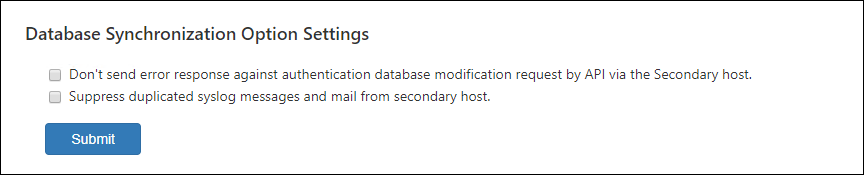
| Item Name | Description |
|---|---|
| Don't send error response against authentication database modification request by API via the Secondary host. | Suppress error logs generated by the secondary AMF Security system. |
| Suppress duplicated syslog messages and mail from secondary host. | Suppress duplicated log messages by disabling log transmission on the secondary AMF Security system. |
| Item Name | Description |
|---|---|
| Submit | Save the settings. |
Logging Settings
NoteWith this setting, the connection with connected OpenFlow Switch or AMF Master is temporarily disconnected.
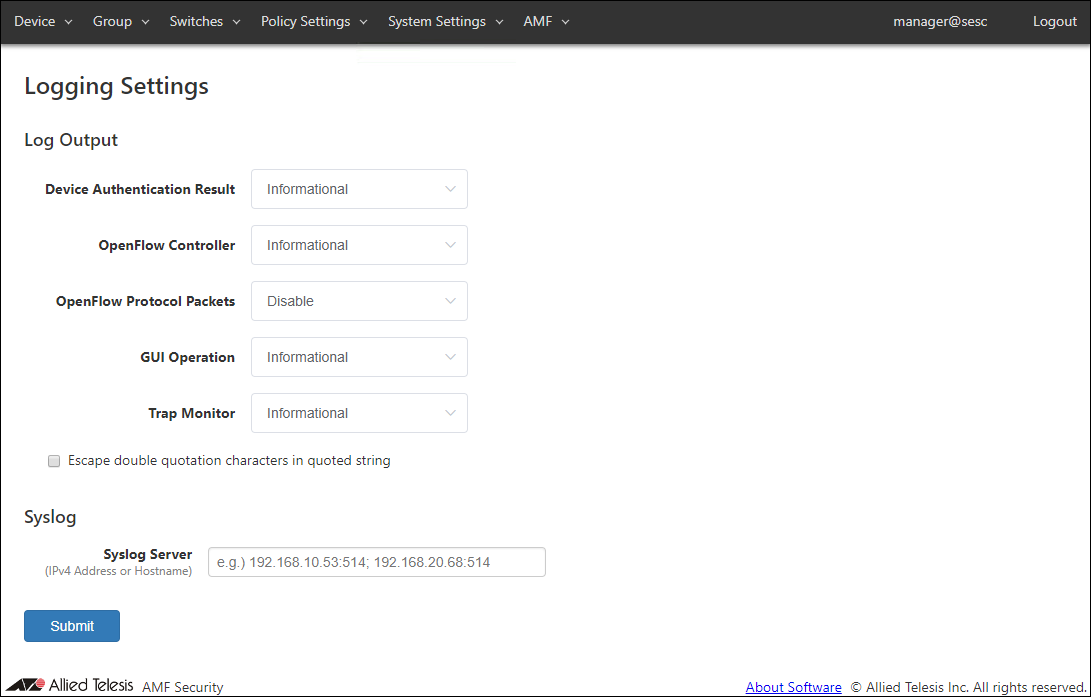
◼ Log Output
You can view and configure levels for various types of logs.
| Item Name | Description |
|---|---|
| Device Authentication Result | Minimum level for device authentication logs to be output. Default is Informational. |
| OpenFlow Controller | Minimum level for the OpenFlow protocol logs to be output. Default is Informational. |
| OpenFlow Protocol Packets | Minimum level for the OpenFlow packet logs to be output. Default is Disable (do not output any log of this type). |
| GUI Operation | Minimum level for the web interface logs to be output. Default is Informational. |
| Trap Monitor | Minimum level for the trap monitor logs to be output. Default is Informational. |
| Escape double quotation characters in quoted string | Escape double quotes in the log message. Default is disabled. |
◼ Syslog
| Item Name | Description |
|---|---|
| Syslog Server | Set the IPv4 Address or hostname and UDP port number of the external Syslog server that sends the log. The forwarding destination should be in the form of "A.B.C.D:P" where the A.B.C.D is an IPv4 Address and P is a port number. Multiple Syslog servers can be specified by separating each address by a semicolon (;). A colon (:) and a port number can be omitted if the host is listening on the default syslog port (514). Examples: 192.168.1.100 (IPv4 Address only) 192.168.1.100:60514 (Specify port number) 192.168.1.100; 192.168.2.100 (multiple settings separated by semicolons) example100.co.jp (Hostname) The following IPv4 Address formats with leading 0 (zero) can be entered, but they are not supported. 192.168.001.001 172.016.0.1 |
NoteThe encoding method of Syslog data to be sent is "UTF-8".
NoteAMF Security is using several ports internally. Refer to Appendix > TCP or UDP port used by AMF Security for the ports used by AMF Security.
| Item Name | Description |
|---|---|
| Page Bottom | |
| Submit | Save the input logging configurations. |
Date / Time Settings
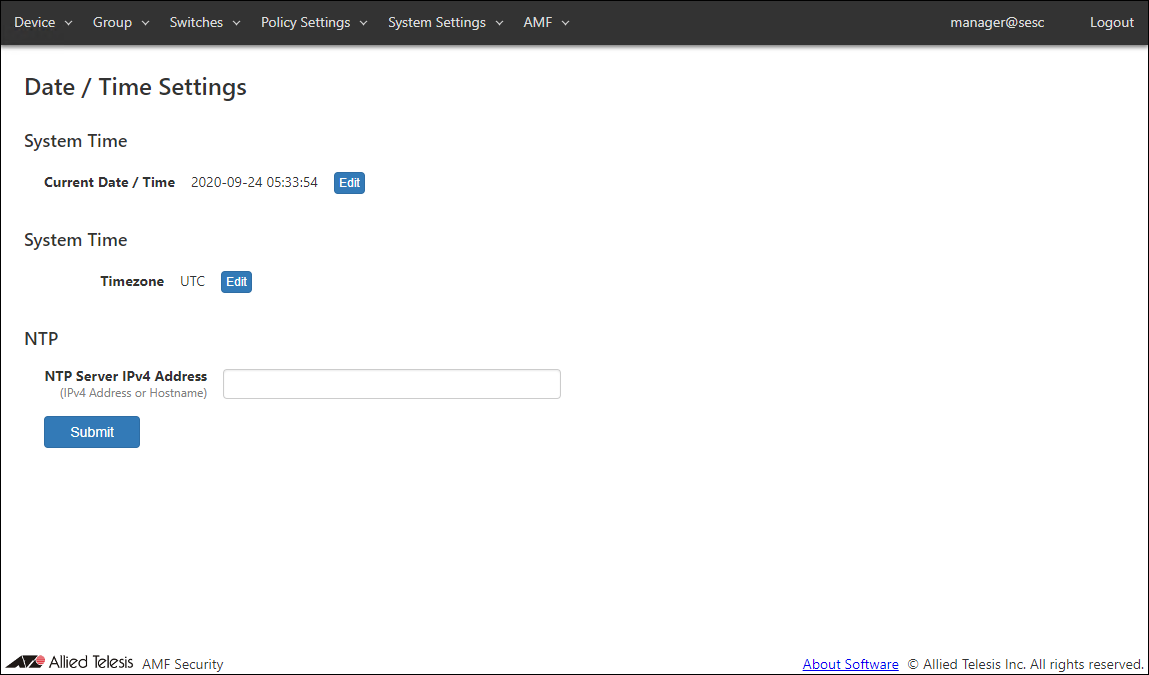
| Item Name | Description |
|---|---|
| Current Date / Time | Display system date. |
| Item Name | Description |
|---|---|
| Edit | Display the Date / Time Settings dialog and set the system date and time. |
| Item Name | Description |
|---|---|
| Timezone | Display the system timezone. Default is UTC. |
| Item Name | Description |
|---|---|
| Edit | Display the Select Timezone dialog and set the system timezone. |
NoteAMF Security may not synchronize the time if the configured NTP Server is not synchronized with other trusted NTP Servers.
| Item Name | Description |
|---|---|
| NTP Server IPv4 Address | Set the IPv4 Address or hostname of the external NTP server that synchronizes the time. Examples: 192.168.1.100 (IPv4 Address) example-ntp.co.jp (Hostname) The following IPv4 Address formats with leading 0 (zero) can be entered, but they are not supported. 192.168.001.001 172.016.0.1 |
NoteThe destination port number for NTP packets sent by AMF Security is 123 (cannot be changed).
| Item Name | Description |
|---|---|
| Submit | Save the NTP Server setting. |
Date / Time Settings

| Item Name | Description |
|---|---|
| Date | Set the system date (year, month, day). Date / Time can be selected using calendar controls or entered manually. The input format is YYYY-mm-dd. |
| Time | Set the system time (hour, minute). |
| Item Name | Description |
|---|---|
| Submit | Save the settings. |
Select Timezone
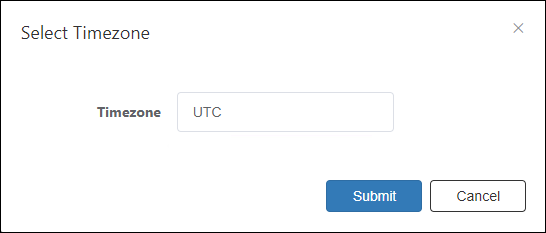
| Item Name | Description |
|---|---|
| Timezone | Select the timezone from the dropdown list. |
| Item Name | Description |
|---|---|
| Submit | Save the selected timezone. |
NoteIf you change the timezone setting, AMF Security restarts. Then reboot the device.
Example: Open the System Settings > System Information page. Click the "Reboot" button next to "Reboot this system".
After that, the timezone setting is retained.
OpenFlow Settings
NoteWith this setting, the connection with connected OpenFlow Switch or AMF Master is temporarily disconnected.
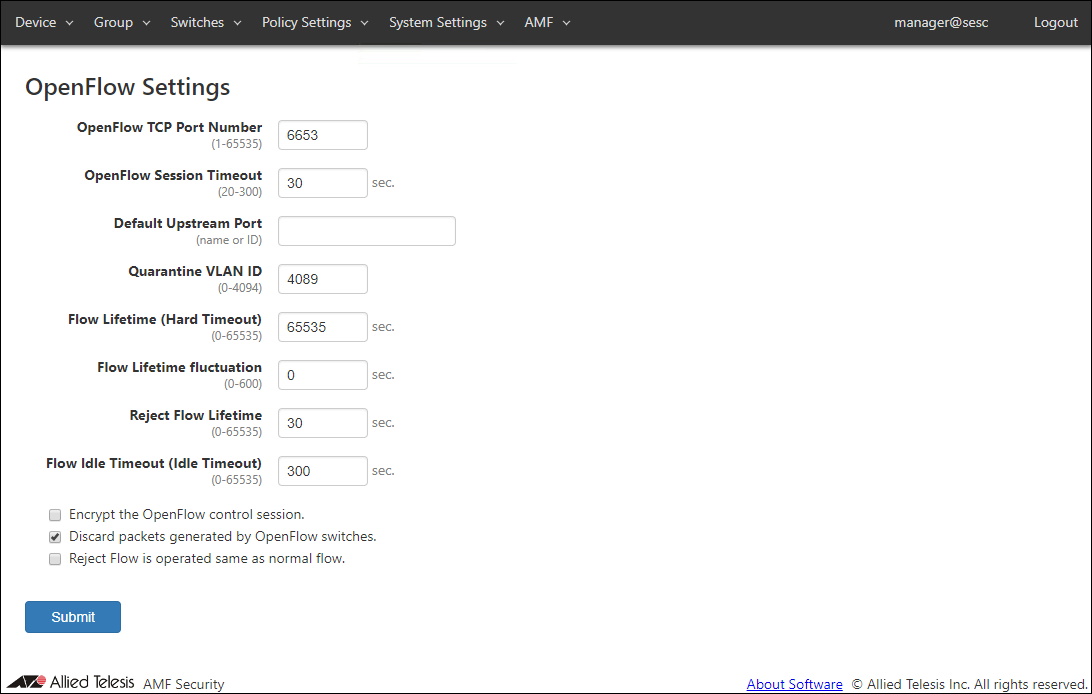
| Item Name | Description |
|---|---|
| OpenFlow TCP Port Number | TCP port number on which AMF Security's OpenFlow controller is waiting for control plane connections. Valid range is 1 to 65535. Default is 6653. |
| OpenFlow Session Timeout | Configure a timeout (in seconds) to disconnect an OpenFlow session with an irresponsive switch. When AMF Security does not receive any message from an OpenFlow Switch for half of this timeout value, AMF Security sends Echo request message to the switch. If the switch does not respond to the Echo request within the timeout period, AMF Security automatically closes the session with the switch. Valid range is 20 to 300. Default is 30. |
| Default Upstream Port | Default setting for OpenFlow Switch's upstream port. If no upstream port is specified in a configuration for an OpenFlow Switch, the default upstream port is used as upstream port on the OpenFlow Switch. Specify it with a port name or an OpenFlow port number. Default is unspecified (empty) which means that the OpenFlow port with the smallest OpenFlow port number on a switch is used as upstream port. |
| Quarantine VLAN ID | VLAN ID of the quarantine network where quarantined devices are placed. Valid range is 0 to 4094. Default is 4089. |
| Flow Lifetime (Hard Timeout) |
Configure the default flow lifetime (in seconds) on the switch. When this amount of time has passed since a flow is created for a device, the flow is automatically deleted from OpenFlow Switches even though the device is still sending traffic. Valid range is 0 to 65535. Default is 65535. Specifying 0 means that flows are never timed out. This value is used when a security policy for a device does not have Schedule. This value may be preceded by a Schedule's End Date / Time. This value is used as it is when the interval between the successful authentication and a scheduled End Date / Time is less than 65535 seconds. If the interval between the successful authentication and a scheduled End Date / Time is larger than or equals to 65535 seconds, actual timeout is set to 65535 seconds. |
| Flow Lifetime fluctuation | Configure a maximum fluctuation value for Flow Lifetime (in seconds). When set to non-zero value (X), actual flow lifetime value is calculated by subtracting a random fluctuation value between 0 and X from the Default Flow Lifetime. This value must be less than the Flow Lifetime value and in the range between 0 and 600 (Only 0 is valid when the Default Flow Lifetime is 0). Default is 0. (The Default Flow Lifetime is used as is). For example, when the Flow Lifetime fluctuation is set to 600 seconds, actual flow lifetime set to flow entries is determined by subtracting a random value between 0 and 600 from the Default Flow Lifetime (If the Default Flow Lifetime is 65535 (default), actual flow lifetime can be any value in the range between 64935 and 65535). |
| Reject Flow Lifetime | Flow lifetime in seconds for devices which failed to authenticate. Valid range is 0 to 65535. Default is 30. Specifying 0 means that reject flows are never created. |
| Flow Idle Timeout (Idle Timeout) |
An amount of time that should have passed without any traffic from a device before the flow for the device is deleted automatically. Valid range is 0 to 65535. Default is 300. Specifying 0 means that flows are never deleted even though no traffic is seen from devices. |
| Encrypt the OpenFlow control session. | Check this to encrypt control plane traffic between AMF Security and OpenFlow Switches. TLS is used for encryption. To use encrypted control plane, you also have to configure OpenFlow Switches to use encryption. |
| Discard packets generated by OpenFlow Switches. | Check this to install flows on the OpenFlow Switches that discard packets originated from the OpenFlow Switch themselves. |
| Reject Flow is operated same as normal flow. | Configure the timer and deletion behavior of Reject flows. Default is disabled.
|
NoteAMF Security is using several ports internally. Refer to Appendix > TCP or UDP port used by AMF Security for the ports used by AMF Security.
NoteDefault Upstream Port is applied to unregistered OpenFlow Switches When you are using both AlliedWare plus switches and AT-TQ wireless access points as OpenFlow Switches, configuring the Default Upstream Port disturbs flow entry registration due to the difference in the port number structure between AlliedWare Plus and AT-TQ series.
When you use non-minimum number OpenFlow port as upstream port on AlliedWare Plus Devices, individually configure the upstream port on each OpenFlow Switch.
Refer to Switches > Add OpenFlow Switch for instructions on how to register OpenFlow Switches.
NoteThe "Quarantine VLAN ID" setting is the same as the "Quarantine VLAN ID" on the AMF > TQ Settings page.
NoteThe "Flow Lifetime" setting is the same as the "session-timeout" on the AMF > AMF Application Proxy Settings page.
| Item Name | Description |
|---|---|
| Page Bottom | |
| Submit | Save the input OpenFlow configurations. |
System Information
This page lets you perform maintenance operations such as backup, restore and system restart.NoteWhen changing the hostname, the connection with connected OpenFlow Switch or AMF Master is temporarily disconnected.
NoteSystem settings export and import features are intended for pure backup and restore. Do not modify an exported file nor imported a modified file using the feature.
When importing System Settings, you can specify a file with any extension as long as the contents of the file are correct.
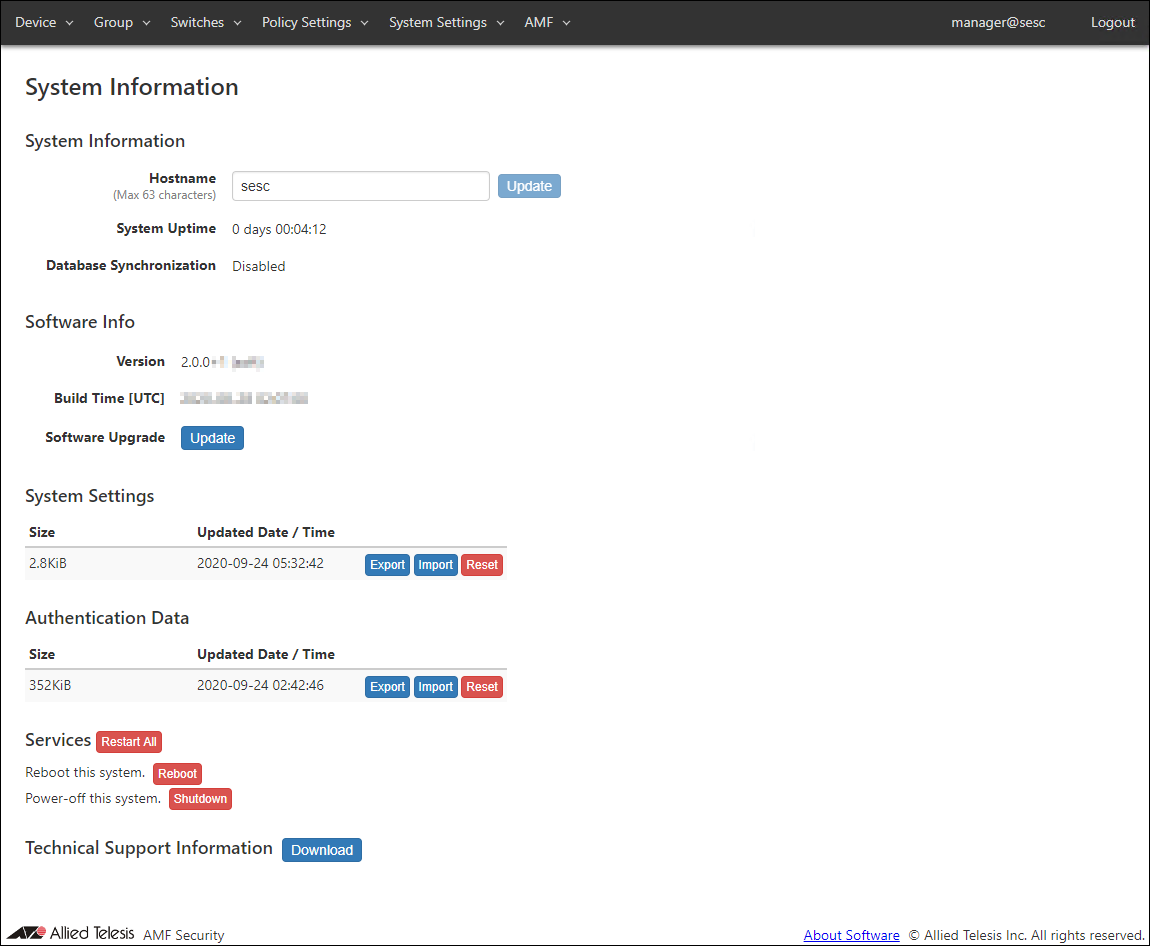
◼ System Information
| Item Name | Description |
|---|---|
| Hostname | Hostname of the system Default is "sesc". To change the hostname, enter a new hostname and click "Update". Max 63 characters. Allowed characters are as follows. a-z, A-Z, 0-9, - Hyphen (-) cannot be used for the first letter. |
| System Uptime | Time since the system started. |
| Database Synchronization | Status of database synchronization. One of Disabled, Syncing or Disconnected. |
| Item Name | Description |
|---|---|
| Refresh | Update the hostname. |
◼ Software Info
| Item Name | Description |
|---|---|
| Version | Version and build number (internal version) of the installed AMF Security software. |
| Build Time | Build date and time of the installed AMF Security software. |
| Software Upgrade | You can upgrade AMF Security software from this section. Upgrade process begins by selecting a file with the "Browse" button and clicking "Update". The system automatically reboots after the upgrade is complete. |
| Item Name | Description |
|---|---|
| Refresh | Upgrade AMF Security software by uploading the specified software image file. |
NoteYou cannot downgrade from AMF Security software version 2.x.x to AT-SESC software version 1.8.x or earlier.
NoteWhen you upgrade the software, icons such as the drop-down menu on the Web setting screen may not be displayed correctly. In that case, clear the cache of your web browser.
◼ System Settings
| Item Name | Description |
|---|---|
| Size | Displays the file size of system setting data. |
| Updated Date / Time | Displays the date and time when the system setting data was updated. |
| Item Name | Description |
|---|---|
| Export | Download system configuration for backup. |
| Import | Import and restore system settings. |
| Reset | Reset system configuration to factory default. |
Manually backup, configure or delete those elements.
- Configurations to be backed up, restored and reset.
- Account List
- Network Settings - Services
- Network Settings - Database Synchronization (Reset System Settings only)
- Network Settings - Database Synchronization Option Settings
- Logging Settings
- Date / Time Settings
- OpenFlow Settings
- Trap Monitor Settings
- Email Notification Settings
- AMF Settings
- TQ Settings
- Account List
- Configurations not to be backed up, restored and reset.
- Network Settings - Interfaces (AMF Security only)
Note
If you make a mistake in the interface settings, refer to Appendix > Recovery mode to initialize the interface settings. It cannot be restored by uploading downloaded system backup.
- Network Settings - SSL Certificate
- Trap Monitor Settings - Uploaded Rules
- Licenses
- AMF - SSL Certificate
- AMF Security Log
- Action Log
- Network Settings - Interfaces (AMF Security only)
NoteLicenses include the Base and Addon licenses.
◼ Authentication Data
| Item Name | Description |
|---|---|
| Size | Displays the file size of the authentication data. |
| Updated Date / Time | Displays the date and time when the authentication data was updated. |
| Item Name | Description |
|---|---|
| Export | Download authentication data for backup. |
| Import | Import authentication data from a CSV file. |
| Reset | Delete all authentication data on this system. |
NoteAuthentication data file to import should be in CSV format. Refer to Appendix > CSV File for CSV Files.
NoteThe Start Date / Time and End Date / Time of the schedule included in the Authentication Data are the date and time of the currently set timezone.
For details, refer to Policy settings > About the start date and time and end date and time of the schedule.
NoteWhen you import and update authentication data, AMF Security resets packet control flows for the devices which are contained in the authentication data.
NoteThe method of uploading authentication data of AT-SESC software version 1.3.x or earlier cannot remove the network, location, and schedule settings from the security policy set for the device that has already been registered. To delete, delete the device once and then upload the authentication data, or update the security policy directly on the Device > Update Device page.
◼ Services
| Item Name | Description |
|---|---|
| Restart All | Only restart AMF Security related services. The server on which AMF Security runs is not restarted, only AMF Security related application processes are restarted. |
| Reboot | Reboot the server hardware itself. |
| Shutdown | Shutdown the server hardware. |
◼ Technical Support Information
| Item Name | Description |
|---|---|
| Download | Download technical support information for trouble shooting. |
Trap Monitor Settings
This page lets you configure various parameters required for interaction with external applications.You can also setup AMF Security to forward SNMP traps and syslog messages to other systems.
NoteTrap monitor only responds to specific set of log messages and SNMP traps. You cannot define actions for arbitrary messages and traps.
NoteWith this setting, the connection with connected OpenFlow Switch or AMF Master is temporarily disconnected.
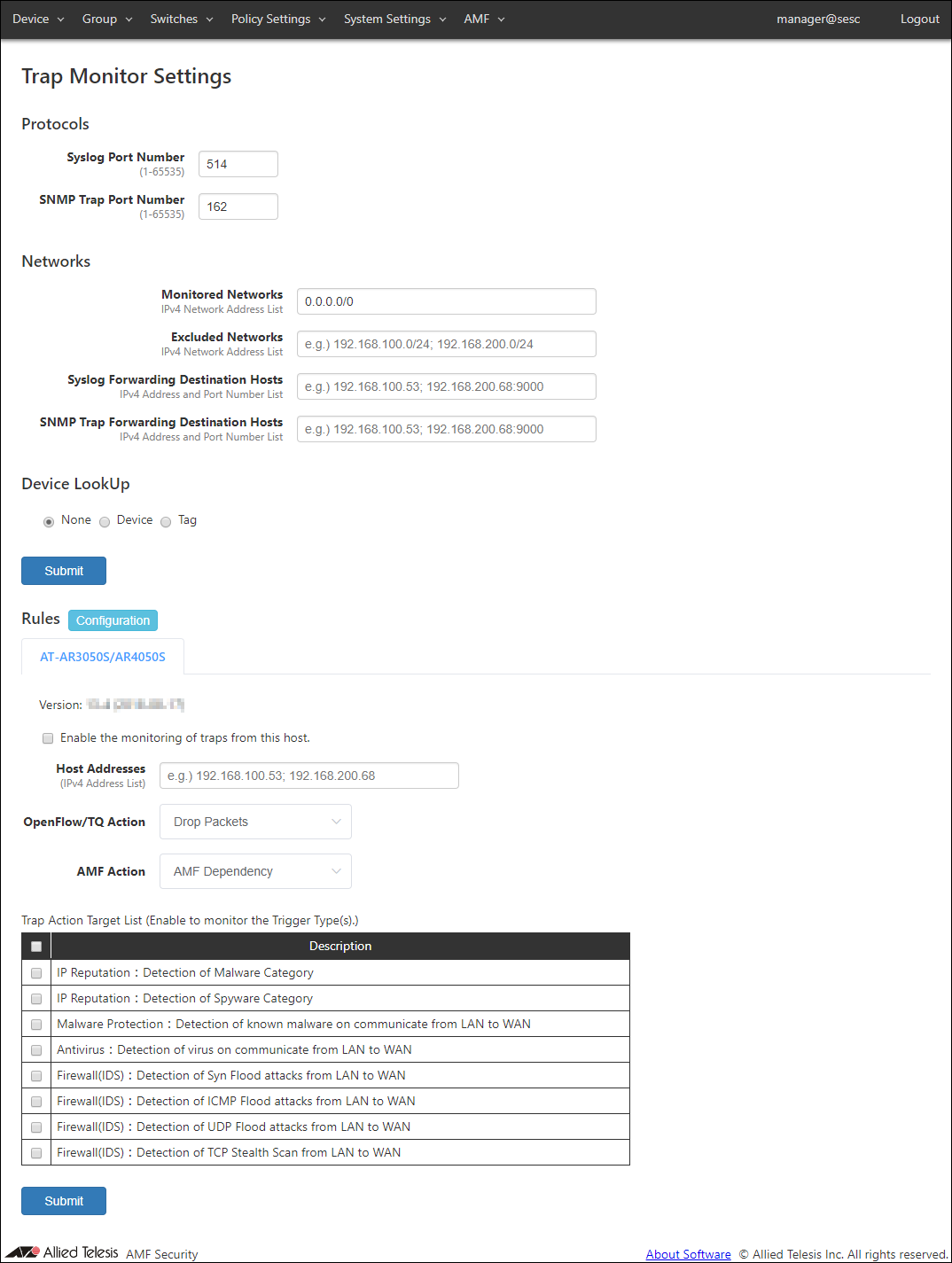
◼ Protocols
| Item Name | Description |
|---|---|
| Syslog Port Number | Listening port number to receive syslog messages. Valid range is 1 to 65535. Default is 514. |
| SNMP Trap Port Number | Listening port number to receive SNMP traps. Valid range is 1 to 65535. Default is 162. |
NoteAMF Security is using several ports internally. Refer to Appendix > TCP or UDP port used by AMF Security for the ports used by AMF Security.
◼ Networks
Specify the monitored or unmonitored network, Syslog message, and SNMP Trap transfer destination host.
If Monitored Networks and Excluded Networks overlap, Exclude Networks have precedence.
NoteSome external applications do not respect settings of Monitored Networks and Excluded Networks.
| Item Name | Description |
|---|---|
| Monitored Networks | IPv4 networks to monitor using syslog and trap messages. Multiple networks can be specified by separating each network by a semicolon (;). If this field is empty or 0.0.0.0/0 is specified, all networks are monitored. Default is 0.0.0.0/0. |
| Excluded Networks | IPv4 networks not to monitor. Multiple networks can be specified by separating each network by a semicolon (;). |
| Syslog Forwarding Destination Hosts | Specify a host to which AMF Security forwards the received syslog messages. The forwarding destination should be in the form of "A.B.C.D:P" where the A.B.C.D is an IPv4 Address and P is a port number. Multiple hosts can be specified by separating each address by a semicolon (;). A colon (:) and a port number can be omitted if the host is listening on the default syslog port (514). Source IPv4 Address of the forwarded messages are the address of AMF Security. |
| SNMP Trap Forwarding Destination Hosts | Specify a host to which AMF Security forwards the received trap messages. The forwarding destination should be in the form of "A.B.C.D:P" where the A.B.C.D is an IPv4 Address and P is a port number. A colon (:) and a port number can be omitted if the host is listening on the default trap port (162). Multiple hosts can be specified by separating each address by a semicolon (;). Source IPv4 Address of the forwarded messages are the address of AMF Security. |
◼ Device Lookup
Specify a target range of the action to notify.
| Item Name | Description |
|---|---|
| None | Notify actions on MAC address. |
| Device | Notify actions on Device. |
| Tag | Notify actions on Device Tag. |
NoteDevice Lookup is not supported for AMF Application Proxy's IP-Filter action.
NoteWhen the action is applied to the target device by the IP Address of the device, the IP Address is displayed as "ip =" in the "MAC address" item of the Device > Active Device List page. This IP Address is the IP Address that caused the action to be applied.
| Item Name | Description |
|---|---|
| Submit | Save the settings. |
◼ Rules
Trap monitor rules can be updated and added through trap monitor rule files.
By default, trap monitor rules for the UTM functions of AT-AR3050S/AT-AR4050S routers are installed.
NoteTrap monitor rule files are provided by our "AMF-SEC Technology Partner Program". Contact our sales engineer for the Technology Partner Program.
- AT-AR3050S/AR4050S
This tab lets you configure trap monitor rules for the UTM functions of AT-AR3050S/AT-AR4050S routers.
To receive and monitor syslog messages from AT-AR3050S/AT-AR4050S routers,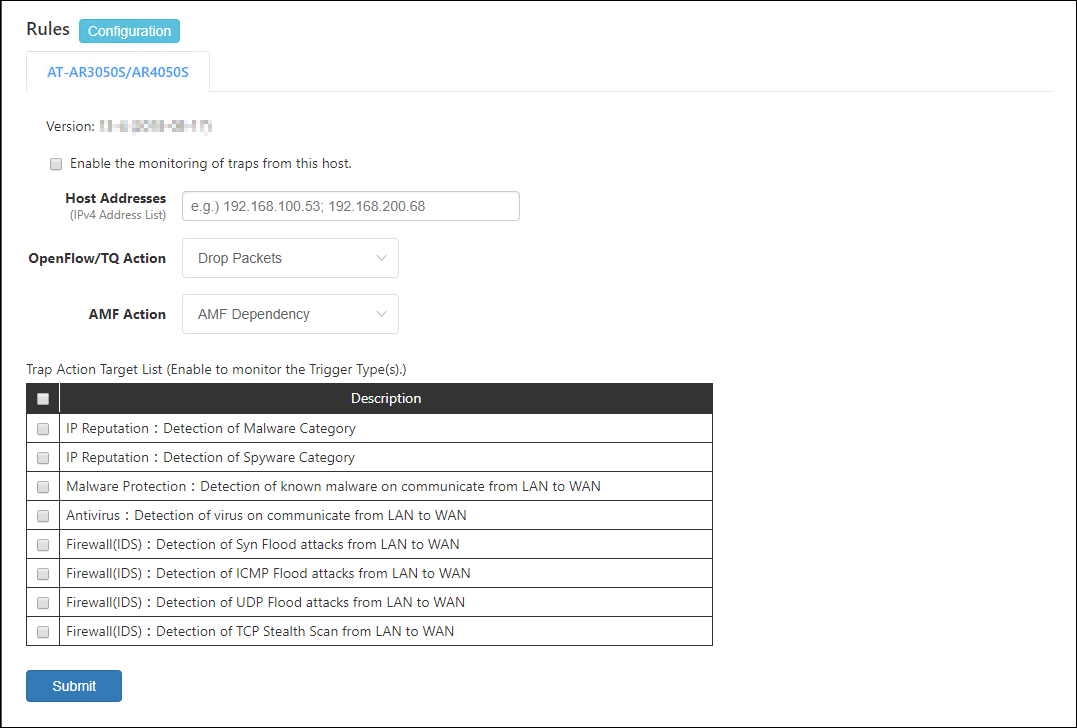
Then, check events which you want to monitor in the "Trap Action Target List" table.
- IP Reputation:Detection of Malware Category
Block traffic from a device when AMF Security receives a syslog message indicating that the IP reputation feature on the router detects the device tries to communicate with a destination classified as Malware category (Malware C&C server (CnC), Malware-infected host (Bot) or Mobile C&C Server (Mobile_CnC)).
- IP Reputation:Detection of Spyware Category
Block traffic from a device when AMF Security receives a syslog message indicating that the IP reputation feature on the router detects the device tries to communicate a destination classified as Spyware category (drop site (Drop), Spyware C&C server (SpywareCnC) or Mobile Spyware C&C server (Mobile_Spyware_CnC)).
- Malware Protection:Detection of known malware on communicate from LAN to WAN
Block traffic from a device when AMF Security receives a syslog message indicating that the malware protection feature on the router detects the known malware on the device.
- Antivirus:Detection of virus on communicate from LAN to WAN
Block traffic from a device when AMF Security receives a syslog message indicating that the anti-virus feature on the router detects the known virus on the device.
- Firewall(IDS):Detection of Syn Flood attacks from LAN to WAN
Block traffic from a device when AMF Security receives a syslog message indicating that the firewall's IDS feature on the router detects the SYN Flood attack from the device.
- Firewall(IDS):Detection of ICMP Flood attacks from LAN to WAN
Block traffic from a device when AMF Security receives a syslog message indicating that the firewall's IDS feature on the router detects the ICMP Flood attack from the device.
- Firewall(IDS):Detection of UDP Flood attacks from LAN to WAN
Block traffic from a device when AMF Security receives a syslog message indicating that the firewall's IDS feature on the router detects the UDP Flood attack from the device.
- Firewall(IDS):Detection of TCP Stealth Scan from LAN to WAN
Block traffic from a device when AMF Security receives a syslog message indicating that the firewall's IDS feature on the router detects the TCP Stealth Scan attack from the device.
Note
To use those rules, you also have to configure AT-AR3050S/AT-AR4050S. Refer to the AT-AR3050S/AT-AR4050S's documentation for more details.
Table 65: Buttons
Item Name Description Value Open the Rule Setup page.
Table 66: Displayed columns
Item Name Description Version Version of the Trap Monitor Rules
Table 67: Configurable fields
Item Name Description Enable the monitoring of traps from this host. If you want to monitor the device by receiving Syslog message from AT-AR3050S or AT-AR4050S, check the check box. Host Addresses IPv4 Address of AT-AR3050S/AT-AR4050S routers. Multiple hosts can be specified by separating each address by a semicolon (;). Default is unspecified (empty) which means that AMF Security accepts syslog messages from any IPv4 Address. OpenFlow/TQ Action In the OpenFlow Switch and TQ's AMF Application Proxy under AMF Security control, select the action to control the communication of the corresponding device. - Drop Packets: Block traffic from the device at the layer two (MAC) level.
- Quarantine: Move the device to the quarantine network.
- Log-Only: Record the device information.
AMF Action An action to be taken on AW+ AMF network deploying AMF Application Proxy. - Drop Packets: Block traffic from the device at the layer two (MAC) level.
- Link-Down: Shutdown the port where the device is connected.
- Quarantine: Move the device to the quarantine VLAN.
- AMF Dependency: AMF Security does not specify an action and lets AMF devices determine its action.
- IP-Filter: Block traffic from the device at the layer 3 (IP) level.
- Log-Only: AMF Security does not specify an action and records the device information.
Note
The behavior of the "Quarantine" action depends on the firmware version of your AlliedWare Plus device.
・Version 5.5.0-1.x or earlier: Move the port to which the device is connected to the isolation VLAN ・Version 5.5.0-2.x or later: Moves the MAC Address of the corresponding device to the isolation VLANNote
If you also use the "Quarantine" action on the whitelist port, your Proxy Node and Edge Nodes must have AlliedWare Plus firmware version 5.5.0-2.x or later installed.
Table 68: Buttons
Item Name Description Page Bottom Submit Save the settings. - IP Reputation:Detection of Malware Category
Rules
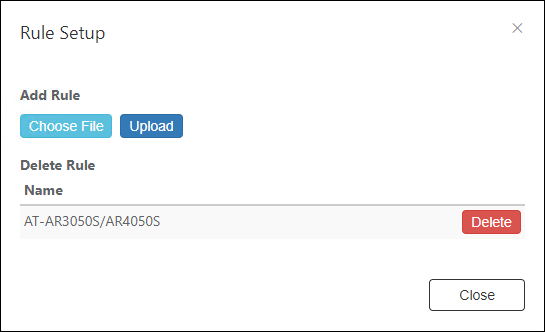
| Item Name | Description |
|---|---|
| Name | Name of the Trap Monitor Rules |
| Item Name | Description |
|---|---|
| Choose File | Select the rule settings file to upload. |
| Upload | Upload the selected rule settings file. |
| Delete | Delete the registered rule settings. |
| Close | Go back to the Trap Monitor Settings page. |
Email Notification Settings
This page lets you configure Email Notifications.AMF Security can send email to the set address when an event such as device authentication or blocking occurs or when you forget your password.
AMF Security also sends emails to forward the contents of syslog messages and SNMP traps it receives.
NoteEmail Notification of syslog and trap messages are always enabled and cannot be disabled.
NoteWith this setting, the connection with connected OpenFlow Switch or AMF Master is temporarily disconnected.
NoteTo recover your password if you forget it, you need to register your Email Address on the Add Account page or Update Account page in advance.
AMF Security queues the notification emails by the following rules and tries to resend them upon failure.
- When an event occurs, AMF Security queues up to 100 emails for the event in the first 10 seconds after the event.
- Queued emails are sent out as a single email after 10 seconds.
- If 100 or more events occur in 10 seconds after the first event, AMF Security queues them too.
- A Queue is created for each event types of Email Notification Settings.
- AMF Security attempts up to four retries, i.e. AMF Security tries to send an email up to 5 times.
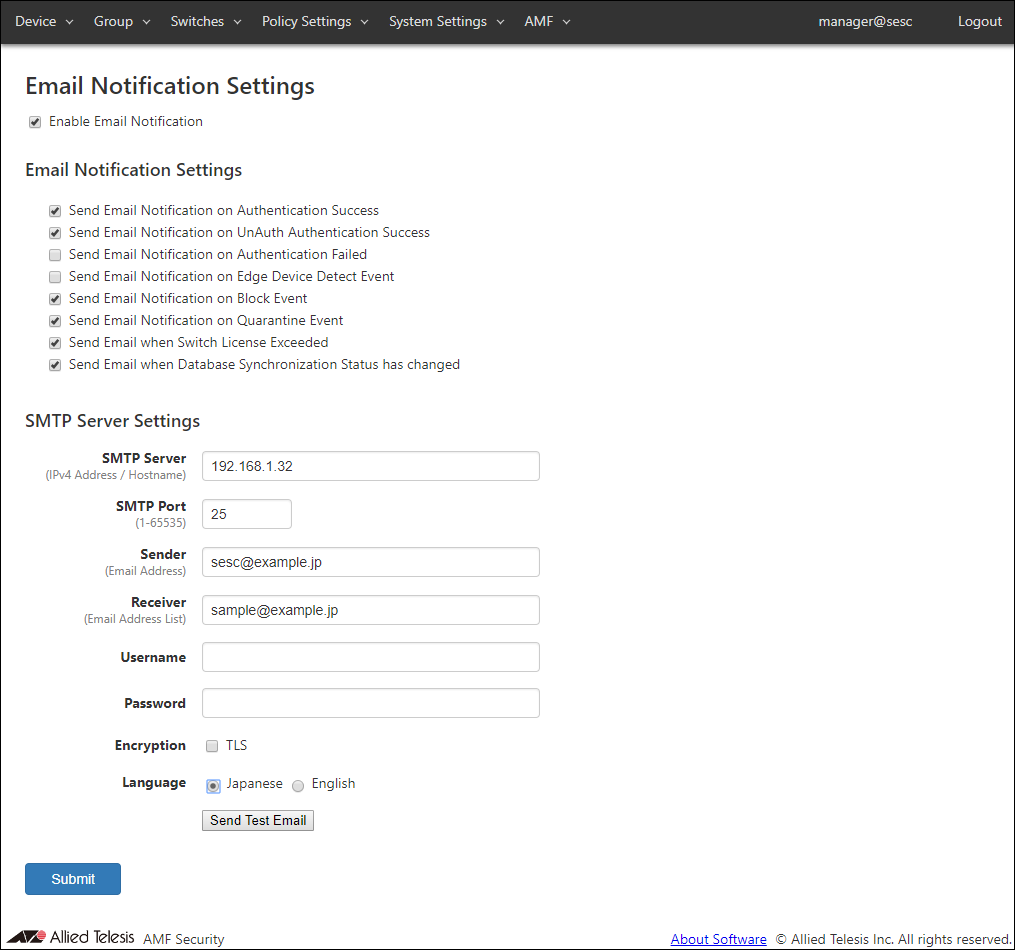
◼ Email Notification Settings
You can enable or disable email notification for each event with checkboxes.
- Send Email Notification on Authentication Success
- Send Email Notification on UnAuth Authentication Success
- Send Email Notification on Authentication Failed
- Send Email Notification on Edge Device Detect Event
- Send Email Notification on Block Event
- Send Email Notification on Quarantine Event
- Send Email when Switch License Exceeded
- Send Email when Database Synchronization Status has changed
Note"Send Email Notification on Block Event" or "Send Email Notification on Quarantine Event" is checked, AMF Security also sends notification email when a device is blocked or quarantined by AMF Application Proxy.
If you want to notify by email in the OpenFlow Action / AMF Action Log, check "Send Email Notification on Block Event".
◼ SMTP Server Settings
| Item Name | Description |
|---|---|
| SMTP Server | IPv4 Address of a SMTP server which AMF Security uses to send out emails. |
| SMTP Port | Listening port of the SMTP server. |
| Sender | Mail address of the sender. |
| Receiver | Mail address of the recipient. Multiple addresses can be specified by separating them with a semicolon (;). |
| Username | Username for SMTP authentication. |
| Password | Password for SMTP authentication. |
| Encryption | Check this to use TLS connection to the SMTP server. |
| Language | Select a language used in emails. |
NoteAMF Security is using several ports internally. Refer to Appendix > TCP or UDP port used by AMF Security for the ports used by AMF Security.
NoteIf your browser is configured to use Japanese, some part of emails is written in Japanese even if Language setting for Email Notification is English. If both browser and Email Notification are configured to use English, mail body is written in English. Note that strings contained in authentication data or messages received from an external application are left unchanged.
NoteWhen you want AMF Security to send notification emails when a device is blocked by the AMF Application Proxy with "Drop Packets", "Link-Down" or "IP-Filter" action, check "Send Email Notification on Block Event" .
| Item Name | Description |
|---|---|
| SMTP Server Settings | |
| Send Test Email | Send a test email. |
| Page Bottom | |
| Submit | Save the SMTP server settings. |
Licenses
This section lets you manage licenses for AMF Security.There are two types of licenses: "Base" and "Addon".
- You always need the Base license to run AMF Security.
OpenFlow and AMF Application Proxy do not work until the base license is installed.
- The Addon license is for adding an OpenFlow switch. AMF Application Proxy works with a Base license only, no Addon license for nodes is required.
Although you can install Addon licenses before installing the Base license, AMF Security does not work until the Base license is installed.
NoteAfter registering the basic license, if you delete or add the basic license during operation of the OpenFlow and AMF Application Proxy network, OpenFlow and AMF Application Proxy may not operate normally.
Therefore, disconnect AMF security from the operating network before removing or adding a registered base license.
If the base license is removed or added during operation and AMF Application Proxy does not work properly, restart AMF security.
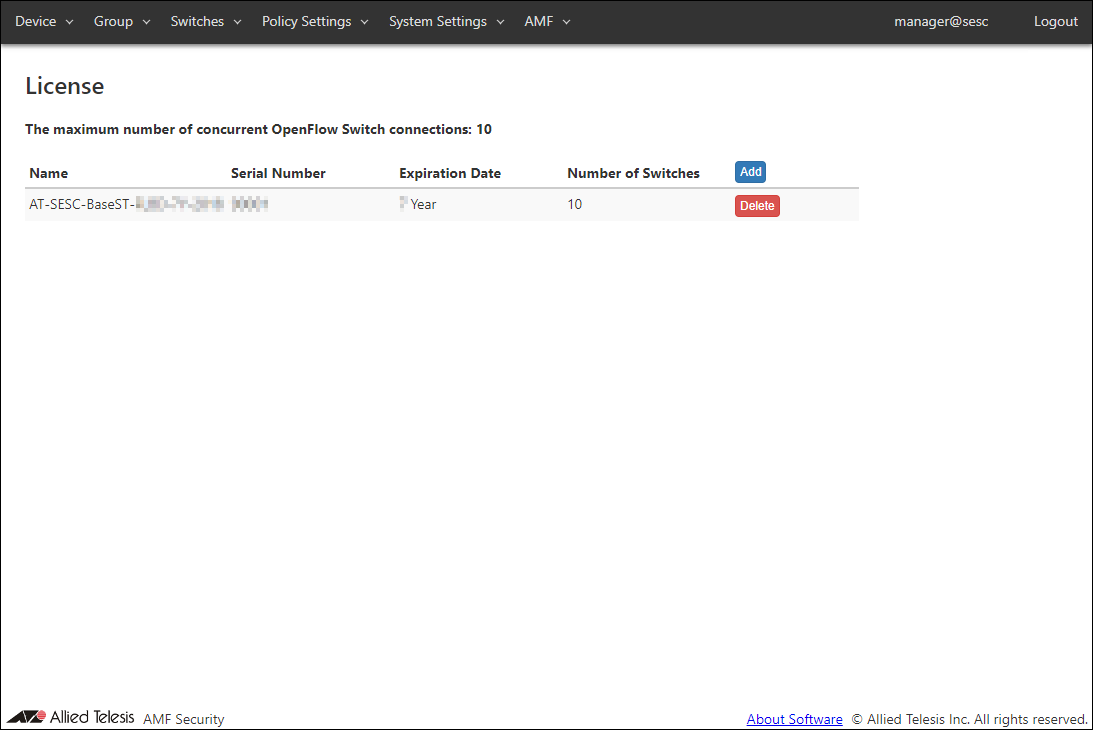
| Item Name | Description |
|---|---|
| The maximum number of concurrent OpenFlow Switch connections | The maximum number of OpenFlow Switches which can be supported by the installed licenses. |
| Name | Name of the license. |
| Serial Number | Internal serial number of the license. |
| Expiration Date | Displays the license years. |
| Number of Switches | Number of OpenFlow Switches supported by the license. |
| Item Name | Description |
|---|---|
| Add | Add a license. In the dialog, enter the Serial Number and Authentication Key shown on the license certificate and click the "Submit" button. |
| Delete | Delete the license. |
AMF Security Log
This page shows log messages generated by AMF Security service. The latest 1000 messages are displayed in this page.You can view messages for a specific date by selecting a date at the right side of the page.
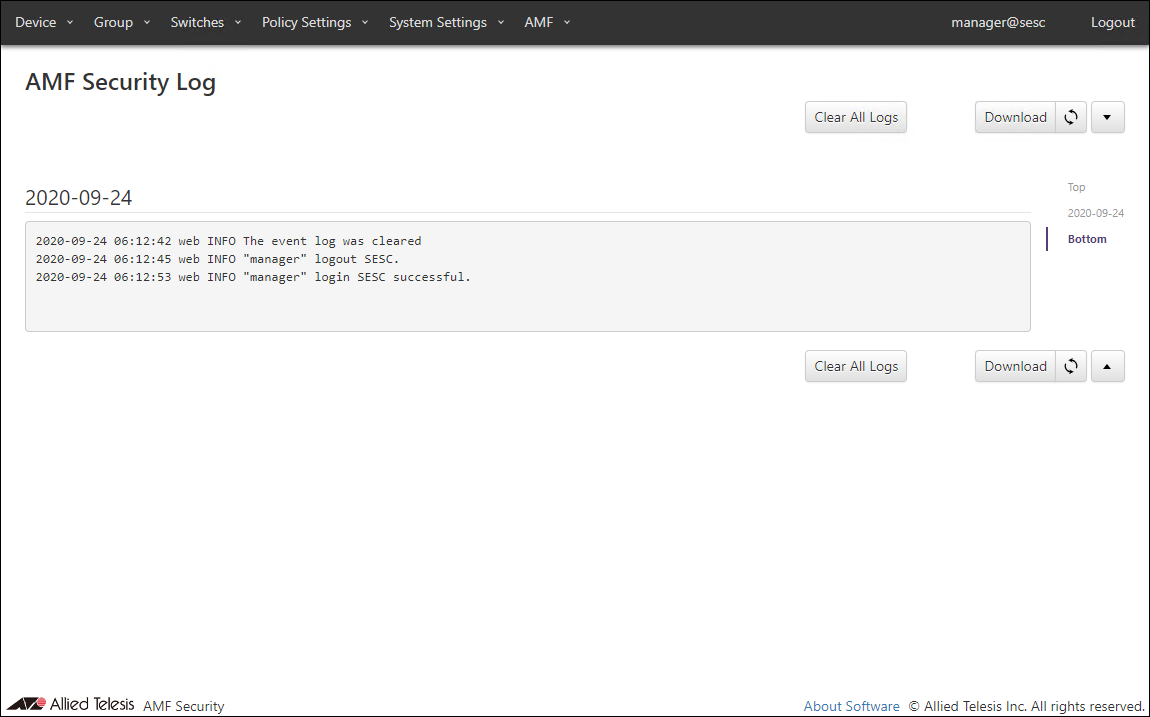
| Item Name | Description |
|---|---|
| Clear All Logs | Clear all log messages. |
| Download | Download the latest log messages. |
| Refresh | Refresh the AMF Security Log page. |
Action Log
This page shows AMF Security services' log messages related to actions.It is possible to filter messages by each field's content.
NoteDepending on the specifications of the Web browser, it may not be possible to display all action logs on this page. In that case, download and check the action log.
NoteClearing the action log temporarily disconnects the connected OpenFlow switch from the AMF Master.
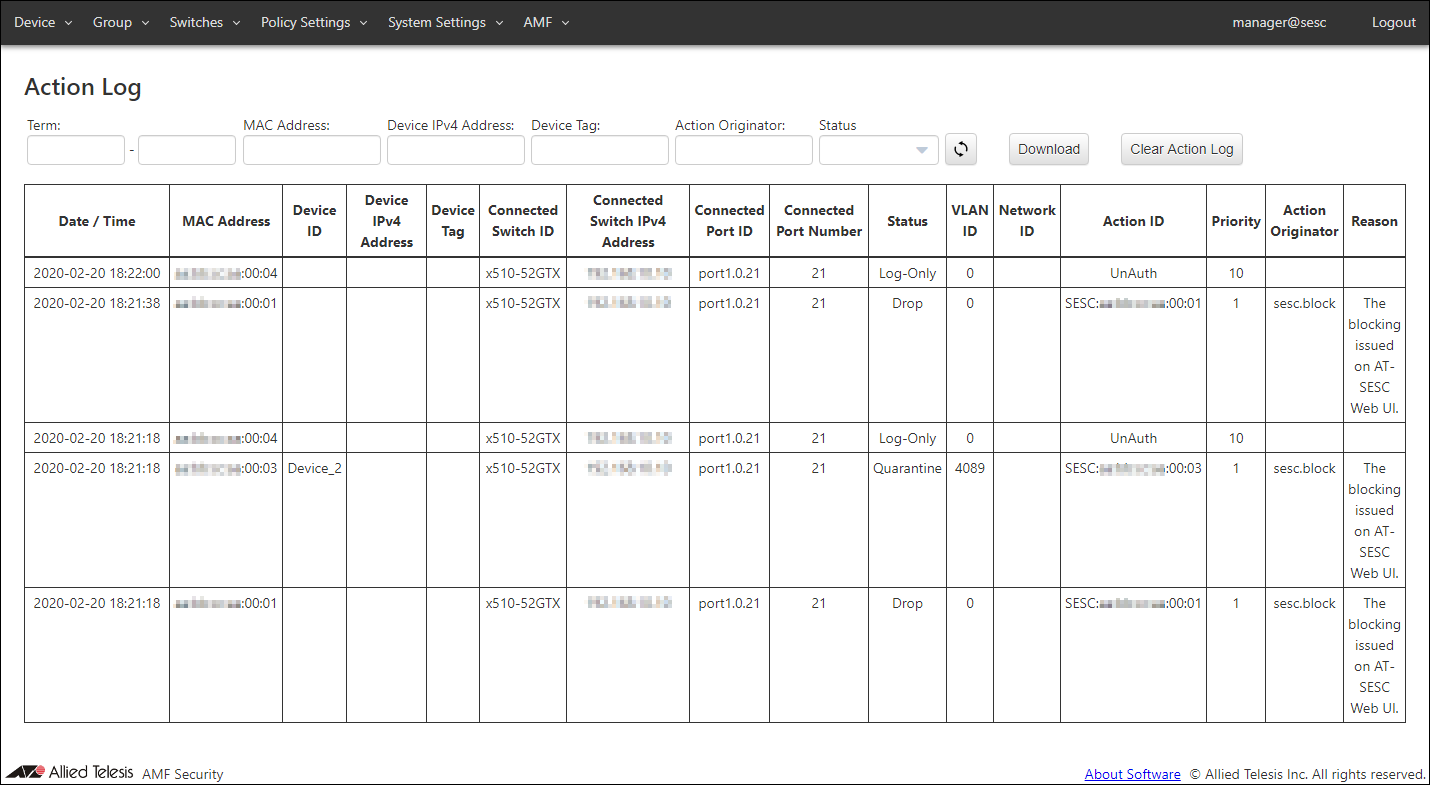
| Item Name | Description |
|---|---|
| Date / Time | Date / Time the action was applied to a device. |
| MAC Address | MAC address of the device. |
| Device ID | Device ID |
| Device IPv4 Address | IPv4 Address of the device. |
| Device Tag | Device Tag |
| Connected Switch ID | ID of the switch to which the device is connected. |
| Connected Switch IPv4 Address | IPv4 Address of the connected switch |
| Connected Port ID | ID of the port to which the device is connected. |
| Connected Port Number | Port number of the port to which the device is connected. |
| Status | Type of action applied to the device. |
| VLAN ID | VLAN ID to which the device belongs |
| Network ID | Network ID to which the device belongs |
| Action ID | ID of the action applied to the device |
| Priority | Priority of the action applied to the device |
| Action Originator | Originator of the action applied to the device |
| Reason | Reason of the action applied to the device. |
| Item Name | Description |
|---|---|
| Refresh | Refresh the Action Log page. |
| Download | Download the latest log messages. |
| Clear Action Log | Deletes action logs. |
| Item Name | Search | Filter | Sort |
|---|---|---|---|
| Duration | × | − | − |
| MAC Address | × | − | − |
| Device IPv4 Address | × | − | − |
| Device Tag | × | − | − |
| Action Originator | × | − | − |
| Status | − | × | − |
08 Jul 2022 16:52