Floor Map Detail [Rogue AP View]
Floor Map [Rogue AP View]
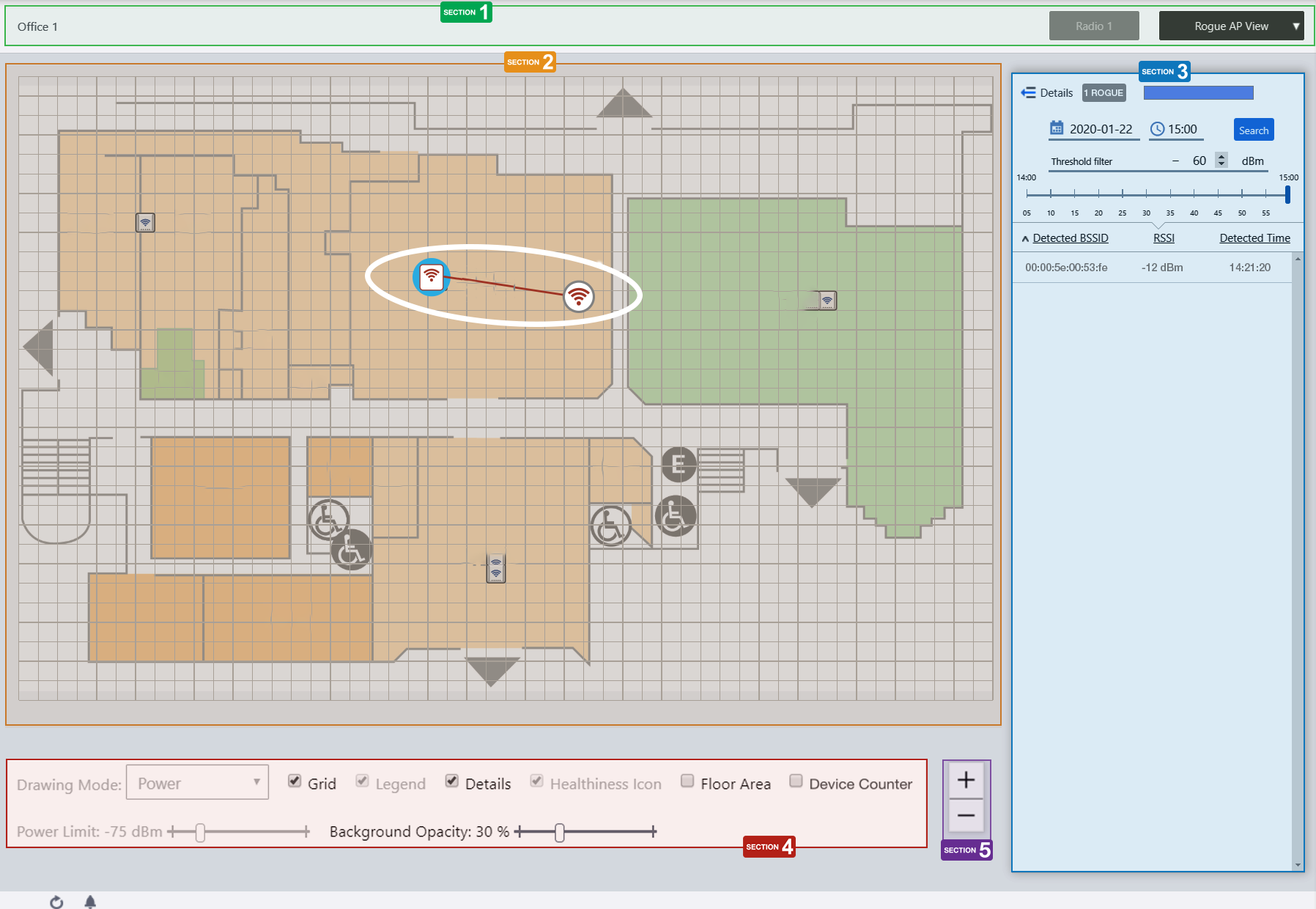
Section 1
| Item Name | Description |
|---|---|
| Management Group / Floor Map Group | The floor map name and the management group of the selected floor map will be displayed. |
| Radio dropdown menu | Disabled in Rogue AP View. |
| View Selection dropdown menu | Lets you change what information is displayed on the Floor Map Details screen.
|
| "Back to list" button | Click to return to the Floor Map List screen. |
Section 2
- Managed AP icons turn red on the map if there are rogue AP detection reports by the managed AP during the time period specified in section 3.
- Clicking a managed AP on the map toggles display status of the detected rogue APs.
Note
The position of the rogue AP icon does not represent the exact location of the rogue AP at the time. Icons are placed to not overlap with other icons in the history.
- When you click a rogue AP icon on the floor map, the corresponding entry in section 3 is highlighted.
Section 3
In Rogue AP View, "Refresh Timer" is disabled.
| Item Name | Description |
|---|---|
| Details | Clicking this shows the reason to consider the detected neighbor AP a rogue, the SSID, Channel and detecting AP, in addition to the default items (BSSID, RSSI and Detection Time). Clicking this again returns you to the default non-detailed view. |
| X ROGUE | Shows the number of rogue APs that match the specified time period and received signal strength. |
| Date/Time | Specify a date and time, to filter rogue APs on the list. You can enter a date in "YYYY-MM-DD hh:mm" format or select a day on the calendar that appears when you click the field. The time can be selected in one-hour intervals. Alternatively, a slider control lets you specify a more granular time. |
| Search | Filters rogue AP detection history by the specifed date/time. |
| Threshold Filter | Specify a minimum received signal strength for a rogue AP to be displayed. Rogue APs are only shown on the list and floor map if the received signal strength of the rogue AP is greater than the specified minimum value. |
| Slider Control | Lets you specify detection time in 5 minute intervals. |
| Rogue AP List | |
| Detected BSSID | Shows a list of BSSIDs that managed APs on the map detected. Clicking a rogue AP entry in the list toggles display of all rogue AP icons detected by the managed APs. When the display status of a rogue AP icon is enabled, you can highlight the rogue AP's icon on the floor map by hovering over the rogue AP entry in the list. |
| RSSI | Received Signal Strength of the rogue AP observed on the detecting managed AP. A higher value (closer to 0) means a stronger signal, therefore the rogue AP may be closer to the detecting managed AP. |
| Detected Time | Shows the date/time when the managed AP detected the rogue AP. |
Section 4
In the Rogue AP View, "Drawing Mode", "Legend", "Healthiness Icon", and "Power Limit" are irrelevant and disabled.

| Item Name | Description |
|---|---|
| Grid | Lets you enable or disable grid lines on the floor map. Checking this shows grid lines on the floor map. |
| Details | Toggles the visibility of the Rogue AP List. Check to display. |
| Floor Area | This item is not supported. |
| Device Counter | This item is not supported. |
| Wall | If walls have been created on the floor map (using the Edit Wall page), lets you choose whether to display the walls. Check to display. |
| Opacity | Specify the opacity of the floor map background image. |
Section 5
Zoom In/Out buttons.
You can zoom in (+) or zoom out (-) of the floor map display. You can also use the mouse wheel scroll to zoom in or out.

Rogue AP List (Detail)
Clicking "Details" at the top of the Rogue AP list on "Floor Map [Rogue AP View]" extends the list to show additional information such as Rogue Reason, SSID, Channel and Detecting AP.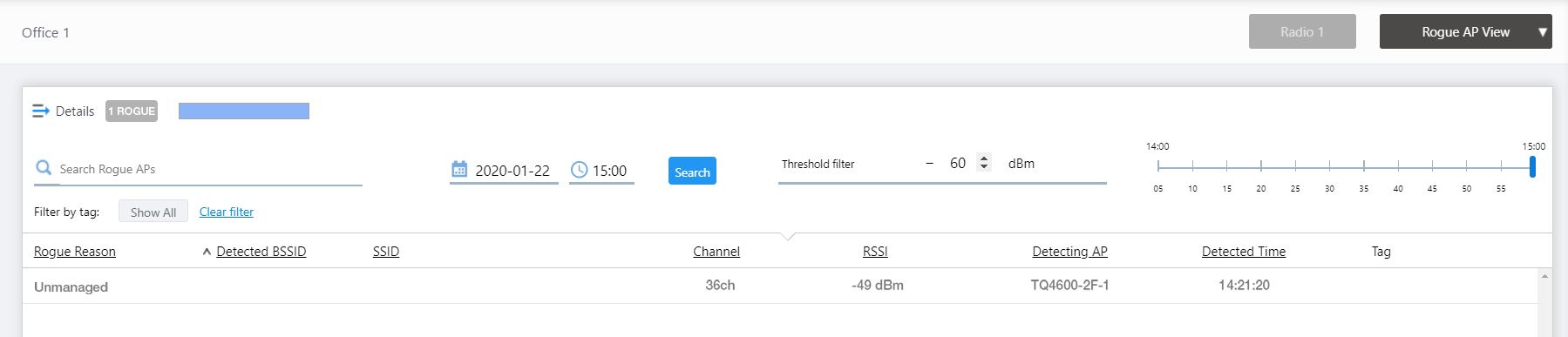
| Item Name | Description |
|---|---|
| Details | Clicking this shows the reason to consider the detected neighbor AP a rogue, the SSID, Channel and detecting AP, in addition to the default items (BSSID, RSSI and Detection Time). Clicking this again returns you to the default non-detailed view. |
| X ROGUE | Shows the number of rogue APs that match the specified time period and received signal strength. |
| Search Rogue AP | Entries in the list can be filtered by entering a partial string in the search box. The Search field lets you enter a partial string to match. The screen displays entries with that string in one of the following fields: "BSSID" or "SSID". To remove the filter, delete the string from the search field and press enter. NoteThe search is case-sensitive. |
| Date/Time | Specify a date and time, to filter rogue APs on the list. You can enter a date in "YYYY-MM-DD hh:mm" format or select a day on the calendar that appears when you click the field. The time can be selected in one-hour intervals. Alternatively, a slider control lets you specify a more granular time. |
| Search | Filters rogue AP detection history by the specifed date/time. |
| Threshold Filter | Specify a minimum received signal strength for a rogue AP to be displayed. Rogue APs are only shown on the list and floor map if the received signal strength of the rogue AP is greater than the specified minimum value. |
| Slider Control | Lets you specify detection time in 5 minute intervals. |
| Filter by tag | Lets you filter APs with tags. Clicking tags uses tags to filter the list. Clicking them again removes the filter. Clicking "Clear filter" removes the filter for all tags. |
| Rogue AP List | |
| Rogue Reason | Shows the reason to consider the detected neighbor AP a rogue. |
| Detected BSSID | Shows a list of BSSIDs that managed APs on the map detected. |
| SSID | Shows the SSID of the detected AP. |
| RSSI | Received Signal Strength of the rogue AP observed on the detecting managed AP. A higher value (closer to 0) means a stronger signal, therefore the rogue AP may be closer to the detecting managed AP. |
| Detecting AP | Shows the AP name which detected the neighbor AP. |
| Detected Time | Shows the date/time when the managed AP detected the rogue AP. |
| Tag | Shows tags added to the AP. |
14 Dec 2023 11:07