Configure AWC
This section describes the steps to configure AWC (Autonomous Wave Control) and automatically adjust the channel and power on APs in a particular Management Group.
The first AWC calculation begins one hour after the AWC Plug-in is started. Subsequent calculations begin one hour after the previous calculation has finished.
Please refer to Operation Reference > Autonomous Wave Control (AWC) > Use AWC for more details on AWC functions.
NoteAWC calculation and application is performed per Management Group. Therefore, the AWC calculation for a Management Group treats APs in other Management Groups as interfering sources.
NoteThe result of the AWC calculation is not automatically applied to APs. You need to configure AWC to apply its calculation. There are two ways to achieve this: use "Task Scheduling", or enable "Apply Immediately". Here we set up Task Scheduling for periodic application.When applying AWC calculation results changing the AP channels, or adjusting transmit power on APs, wireless clients connected to the AP will be disconnected.
NoteIf you enable "Apply Immediately", AWC calculation results are periodically (at about 1 hour intervals) applied to APs just after the calculation finishes.
Refer to Operation Reference > Autonomous Wave Control (AWC) > Edit AWC Settings for more details on instant application of the AWC calculation.
If you enable "Apply Immediately", we recommend disabling scheduled applications for the Management Group, to prevent AWC from applying old calculation results and overwriting the immediately-applied calculation results.
- Select "Wireless Maintenance" > "Task Scheduling" from the AWC Plug-in menu to display the "Schedule List".
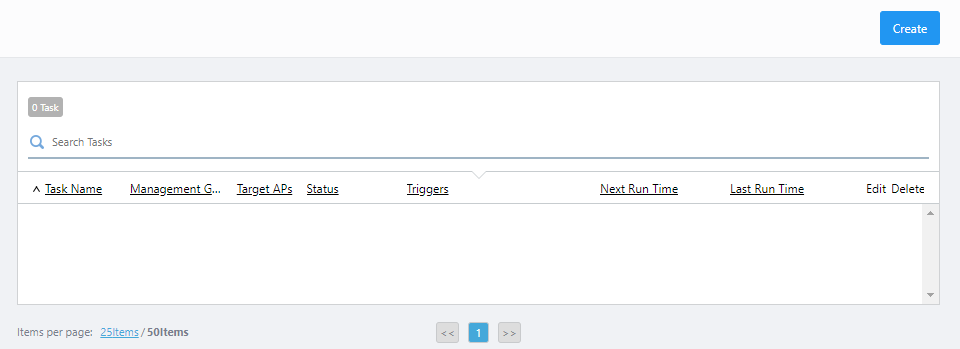
- Click "Create" at the top right of the screen.
The "Create Task Schedule" dialog will appear.
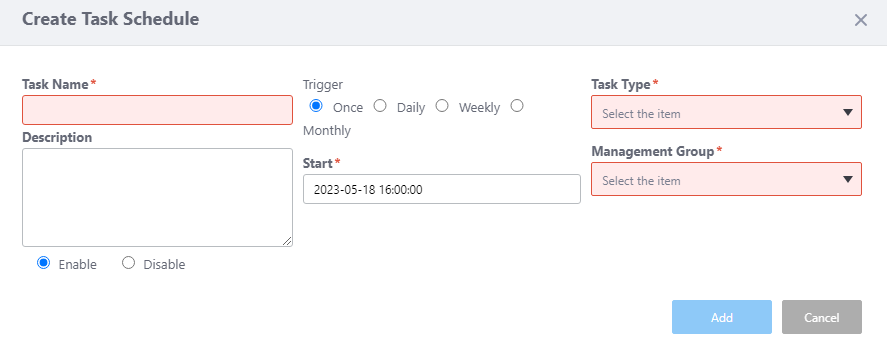
- Enter "Task Name".
Here we enter "6F Apply AWC Calculation".
- Enter "Description".
Here we leave it empty.
- Select "Enable" under the "Description" section.
This enables this scheduled operation.
- Select "Trigger".
Available options are "Once", "Daily", "Weekly" and "Monthly".
Here we select "Daily".
- Click the "Start" field.
- This pops up a calendar and time selector. Specify a date and time after which this operation becomes effective.
- You can directly enter the date and time in the text field in the format "YYYY-MM-DD hh:mm:ss".
- If you specify "Weekly" or "Monthly" in "Trigger", additional items will be shown for specifying days of the week, day of the month, and the month.
- This pops up a calendar and time selector. Specify a date and time after which this operation becomes effective.
- Select "Task Type".
Available options are "Apply Config", "Upgrade Firmware" and "Apply AWC Calculation Results".
Here we specify "Apply AWC Calculation Results".
- Select "Management Group".
Here we select "6F Group".
- Configure additional items according to the selected Task Type.
Refer to Operation Reference > Miscellaneous Settings > Manage Task Scheduling for more details on additional configuration elements.
Here we set "AWC Calculation Time" to "03:00". That means the AWC results calculated at 3 a.m. will be applied by the task scheduled at 3 p.m. every day.
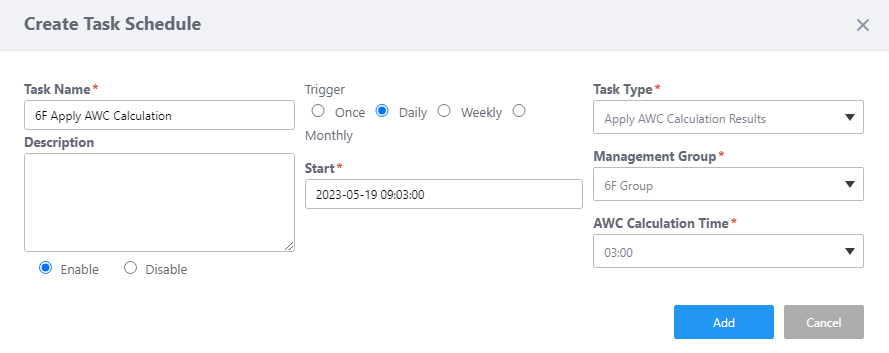
- Click "Add".
Now you can see the newly created task "6F Apply AWC Calculation" in the schedule list.
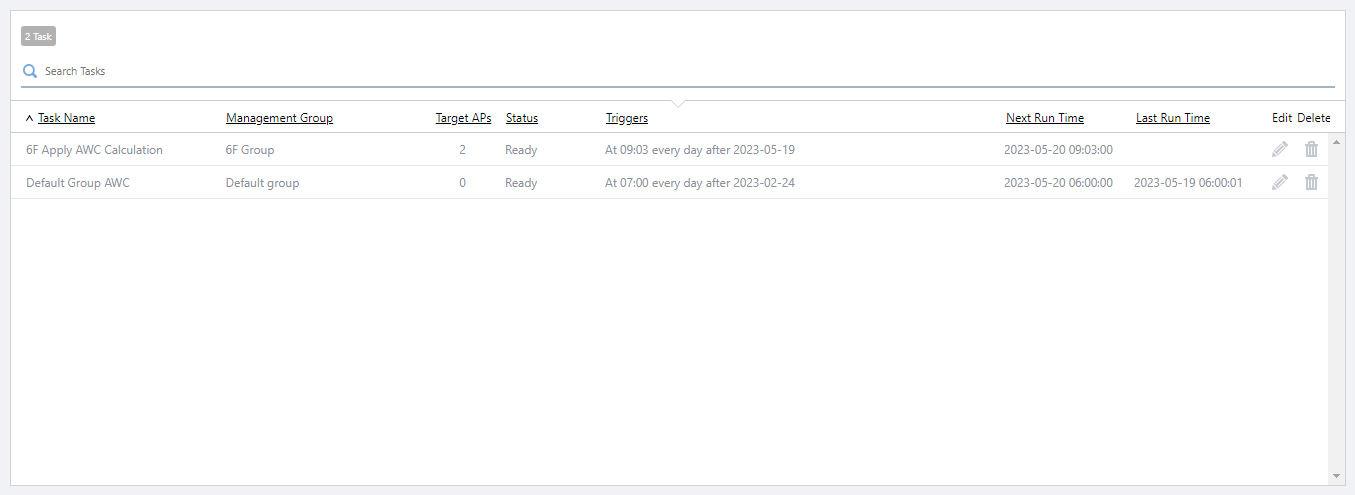
NoteThe results of the operation can be seen by viewing the current channel and power of the APs, and the logs.The results of the AWC calculation applied by the AWC plug-in is determined by starting from a date and time that matches the calculated time within 24 hours of the schedule execution.
From the AWC calculation results that exist within two hours before the date and time that matches the calculation time, the one nearest to the calculation time will be applied.
(Example)
Assume that you have registered a schedule for the application of AWC calculation results with the following settings:
In this case, when the schedule is executed at 3:00 on April 1, 2017, the AWC calculation results of the date and time closest to the calculation time (15:00) within the range of
- - AWC calculation time: 15:00
- - Triggers: Daily
- - Start: 2017-04-01 03:00:00
13:00 on March 31, 2017 to 15:00 on March 31, 2017
will be applied.
If the AWC calculation results for March 31, 2017 exist as follows:
... 13:40, 14:40, 15:40, ...
the AWC calculation results at 14:40 on March 31, 2017 will be applied.
- Channel and Power
You can confirm the currently used channel and transmit power for each AP on the Floor Map [Wireless Status View] page.
- Log
Logs of the AWC Calculation Apply Operations are only displayed when the calculation result has been applied to all APs in the Management Group.
This log can be viewed by an Admin.
Refer to Screen Reference > Wireless Monitoring > Management Log for information on how to view logs.
◼ Notes
AWC calculation results will not be correctly applied to APs in the following situations:
- If an AP's profile and/or configuration were changed after the AWC calculation was performed.
- If "Neighbor AP Detection" is disabled in the AP Profile (Profile Type: Dual[11ax], Tri[11ac Wave2], Tri[11ac Wave2] with External Antenna, Dual[11ac Wave2]).
- If "Neighbor Managed AP Detection" is disabled in the AWC Settings for the management group.
- If an AP left the control of the AWC Plug-in after the AWC calculation was performed.
- If the operation on the APs failed for some other reason.
Application of the AWC calculation stops if a failure occurs.
29 Apr 2025 14:51