Wireless AP Connection
Add the registered AP under the management of AWC-SC.
Apply AP Profile
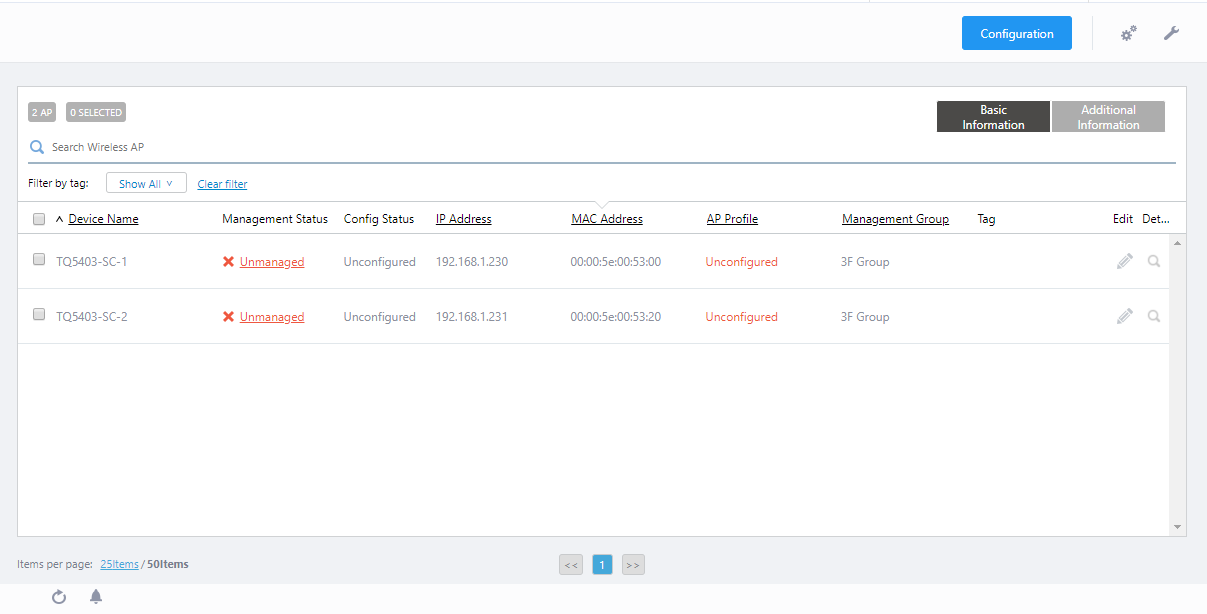
Next, you have to assign an AP Profile to the AP.- Select "Wireless Configuration" > "AP Settings" from the AWC Plug-in menu.
The AP list screen will appear.
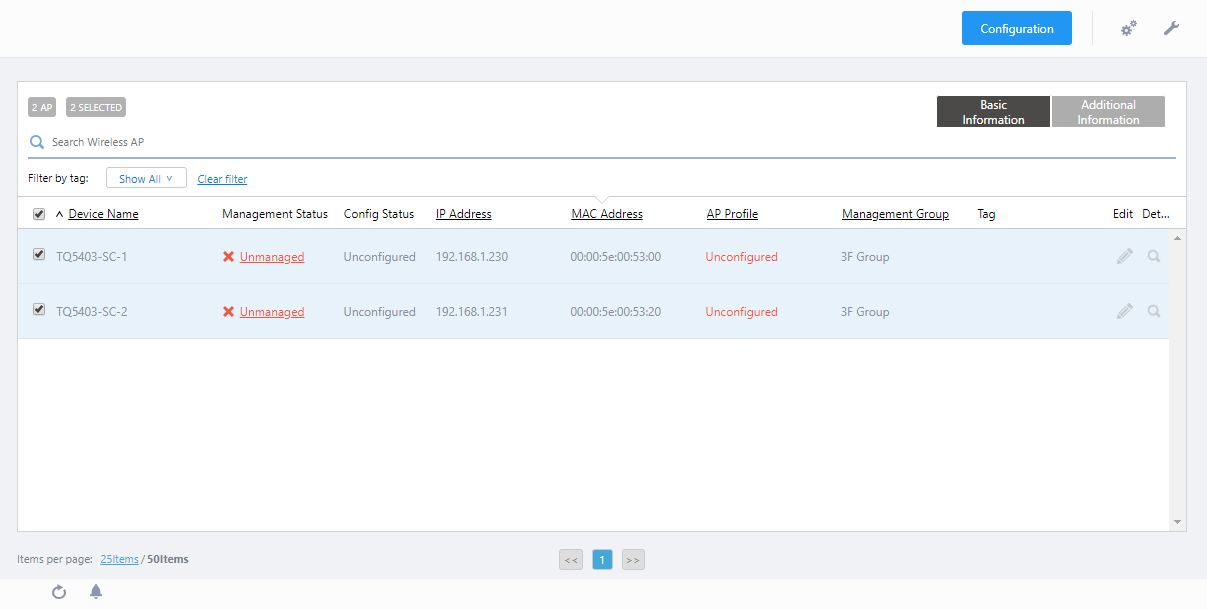
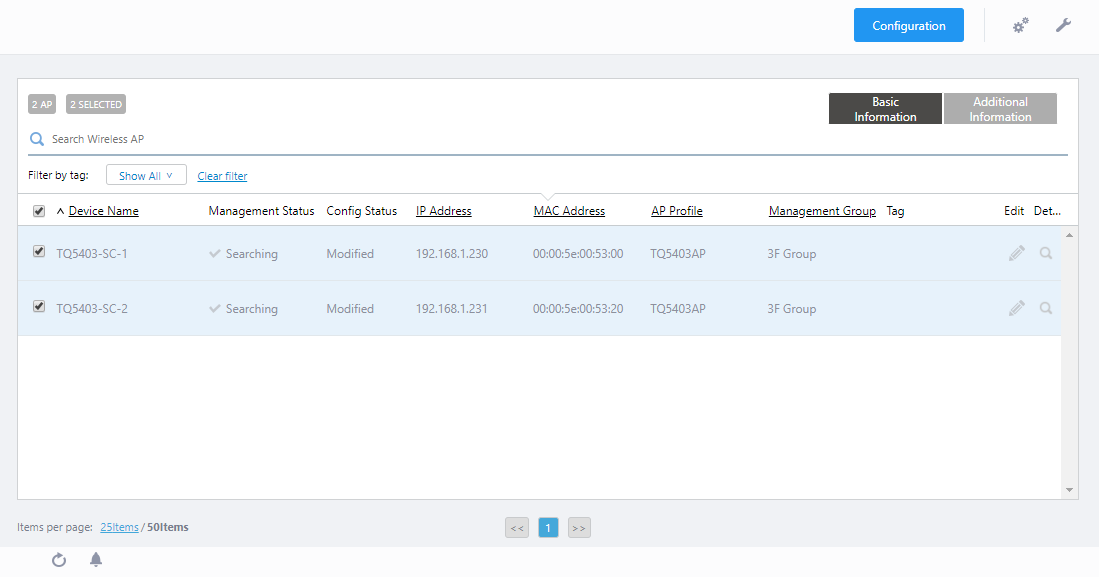
- Check both "TQ5403-SC-1" and "TQ5403-SC-2".
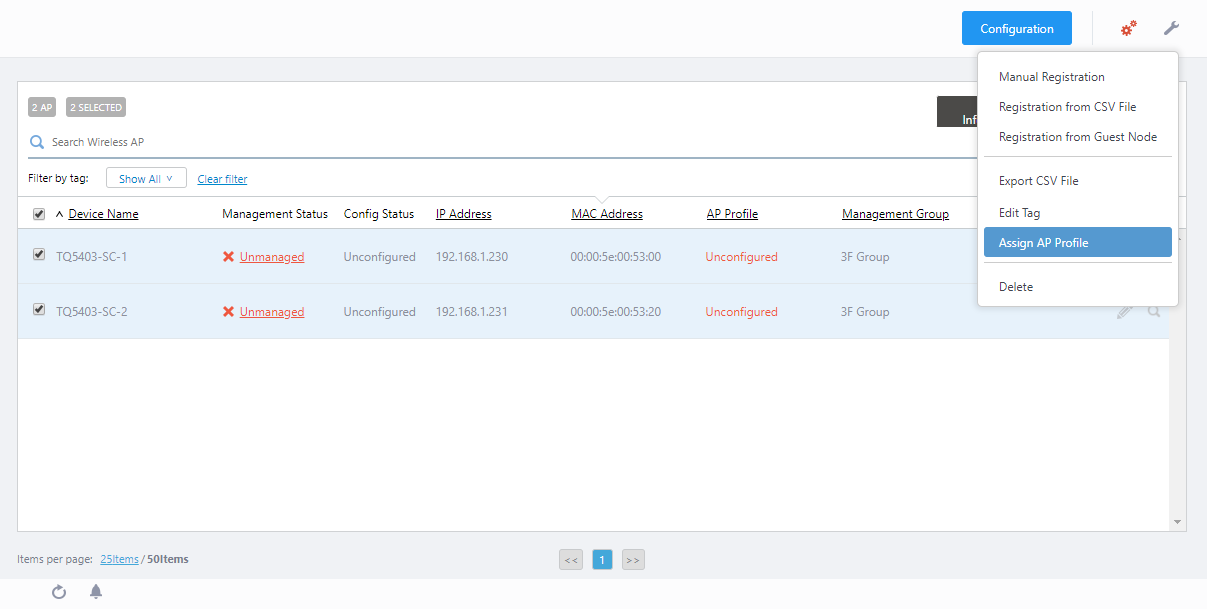
- Put the mouse cursor on the gear icon at the top right of the screen and select "Assign AP Profile" from the submenu.
The "AP Profile Assignment" dialog box will appear.
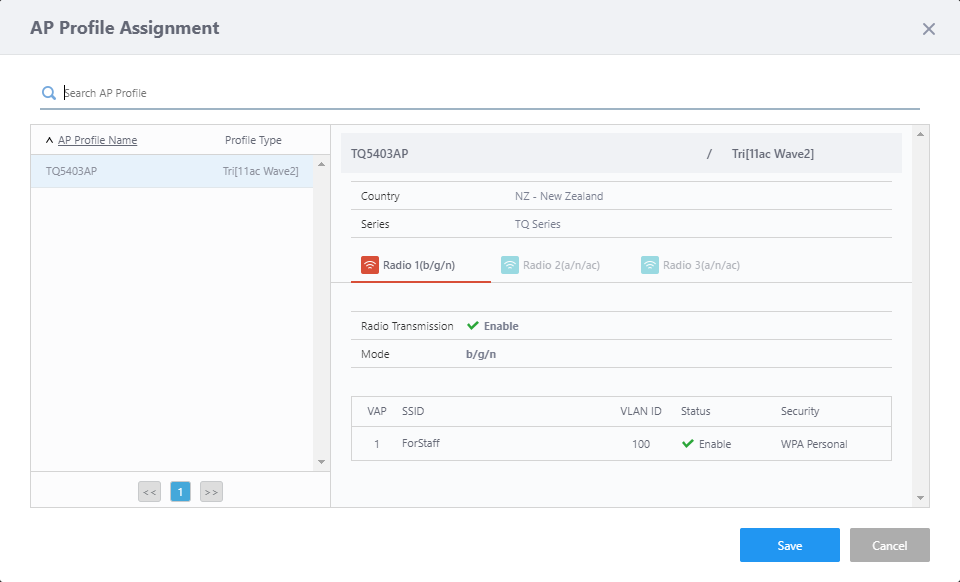
- Make sure that the AP Profile "TQ5403AP" created in Create AP Profile is selected in the AP Profile list, Click "Save".
- When you are back to the AP list screen, you can see that the target APs' "Management Status" and "Configuration Status" were changed to "Searching" and "Modified" respectively.
Add Root AP
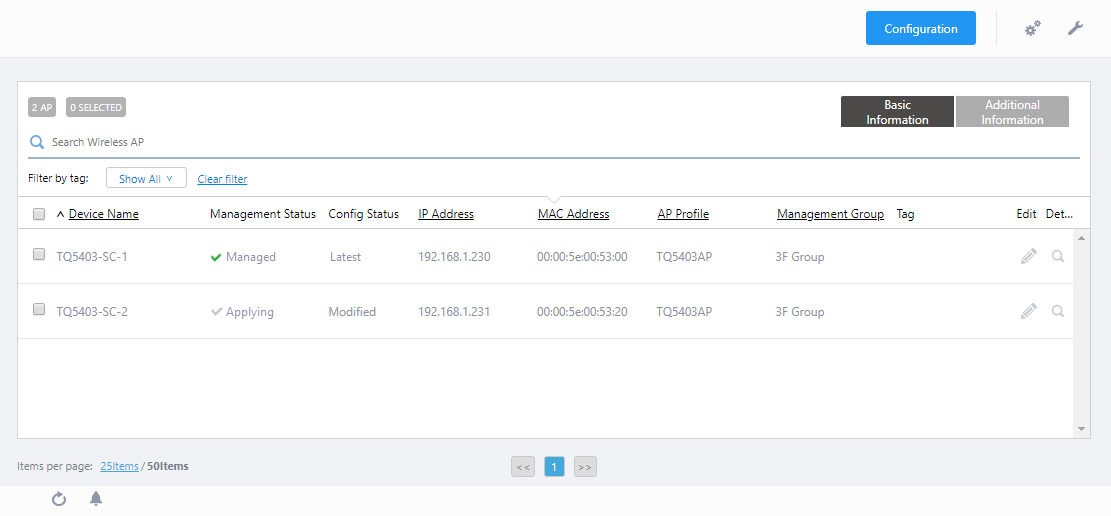
Next, add the Root AP.- Connect the "TQ5403-SC-1" operating as a Root AP to the network under the management of the AWC Plug-in using a UTP cable.
- When the connection of "TQ5403-SC-1" is recognized by the polling of the AWC Plug-in, the assigned AP Profile, CB Profile, and SC Profile are applied.
When you are back at the AP list screen, the "Management Status" of the target AP changes from "Applying" to "Managed".
Add Satellite AP (LAN Configuration)
Next, add the Satellite AP.- Connect the "TQ5403-SC-2" operating as a Satellite AP to the network under the management of the AWC Plug-in using a UTP cable.
- When the connection of "TQ5403-SC-2" is recognized by the polling of the AWC Plug-in, the assigned AP Profile, CB Profile, and SC Profile are applied.
When you are back at the AP list screen, the "Management Status" of the target AP changes from "Applying" to "Managed".
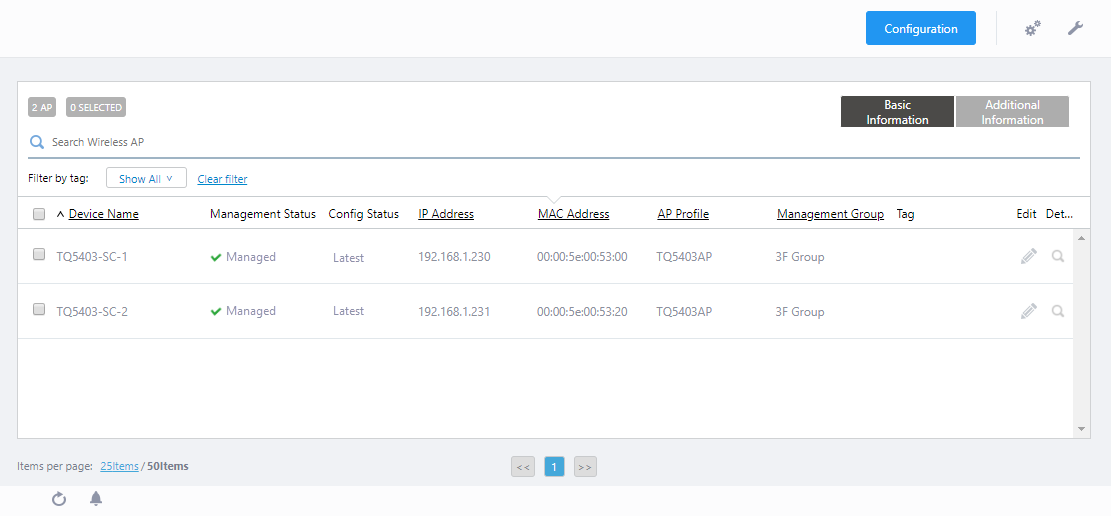
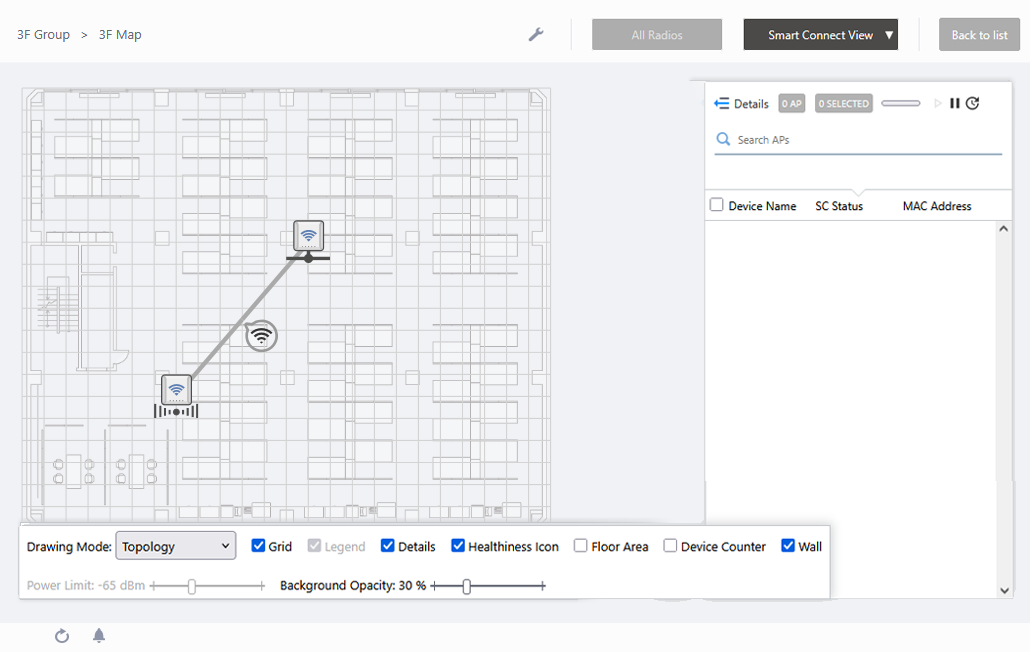
- Confirm that the "Management Status" of "TQ5403-SC-2" is "Managed" and disconnect the UTP cable from "TQ5403-SC-2".
29 Apr 2025 14:51