Create Channel Blanket
This section explains how to create channel blankets using CB Profiles.
With CB profiles, you can create a channel blanket on each floor and give different channel blankets the same configuration by giving them the same CB profile.
Create Channel Blanket
- Select "Wireless Configuration" > "CB Profile" from the AWC Plug-in menu.
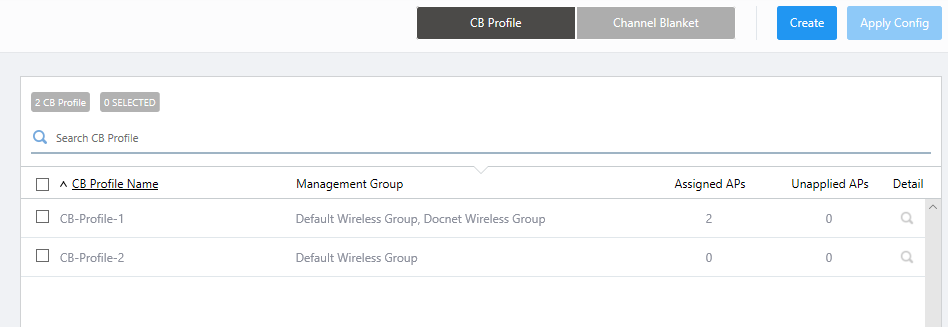
- Click "Detail" (magnifying glass icon) to the right of the CB Profile you want to edit.
Configuration information for the CB Profile is displayed.

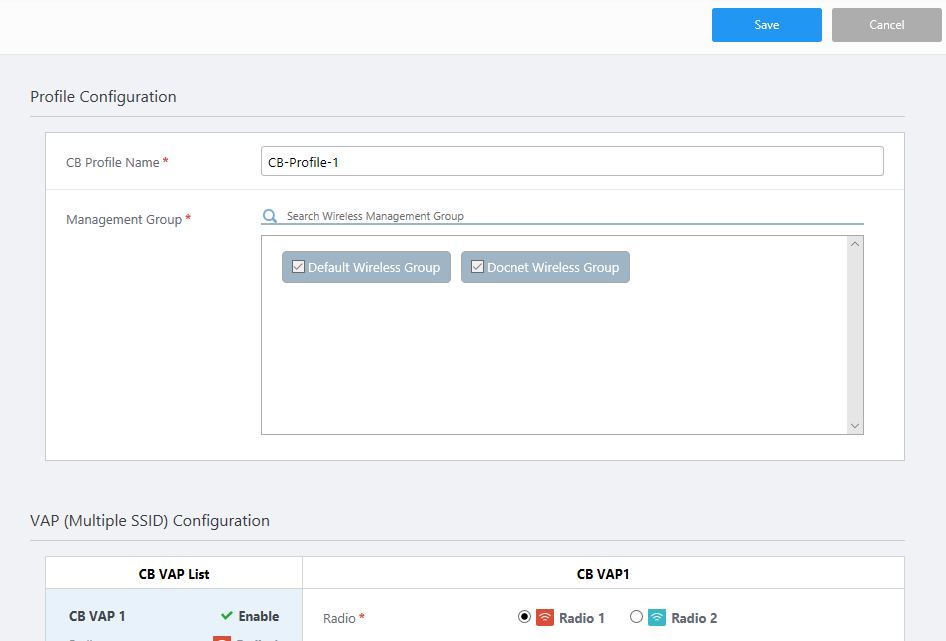
- Click "Edit" at the top right of the Content section.
The "Profile Configuration" page will appear.
- In the "Channel Blanket List" at the bottom of the Contents section, select "Create" from the settings menu (gear icon) in the upper right corner.
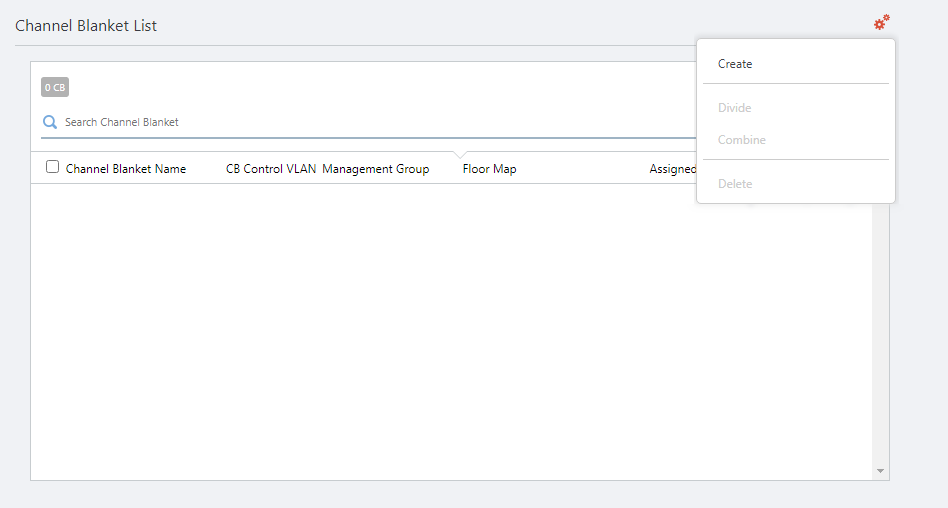
The "Create Channel Blanket" dialog box will appear.
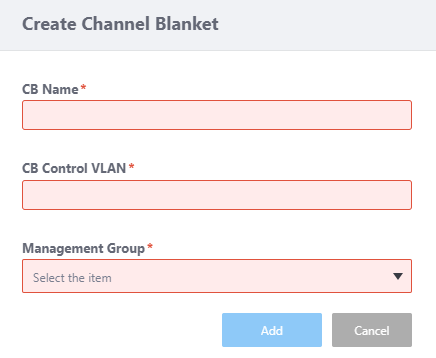
Table 1: "Create New Channel Blanket" dialog box Item Name Description CB Name Enter a name for the channel blanket. Should be 1 to 100 characters in length, with alphabets, numbers, and symbols (space ! # $ % & ' ( ) ` @ + - , _ = ^ ~ [ ] { } ;) (mandatory)
Note
In the AT-VST-APL version, non-ASCII characters (full-width alphabets, numbers, kana, kanji, and symbols) cannot be used.
CB Control VLAN Specify the Control VLAN ID (between 1 and 4094) to use for the channel blanket (mandatory)
Note
For the CB Control VLAN, specify a VLAN ID that is different from the Control VLAN ID of the APs or the VLAN ID of the VAPs.
Management Group Select the Management Group to which the APs in the channel blanket belong. Select a Management Group from the ones selected for the CB Profile (mandatory) - When you have entered all required information for the floor map, click "Add".
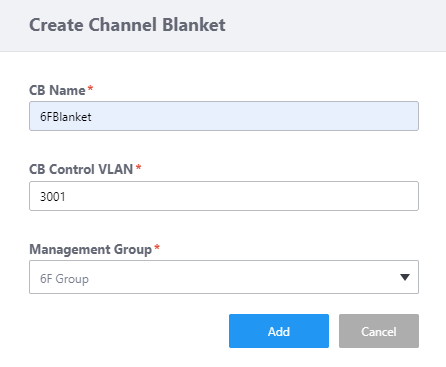
Now you can see the newly created channel blanket in the list on the "Channel Blanket List" page.

- Click "Save" at the top right of the screen to save the configuration.
To add APs to the new channel blanket, go to step 4 of Add or Remove APs from Channel Blanket.
Add or Remove APs from Channel Blanket
To select APs that belong to an existing channel blanket, do the following steps.If you want to do this straight after creating a channel blanket in Create Channel Blanket, start from step 4.
- Select "Wireless Configuration" > "CB Profile" from the AWC Plug-in menu.
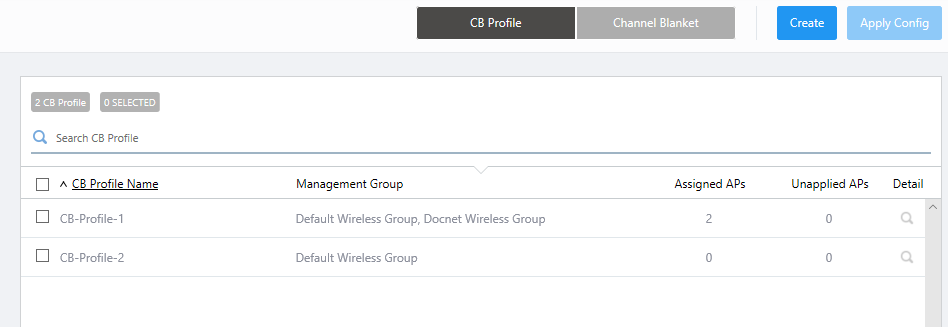
- Click "Detail" (magnifying glass icon) to the right of the CB Profile you want to edit.
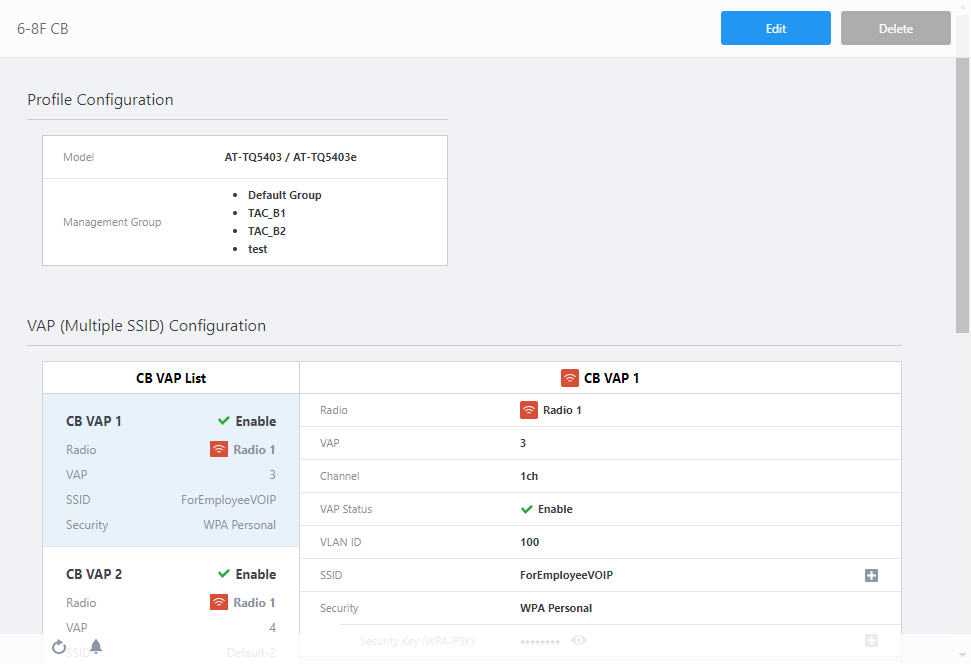
- Configuration information for the CB Profile is displayed. Click "Edit" at the top right of the Content section.
The "Profile Configuration" page will appear.

- In "Channel Blanket List" at the bottom of the Content section, click the "AP List" button for the channel blanket you want to add APs to.

The "AP List" dialog box will appear.
The selected channel blanket name is displayed in the dialog box tilte.
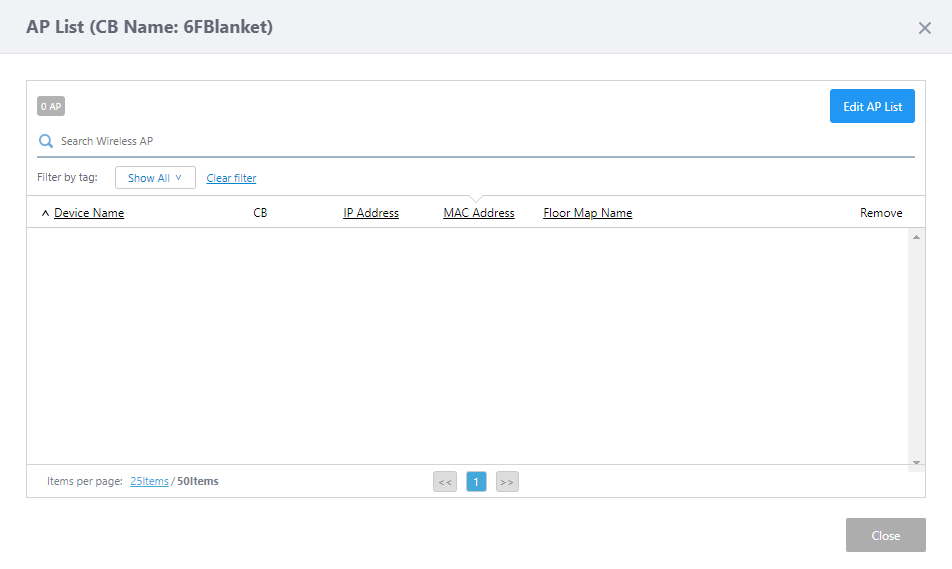
Table 2: "AP List" dialog box. Item Name Description X AP Shows the number of APs that belong to the channel blanket. "Edit AP List" button Lets you select member APs to belong to the channel blanket.
The "Add/Remove APs" dialog box will appear.Search Wireless AP Filter entries in the list by entering a partial string in the search box.
The Search field lets you enter a partial string to match. The screen displays entries with that string in one of the following fields: "Device Name", "IP address", "MAC address", "Floor Map Name", "Management Group", "AP Profile", "Device Type", "Current Firmware" or "Serial Number".
To remove the filter, delete the string from the search field and press enter.
Note
The search is case-sensitive.
Filter by tag Lets you filter APs with tags.
Clicking tags uses tags to filter the list. Clicking them again removes the filter. Clicking "Clear filter" removes the filter for all tags.
Note
To select tags, you have to switch the list to detailed mode (by clicking "View Details").
Tag All tags are displayed under the "Search Wireless AP" box. Device Name Shows the name of the AP. CB Indicates whether the wireless AP model supports Channel Blanket, as "Support" or "Unidentified".
Note
Whether channel blanket is supported is indicated by determining the MAC address of the selected device, based on the AWC Plug-in's built-in MAC address range information for supported models. Depending on the version of the AWC Plug-in used and the manufacture date of the device, the message "Unidentified" may be displayed even if the device legitimately supports Channel Blanket.
IP Address Shows the AP's IP address. MAC Address Shows the device's MAC address. Floor Map Name Shows a floor map name where the AP is placed. Remove (Trashbin icon) Lets you remove the AP from the channel blanket. "Close" button Closes the "AP List" dialog box and goes back to the "Edit CB Profile" page. - Click the "Edit Member AP" button at the top right of the dialog box.
The "Add/Remove APs" dialog box will appear.
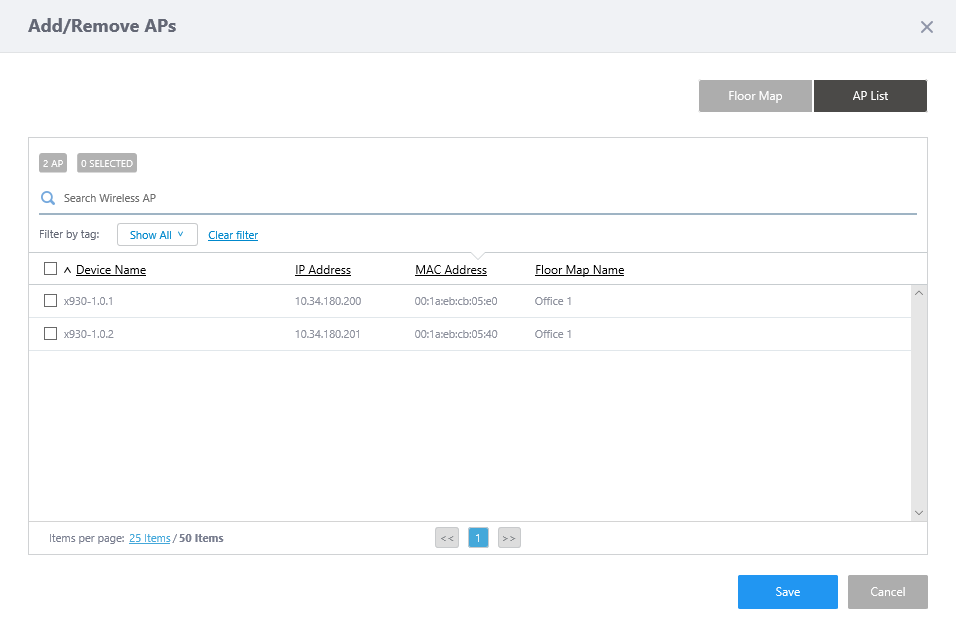
Table 3: "Add/Remove APs" dialog box Item Name Description Top of the dialog box "AP List" button Switches to the Wireless AP list.
You can select APs for the channel blanket from the list."Floor Map" button Switches to the Floor Map list.
You can open a floor map and select APs for the channel blanket on the map.Wireless AP List
Search Wireless AP Filter entries in the list by entering a partial string in the search box.
The Search field lets you enter a partial string to match. The screen displays entries with that string in one of the following fields: "Device Name", "IP address", "MAC address", "Floor Map Name", "Management Group", "AP Profile", "Device Type", "Current Firmware" or "Serial Number".
To remove the filter, delete the string from the search field and press enter.
Note
The search is case-sensitive.
Filter by tag Lets you filter APs with tags.
Clicking tags uses tags to filter the list. Clicking them again removes the filter. Clicking "Clear filter" removes the filter for all tags.
Note
To select tags, you have to switch the list to detailed mode (by clicking "View Details").
Tag All tags are displayed under the "Search Wireless AP" box. Checkbox Lets you select APs. A checkbox in the header row can be used to check or uncheck all APs. Unchecking the box in the heading row deselects all entries in the list. Device Name Shows the name of the AP. CB Indicates whether the wireless AP model supports Channel Blanket, as "Support" or "Unidentified".
Note
Whether channel blanket is supported is indicated by determining the MAC address of the selected device, based on the AWC Plug-in's built-in MAC address range information for supported models. Depending on the version of the AWC Plug-in used and the manufacture date of the device, the message "Unidentified" may be displayed even if the device legitimately supports Channel Blanket.
IP Address Shows the AP's IP address. MAC Address Shows the device's MAC address. Floor Map Name Shows a floor map name where the AP is placed. Save Saves the member AP information. Back Goes back to the "AP List" page without saving the member AP information. Floor Map List 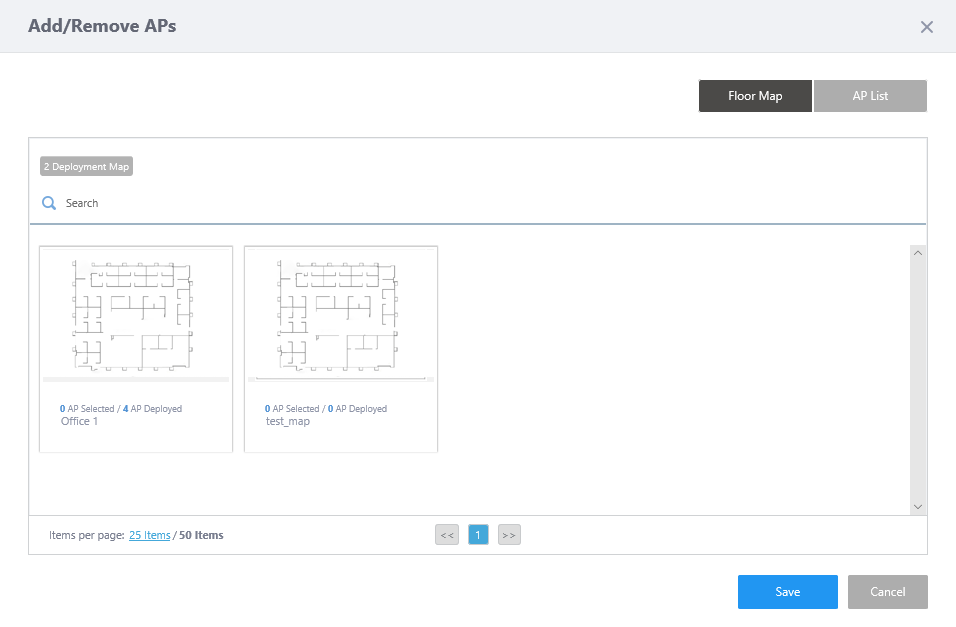
X Deployment Map Shows the number of floor maps. Search Floor Map Filter entries in the list by entering a partial string in the search box.
The Search field lets you enter a partial string to match. The screen displays entries with that string in one of the following fields: "Floor Map Name", "Management Group Name" or "Tag".
To remove the filter, delete the string from the search field and press enter.
Note
The search is case-sensitive.
Floor Map Panels Each floor map is shown as a panel. The name of the floor map and the number of APs placed on the map are shown below the panel.
When you mouse-over a panel, the "View Details" menu will appear on the panel. Clicking on a panel or the "View Details" menu item moves you to a floor map details page.Items per page Specifies the number of items per page. << Goes to the first page of the list. (Page Number) Shows the current page number in the list. >> Goes to the last page of the list. Save Saves the member AP information. Back Goes back to the "Edit CB Profile" page without saving the member AP information. Floor Map Details 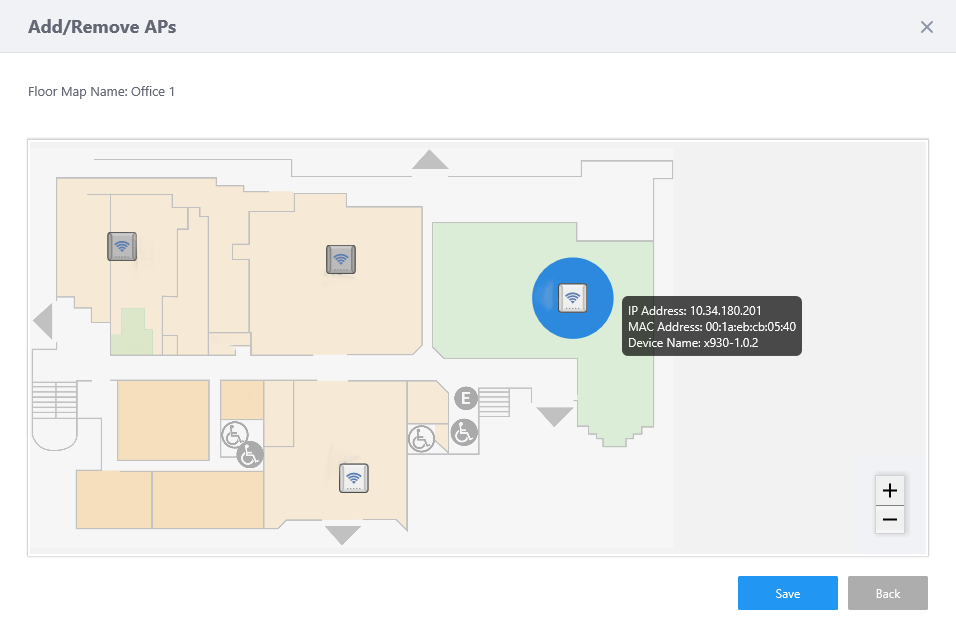
Floor Map Name Shows the floor map name. Floor Map The floor map and APs on the map are shown.
- When you hover over an AP, its IP address, MAC address, model name and availability of channel blanket support will pop up.
- When you click an AP icon, a blue circle will appear around the AP and show that it is selected. You can select multiple APs.
- Clicking an AP icon again deselects it.
- An AP Icon in dark gray shows that the AP already belongs to another channel blanket.
Save Saves the member AP information. Back Goes back to the "Floor Map List" page without saving the member AP information. - When you hover over an AP, its IP address, MAC address, model name and availability of channel blanket support will pop up.
- Select APs to add to the channel blanket, then click "Save".
You can see the added APs on the "AP List" dialog box.
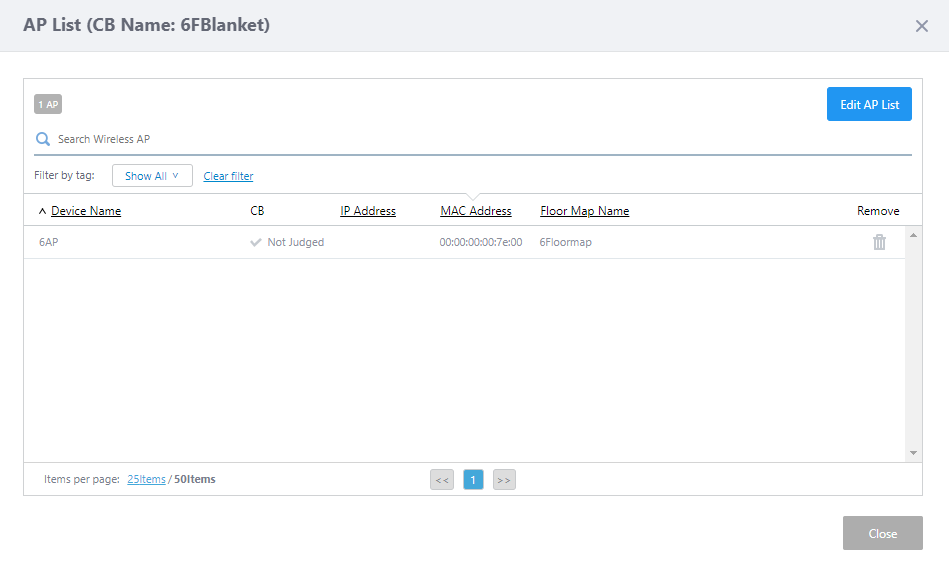
- Click "Close" on the "AP List" dialog box.
This returns you to the "Edit CB Profile" page.
The "Number of Assigned APs" reflects the newly added APs.
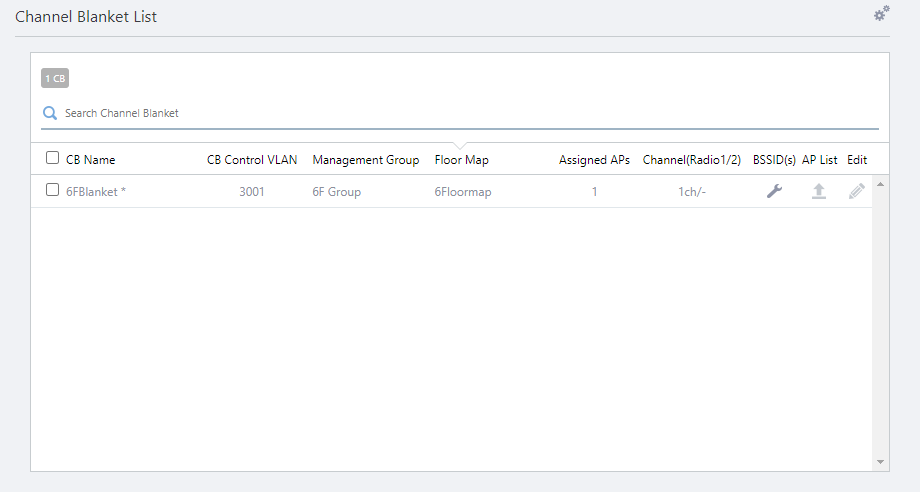
- Click "Save" at the top right of the "Edit CB Profile" page.
The "CB Profile Details" page will appear.
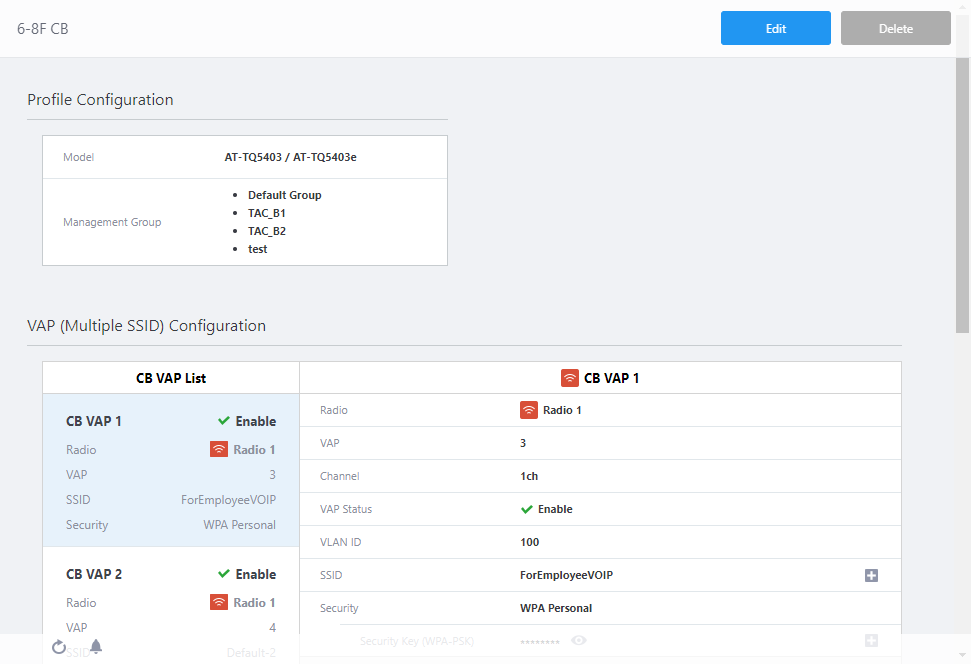
You have to apply a CB Profile to APs so that any changes to the CB Profile (including newly created profiles) become effective.
Divide and Combine Channel Blanket
When numerous APs belong to a single channel blanket, wireless client throughput may be reduced and communication may become unstable.In addition, if many smaller channel blankets are created, roaming may occur because wireless clients' associate information is not shared among channel blankets, and the benefits of channel blankets may not be taken advantage of.
To achieve the appropriate channel blanket size, you can divide or combine them using the AWC plug-in suggestions.
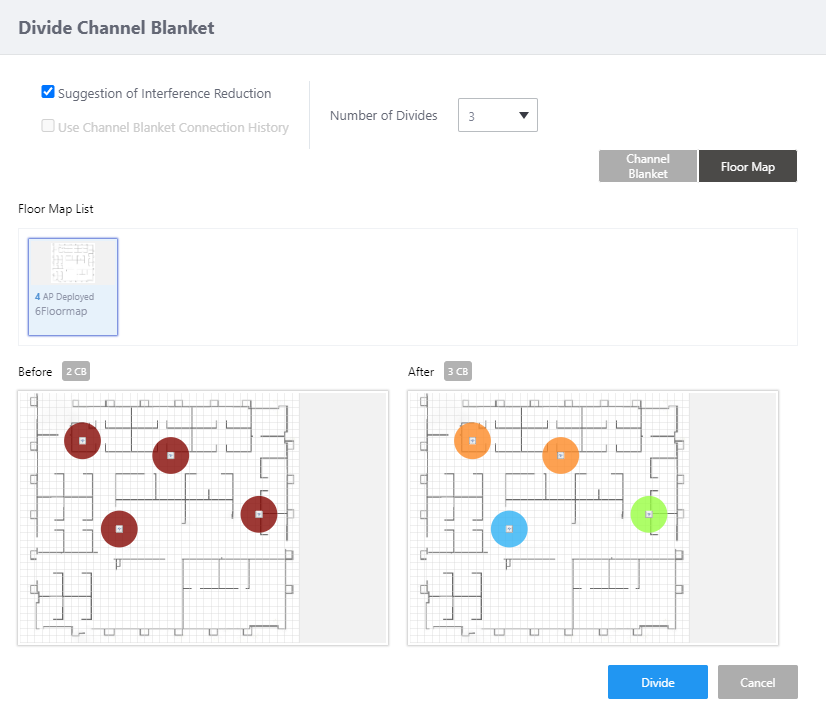
Divide Channel Blanket
It can improve communication conditions by learning about the movements of associating clients and other factors, and by dividing the channel blanket into groups according to the environment in which they are used.NoteIn order to perform a channel blanket division, all wireless APs belonging to the channel blanket must be arranged in a floor map.
- In the channel blanket list, check the channel blanket to be divided.
If multiple channel blankets are registered, multiple selections can be made.
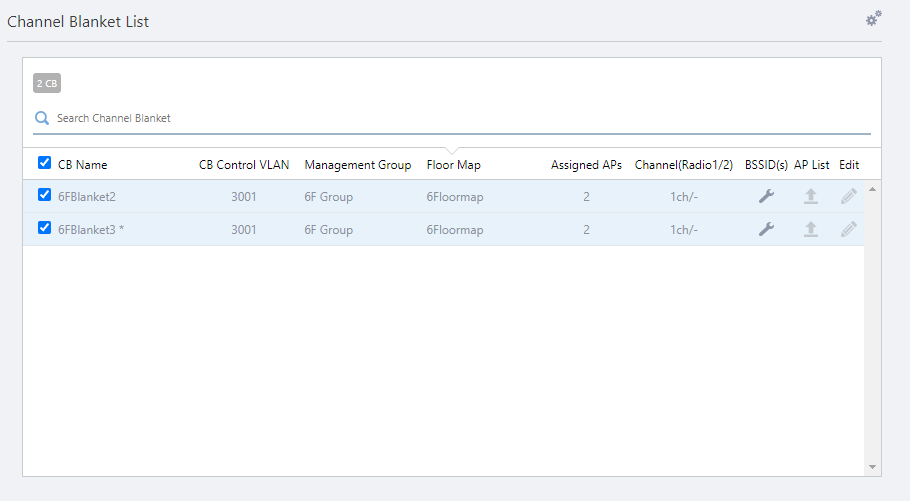
- From the settings menu (gear icon) in the upper right corner, select "Divide".
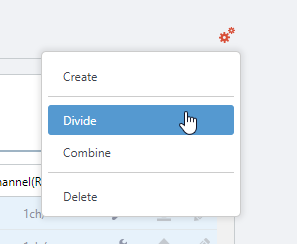
The "Divide Channel Blanket" dialog box will appear.
- In the "Divide Channel Blanket" dialog, specify the method and the Number of Divides.
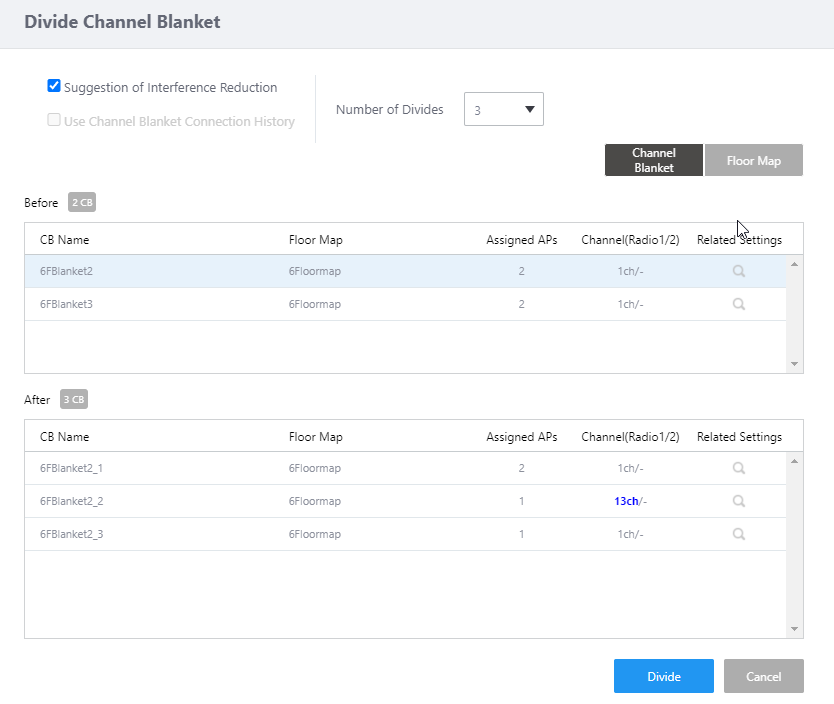
The AWC plug-in proposes an example of dividing into the appropriate number of channel blankets, taking into account their location on the placed floor map. If multiple channel blankets are selected, these blankets are considered as if those channel blankets were once combined, and then the calculation will be performed to determine the appropriate number of blankets and belonging APs.
Table 4: Divide Channel Blanket Item Name Description Suggestion of Intereference Reduction Similarl to channel blankets being combined or divided, channel allocations are proposed to reduce radio interference in the newly proposed channel blankets.
By default, this option is checked.Use Channel Blanket Connection History If the wireless client connection history is set to enabled and the connection history to the channel blanket has accumulated for at least one day, a channel blanket division is proposed based on the connection history.
By default, this option is not checked.Number of Divides Specifies the number of channel blanket divisions, either automatically or manually with a value between 2 and 5.
Number of Divides is set to "Auto" by default. Depending on the number of your APs, the number of channel blankets may be less than the number of blankets originally selected.
If a value between 2 and 5 is manually selected, the wireless AP is divided into the specified number of channel blankets for optimal communication. If there are only a few APs belonging to the original channel blankets, the benefits of channel blanketing may not be obtained, such as creating a channel blanket consisting of a single wireless AP; in this case, the number of divisions should be reduced.
The name of the channel blanket after the split will be the name of the one you selected from the "Before" list at the top of the dialog box, with an underscore (_) and a suffix number, as in "blanket_name_1" and "blanket_name_2". These can be changed later if necessary.
For each channel blanket where there is a change in the channel used, the channel after the division is highlighted in blue and bold numbers.
In addition, by selecting "Floor Map" from the "Divide Channel Blanket" dialog's upper right display format button, you can see a color-coded image of the channel blankets to which the APs belong after the division.
- If the proposal is acceptable, click the "Divide" button.
The blanket list will reflect the information of the channel blankets after the division.
- Click "Save" at the top right of the "Edit CB Profile" page.
The "CB Profile Details" page will appear.
To reflect this in actual operation, perform "Apply CB Profile".
Combine Channel Blankets
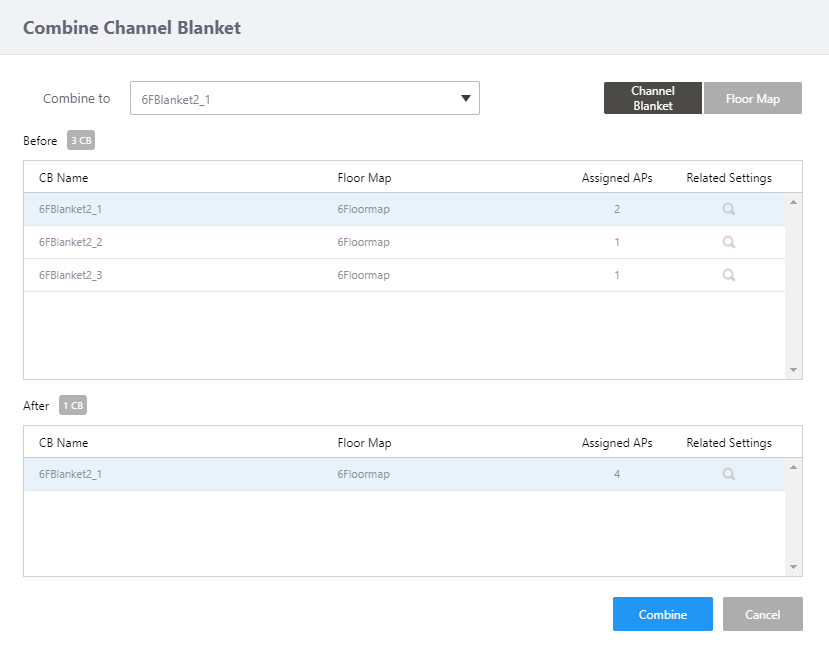
Combining overly subdivided channel blankets may result in a more comfortable service area.- In the channel blanket list, check multiple channel blankets to be combined.
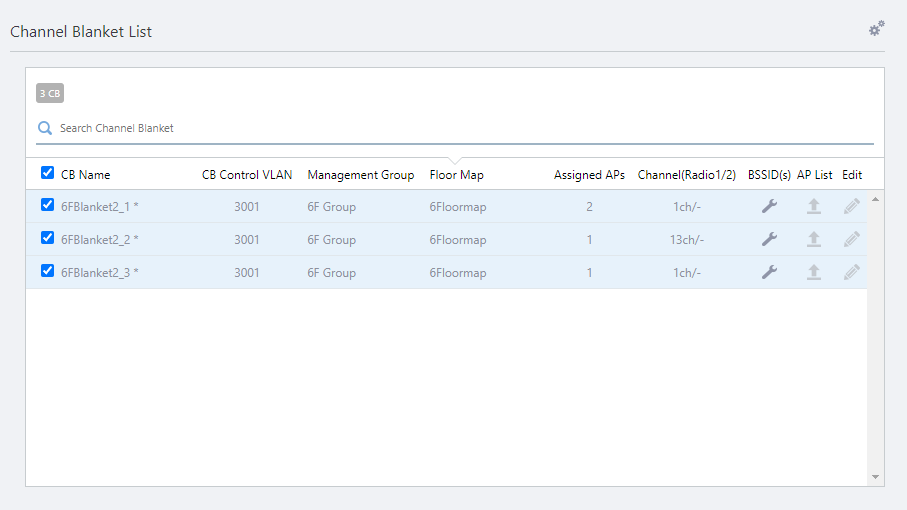
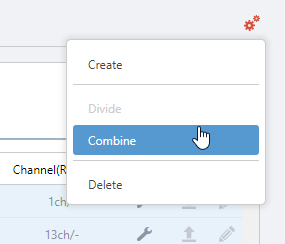
- From the settings menu (gear icon) in the upper right corner, select " Combine".
The "Combine Channel Blanket" dialog box will appear.
- In the "Combine Channel Blankets" dialog, specify the name of the combined channel blanket.
The default is the topmost of the selected channel blankets.
This can be changed later if necessary.
In addition, by selecting "Floor Map" from the "Combine Channel Blankets" dialog's upper right display format button, you can see a color-coded image of the channel blankets to which the APs belong after the combination.
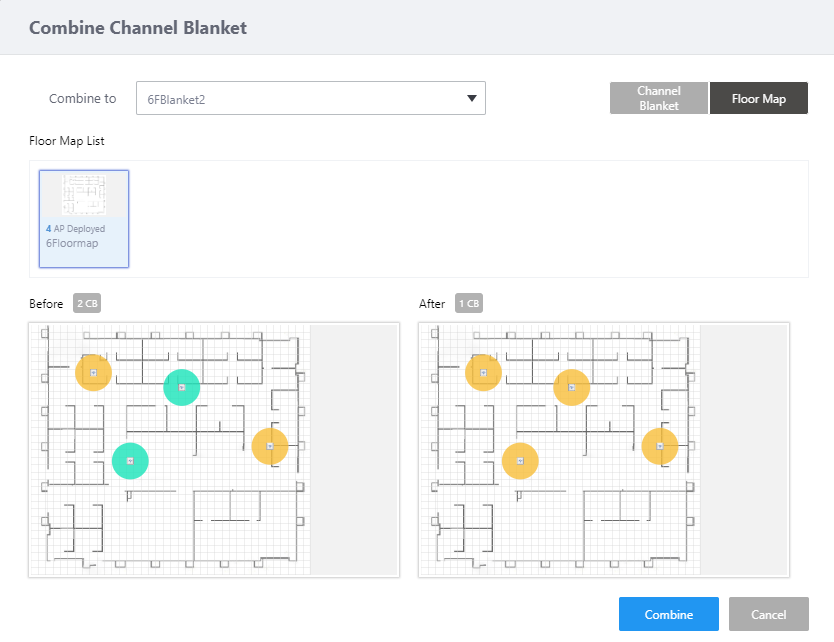
- If you like the proposed change, click the "Combine" button.
The blanket list will reflect the information of the channel blankets after the combination.
- Click "Save" at the top right of the "Edit CB Profile" page.
The "CB Profile Details" page will appear.
To reflect this in actual operation, perform "Apply CB Profile".
Apply CB Profile
To make a channel blanket operational, you have to apply a CB Profile to member APs.Apply CB Profile to Factory Default AP
To apply a CB Profile to APs, the APs should have an AP Profile applied and should be in "Managed" state.If an AP Profile has not been applied to the APs, refer to Operation Reference > Wireless Configuration > Manage AP Registration and Operation Reference > Wireless Configuration > Change Management Group or AP Profile for AP and apply an AP Profile to them.
If they belong to a channel blanket, a CB Profile and AP-specific configuration will be applied to them when you apply an AP Profile to them. Then the APs will become managed and multi-channel and blanket networks will be up and running.
Apply CB Profile to Operating AP
If the APs have already had an AP Profile applied to them, you can change their settings (CB Profile, AP Profile and AP-specific configuration) on the "CB Profile List" page.The new configuration will be applied to all APs in channel blankets based on a specific CB Profile, or will be applied to all APs in a specific channel blanket.
Apply CB Profile to All Channel Blankets with the Profile
- Select "Wireless Configuration" > "CB Profile" from the AWC Plug-in menu.
The "CB Profile List" page will appear.
The page shows all CB Profiles.
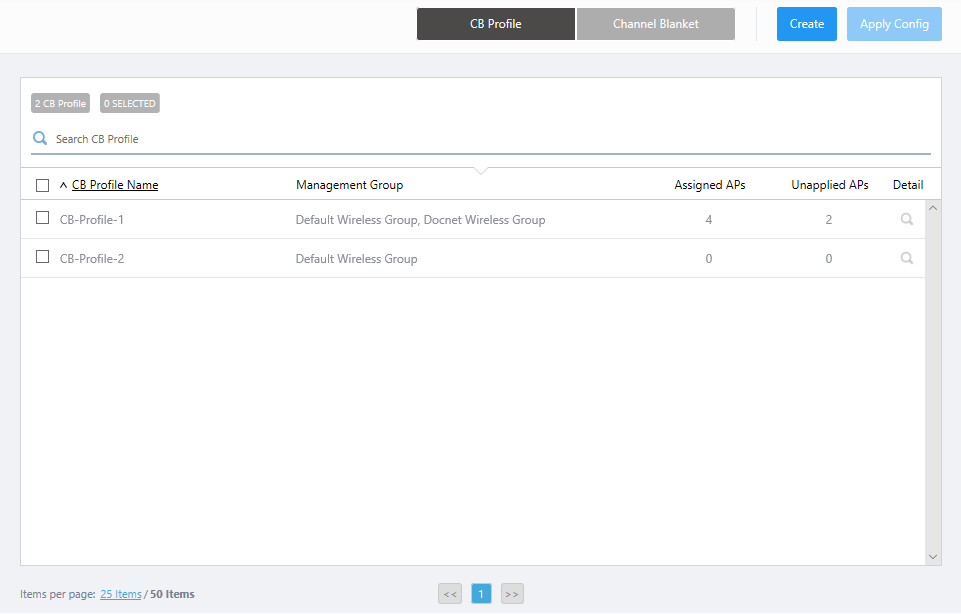
Table 5: CB Profile List Item Name Description X CB Profile Shows the number of CB Profiles. X SELECTED Shows the number of selected CB Profiles. Search CB Profile. Lets you search and filter CB profiles in the list.
The Search field lets you enter a partial string to match. The screen displays entries with that string in one of the following fields: "CB Profile Name" or "Management Group".
To remove the filter, delete the string from the search field and press enter.
Note
The search is case-sensitive.
Note
A delimiter for a multi-value item (e.g. "," used in a Management Group field) is not searchable unless it is used in a single string.
Checkbox Lets you select or deselect CB Profiles. A checkbox in the header row can be used to check or uncheck all CB Profiles. Unchecking the box in the heading row deselects all entries in the list. CB Profile Name Shows the CB Profile name. Management Group Shows the list of Management Groups for the CB Profile. Assigned APs Shows the number of APs of which the CB Profile is assigned to. Unapplied APs Shows the number of APs for which pending configuration (AP Profile, CB Profile, SC Profile, or AP-specific configuration) exists. Detail (magnifying glass icon) Shows the "CB Profile Details" page. Refer to Operation Reference > Channel Blanket > Configure CB Profile for a detailed description of the "CB Profile Details" page. - Select CB Profiles to whose member APs you want to apply the pending configuration.
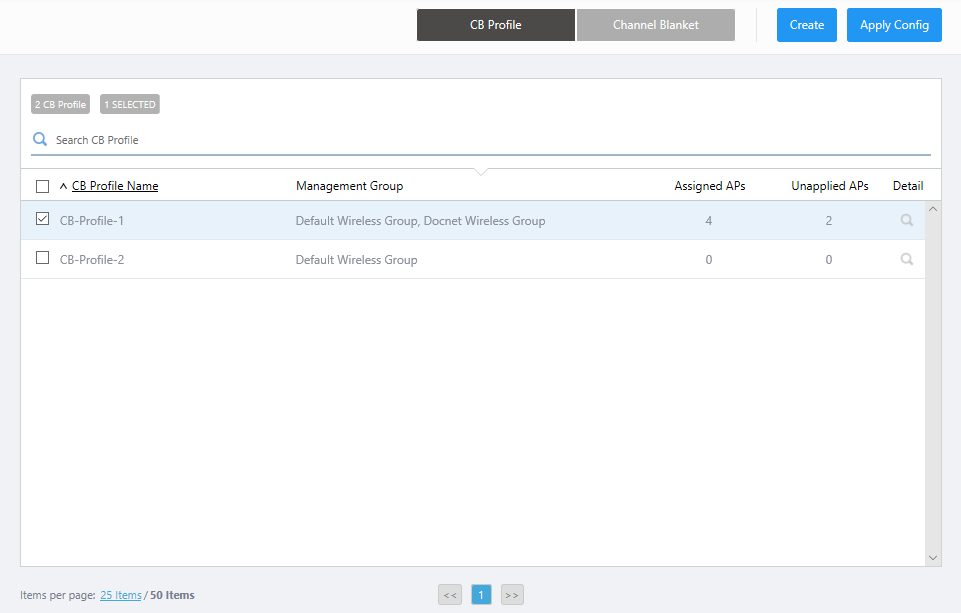
- Click the "Apply Config" button at the top right of the Content section.
The "Apply Configuration" dialog box will appear.
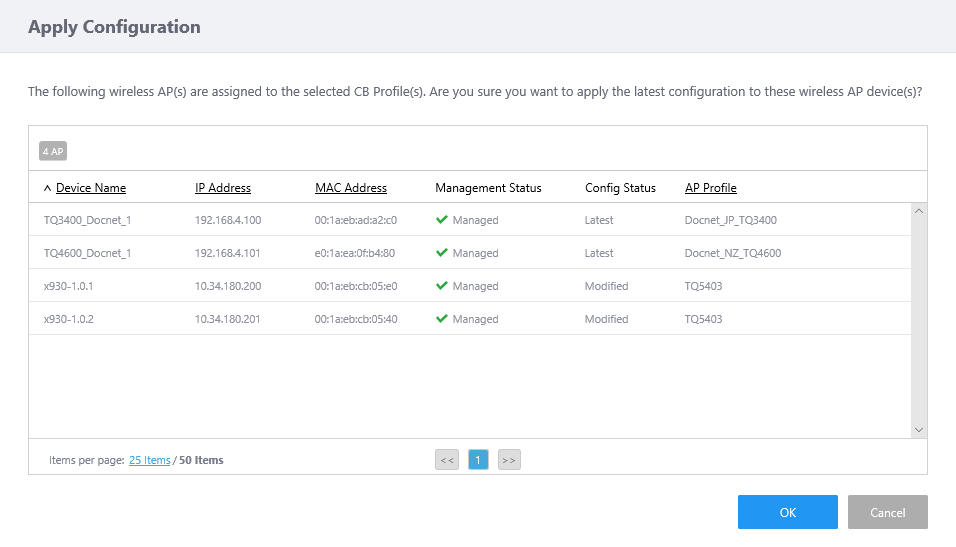
- Click "OK" after reviewing the list of APs.
- When a completion message appears, click "Close".
Apply CB Profile to a Specific Channel Blanket
Only VAP (Multiple SSID) Configuration in a CB Profile is applied to individual APs.Therefore, if you change a CB Profile for multiple channel blankets but the VAP configuration does not change, you only have to apply the changes to the specific channel blankets that are affected by the changes. You do not have to apply the changes to the other channel blankets.
- Select "Wireless Configuration" > "CB Profile" from the AWC Plug-in menu.
The "CB Profile List" page will appear.
The page shows all CB Profiles.
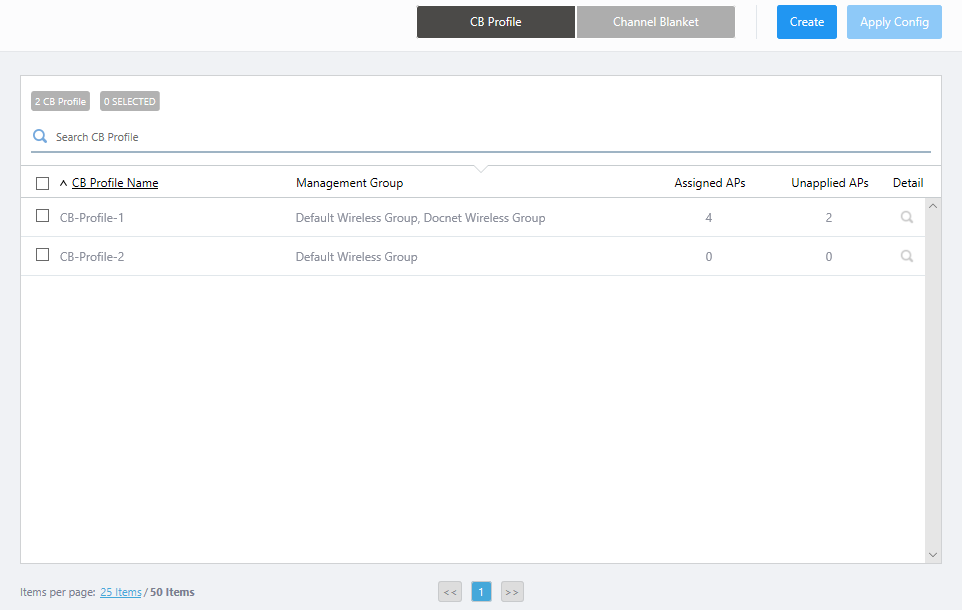
- Click the "Channel Blanket List" button at the top of the Content section to move to the "Channel Blanket List" page.
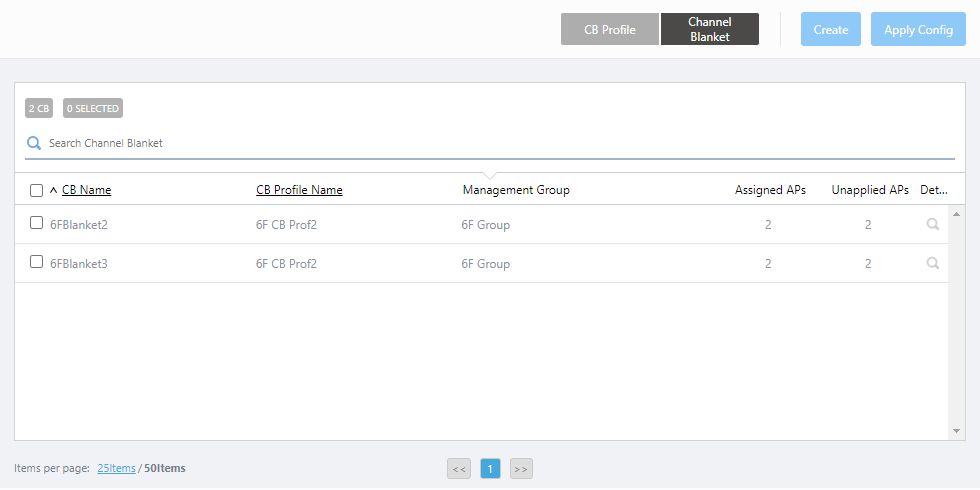
Table 6: Channel Blanket List Item Name Description X CB Shows the number of channel blankets. X SELECTED Shows the number of selected channel blankets. Search CB Profile. Lets you search and filter CB profiles in the list. Filter entries in the list by entering a partial string in the search box.
To remove the filter, delete the string from the search field and press enter.
Note
The search is case-sensitive.
Checkbox Lets you select channel blankets. A checkbox in the header row can be used to check or uncheck all channel blankets. Unchecking the box in the heading row deselects all entries in the list. CB Name Shows the name of the channel blanket. CB Profile Name Shows the CB Profile name on which the channel blanket is based. Management Group Shows the list of Management Groups for the CB Profile. Assigned APs Shows the number of APs of which the CB Profile is assigned to. Unapplied APs Shows the number of APs for which pending configuration (AP Profile, CB Profile, SC Profile, or AP-specific configuration) exists. Detail (magnifying glass icon) Shows the "CB Profile Details" page. Refer to the Operation Reference > Channel Blanket > Create Channel Blanket" > "View Channel Blanket Information section for more details on the "CB Profile Details" page. - Select the CB Profiles to whose member APs you want to apply the pending configuration.
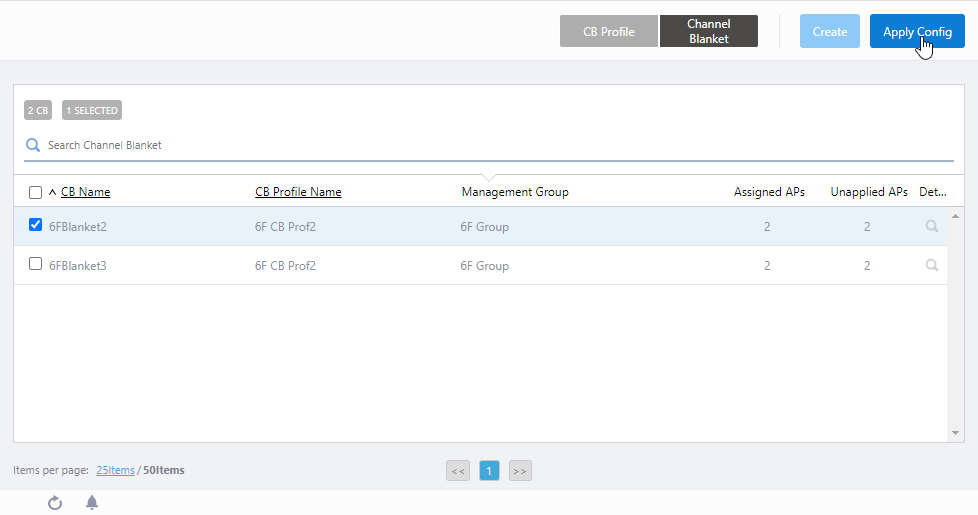
- Click the "Apply Config" button at the top right of the Content section.
The "Apply Configuration" dialog box will appear.
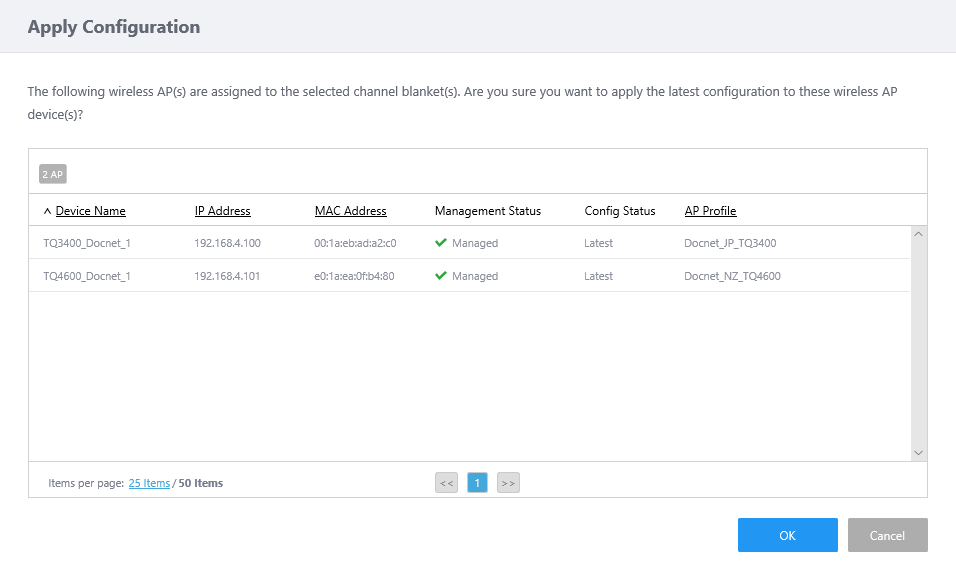
- Click "OK" after reviewing the list of APs.
- When a completion message appears, click "Close".
View Channel Blanket Information
Check Configuration
On the "Channel Blanket Details" page, you can review information about all channel blankets configured through the AWC Plug-in.You can access the page in either of the following ways:
◼ Open the page from the channel blanket list.
- Select "Wireless Configuration" > "CB Profile" from the AWC Plug-in menu.
The CB Profile list will appear.
- Click the "Channel Blanket List" button at the top of the Content section.
The list will change to the list of channel blankets.
The list shows all channel blankets configured with the AWC Plug-in.
- Click "Detail" (magnifying glass icon) in the rightmost column of the channel blanket whose details you want to see.
Detailed information about the selected channel blanket will be shown.
◼ Open the page from the list of channel blankets based on a specific CB Profile
- Select "Wireless Configuration" > "CB Profile" from the AWC Plug-in menu.
The CB Profile list will appear.
- Click "Detail" (magnifying glass icon) in the rightmost column of the CB Profile on which a channel blanket that you want to review is based.
The "CB Profile Details" page will appear.
A list of channel blankets based on the CB Profile is shown on the page.
- Click "Detail" (magnifying glass icon) in the rightmost column of the channel blanket whose details you want to see.
Detailed information about the selected channel blanket will be shown.
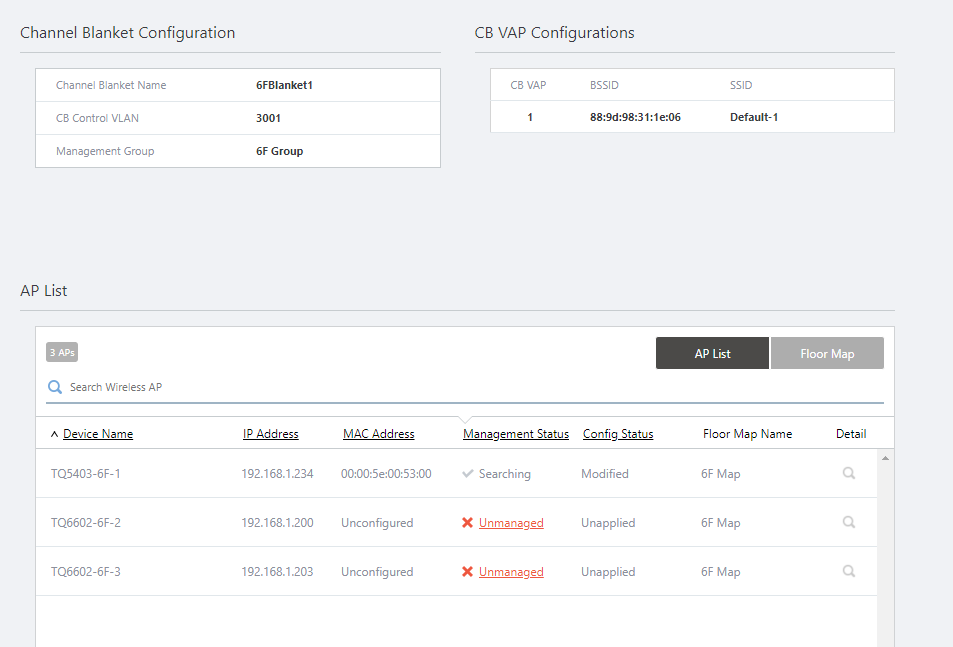
| Item Name | Description |
|---|---|
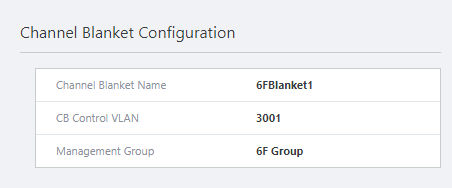
| Channel Blanket Configuration | |
|
|
| CB Name | Shows the name of the channel blanket. |
| CB Control VLAN | Shows the VLAN ID of the channel blanket's control VLAN. |
| Management Group | Shows the Management Group to which the channel blanket belongs. |
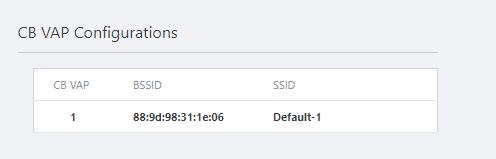
| CB VAP Configuration | |
|
|
| CB VAP | Shows the CB VAP number. |
| BSSID | Shows the BSSID of the CB VAP. This BSSID is automatically selected from the MAC address pool of the AWC Plug-in and is commonly used by all wireless APs that belong to the same channel blanket. Once the BSSID has been set, it will be retained even if the wireless AP with the corresponding MAC address goes out of control. |
| SSID | Shows the SSID of the CB VAP. |
| AP List | |
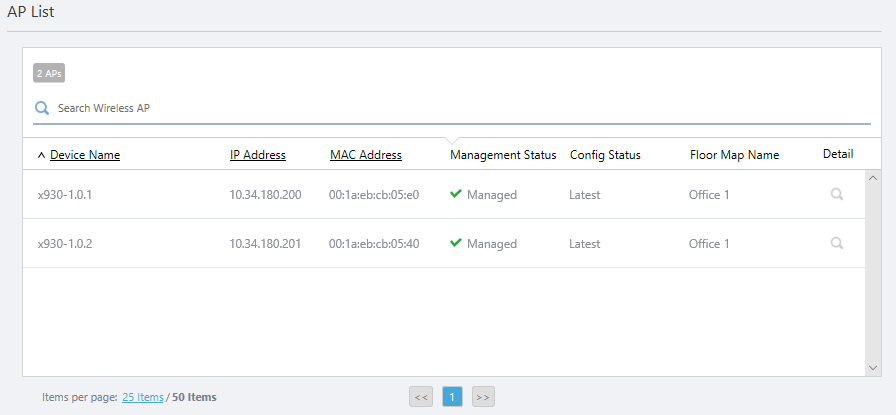
| "AP List" button | Shows APs in the channel blanket in a list format. By default, this button is selected. |
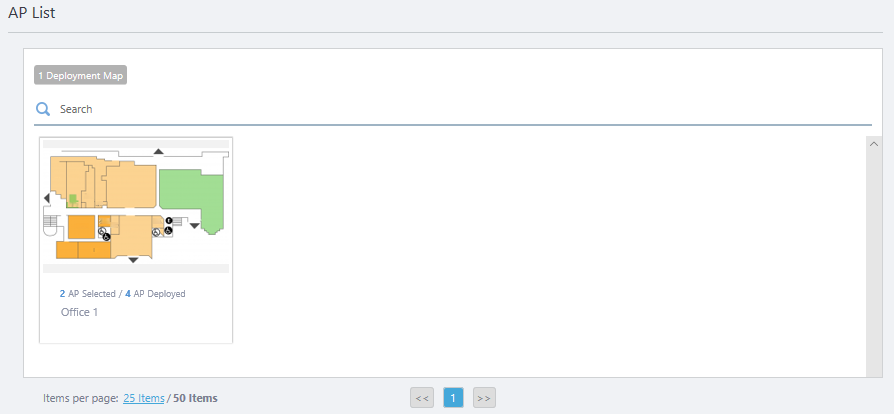
| "Floor Map" button | Shows the APs in the channel blanket in floor map format. |
| In List Format | |
|
|
| X AP | Shows the number of APs that belong to the channel blanket. |
| Search Wireless AP | Filter entries in the list by entering a partial string in the search box. The Search field lets you enter a partial string to match. The screen displays entries with that string in one of the following fields: "Device Name", "IP address", "MAC address", "Device Type", "Current Firmware" or "Serial Number". To remove the filter, delete the string from the search field and press enter. NoteThe search is case-sensitive. |
| Device Name | Shows the device name of the AP. |
| IP Address | Shows the IP address of the AP. |
| MAC Address | Shows the MAC address of the AP. |
| Management Status | Shows the Management Status of the AP.
|
| Config Status | Shows the configuration status of the AP.
|
| Floor Map Name | Shows the name of the floor map where the AP is placed. |
| Details (magnifying glass icon) | Shows the AP Details page. Refer to Operation Reference > Wireless Configuration > View AP Information for more details of the "AP Details" page. |
| In Floor Map Format | |
|
|
| X Deployment Map | Shows the number of floor maps. |
| Search Floor Map | Filter entries in the list by entering a partial string in the search box. The Search field lets you enter a partial string to match. The screen displays entries with that string in one of the following fields: "Floor Map Name", "Management Group Name" or "Tag". To remove the filter, delete the string from the search field and press enter. NoteThe search is case-sensitive. |
| Floor Map Panels | Each floor map is shown as a panel. The name of the floor map, the number of APs placed on the map and the number of APs belonging to the channel blanket are shown beside the panel.
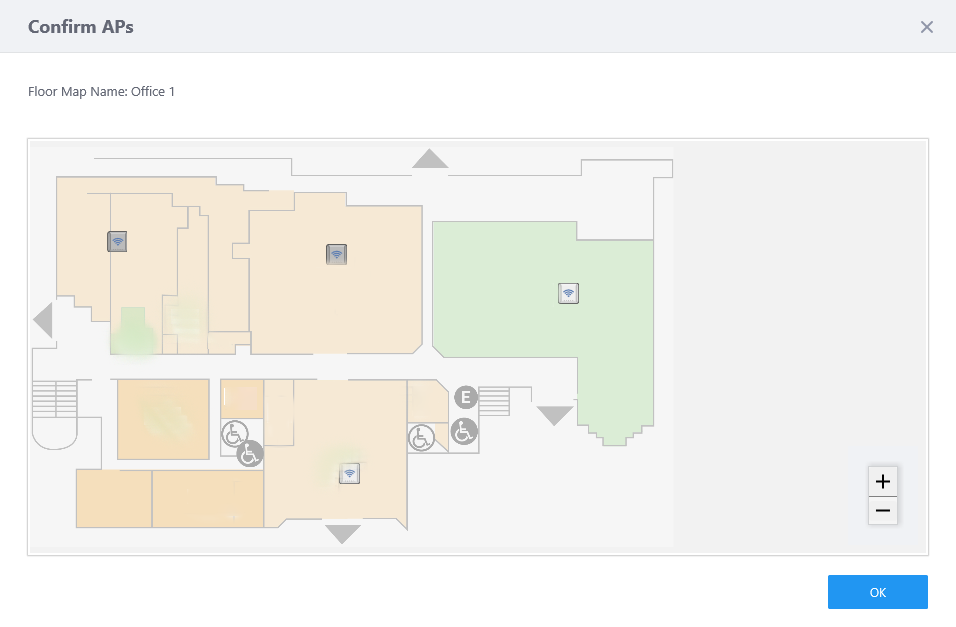
When you mouse-over a panel, the "View Details" menu will appear on the panel. Clicking on a panel or the "View Details" menu item opens the "Review AP" dialog box. |
| Items per page | Specifies the number of items per page. |
| << | Goes to the first page of the list. |
| (Page Number) | Shows the current page number in the list. |
| >> | Goes to the last page of the list. |
| "Review AP" dialog box | |
|
|
Check Operational Status
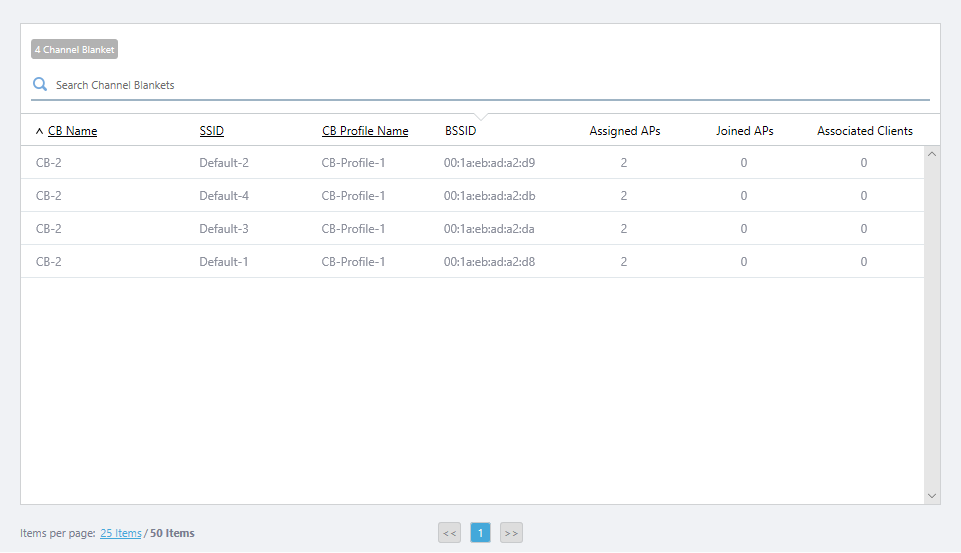
On the "Channel Blanket List" page, you can review information such as the number of clients for each SSID (CB VAP) in the channel blankets.Select "Wireless Monitoring" > "Channel Blanket" from the menu to open the page.
| Item Name | Description |
|---|---|
| X Channel Blanket | Shows the number of CB VAPs. |
| Search Channel Blankets | Filter entries in the list by entering a partial string in the search box. The Search field lets you enter a partial string to match. The screen displays entries with that string in one of the following fields: "CB Name", "SSID", "CB Profile Name". To remove the filter, delete the string from the search field and press enter. NoteThe search is case-sensitive. |
| CB Name | Shows the name of the channel blanket. |
| SSID | Shows the SSID of the CB VAP. |
| CB Profile Name | Shows the CB Profile name for the channel blanket. |
| BSSID | Shows the BSSID of the CB VAP. This BSSID is automatically selected from the MAC address pool of the AWC Plug-in and is commonly used by all wireless APs that belong to the same channel blanket. Once the BSSID has been set, it will be retained even if the wireless AP with the corresponding MAC address goes out of control. |
| Assigned APs | Shows the number of APs of which the CB Profile is assigned to. This number includes APs that are not operational (e.g. temporarily powered off). |
| Joined APs | Shows the number of APs that have joined the channel blanket. This number only includes the APs that are actually providing wireless access as members of the channel blanket. It does not include APs that are temporarily powered off, or those that stop their radio signal because of being too close to other APs. |
| Associated Clients | Shows the number of clients that are connected to the CB VAP. |
Edit Channel Blanket
To change the name, CB Management VLAN or management groups of a channel blanket, follow the steps below.- Select "Wireless Configuration" > "CB Profile" from the AWC Plug-in menu.
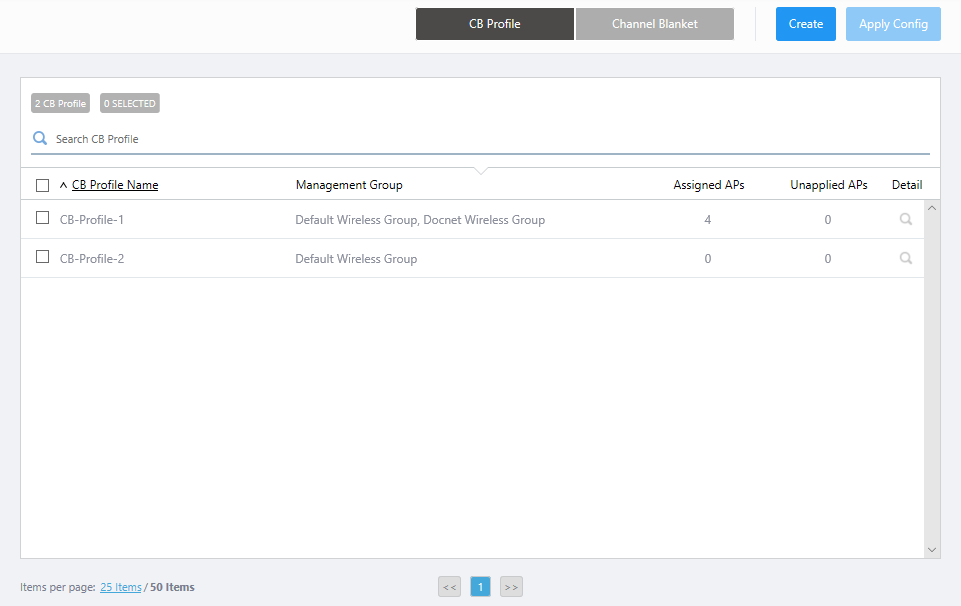
- Click "Detail" (magnifying glass icon) to the right of the CB Profile you want to edit.
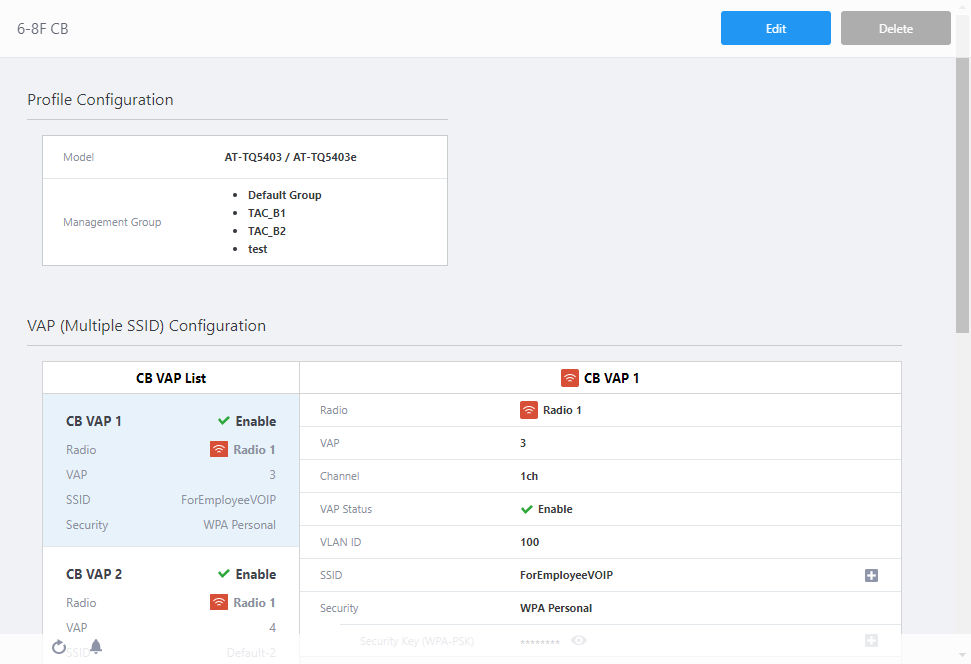
- Configuration information for the CB Profile is displayed. Click "Edit" at the top right of the Content section.
The "Profile Configuration" page will appear.
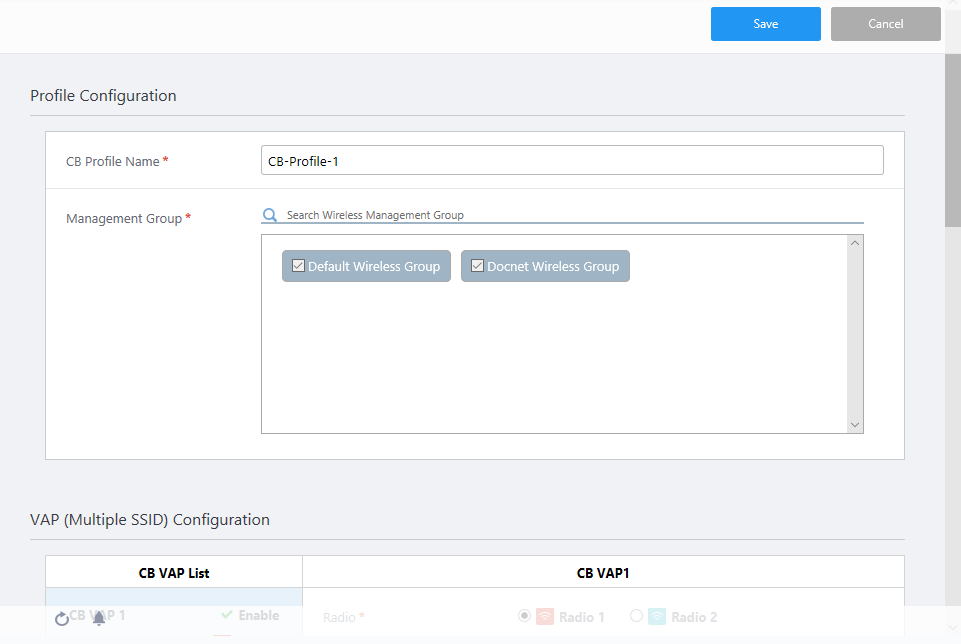
- In the "Channel Blanket List" at the bottom of the Content section, click "Edit" (pencil icon) for the channel blanket you want to edit.
In this example, the list only has the one channel blanket that we just created. If you have more than one channel blanket, you can filter them by entering keywords in the "Search Channel Blanket" search box.
The Search field lets you enter a partial string to match. The screen displays entries with that string in one of the following fields: "CB Name", "CB Management VLAN" "Management Group" or "Floor Map". To remove the filter, delete the string from the search field and press enter.
Note
The search is case-sensitive.
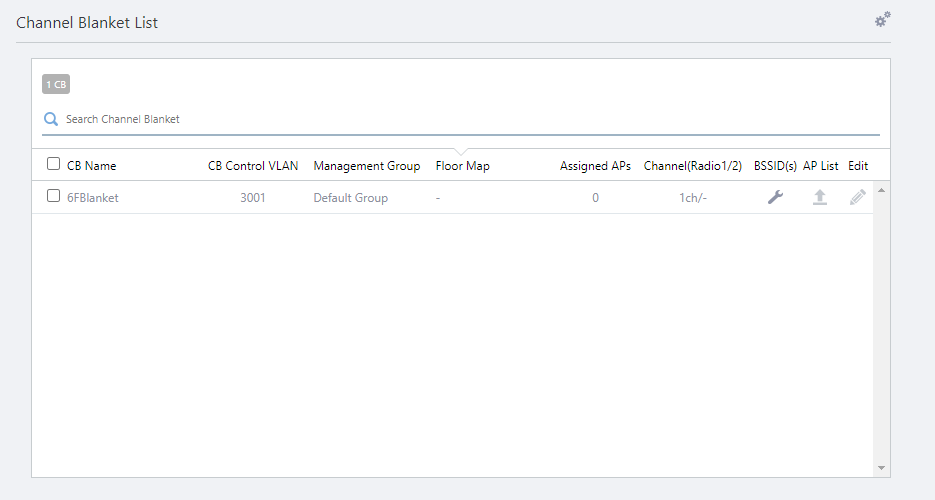
The "Edit Channel Blanket" dialog box will appear.
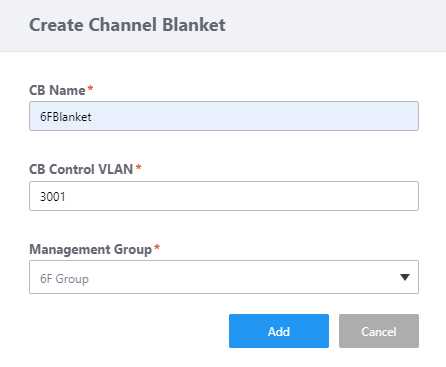
Table 9: "Edit Channel Blanket" dialog box Item Name Description CB Name Enter a name for the channel blanket. Should be 1 to 100 characters in length, with alphabets, numbers, and symbols (space ! # $ % & ' ( ) ` @ + - , _ = ^ ~ [ ] { } ;) (mandatory)
Note
In the AT-VST-APL version, non-ASCII characters (full-width alphabets, numbers, kana, kanji, and symbols) cannot be used.
CB Control VLAN Specify the Control VLAN ID (between 1 and 4094) to use for the channel blanket (mandatory)
Note
For the CB Control VLAN, specify a VLAN ID that is different from the Control VLAN ID of the APs or the VLAN ID of the VAPs.
Management Group Select the Management Group to which the APs in the channel blanket belong. Select a Management Group from the ones selected for the CB Profile
When you change Management Groups, all APs in the channel blanket will be cleared.
To change Management Groups, click "OK" on a confirmation dialog box. - Once you are finished, click "Save".
Now you can see the changes in the "Channel Blanket List" on the "Edit CB Profile" page.
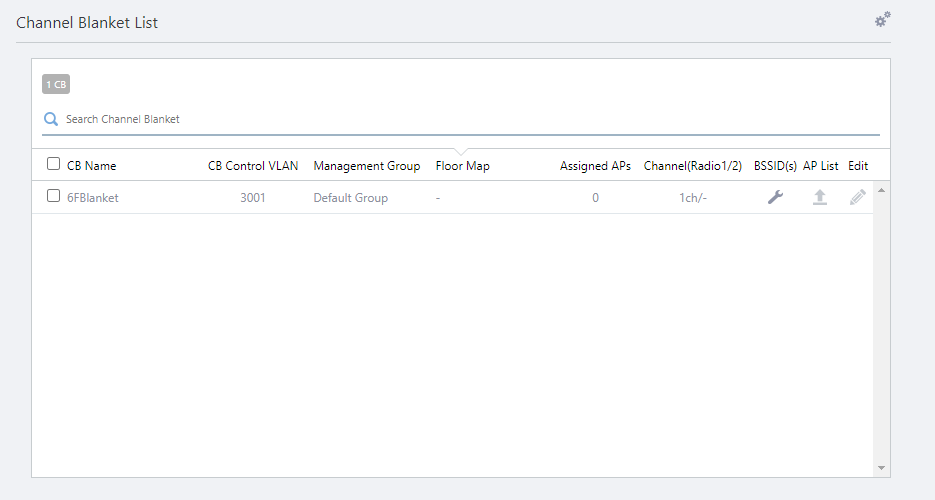
- Confirm the BSSID. In the "Channel Blanket List" at the bottom of the Content section, click "BSSID" (spanner icon) for the channel blanket you created.
The "Edit BSSID(s)" dialog box will be displayed.
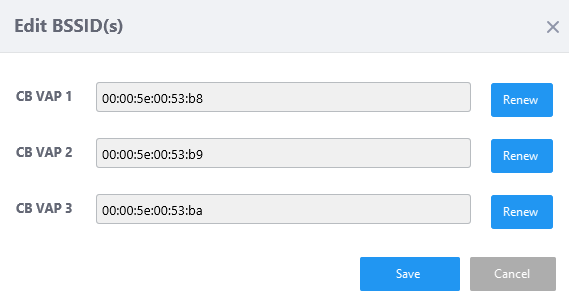
Most of the time it is not necessary to change this setting.Table 10: "Edit BSSID(s)" dialog box Item Name Description BSSID Indicates the BSSID for the VAP. "Renew" button Reselects the BSSID for the CB VAP.
This BSSID is automatically selected from the MAC address pool of the AWC Plug-in and is commonly used by all wireless APs that belong to the same channel blanket.
Once the BSSID has been set, it will be retained even if the wireless AP with the corresponding MAC address goes out of control.
However, if you remove the wireless AP that is the basis of the BSSID from management and do not plan to return it to the same channel blanket after that, it is recommended that you re-acquire the BSSID to release the BSSID based on the removed APs when you make other settings, so that the BSSID based on the AP can be used in a new network.
- Once you have finished confirmation, click "Save".
- Click "Save" at the top right of the screen to save the changes to the CB Profile.
Delete Channel Blanket
- Select "Wireless Configuration" > "CB Profile" from the AWC Plug-in menu.

- Click "Detail" (magnifying glass icon) to the right of the CB Profile you want to edit.
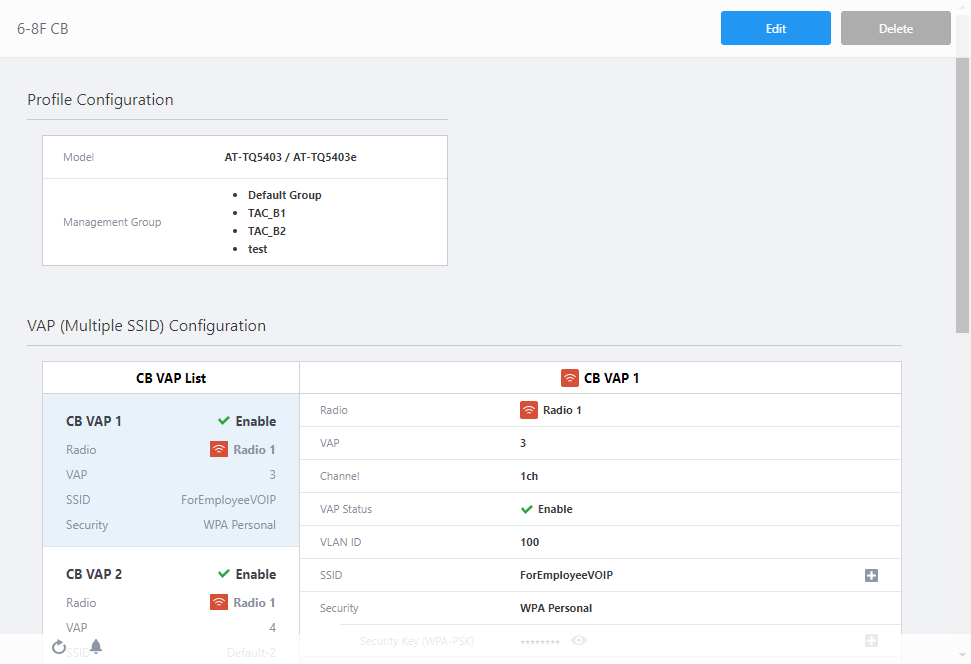
- Configuration information for the CB Profile is displayed. Click "Edit" at the top right of the Content section.
The "Profile Configuration" page will appear.

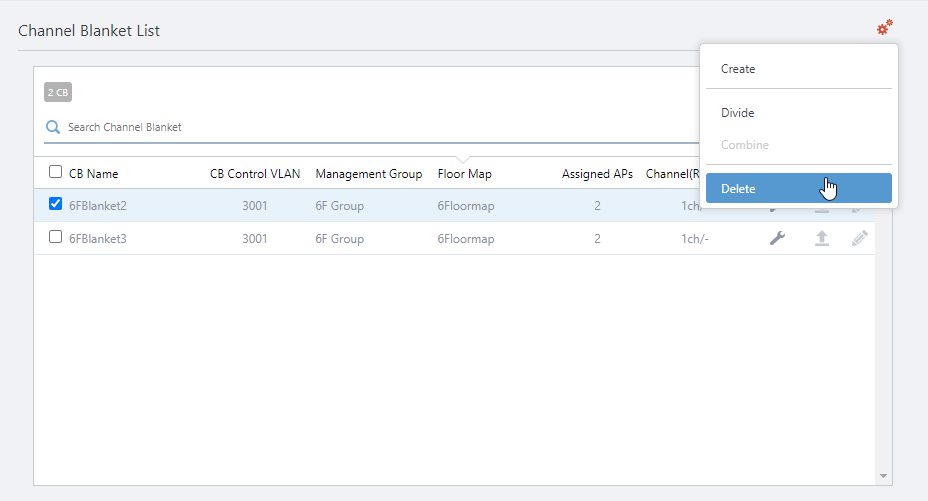
- In the "Channel Blanket List" at the bottom of the Content section, click "Delete" (trashbin icon) for a channel blanket you want to delete.
- The "Confirmation" dialog box will appear.
- Click "Delete".
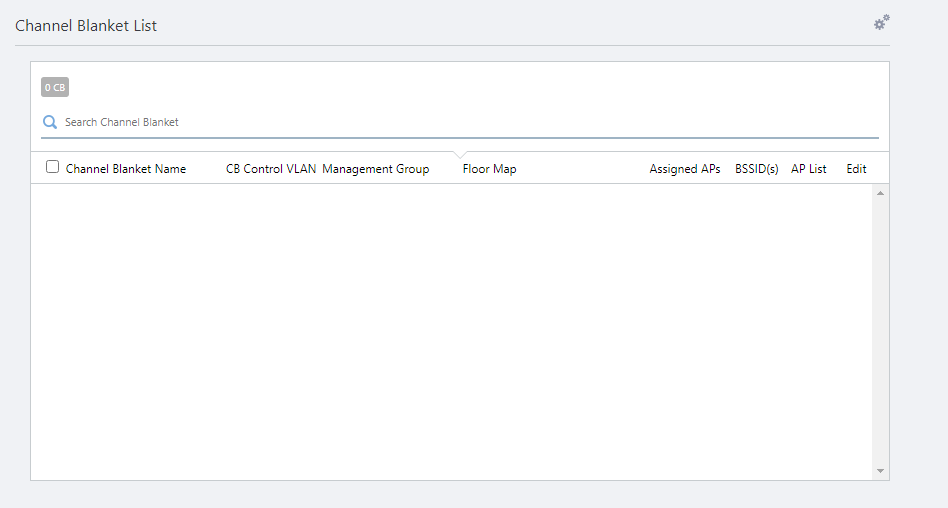
Now you can see the changes in the "Channel Blanket List" on the "Edit CB Profile" page.
- Click "Save" at the top right of the screen to save the changes to the CB Profile.
29 Apr 2025 14:51