View Clients
This section explains how to view clients connecting to APs on a Floor Map.
View Wireless Clients on Floor Map
- Select "Wireless Monitoring" > "Floor Map" from the AWC Plug-in menu.
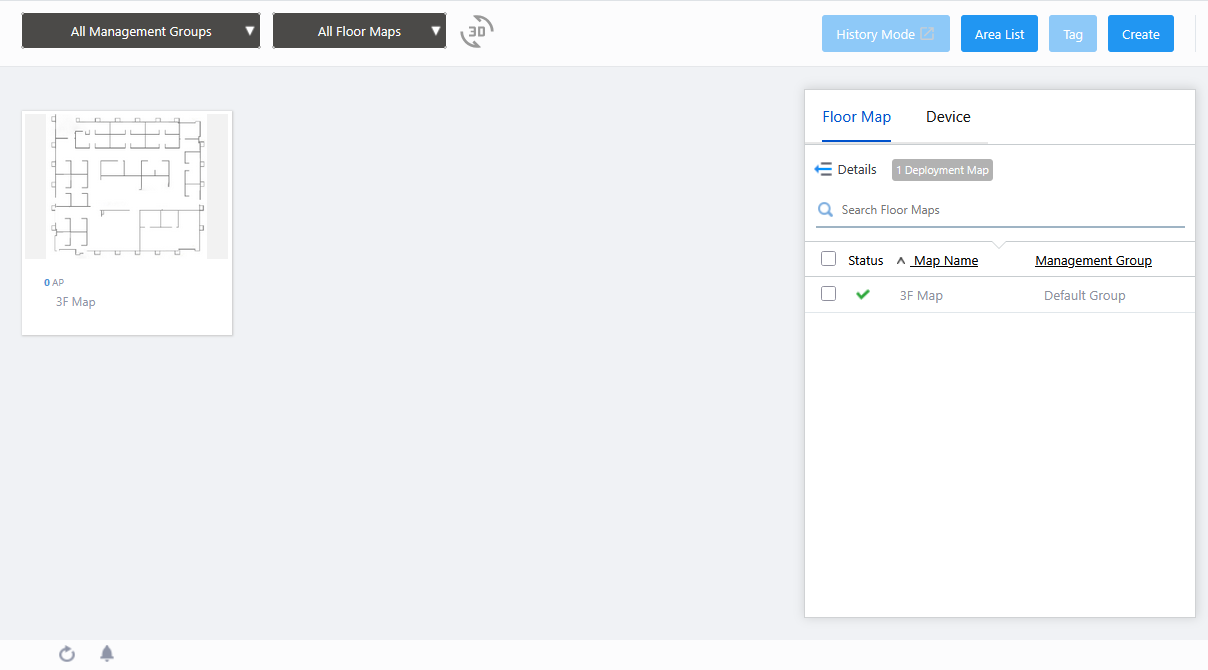
- Mouse over a floor map panel.
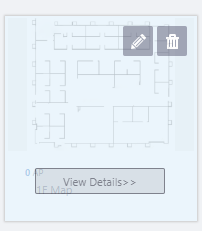
- Click the "View Details>>" button on the floor map panel.
The Wireless Status View of the map will be shown in the Content section.
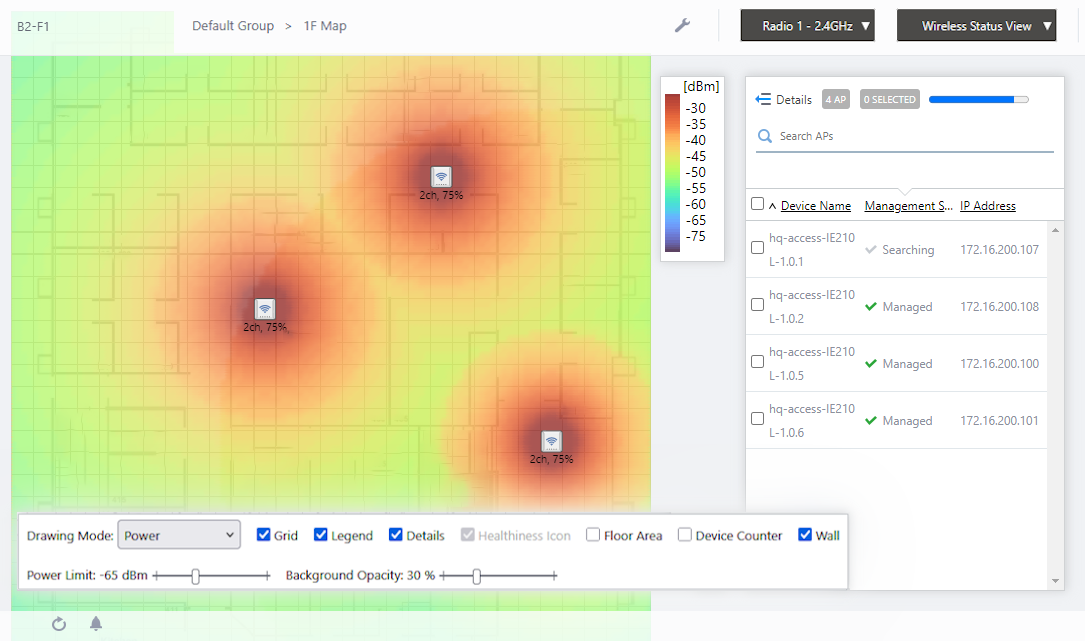
- Select "Wireless Client View" from the View Selection dropdown menu at the top right of the screen.
The Wireless Client View of the map will be shown in the Content section.
- The numbers of associated/disassociated/failed clients will be shown under each AP icon on the map.
- The MAC and IP addresses of all the associated/disassociated/failed clients on the map will be shown in the client list at the right side of the Content section.
- When you select checkboxes in the list, icons and MAC addresses of the selected clients will be shown on the map beside the APs they are connecting to.
- When you click an AP icon, only clients currently associated, recently disassociated, or recently failed to association to the selected AP will be shown in the client list.
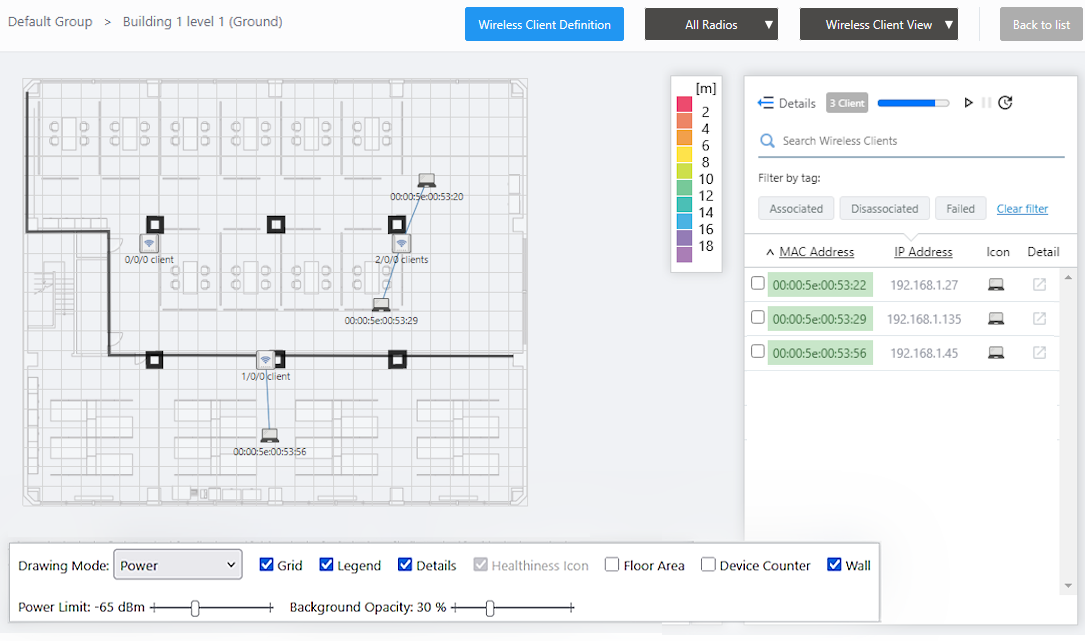
- The numbers of associated/disassociated/failed clients will be shown under each AP icon on the map.
10 Nov 2025 11:47