Device Search
The Device Search page shows you the wireless APs in the AWC Plug-in's database, and wireless clients connecting to the APs. It also lets you filter or search the device list by using keywords.
The wireless client information is updated every 15 minutes when the plug-in retrieves information from managed APs.
If you want to see the latest information, run the manual polling and reload the browser.
NoteThe Device Search screen cannot search for strings that contain delimiters such as "," and "|".
NoteThe IP Address column is sorted lexicographically.
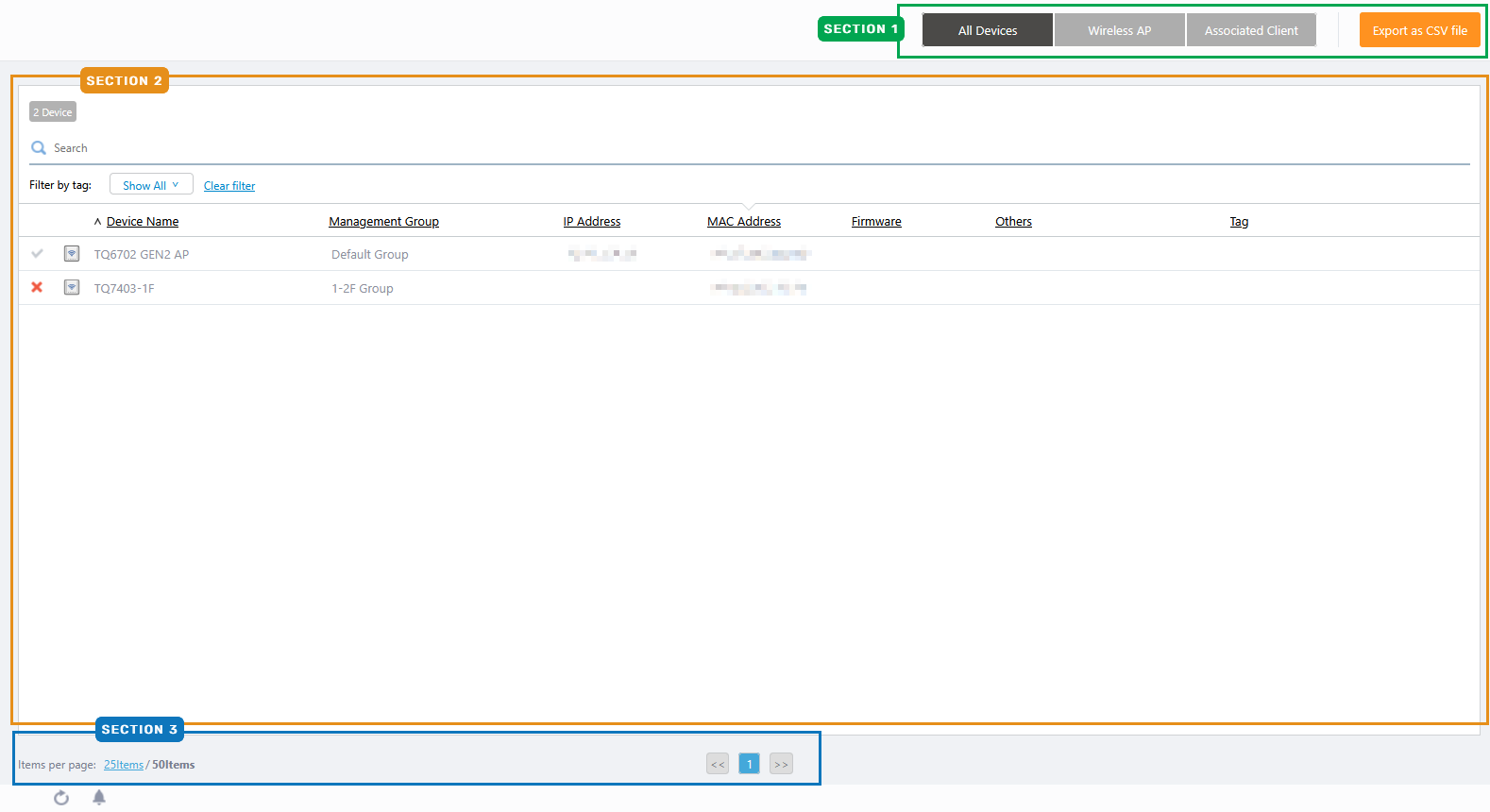
Section 1
| Item Name | Description |
|---|---|
| "All Devices" button | Shows both APs and clients. |
| "AP List" button | Shows wireless APs only. |
| "Associated Clients" button | Shows wireless clients only. To see the latest information, run the manual polling and reload the browser. |
| "Export as CSV file" button | Export the displayed list to a file in CSV format. The CSV filename is in the format of "vista _devices_YYYYMMDD-hhmmss.csv". |
Section 2
| Item Name | Description |
|---|---|
| X devices | Shows the number of devices in the list. |
| "Search" box | Filter entries in the list by entering a partial string in the search box. The search field lets you enter a partial string to match. The screen displays entries with that string in one of the following fields: "Device Name", "Device Type", "Management Group", "IP address", "MAC address" or "Others". To remove the filter, delete the string from the search field and press enter. NoteThe search is case-sensitive. |
| Filter by tag | Lets you filter devices by tag. Clicking tags uses tags to filter the list. Clicking them again removes the filter. Clicking "Clear filter" removes the filter for all tags. |
| Tags (Filter) | Shows a list of tags that are attached to the devices. |
| Status | The status of the device is represented by an icon.
|
| Icon | Indicates the device type (wireless AP or client). |
| Device Name | Shows additional information depending on the device type.
|
| Management Group | Shows the Management Group which the device belongs to. |
| IP Address | Shows the AP's IP address. |
| MAC Address | Shows the device's MAC address. |
| Firmware | Shows the firmware version of the wireless AP. |
| Details | Shows additional information depending on the device type.
|
| Tag | Shows the tags attached to the device. |
Section 3
| Item Name | Description |
|---|---|
| Items per page | Specifies the number of items per page. |
| << | Goes to the first page of the list. |
| (Page Number) | Shows the current page number in the list. |
| >> | Goes to the last page of the list. |
10 Nov 2025 11:47