Client Status
Based on connection logs, this screen displays the status of wireless clients that are currently connected to or have previously connected to APs managed by the AWC Plug-in.
If the Wireless Client History of History Data Retention Period Setting is configured in the "System Settings" screen, clients with saved history data will be shown.
If the History Data Retention Period Setting is disabled, the items on this screen will not be updated.

Section 1
Clicking the gear icon allows you to change the client connection graph display settings.
| Item Name | Description |
|---|---|
| Display Settings | Displays the "Display Settings" dialog, where you can configure whether to show the client connection graph and select its type. |
Section 2
Displays a graph showing either the number of wireless clients connected at the time of display, or the trend of simultaneous wireless client connections over the past seven days.
The graph is updated when the "Client Status" screen is displayed, when returning from the "Display Settings" dialog, or when the "Search" button is clicked in the wireless client list.
- Current number of Client Connections
Displays the number of wireless clients connected at the time of display.

- Frequency
Displays the number of connected clients for each radio band.
- SSID
Displays the number of connected clients for each SSID used.
- AP
Displays the number of connected clients for each AP.
- Frequency
- Number of Simultaneous Client Connections History
Displays a line graph showing the number of simultaneous wireless client connections from seven days prior to the time of graph display.
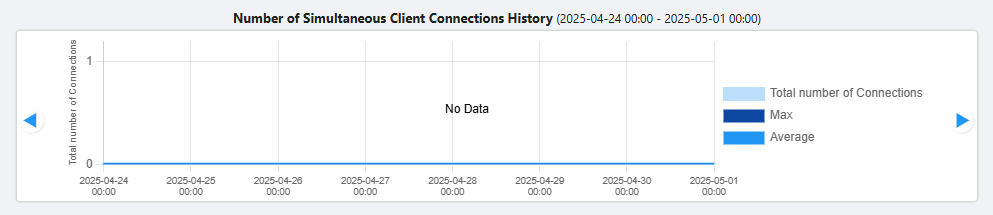
- Total number of Connections
Represents the number of simultaneous wireless client connections with a light blue line on the graph.
- Max
Represents the maximum number of simultaneous wireless client connections during the period with a dark blue line.
- Average
Represents the average number of simultaneous wireless client connections during the period with a blue line.
- Total number of Connections
Section 3
| Item Name | Description |
|---|---|
| X Client | Displays the number of wireless clients for which connection logs (including connection failures) have been recorded. |
| "Basic Information" / "Detail Information" buttons | Switches the client list display to either "Basic Information" or "Detail Information". |
| Search Client | Filter entries in the list by entering a partial string in the search box. The Search field lets you enter a partial string to match. The screen displays entries with that string in one of the following fields: "MAC Address", "IP Address", "Definition Name", "Host Name", "Associating AP", "SSID", "Username", "NetBIOS Name", "OS", "Frequency", or "Timestamp". To remove the filter, delete the string from the search field and press enter. NoteThe search is case-sensitive. |
| Time Period (from/to) | Filters wireless clients based on the reception time of the most recent log received. If you specify one or both of "from" and "to" and click "Search", the list will only show entries with a "Timestamp" within the specified time period. You can enter a date in "YYYY-MM-DD hh:mm" format. Alternatively, you can select a day on the calendar that appears when you click the field. To reset the time period, click the "x" mark in the field or click "Clear Date/Time" at the bottom of the calendar control. By default, the clients detected within the last one week prior to the screen display are shown. |
| Search | To filter log entries, click this button after entering a keyword or "from ... to" dates. |
| "Clear" button | Clears the input in "Search Client" and resets the period (from/to) to its default state. |
Section 4
| Item Name | Description |
|---|---|
| Basic Information | |
| Type | The current status of the wireless client is represented by "Associated" in green, or "Disassociated" in blue. |
| MAC Address | Shows the device MAC address. |
| IP Address | Displays the IP address if the wireless client is connected and has successfully obtained one. |
| Definition Name | Shows the Client Name if defined in the Client Definition List dialog box. |
| Host Name | Shows the host name of the wireless client. |
| Associating AP | Displays the name of the AP to which the wireless client is currently connected or was last connected. |
| SSID | Displays the SSID to which the wireless client is currently connected or was last connected. |
| Full Name | Displays the RADIUS username when the security type is "WPA Enterprise". |
| Edit | If the wireless client is already registered in the "Client Definition List", the "Edit client definition" dialog is displayed; if not registered, the "Add client definition" dialog is displayed. The MAC address of the wireless client is set by default in the "Add Client Definition" dialog. |
| Details | Displays the "History Information" section of the "Wireless Client Detail" screen for the corresponding wireless client. |
| Detail | |
| Type | The current status of the wireless client is represented by "Associated" in green, or "Disassociated" in blue. |
| MAC Address | Shows the device MAC address. |
| NetBIOS Name | Shows the NetBIOS host name of the wireless client. |
| OS | Displays the name of the OS (operating system) running on the wireless client. If an OS is defined in "Client Definition", an asterisk (*) is followed by the name of the OS in the definition. If no OS is defined in "Client Definition" and "Client Packet Analysis" is enabled in the AP Profile applied to the currently connected AP, the OS name obtained from the analysis will be displayed. The AWC plug-in supports the identification of Windows, Mac OS, iOS, Android, and Chrome OS. If the wireless client is using a random MAC address, it is also displayed as RandomMAC. For operating systems other than these, "Unknown" will be displayed. |
| Radio | Displays the currently connected or last connected radio band (1/2/3). |
| Frequency | Displays the frequency of the currently connected radio band. |
| VAP | Displays the VAP number currently connected or last connected. |
| Security | Displays the security type of the currently connected VAP. |
| WPA Versions | Displays the WPA version of the currently connected VAP. |
| VLAN ID | Displays the VLAN ID currently in use. |
| Timestamp | Displays the timestamp of the latest received log. If the type is "Connection", displays the time when the connection was detected. |
| Edit (pencil icon) | If the wireless client is already registered in the "Client Definition List", the "Edit client definition" dialog is displayed; if not registered, the "Add client definition" dialog is displayed. The MAC address of the wireless client is set by default in the "Add Client Definition" dialog. |
| "Details" button | Displays the "History Information" section of the "Wireless Client Detail" screen for the corresponding wireless client. |
Section 5
| Item Name | Description |
|---|---|
| Items per page | Specifies the number of items per page. |
| << | Goes to the first page of the list. |
| (Page Number) | Shows the current page number in the list. |
| >> | Goes to the last page of the list. |
Display Settings
Configures the display of the client connection count graph at the top of the screen.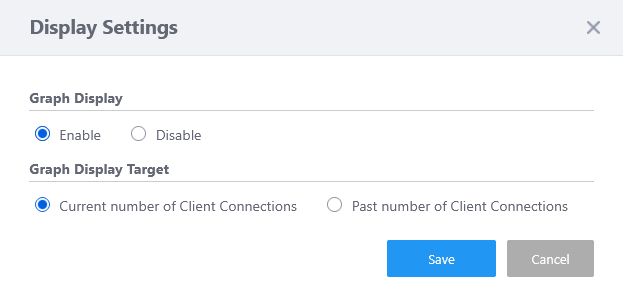
| Item Name | Description |
|---|---|
| Graph Display | Select whether to display the client connection count graph using "Enable" or "Disable". The default is "Enable". When set to "Enable", the "Graph Display Target" option will be additionally shown. |
| Graph Display Target | If the graph display is set to "Enable", select the target to be shown in the graph.
|
| Save | Saves the current changes. |
| Cancel | Discards the current changes. |
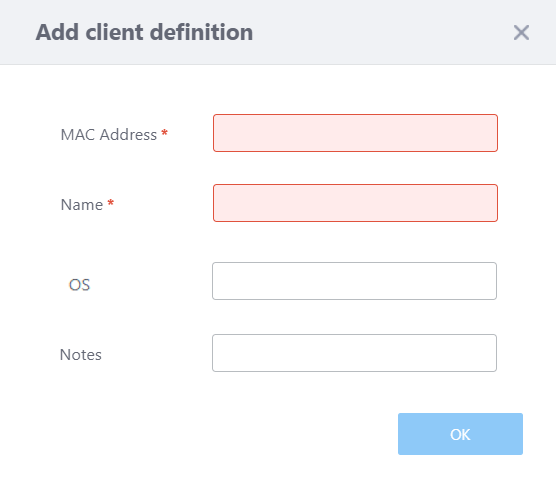
Add client definition
| Item Name | Description |
|---|---|
| MAC Address | Enter the MAC address of the client. The MAC address of the client selected in the client list is automatically entered. |
| Client Name | Enter a display name to show in the "Wireless Client View" or "Wireless Client History View". Should be 1 to 255 characters in length, with alphabets, numbers and symbols (including spaces). |
| OS | Enter a OS (Operating System) name to show in the "Wireless Client list" or "Wireless Client History list". Should be no more than 32 characters in length, with alphabets, numbers and symbols (including spaces). |
| Notes | Enter a comment. Should be no more than 1,000 characters in length, with alphabets, numbers and symbols (including spaces). |
| "OK" button | Saves the client definition. |
| Close button | Stops the client definition. |
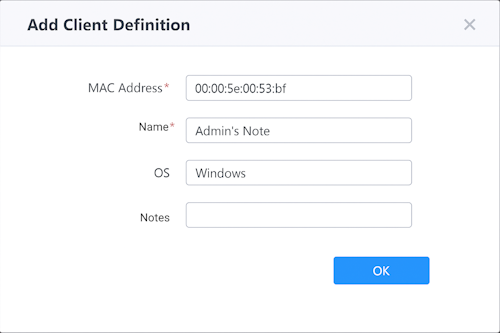
Edit client definition
| Item Name | Description |
|---|---|
| MAC Address | Enter the MAC address of the client. The MAC address of the client selected in the client list is automatically entered. |
| Client Name | Enter a display name to show in the "Wireless Client View" or "Wireless Client History View". Should be 1 to 255 characters in length, with alphabets, numbers and symbols (including spaces). |
| OS | Enter a OS (Operating System) name to show in the "Wireless Client list" or "Wireless Client History list". Should be no more than 32 characters in length, with alphabets, numbers and symbols (including spaces). |
| Notes | Enter a comment. Should be no more than 1,000 characters in length, with alphabets, numbers and symbols (including spaces). |
| "OK" button | Saves the client definition. |
| Close button | Stops the client definition. |
10 Nov 2025 11:47