AP Status
This page allows you to review the administrative and configuration status of the managed APs.
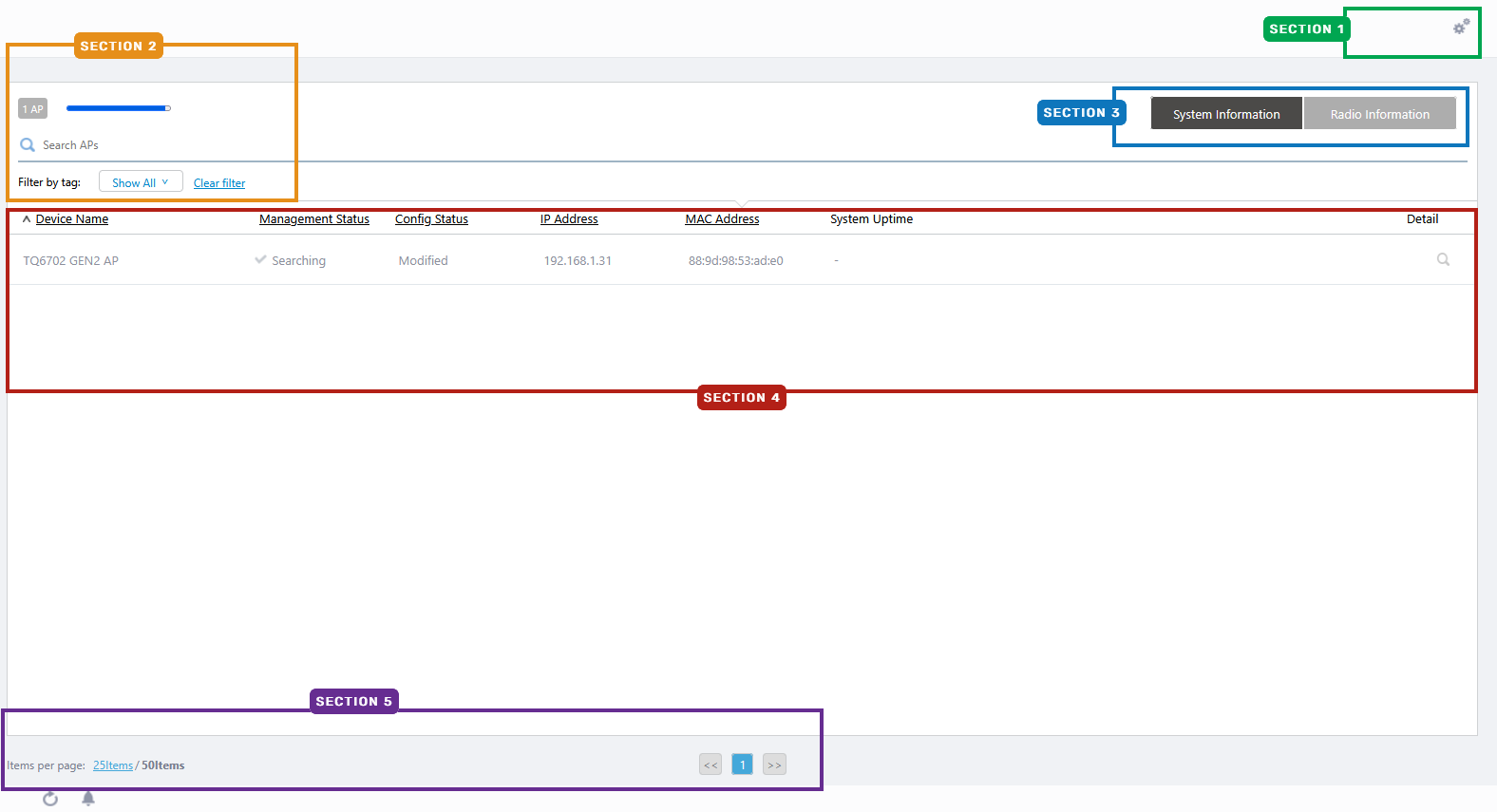
Section 1
| Item Name | Description |
|---|---|
| "Gear" icon | Hovering the mouse cursor over the gear icon shows a sub-menu about Managed APs.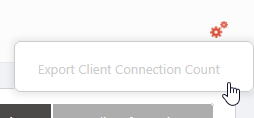
|
Section 2
| Item Name | Description |
|---|---|
| X AP | Shows the number of APs added to the AWC Plug-in's management database. |
| Refresh Timer | Shows the status of the timer that automatically refreshes the page with the blue progress bar. The list is automatically refreshed at the interval configured in "Refresh Rates" > "AP Status" in the User Management menu. (The default is 1 minute.) |
| X SELECTED | Shows the number of selected APs. |
| Search Wireless AP | Lets you filter the list of Managed APs. The Search field lets you enter a partial string to match. The screen displays entries with that string in one of the following fields: "Device Name", "IP address", "MAC address", "Device Type", "Current Firmware" or "Serial Number". To remove the filter, delete the string from the search field and press enter. Refer to Wireless AP Details to see the "Device Type", "Current Firmware" and "Serial Number". NoteThe search is case-sensitive. |
| Filter by tag | Lets you filter APs with tags. Clicking tags uses tags to filter the list. Clicking them again removes the filter. Clicking "Clear filter" removes the filter for all tags. |
| Tag | Clicking "Show All" under the "Search AP" box displays all tags. Clicking "Close filter list" returns to the initial format. |
Section 3
| Item Name | Description |
|---|---|
| "System info" / "Radio info" buttons | Switches the contents of the list. |
Section 4
| Item Name | Description |
|---|---|
| System Info | |
| Device Name | Shows the name of the AP. If the AP was added from the Guest Device list, the guest device name is displayed. |
| Management Status | Shows the Management Status of the AP.
|
| Config Status | Shows the configuration status of the AP.
|
| IP Address | Shows the AP's IP address. |
| MAC Address | Shows the device's MAC address. |
| System Uptime | Shows the uptime of the AP. |
| Detail (magnifying glass icon) | Shows the AP Details page. Refer to Operation Reference > Wireless Configuration > View AP Information for more details of the "AP Details" page. |
| Radio info | |
| Device Name | Shows the name of the AP. If the AP was added from the Guest Device list, the guest device name is displayed. |
| Radio 1 | Shows standards used on Radio 1. |
| Radio 2 | Shows standards used on Radio 2. |
| Radio 3 | Shows standards used on Radio 3. |
| Associated Clients (Radio 1) | Shows the number of clients connected to the AP on Radio 1 |
| Associated Clients (Radio 2) | Shows the number of clients connected to the AP on Radio 2 |
| Associated Clients (Radio 3) | Shows the number of clients connected to the AP on Radio 3 |
| Detail (magnifying glass icon) | Shows the AP Details page. Refer to Operation Reference > Wireless Configuration > View AP Information for more details of the "AP Details" page. |
Section 5
| Item Name | Description |
|---|---|
| Items per page | Specifies the number of items per page. |
| << | Goes to the first page of the list. |
| (Page Number) | Shows the current page number in the list. |
| >> | Goes to the last page of the list. |
Export CSV Client Connection Count
Exports the client counts that connected to the managed APs in the specified period and interval to a CSV format file.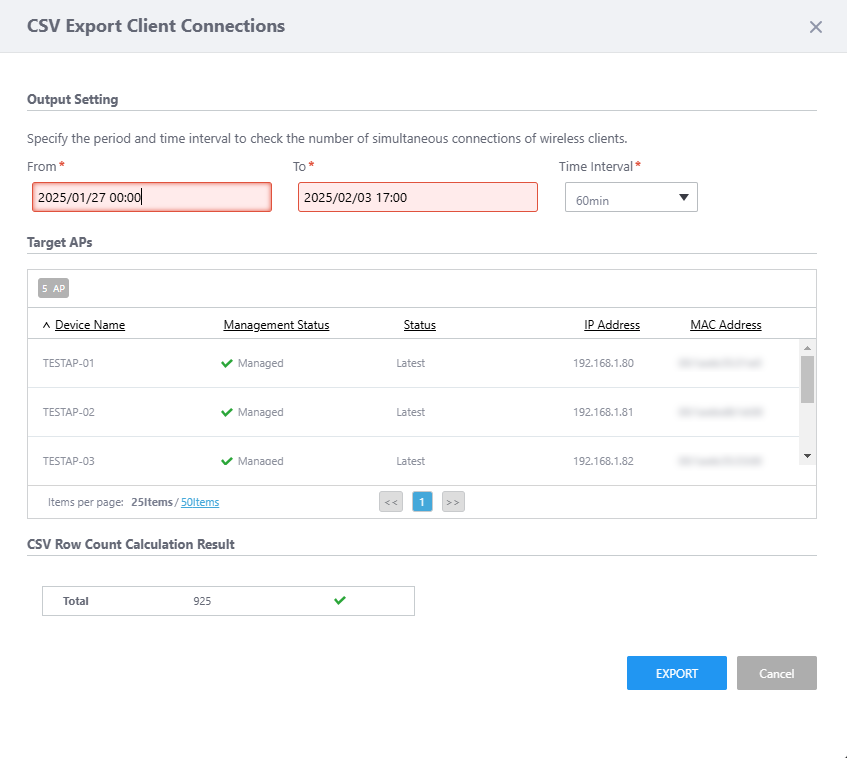
| Item Name | Description |
|---|---|
| Output Setting | |
| Time Period (from/to) | Specify a time period to be exported to CSV with start and end date/time. Specify both of from/to. You can enter a date in "YYYY-MM-DD hh:mm" format. Alternatively, you can select a day on the calendar that appears when you click the field. To reset the period, use backspace or delete keys, or click "Clear Date/Time" at the bottom of the calendar control. |
| Time Interval | Specify the interval for counting the number of client connections from 5, 15, 30, or 60 minutes. The default is 60 min. |
| Target APs | |
| X AP | Shows the number of targeted Managed APs. The number of client connections is counted for the first 50 APs under management. If the list has been narrowed down in advance using filters or search fields in the "AP Status" screen, the first 50 units in the narrowed-down results will be counted. |
| Device Name | Shows the name of the AP. If the AP was added from the Guest Device list, the guest device name is displayed. |
| Management Status | Shows the Management Status of the AP.
|
| Config Status | Shows the configuration status of the AP.
|
| IP Address | Shows the AP's IP address. |
| MAC Address | Shows the device's MAC address. |
| CSV RowCount Calculation Result | |
| Total | Displays the number of output lines (including one header line) in the CSV file calculated from the output settings (the period (from/to) and Time interval) and the number of Target APs. The number of output lines is calculated as follows:
|
| EXPORT | Outputs a CSV file of the number of client connections with the specified conditions. If the total number is deemed inappropriate for the output, it is displayed as a light blue color to disable it. |
| Cancel | Stop exporting CSV files. |
The CSV file name will be in the format "max_concurrent_connections_[output date]_[aggregate start date]_[aggregate end date].csv".
- Output date: YYYYMMDD format
- Aggregate start date: YYYYMMDDhhmm format
Each line of the CSV file contains the following items: the start date and time of the interval, the device name, IP address, and MAC address of the wireless AP, the total number of wireless clients connected to the wireless AP, the number of connected clients per radio band, and the maximum number of simultaneous connections per radio band.
Since connected clients are counted based on MAC addresses, the number of connected clients per radio band and the maximum number of simultaneous connections may not match.
10 Nov 2025 11:47