Overview
In this section, we will show you basic steps to configure an AWC-SC (AWC-Smart Connect) wireless network in a quick tour style.
NoteAWC-SC is supported with TQ5403, TQ5403e, and TQm5403 firmware version 6.0.1-1.x or later.
For simplicity, we assume that we are going to create the following network.
- There is one floor (3F).
- Will construct an AWC-SC network with 5 APs, 1 Root AP and 4 Satellite APs.
Satellite APs will connect to the single Root AP and will act as Terminator APs, which do not bridge the connection between the Root AP and others.
- In usual client service communication, a multi-channel VAP will be used.
Channel Blanket Network will not be provided.
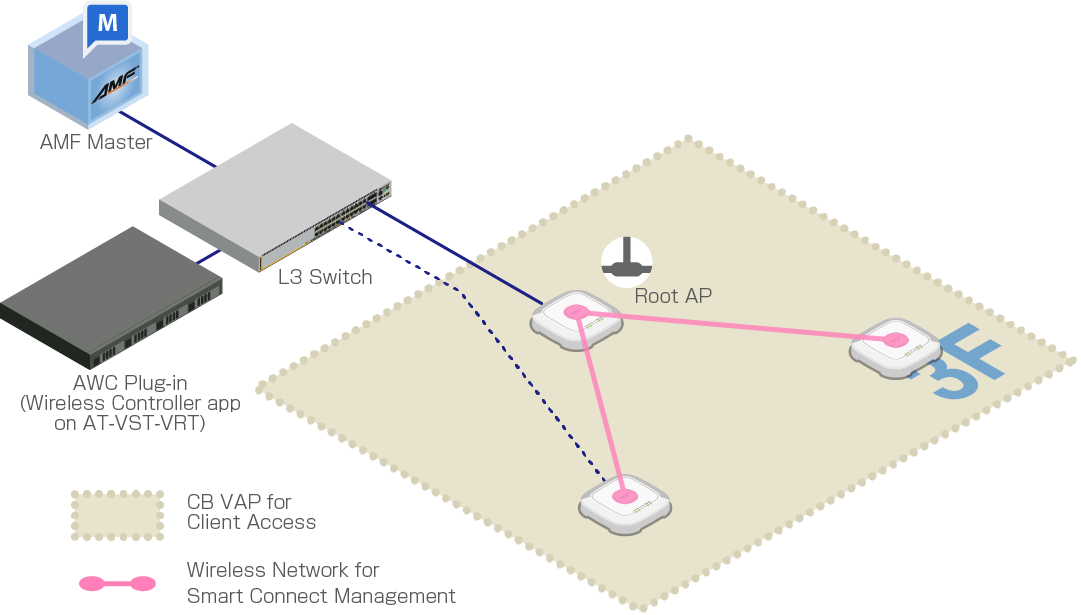
| Device Name | Node Name | IP Address | MAC Address | Role |
|---|---|---|---|---|
| Wireless Controller application container | 192.168.1.250 | AWC Plug-in | ||
| AlliedWare Plus Layer 3 Switch | 192.168.1.1 | PoE+ power sourcing, DHCP/NTP server | ||
| TQ5403 |
TQ5403-SC-1 |
192.168.1.230 |
00:00:5E:00:53:00 |
Root AP (wired) Powered by PoE+ |
| TQ5403-SC-2 |
192.168.1.231 |
00:00:5E:00:53:20 |
Satellite AP (wired) Powered by an AC Adapter |
|
| TQ5403-SC-3 |
192.168.1.232 |
00:00:5E:00:53:40 |
Satellite AP (wireless) Powered by AC Adapters |
|
| TQ5403-SC-4 | 192.168.1.233 | 00:00:5E:00:53:60 | ||
| TQ5403-SC-5 | 192.168.1.234 | 00:00:5E:00:53:80 | ||
Based on this, the following wireless network will be created.
| Radio | VAP | AP Profile | SC Profile | Overview |
|---|---|---|---|---|
| VAP1 | Wireless network for empolyees | |||
| VAP1 | Default-1 (default) |
For SC Management | ||
| VAP2 | (default) |
For bootstrapping factory default APs (Automatic setting) | ||
| VAP1 | Default-1 (default) |
Disabled |
If the same VAP number is used for the AP Profile and SC Profile, SC VAP will be used for that number.
Therefore, VAP "Default-1" set by default on Radio 2 in the AP Profile is not used, "SC-Default-cVVGG" set in the SC Profile overrides the VAP.
In addition, for the VAP2 of the radio band declared to be used in the SC Profile, the SSID "sc-initial-provisioning" set by deafult for the factory default AP connection is used.
This is the same SSID defined for each radio band of the factory default AP, and is used for listening to the beacon of the factory default AP.
NoteIn the radio band used by AWC-SC, the other VAPs will be disabled automatically.
Configure External IP Address for AWC Plug-in
When using the AWC Plug-in on VST-VRT to manage Wireless APs, it is necessary to register the IP address of the Wireless Controller application (AWC Plug-in) on the VST-VRT as an external IP address in the System Setting screen of the AWC Plug-in in advance.If you have already configured the external IP address of the AWC plug-in correctly, this step is not necessary.
- Click on System Setting from the AWC Plug-in menu.
The "System Setting" screen appears.
- In "External IP Address for AWC plug-in" under "IP Address Settings", select the IP address of the Wireless Controller application (i.e., AWC Plug-in) on the VST-VRT from the dropdown list.
For this configuration example, select "192.168.1.250".
- Click on "Save" button in the right side of "IP Address Settings".
22 Apr 2021 15:29