Overview
AWC-CB (AWC-Channel Blanket)
The AWC-CB (AWC-Channel Blanket) feature enables you to create a channel blanket wireless network that you can use in conjunction with multi-channel networks and can manage efficiently.◼ Multi-channel Wireless Networks
In a conventional multi-channel wireless network, multiple wireless APs are configured to use different channels to cover a wider area than a single AP can cover.
With this configuration, there are complexities in channel planning, and problems such as packet loss, caused by inter-AP roaming, and slow traffic, caused by sticky clients. Sticky clients maintain their association with the AP that they are initially connected to, even once that AP is at a distance.
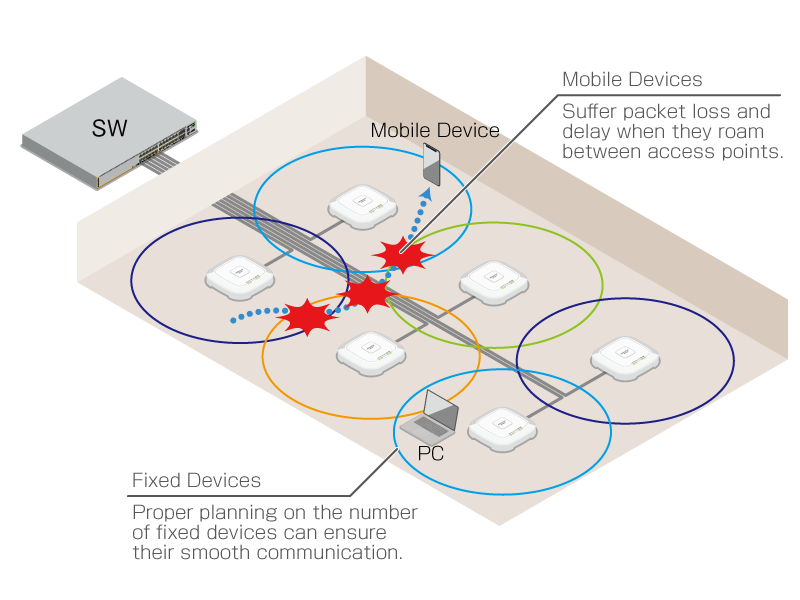
◼ Blanket Wireless Network
On the other hand, in a channel blanket (or blanket) wireless network, multiple wireless APs use the same channel and form a single large virtual AP to provide network access to clients. In this configuration, communications can be more stable, without roaming causing packet loss and sticky clients, because only a single channel is used. This also removes the need for complex channel planning.
However, because all clients send and receive traffic on the same channel, only a single AP can transmit at a given moment, therefore downlink throughput will decrease.
AWC-CB uses patented "Multi-Communication Technology" to let multiple clients on a blanket network send/receive data simultaneously using separate APs, as long as they do not interfere with each other.
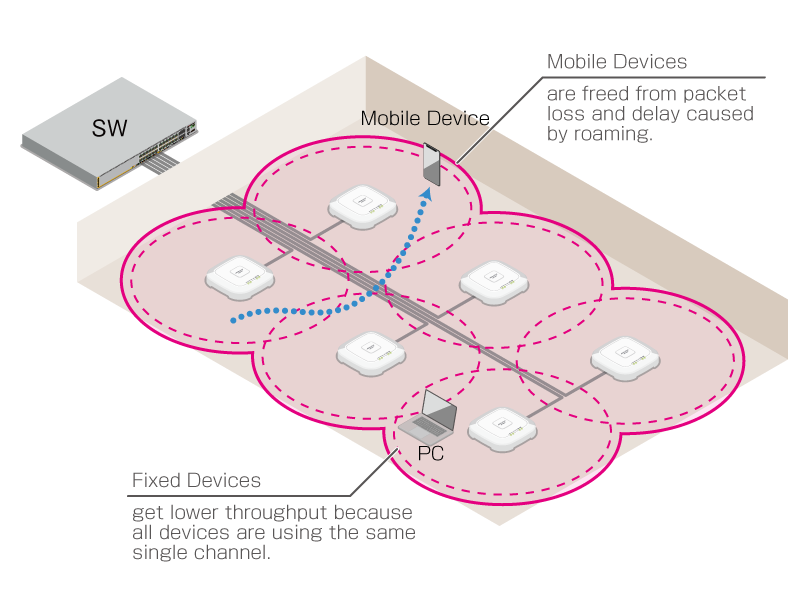
The following table shows the differences between multi-channel and blanket wireless networks.
| Multi-channel (Conventional) | Blanket | |
|---|---|---|
Depending on clients |
Zero Time |
|
Complex channel planning is required |
Because of using a single channel, channel planning is not required |
|
By limiting the number of clients per cell high throughput can be achieved. |
Because of using a single channel, throughput decreases with more clients |
◼ Hybrid Wireless System
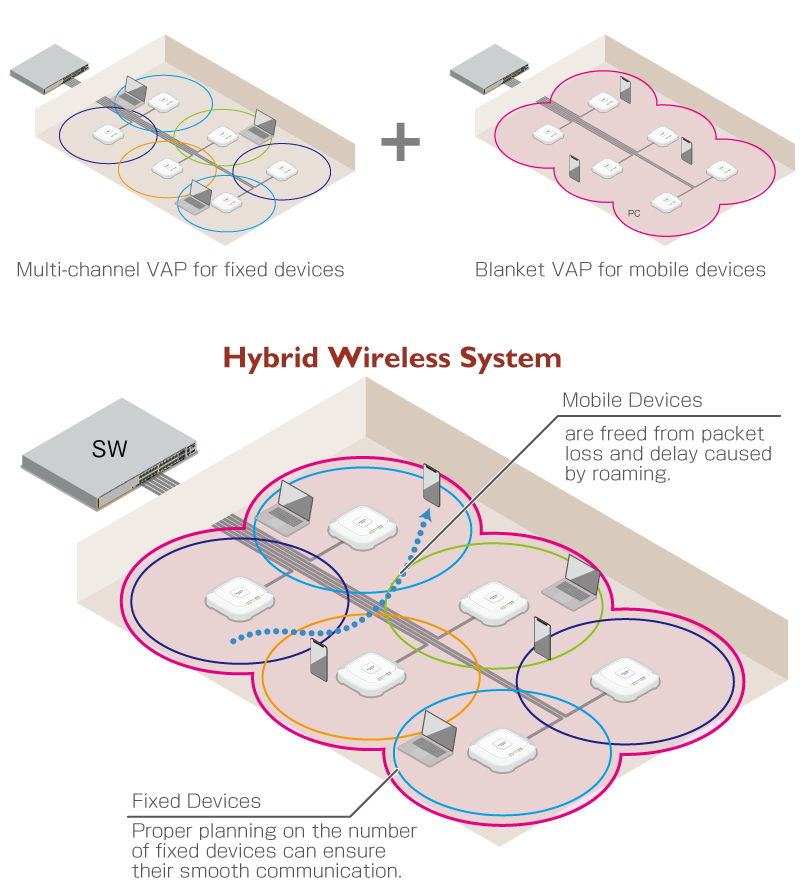
With AWC-CB, it is possible to easily build a hybrid wireless network, which combines the strengths of both multi-channel and blanket networks. Multi-channel and blanket networks can be configured on a single AP, where the multi-channel networks are defined as ordinary VAPs in an AP Profile and the blanket networks are defined as VAPs in a CB Profile.
For example, by assigning static, high-throughput stations such as PCs to multi-channel VAPs and putting mobile, low-throughput devices in blanket VAPs, your network as a whole can be utilized and managed more efficiently.
NoteBecause a channel blanket controls multiple APs as a single large virtual AP, individual APs in the channel blanket transmit beacon signals in turn. Some clients may appear to have unstable signal strength, due to receiving beacon signals from wireless APs other than the wireless AP that they are connected to. This does not cause any problems with network traffic quality.
Required Licenses
The following licenses are required to use AWC-CB functions with the AWC Plug-in:- Vista Manager EX License
- Wireless LAN Controller License (10 APs)
- Wireless Channel Blanket License (10 APs)
For example, the following licenses are needed when you run 40 APs in a multi-channel wireless network and 25 APs in a channel blanket network.
| Multi-channel |
AWC-CB |
Total |
|
|---|---|---|---|
| Number of APs | 40 | 25 | 65 |
| Vista Manager EX License | 1 | 1 | |
| Wireless LAN Controller License (10 APs) |
4 (Max 40) |
3 (Max 30) |
7 |
| Wireless Channel Blanket License (10 APs) |
- |
3 (Max 30) |
3 |
Supported Wireless APs
The following AP models support AWC-CB.- TQ Series:
TQ5403 and TQ5403e
Firmware Version 5.3.x or later
Support Limits
The number of CB Profiles, channel blankets, APs per channel blanket, VAPs per channel blanket, and wireless clients that can be supported are:- CB Profile
100
- Channel blankets
20
- APs per channel blanket
100
- VAPs per channel blanket
Up to 6 (On TQ5403; 3 for each of 2.4GHz and 5GHz)
Note
When running TQ5403 or TQ5403e, firmware version 6.0.1-1.x or later is required. With older firmware, the number of supported VAPs per Channel Blanket is up to 4; 2 for each 2.4GHz and 5GHz.
- Wireless clients
500 per radio band
Note
The limit of 500 clients per radio band is unchanged regardless of the number of VAPs used (i.e. it is the same if only a single blanket VAP is used or several multi-channel and blanket VAPs are used).
Note that multi-channel VAPs can support only 200 clients per radio band.Note
The number of wireless clients shown above indicates the maximum number that can be connected and does not guarantee communication quality.
To ensure communication quality, design by taking into account the usage environment and bandwidth used.
Steps to Create a Hybrid Wireless System
To build a hybrid wireless system, follow the steps below.◼ Build from scratch (with new wireless APs)
- Physically install the APs.
- Add the APs to the AWC Plug-in's management database.
Add them on the AP Settings page.
- Place the APs on floor maps.
Create floor maps and place APs on them on the Floor Map page.
If you select APs from a list of APs in a Management Group at step 6, you do not need to create floor maps. However, it is recommended that you create floor maps if you will have a lot of APs in a single Management Group.
- Create an AP Profile.
Create an AP Profile on the AP Profile page. Then configure general, system, wired network, wireless network and multi-channel VAPs.
- Create a CB Profile, which bundles together the common settings for a blanket network.
Create a CB Profile on the CB Profile page. Then configure CB VAPs (VAPs for blanket networks) in addition to the profile name and Management Group.
You can create 6 CB VAPs per CB Profile.
Note
When running TQ5403 or TQ5403e, firmware version 6.0.1-1.x or later is required. With older firmware, the number of supported VAPs per Channel Blanket is up to 4; 2 for each 2.4GHz and 5GHz.
- Create a channel blanket to which you want to apply the CB Profile.
Create a channel blanket on the CB Profile page and select member APs.
Member APs can be selected visually on floor maps, or can be selected on a list of APs in a Management Group.
Refer to Create Channel Blanket for more details.
- Apply the AP Profile to the APs.
The APs remain unmanaged until you apply an AP Profile to them.
Once the AP Profile is applied to the APs on the AP Settings page, the APs' status changes to "Managed" and both multi-channel and blanket networks are made operational.
◼Re-configure existing APs
- Create a CB Profile, which bundles together the common settings for a blanket network.
Create a CB Profile on the CB Profile page. Then configure CB VAPs (VAPs for blanket networks) in addition to the profile name and Management Group.
You can create 4 CB VAPs per CB Profile.
- Create a channel blanket to which you want to apply the CB Profile.
Create a channel blanket on the CB Profile page and select member APs.
Member APs can be selected visually on floor maps, or can be selected on a list of APs in a Management Group.
Refer to Create Channel Blanket for more details.
- Apply changes to the APs.
Once the CB Profile is applied to the APs on the CB Profile page, the blanket network becomes operational in addition to the existing multi-channel networks.
Refer to Apply CB Profile for more details.
Notes
Please note the following items when you are configuring VAPs:- While AP Profiles are numbered sequentially from 1, a CB Profile can have an arbitrary unique number in the same range as the AP Profile.
If you specify the same number for a CB Profile as the existing AP Profile, the CB VAP is used for the number (the AP Profile's VAP with the number is not used because it's overriden by the CB VAP with the same number).
- The AP Profile and CB Profile have some similar options (such as Channel and Tx Power per radio band). The settings on the CB Profile take precedence.
- Emergency Mode cannot be used with channel blanket.
When configuring an AP Profile, do not set "Condition" to "Emergency mode only" on the radio used for channel blanket.
Also do not set "VAP Status" to "Emergency" for the VAP whose number is the same as the CB VAP (VAP for channel blanket).
- Channel Blanket cannot be used with Air Time Fairness.
When configuring an AP Profile, disable Air Time Fairness on the radio band used for channel blanket in the "Radio Configuration" section.
- Changing the RTS threshold is not supported with channel blanket.
When configuring an AP Profile, leave "RTS Threshold" untouched at the default value of 2347 in the "Radio Configuration" section.
- Channel Blanket cannot be used with APSD.
When configuring an AP Profile, disable APSD on the radio band used for channel blanket in the "Radio Configuration" section.
- Channel Blanket cannot be used with Band Steering.
When configuring an AP Profile, disable Band Steering in the "Radio Configuration" section.
- Channel Blanket cannot be used with WDS.
- Channel Blanket cannot be used with the OpenFlow feature.
- A BSSID used for a Channel Blanket may be detected as a rogue wireless AP. Disable Wireless IPS on the Management Group to which the APs for the Channel Blanket belong.
- AWC is not supported on the radio band used for Channel Blanket.
- Wireless IDS/IPS is not supported on the radio band used for Channel Blanket.
- Because the APs in a Channel Blanket use the same channel, interference may occur on a multi-channel VAP configured on the same radio band as the blanket VAP. Make sure you test thoroughly before using CB VAPs and multi-channel VAPs on the same radio band.
- Changing the Broadcast Key Refresh Interval is not supported with channel blanket. Do not change its value from the default of "0".
- On CB VAP, TKIP cannot be specified as the encryption protocol in WPA Personal / WPA Enterprise.
- WPA3 is not supported on CB VAPs.
- RADIUS accounting is not supported on CB VAPs. Do not enable it.
- RADIUS Session-Timeout attribute is not supported on CB VAPs. This attribute is ignored by the APs in a channel blanket.
- Pre-Authentication is not supported on CB VAPs.
- Dynamic VLAN is not supported on CB VAPs.
- Captive Portal is not supported on CB VAPs. Do not enable it.
- Fast Roaming is not supported on CB VAPs. Do not enable it.
- Combination with Inactivity Timer is not supported on CB VAPs. Use the default setting.
- Duplicate AUTH received is not supported on CB VAPs. Use the default setting.
- When using MAC Access Control with "External RADIUS" on CB VAP, TQ5403, TQ5403e firmware version 6.0.1-2.x or later is required.
- Using the same VLAN ID for both a channel blanket's Control VLAN and an AP's management VLAN is not supported.
It is also not supported to use the same VLAN ID for both a channel blanket's Control VLAN and a user VLAN for any VAP.
- If you change AP-specific configuration settings that are also available in the channel blanket configuration, the settings in the channel blanket configuration are used.
However, if you change the Tx Power in the AP-specific configuration settings, the AP-specific setting is used.
- Disable "MAC address thrashing protection" function in the channel blanket network.
- When applying the same CB profile to wireless APs configured with different AP profiles, the following radio settings for each AP profile must be the same settings for the radio band where the channel blanket is to be created.
- Mode
- Bandwidth
- Maximum Wireless Clients
- Fixed Tx Rate
- Neighbor AP Detection
- Mode
Supported Functions on CB VAP per AP Model
CB VAPs (VAPs for a channel blanket) are configured in a CB Profile.CB VAPs and multi-channel VAPs (ordinary VAPs) have different supported functions, as shown below.
| Item Name | Multi-channel VAP | Blanket (CB) VAP | Comment | |||
|---|---|---|---|---|---|---|
| Radio | N | Y | ||||
| VAP | N | Y | ||||
| Channel | N | Y | ||||
| VAP Status | Y | Y | ||||
| VLAN ID | Y | Y | ||||
| SSID | Y | Y | ||||
| Broadcast SSID | Y | Y | ||||
| Security | None | Y | Y | |||
| Static WEP | Y | Y | This can be configured only on VAP1 of each radio. Do not use a "Mode" that contains IEEE 802.11n in the AP Profile of APs using channel blanket. | |||
| Key Length | 64bit | Y | Y | |||
| 128bit | Y | Y | ||||
| Key Type | ASCII | Y | Y | |||
| Hexadecimal | Y | Y | ||||
| Key Index | Y | Y | ||||
| Security Key (WEP Key) | Y | Y | ||||
| WEP Authentication Method | Open System | Y | Y | |||
| Shared Key | Y | Y | ||||
| WPA Personal | Y | Y | ||||
| Security Key (WPA-PSK) | Y | Y | ||||
| WPA Versions | WPA2 | Y | Y | |||
| WPA | Y | Y | ||||
| Encryption Protocol | CCMP | Y | Y | |||
| Broadcast Key Refresh Rate | Y | N | Can be configured but is not supported | |||
| WPA Enterprise | Y | Y | ||||
| RADIUS Server Primary IP Address | Y | Y | ||||
| RADIUS Server Primary Secret | Y | Y | ||||
| RADIUS Server Secondary IP Address | Y | Y | ||||
| RADIUS Server Secondary Secret | Y | Y | ||||
| RADIUS Server Port Number | Y | Y | ||||
| Pre-authentication | Y | N | Pre-Authentication is not supported on CB VAPs. | |||
| WPA Versions | WPA2 | Y | Y | |||
| WPA | Y | Y | ||||
| Encryption Protocol | CCMP | Y | Y | |||
| Broadcast Key Refresh Rate | Y | N | Can be configured but is not supported | |||
| RADIUS Accounting | Y | N | Can be configured but is not supported | |||
| RADIUS Accounting Port Number | Y | Y | ||||
| Dynamic VLAN | Y | N | ||||
| MAC Access Control | Y | Y | ||||
| External RADIUS | Y | Y* | TQ5403, TQ5403e firmware version 6.0.1-2.x or later is required. | |||
| RADIUS Server Primary IP Address | Y | Y* | ||||
| RADIUS Server Primary Secret | Y | Y* | ||||
| RADIUS Server Secondary IP Address | Y | Y* | ||||
| RADIUS Server Secondary Secret | Y | Y* | ||||
| RADIUS Server Port Number | Y | Y* | ||||
| User-Name Format Separator | Y | Y* | ||||
| User-Name Format Letter Case | Y | Y* | ||||
| User-Password Format | Y | Y* | ||||
| User-Password Format Password | Y | Y* | ||||
| MAC Address List | Y | Y | ||||
| Selected List | Y | Y* | * This item is not displayed on the CB VAP configuration page. The MAC Address List that is selected for the AP Profile is applied to CB VAPs. |
|||
| Area Authentication | Y | Y | ||||
| Fast Roaming | Y | N | Can be configured but is not supported | |||
| 802.11r FT | Y | N | ||||
| FT over DS | Y | N | ||||
| Mobility Domain | Y | N | ||||
| R0 key Lifetime | Y | N | ||||
| AES Key | Y | N | ||||
| 802.11k RRM | Y | N | ||||
| 802.11v WNM | Y | N | ||||
| Wireless Client Isolation | Y* | Y | * For multi-channel VAPs, this is configured in the "Radio Configuration" section of an AP Profile. For CB VAPs, the setting for the CB VAP is preferred. The setting in the AP Profile is ignored. |
|||
| Inactivity Timer | Y | Y | ||||
| Duplicate AUTH received | Y | Y | ||||
| DTIM Period | Y* | Y | * For multi-channel VAPs, this is configured in the "Radio Configuration" section of an AP Profile. | |||
| RSSI Threshold | N | Y | ||||
| Tx Power | Y* | Y | * For multi-channel VAPs, this is configured on the AP-specific configuration page. When using Channel Blanket, do not set the Tx Power on the AP-specific configuration page. |
|||
22 Apr 2021 15:29