Search and Switch View of Floor Maps
This section explains how to search and view floor maps.
Search Floor Map
- Select "Wireless Monitoring" > "Floor Map" from the AWC Plug-in menu.
- The "Search Floor Map" box is located at the top left of the Content section.
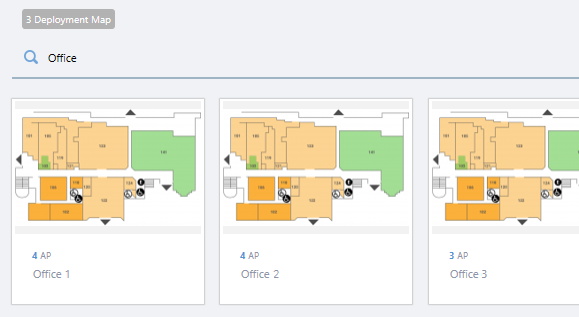
- Enter a search keyword in the box and press the Enter key.
The Search field lets you enter a partial string to match. The screen displays entries with that string in one of the following fields: "Floor Map Name", "Management Group Name" or "Tag".
To remove the filter, delete the string from the Search field and press Enter.
Note
The search is case-sensitive. Spaces (including full-width ones) are also treated as a part of the string.
Switch View of Floor Map
Floor Maps can be displayed in either a panel or a list view.To change the display format from panel view to list view, follow the steps below.
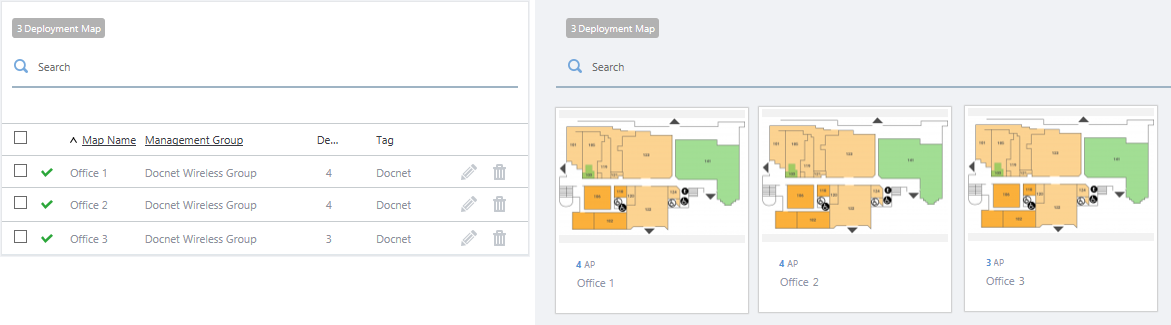
- Select "Wireless Monitoring" > "Floor Map" from the AWC Plug-in menu.
- Click "List View" at the top right of the Content section.
- Floor maps will be shown in a list view.
- To restore panel view, click "Panel View" at the top right of the Content section.
09 Sep 2021 11:06