Manage Task Scheduling
This section explains how to add, edit, or delete scheduled tasks.
Add Scheduled Task
- Select "Wireless Maintenance" > "Task Scheduling" from the AWC Plug-in menu.
- Click "Create" at the top right corner.
- The "Create Task Schedule" dialog will appear.
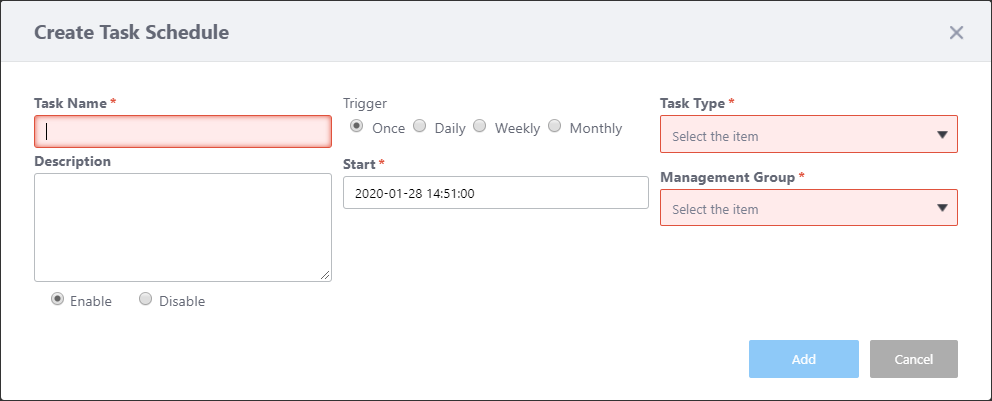
Table 1: "Create Task Schedule" dialog box
Item Name Description Common Items Task Name Enter a name for this scheduled task. Max 100 characters. (The AWC Plug-in for VST-VRT does not allow the use of \ / : * ? " < > | , and multi-byte characters) (mandatory). Notes Enter a description for the scheduled task. Max 100 characters "Enable", "Disable" radio buttons Select either "Enable" or "Disable". Trigger Specify when and how many times the scheduled task should be run. Available options are "once", "daily", "weekly", and "monthly". Start
Specify a time when the scheduled task is executed for the first time.
- If you select "once" or "daily" for the "Excecution Timing", specify a start date/time here.
- If you select "weekly" for the "Execution Timing", specify a start date/time and a day of the week here.
- If you select "monthly" for the "Execution Timing", specify a start date/time and a day of the month here (mandatory).
Task Type
Select a type of scheduled task. Available options are "Apply Config", "Upgrade Firmware", and "Apply AWC Calculation Results" (mandatory).
- Apply Configuration:
This scheduled task applies the AP Profile and AP-specific configuration settings that are assigned to the AP.
- Upgrade Firmware:
This scheduled task updates the APs' firmware.
- Apply AWC Calculation Results:
This scheduled task applies AWC Calculation Results to APs.
Management Group Select a Management Group for the scheduled task. "Add" button Adds this scheduled task. "Cancel" button Closes the dialog box without adding this scheduled task scheduling. Task Type: Apply Config Supported AP Models Shows a list of target APs. The scheduled task is run against the APs in the list. Select Target APs
Lets you select which APs you want to apply the configuration to (mandatory).
- Search Wireless AP:
Lets you select APs to which you want to apply the configuration.
The Search field lets you enter a partial string to match. The screen displays entries with that string in the "Device Name" field.
To remove the filter, delete the string from the search field and press enter.
Note
The search is case-sensitive.
Task Type: Upgrade Firmware Supported AP Models Shows a list of target APs. The scheduled task is run against the APs in the list. Select Target APs
Lets you select which APs' firmware you want to update (mandatory).
Note
The number of APs that can be updated at a time depends on the traffic rate between the AWC Plug-in and each AP.
If the traffic rate between the AWC Plug-in and each AP is 1 Gbps, the maximum number of APs that can be updated at one time is approximately 200 for the TQ5403, TQ5403e and TQm5403, otherwise it is up to 350 units.
If the bands are used for other communication, the maximum may be less than the above number.Note
This scheduled task updates each AP using the firmware that was assigned to the AP on the Add Firmware page. The scheduled task can be performed on a mixed set of different AP models but to do so, you have to assign an appropriate firmware file to each AP.
- Search Wireless AP:
Lets you select APs to which you want to apply the configuration.
The Search field lets you enter a partial string to match. The screen displays entries with that string in the "Device Name" field.
To remove the filter, delete the string from the search field and press enter.
Note
The search is case-sensitive.
Task Type: Apply AWC Calculation Results AWC Calculation Time to Use
Specify an AWC calculation time to use (mandatory).
Note
The results of the AWC calculation applied by the AWC plug-in is determined by starting from a date and time that matches the calculated time within 24 hours of the execution of the schedule.
From the AWC calculation results that exist within two hours before the date and time that matches the calculation time, the one nearest to the calculation time will be applied.
(Example)
Assume that you have registered a schedule for the application of AWC calculation results with the following settings:
- AWC calculation time: 15:00
- Triggers: Daily
- Start: 2017-04-01 03:00:00
In this case, when the schedule is executed at 3:00 on April 1, 2017, the AWC calculation result of the date and time closest to the calculation time (15:00) within the range of
13:00 on March 31, 2017; to 15:00 on March 31, 2017
will be applied.
If the AWC calculation results for March 31, 2017, exist as follows:
... 13:40, 14:40, 15:40, ...
the AWC Calculation result at 14:40 on March 31, 2017, will be applied.
- If you select "once" or "daily" for the "Excecution Timing", specify a start date/time here.
- Configure common items.
- Configure a scheduled task. Select a scheduled task type from "Apply Configuration", "Update Firmware" and "Apply AWC Calculation Results". Type-specific items vary depending on the Task Type.
- Click "Add".
Edit Scheduled Task
- Select "Wireless Maintenance" > "Task Scheduling" from the AWC Plug-in menu.
- On the scheduled task list, click "Edit" (pencil icon) to the right of a task you want to edit.
- The "Edit Task Schedule" dialog box will appear.
- Change items and click "Save".
Delete Scheduled Task
NoteIf you delete all entries on the last page of the list, the page won't be deleted and an empty list page will be displayed. The number of pages will be refreshed after moving to another page or reloading the browser.
- Select "Wireless Maintenance" > "Task Scheduling" from the AWC Plug-in menu.
- On the scheduled task list, click "Delete" (trashbin icon) to the right of a task you want to delete.
- The "Confirmation" dialog box will appear.
- Click "Delete".
09 Sep 2021 11:06