Management Group
To start AP management using the AWC Plug-in, you must first create Management Groups to group APs together.
By granting access permissions for specific Management Groups to a non-admin user, administrators can permit the user to review information on a limited set of APs and AP Profiles.
By default, a single Management Group is defined, called "Default Wireless Group". Only Admins can view and edit the "Default Wireless Group".
NoteThe maximum number of APs that can be assigned to a single Management Group is 350.
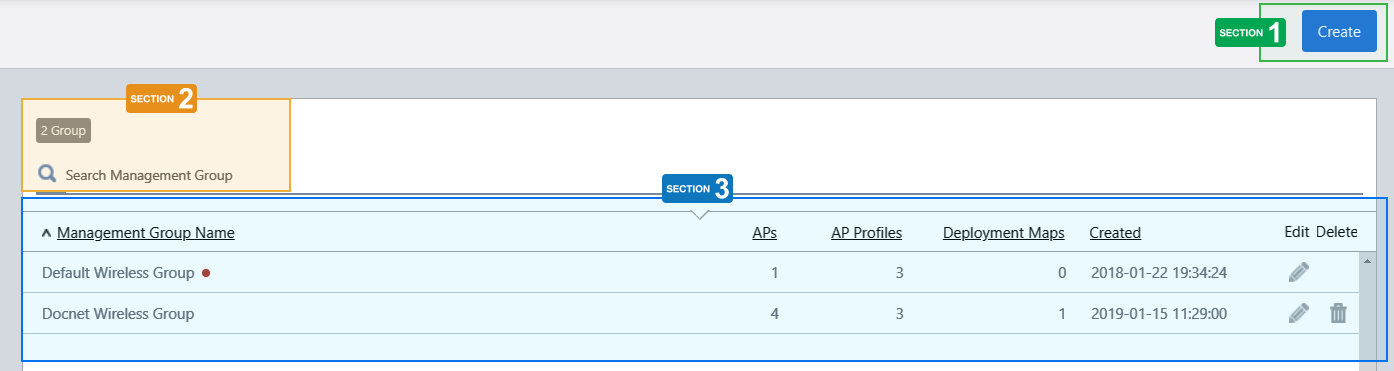
Section 1
| Item Name | Description |
|---|---|
| "Create" button | Opens the "Create Management Group" dialog box. Refer to Operation Reference > Wireless Configuration > Configure Management Groups for more details. |
Section 2
| Item Name | Description |
|---|---|
| X Group | Shows the number of Management Groups. |
| Search Management Group |
Lets you filter the list of Management Groups. The Search field lets you enter a partial string to match. The screen displays entries with that string in one of the following fields: "Management Group Name" or "Creation Date/Time". To remove the filter, delete the string from the search field and press enter. NoteThe search is case-sensitive. |
Section 3
| Item Name | Description |
|---|---|
| Management Group | Shows the Management Group name. |
| Deployed APs | Shows the number of APs in the Management Group. |
| AP Profiles | Shows the number of AP Profiles in the Management Group. |
| Deployment Maps | Shows the number of Floor Maps in the Management Group. |
| Createdand | Shows the date / time when the Management Group was created. |
| Edit (pencil icon) | Lets you edit the Management Group. |
| Delete (trashbin icon) |
Lets you delete the Management Group.NoteYou cannot delete the "Default Wireless Group". |
09 Sep 2021 11:06