Manage Accounts
This section covers the procedures to create, edit, and delete user accounts.
NoteThe AWC Plug-in shares the account database with Vista Manager EX and other plug-in(s). Only the Admin account can perform this operation.
Create Account
- Log in to Vista Manager EX using an Admin account.
- Select "User Management" from the main menu.
- Click "Create" at the top right corner.
The "New User" screen will appear.
- Enter a Username, Full Name, and an Email address.
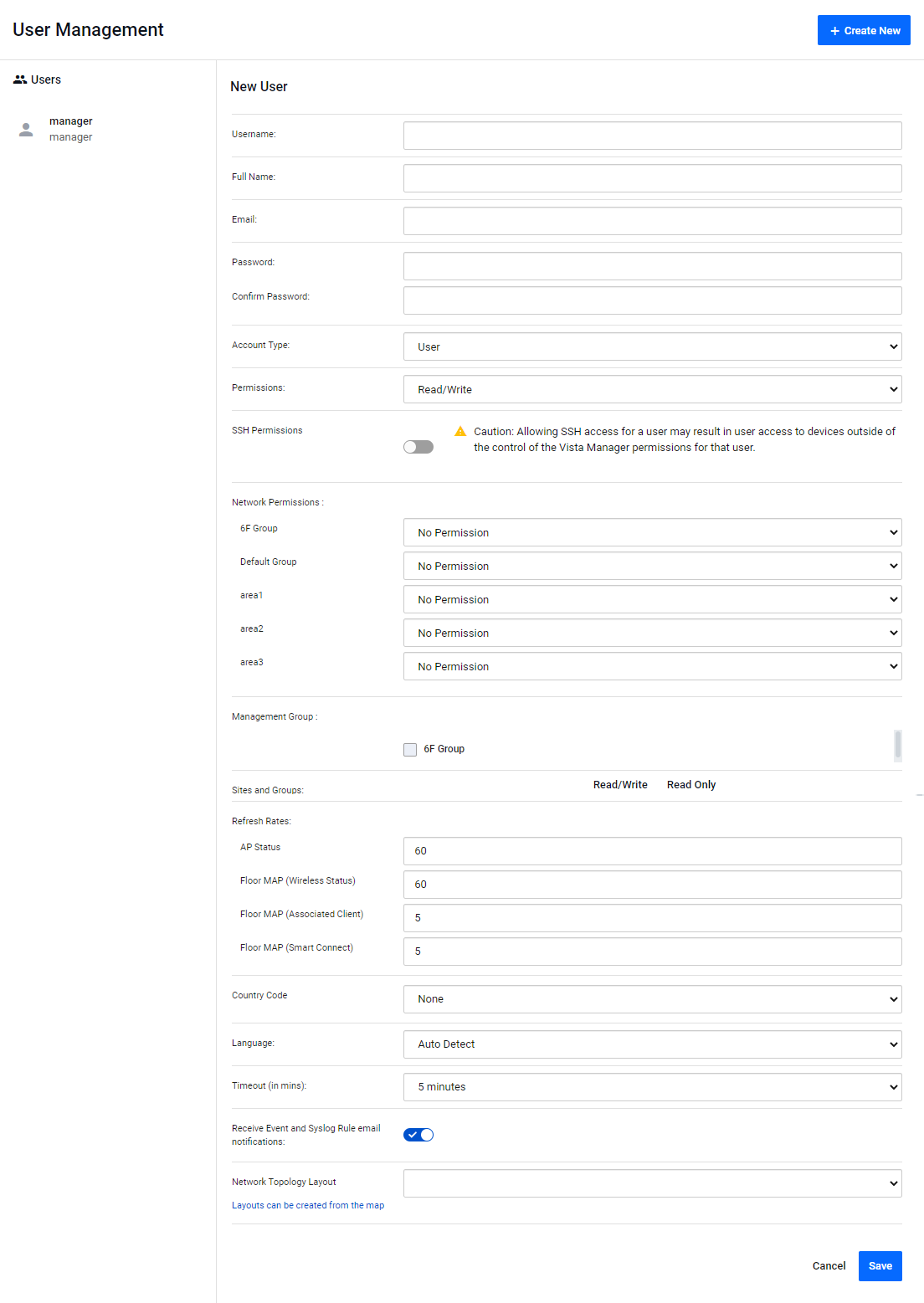
Table 1: Account Configuration 1 Item Name Description User ID The account name of the user that is used to login.
Note
The username cannot be changed once created.
Note
The username is not reusable and should be unique through the whole lifetime of an Vista Manager EX / AWC Plug-in system. That is, once an account has been created with a username, the username cannot be used for another account, even if you delete the original account.
Please carefully consider the account policy etc. before creating one.
Full Name A display name for the user, such as their full name. The full name should be less than or equal to 100 characters in length. Email The email address to be used for password recovery and license expiry notification. Please specify a valid email address.
Note
If an obsolete account is deleted, the email address associated with it at the time of deletion is not reusable. If you are going to delete an account, and if it is possible for the email address owner to have another account in the future, we recommend you change the email address of the obsolete account to a dummy address before deleting the account.
- Enter a password.
Then enter the same password again for confirmation.
Table 2: Account Configuration 2 Item Name Description Password Password for the user. The password should be at least 8 characters, with alphabets (case-sensitive), numbers, and symbols (! @ # $ % ^ & * ( ) may be used). It must also contain at least one number, one alphabet, and one symbols each. Confirm Password Enter the same password again for confirmation. - Select an account type, Admin or User.
If you specify "User" as the Account Type, select the user's Network Permissions on AMF areas.
When the AWC Plug-in is registered, configure access permissions for AWC Plug-in's management groups.
Table 3: Account Configuration 3 Item Name Description Account Type Select an account type.
- Admin
Can use all functions of Vista Manager EX, including user and system settings.
For the AWC Plug-in, Admins can use all wireless management functions.
- User
Can perform configuration and check status of a permitted area only.
Can perform wireless management operations, except the ones listed below:
- Create Management Group
- View the AWC Calculation Result Log
- Initialize the system and view version information
- Create Management Group
SSH Permissions If the Account Type is "User", the option for the permission of SSH connection to the AMF devices is displayed. The default is "Off".
- On
SSH connections can be made to AMF devices in AMF areas with management group permissions set to "Read/Write".
Note
Permission controls in Vista manager EX do not apply to operations on the CLI. That is, when SSH Permission is On, the user of the account can SSH to any AMF device on the network and make configuration changes on the CLI.
- Off
SSH connections are not possible for AMF devices even if the management groups they belong to are set to "Read/Write".
This option is not displayed when the account type is set to "Admin". Admins can connect to all the AMF devices via SSH.AWC Management Group When the AWC Plug-in is registered to Vista Manager EX, this field indicates the permissions for using management groups for the account whose account type is set to "User".
- When checked:
The user will be able to perform the following operations on the selected management group:
- View management group settings (AWC Management Group name, Network name, Area name)
- View, add, edit, and delete APs that belong to the management group
- View, add, edit, and delete floor maps that belong to the management group
- Create, edit and delete various Profiles.
- View management group settings (AWC Management Group name, Network name, Area name)
- When unchecked:
The floor maps, profiles, and APs which belong to the management group will not be displayed when a user logs in with this account.
Note that the "My Account" screen, which is displayed from the user ID in the administration column, shows the names of all AWC management groups registered to the AWC Plug-in, regardless of whether they have been permitted for management or not.
The management group must be created in advance with an "Admin" account type.
Note
It is not possible to allow a "User" account to only view floor maps, profiles, and APs under management that belong to a management group while prohibiting changes to the management group.
Note
This option is not displayed when the account type is set to "Admin". You can edit all management groups and manage the floor maps, associated APs, and profiles they belong to.
Feature Permissions If the account type is "User", specify the permissions for certain Vista Manager EX features.
- Read Only
Only the results of the relevant functions can be viewed.
- Read/Write
It is possible to view, change and delete settings of the relevant functions.
Features that can be individually configured include the following:
- Active Fiber Monitoring
- Service Monitoring
This option is not displayed when the account type is set to "Admin". The Admin has the same permissions as "Read/Write".Sites and Groups You can set management group permissions for particular sites and groups. There are no individual settings by default.
The groups include each AMF area of the automatically generated AMF network, and a "Network" badge appears next to these group names to show which is automatically generated.
Management groups are listed in alphabetical order, regardless of their types.
Accounts can be granted one of the following permission levels for each site or group.
- Read/Write
You can view the status or change the settings of the relevant site or group.
Settings include performing AMF backups of devices, SSH connections to AMF devices, editing device and event notes and changing backup settings on the AMF master.
- Read Only
You can only view the status of the relevant site or group.
The user can view topology maps of management groups and devices, device information, device and event notes, and logs of Abnormal or Normal events.
Note
The "My Account" screen, which you can access by clicking the User ID in the top left, does not display the names of sites or groups to a user who does not have any of these permissions.
If a device belongs to more than one site or group, it will follow the stronger privilege setting among them.
This option is not displayed when the account type is set to "Admin". Settings can be viewed and changed for all sites and groups. - Admin
- When using the AWC plug-in, set the various status update intervals and the country code to be used as the initial setting in the wireless AP configuration.
Table 4: Account Configuration 4 Item Name Description Refresh Rates Specifies the automatic display refresh intervals (in seconds) for the AWC Plug-in.
- AP Status (Default: 60 secs)
- Floor MAP (Wireless Status) (Default: 60 secs)
- Floor MAP (Wireless Clients) (Default: 5 sec)
- Floor MAP (Smart Connect) (Default: 5 sec)
Country Code Specify the default Country Code for AP profiles in the AWC Plug-in. This is used to properly configure APs for the country's radio frequency regulations. The default is None. - AP Status (Default: 60 secs)
- Select the Language for the web interface and configure the session Timeout.
Table 5: Account Configuration 5 Item Name Description Language Select the language used on the management web interface.
You can select from Auto Detect (Default), English, and Japanese. When set to "Auto Detect", the language is selected according to the web browser's language preference.Timeout Specify the web interface's session timeout.
A login session times out and the login page reappears after the configured number of minutes of inactivity.
Available options are 5 min, 10 min, 20 min, 30 min, 1 hour, and Never. If you set Timeout to Never, a login session never times out and automatic logout is disabled.
Timeout is set to 5 minutes by default. - Select whether to use the Receive Event and Syslog Rule email notifications, and if desired, select the default Network Topology Layout to be assigned to this user.
Table 6: Account Configuration 6 Item Name Description Receive Event and Syslog Rule email notifications When an event rule or a Syslog rule is configured to send e-mail notifications, use the toggle switch to set whether the corresponding account will receive the e-mails. Network Topology Layout Select a layout that you want to apply to the network map at first login, or allow to be applied thereafter.
The layout selected when logging in for the second or subsequent time will be the one that was previously selected.
If your account type is "User", you can also apply the layout specified by the administrator account, or save a new layout based on the specified layout as a template.
Layouts can be created in Vista Manager EX's Network Map. Click on the blue links below the item name to go to the Network Map screen. - Click "Save".
Edit Account
- Log in to Vista Manager EX using an admin account.
- Select "User Management" from the main menu.
- Select an account to change in the user list.
- Click "Edit".
- Change the items as required and click "Save".
Delete Account
- Log in to Vista Manager EX using an admin account.
- Select "User Management" from the main menu.
- Select an account to change in the user list.
- Click "Delete".
- The "Delete User" dialog box will appear. To delete the user, click "Delete" again.
14 Dec 2023 10:09