Overview
The TQ6702 GEN2-R and TQ7403-R wireless AP routers support the AlliedWare Plus firmware with command line interface (CLI) similar to Allied Telesis switch and router products.
Configuration of wireless functions such as VAPs and security, as well as routing and firewall settings as a router, are done through the CLI or Web Graphical User Interface (Web GUI) of the wireless AP router itself. The AWC plug-in only checks wireless and VAP settings and monitors the wireless AP and Associated clients via floor maps.
This quick tour will introduce the process of setting up TQ6702 GEN2-R and registering it under the AWC plug-in management.
Components
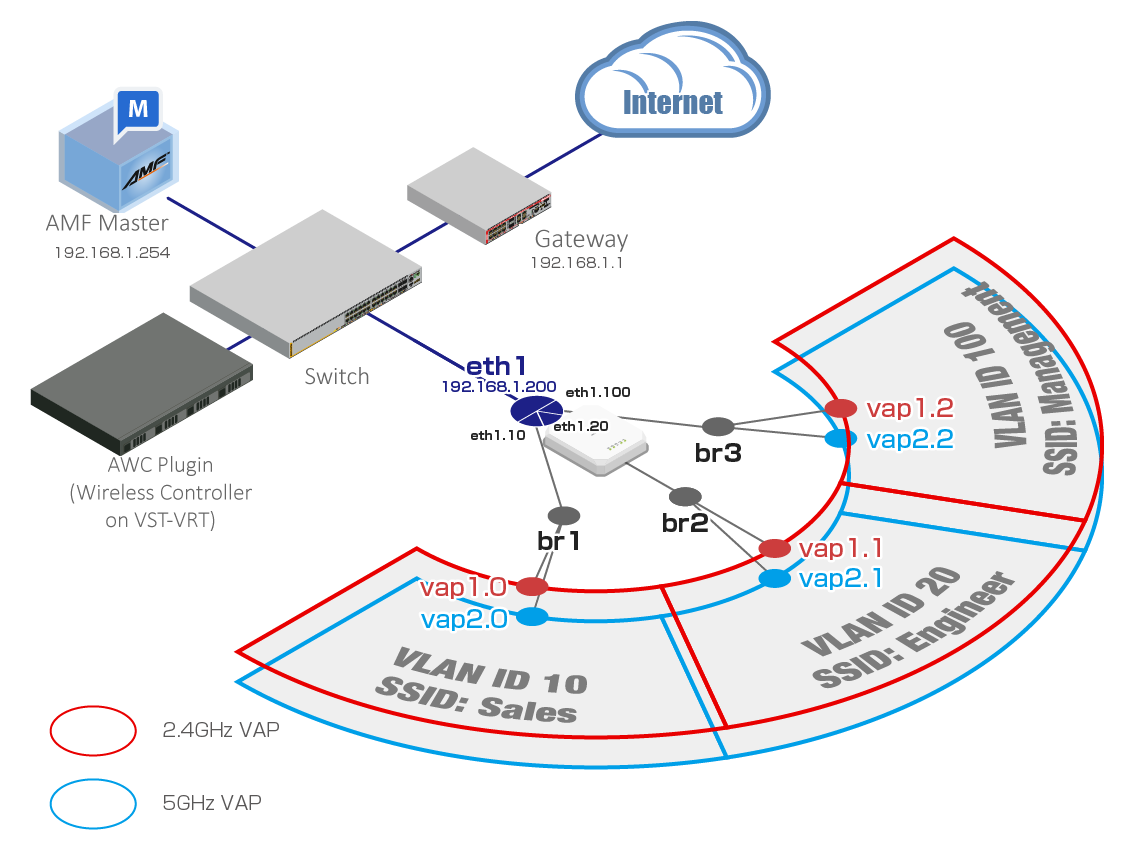
Here is an example where another device on the Vista Manager EX management network already has an access to the Internet.In this example, you will configure the basic settings for a terminal-based connection that is assigned a single fixed IP address on the management network.
You will configure WPA Personal wireless security mode.
In this configuration, three VAPs with the same SSID are created in each of the 2.4GHz and 5GHz bands, assuming a wireless LAN for in-house use.
Each VAP communicates with the wired network side via a bridge interface. In this case, an 802.1Q Ethernet subinterface is created on eth1 interface in order to send and receive communications from the VAPs as packets with different VLAN tags.
Band steering is enabled between VAPs with the same SSID to encourage client association to less congested bands.
This configuration does not use the DHCP server function of the AT-TQR series itself. It is assumed that a DHCP server is separately configured for each VLAN on upstream devices.
NoteWhen registering the wireless AP router under the management of the AWC plug-in, use eth1 port for the connection to the AMF network. You cannot register the router via eth2 port.
NoteIf you wish to use the AWC calculation results of the wireless router, please match the settings in the AP Profile with the settings in the CLI or Web GUI of the router itself. If you do not use the AWC calculation results, save the AP Profile in its default settings.
| VAP interface | SSID | Security Mode | Security Key | WPA Versions | |
|---|---|---|---|---|---|
| vap1.0 | Radio 1 (2.4GHz) VAP0 | Sales | WPA Personal | passphrase1 | WPA2 WPA3 |
| vap1.1 | Radio 1 (2.4GHz) VAP1 | Engineer | WPA Personal | passphrase2 | WPA2 WPA3 |
| vap1.2 | Radio 1 (2.4GHz) VAP2 | Management | WPA Personal | passphrase3 | WPA2 WPA3 |
| vap2.0 | Radio 2 (5GHz) VAP0 | Sales | WPA Personal | passphrase1 | WPA2 WPA3 |
| vap2.1 | Radio 2 (5GHz) VAP1 | Engineer | WPA Personal | passphrase2 | WPA2 WPA3 |
| vap2.2 | Radio 2 (5GHz) VAP2 | Management | WPA Personal | passphrase3 | WPA2 WPA3 |
| Information supplied from AMF Network Administrator | |
|---|---|
| IP Address / Net Mask | 192.168.1.200/24 |
| Default Gateway | 192.168.1.1 |
| AMF Configuration | |
| AMF Network Name | AMF001 |
| IP Address of the AMF Master | 192.168.1.254 |
| Basic Configuration on Wired Interface | |
| Physical Interface to the Wired LAN | eth1 |
| IP Address of Wired LAN (eth1) Interface | 192.168.1.200/24 |
| VLAN IDs of 802.1Q Subinterfaces | 10 20 100 |
| DHCP Server Function | Disable |
| Bridge Configuration | |
| Bridge | Member |
| br1 | vap1.0 vap2.0 eth1.10 |
| br2 | vap1.1 vap2.1 eth1.20 |
| br3 | vap1.2 vap2.2 eth1.100 |
Before configuring your device
Confirm and delete automatic configuration
This Quick Tour assumes that the wireless router starts in an unconfigured state (with factory settings only).Therefore, we usually recommend that you run "erase startup-config" command and start the system without the startup config in place before beginning the configuration.
awplus# erase startup-config
The wireless AP router, even without a startup configuration, may automatically configure itself when certain conditions are met. If this occurs, even if commands are entered according to the configuration example, the commands may result in an error or the intended operation as a whole may not be achieved.
To avoid this, we recommend that you do one of the following to start the setup
- Starts without a network cable connected and connect the cable after finishing startup sequence
One of the conditions for automatic configuration to take place at startup is the link-up of a specific interface.
Startup with no network cable connected avoids the application of automatic configuration.
- Manually delete the automatic settings before the configuration
If automatic settings have been applied, delete these settings manually before starting the configuration.
Notes
- This product does not have a built-in real-time clock, so the time must be adjusted each time it is started up.
When the wireless router is managed as an AMF member, the system time of the AMF member is synchronized with the AMF controller or master.
- After registering for the AWC Plug-in, configuration changes from the individual TQR series Web GUI and CLI are not supported.
The configuration that need to be applied from the WebGUI or CLI, should be performed before registering the TQR series to the AWC Plug-in.
- Management via the AWC Plug-in in conjunction with the Vista Manager EX's STOAT or Intelligent Edge Security (IES) features is not supported.
When using STOAT or IES with the TQR series, do not register them under the control of the AWC Plug-in, but set up the wireless function from the individual Web GUI or CLI of the TQR series.
- When restoring to this version from a backup file obtained with the AWC Plug-in older than software version 3.13.1, if data exists for the AP Profile of configuration type "Dual[11ax] GEN2-R", the configuration values at the time of backup will be restored.
In that case, the setting items added to the AP Profile in this version will be restored with the default values applied.
Since operating with default values is a security concern, we recommend that you change the settings as soon as possible after restoring the backup file.
29 Apr 2025 11:29